
Piano Identity Management now provides enhanced security for email address changes through the Security Protection feature. This feature helps prevent account access issues caused by incorrect email updates, protects users from unauthorized changes, and includes safeguards against account enumeration attacks.
Setup requirements
1. Update templates
Update My Account template
Navigate to Manage → Templates → Piano ID profile in My Account, and follow these steps:
Step 1: Add the code-resend flash message block
Insert this block above the .tp-form.form-horizontal div, alongside the existing flashProfileEmailResendConfirm block.
Before: (block did not exist)
After:
<div flashProfileEmailChangeCodeResend>
  <div class="complete-msg" data-e2e="email-change-code-resend-msg">
    <i class="complete-msg-icon"></i>
    <t>A new verification code has been sent. Please confirm your email.</t>
  </div>
</div>
Step 2: Add the "email change in progress" status row
Add a new control-group inside the form, before the existing *showIfResendConfirmationEmailNeeded row.
Before: (row did not exist)
After:
<div class="control-group">
  <div *showIfEmailChangeInProgress class="controls help email-status-message">
    <span class="title" data-e2e="emailChangeInProgressTitle"
    ><t>Email change in progress.</t>
      <a actionResumeEmailChange class="btn-link" data-e2e="emailChangeInProgressLink">
        <t>Continue confirmation</t>
      </a>
    </span>
  </div>
</div>
Step 3: Update the "resend confirmation email" row
The link is now inline within the <span> instead of a sibling <div>, and the class email-status-message is added to the controls wrapper.
Before:
<div class="control-group">
  <div *showIfResendConfirmationEmailNeeded class="controls help">
    <span class="title" data-e2e="resendTitle"><t>This email address is not confirmed.</t></span>
    <div>
      <a actionResendConfirmationEmail class="btn btn-link" data-e2e="resendLink">
        <t>Resend validation email</t>
      </a>
    </div>
  </div>
</div>
After:
<div class="control-group">
  <div *showIfResendConfirmationEmailNeeded class="controls help email-status-message">
    <span class="title" data-e2e="resendTitle"
    ><t>This email address is not confirmed.</t>
      <a actionResendConfirmationEmail class="btn-link" data-e2e="resendLink">
        <t>Resend validation email</t>
      </a>
    </span>
  </div>
</div>
Step 4: Remove the inline password field and replace with the password confirmation panel
Before:
<div class="control-group" *showIfEmailChanged>
  <label class="control-label" for="email-current_password">
    <t>Current Password</t>
  </label>
  <div class="controls">
    <input
      fieldProfileEmailCurrentPassword=""
      id="email-current_password"
      placeholder="{{ 'Current password' | t }}"
      type="password"
    />
    <span class="error-message" showIfPasswordInvalid><t>Password is required</t></span>
  </div>
</div>
After: (remove the above block entirely and add the password panel below the form fields)
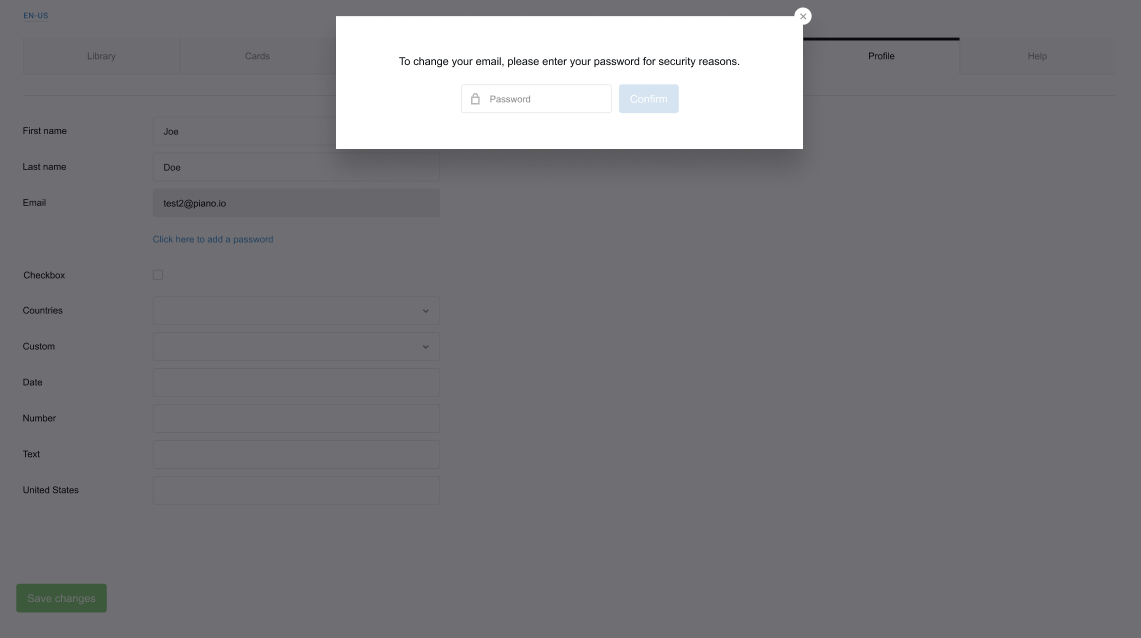
<div *showIfEmailChangePasswordModal class="email-change-password-container">
  <div class="email-change-password-close">
    <button class="email-change-password-close-btn" actionCloseEmailChangePassword></button>
  </div>
  <div class="email-change-password-content">
    <div>
      <div *hideIfEmailChangePasswordFailed>
        <p class="email-change-password-hint">
          <t>To change your email, please enter your password for security reasons.</t>
        </p>
      </div>
      <p *showIfEmailChangePasswordFailed class="email-change-password-failed">
        <t>Failed to change email. Please, make sure that password is valid.</t>
      </p>
    </div>
    <div class="email-change-password-controls">
      <div class="email-change-password-icon-wrapper">
        <i class="email-change-password-icon"></i>
      </div>
      <input fieldProfileConfirmEmailChangePassword id="email-change_password"
             placeholder="{{ 'Password' | t }}" type="password">
      <button actionConfirmEmailChange class="btn">
        <t>Confirm</t>
      </button>
    </div>
  </div>
</div>
Step 5: Add the verification code confirmation panel
Add this block immediately after the password panel from Step 4.
Before: (block did not exist)
After:
<div *showIfEmailChangeCodeModal class="email-change-confirmation">
  <div class="email-change-confirmation-close">
    <button class="email-change-confirmation-close-btn" actionCloseEmailChangeCodeModal></button>
  </div>
  <div class="email-change-confirmation-content">
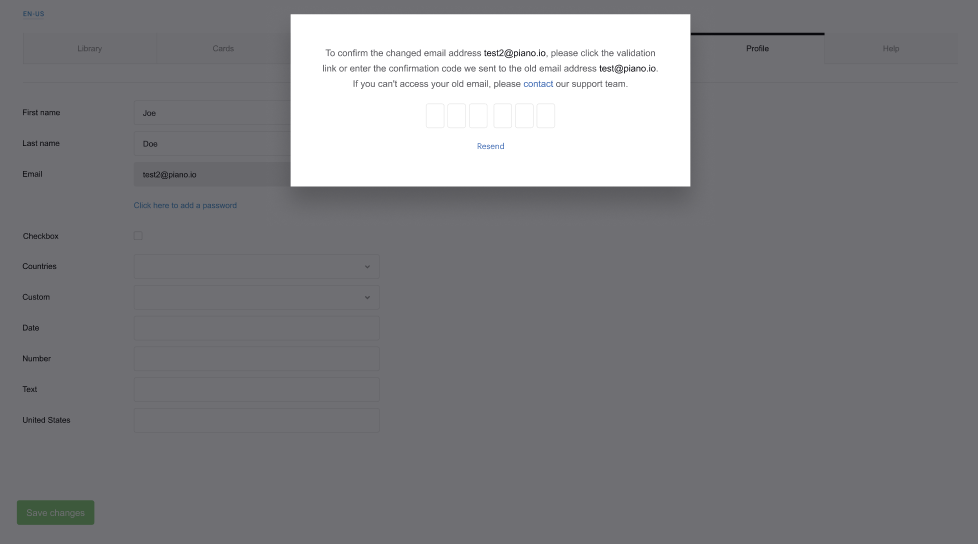
    <div *showIfConfirmingOldEmail class="email-change-confirmation-text">
      <p>
        <t>To confirm the changed email address</t>
        <b class="email-change-email" emailChangeNewEmail></b>,
        <t>please click the validation link or enter the confirmation code we sent to the old email address</t>
        <b class="email-change-email" emailChangeOldEmail></b>.
        <br>
        <t>If you can't access your old email, please contact our support team.</t>
      </p>
    </div>
    <div *showIfConfirmingNewEmail class="email-change-confirmation-text">
      <p>
        <t>Now confirm the new email address</t>
        <b class="email-change-email" emailChangeNewEmail></b>,
        <t>please click the validation link or enter the confirmation code we sent to the specified email.</t>
      </p>
    </div>
    <div class="email-change-confirmation-actions">
      <email-change-code-input></email-change-code-input>
      <a actionResendEmailChangeCode class="btn btn-link">
        <t>Resend</t>
      </a>
    </div>
  </div>
</div>
Step 6: Wrap the Save/Cancel buttons with conditional visibility directives
The Save/Cancel actions must be hidden while either modal panel is open.
Before:
<div class="tp-data-block-actions">
  <button actionUpdateProfileEmail class="btn btn-small btn-primary">
    <t>Save</t>
  </button>
  <button actionRestoreProfileEmail class="btn btn-small">
    <t>Cancel</t>
  </button>
</div>
After:
<div *hideIfEmailChangeCodeModal>
  <div *hideIfEmailChangePasswordModal class="tp-data-block-actions">
    <button actionUpdateProfileEmail class="btn btn-small btn-primary">
      <t>Save</t>
    </button>
    <button actionRestoreProfileEmail class="btn btn-small">
      <t>Cancel</t>
    </button>
  </div>
</div>
Update Piano ID template
Navigate to Manage → Templates → Piano ID Digital code, and follow these steps:
Step 1: Update the registration digital code template
Remove the hardcoded user@test.com placeholder from the registration confirmation text. The user's actual email is rendered by the userEmail directive on the adjacent <span>.
Before:
<p *showIfDigitalCodeAndMagicLinkWithSecurityProtectionEnabledOnRegistration class="pn-email-confirmation__text">
  <t>
    To complete registration, please click the validation link or enter the confirmation code we emailed to
    user@test.com
  </t>
  <span class="pn-email-confirmation__email" userEmail></span>
</p>
After:
<p *showIfDigitalCodeAndMagicLinkWithSecurityProtectionEnabledOnRegistration class="pn-email-confirmation__text">
  <t>
    To complete registration, please click the validation link or enter the confirmation code we emailed to
  </t>
  <span class="pn-email-confirmation__email" userEmail></span>
</p>
Breaking Changes
-
Inline password field removed. The
<div class="control-group" *showIfEmailChanged>block containingfieldProfileEmailCurrentPasswordandshowIfPasswordInvalidmust be removed from custom templates. Retaining it will cause a duplicate/conflicting form control. Replace it with the password panel described in Step 4. -
Save/Cancel buttons must be wrapped. Without the
*hideIfEmailChangeCodeModal/*hideIfEmailChangePasswordModalwrappers added in Step 6, the Save and Cancel buttons will remain visible while the confirmation panels are open, allowing conflicting user actions. -
Resend link markup changed. The
<a>inside*showIfResendConfirmationEmailNeededhas moved from a sibling<div>to inside the<span>. Custom CSS targeting.controls.help > div > awill stop matching. Use the updated structure from Step 3.
Notes
-
Close buttons for both panels (
.email-change-confirmation-close-btn,.email-change-password-close-btn) inherit shared styles from the phone confirmation and delete-account close button rules. No additional icon markup is required beyond the button element itself. -
The
flashProfileEmailChangeCodeResenddirective renders its host for 3 seconds on each resend event and setsrole="alert"automatically for screen reader accessibility. -
The popover will display:
-
For password users: Password confirmation field before initiating email change
-
For passwordless users: Confirmation code/link flow
-
Status messages for pending email changes
-
Options to resend confirmation or cancel pending changes
-
2. Configure email templates
Go to Manage → Email Manager, activate and customize three new templates:

|
Template |
ID Email Change Alert |
ID Email Change Verification |
ID Email Change Confirmation |
|
Sent to |
Old/previous address |
Old/previous address |
New address |
|
When sent |
Password user changes email; Security Protection enabled |
Passwordless user changes email; Security Protection enabled |
After old-email verification |
|
Subject |
"Confirmation of your email address change" |
"Confirmation of your email address change" |
"Email Change Confirmation Required" |
|
Variables |
|
|
|
Expiration: Pending email changes expire after 72 hours if unconfirmed.
-
Resending the confirmation code resets the full 72h window (the pending record is rewritten on resend).
-
The 6-digit code and the confirmation link live in the same pending record, so they expire together. The email copy pulls the expiration value dynamically, so the emails always match the TTL.
3. Enable security protection
Navigate to Piano ID settings, under Edit Business → User Provider, and toggle on Enable Security Protection against account takeover

How it works
For users with passwords:
-
User enters new email address in My Account
-
System prompts for current password confirmation
-
Notification email sent to old address
-
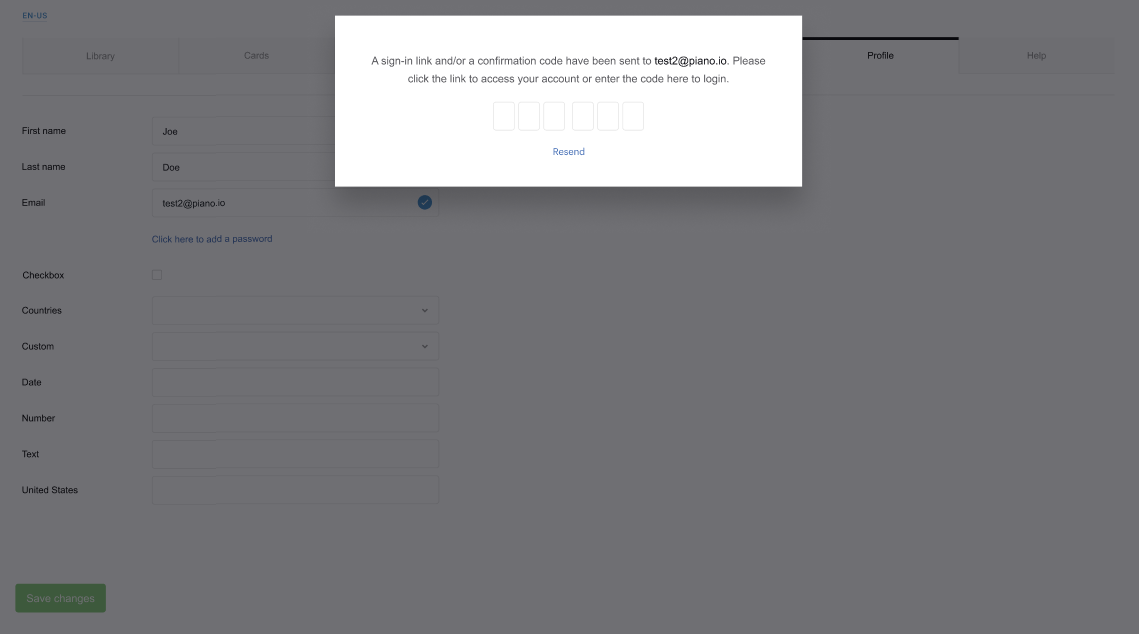
Confirmation email sent to new address
-
Email changes only after user confirms via link or code
For passwordless users:
-
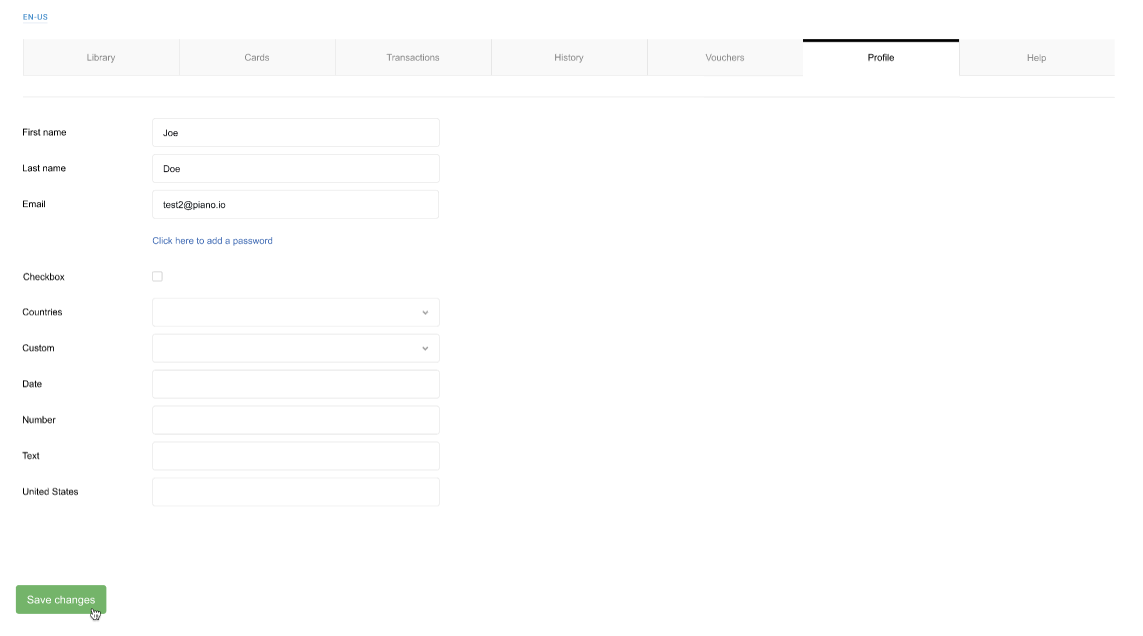
User enters new email address in My Account
-
Confirmation code or link sent to old address
-
User confirms via old email
-
Confirmation email sent to new address
-
Email changes only after user confirms via link or code
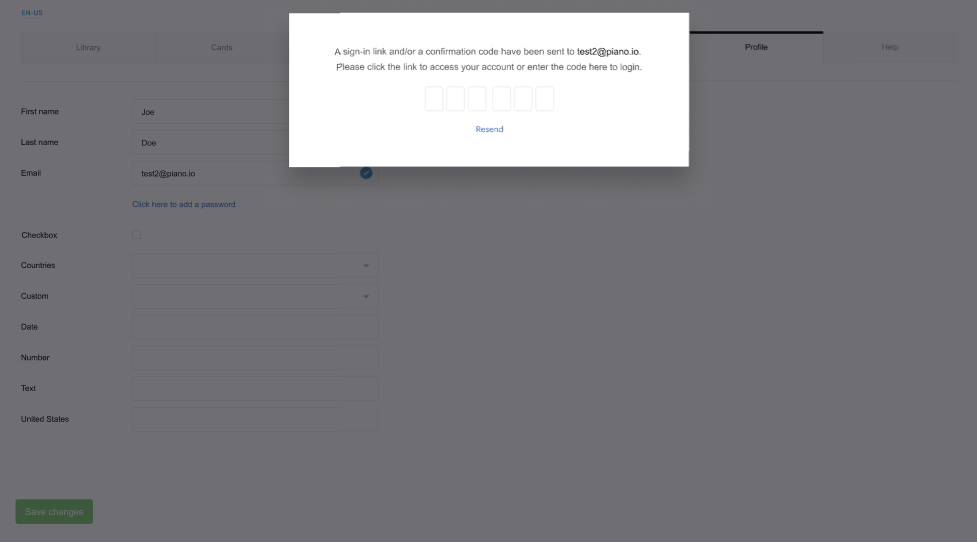
Configuration options:
-
DOI off / Security off: Legacy behavior, immediate email change without confirmation.
-
DOI off / Security on: Anti-enumeration protection without DOI.
-
DOI on / Security off: Email change requires confirmation, without anti-enumeration protection.
-
DOI on / Security on: Full security with email confirmation and anti-enumeration protection.