
Overview
Catalogs lets you connect your business catalogs (products, content, services, clients, and more) to your behavioral data in Piano Analytics, so your reports show business names and categories instead of technical IDs. For example, you collect only a product_id, and your reports show the product name, collection, and price.
-
Lighter tagging: you only collect identifiers (for example, product_id).
-
Automatic enrichment: Piano Analytics adds the relevant catalog information to each event, securely and on the server side.
Note: Catalogs is the evolution of a historical Piano Analytics feature: Enrichments. Enrichments that were already configured were migrated to catalogs automatically.
Before you start
Check the following before you create a catalog:
-
Reconciliation key: the property that links your events to your catalog must exist in your data model and be populated in your tagging.
-
Update context: it requires a paid option. See Update context.
-
sFTP import: Piano support must set up a dedicated server for you. See Import with sFTP.
How catalogs work
A catalog in Piano Analytics has two parts:
-
Reconciliation key: a common identifier between your events and your business catalog (for example, product_id).
-
Enriched properties: business information added automatically to your events (for example, product name or category).
When an event contains the reconciliation key, Piano Analytics adds the matching catalog values to it.

Choose a context
The context determines how catalog data is applied to your events. You choose it when you create the catalog, and you can't change it afterward.
Snapshot context
The Snapshot context captures the state of the catalog at the exact moment an event occurs. The information stays frozen in time. It's included at no extra cost.
Example: a product costs €100 on January 1. Even if the price later changes to €120, the event from January 1 still shows €100.
Best for:
-
Accurate historical reporting
-
Regulatory compliance
-
A/B testing
Update context
The Update context applies the most recent version of the catalog to all events, even past ones.
Example: if a product's price changes from €100 to €120, all events now display the current price of €120.
Best for:
-
Analyses or personalizations based on the current state of the catalog
-
Continuously updated analyses
Note: the Update context is a paid option. Contact your Piano Analytics account manager for pricing and activation details.
Create a catalog
To open your catalogs, go to Data Management > Catalogs.
-
Choose the catalog type:
-
Standard: a template recommended by Piano, with a fixed key, fixed properties, and a fixed context.
-
Custom: you configure your own reconciliation key and enriched properties.
-

-
Enter the main information. See Catalog settings.

-
Define the catalog structure: select the reconciliation key (for example, product_id) and the enriched properties (for example, name, category, price). See Enriched properties.

-
Import your catalog data with the method you selected in Data feed type. See Import data.
Catalog settings
You set these options when you create a catalog. You can't change the context, the reconciliation key, or its case sensitivity afterward.
-
Display name: the name of the catalog in the interface. You can customize it for a custom catalog. It's fixed for a standard catalog.
-
Context: Snapshot or Update. See Choose a context.
-
Reconciliation key: an existing property in your data model, populated in your tagging. It must be a string or an integer. For a custom catalog, you choose it freely, but keep the limit of 2 million unique values per day in mind (see Limits).
-
Case sensitive: whether the matching between your tagging and your catalog is case-sensitive.
-
Data feed type: the method you use to import your catalog: API, sFTP, or manual CSV import from the interface. This choice determines how you import your data. See Import data.
-
Alerting: an email notification when an import fails. It works for CSV imports only (manual upload or sFTP).
Enriched properties
Enriched properties are the business information that Piano Analytics adds to your events, such as a name, a category, or a price. The rules depend on the context:
-
Snapshot: properties must already exist in your data model. They must be of a simple type (not array or object) and "processed".
-
Update: you can create properties while you configure the catalog. They're then available in the Properties tab of Data Management.
In both contexts, enriched properties must share the same scope as the reconciliation key.
Properties that are also in your tagging
-
Snapshot: if the reconciliation key doesn't exist in the catalog, the tagging value is kept. If it exists, the catalog value overwrites the tagging value.
-
Update: the tagging property is never taken into account.
Import data
Three import methods are available. The method you use is the one you selected in Data feed type.
|
Import mode |
Format |
Size limit |
Details |
|---|---|---|---|
|
API |
JSON, ndJSON |
100 KB per line, 1 GB body |
Programmatic import, endpoints provided |
|
sFTP |
CSV |
5 GB (1 GB recommended) |
Dedicated server set up by support. See Import with sFTP |
|
Manual import |
CSV |
10 MB |
Drag and drop or select a file in the interface |
To switch an existing catalog from sFTP to API, or the other way around, contact Piano support.
The interface shows the expected format and an example that matches your catalog structure. Piano Analytics verifies imported files automatically (column presence, format errors, and so on).
CSV file requirements (sFTP and manual import)
-
Format: UTF-8, with a comma as the field separator and a period as the decimal separator.
-
Header: the first row must match your catalog structure, with the reconciliation key first. Click Download CSV Header in the Import data tab to get a ready-to-use header.
-
Dates: CSV imports don't support time zones. Send dates in UTC with a Z suffix (YYYY-MM-DDTHH:mm:ssZ). For example, send 2026-10-09T06:11:00Z for 2026-10-09T15:11:00+09:00.
Import with the API
Use the API to import your catalog programmatically, for example to push updates from your own systems. You can import line by line (JSON) or in groups (ndJSON).
-
Limits: 100 KB per line, and 1 GB in total for ndJSON.
-
Authentication: with a token. The interface shows the endpoint and an example payload for your catalog.
For endpoints and payloads, see Catalogs data in the developer documentation.
Import with sFTP
With sFTP import, you deposit CSV files on a dedicated Piano server and your catalog updates automatically. For example, your product database can export a file every night, so your enriched properties stay current without a manual upload.
Note: sFTP import is available in the EU environment only. Piano support creates the server connection: you can't configure it from the interface.
-
Create your catalog and select sFTP as the Data feed type. See Create a catalog.
-
Generate an SSH key pair, or ask your technical team to generate it. Keep the private key on your side and never share it.
-
Send the public key (ssh-rsa format) and the name of your catalog to Piano support.
-
Wait for Piano support to confirm that the connection is ready.
-
In your catalog, go to Import data > Details to find the parameters to use (server, port, login, and folder).
-
Upload your CSV file to the folder shown there, authenticating with your private key.
-
Open the Processing report to check for import errors.
Deposit files directly in the folder shown in Details, not in a subfolder. Files must follow the schema defined when you created the catalog and the CSV file requirements above.
Import a CSV file manually
Use manual import to upload a CSV file of up to 10 MB directly from the interface. You can also upload a file manually whichever data feed type you selected.
-
Open your catalog and go to the Import data tab.
-
Download or copy the schema from the interface. Click Download CSV Header to get the expected header.
-
Drag and drop your CSV file, or select it from your computer.
-
Check the preview of the first 10 rows. The interface warns you about errors and missing columns, and checks that the reconciliation key and the properties are consistent.
Monitor imports
-
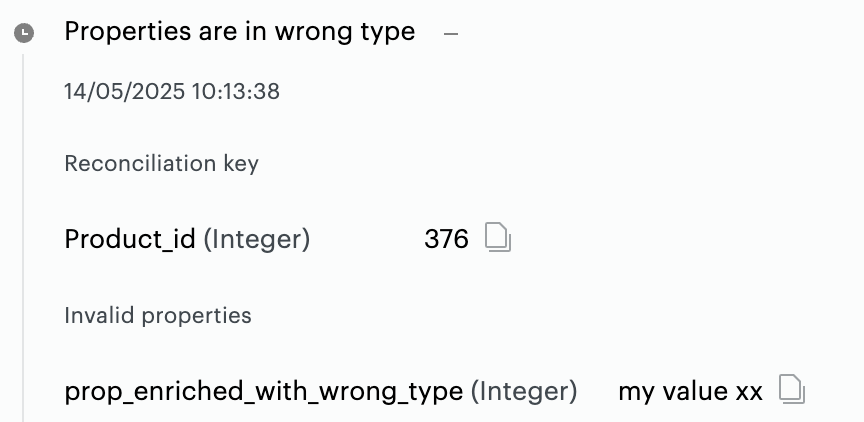
Processing report: shows the latest import errors for each import mode.
-
Preview: shows the last 10 imported rows. Enter a value in the search bar below the table to retrieve the complete row for that key.
-
Email alert: if you turned on Alerting, you receive an email when a CSV import fails (manual upload or sFTP).
Limits
-
Unique values: the reconciliation key is limited to 2 million unique values per day. Beyond this limit, data import may be paused.
-
One catalog per property: a property can only be enriched in one catalog at a time.
-
Changes after creation: you can't change the reconciliation key, its case sensitivity, or the context after you create the catalog.
Use cases
These examples show which context fits which need.
Sales analysis by collection
Context: Snapshot. Industry: e-commerce.
Problem: you want to measure the performance of each collection at a specific point in time, even when prices or ranges change.
Solution:
-
Collect only the
product_idduring purchases. -
Use a Snapshot catalog with properties like
Product Name,Collection, andPrice. -
Historical reports always reflect the values (for example, the price) at the time of purchase.
Engagement tracking for a limited-time offer
Context: Snapshot. Industry: media.
Problem: you launch a special offer on certain content and want to keep track of the offer's status at each interaction.
Solution:
-
Collect the
content_idfor each view. -
Use a Snapshot catalog with properties like
Content NameandOffer Type. -
Analyze the impact of the offer, even after modifications or expiration.
Dynamic user experience personalization
Context: Update. Industry: e-commerce.
Problem: you want all analyses to reflect the latest version of your catalog (for example, availability, price, or category).
Solution:
-
Collect
product_idat every interaction. -
Use an Update catalog with properties like
PriceandAvailability. -
All analyses and segments use the current catalog state, even for past events.
Continuous editorial category updates
Context: Update. Industry: media.
Problem: your content sections change regularly and you want your analyses to always be up to date.
Solution:
-
Collect
content_idfor each consultation. -
Use an Update catalog with the
Sectionproperty. -
Dashboards always reflect the current section, even for older articles.
Other use cases
-
E-commerce and retail: product names, categories, brands, colors, sizes, prices, margin information, stock levels.
-
Media and publishing: article titles, author names, publication dates, content categories, subscription types, paywall status.
-
Financial services: account types, investment product names, risk profiles, service tiers.
-
Travel and hospitality: property names, room types, destinations, amenity lists.
Troubleshooting
-
A standard catalog is grayed out: the template is already in use for your organization, or the reconciliation key isn't validated. Check the property list in Data Management.
-
A property doesn't appear when you create a Snapshot catalog: only "processed" properties that aren't of type array or object are available.
-
A property is also in your tagging: see Enriched properties to know which value is kept.
If your question isn't answered here, contact Piano Analytics support.
Glossary
|
Term |
Definition |
|---|---|
|
Reconciliation key |
Common identifier between your events and your business catalog (for example, product_id) |
|
Enriched property |
Business information added automatically to your events (for example, name, category, price) |
|
Snapshot context |
Mode where the catalog state is frozen at the time of the event |
|
Update context |
Mode where the latest catalog state is applied to all events |
|
Data feed type |
Method for importing your catalog (API, sFTP, manual CSV) |
|
Standard catalog |
Catalog template offered by Piano Analytics, ready to use |
|
Custom catalog |
Catalog configured to your needs, with your own properties and reconciliation key |