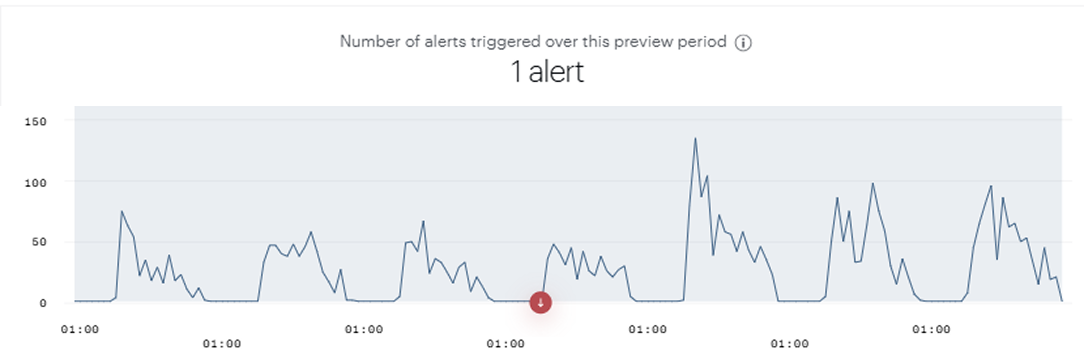
Use a custom metric that always equals 1 at night, and set your alert to trigger only below 1. A segment on its own can't mute an alert, because Piano Analytics reads hours with no matching visits as 0, and 0 triggers the alert.
This method helps when you want to be alerted if a key action, such as form submissions or transactions, drops to zero, but not during low-traffic hours like the night. It lets you quickly detect interruptions in essential activities and optimize conversion on your websites.
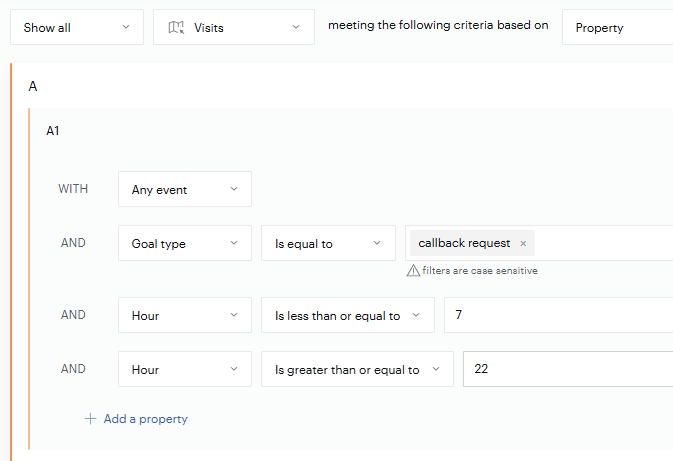
For example, you track a goal called "Callback request": the number of visits where users clicked the button to be contacted back. You want an hourly alert when this goal reaches 0, but you want to mute it from 10 PM to 7 AM. Here is how you would configure it.
Segment behavior in alerts
It would seem logical to create a segment that only keeps daytime hours, then apply it to the alert.
In practice, the alert preview shows that you'd receive alerts all day long.
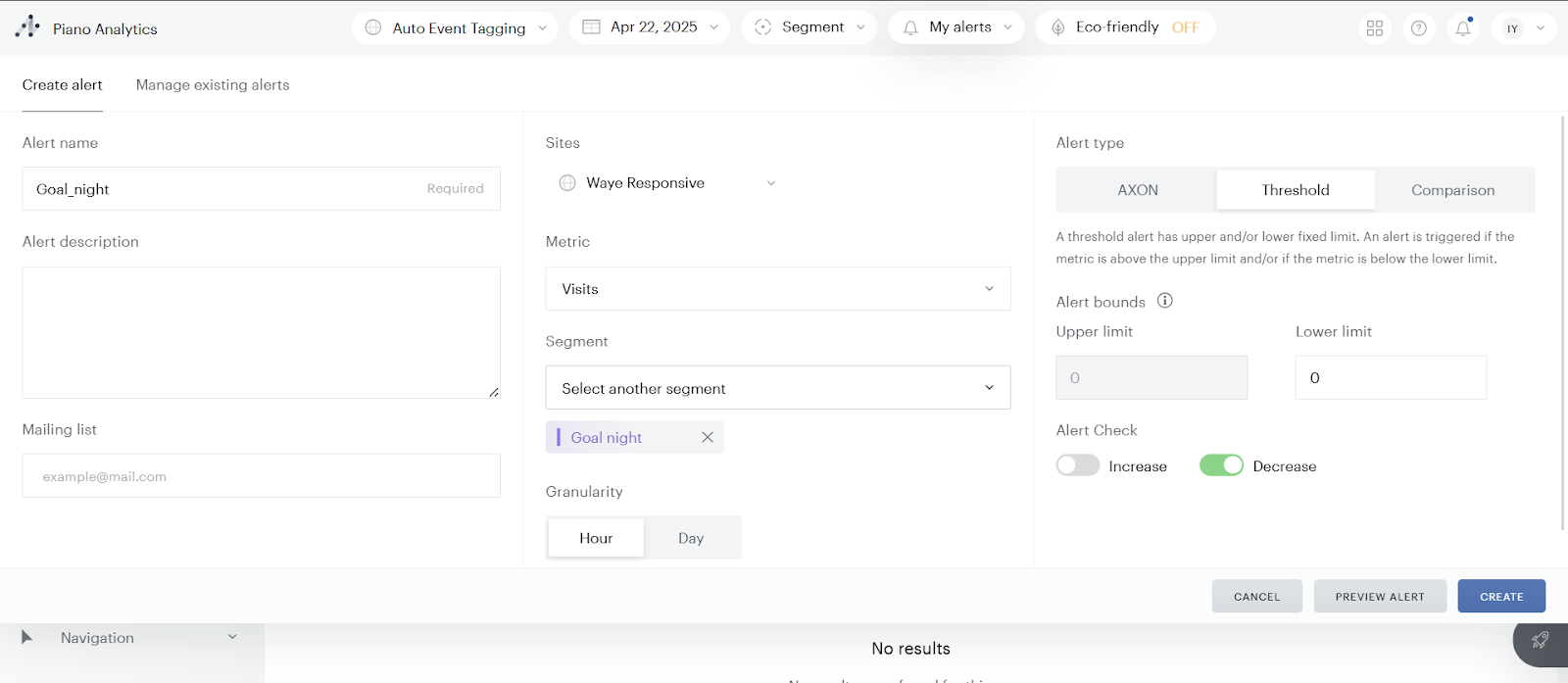
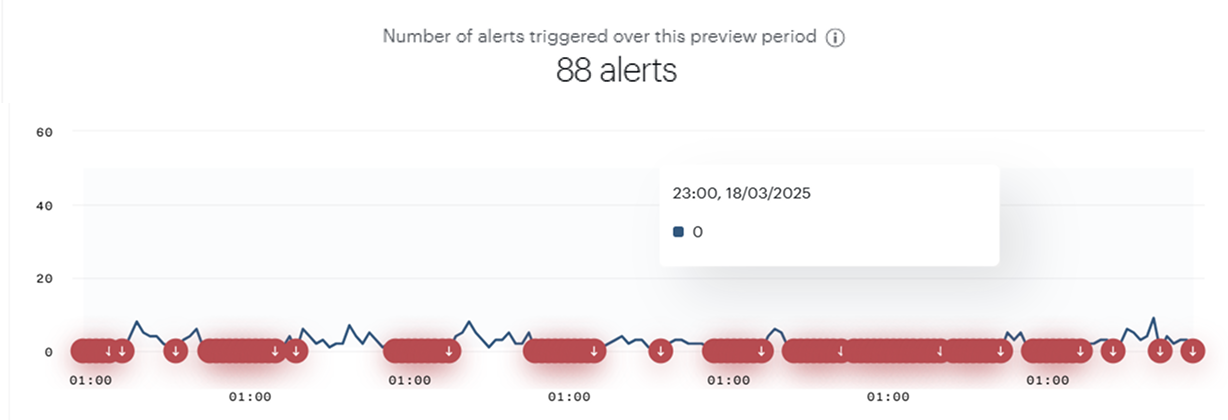
When you apply a segment to an alert, Piano Analytics applies the filter to each hour. If no visits match the segment in a given hour, the value is read as null, which counts as 0. Because the alert triggers at 0 (lower limit of 0), every hour outside the segment triggers it.
Create the segments
-
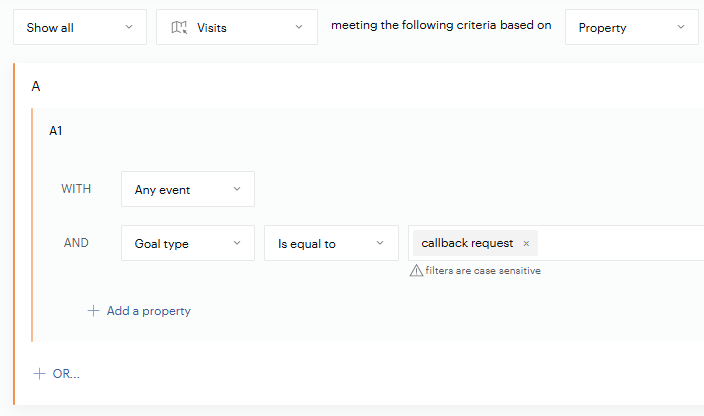
Create a Callback request segment: visits that triggered the "Callback request" goal at least once.
-
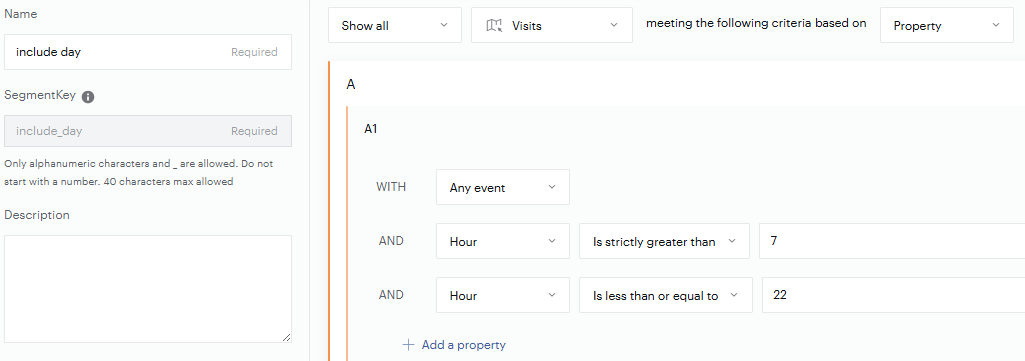
Create an Include day segment, with one condition: A1 targets the hours between 7 AM and 10 PM.
-
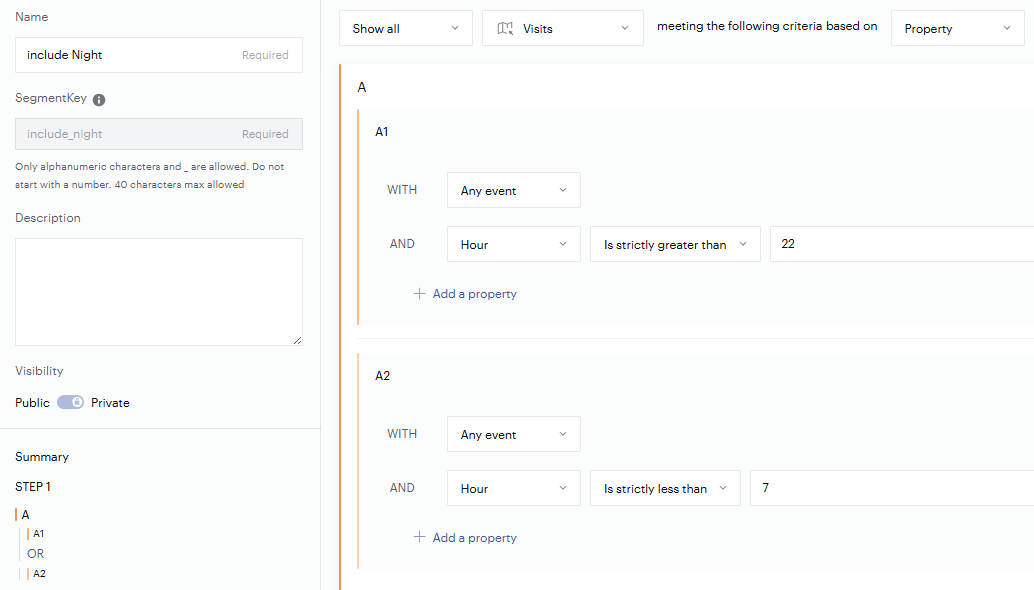
Create an Include night segment, with two conditions combined with the OR operator: A1 targets the hours after 10 PM, and A2 targets the hours before 7 AM. Together, they include all visits outside 7 AM to 10 PM.
Create the custom metrics
-
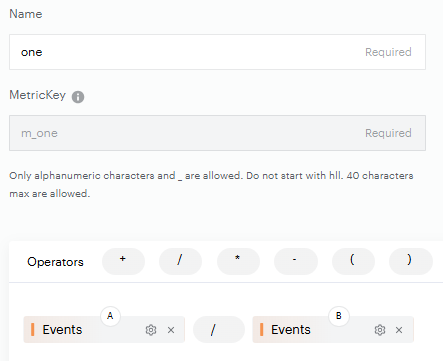
Create a One metric that is always equal to 1. It makes sure a value is never null outside your segment.
-
Create the
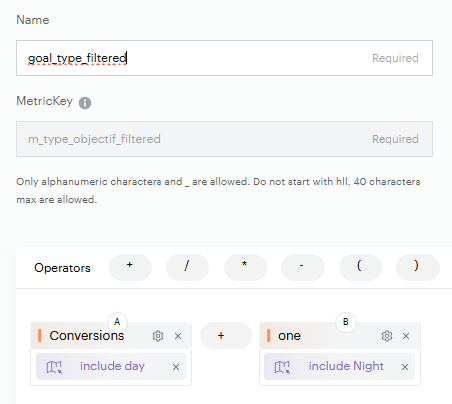
goal_type_filteredmetric, the one you'll be alerted on. It combines the goal restricted to the Include day segment with the One metric restricted to the Include night segment.
|
Time slot |
Goal achieved |
|
Alert (lower than 1) |
|---|---|---|---|
|
7 AM to 10 PM |
No |
0 |
Triggers |
|
7 AM to 10 PM |
Yes |
1 or more |
Doesn't trigger |
|
10 PM to 7 AM |
Any |
1, from the One metric |
Doesn't trigger |
Without the One metric, the night hours would return 0, as they don't match the daytime segment. Because the metric equals 1 at night, those hours no longer trigger the alert.
Configure the alert
-
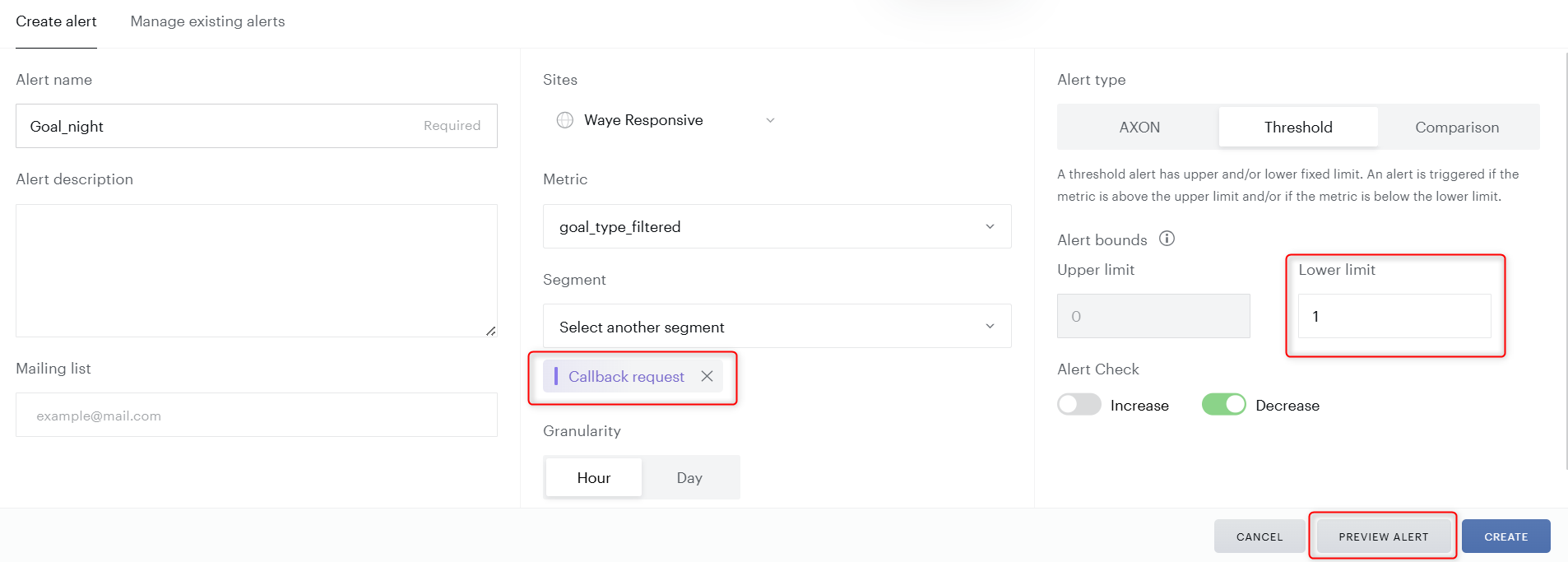
Create an alert on the
goal_type_filteredmetric. -
Apply the Callback request segment.
-
Set the alert to trigger only when the value is lower than 1.
-
Click Alert Preview to check the result. The alert now triggers only at the expected hours.