
Action required: migrate from the AT Internet – DELTA connector
Following recent changes to Google's guidelines, the AT Internet – DELTA Data Studio connector is no longer operational and cannot be restored.
-
If you already use the Piano Analytics connector, no action is needed.
-
If you use the AT Internet – DELTA connector, you need to migrate to the new Piano Analytics connector. See Migrating from the AT Internet – DELTA connector below.
Note on naming: In April 2026, Looker Studio was renamed back to Google Data Studio.
About Data Studio
Data Studio, part of Google marketing Platform and closely integrated with Google Cloud, allows you to easily access data from Google Analytics, Google Ads, Display & Video 360, Search Ads 360, YouTube Analytics, Google Sheets, Google BigQuery and over 500 more data sources, both Google and non-Google, to visualize and interactively explore data.
Beyond just sharing, Data Studio offers seamless real-time collaboration with others—whether you’re sitting across the room, or across the world.
Learn more at https://datastudio.google.com/.
PA Connect Data Studio
The PA Connect Google Data Studio allows you to easily import data from Piano Analytics into Google Data Studio. Explore, transform and combine Piano Analytics data with hundreds of sources available in Data Studio.
Thanks to this integration, you can create meaningful and easy-to-follow reports in just a few clicks. Collaborate with your team to create dashboards that inspire smarter business decisions. For example, you can place Piano Analytics visits next to the data of another tool in a single report, then share it with your team.
The activation of the connector needs two steps:
-
Generate an API key from your Piano Analytics user profile. You'll paste this key into Data Studio.
-
In Data Studio, choose the Piano Analytics data source, allow the Piano Analytics application through Google authentication, and activate the connector by pasting your API key.

Create an API key
Create an API key from your Piano Analytics user profile to activate the connector. You need the Analyst access level at least. For the steps, see: API Keys.
Connect Data Studio to Piano Analytics
Select the data source
Go to http://datastudio.google.com and select Create > Data Source in the left menu.
Use the search bar to find the data source. The following sources are available:
-
Piano Analytics: the current connector, based on API v3, with the latest fixes and features. Use this one.
-
Piano Analytics (AT Internet): a third-party, paid connector developed by Supermetrics, based on API v3. It doesn't support importing custom properties and metrics.
The AT Internet – DELTA data source is no longer operational. If you used it before, migrate to the Piano Analytics connector.
Then choose the Piano Analytics data source to enable the connector and proceed to the next step.

Authorize the application
Data Studio asks for permission to use the Piano Analytics connector. Allow the Piano Analytics application through Google authentication.
Enter your API key
Paste the API key generated from the Piano Analytics interface. Data Studio can then retrieve your Piano Analytics data.
Join the Access key and the Secret key with an underscore "_" before pasting them into Data Studio.
Example: Accesskey_Secretkey (xxxxx_xxxxxxxxxxx).
Choose your region, site and segment
Select the region where your Piano Analytics data is stored:

If you don't have this information, contact your Account Manager. If no choice is made, Europe is selected by default. With a wrong region, your board displays no data because of an incorrect API endpoint, and your widgets show the error "Data failed to be retrieved. Check your credentials and your region".
Then select the site(s) concerned by this report:
Before validating the data source, you can import your Piano Analytics segments into your reports.
Selecting a segment from this configuration menu will apply that segment to your entire Data Studio board and cannot be removed afterwards. If you plan to apply different segments to several boxes in your report, please leave the selection empty and check the “Allow ‘Segments’ to be modified in reports” box:
Migrate from the AT Internet – DELTA connector
If you have existing Data Studio reports built on the AT Internet – DELTA connector, switch the data source of each report to the new Piano Analytics connector.
To migrate a report:
-
Open the report in Data Studio.
-
Add the Piano Analytics connector as a new data source. Follow Connect Data Studio to Piano Analytics to authorize and configure it.
-
In each widget of the report, change the data source from AT Internet – DELTA to the new Piano Analytics source.
-
Select the properties and metrics again in each widget, even if their names look identical. Data Studio doesn't match fields on their label alone, so a widget keeps an error until you add its fields again from the new source.
-
Check that each widget displays the expected data, then remove the old AT Internet – DELTA data source from the report.
If a tile shows an error or unexpected data after switching, double-check the field mappings. The new connector may use slightly different field names for some metrics and properties.
Build a report
Create a report
Once the connector has been selected, you can edit the imported properties and metrics. Various options are available: rename, delete, choose the data type, aggregate, edit the description, or add a field.
Once you've set the parameters, click Create report in the top right-hand corner to start creating a dashboard:

All that is left to do is create dashboards based on Piano Analytics data, and combine them with other data sources if needed. You can also collaborate with others on these dashboards, sharing them whenever you like via a link, PDF or email.

Apply segments
To apply one of your segments to a widget in your report, scroll down the widget's configuration menu to the Parameters section. The selector contains all your Piano Analytics segments:
You can apply a different segment to each widget.
Filter data
When you apply a filter in Data Studio, it's applied to the entire Piano Analytics dataset. The query then returns up to 10,000 rows, so your results stay consistent with Piano Analytics.
Regular expressions (RegEx) aren't available in filters.
Blend data
In Data Studio, you can add charts from different sources to the same dashboard (multiple Piano Analytics sites and other sources). Go to the right side of the screen to edit or add a data source.
Click Blend Data to manage your different data sources, named "tables" in the editing menu:
Use custom metrics
In Piano Analytics, you can create and save your own custom metrics. Here is an example with a custom metric "m_events_per_visitors".
After you save it, the metric is available in your Piano Analytics resources:
To use the metric in Data Studio, refresh the Piano Analytics data source. Click the pencil to edit the source (right panel), click the data refresh button (bottom left), then apply the changes.
Connector limits
Data Studio limits how the connector queries data, and Piano Analytics API v3 adds its own limits. See the API v3 terms and conditions for the full list.
Row limit and sorting
A query can return up to 10,000 rows. To check the number of rows returned by a query, run it in Data Query and click the row-count button in the bottom right-hand corner of the interface.
If your query exceeds this limit, modify it, or export the data from Piano Analytics and import it into Data Studio.
Data Studio sets the sort order of the query. You can't choose it when the API call is made, as you can in Piano Analytics. When a query exceeds 10,000 rows, the first 10,000 rows returned can differ from those displayed in Piano Analytics.
Concurrent API calls
Each widget in a report triggers one API call. A Data Studio user can make no more than 5 concurrent calls to the API, and this limit rises to 20 concurrent calls across your organization. The connector has a refresh system to ensure that your data is retrieved quickly. If widgets stay empty, reduce the number of widgets on the page.
Troubleshooting
Connection errors
The message "Community Connector Error" or "Data failed to be retrieved. Check your credentials and your region" usually points to a wrong region, an API key that is no longer valid (for example, because the user who created it was removed), or the retired AT Internet – DELTA data source. To reset the connection:
-
Revoke the Piano Analytics access for your Google account at myaccount.google.com/permissions, or in the data source settings.
-
Generate a new API key in your Piano Analytics profile. You need the Analyst access level at least.
-
Reconnect and enter the key as "AccessKey_SecretKey", without spaces, line breaks, quotes, or commas.
-
Check that the region is the one where your data is stored.
-
Update your existing data sources with the new credentials.
Revoking access doesn't delete your reports. Some errors come from Google, not from the Piano Analytics API, and look like this:
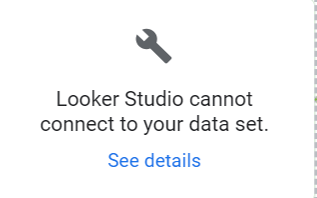
If the error persists after you reconnect, contact Google support.
Empty widgets
The connector lists every property and metric of your catalog, including some that never received data. If a widget is empty, check the following:
-
Data: run the same query in Data Query with the same site and period. If it returns nothing there, no data was collected.
-
VX metrics: metrics prefixed with "m_" or "vx_" are filled only when Piano VX events are tracked and the VX bridge is enabled.
-
Scopes: combining a daily-scope metric with a hit-scope property returns no data.
-
Period: a date range in the future, or one not processed yet, returns no data.