
You can automate the delivery of PDF copies of your Board data via email. Customize frequency, recipients, and formatting, then share configurations across your organization.
This article covers Email subscriptions, which deliver boards as PDFs. To schedule CSV exports of Data Query reports, see Subscribe to a report.
Create a subscription
Before you start, make sure your board is saved. Subscriptions can only be created from saved boards. Setting up a subscription takes just a few clicks:
-
Open the Library,
-
Click the "+" button in the bottom-right corner, and select "Subscription".
-
In the New subscription panel, leave the Subscription type set to Email.
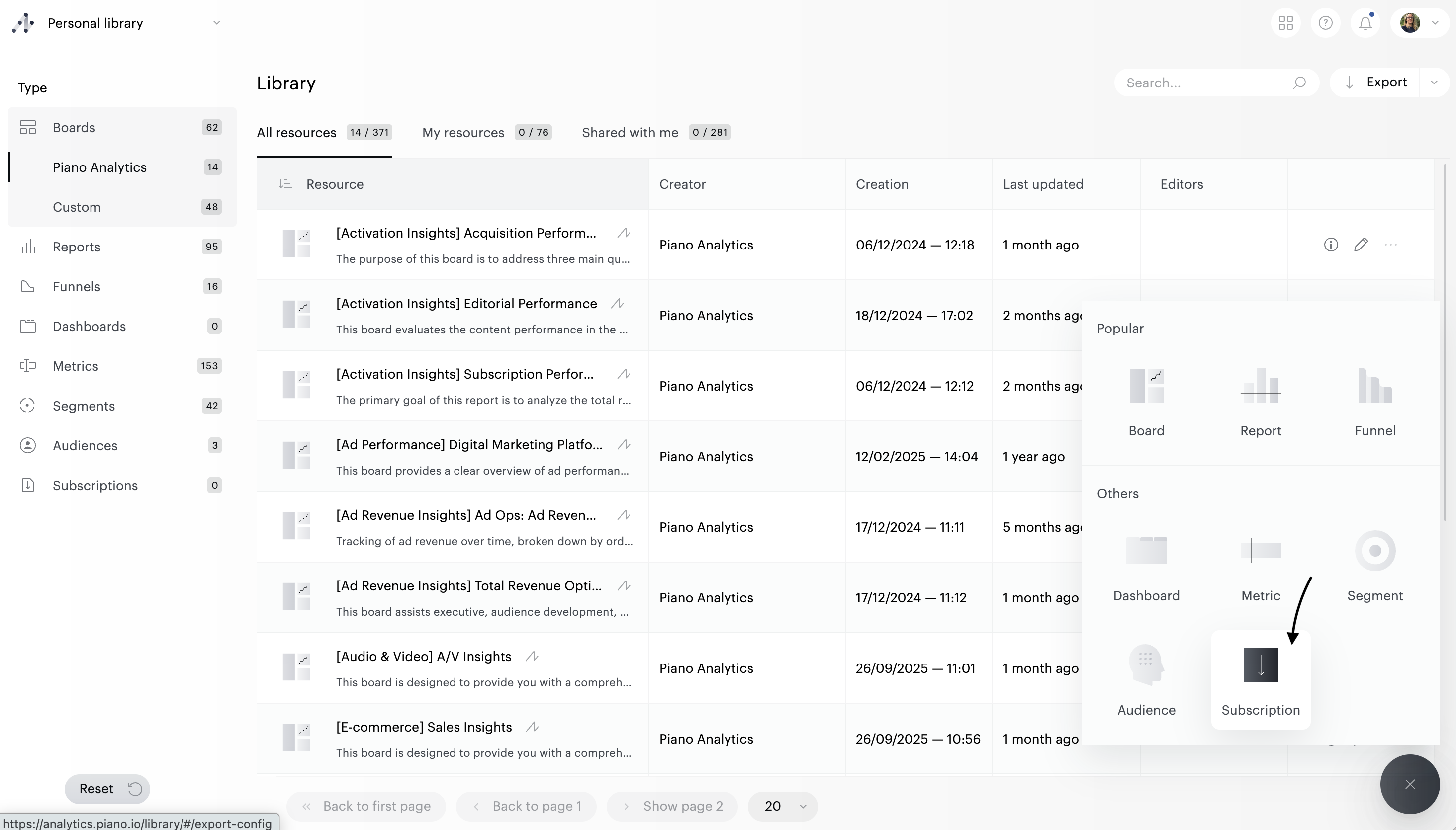
Subscription settings
Then fill in the form with your preferences:
-
Subscription name — A short, recognizable name. Appears in the Library and helps recipients identify the source of the email.
-
Description (optional) — Up to 1,000 characters to describe what this subscription covers.
-
Frequency — How often the subscription should be delivered (e.g., Daily, Weekly, Monthly).
-
Site — The site the board should run against.
-
Period — The time range applied to the board data (e.g., Yesterday, Last 7 days). The board will be generated for this period at each delivery.
-
Enable comparison — Toggle on to include period-over-period comparison data in the delivered PDF.
-
Summarize with Piano AI — Toggle on to include a written summary of the board's content within the PDF. The summary is powered by Piano AI based on the data in the selected pages.
Source
Select the content that will be delivered:
-
Board — The saved board to subscribe to. Only saved boards appear in the list.
-
Include all pages — Boards can contain multiple pages (tabs at the top of the board). When this toggle is on, the subscription includes every page of the board. Turn it off to choose specific pages.
-
Pages (visible when "Include all pages" is off) — Select one or more pages to include in the delivered PDF. Only the selected pages will be generated and sent.
Email
-
Recipients — Add up to 200 recipients. You can enter Piano users, teams, or external email addresses. Recipients receive the PDF on each delivery.
-
Subject — The subject line of the delivery email. A default is provided; customize it to make the purpose clearer to recipients.
-
Message — A short message included in the email body. Useful for giving recipients context, reading instructions, or a note on how to interpret the data.
Once registered, your subscription will run automatically and send updated data according to the defined schedule.
Manage subscriptions
All subscriptions are listed in the Library. From there, you can:
-
Open a subscription to review or edit its configuration.
-
Delete a subscription you no longer need.
-
Share a subscription with colleagues. As with any Piano Analytics resource, you can grant visibility for transparency, or co-ownership for collaborative management.
-
Renew a subscription that is approaching or past expiration.
Expiration and renewal
Subscriptions expire after 12 months. You'll receive a notification one month before expiration, with the option to renew directly from the Library.