
A Campaign is where a group of advertisements and configuration data is kept together. Campaign Contracts are the individual agreements between the Advertiser and Cxense Advertising with regard to the presentation of the campaign's advertisements. Due to differences in costing models between Ad Product Types (CPC/CPM/Tenancy), the contracts differ for each Ad Product Type.
Campaign Overview
Navigating through the advertising tab to a campaign will land the user at the Campaign Overview page. Here you will find a summary of the performance of the Campaign and a timeline to see any changes to the campaign and associated objects.
Campaign Timeline & Performance Graph
The Campaign Timeline presents all modifications to a Campaign in a chronological list. It displays the User who made the change, the time it occurred, and the objects that were modified in the change. Clicking on an entry shows further details about the modification.
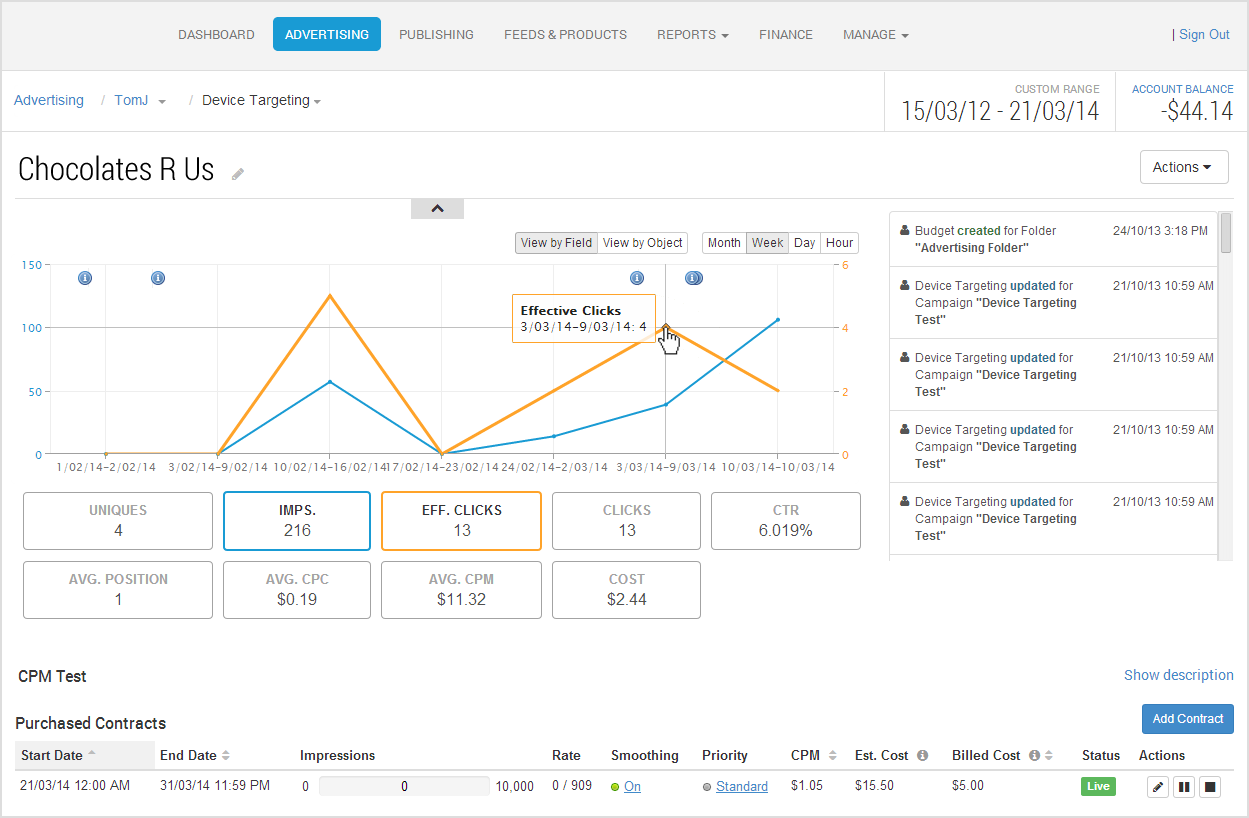
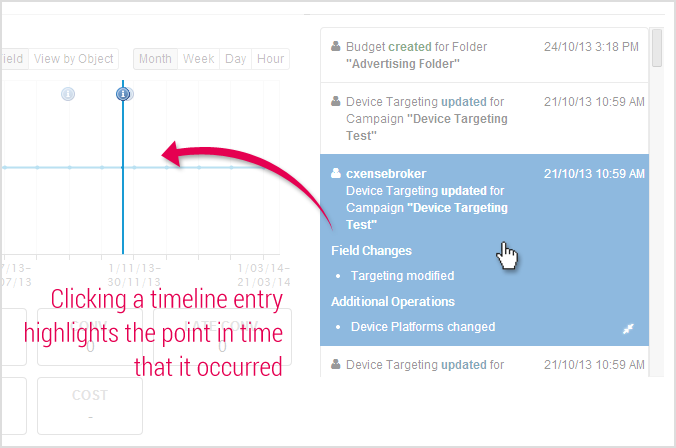
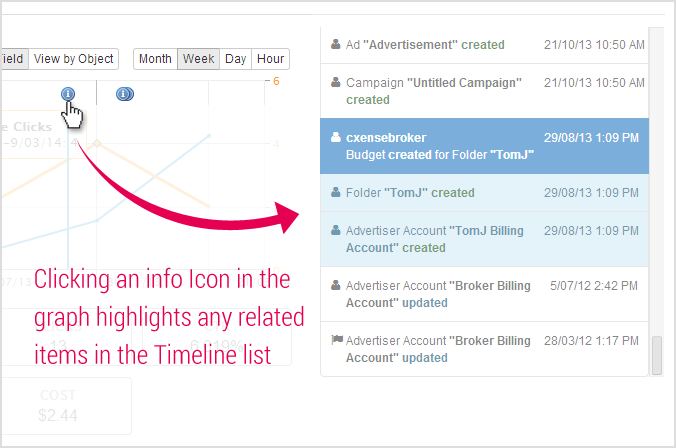
We have integrated the performance graph into the timeline, and expanded the capability too - adding 'items of interest' icons, which, when clicked highlight the items within the selected time period on the timeline list.
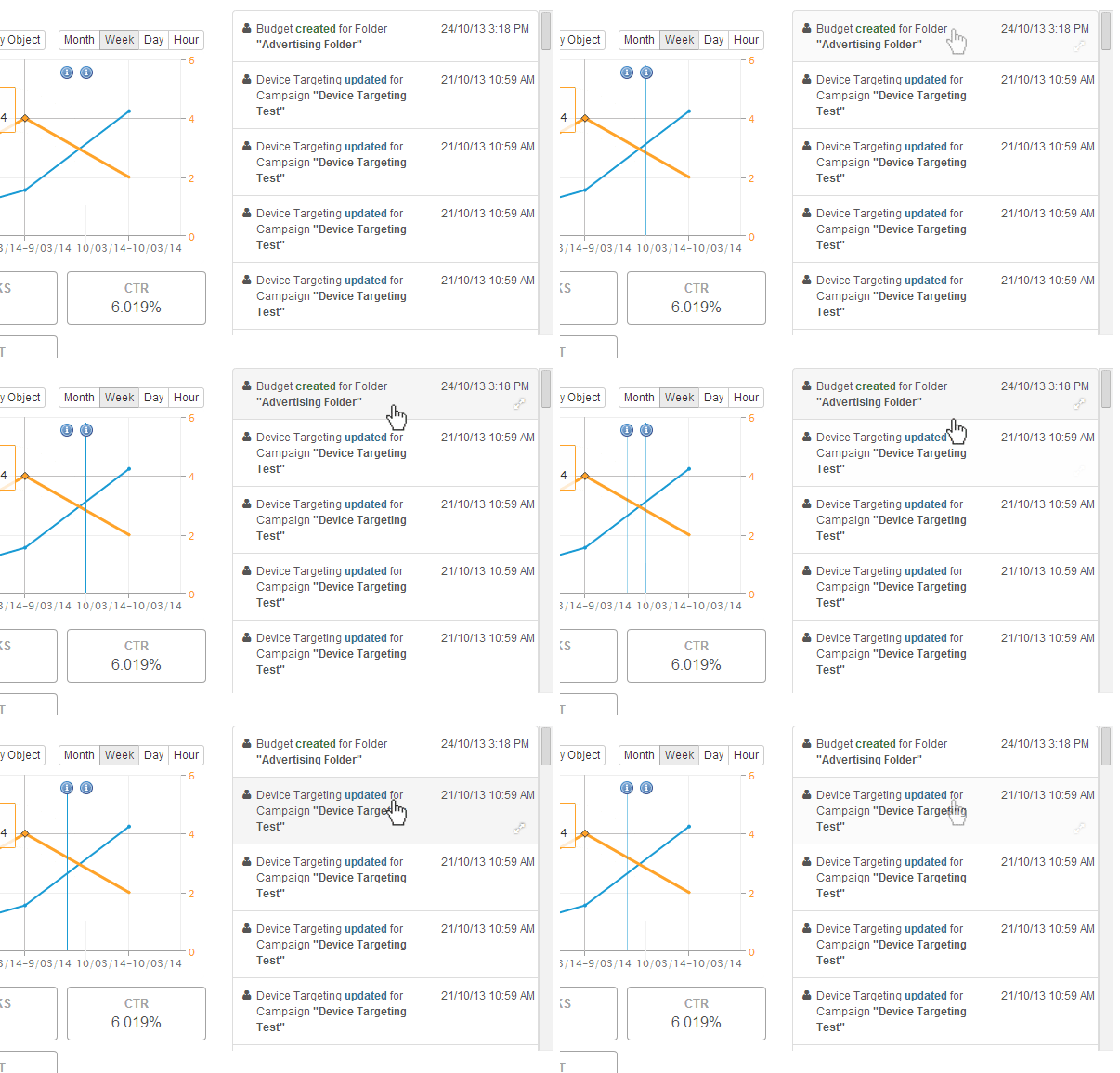
When a Campaign Manager hovers on a timeline entry, the position in time is also highlighted within the performance graph, indicating where in time the item occurred, which is very helpful for investigating how changes affected your Campaign.
Campaign Actions Menu
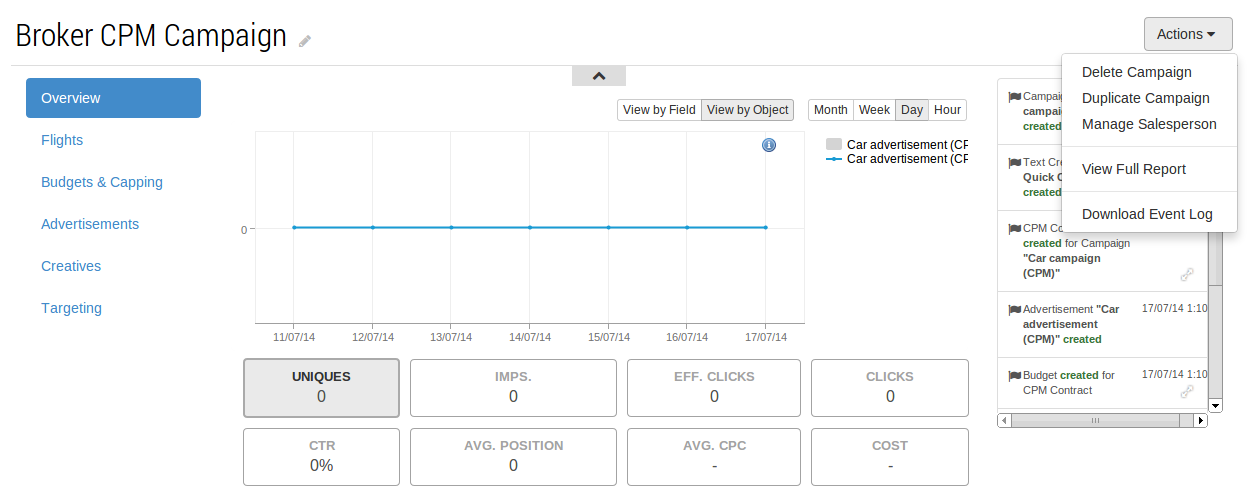
At the top right of each campaign page there is an actions menu that provides standard functionality that is able to be performed to a Campaign.
-
Delete Campaign - This will delete the Campaign and all associated documents. They will no longer be available through the user interface.
-
Duplicate Campaign - This will create a copy of all details of a Campaign to quickly allow additional Campaigns to be created. The name of the new Campaign will have "Copy of" prefixed to the current Campaign name.
-
Manage Salesperson - This allows users sharing the current workspace to be assigned to a Campaign as the salesperson. More details can be found in the section below.
-
View Full Report - Selecting this option will link through to the Advertising Performance Report with the current Campaign being set as the context for the report.
-
Download Event Log - Users can download an Event Log Extract by clicking this link.
-
Export CPC Campaigns - This exports campaigns for external edits to be performed. More details can be found here.
Manage Salesperson
When a campaign is created, no salesperson is assigned by default. To assign a salesperson to a campaign, use the following procedure:
-
Go to the "View Campaign" page for the campaign that you wish to add a salesperson to.
-
Select "Manage Salesperson" from the "Actions" dropdown menu.
-
-
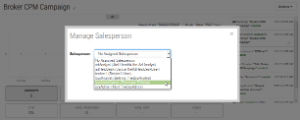
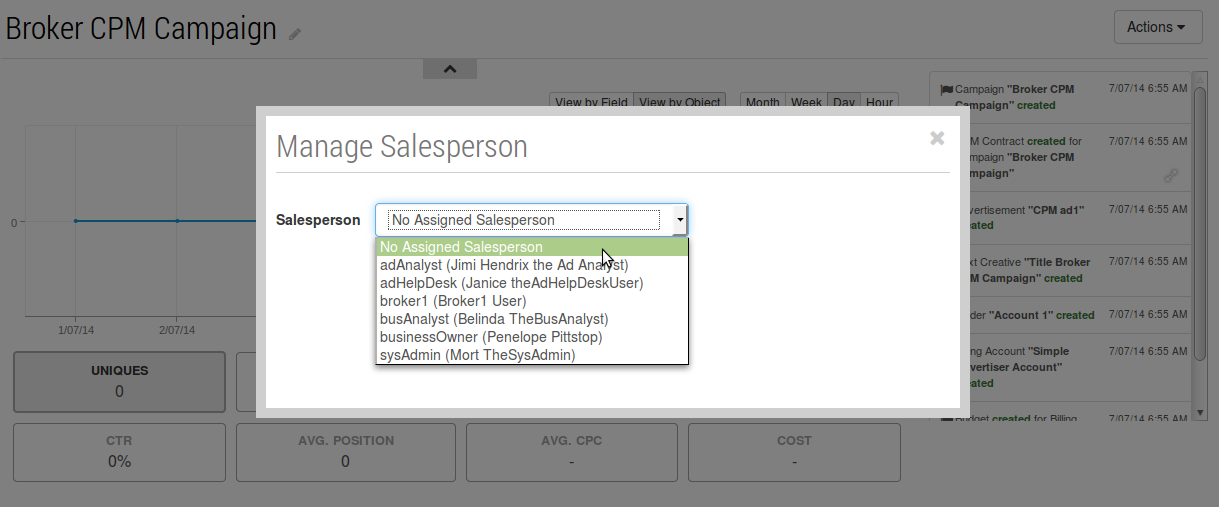
This will display a modal window that provides functionality for assigning a salesperson.
-
Select the salesperson from the drop-down list. This list displays all the users that exist within the campaign's workspace.
-
Save your changes.
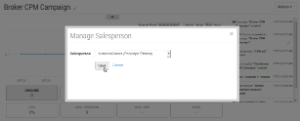
The selected salesperson will now be attached to the campaign.
Viewing the Salespeople assigned to Campaigns
To view the salespeople that have been assigned to campaigns, use the Advertising Performance Report:
-
Open the Advertising Performance Report page.
-
Select the "Campaign" tab.
-
The assigned salespeople will be displayed in the "Salesperson" column. Note: if no salesperson has been assigned then a "-" will be displayed.
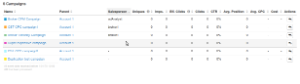
To view the salesperson assigned to a particular Campaign, use the following procedure:
-
Go to the "View Campaign" page for the campaign that you wish to view the salesperson for.
-
Select "Manage Salesperson" from the "Actions" drop-down menu.
This will display a modal window that shows the currently assigned salesperson.
Removing a Salesperson from a Campaign
To remove a salesperson that has previously been assigned to a campaign:
-
Go to the "View Campaign" page for the campaign that you wish to remove the salesperson from.
-
Select "Manage Salesperson" from the "Actions" dropdown menu. This will display a modal window that provides functionality for modifying the assigned salesperson.
-
Set the assigned salesperson to "No Assigned Salesperson" and save your changes.
-
There now will be no salesperson attached to the campaign.
Additional Campaign pages
On each Campaign page there is the left navigation menu for additional Campaign details. Each section below provides and overview of the functionality available.
Advertisements
Advertisements allow additional grouping of creative or matching criteria within a Campaign.
Budgets & Capping
Budgets & Capping controls the delivery of a Campaign's advertisements in any of these three ways:
Creatives
Creatives are what a user will see when an advertisement is served to them.
-
Combo Creatives
-
Flash Creatives
-
HTML 5 Creatives
-
Image Creatives
-
Impression-Tracking URLs
-
Place-holders in Click, Target, Destination URLs
-
Text Creatives
-
Third-Party Creatives
-
Video Creatives
Flights, Contracts and Bookings
Flights, Contracts and Bookings are the terms used to describe the publishing of Campaigns with respect to CPM/CPC/Tenancy respectively.
Targeting
Cxense Advertising provides the ability to target Audiences in many varied ways. Each Advertising Product is configured to enable none, some, or all the available options. When used in combination, Advertisers can target the audience even more specifically. For example;
-
Ad Space Targeting — Ad Space targeting allows an advertiser to select the specific Ad Spaces, by name, on which they would like their Ads to be shown, or blocked from showing on.
-
Categories — Category Targeting provides a simple way to target large groups of end users.
-
Day Parting — Target your audience by setting active days of week, or specific times of day.
-
Device Targeting — Device targeting allows Ads to be targeted to users based on the device they are using to access the content page on which an AdSpace appears.
-
DMP Audience Segments
-
Geography — Target your audience using geographic locations.
-
Geospatial Targeting — Specify geographical regions by which you wish to target your advertising.
-
Keywords — Keywords allow an advertiser to target specific terms in a number of different ways. Matches can be based on page content, or user entry for searches performed. Keywords can have varied matching types that allow for specific or general matching.
-
Re-targeting
-
Site Targeting — The Site Targeting feature allows advertisers to control what sites their campaigns and ads are shown on. This feature is available on any product (CPM, CPC or Tenancy) that has the "Site Targeting" matching template enabled.