
Budgets & Capping controls the delivery of a Campaign's advertisements in any of these three ways:
-
Impression caps limit how many of a Campaign's advertisements are served to all users or per user.
-
Clicks caps limit how many time a Campaign's advertisements can be clicked on before the Campaign's advertisements are no longer served.
-
Budgets limit how much money can be spent delivering advertisements for a Campaign before those advertisements are no longer served.
Impression capping requires a stable identifier for the end-user or browser, for example a cookie or login ID.
If you use our standard JavaScript API via cx.js or a render template, this is handled for you automatically. The script picks up the user identifier we have assigned and sends it to the adserver automatically.
However, if you use the REST API to retrieve XML or JSON for use in your application server, then you need to pass the usi parameter to ensure we can uniquely identify the end-user or browser. This may require some technical advice from Cxense to ensure you send an appropriate identifier, so please contact your account manager if you would like to pursue this further.
Getting There
After initially navigating through to the Campaign overview page, click on the menu item "Budgets & Capping" in the left navigation menu.
Adding a Budget or Cap
When initially landing at the Budgets & Capping page, you will be presented with a page as shown below.
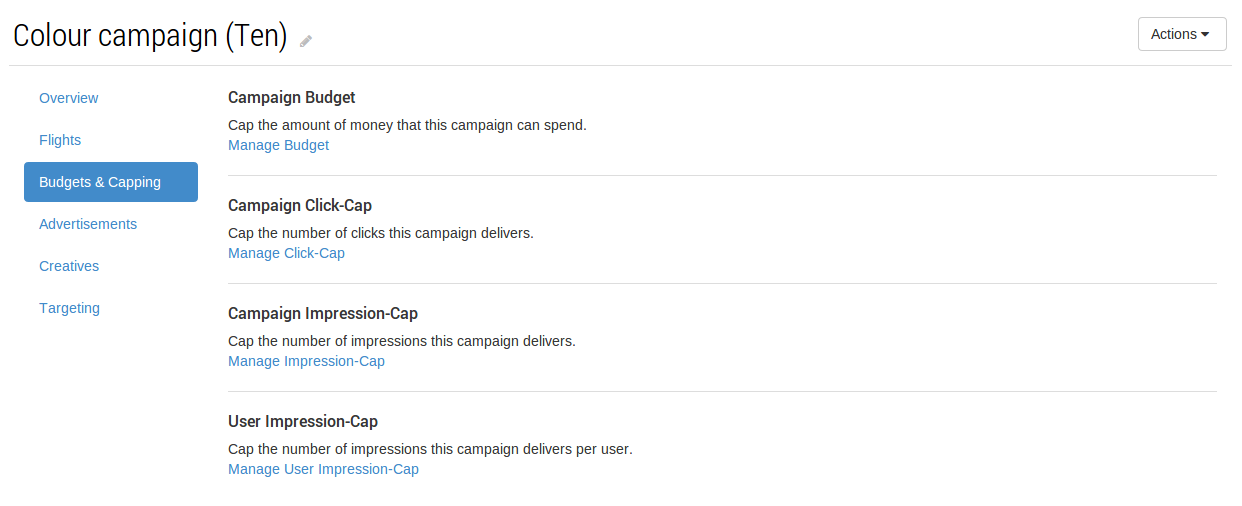
Clicking on any of the Manage links under each section will present you with a form to fill out in relation to the cap or budget. Shown below is the form for adding a Campaign Budget.
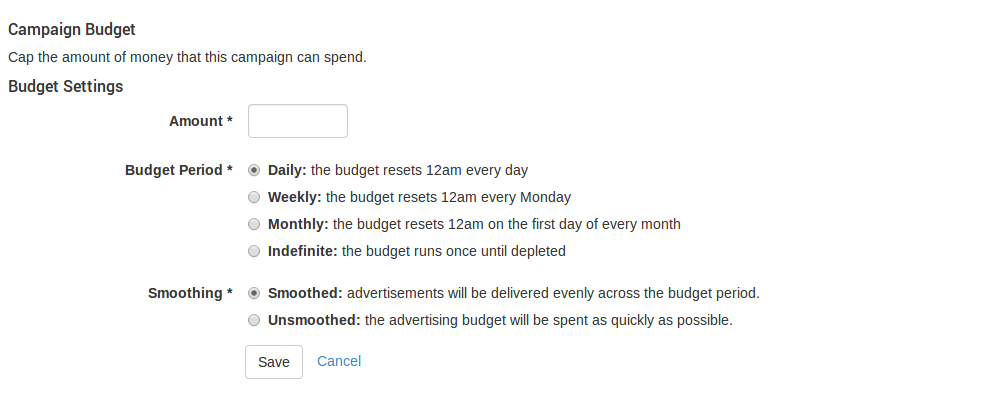
Similar options are available for the variety of Budgets and Caps that are available. See below for specific details.
Once a budget or cap is saved, you will see a view of the specific settings that have been entered. The screenshot below shows the result of completing a Campaign budget for $100 per month with smoothing turned on and clicking save. The screenshot shows a summary of the current delivery of the budget. Note that at the time of creation of this budget we were part-way through a monthly period and as such a pro-rata amount was allocated for the remaining spend for the period.
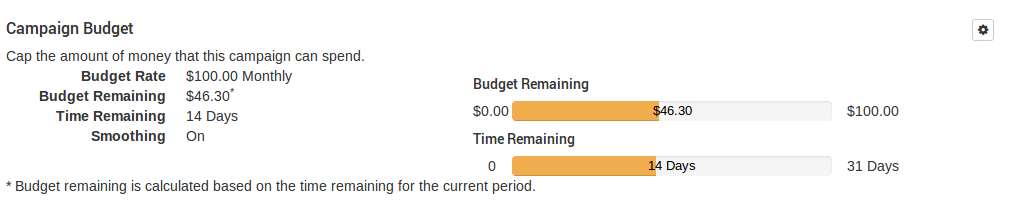
Clicking on the gear icon will allow updates to be performed against the budget or cap.
Impressions caps can be set on all campaign types: CPC, CPM and Tenancy. The caps can be set to last on a per-day, per-week or per-month basis.
The caps can be set or adjusted at any stage after a campaign's creation and act retrospectively. What this means is that if a campaign has been published and it has generated 500 impressions in less than a month, if the campaign-wide impressions cap is set to 550 per month, the campaign's ads will be shown no more than another 50 times in that same month. Similarly, if a user has seen a campaign's ads 5 times in a day and a per-user impressions cap is subsequently set to 3 per day, that same user will not see another ad from the campaign for the rest of the day.
Budget & Cap Types
Campaign Budget
Cap the amount of money that this campaign can spend for a period.
Details required:
-
Amount: this is a currency amount in dollars that can be allocated for the selected period.
-
Budget Period: This can be set to a daily, weekly, monthly or indefinite spend.
-
Smoothing: This allows the budget to be spent as quickly as possible in the period if unsmoothed, or allocated across the period if set to smoothed.
Campaign Click-Cap
Cap the number of clicks this campaign delivers for a period.
Details required:
-
Max Clicks: this is the total number of clicks that can be performed for the selected period.
-
Cap Period: This can be set to a daily, weekly, monthly or indefinite.
-
Smoothing: This allows clicks to be spent as quickly as possible in the period if unsmoothed, or allocated across the period if set to smoothed.
Campaign Impression-Cap
Cap the number of impressions a campaign delivers for a period.
Details required:
-
Max Impressions: this is the total number of impressions that can be performed for the selected period.
-
Cap Period: This can be set to a daily, weekly, monthly or indefinite.
-
Smoothing: This allows impressions to be spent as quickly as possible in the period if unsmoothed, or allocated across the period if set to smoothed.
User Impression-Cap
Cap the number of impressions a campaign delivers per user for a period.
Details required:
-
Max Impressions: this is the total number of impressions that can be performed for the selected period for a single user.
-
Period: This can be set to a daily, weekly or monthly.