
Introduction
If you are new to the Cxense products we recommend that you first read The Cxense Product Stack.
This guide will help you to get up and running with Cxense Insight. Beyond being a product in itself, a successful Cxense Insight deployment is also a prerequisite for using any of the Cxense core products. These are:
-
Cxense Insight
-
Cxense DMP
-
Cxense Content
-
Cxense.Search
This guide does not relate to the following Cxense products:
-
Cxense Video
-
Cxense Maxifier
-
Cxense Display
-
Cxense Advertising
Cxense Video and Cxense Maxifier are Cxense products totally independent of Cxense Insight. Cxense Display and Cxense Advertising can benefit from Cxense Insight, but do not require it for operating.
Prerequisites
These are the prerequisites for deploying the Cxense core products:
-
Cxense Insight
-
A User - The customer's first user will be created by Cxense. This will normally be done by the Cxense onboarding engineer. Additional users can be created by the customer if the users to be added has been added to the customer's pool of users by Cxense Support.
-
A Site Group - the first, and often the only site group a customer will have, is created by Cxense (same onboarder as above). Additional site groups can be created by the customer
-
LTS (Long Time Storage) - If the customer requires to store traffic data for more than the last 31 days, then the sites needs to be set up with LTS. Contact your Cxense account manager.
-
-
Cxense DMP
-
Cxense Insight
-
DMP Events enabled - if one are to produce DMP performance data or configure a conversion funnel, then DMP events must be enabled. Contact your Cxense account manager.
-
-
Cxense Content
-
Cxense Insight
-
-
Cxense.Search
-
Cxense Insight
-
Setting up Cxense Insight
The Cxense Insight set up procedure consist of the following steps:
-
Create a site group
-
Add users to the site group
-
Add a site to the site group
-
Deploy the Cxense Script to all pages of the site
-
Whitelist the site's domain (not required for getting started with a small test site)
-
Improve the quality of the retrieved data (only required if the current quality is a problem)
-
Enable standard and/or custom taxonomy (not required)
Create a Site Group
A site group (a.k.a an account) is a container type object to which sites and users can be added.
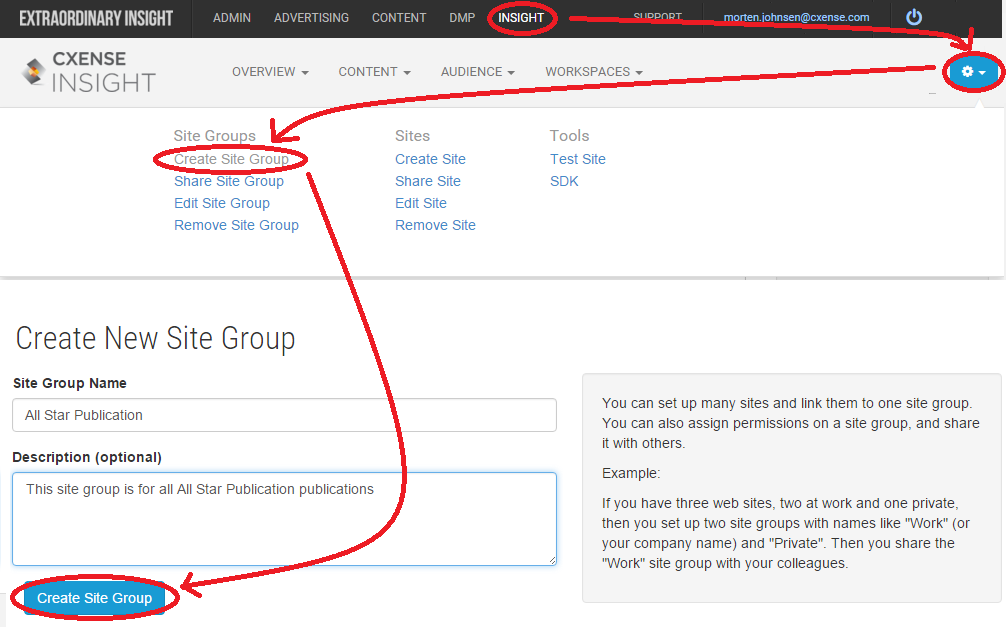
The first site group that one get access to is normally created by someone from Cxense, typically the onboarding engineer. However, as soon as one have a user with write access, one will be able to create additional site groups. To create a site group, go to https://insight.cxense.com and then click the gear up in the right corner as shown in the figure below, and then select Create Site Group from the tool bar that appears. Fill out the site group name and the site group description (optional) and then click the Create Site Group button.
Add Users
A user can access data for all sites in a site group. If the user has write access, then he or she can also make changes, typically configuration changes..
Anyone with write access to a site group can create a new users or add write access to existing ones following the procedure shown below. The first user has to be added by someone from Cxense and is typically done by the Cxense Onboarding engineer.
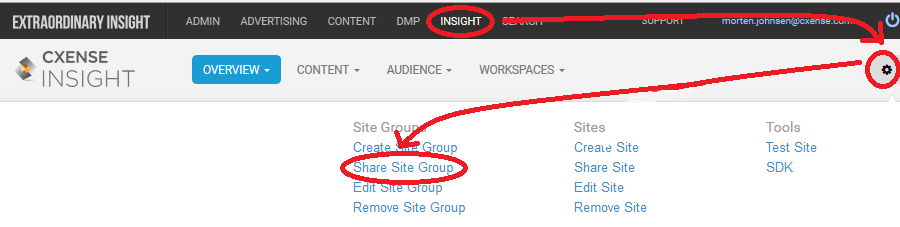
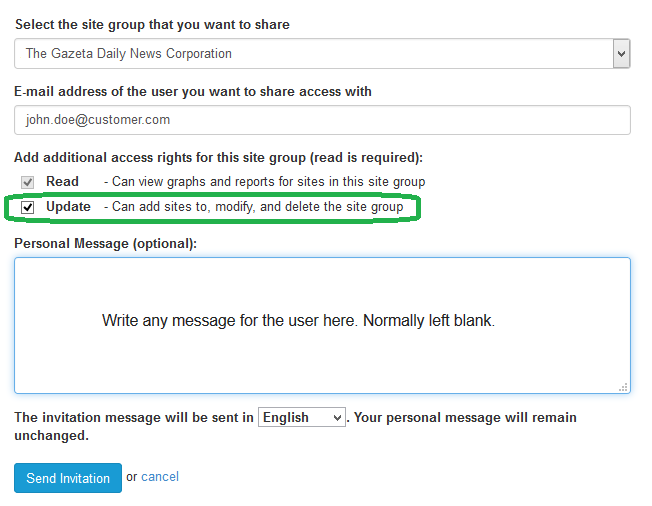
New users to a site group can be given read/write or read only access. Check of for the green circled Update option shown in the figure below for giving the user write access.
Clicking the Send Invitation button above will result in the new user receiving an e-mail as the one shown below:
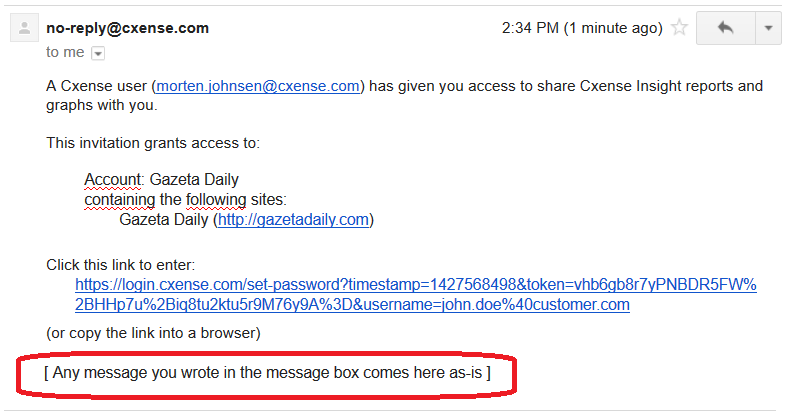
The cryptic link above will take the new user to the password creation page and let him or her log in to the system for the first time.
If the user already existed in the system, then the cryptic link above will be replaced with this one: http://insight.cxense.com.
Adding Sites
A site is a container for retrieved and configured data relating to a specific site.
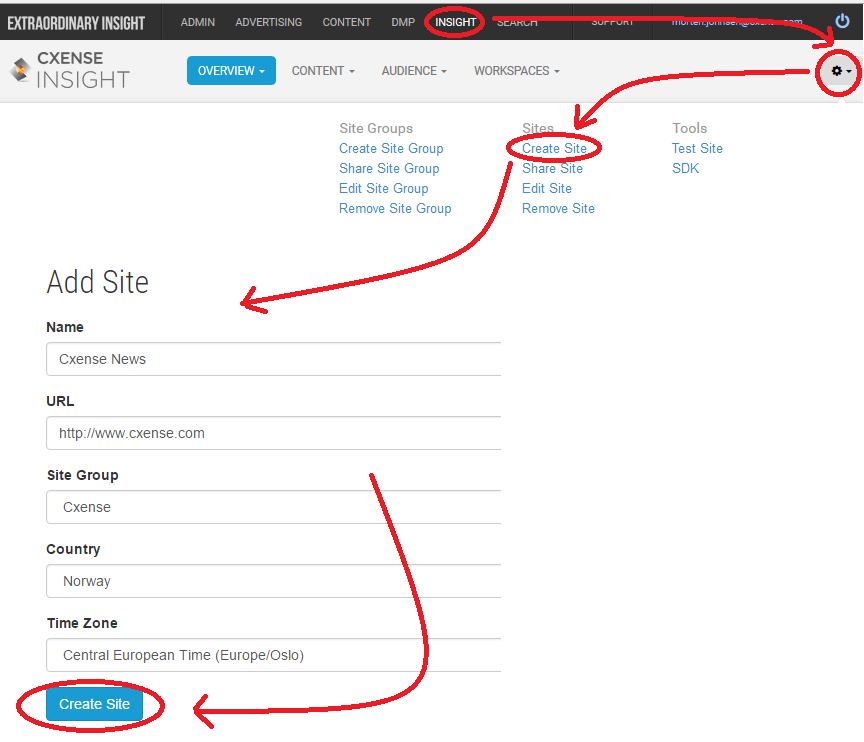
The figure below shows how to go about creating a new site and adding it to an existing site group.
Deploying the Cxense Script
In order for any site data to be retrieved, the Cxense Script has to be deployed on all the site's pages that are to be tracked.
Follow the red menu option route shown in the figure below to obtain the Cxense Script for the site in question, and then paste the script into the <head></head> section.
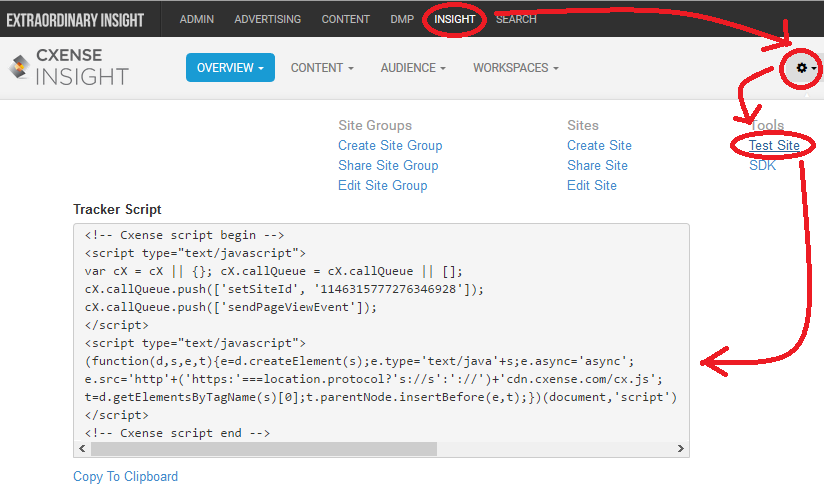
Within seconds of having deployed the Cxense Script (assuming of course that you site has traffic), you should start seeing page view data in the Cxense Insight GUI at http://insight.cxense.com.
Improving Data Retrieval
The Cxense Crawler retrieve web pages with the Cxense Script. Upon being downloaded these pages are then parsed and a variety of data is extracted. Normally the document processing functionality is good at extracting the right data. However, sometimes, and especially for pages that do not confirm to the normal news story format, the document processor may fail in retrieving or interpreting the data correctly. In those cases we can help out by adding auxiliary tags to the pages that ensure that the right data is retrieved.
This is not a required operation as it will only improve the quality of already enabled functionality. Further information can be found at Markup Assisted Data Extraction Examples.
Enable Standard and/or Custom Taxonomy
Cxense customer can apply a standard Cxense taxonomy and/or their own custom taxonomy to the processing of their sites' web page content. The purpose of applying any taxonomy to the content processing is to improve the identification of their users short term and long term interests (often referred to as user intent and user interest respectively). If applied correctly, users will end up being tagged with keywords that match their interests.
This is not a required operation as it will only improve the quality of already enabled functionality. Further information can be found at Taxonomy Setup Procedure.
Interacting with Cxense Insight
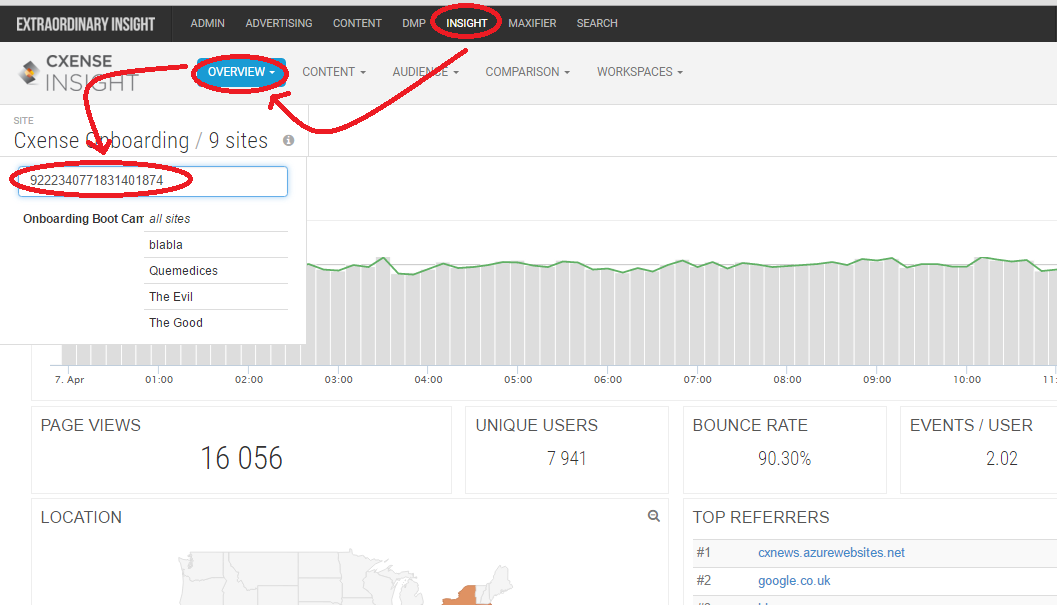
Below we will show the 3 ways of interacting with Cxense Insight and we will do so by accessing information about a particular site group. For this we need to obtain the site group's id. In our case in the examples below the site group id is 9222340771831401874.
-
We can access data via the Cxense Insight GUI at https://insight.cxense.com as shown here or via pre-made or self-made Cxense Insight UI: Custom Workspaces (see also Workspace Tutorial and Newsroom Workspace Templates).
-
We can download and use the Python based command line tool cx.py as shown below to execute any Cxense API function (take note of the OS dependent command line syntax):
unix/Mac: $ python cx.py /site/group '{"siteGroupId":"9222340771831401874"}'
Windows:  > python cx.py /site/group "{\"siteGroupId\":\"9222340771831401874\"}"
Requests and responses gives a more thorough general API usage description.
-
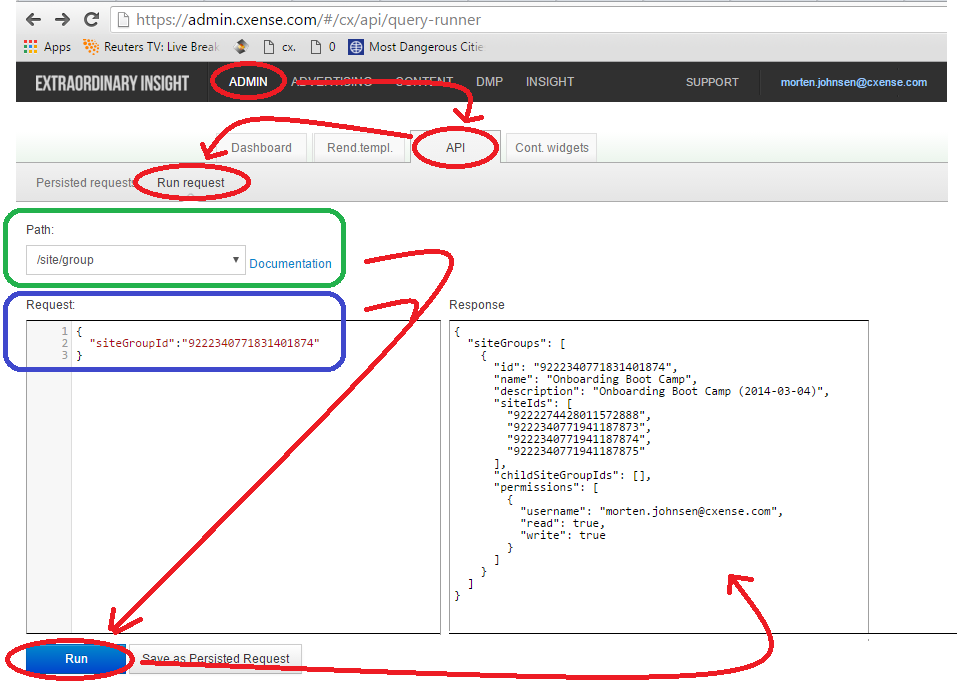
We can access the information via a kind of hybrid mode. From within the GUI we are allowed to execute a sub set of the Cxense API in a command line like style as shown in the figure below.
Setting up Cxense DMP
Having set up Cxense Insight as described above, Cxense DMP as such is now also ready to be used. However, some of the functionality has to be enabled. Check out the referenced documentation for each of the functionalities for details on this.
-
Creating and exporting audience segments - consult Segments Management
-
Creating conversion funnels
-
Lookalike segments
Setting up Cxense Content
Consult Piano Content Recommendation Tutorial
Setting up Cxense Search
Search has two sides to it. 1) Document uploading that by default is taken care of by the Cxense Crawler, but can be replaced by the customer pushing data via the API. And 2) the use of the search index to sent in queries and receive search results. The two tutorials below cover the two sides: