
This article covers the steps for how clients can retarget users who have previously visited an advertiser's or partner’s website. Furthermore, we provide you with an explanation of how you can send events server side or use our tracking pixel API in order to measure campaign engagement.
Share scripts with your partners
This approach describes how you can enable your advertisers and partners within Piano Audience and have them implement the needed scripts to track users on their website or landing page. After successful implementation, mutual users can be identified across websites in order to retarget them within your network.
Setting up a dedicated site group for your partners
-
Open Piano Insight.
-
Open User management in the top right corner (Only users with Admin permissions have access):
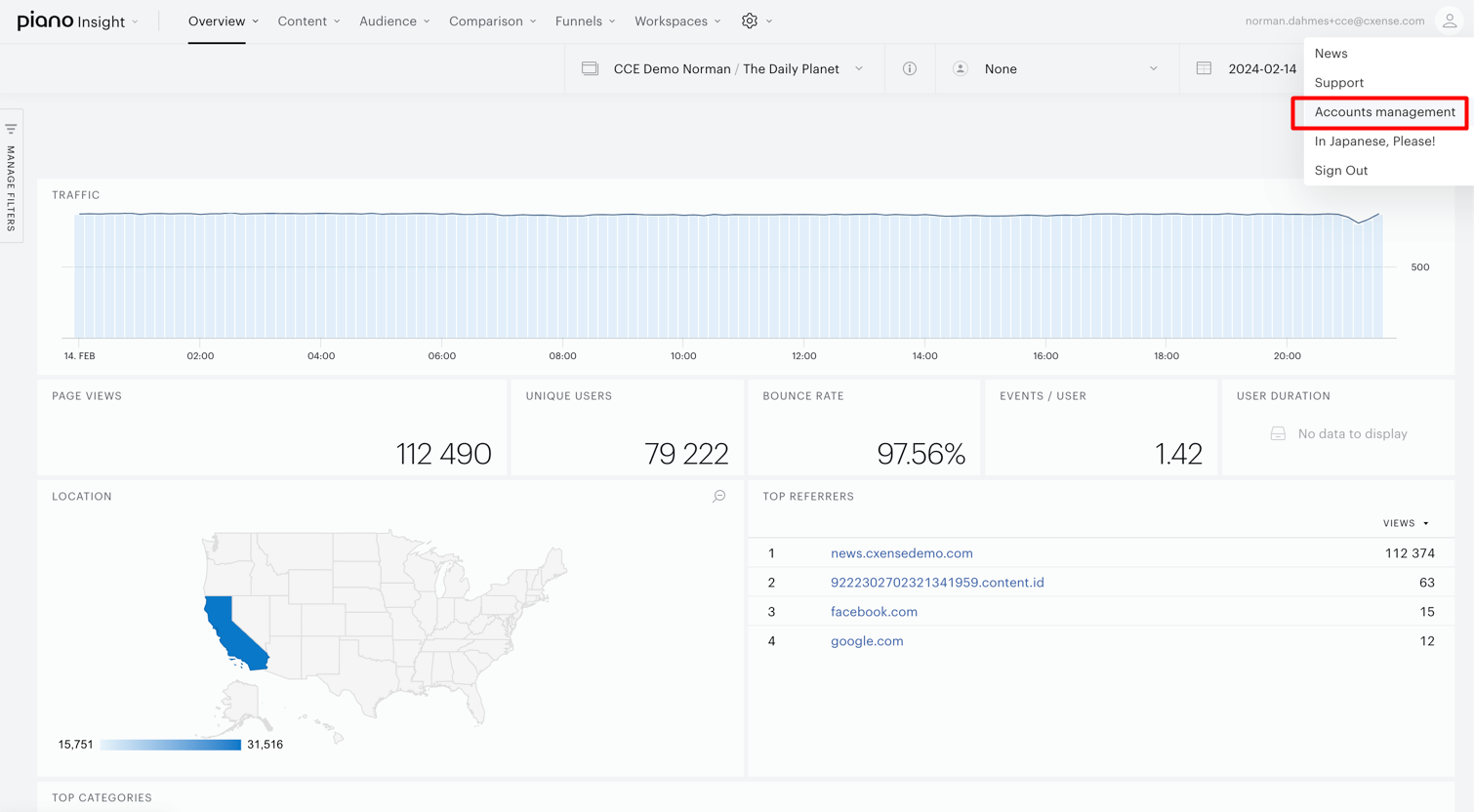
-
Create a dedicated site group for your partners & advertisers - All partner websites should be included in this site group.

Adding sites to the site group
-
Open User management (Only users with Admin permissions have access).
-
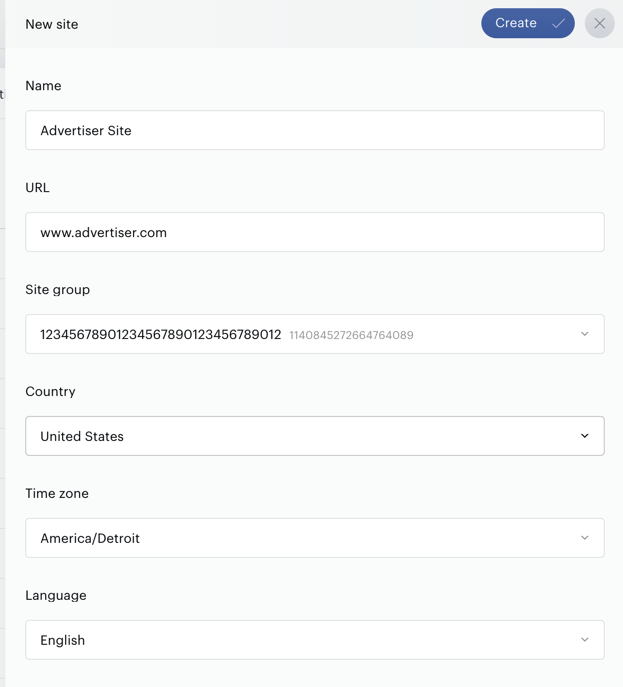
Create the site:

-
Configure the site and add respective details:
Have your partners implement the scripts
-
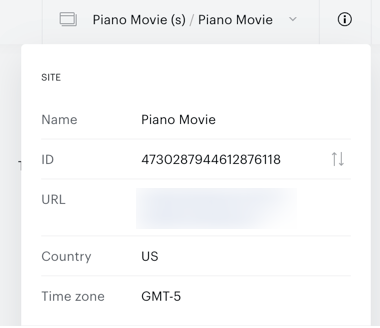
Obtain the respective siteId of the advertiser’s / partner’s website by checking Piano Insight UI:
-
Follow the steps mentioned in our event data documentation in order to implement the script.
Create segments and share with the target site group
-
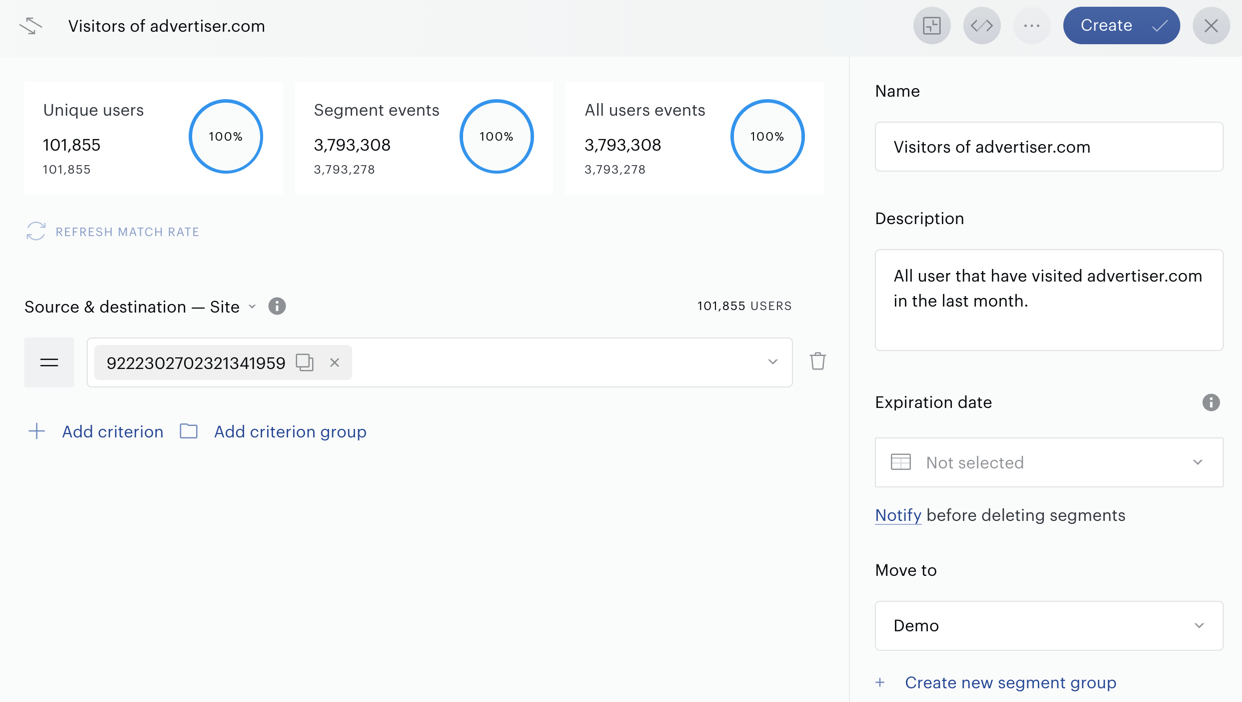
Create a segment of your choice within the partner’s site group. You can e.g. include all users that have visited a given website by filtering the linked siteId within the segment builder:
-
In order for segments to be shared with other site groups, you can use our segment annotation (labels) and include the site group ids of the target site groups. Therefore please use
exportas a key and add the site group id in question as a value: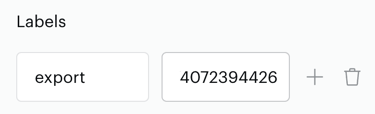
Multiple site group ids need to be added comma-separated (without space or similar). The segments get exported on a daily basis.
Use event tracking API & retargeting pixel
As an alternative, it might be convenient to trigger events server side to measure e.g. campaign engagement. Furthermore, this section provides information on how to create a retargeting pixel in order to be added to campaigns outside of your network.
Send events server side
In order for events to be sent server side, Piano Audience provides a dedicated endpoint named /dmp/push. Please follow the steps outlined in this article in order to get started.
Use retargeting pixel
In case you want to measure campaign engagement outside of your network, e.g. when users leave to visit landing pages or similar, it might be necessary to add a pixel request to be able to collect these events in Piano Audience.
Our retargeting pixel can solve this use case. Let’s have a look at the needed structure of the pixel and the parameters that should be sent within.
In order for events from pixels to be accepted by the Piano Audience backend, a persisted query Id needs to be created and added to the pixel request. Please read more about it here.
The following table reflects which parameters should be included at a bare minimum:
|
Parameter |
Example |
Description |
|---|---|---|
|
&persisted= |
12345 |
Persisted Query Id in order for events to be accepted by the backed |
|
&siteId= |
12345 |
Unique siteId value identifying your website |
|
&type= |
ad_pixel |
Name of the event |
|
&origin= |
<prefix>-retargeting |
Origin of the event, please make sure to add the respective prefix linked to your site group |
The following table reflects which parameters are optional:
|
Parameter |
Example |
Description |
|---|---|---|
|
&userIds |
%2Ftype%3A<prefix>%2Fid=123456 |
Identifying the user if available, for this type & id parameters are needed |
|
&customParameters |
%2Fgroup%3Aad_id%2Fitem%3A15.5%2Ftype=number %2Fgroup%3Acampaign%2Fitem%3Ashoesale%2Ftype=string |
Customer Parameters provide more context to the event, and multiple data types are supported, see examples |
|
&debug= |
true |
In case you are running into any issues with events not being reflected in Piano Audience, please use this parameter for debugging (do not use it in production) |
An example of how a retargeting pixel could look like:
http://comcluster.cxense.com/dmp/push.html?persisted=<pqid>&siteId=<siteId>&type=ad_pixel&origin=cxd-retargeting
&customParameters%2Fgroup%3Aad_id%2Fitem%3A15.5%2Ftype=number
&customParameters%2Fgroup%3Acampaign%2Fitem%3Ashoesale%2Ftype=string
Review performance event in Piano Audience
Please make sure to review if your tests were successful. In this case, you should be able to see your test events in Audience' Reporting. Please use Reporting - Performance Events. The event should be reflected similar to this test event:

In case the event does not occur in the reporting, feel free to use the debug parameters mentioned above or contact Piano Support.
Create a segment based on retargeting events
In order to create a segment based on the events triggered above it’s important to understand that for tracking pixels we do not have a page view event linked. That results e.g. in Piano Insight not being able to reflect the event and that said, data is showing 0 values when the event is filtered in the UI:
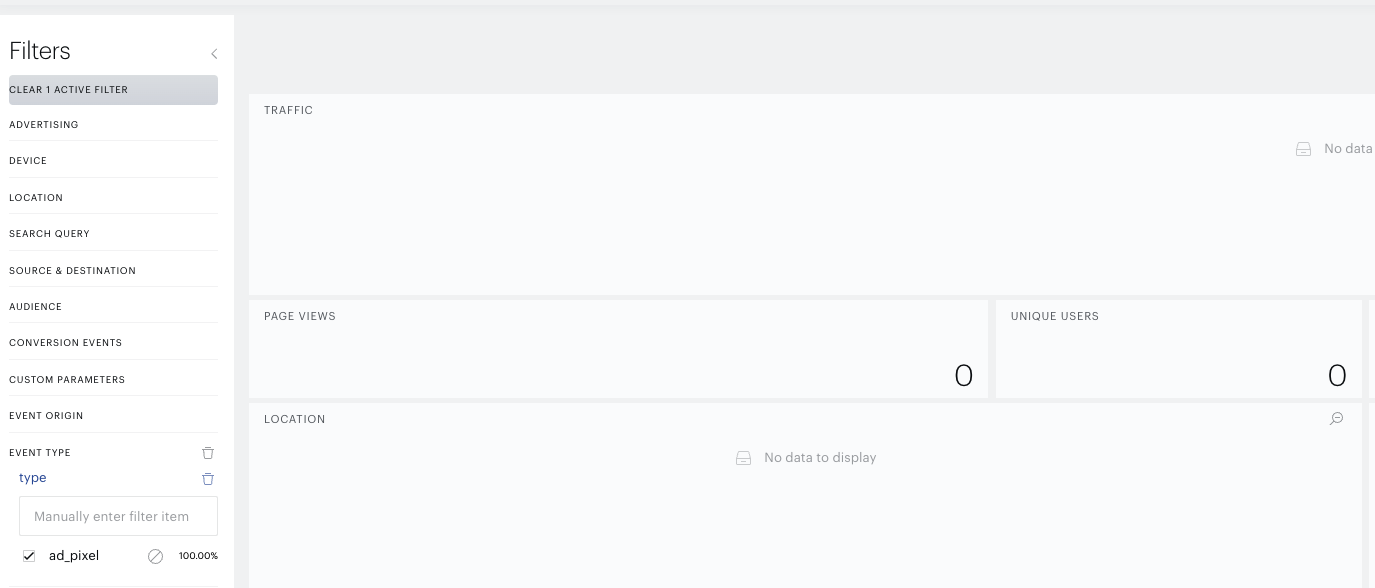
This is expected, as we did execute the pixel on a page without our script cx.js.
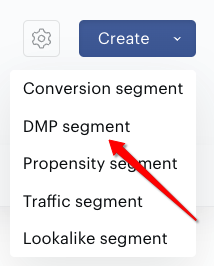
In order to be able to segment on the events, the respective segment type “DMP segment” needs to be used. Please visit the user segment builder and use this option from the “Create” dropdown:
This segment type lets you specifically segment on performance events only, but in order to do so, one would need to use the JSON notation to filter on the desired data. For the example above, the following segment definition is helpful:
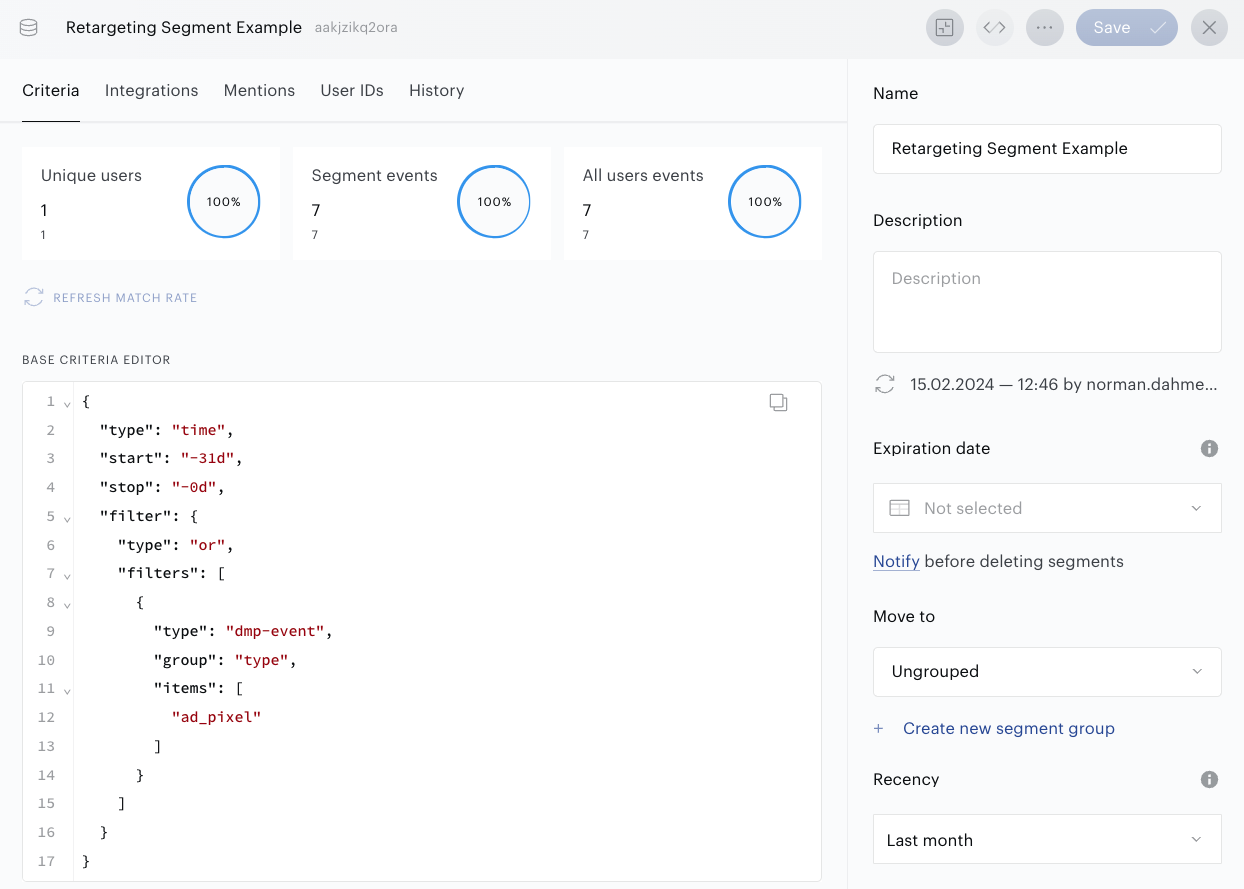
Please read more about the filter for performance events.