
The Space on a webpage that shows Ads from cX::ad is called an AdSpace. AdSpaces can be configured to receive Ads from a single or multiple advertising Feeds, which can have different dimensions, formats and targeting criteria. This way, AdSpaces are configured to select the most appropriate Ads. AdSpaces can also specify configuration to further refine the Ads it receives.
AdSpace Interface Overview
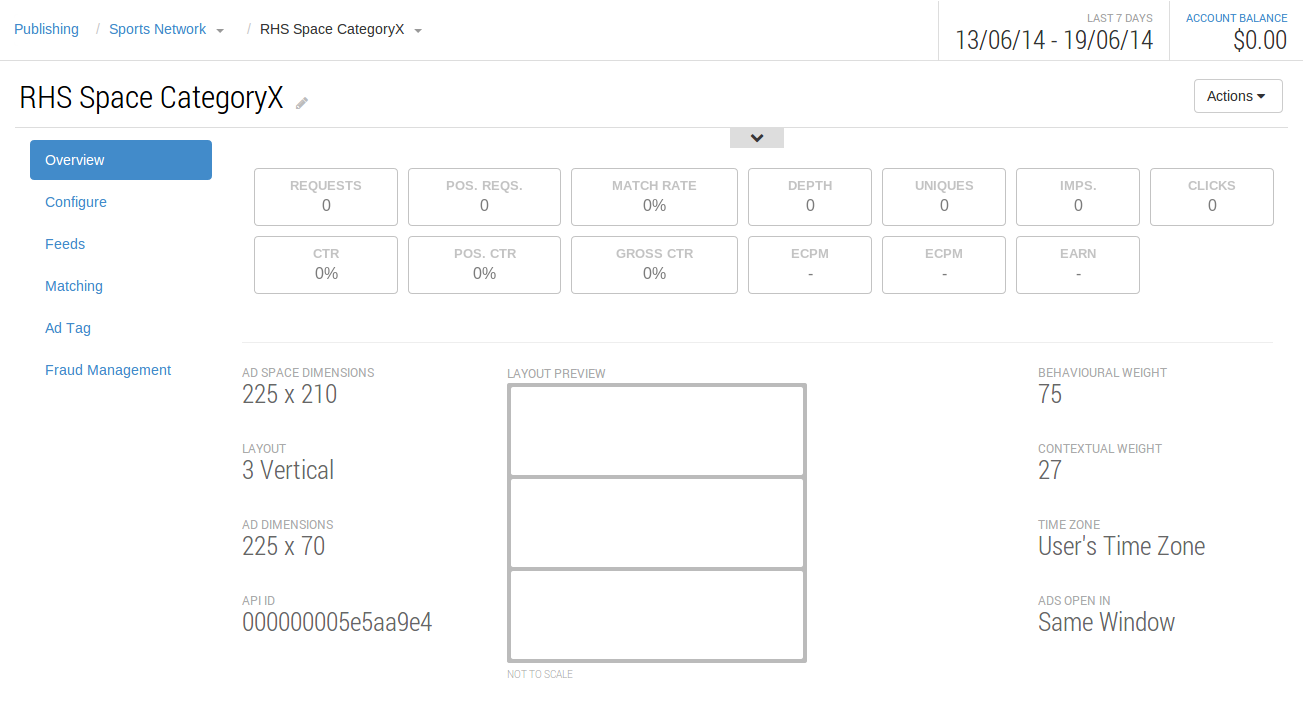
The overview provides all necessary day-to-day information at a glance, including graph element, and a visual preview of the adSpace layout.
AdSpace configuration
AdSpaces have the following configuration options;
|
Field |
Options |
Description |
|---|---|---|
|
Name |
The Name of the AdSpace |
Usually termed with regard to the website, page and location within the page (eg. exampleSite RHS Top Banner) |
|
Width |
any integer |
The entire Width of the AdSpace (the space available for ads) |
|
Height |
any Integer |
The entire height of the AdSpace (the space available for ads) |
|
Number of Ads |
1-20 |
This sets the amount of Ads to be shown within the space |
|
Layout |
Horizontal or Vertical |
Only relevant if the AdSpace will show more than one advertisement at a time, this option sets how the ads will be presented next to one another |
|
Minimum Price |
amount & currency |
This sets the 'threshold' for the minimum price paid for a CPC Advertisement to be shown |
|
Behavioural Weight |
0 - 100 |
The relative amount that User's Interests (Behaviour) have when selecting Advertisements |
|
Contextual Weight |
0 - 100 |
The relative amount that the Content of a Page (Context) has when selecting Advertisements |
|
Time Zone |
|
Whether to show an ad using the user's time zone as matching criteria, or a custom time zone specified for the ad space |
|
Ads open in |
|
When clicked upon, whether or not the ad opens in a same window or a new one |
|
Auction Data Currency Conversion |
|
Whether Cxense Advertising converts monetary figures from the auction into the publisher's currency whenever they're not using the same currency. |
AdSpace Dimension settings
AdSpace Width and Height Settings
The Width and Height values of an AdSpace determine the total dimensions for the AdSpace and work with the orientation and ad count fields to determine the size of the ads that can be displayed.
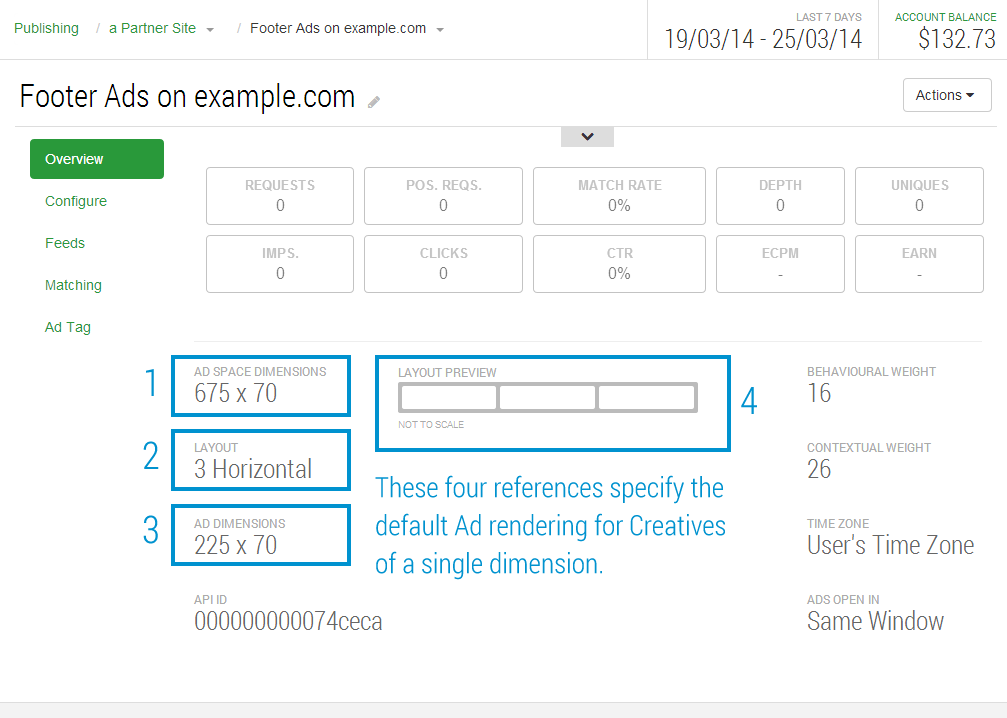
For example, an AdSpace with the following properties:
-
Width = 675
-
Height = 70
-
Orientation = Horizontal
-
Ad Count = 3
will show ads that have the dimensions of 225 x 70. As the AdSpace has horizontal orientation, the width is divided by the ad count value to determine the ad size.
Dynamic & multiple sized Ads
AdSpaces have the ability to show multiple Ad dimensions at once.
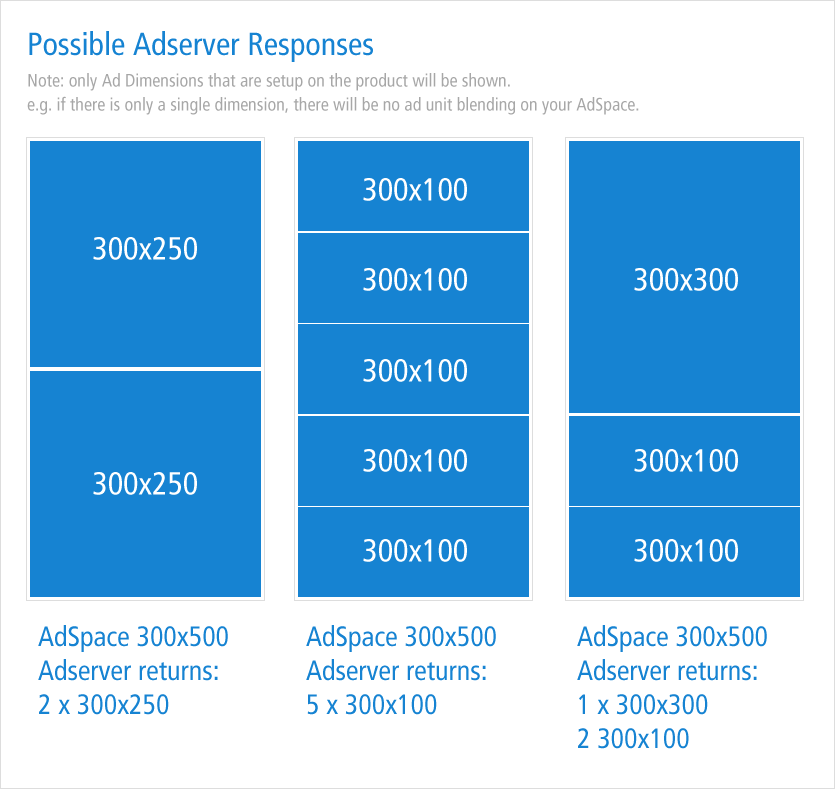
If your platform contains a Product with multiple dimensions, which is mapped to an AdSpace via a feed, that AdSpace will have the ability to show Ad Creatives of differing Dimensions (as shown in the graphic on right "Possible AdServer Responses").
When you have such a setup, the Yield is calculated by the Ad Feed as per normal (i.e. using products / product groups within the Feeds mapped to the AdSpace) this dictates the Ad Priority to show in the space, once the order is established, ads are added to the AdSpace until the AdSpace Dimensions are exhausted - i.e. no more of the available ads will fit in the AdSpace.
Further notes on configuration options
-
If you set the pn (page number) and/or
ps(page size) parameters the adserver will ignore the size of creatives in the result set and return the page requested. -
If you set the auw (ad unit width) and auh (ad unit height), or the sz (Ad Unit Width x Height) parameters, the adserver will filter the creatives to only the specified size.
-
If you do not set any of the above, the adserver will use the size of available creatives (from the Products/Feeds) and the size of an AdSpace to return the maximum number of ads that fit. For example, a space of 300x450 would be filled with 3 ads of 300x150 pixels.
If you wish to use render templates you must control pagination manually as the adserver is unable to determine whether creatives will fit in your allocated space.
Ads of a larger dimension than the AdSpace Dimensions will never show.
For further information on customising the AdSpace parameters, please refer to the Search REST and JavaScript API page.
Currently, there is no 'yield management' involved in selection of Ads based on Creative Dimensions. In time, we envision adding further business logic to choose say, one large ad over two smaller ads if the revenue is increased. This page will be updated when this functionality is available.
Matching Configuration of an AdSpace
AdSpaces can be configured to use a combination of matching types when selecting Ads, such as Behavioural and Contextual Matching configured on the AdSpace itself using the slider widgets:
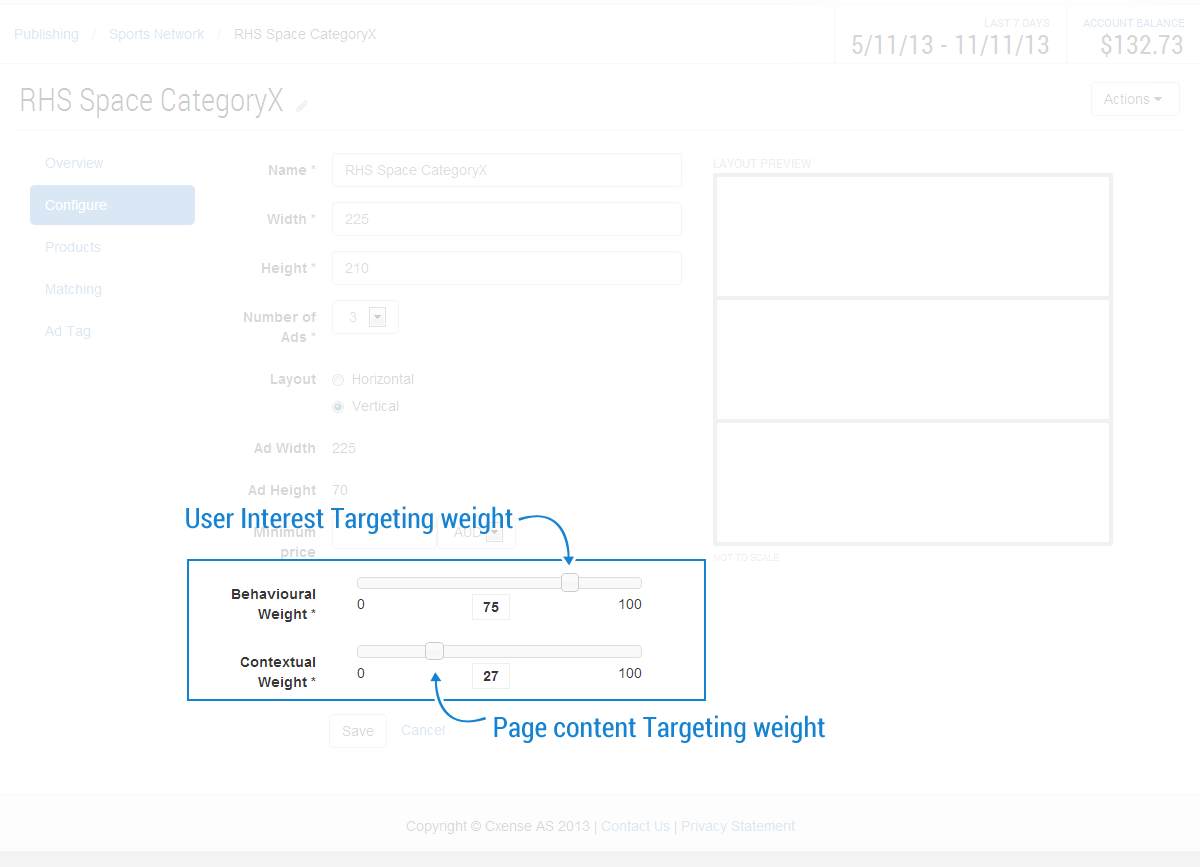
Note, the amounts are not percentage-based (i.e. do not need to add up to 100), their influence is relative to one another, so a setting of 50 / 100 means one applies half the influence of the other. Furthermore, a setting of 100 / 100 is the same relative score or ratio as 31/31, or 88/88 (i.e. they are 1:1 ratio).
Read about suggested matching settings on the Matching Settings Configuration for AdSpaces page.
Assigning Advertising Feeds
The first step of creating an AdSpace is to select an advertising Feed. Multiple advertising Feeds can be assigned as required. This allows an AdSpace to receive Ads from another Feed if none are available from the first. The order of the Feeds on the AdSpace controls the order in which they will be used when serving Ads for the AdSpace. Assigned Feeds can be added, deleted or re-prioritized at any time. The AdSpace will only receive Ads if it has at least one Live Feed associated with it.
Embedding an AdSpace in your webpage
AdSpaces are embedded in a webpage in one of two ways:
-
by pasting some javascript code into the webpage where required. Please read AdSpace Script tags for more information.
-
By using the AdSpace ID and making an API call.
For information on how to embed adspaces in order to make cX::ad cooperate with other adservers (third party ad tags), please see here.
Customizing fraud management settings
You can customize the fraud management settings used for your AdSpace. Choosing the "Fraud Management" option from the left hand navigation menu presents the option to override the system wide fraud management settings.
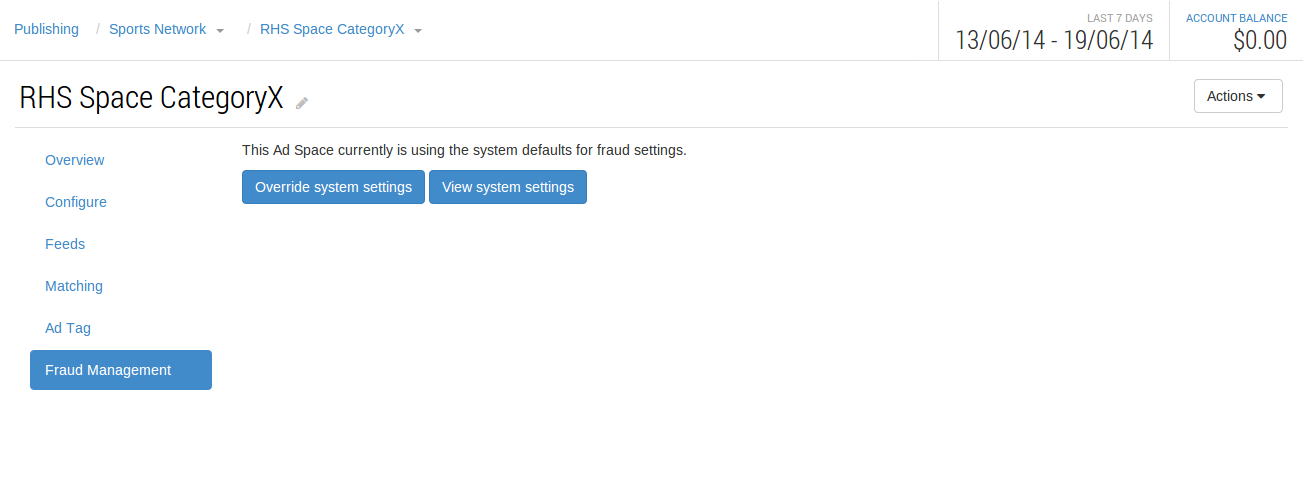
Once overridden the settings configured for the AdSpace will be used when processing all future ad requests on the AdSpace.
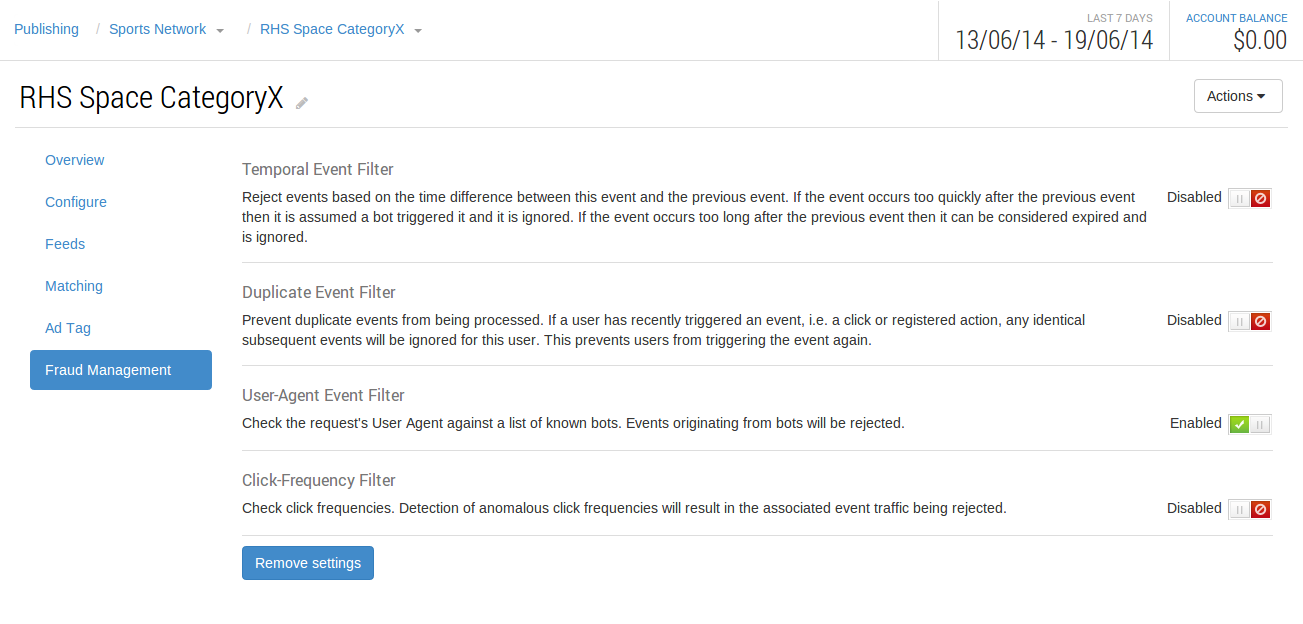
If at any time you wish to revert back to using the system wide fraud management settings simply click "Remove settings" and the customized settings stored for the AdSpace will be removed causing it to revert back to the system wide settings for future ad requests.
Setting up AdSpace Inventory for Sale
The Cxense Advertising Platform will automatically calculate and forecast the amount of impressions for sale based on User Traffic and other metrics. Simply embedding your AdSpace as described above will begin this process of forecast calculation.
Custom Look and Feel within an AdSpace
You can customize the presentation of Ads per AdSpace using the custom Look and Feel (lf) variables.
A small set of of the variables is listed here:
|
Variable |
Description |
|---|---|
|
lf-ac |
The ad colour. Standard text colour for text ads. |
|
lf-am |
The ad margin. This contains the margin to place around each ad being presented. Defaults to 0 if nothing is supplied. |
|
lf-bg |
The background colour for the presentation. Useful for setting a "site specific" colour so the ad presentation blends with the publisher's site. |
|
lf-lc |
The link colour. This is the colour applied to the destination/display URL for the ad. |
|
lf-tc |
The title colour for the ad. This is the first line of a text creative. |
|
lf-tmc |
The link title emphasis colour. This is invoked for matching criteria highlighting within an ads content. It has to be a different colour as the title is set to bold and there is no other way to define differentiate between matching criteria substitutions and the standard title |
See Search REST and JavaScript API for the full list of parameters.
AdSpace Maintenance and Testing
AdSpaces can be tested for validity using a diagnostic function within the UI. Please read AdSpace Diagnostics for more information.
Adding Matching Criteria to an AdSpace (or Publishing Folder)
You can add two types of matching criteria to an AdSpace or Publishing Folder:
Advertiser Blacklisting:
Add a list of URLs to block specific Advertisers, and their advertisements (read more about Advertiser Blacklisting)
Categories
Add Categories to 'hard code' the Ad requests to a particular category or categories. The interaction is Identical to Categories on a campaign, with the obvious difference being all requests will use the categories as matching criteria for Ads. In this way, you can setup AdSpaces or folders to be specific to particular categories or sections of inventory.