
Overview
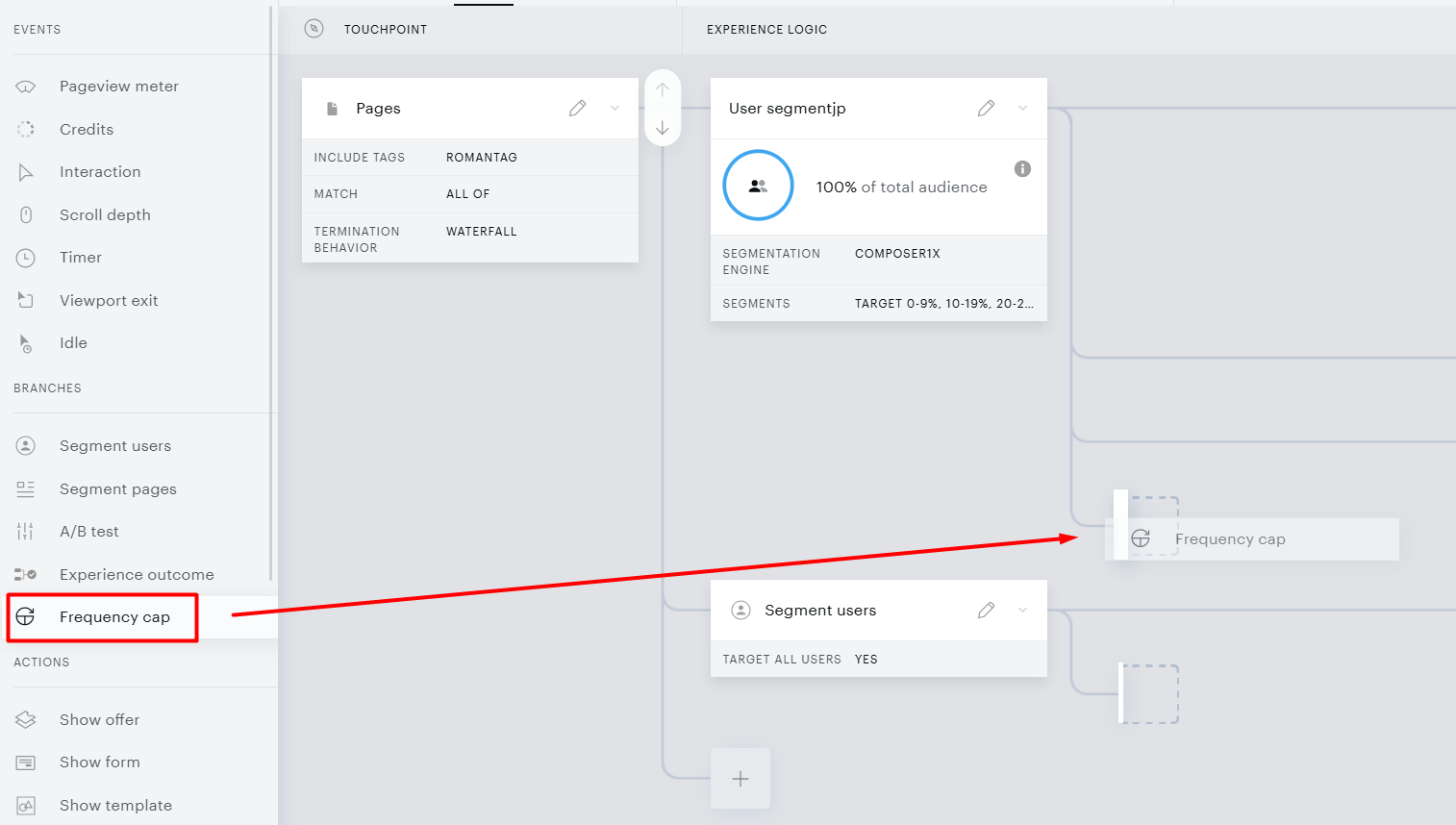
The Frequency Cap card gives you precise control over how many times a user, or your entire audience, can interact with a template before a different experience is shown. Add the card from the Branches section in the Composer experience editor sidebar, then configure the scope, interaction mode, and limit that fit your goal.
The Frequency Cap card is only available in site page view experiences.
Interaction Modes
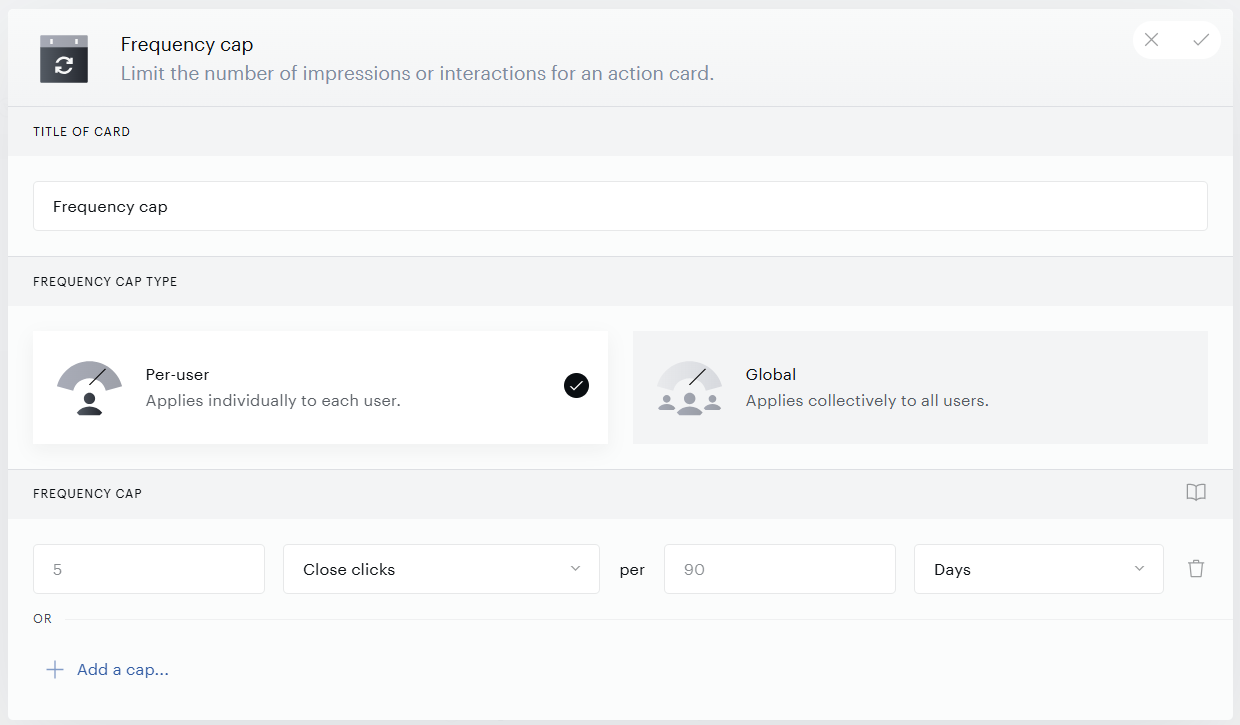
The Interaction Mode drop-down in the Frequency Cap settings panel determines which user action increments the counter. The three available modes are: Visible impressions (each time the template becomes visible), Close clicks (each time a user dismisses the template), and - for clients with a C1X license - Conversions (each completed purchase or checkout upgrade from a Show Offer card).
Visible impressions
A visible impression is registered when both of the following conditions are met: (1) at least 50% of the template’s pixels are loaded within the viewable area of the browser tab, and (2) those pixels remain in the viewable area for at least 1 continuous second. The viewable area is the visible screen space, excluding the browser address bar, dev tools panels, and menu bars.
Close clicks
A close click is registered when the user taps the template’s dismiss button. This applies to both modal and inline templates. For inline templates, you must add a close button to the template before close-click tracking can begin.
In a direct checkout flow with a modal display mode, tapping to close the checkout modal also counts as a close click.
Conversions
When configuring a Global experience, you can choose between the Per-user and Global frequency cap type. And the Global type includes the Conversions interaction mode. This mode counts completed subscription purchases or checkout upgrades from a Show Offer card. The counter increments when a user finishes checkout, regardless of which specific term or upgrade option they selected. Counted conversion types include purchase offers and upgrade or downgrade offers.
The Until cap is met branch must contain a Show Offer card when using the Conversions mode.
Conversions mode is only available for Global experiences. The Frequency cap type
When you select Conversions as the interaction mode, choose how the conversion counter increments.
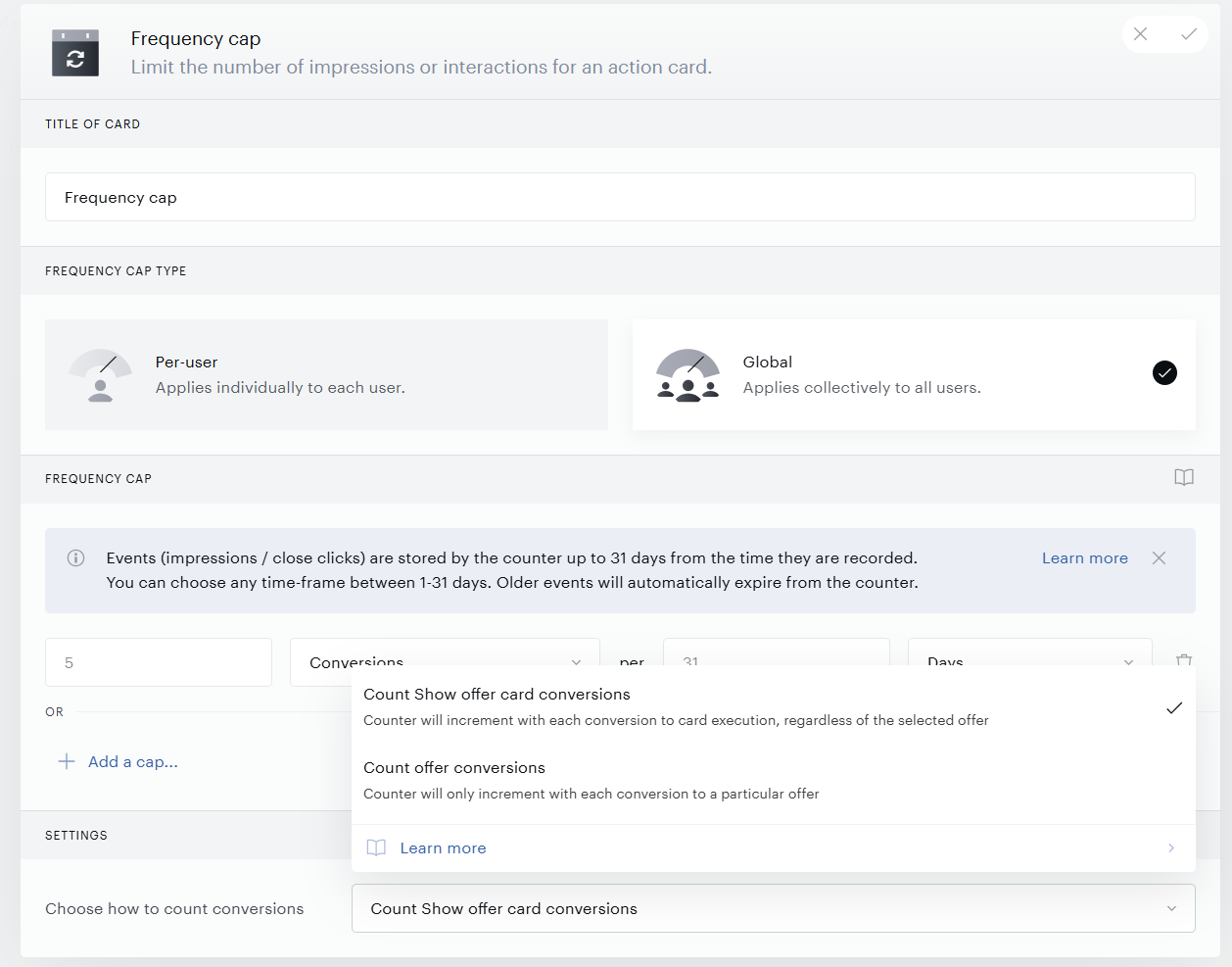
Each Show Offer card contains one offer. A capped experience can involve multiple offers: for example, the Until cap is met branch can include multiple Show Offer cards, or an A/B test can present variants that serve different offers.
Two sub-options are available:
-
Count Show offer card conversions: counts card executions. Any conversion that follows the execution of any Show Offer card goes into one shared counter; the offer it was tied to does not matter. Use this option when you want to limit how often already-converted users are targeted, independently of your current offer portfolio, and when changing the offer inside a card should not reset the existing count.
-
Count offer conversions: counts conversions per offer. The counter is keyed on the offer, so you get as many independent counters as there are distinct offers used across your Show Offer cards. Use this option when the cap should be per product; for example, to stop showing conversions for Offer A more than N times a week, while Offer B keeps being capped separately.
Cap scope: per-user vs. global
Before choosing an interaction mode, select the scope of the counter.
Per-user cap
Each end-user has their own independent counter. Use this when you want to limit how many times one person can interact with a template before seeing a different experience. Interaction data is stored in the _pcfe browser cookie.
Recommended per-user card limit: We recommend configuring no more than 12 per-user frequency-capped cards across your application.
Twelve cards is the estimated safe maximum to keep the _pcfe cookie under the 4 KB limit. Configuring more than 12 per-user capped cards may exceed browser storage limits and cause unreliable frequency capping.
Global (audience-wide) cap
Global frequency caps require Composer 1x. The Global (audience-wide) frequency cap option will be greyed out in the Frequency Cap settings panel unless Composer 1x is enabled for your application. If you can’t switch to the Global option, contact Piano Support to enable Composer 1x on your application.
A single shared counter accumulates interactions from all users combined. Every qualifying interaction by any visitor increments the same counter. Enabling the Global (audience-wide) toggle in the settings panel switches the cap from per-user to global. Global caps support all interaction modes.
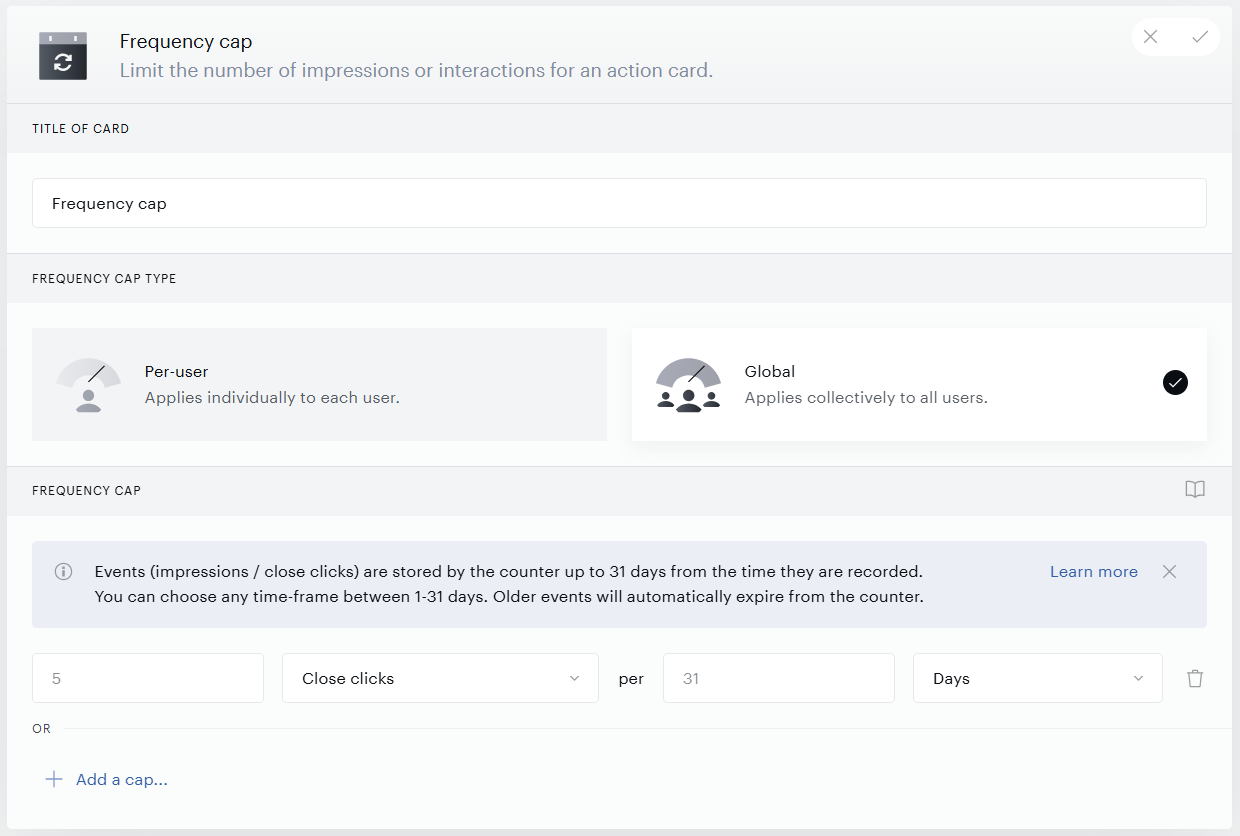
Interaction events are stored for a maximum of 31 days. Events older than 31 days are removed automatically. Hard limits without a time-frame are not supported for global caps. Always configure a time-frame.
How to configure a frequency cap
-
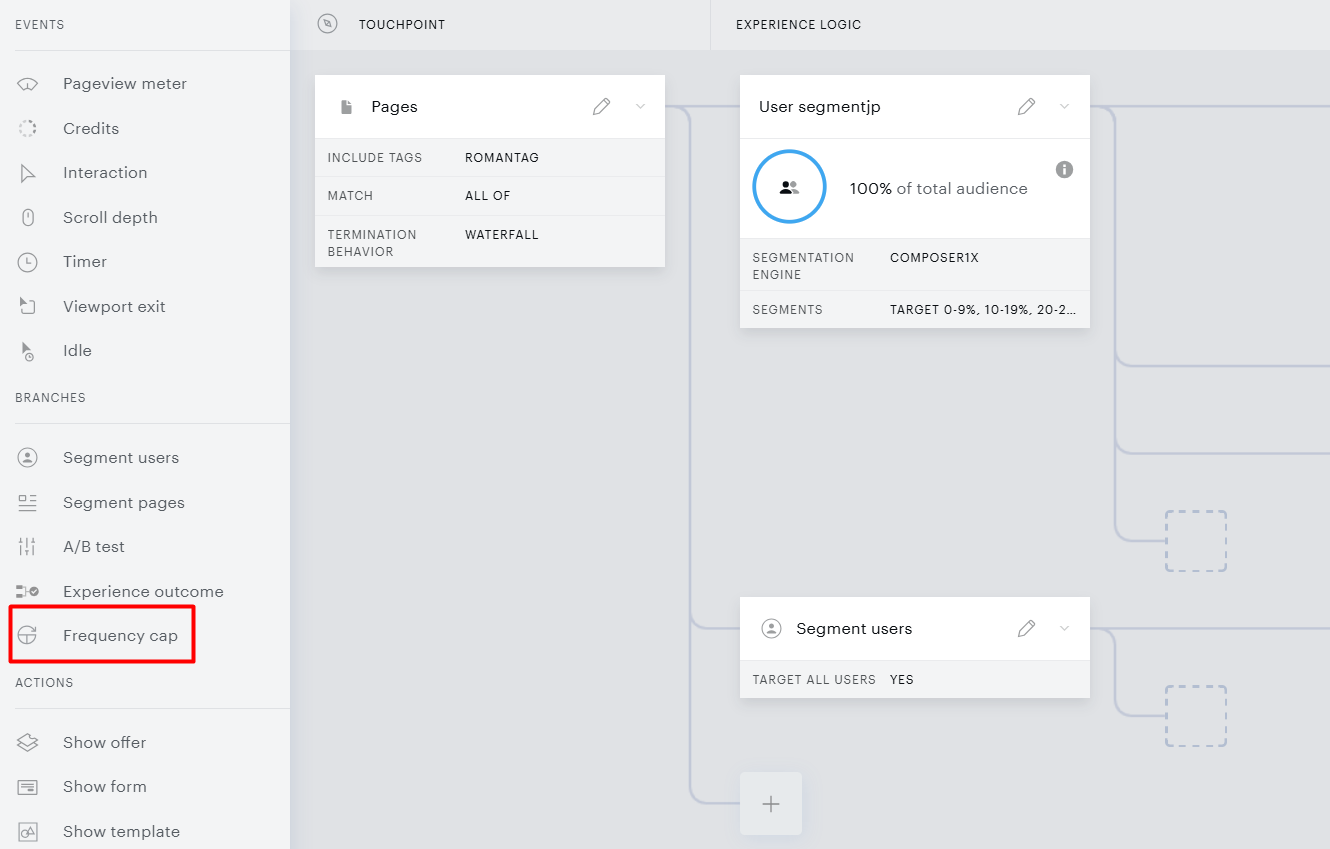
In the Composer experience editor, drag the Frequency Cap card onto the canvas from the Branches section in the sidebar.
-
Placing the card opens the settings panel.
-
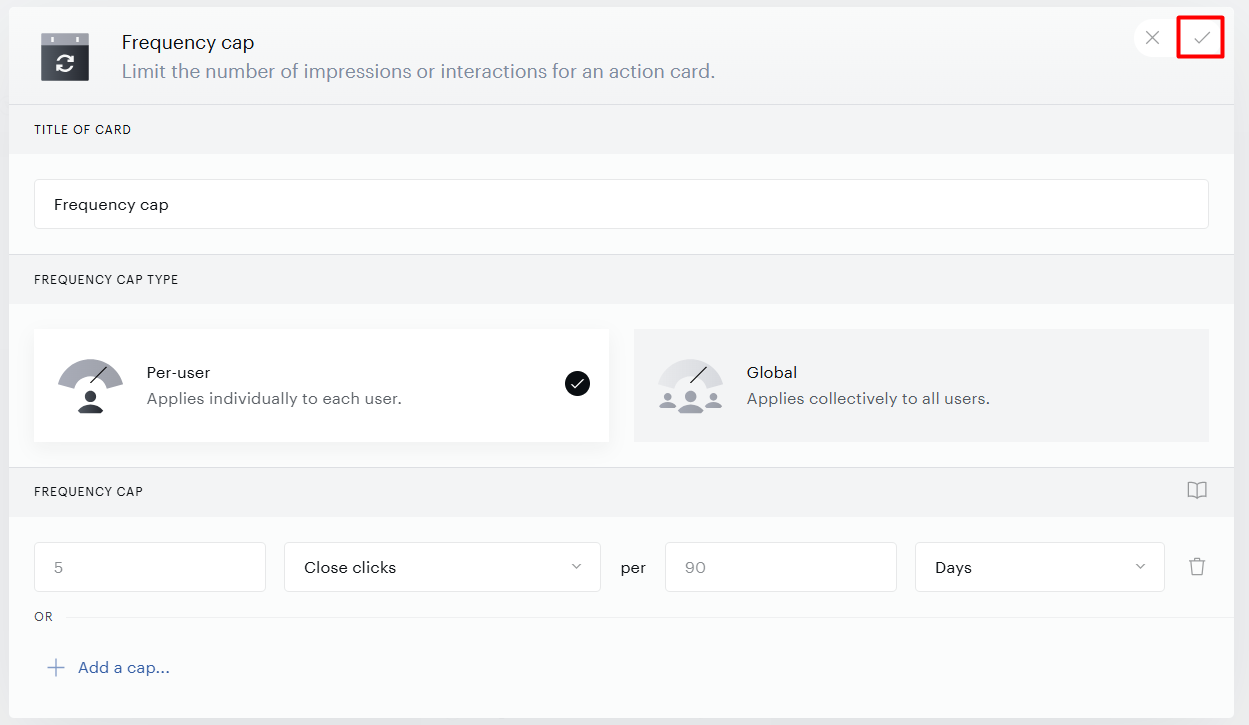
Choose the cap scope: Per-user (applies independently to each end-user) or Global (shared counter across all users).
The Global option is only available if Composer 1x is enabled for your application.
-
Select an Interaction Mode: Visible impressions, Close clicks, or Conversions.
-
Enter the Max Interactions limit.
-
Set a time-frame to create a rolling cap. Per-user limits: up to 99 minutes or hours, 90 days, 12 weeks, or 3 months. Global limits: between 1 and 31 days.
-
Save the configured setup by clicking the checkbox in the top-right corner.
-
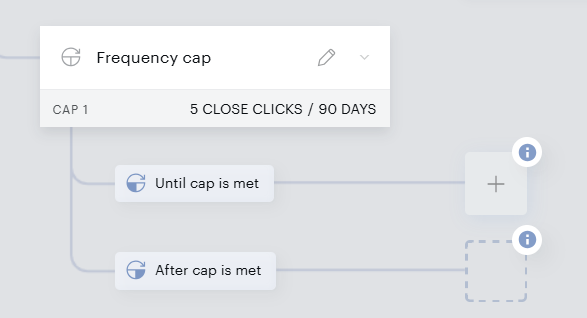
Linked to the card, you will now have two new branches available: Until cap is met and After cap is met.
-
In the Until cap is met branch, select the action card to display while the cap has not been reached.
Primary Action: Choose the action that should be capped. The Frequency Cap card supports Show template, Show offer, and Show recommendation as primary actions. Click the placeholder in the ‘Until cap is met’ branch to select the primary action. You may also select any other actions to trigger along with the primary action. When the cap is met, these actions will also stop. Note that only actions may be added within the ‘Until cap is met’ branch; branches and events may not be added here.
Cap-Dependent Action: Optionally, define an action to take once the cap is met. You can either select an action card from the left sidebar to fill in the placeholder in the "After cap is met" branch or use another frequency cap to define more cap-dependent actions. If you are capping an offer or template used as a paywall, be sure to add another to the "After cap is met" branch to limit an end-user's access to your content after they have reached the frequency cap with your initial action.
-
Optionally, configure the After cap is met branch to display a different action once the cap is reached.
-
Save and activate the experience.
Sharing a global counter across experiences
You can share the same audience-wide counter across multiple Composer experiences when using the Conversions interaction mode. The action card's Module ID is the key that links counters together. Action cards with the same Module ID increment the same counter, regardless of which experience triggers them.
Sharing a counter across experiences is only supported for Conversions; the Visible impressions and Close clicks modes cannot be shared this way.
-
In Experience 1, configure a global Frequency Cap and place the target action card in the Until cap is met branch.
-
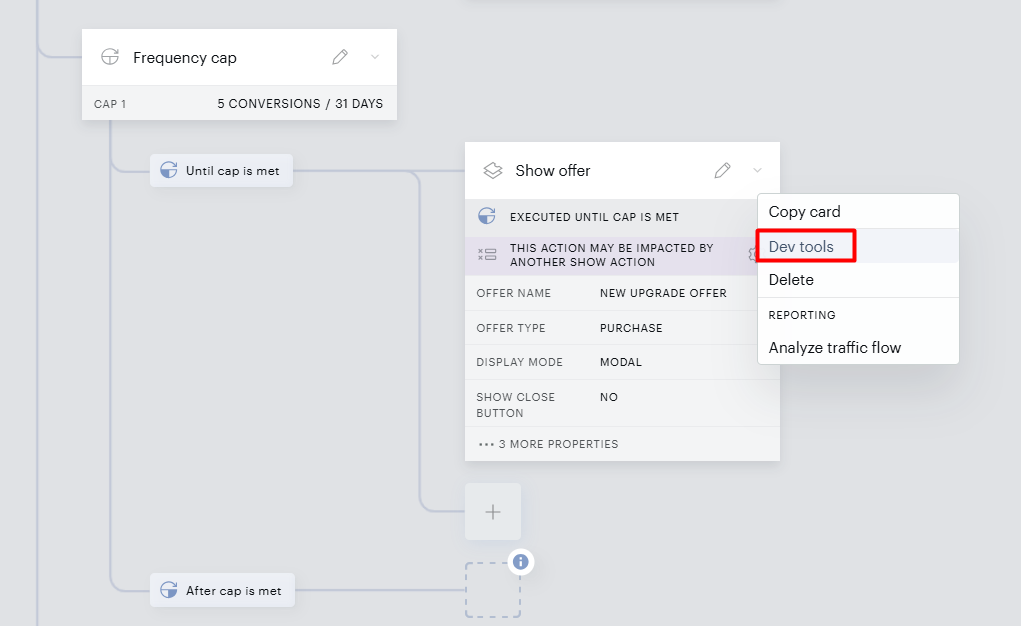
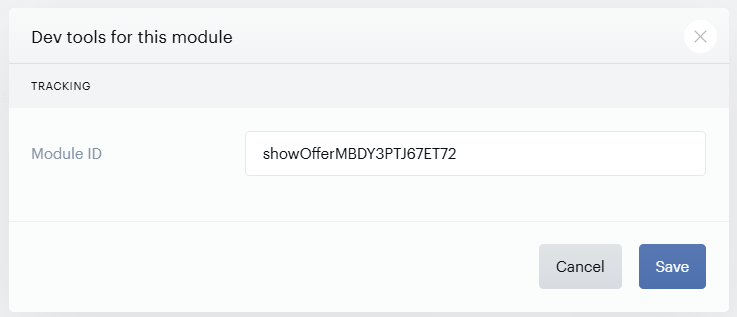
Open the action card’s Dev Tools settings and copy the Module ID.
-
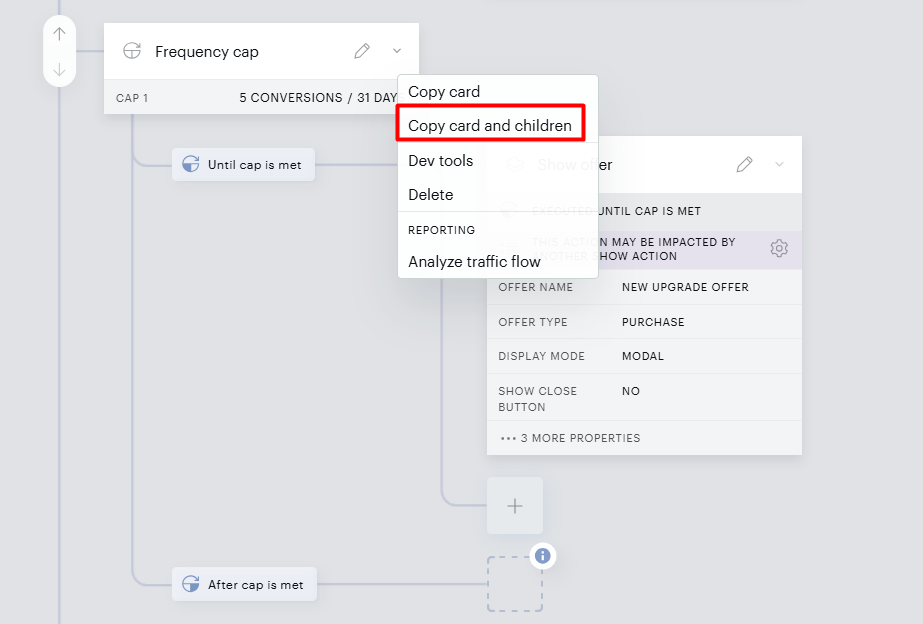
On the Frequency Cap card, open the drop-down menu and select Copy card and children.
-
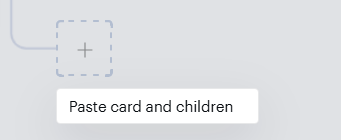
In Experience 2, navigate to the location where you want to add the Frequency Cap, click the + icon, and select Paste card and children.
-
Open the pasted action card, select Dev Tools from the drop-down menu, and replace the newly generated Module ID with the Module ID copied from Experience 1.
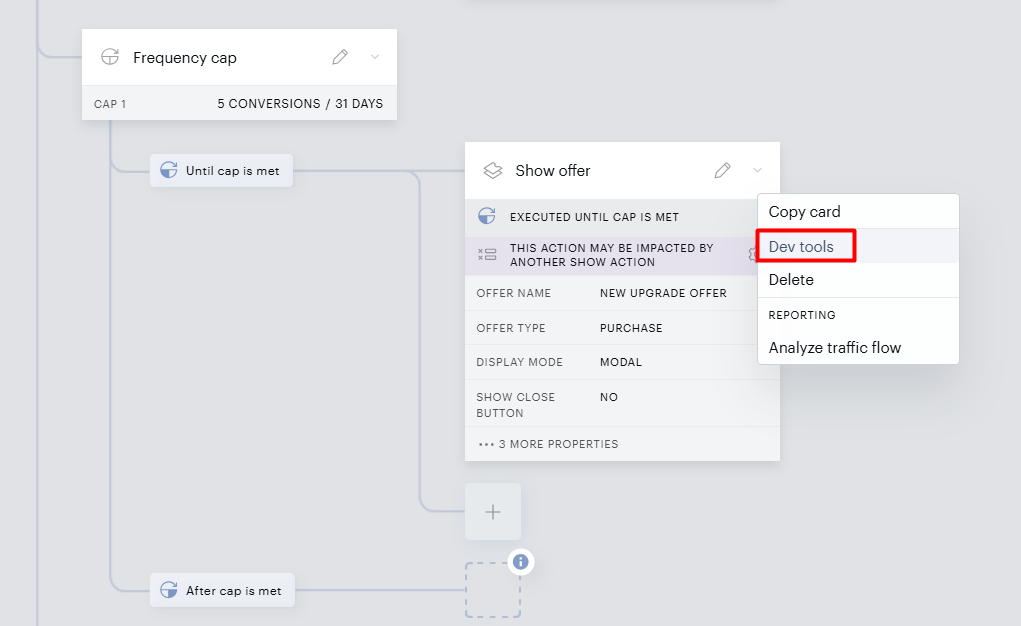
Both Frequency Cap actions will now share the same Module ID and increment the same global counter across experiences.
Action cards with different Module IDs maintain separate counters even if they display the same template. Make sure all participating action cards use the same Module ID.
How the frequency cap works
Rolling window
The interaction counter uses a rolling window. Each event is time-stamped, and the cap resets relative to earlier events rather than at fixed clock boundaries.
Example: a user-level cap is 2 visible impressions per hour.
-
First impression at 15:27:01, counter = 1.
-
Second impression at 15:59:32, counter = 2; cap reached.
The cap resets at 16:27:02 (one hour after the first impression). The primary action fires again.
-
Third impression at 16:28:49, counter = 1 (reset). Cap is reached again at count 2.
The cap resets at 16:59:33 (one hour after the second impression).
How the Frequency Cap counts impressions with multiple templates
A Frequency Cap counts impressions for one template per branch, rather than for each template you place there. If you add two or more Show Offer or Show Template cards to the “Until cap is met” branch, all of them can still display to the user as normal. However, only one of them contributes to the cap’s impression count. The others are shown without being counted.
Example: you set a cap of 4 visible impressions and place two templates in the “Until cap is met” branch. Both templates appear on every pageview. The cap is reached after 4 pageviews, not after 2, because each pageview adds 1 to the counter, not 2.
Two modal templates in the same branch will not both appear because a second full-page modal cannot open on top of the first. Only the first modal displays and generates an impression. This behavior is expected and separate from how counting works.
Cookie tracking (user level)
Per-user caps use the _pcfe cookie to store interaction counts on the end-user’s browser. This cookie can store up to 30 interactions per type and expires after 90 days. If a user has not consented to cookie usage, impression and click tracking is suspended and the Frequency Cap card becomes inactive for that user.
For more information, see the Piano cookies documentation.
Adjusting the cap threshold during a live Experience
Changing the cap threshold does not reset or clear the recorded counter. The new threshold takes effect immediately and is evaluated against the existing accumulated count. If a user’s current count already exceeds the revised limit, the user will be routed to the After cap is met branch on their next visit.
Example: If a user has 15 impressions and you lower the cap to 10, that user will meet the cap condition and be directed to the After cap is met path on their next session.
Use Cases
Impression-Based Content Rotation (Global Frequency Cap Use Case)
A media publisher wants to show a premium content unlock offer, but limit total audience exposure to 500 visible impressions per week. After 500 impressions have been served across all visitors, the offer is replaced by a different call-to-action until the weekly counter resets.
Limitations
The following constraints apply to the Frequency Cap feature:
-
The Global cap type requires Composer 1x to be enabled for your application. Contact Piano Support to enable it.
-
The Frequency Cap card is only available in site page view experiences.
-
Per-user card limit: Recommended maximum of 12 per-user frequency-capped cards across your application. Exceeding 12 cards may exceed the ~4 KB browser cookie limit, causing frequency cap tracking to behave unreliably.
-
Per-user time-frame limits: up to 99 minutes or hours, 90 days, 12 weeks, or 3 months.
-
Global time-frame limits: 1 to 31 days. Hard limits without a time-frame are not supported.
-
Global interaction events are stored for a maximum of 31 days.
-
The Conversions interaction mode requires a Show Offer card in the Until cap is met branch.
-
Only actions may be added within the Until cap is met branch; branches and events cannot be added there.
-
Failure to grant cookie consent suspends per-user impression and click tracking.
-
Sharing a global counter across experiences is only supported for the Conversions interaction mode.