
Setting Up an A/B Test
An A/B test can be inserted after a User Segments card or between the Events and Action cards. When you drag an A/B test card onto the Composer canvas:
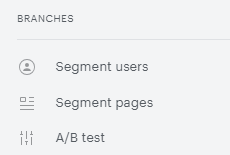
You will be presented with several configuration options:
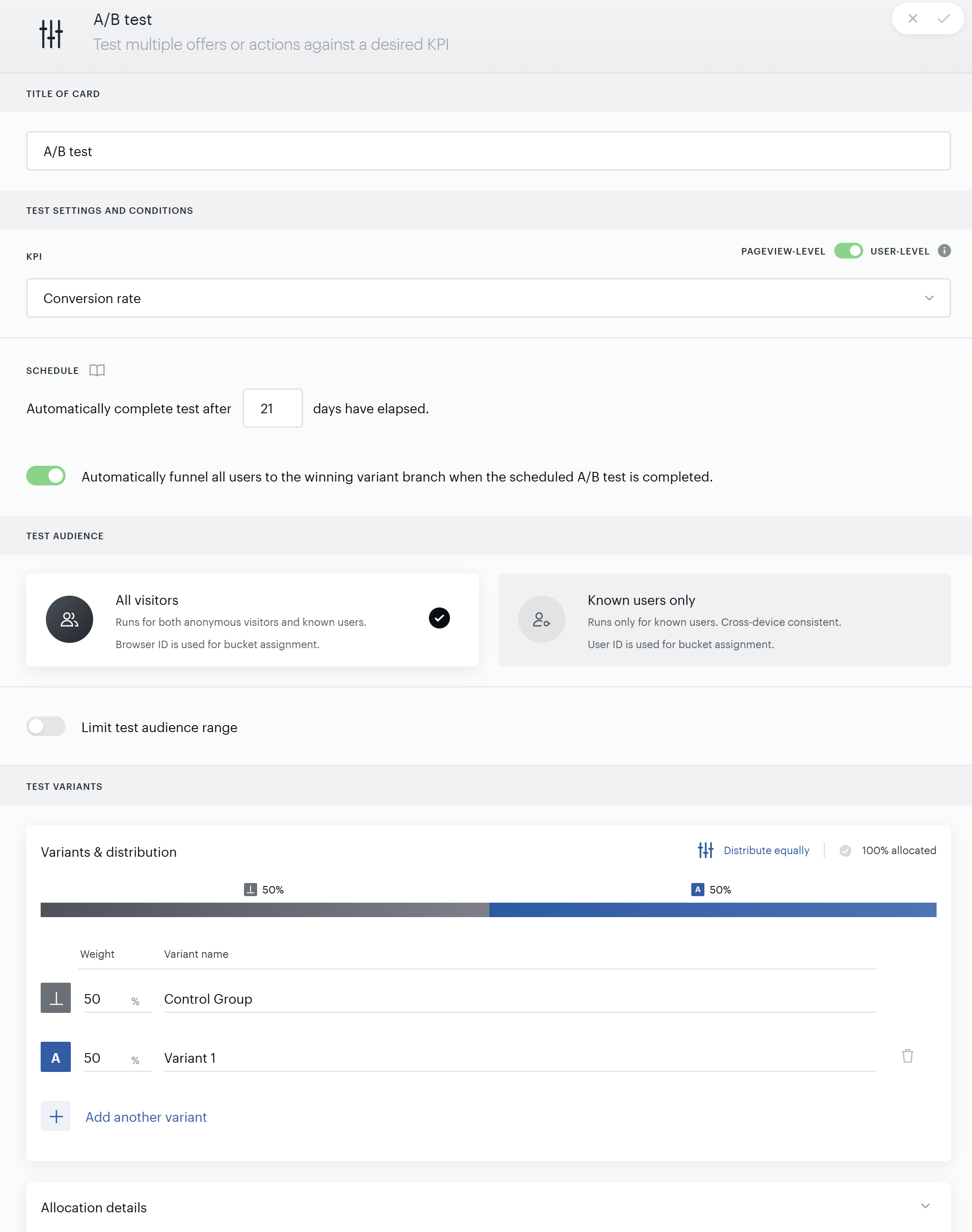
Title of Card: The title of your A/B test. This is the identifier used in the A/B test report.
KPI: This is the metric that the success of the A/B test variants is measured against when defining their winning probability. Each KPI (except Revenue) has both pageview-level and user-level metric definitions available. See below for the definitions of each of the KPIs.

If the toggle is set to Pageview-level, it means that the conversion rate is calculated by conversions over pageviews, while if the toggle is set to User-level means it's calculated by conversions over users/visitors.
Schedule: Denotes when you would like the A/B test to complete and whether you would like to resolve the A/B test into only the winning variant when it is finished. Note that you cannot schedule an A/B test to continue for longer than 99 days.
Test Audience: controls which visitors are eligible for the test. Choose between All visitors (the default), where eligibility is based on the visitor's browser ID (BID) so both anonymous and logged-in visitors qualify, and Known users only, where eligibility is based on the visitor's user ID (UID). In Known users only mode, a visitor without a resolvable user ID is excluded from the test entirely. There is no fallback to the browser-based identifier, so coverage is intentionally traded for a cleaner, auditable known-user population.
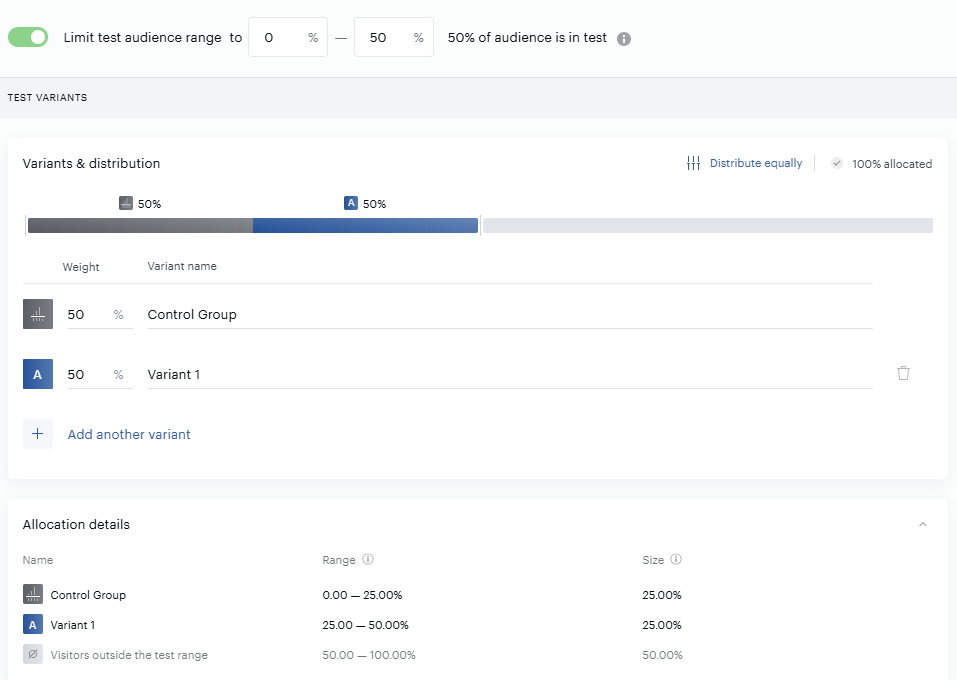
Limit test audience range: this collapsed panel, closed by default, lets you expose only a slice of your audience to the test using a percentage range (for example 0% to 20%). The range is entered in whole percentage points, though the system resolves it internally to 0.01% precision. By default, the range covers 0% to 100% (the full audience). Visitors whose bucket falls outside the configured range are silently excluded and do not affect the test's results.

Use this to hold back a fixed portion of your audience as a holdout, or to run several tests on non-overlapping slices at the same time. Note that Piano does not detect or prevent overlapping ranges across separate tests: if two tests target the same audience with overlapping ranges, the same visitors can land in both, and results should be interpreted with that in mind.
Test Variants: Here you can add variants to the test and adjust the percentage of your audience that you would like to fall within each variant.
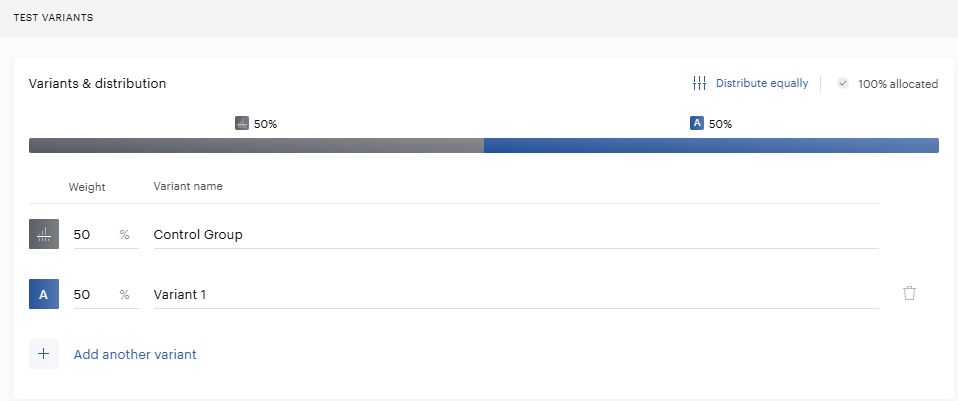
If you want to automatically weigh your variants evenly, you can hit the Distribute equally icon. Variant percentages can be defined as up to a tenth of a percentage point. If it's impossible to evenly weight the variants using tenths of a percent, the remainder will automatically be added to the final variant in your list. If you try to construct an A/B test that adds up to more or less than 100 percent, you will receive an error.

The Control variant sets the baseline; other variants will be tested against the control variant.
Variant distribution bar: a horizontal bar above the variants table shows each variant's share as a labeled, colored segment (variant letter plus weight percentage). A variant set to 0% renders as a gray segment with an inline warning that not all variants have been allocated. If the weights sum to more than 100%, the bar shows the overflow in red with an inline error message.
Variant limits: a test can include between 2 and 10 variants. The default on card creation is Control Group and Variant 1. Clicking "Add another variant" adds a new variant at 0% weight (shown gray in the distribution bar) and remains available until the 10-variant limit is reached.
Allocation Details: This collapsed panel, closed by default, shows a read-only table of each variant's cumulative bucket range and absolute audience size, calculated from the variant weights together with the configured audience range. Adjacent ranges are shown with a small visual gap (for example, Variant A 0.00%–20.00%, Variant B 20.01%–60.00%) purely so the boundaries don't appear to overlap on screen; internally the ranges are contiguous. If a sub-range is configured under Limit test audience range, a bypass row appears showing the portion of visitors who fall outside the test entirely.
If you have limited the test audience range to a specific percentage, the Visitors outside the test range row in the Allocation Details table represents the portion of the audience that receives no experience at all, since they fall outside that range.
Important: After starting an A/B test, if you add a new variant or change variant weights, it will effectively create a new A/B test, and the results of your original A/B test will be lost.
If you set a Composer Experience with an active A/B test offline, the A/B test results will be archived, and no data is lost.
If you decide to switch the Experience back on, the A/B test will become active again, and the statistics will continue to accumulate. Note that the length of such an A/B test won't be restarted. This means that any time period that the experience was offline will be counted into the elapsed time calculation of the A/B test.
In the above example, we have two test groups (each accounting for fifty percent of the target audience). Once you save this A/B test by clicking the check box in the upper right corner, you'll be able to attach the Event and Action cards you're testing to each A/B test branch.
Piano's A/B tests are sticky. For tests using All visitors mode, assignment is based on the visitor's browser ID (BID) cookie, so a visitor keeps the same variant on every subsequent visit, including after they log in. For tests using Known users only mode, assignment is based on the visitor's user ID (UID); a visitor who was excluded because they weren't logged in becomes eligible the moment they log in and receives a new, independent assignment at that point. There is no retroactive reconciliation between a visitor's anonymous and logged-in identity, so a visitor is never moved between variants purely because they logged in.
Bucket assignments are scoped to a single Piano application (one app per site). Coordinating bucket ranges across multiple apps or properties, isn't supported.
Deleting an A/B test card does not clear the underlying bucket assignments for visitors, since those values are derived deterministically from each visitor's BID or UID. This has no practical effect on publishers, since a new test will simply compute the same buckets again if needed.
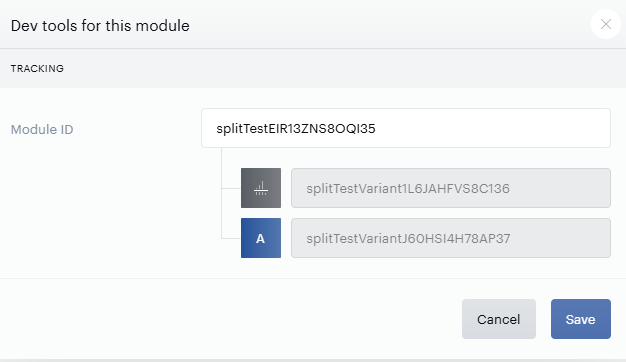
If you'd like to get the ID of the A/B test variant, you can use the Dev tools option available under the A/B Test item card's drop-down menu.
Action Cards in A/B Testing
An A/B test starts to function at the moment when the first exposure of an action is tracked and counted. So, to run an A/B test correctly, the branches of the A/B test always need to end with an action card. Please find the action cards in the "Actions" section in the left panel of the Composer canvas.
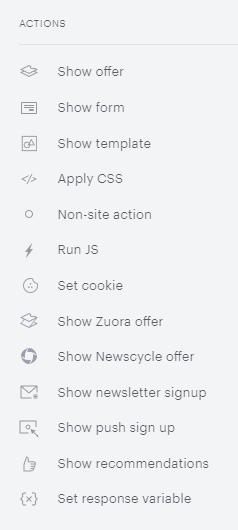
Most frequently, the Show Offer action card is used for performing an action. The Show Offer card is utilized when you wish to show a registration offer or a paid subscription offer to your readers. Please note that the Show Offer card requires a term (a payment term, a registration term...) to be defined and added to an offer, which is then called from the Offer Template, so Piano Management + Billing is required for using this card. After the reader clicks on a CTA button on an offer template defined in a Show Offer card, the checkout flow starts.
An example A/B test report when using Show Offer looks like this:

Also, the Show Template action card is very often used. The difference to Show Offer is that it does not require a term/offer structure, so Piano Management + Billing is not required for using this card. It is used when you wish to show any offer, including a registration or a paid subscription, but it does not trigger the Piano Management + Billing checkout flow.
After the reader clicks on a CTA button on a Show Template card, the reader will be redirected from the current URL to a different URL. The example use cases are a redirect to the subscription landing page, an external checkout flow start, or any other offer or flow that is shown on a different URL than the current one.
If you use the Show Template card and wish to have conversions attributed to the experience and the A/B test branch, make sure your conversion reporting works correctly. How to do it: either you worked with conversions in the past, and everything works or if not, check the Composer Conversion report or the Flow Report if you see any conversion data. If you don't see your external conversions in the system, most probably you did not implement external conversion reporting. To implement it follow this guide.
An example A/B test report when using Show Template looks like this:

The Show Offer and Show Template cards have two data points in common:
-
An exposure and an exposed unique visitor are counted and attributed to the A/B test branch when the offer template is shown
-
A conversion is counted when the reader converts and is attributed to the A/B test branch
Both data points are required for a correct A/B test run, the results calculation, and evaluation.
Important: We have seen other types of actions added to the A/B tests, most frequently a Run JS card, rarely a Set Response Variable card. Both card types are not designed for showing offers; they are intended to fulfill other tasks, such as sending data to your backend. In such cases, exposures and conversions do not make sense, so they are not logged and used in A/B tests. Without them, the A/B test would not start, and the reports would not contain these data points. Please use only cards to which an exposure and a conversion can be attributed.
Also, Show Recommendations cards can be used in A/B tests and these cards track and count exposures and clicks. The Show Recommendations cards show personalized content recommendations to each user based on the tracked behavior. The card is "calling" templates in Piano Content, which is a part of Piano Composer. This type of test is described in a couple of paragraphs below. For using content recommendations, read about Piano Content.
An example A/B test report when using the Show Recommendations card looks like this:

Also, the Show Form card can be A/B tested and it shows exposures and conversions, which appear in the reporting, including the A/B test report. Show Form is used when you wish to obtain information or data from your reader. It enriches the readers' profile, which is a feature of Identity Management, so Identity Management is required for using Show Form.
Also, we strongly recommend giving good descriptive titles (names) to your Action cards to prevent misinterpretations or errors when multiple tests are running at the same time or multiple people are looking at the tests. Hover the cursor over the top part of the card until you see "Edit title", click on the existing title, and start typing.
A/B Test Results Data
A/B testing is a powerful method for optimizing user experiences by comparing two or more variations of a webpage, content, or offer to determine which version performs better. This section covers the key metrics, reporting tools, and insights available to help you evaluate test performance, understand user behavior, and make data-driven decisions to improve engagement and conversion rates.
You can obtain an in-depth view of the performance of your A/B test over time in its corresponding report.
-
Weight: The weight of your variant, which represents the percentage of your audience that falls within each variant.
-
Tested action: The type of action cards (including a breakdown by terms if applicable) that fall within that variant's branch.
-
Revenue: Calculates total subscription revenue (incl. currency) collected from each variant branch.
-
Exposures: Calculates the number of exposures generated from users included in each variant branch. An exposure is registered any time a user is presented with visible action. A single user could be responsible for multiple exposures within the same A/B test branch.
-
Conversions: Designates how many conversions each variant of the A/B test generated. Conversions are logged anytime a user converts on a term or disables an ad blocker. If you're using a third-party checkout system in the place of Management + Billing, you'll need to send Piano third-party conversion information by following these instructions and using Piano's trackingId variable within your template in order for us to provide A/B test results.
-
Conversion rate (CNVR): The percentage of exposures that resulted in a conversion for each variant.
-
Clicks: The number of clicks on the template assigned to the variant that are not close actions.
-
CTR: The click-through rate for each variant.
Important: A/B test reporting will only function in your Production application, not your Sandbox application.
The A/B test card itself also captures and presents several scalar values for each variant.
Picking an A/B Test Winner
When the results are in, and you're ready to declare an A/B test winner, you can go into the A/B test card, hit Complete test, and you'll be able to select the best-performing variant:
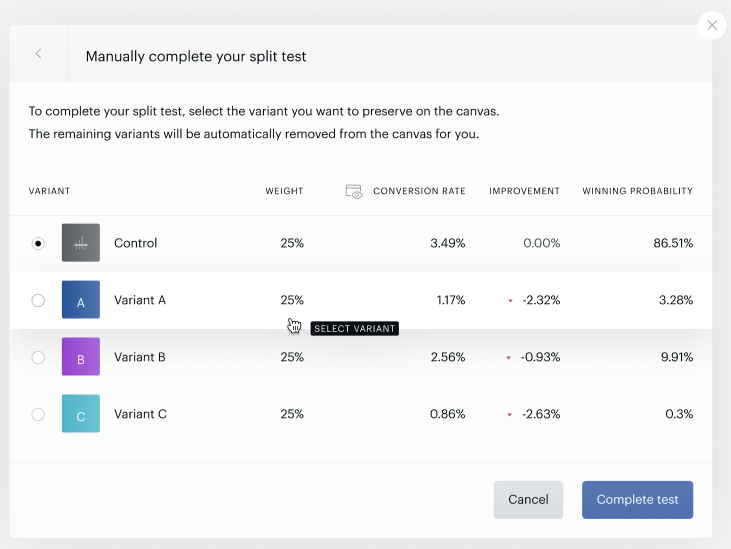
Once you hit Complete test for a second time, the A/B Test card will disappear and only the variant branch you selected will remain in the Experience.
Content A/B Tests in Composer
Content recommendation A/B tests are a bit specific when we compare a personalized Piano Content module vs. an external module/or custom version of your website.
In such cases, we recommend the following:
-
Add a "Run JS" card (or a "Non-site action" card) with the code of the external recommendations module or custom version of your website to the control branch of the A/B test experience
-
Attach the Piano Content module to the test branch
-
A no-impact branch is optional
To receive proper statistical results of the executed A/B test Experience we recommend 1:1 comparison, which means that the control variant with the attached external module should be added only to one test branch with the attached Piano Content module.
A/B Testing Best Practices
What to test: The greatest returns on testing come when you form a clear hypothesis around a particular business strategy and then design a test to determine its validity. We most often see clients test prices, meter heights, different types of messaging, and whether or not to make offer templates dismissible or not. These tests will frequently target desktop and mobile users separately (especially when optimizing meter height). In many cases, the winning variant will outperform the others by more than two to one, but even relatively small differences in conversion rates can have large effects if the offer impression volume is high enough.
Number of variants: You can test up to 10 different variants at a time, but we generally recommend testing fewer variants at any given moment. Not only does this ensure larger sample sizes and thereby allow your tests to achieve statistical significance more quickly, it also minimizes the chances of statistical error. Even if you're running A/B tests with a 95 percent confidence interval, using the maximum number of variants at once increases the odds that you'll end up with an outlier.
Avoiding combination bias: If you're simultaneously performing tests on variables of different types, you should be careful to properly isolate each one. For example, if you want to test templates A and B along with prices X and Y, you should create all possible combinations of those variables in your A/B tests. In this example, the combinations would include A+X, B+X, A+Y, and B+Y.
Duration of your tests: You can run A/B tests for anywhere from 1 day through 99 days, but we typically recommend running A/B tests for at least one month. If you're testing meter heights that reset after a month, you'll need at least a month of data to get meaningful results. Since visitation patterns on a Sunday can differ significantly from those on a Wednesday, a week should be the bare minimum duration for an A/B test. So, if you begin a test on a particular day of the week, you should try to end it on the same day of the week. One reason we recommend a month duration for A/B tests is that we've found that users will often view an offer multiple times over a several-day span before converting. In the case of ad-blocking conversions, we've found that some messages will get ad-blocking users to turn their ad blockers off and keep them off, whereas other messages won't. Giving your test a month provides enough time for those facts to shake out.
Sample size: Even if you have a large audience overall, you'll want to keep in mind the size of the audience you're targeting. If you've got a million daily visitors, five percent of your overall audience may be sufficient for an A/B test. But if you're targeting ad blockers in the NY region who converted on a particular promotion, the entire sample size you're targeting is likely to be tiny, to begin with. When targeting sub-populations, you may need to use larger variant percentages or run longer tests to achieve statistical significance.
See tests through: If you modify your offers part-way through your test or begin a new A/B test with an audience that overlaps with the first one, you risk invalidating your results. It's, therefore, best to allow your first test to complete before starting your next one.
Never stop testing: Anytime you're rolling out a new business strategy or product, A/B tests can help you make better decisions. Even if you've already run a particular test, it can be useful to re-run that test every so often in case the composition of your audience has changed or uncontrolled variables like seasonality skewed the original results. A/B testing should be a continuous process rather than a one-time event.