
As a client, you have the capability to update a user's password directly in the Piano dashboard. This feature provides flexibility and convenience for managing user access without relying on the conventional password reset email.
Note: To ensure security, the option to update user passwords in the dashboard is configurable. Please reach out to Piano Support at support@piano.io to activate this feature, as by default, it is not enabled.
Additionally, changing a user's password in the dashboard will terminate all active sessions for that user, enhancing security measures.
Follow these steps to reset a user's password in the publisher dashboard:
-
Access User Dashboard:
-
Log in to the publisher dashboard and search for the relevant user record under the Users tab.
-
-
Initiate Reset:
-
Click on the "Reset Password" option.

-
-
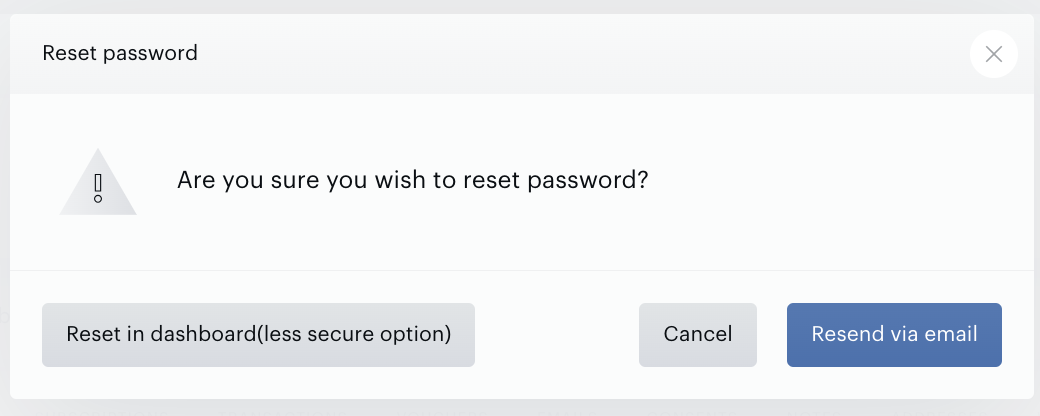
Select Reset in Dashboard:
-
Choose the "Reset in Dashboard" option.
-
-
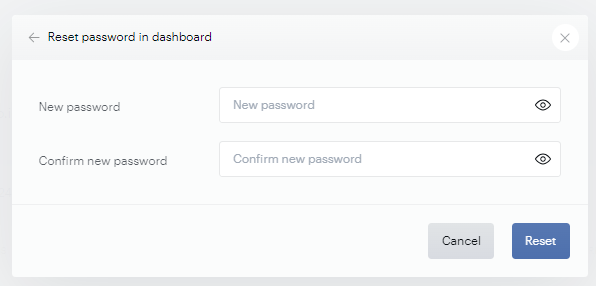
Generate New Password:
-
Now you can manually input a new password. A new secure password can be automatically generated if your browser supports this feature.
-
-
Confirm New Password:
-
Confirm the new password and click "Reset" to update the user's password.
-
-
The password is changed without sending an information email to the end user. The password would need to be shared by your customer service agents.
-
If end-user notification is required, the standard password reset via email should be triggered by selecting "Resend via email" in Step 3 above.
-
The password must not exceed 72 characters.