
Mandatory Double-Opt-In and Verification
In response to a rise in spam traps during 2022, we are adding features to improve email deliverability and to introduce a new "Mailing List Health" capability. These include the option to require Mandatory Double-Opt-In (DOI) or to use Verification.
Each mailing list verifies new subscribers by one of two methods. With DOI, the subscriber clicks a confirmation link in an email before we add them to the list. With Verification, Piano checks the address automatically and the subscriber takes no action. Verification is a paid add-on.
View each mailing list's verification method under Email → Mailing Lists, in the Verification column.
Benefits
Double-Opt-In (DOI) Benefits
-
Improved Email Deliverability: Reduces spam traps and ensures emails reach intended recipients.
-
Subscriber Engagement: The DOI ensures subscribers are genuinely interested in the content.
-
Compliance: Supports best practices for email marketing and legal compliance.
-
Flexibility: Offers a choice between an automated campaign and verification services.
-
Customization: Allows customization of the DOI campaign to suit brand and messaging needs.
Verification Benefits
The introduction of the Verification option as an alternative to mandatory Double-Opt-In (DOI) brings several significant benefits as well:
-
Streamlined Operations: Verification operates on complete autopilot, streamlining the process of maintaining your mailing lists. This automated approach eliminates the need for sending DOI campaigns, saving time and resources that can be better utilized elsewhere in your marketing efforts.
-
Enhanced Email Deliverability: With its focus on verifying the deliverability of email addresses, Verification helps ensure that your emails reach their intended inboxes. By checking factors such as email syntax, the ability to receive emails, and the existence of the email address, it effectively reduces bounce rates and enhances overall email campaign performance.
How does it work?
Decision Making
You can choose between adopting a Double-Opt-In (DOI) functionality or opting for the automatic verification service (additional costs apply). Please note, that you can define different verification rules (Mandatory DOI or verification) for each specific mailing list, or you may set the same rule for all your mailing lists whether it’s DOI or verification.
Display and Sorting
The chosen Mailing List verification option (DOI or Verification) is displayed with a separate column on the Mailing List page and indicates the verification rule, and you can sort records by this criterion.
Service Double-Opt-In (DOI) Campaign
The Double Opt-In (DOI) process ensures that only engaged and consenting users receive newsletters. Publishers can create custom DOI campaigns for their mailing lists, allowing them to personalize confirmation emails to suit their audience and content.
A default DOI campaign is provided, which includes a standard confirmation flow with all the necessary components. This offers a quick and straightforward setup option. Additional details and customization options can be found here.
Subscribers receive a DOI confirmation email based on the selected verification mode:
-
Single Verification Mode: The confirmation email is sent only the first time, a user subscribes to a mailing list. All subsequent subscriptions by the same user undergo no verification.
-
Always Verify Mode: A confirmation email is sent each time the user subscribes to a mailing list, regardless of their previous verification status.

When switching between the “Always Verify Mode” and “Single Verification Mode”, you’ll need to confirm the change, as it applies to all mailing lists.
DOI Campaign template
A default DOI campaign is always active in your account, featuring a preconfigured template with essential text and a mandatory Email Confirmation Button. This button cannot be deleted, hidden, or duplicated. However, other template blocks can be added, edited, or removed, including customizable dynamic content using the Dynamic Block.
You can create multiple DOI campaigns and assign them to specific mailing lists, allowing for customized messaging for each audience. Each mailing list can only be associated with one DOI campaign, whether it's a default or custom campaign. When a mailing list is linked to a custom DOI campaign, all future opt-in confirmations automatically follow that campaign, overriding the default DOI campaign.
When a custom DOI campaign is assigned to a mailing list, only that campaign is sent, while other mailing lists continue to use the default campaign unless also linked to a custom DOI campaign.
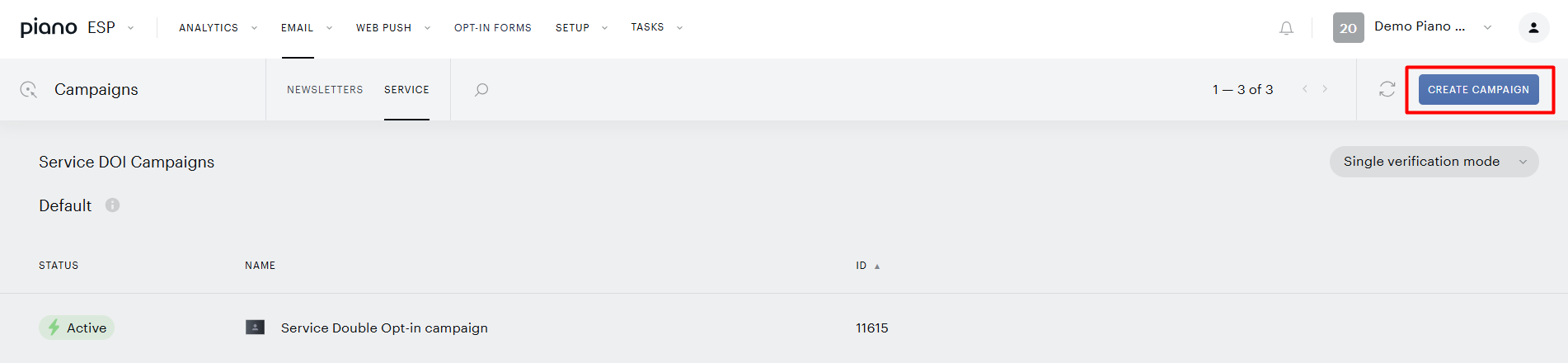
To create a custom DOI campaign, go to Email → Campaigns → Service (tab) and click Create Campaign.
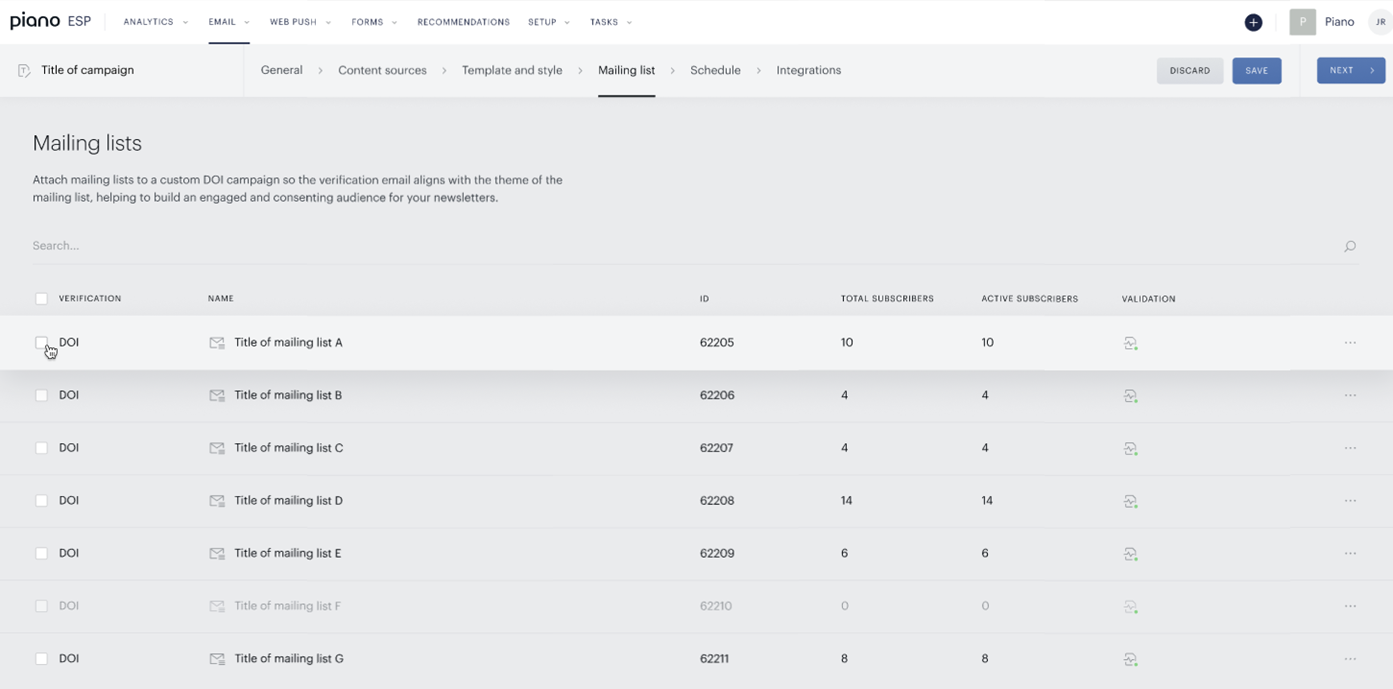
You can configure general campaign settings, Content sources, and customize the template. In the Mailing List section, select the mailing list(s) that should use this DOI service campaign.
After saving the new custom DOI campaign, you can activate it by navigating to Email → Campaigns → Service (tab) and clicking on the campaign's status:
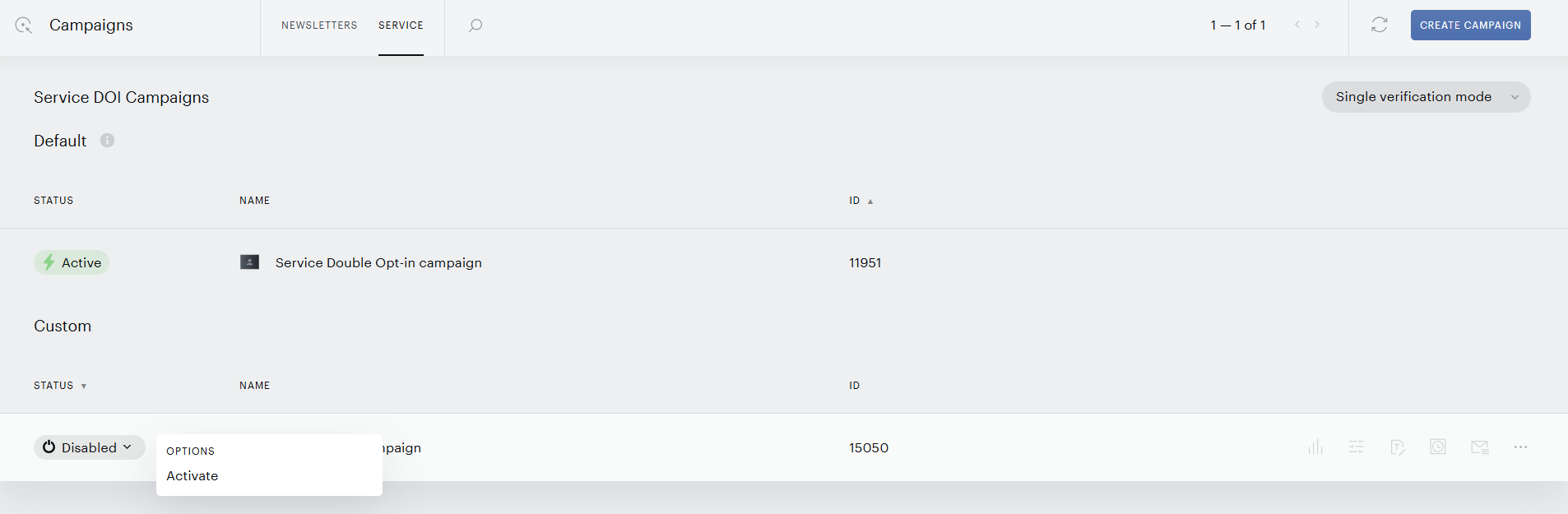
You can create multiple DOI campaigns, each customized for specific mailing lists.
Campaigns can be duplicated or deleted using the ellipsis menu ("...") drop-down list on this page if needed.
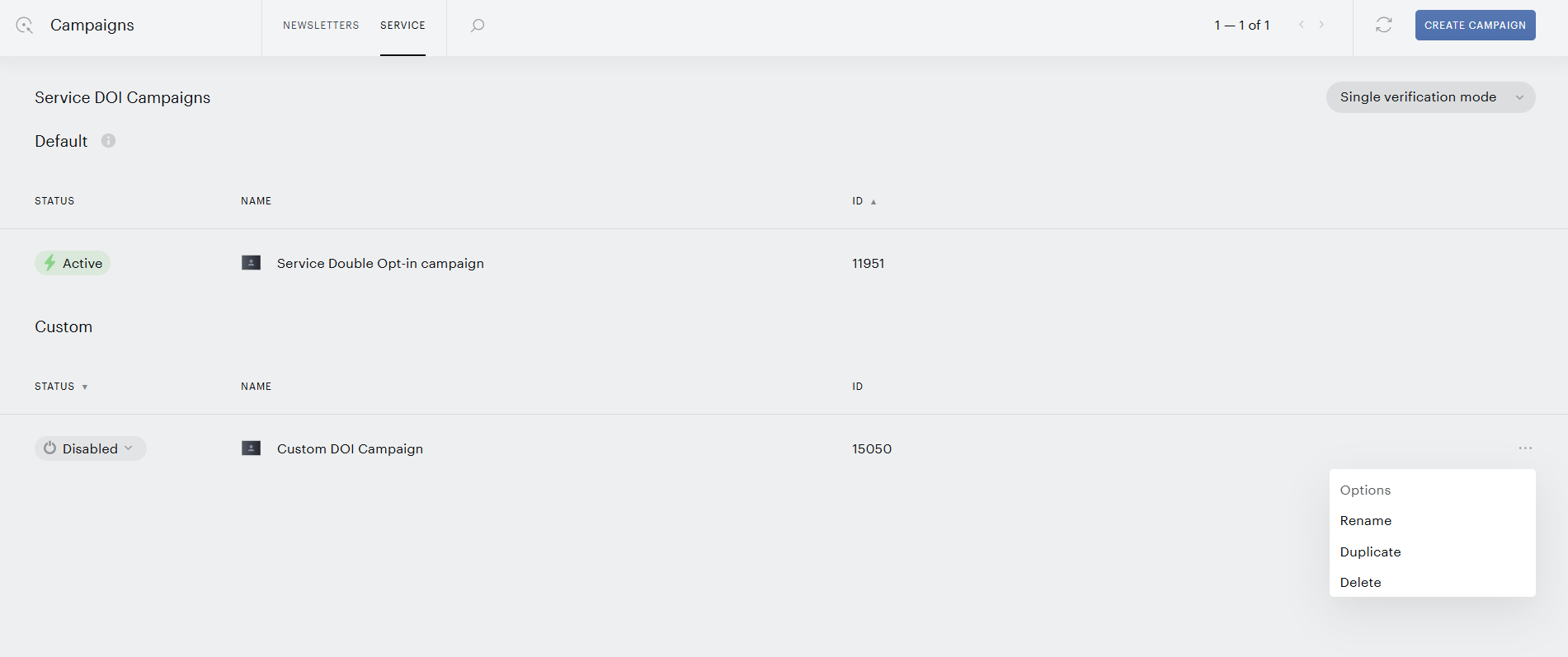
When a custom DOI campaign is assigned to a mailing list, only that campaign is sent, while other mailing lists continue to use the default campaign.
Bulk resend DOI emails
Bulk resend sends the double opt-in (DOI) confirmation email again to subscribers who signed up but never confirmed. For each still-pending subscriber in the mailing lists you select, it sends a fresh confirmation email, as long as that subscriber meets the conditions you set in the dialog.
To open it, go to Email → Campaigns → Service (tab) and click DOI resend.
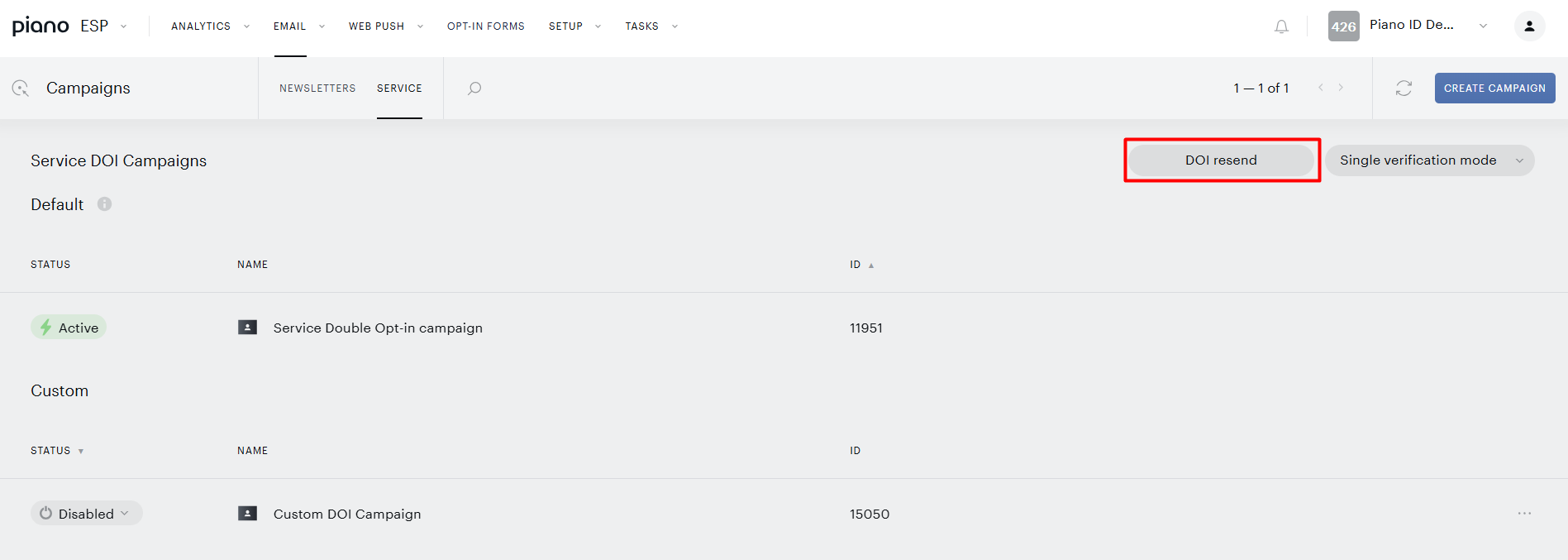
This triggers the following modal window to be shown:
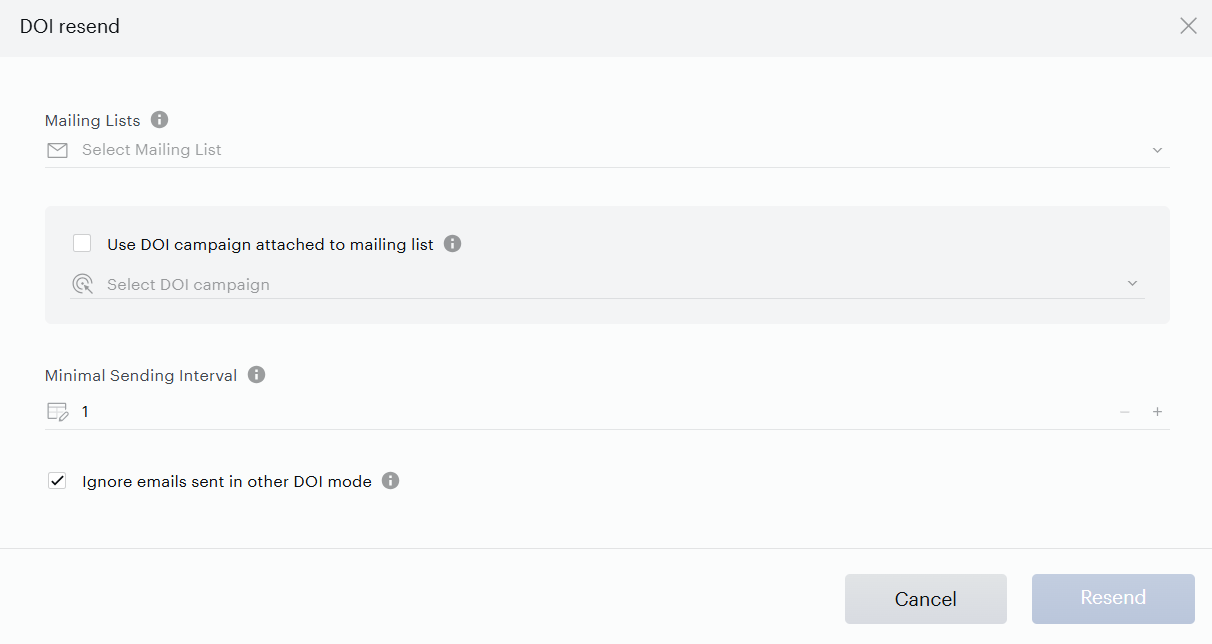
Controls
|
Control |
What it does |
|---|---|
|
Mailing Lists |
Open the dropdown and select the mailing lists you want to resend to. Search by name to find them, or use Select all to include every mailing list. Only the pending subscribers in the selected mailing lists are considered. Required. |
|
Use DOI campaign attached to mailing list |
When enabled, each mailing list sends its own attached DOI campaign email, or the site default if none is set. When disabled, you pick one DOI campaign below that is sent to all selected mailing lists. |
|
Select DOI campaign |
The DOI campaign whose confirmation email is sent. Used only when Use DOI campaign attached to mailing list is disabled. |
|
Minimal Sending Interval |
The minimum gap between DOI emails, in days. A subscriber gets the email only if their last DOI email was sent more than this many days ago. Anyone emailed more recently is skipped. Range: 1–3650 days. |
|
Ignore emails sent in other DOI mode |
On by default. Your site verifies subscribers in one of two modes: Single Verification Mode (confirm on first subscription only) or Always Verify Mode (confirm on every subscription). This option decides whether DOI emails sent in the other mode also count when checking the interval above. On counts both modes; off counts only the current mode. |
Click Resend to start and confirm when prompted. The resend then runs in the background as a task named DOI resend. From there, a link takes you to the Tasks page, where you can track its progress and see when it finishes.
What happens when you click Resend
The feature goes through the pending (unconfirmed) subscribers in the mailing lists you selected and, for each one, sends the DOI confirmation email again, but only if the subscriber still needs it. Subscribers who do not meet the conditions (for example, they already received a DOI email recently) are skipped.
A subscriber receives the email when both of the following are true:
-
They are still pending (have not confirmed) in one of the selected mailing lists.
-
Their last DOI email was sent longer ago than the Minimal Sending Interval you set.
Verification (Alternative Option)
As an alternative to the Mandatory Double-Opt-In (DOI) functionality, we are introducing the Verification option. This feature enables automatic email validation, ensuring that email addresses in your mailing lists are deliverable and valid.
If you don't want to use Mandatory DOI functionality, you may select the Verification option. The verification will be run on a complete autopilot instead of sending a DOI campaign. This type of verification checks the validity of an email address based on whether or not it’s deliverable. In other words, can the email service provider place an email in your subscriber’s inbox? Validators check if the email syntax is correct if the address can receive emails, and if it exists. In addition, the verification mechanism also checks an email address against previously known malicious actors (spam traps, hard-bouncing mailbox) preventing deliverability issues from occurring prior to sending any emails at all.
Verification Results
If ESP receives a successful verification result, the email address will be added to the mailing list(s) and verification will not be requested again in the future - in case the user intends to be subscribed to another mailing list(s).
In case of a failed verification result, the email address won’t be added to any mailing list(s) that is associated with your account.
Reporting - Mailing list verification
Go to Analytics → Email performance → Mailing list Activity → Mailing list verification to check the verification details report associated with a specific mailing list.
The report allows you to analyze the activities within the mailing list, particularly focusing on the verification processes.
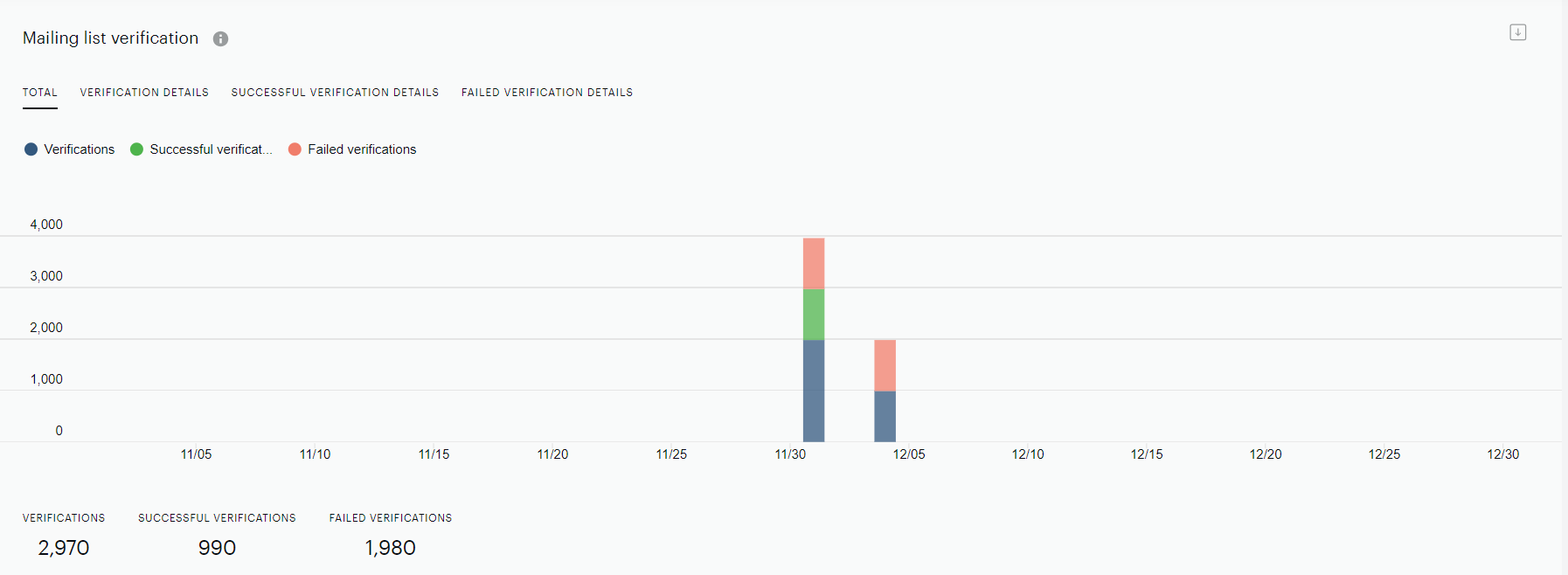
Metrics
The following metrics are available under the Totals tab which displays comprehensive statistics for all verifications, offering the ability to analyze the quantity of both successful and unsuccessful verification attempts.
-
Verifications: Displays the total number of verification attempts made for the selected mailing list.
-
Successful Verifications: Indicates the number of verifications that were successfully completed and led to subscription (the email address has been added to the mailing list)
-
Failed Verifications: Shows the number of verification attempts that failed and have not led to subscription.
Tabs Overview
Under the Verification details tab, you can find the number of verifications (MGUN) and the Double-Opt-Ins (DOI) done.
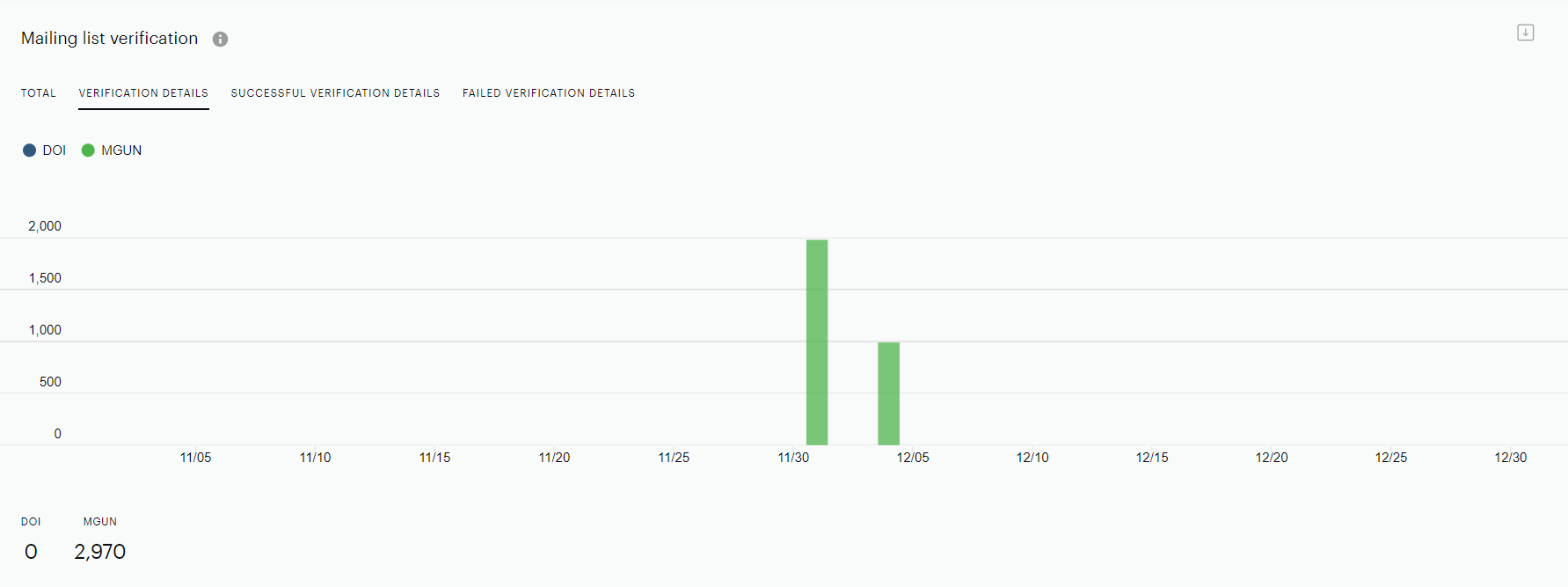
The Successful verification details tab reflects the count of verification processes that concluded successfully, resulting in a subscription (meaning the email address has been successfully incorporated into the mailing list).
The Failed verification details tab displays the number of verification attempts that were unsuccessful and did not result in a subscription.
Please note, that each tab is further divided into options based on the method used:
-
MGUN - Verification: Metrics related to verifications done.
-
DOI (Double-Opt-In): Metrics related to the Double-Opt-In method.
Frequently Asked Questions
Q: What is the Double-Opt-in flow and how does it work?
A: When a new user is added to the system and is not on any mailing list, a DOI campaign is sent to confirm their subscription. The user is marked "Pending" until they click the confirmation link. Once confirmed, they are activated and begin receiving newsletters.
Publishers can create custom DOI campaigns for their mailing lists, personalizing confirmation emails.
Subscribers receive a DOI email based on the chosen verification mode:
-
Single Verification Mode: The confirmation email is sent once per user, only on their first subscription.
-
Always Verify Mode: A confirmation email is sent every time the user subscribes, regardless of past verification.
Q: If the user is registered with Identity Management, will they be verified with ESP?
A: If a user with the same email is registered (already confirmed) in Identity Management, verification (both DOI and Mailgun verification) is skipped, and the user is added with an "Active" status. If a user is added to Identity Management but still has not confirmed their email, verification on the ESP side will be performed.
Q: Can DOI be disabled?
A: Permanent disabling of DOI is only possible in case the client has their own verification. It is also possible to temporarily disable DOI for a limited time in case the Mailgun verification is being set up. These cases should be discussed and approved with your Piano Account Manager.
Q: Why are there still users in a pending state if DOI has been disabled for a client?
A: Each case should be treated individually, judging by the reason for the initial misconfiguration and its impact on the client's business. There are three possible ways to activate these users:
-
Wait for those users to confirm their subscription with the DOI campaign that has already been sent to them.
-
If the client decides to move forward with paid Mailgun verification, these users can be reimported and will be activated as a result of Mailgun verification (all User History events will be in place).
-
We can activate them manually, but it will be a direct database update, which is not recommended. Also, in such a case, these users will not have corresponding User History subscription events (successful verification and subscription addition events). This option should be discussed with your Account Manager on an individual case-by-case basis.
Q: Is it possible to customize the Email verification Confirmation Page for a particular client?
A: Yes, this can be done. Please send an email to Piano Support at support@piano.io with the desired confirmation landing page text.
Q: Is it possible to have DOI sent for each Mailing list separately?
A: Yes, when “Always Verify Mode” is enabled, a DOI verification email will be sent each time a user subscribes to a mailing list.
Q: Is it possible to have multiple DOI campaigns (templates) for different Mailing Lists?
A: Yes, you can create a custom DOI campaign for each mailing list or assign one campaign to multiple lists. However, each mailing list can only be associated with one DOI campaign, either default or custom.
Q: If the Service DOI campaign is active, does it mean that DOI is enabled?
A: No. The Service Double Opt-in campaign is a special service campaign that is always active. The verification rule can be checked on the Mailing Lists page (Verification column).
