
Creating a New Experience
To create a new experience for your users, first click the Products header in the navigation bar at the top of your screen and click Composer from the dropdown that appears.


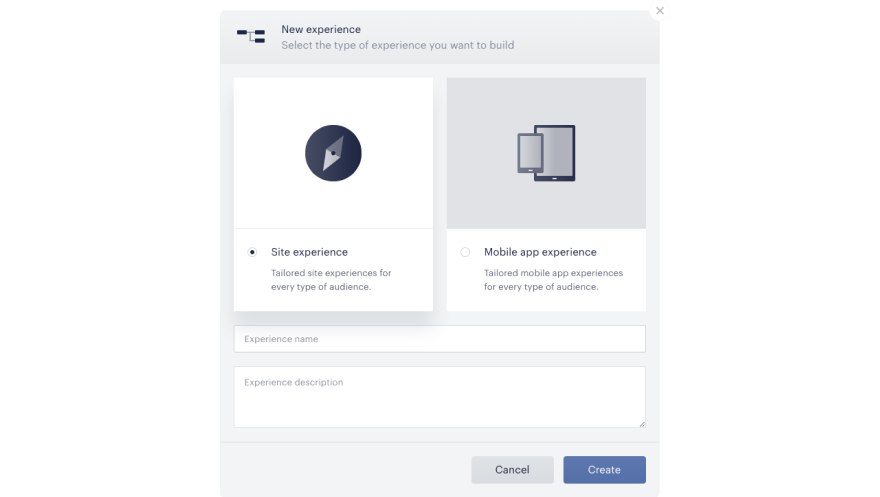
Give your experience a name and description and click Create. Note that this experience will not be active by default – you will need to activate it.
Understanding the Composer Canvas
Every experience is comprised of four types of cards: a pages card, a user segment card, an events and triggers card, and an action card. Collectively these tell you where an experience should fire (using the Effective Pages card), who to target on those pages (using the User Segments card), when an experience should occur (using the Events cards), and determine how you're changing the behavior of your site (using the Action cards). Below we’ll walk you through how to interpret the logic built in an experience.
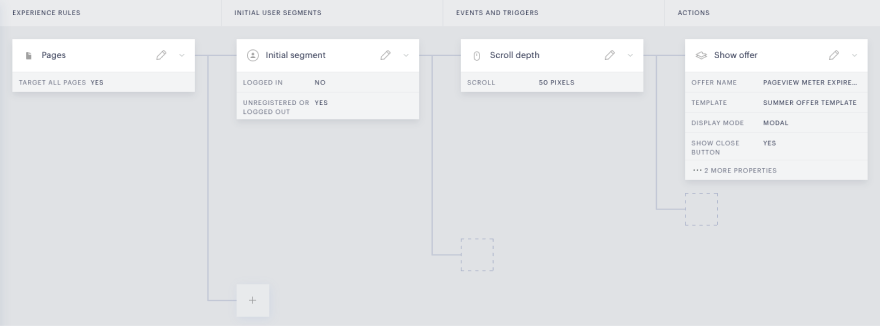
The experience reads left to right, so the Pages card is the "start" of the experience. This will tell you where an experience will be running. For example you can target all pages on your site or pages with specific tags or in specific sections. Click here to learn more about how to target specific pages on your website.
The User segment card follows the Pages card and shows you who you're targeting. For example, you may want to target users who are unregistered or logged out. Click here to learn more about the possibilities of the User segment card.

Once you have set the scope of your experience to your select pages and users, you will use Event and Trigger cards and Action cards to decide what the user will see and under what circumstances.
Use Event and Trigger cards to define what action the experience is tracking or looking for. For example, the Scroll depth card will allow you to trigger a subsequent Action once the user has scrolled to a certain depth on your page, while a Pageview meter card will allow you to track the number of times a user visits your site and conduct an action after a certain number of pageviews. You can learn more about the Event and Trigger cards here.
Finally, you will set an Action to occur following the Trigger to determine the exact behavior of the site under the appropriate circumstances. These cards are the final link in the experience chain. For example, this could be a Show offer card to present a paywall. To learn more about Action cards, see the corresponding documentation.
Reviewing Your Experiences
To review your previously created experiences, navigate to Composer as described at the top of this article. On this page, you will see that your experiences are divided into four statuses:
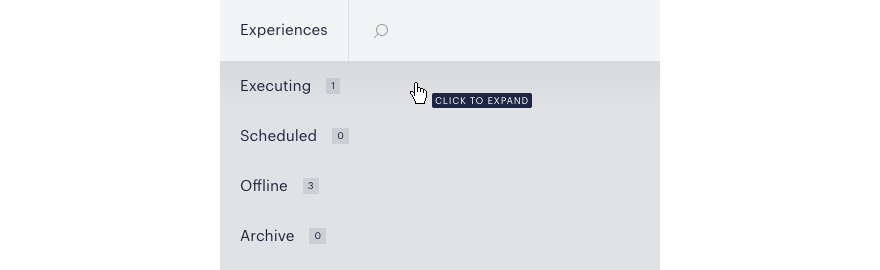
All experiences within Executing are running on your site. Scheduled experiences are not currently running on your site but are scheduled to run in the future. Offline and Archived experiences are not running.
You can change the status of an experience by clicking its status in the lower left of the experience card:
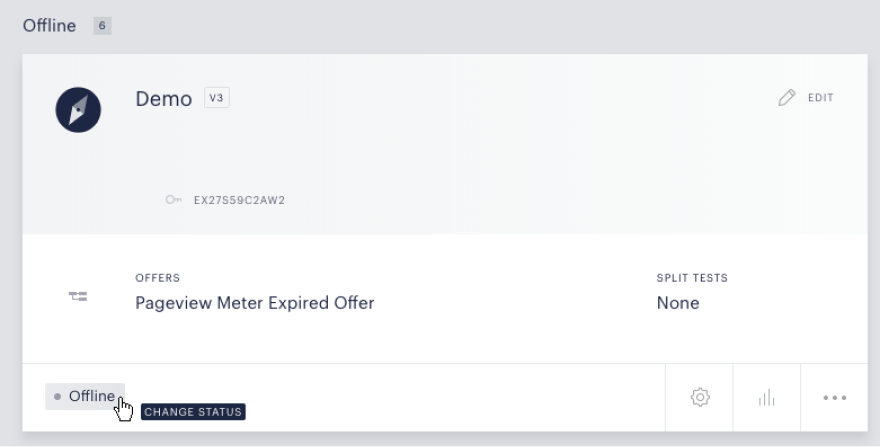
To edit the experience itself, click on the Edit pencil in the top right of the experience card. This will allow you to review or edit the logic built in the experience, as described above.