
Overview
The Effective pages card allows you to create custom experiences for different pages on your site – the experience that you tailor in this branch is present only for pages that match the criteria you specify here. You cannot delete the Effective pages card from the Composer canvas, as it is the cornerstone of the experience. You can, however, edit it at any time to keep up with the evolution of your site.
To edit the effective pages for your experience, navigate to your canvas and click on the pencil icon on the Pages card.
Each of the configurable options is described in detail below. All options are disabled while the Target all pages toggle is left active. Deactivate this toggle to make adjustments to the card.
All of: Switch the toggle to All of when you want only pages that follow all of the specified rules to run the experience (based on AND logic).
Any one of: Switch the toggle to Any one of when you want pages that follow any of the specified rules to run the experience (based on OR logic).
Note: The above logic for All of/Any one of applies across the categories of rules, but the specified values within a category operate on OR logic for included items and on AND NOT logic for excluded items. The exception is for tags, where you can choose between AND or OR logic for the inclusion rules.
Let's say you have added the tags A, B, C with an inclusive rule (with the toggle in OR logic) and the tags D, E, F with an exclusive rule. In this case, the OR logic will be applied to the tags A, B, and C, whereas the AND NOT logic will be subsequently applied to the tags D, E, and F. In this scenario, the page needs to contain at least one of the included tags and none of the excluded tags in order for it to meet the conditions of the Tags category of the Effective page's card.
The logic between the three main categories - Contextual Segments, Content and URL Parameters, and Publish Time - operates through an AND logic, meaning that all conditions from these categories must be met simultaneously for a particular Experience to execute.
Experience Termination Behavior
On the Composer canvas for any Experience type, an additional setting for the Effective page's card offers you an option to define the Experience termination behavior.
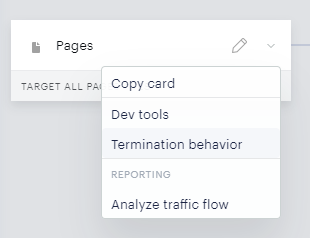
You can access this section by clicking on the drop-down arrow next to the Effective page's card and selecting Termination behavior:
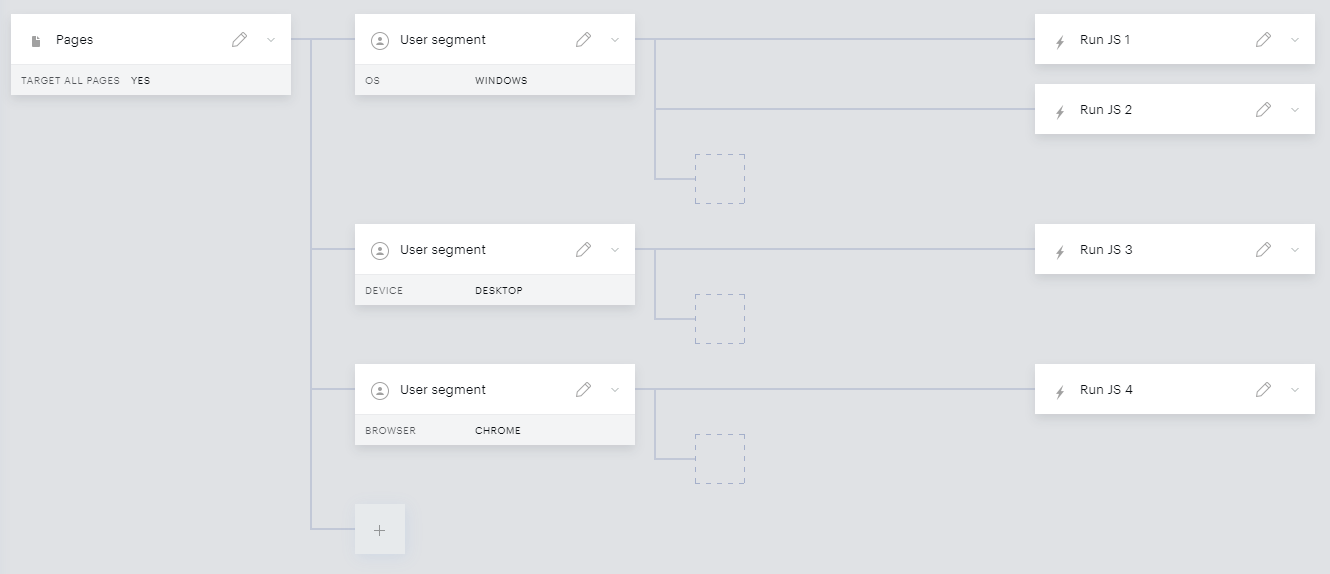
Let's say you have an Experience set up with the following cards:
Once you click on the drop-down menu next to the Effective page's card and select Termination behavior, you can choose between two values:
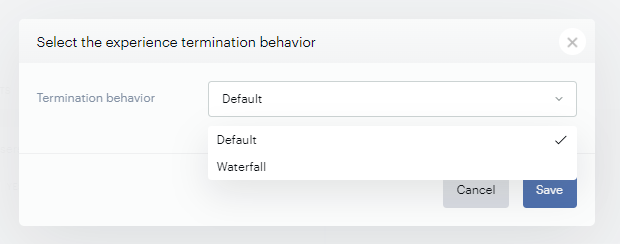
Default
Default is the pre-defined setting, where by default, based on our example Experience setup above, if a user visits your site from a desktop device with a Windows OS using a Google Chrome browser, all 4 Action cards will be executed: "Run JS 1", "Run JS 2", "Run JS 3" as well as "Run JS 4".
Waterfall
If Waterfall is selected, only the "Run JS 1" Action card will be executed. That's because with such a termination behavior, Composer executes each branch only until any action is executed. In our case, "Run JS 1" will be executed first, and it means:
-
Skipping all other cards in this branch (in our example, "Run JS 2")
-
Skipping other branches ("Desktop" and "Chrome" User segment cards)
On the other hand, if a user opens the page from a device with Mac OS using Google Chrome:
-
"Windows" segmentation is skipped
-
"Desktop" segmentation is passed - the "Run JS 3" Action card is executed
-
"Chrome" segmentation is skipped, since "Run JS 3" has been executed
If an Action card has an Event trigger configured before it, e.g. an Interaction card, or it has some inner delay configured ("Show offer" and "Show template" cards can have a Timer configured, for example of 5s), Composer will consider this Action card as possible to execute, so it will prevent other Action cards and branches from being executed.
Examples
Below is a table that outlines a few cases for how the Effective pages card might be configured, and the results that the setup would have on a page with the given properties.
|
Card setup |
Page properties |
Toggle state |
Result and explanation |
|---|---|---|---|
|
URLs: *://demo.piano.io/* [include]; Tags: breaking-news [exclude] |
URL: https://demo.piano.io/breaking/; Tags: breaking-news |
Any one of |
This page will execute the experience following this card, because while the tag does not meet the rules, the URL does. The toggle is set to "Any one of," so the experience runs. |
|
All of |
This page will not execute the experience following this card, because while the URL meets the rules, the tag does not comply. The toggle is set to "All of," so the experience does not run. |
||
|
URLs: *://demo.piano.io/* [include]; Tags: breaking-news [exclude] |
URL: https://example.piano.io/; Tags: None |
Any one of |
This page will execute the experience following this card, because while the URL does not meet the rules, the tag does not violate any rule. The toggle is set to "Any one of," so the experience runs. |
|
All of |
This page will not execute the experience following this card, because the URL does not meet the rules, even though the tag does comply. The toggle is set to "All of," so the experience does not run. |
||
|
URLs: *://demo.piano.io/* [exclude]; Tags: breaking-news [exclude] |
URL: https://demo.piano.io/; Tags: breaking-news |
Any one of / All of |
This page will not execute the experience following this card regardless of the toggle state because neither the URL nor the tag meets the rules. |
Contextual Segments
The Contextual Segments section offers a new way to segment your web pages based on their content profile. By leveraging machine learning, natural language processing, and data analysis, you can enhance your segmentation strategy using IAB classifications and custom segments from Piano Audience (DMP).
At the top of the section, the proportion of total pages that match the selected segmentation criteria is displayed in a graph. Composer dynamically reads contextual segments from Piano Audience (DMP), displaying only those categories with one or more segments. If no segments exist for a category, it is not shown.
Targeting Criteria
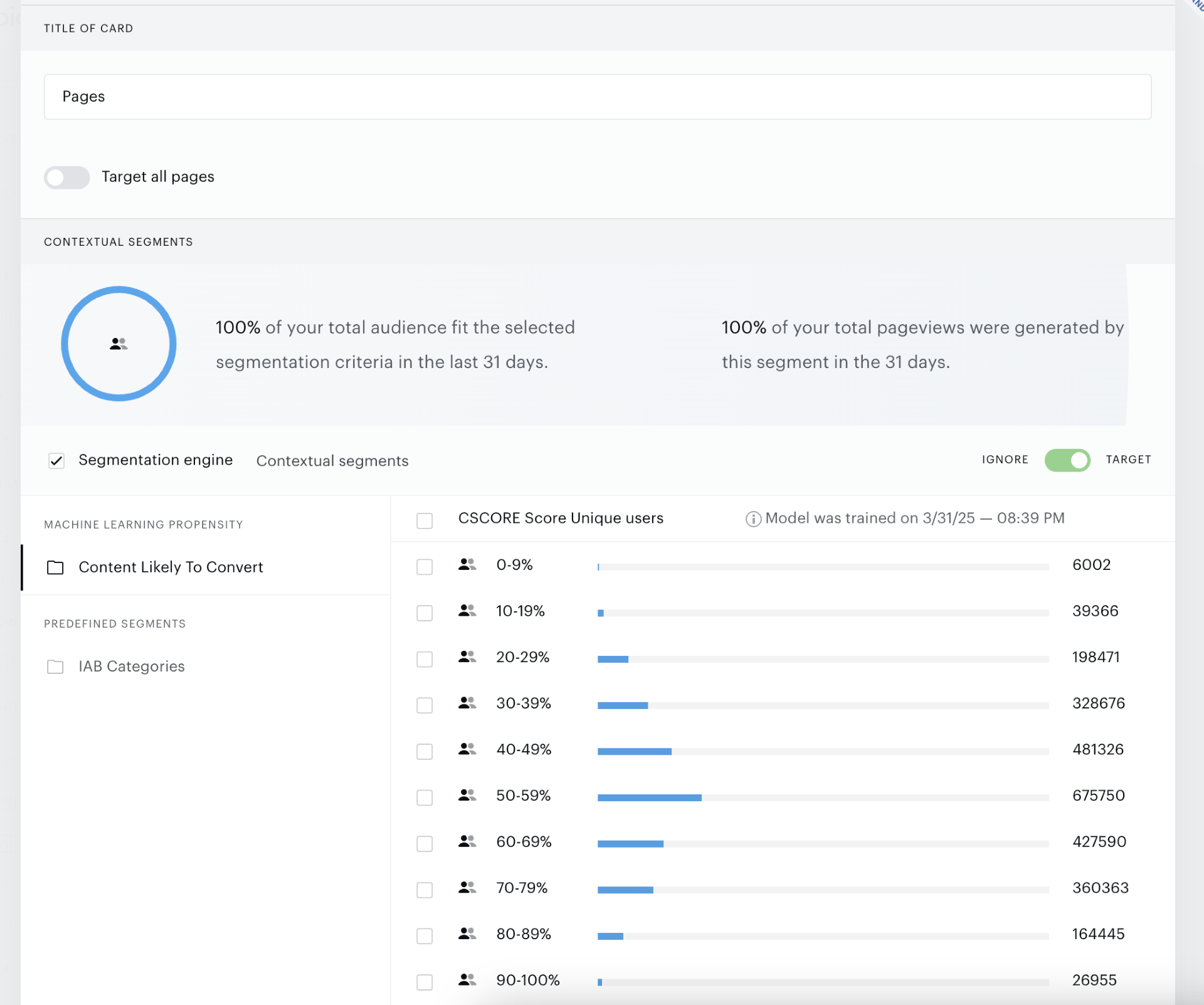
It's possible to configure whether you'd like to ignore or target these segments using a toggle, with "Target" being the default option.
Important: Predefined and machine-learning segments are available to all clients who have implemented Composer 1x.
-
Machine Learning Propensity: Includes the CLtC Propensity Model, providing estimates based on the last 30 days of user behavior or traffic events.
-
Predefined Segments: Segment webpages by using articles that have specific IAB categories.
-
IAB Categories: Segment pages based on predefined IAB categories to align content with advertising standards.
-
-
Piano Audience Segments: Leverage custom segments from Piano Audience (DMP) to target specific pages.
These categories are structured to work together under the AND logic, while segments within the same category interact according to the OR logic.
Error States
If an error is displayed in the Experience canvas indicating that the segments are empty, it typically means that the segments that were initially populated and saved with the experience have since become unavailable or invalid. This issue can arise if the source data for those segments has changed, such as the removal or modification of contextual segments, Audience segments, or other criteria used in the experience. To resolve this, you may need to review and update the segmentation criteria to ensure they align with the current data.
Content and URL Parameters
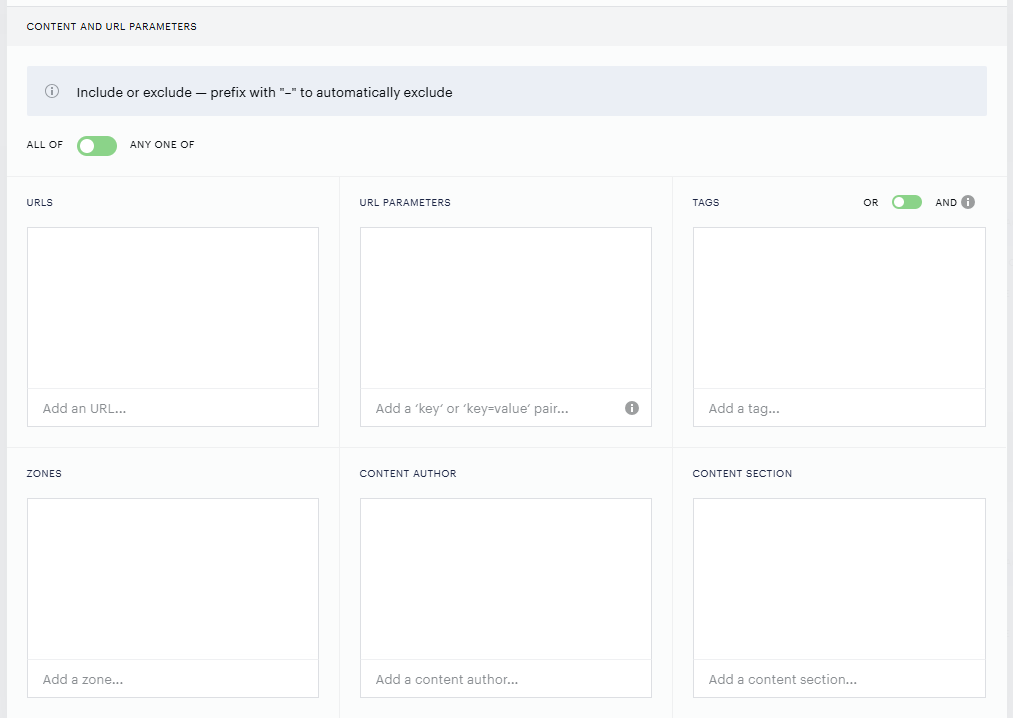
Specifying URLs
Included/Excluded URLs
All of your pages are included in an experience by default. But if you're restricting access with your experience, you may want to exempt pages like the masthead, contact page, subscription page, homepage, section fronts, or the sections of your site that command the highest ad rates. Similarly, if you've designed an experience asking ad-blocking users to whitelist your site, you'll likely want to exclude a page on your site containing instructions on how to disable ad blockers (otherwise users with ad blockers on won't be able to read about how to turn them off).
If you instead decide to specify which pages to include, only those included pages will be targeted by the experience. Including select pages allows you to run an experience on just one page (commonly used when constructing a subscription landing page) or to limit an experience to a particular section of your site (for instance, prompting users to sign up for a sports newsletter only when they visit an article posted to your sports vertical).
When you type in a URL, it will be marked as "include" by default. To exclude a URL, you can add a hyphen in front of that URL when entering it (ex: "-yourdomain.com/homepage") and that URL will automatically be marked as excluded. You can also click the "include" or "exclude" text next to an inputted URL to change whether it is included or excluded from an experience.
Note, that it's necessary to URL encode the special characters contained in the URL.
For a detailed explanation of how the AND/OR logic works between the URLs you define and other elements such as tags or sections, please refer to the article available here. It provides comprehensive insights into how these conditions interact and can be configured to suit your needs.
Include/Exclude Rules for URL Fragments
When defining include or exclude rules for URLs in Composer, it's important to understand how URL fragments (everything following the # symbol) are processed and matched.
Key Behaviors and Guidelines:
-
URL Encoding: Piano retrieves the URL from
window.location.hrefand encodes all characters, including those in the fragment, to ensure consistency. Clients need to provide URL fragments in their encoded form when defining include/exclude rules. For example:/subscription#/should be encoded as/subscription#%2f -
Fragment Matching: The fragment (
#) is treated as a regular part of the URL according to RFC 3986. For matching purposes:-
Relative paths like
/subscription*will match URLs such as https://www.website.com/subscription#/ -
If special characters (e.g.
/, ?) are present in the fragment, they must be encoded to ensure proper matching
-
-
Include and Exclude Rules Priority:
-
Exclude rules take precedence over include rules. If a URL matches both an exclude and an include rule, the exclude rule will prevent the experience from being executed
-
For precise exclusion, ensure the fragment is encoded and matches exactly. For example: To exclude https://www.website.com/subscription#/, define the rule as
/subscription#%2fwith the exclude operator
-
-
Wildcard Usage (*): The
*character in a relative URL targets all paths under a specified base. For example:/subscription*will match https://www.website.com/subscription#one and https://www.website.com/subscription#two
How does Piano process URLs?
Piano standardizes the URL by always encoding it before processing. Clients should define rules based on the encoded format to ensure compatibility across browsers.
Practical Examples:
-
Include Rule:
/subscription*(Targets all URLs under/subscription). -
Exclude Rule:
/subscription#%2f(Excludes URLs with encoded fragments).
URL Wildcards Overview
All URLs added to the Pages card run off your site's URL, so there's no need to enter "http://www.yourdomain.com/sports" to specify that URL. Rather, you can just enter "/sports" into the URL field.
If you do not include a forward slash (/), Piano will treat that entry as an absolute URL and analyze the entire URL string. An absolute URL is an address of the web resource that consists of attributes which define where a website page can be found. These attributes create the following URL structure: scheme://server/path/resource
Piano will also treat an entry as an absolute URL if you include a URL scheme (http or https). For example, if you entered the full "https://www.yourdomain.com/sports" URL, Piano would treat that as an absolute URL because of the "https". For absolute URLs entered without a URL scheme, Piano will automatically include "*://" before the entry in order to include all possible URL schemes.
If you include a forward slash when you enter a URL, Piano will treat that entry as a relative URL and will analyze just the URL path. A relative URL is a truncated address of the web resource that contains fewer attributes in the URL structure. The path is relative to the relative URL, though sometimes it also includes resources.
Say you have a URL like "https://www.yourdomain.com/sports/article-name?page=10" on your site. The absolute URL is "https://www.yourdomain.com/sports/article-name?page=10" whereas "/sports/article-name?page=10" is the relative URL.
Piano also supports special wildcard characters that make it easy to include or exclude many URLs from an experience at once:
*: matches any number of characters of any type
?: matches one character of any type
If you want to use * and ? as regular symbols (not wildcards), you are able to do so by using an escape character, the backslash (\). So "\*" or "\?" would allow those characters to be treated as regular symbols.
URL Wildcards Rules
The table below provides examples of how Piano's wildcards can be used:
|
URL Patterns For Publisher Pages |
Description |
Matches |
Does not match |
|---|---|---|---|
|
/ |
Matches relative URLs without additional values. This rule would include your home page and the home pages of any subdomains |
www.yourdomain.com/ www.host.yourdomain.com/ |
www.yourdomain.com/sports |
|
/* |
Matches all relative URLs with or without additional values. This rule would include your homepage, the home pages of any subdomains, and all URLs on your site that contain additional values. Using this rule would effectively be the same as targeting "all pages" |
www.host.yourdomain.com/ www.yourdomain.com/sports www.host.yourdomain.com/news?=1233 |
www.yourdomain.com/ |
|
/sports |
Matches relative URLs with the path "/sports" |
www.yourdomain.com/sports www.host.yourdomain.com/sports |
www.yourdomain.com/ www.yourdomain.com/sports/mets |
|
/sports* |
Matches all relative URLs beginning with the "/sports" formulation |
www.yourdomain.com/sports www.host.yourdomain.com/sports www.yourdomain.com/sports/mets www.host.yourdomain.com/sports/yankees |
www.yourdomain.com/ www.yourdomain.com/business |
|
*sports.* |
Matches all absolute URLs containing "sports." anywhere in the URL string. When you enter this value, it will automatically be changed to *://*sports.* in Piano. |
www.sports.yourdomain.com/ |
www.yourdomain.com/sports www.yourdomain.com/ www.yourdomain.com/baseball/sports-report.html |
|
*sports* |
Matches all absolute URLs containing "sports" anywhere in the URL string. When you enter this value, it will automatically be changed to *://*sports* in Piano. |
www.sports.yourdomain.com/ www.yourdomain.com/sports www.yourdomain.com/baseball/sports-report.html |
www.yourdomain.com/business www.yourdomain.com/ |
|
/*mets |
Matches all relative URLs that end with the word "mets" |
www.yourdomain.com/mets www.yourdomain.com/sports/mets |
www.yourdomain.com www.mets.yourdomain.com www.yourdomain.com/yankees www.yourdomain.com/mets-win.html www.yourdomain.com/the-mets-new-exhibit.html |
|
/*mets* |
Matches all relative URLs that contain the word "mets" anywhere in the URL path |
www.yourdomain.com/mets www.yourdomain.com/sports/mets www.yourdomain.com/mets-win.html www.yourdomain.com/the-mets-new-exhibit.html www.mets.yourdomain.com |
www.yourdomain.com/yankees |
|
/sports*mets |
Matches all relative URLs that begin "sports" and end with "mets" |
www.yourdomain.com/sports/mets www.yourdomain.com/sports.asp?cat=mets |
www.yourdomain.com/article?cat=mets www.yourdomain.com/sports |
|
/*yankees*mets* |
Matches all relative URLs that contain the words "yankees" and then "mets" |
www.yourdomain.com/sports/yankees-beat-mets.html www.yourdomain.com/yankees-mets-line-ups.html |
www.yourdomain.com/mets www.yourdomain.com/sports/mets-beat-yankees.html |
|
/? |
Matches all relative URLs that include one extra character of any type |
www.yourdomain.com/1 www.yourdomain.com/s |
www.yourdomain.com/1234 www.yourdomain.com/sports |
|
/????-??-??-* |
Matches all relative URLs with characters of any type in the place of the question mark symbols. Other specified characters, in this case, hyphens, would need to match exactly. |
www.yourdomain.com/2017-01-01-developing-story |
www.yourdomain.com/2017/01/01/developing-story |
Wildcards work the same way when targeting by referrer in the User Segmentation card or setting referrer inclusions and exclusions in the Pageview Meter card. You'll just need to include the base URL(s) for the referrer when adding wildcards. For example, to include or exclude all pages from Facebook, you'd want to use formulations like these: *facebook.* and *fb.* because Facebook uses two distinct domains.
See here for more information on how to target common referrers from search and social media.
URL Parameters
You can define rules for content targeting using parameters that are included in the URL address. To define one or multiple URL parameters, you can use one of the following options:
-
Insert a "key=value" pair;
-
Insert a "key" without "value";
If you choose the first option to insert a URL parameter using a "key=value" pair, you can use wildcard characters "?" and "*" in the part that comes after the equals "=" sign, i.e. wildcards are supported only in the "value" part.
URL parameters as a category of rules support the following wildcard characters:
-
?: is used to define one character; -
*: is used to define any number of characters used (*);
If you submit the following URL parameter param=?_abc_* using the "Include" operator, then the following web address will be a part of experience targeting:
https://pub.com/page?param=1_abc_qwe
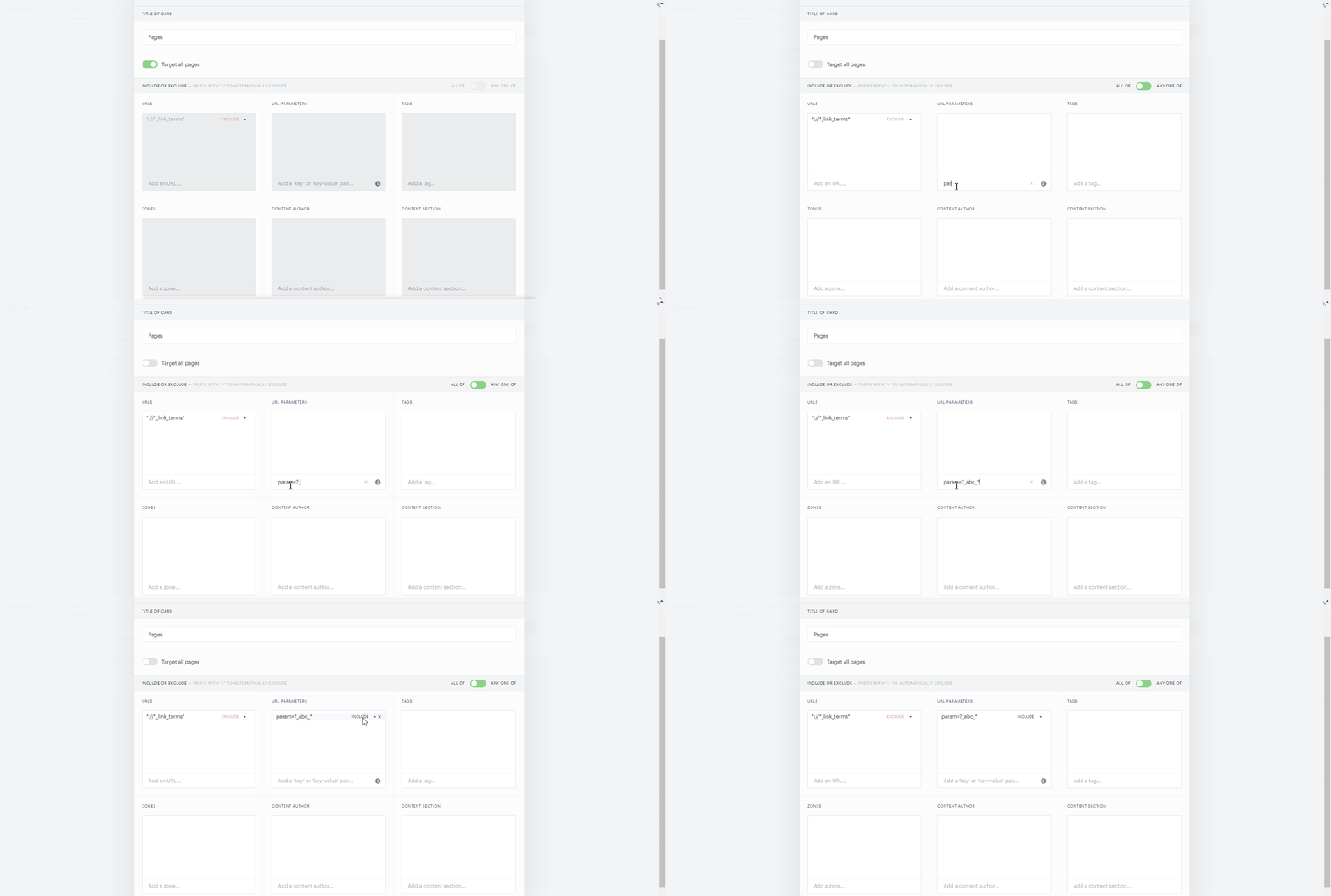
If you want to target by any value of the URL parameter, please, use the "*" wildcard after the equals "=" sign, as demonstrated in the example below:
effectivePages=*
You can also submit URL parameters using "key", i.e. name of the URL parameter. When you insert a URL parameter using only its key, your experience will target or exclude URLs that contain only the key of the URL parameter.
For example, if you insert "effectivePages" as a key without adding a value and use "Include" as an operator, then the following URL will not be targeted by the experience:
https://docs.piano.io/effectivePages=composer
Please keep in mind that if you insert a URL parameter using only a "key" and the equals "=" sign without adding "value", then the equals "=" sign will be removed automatically upon submission.
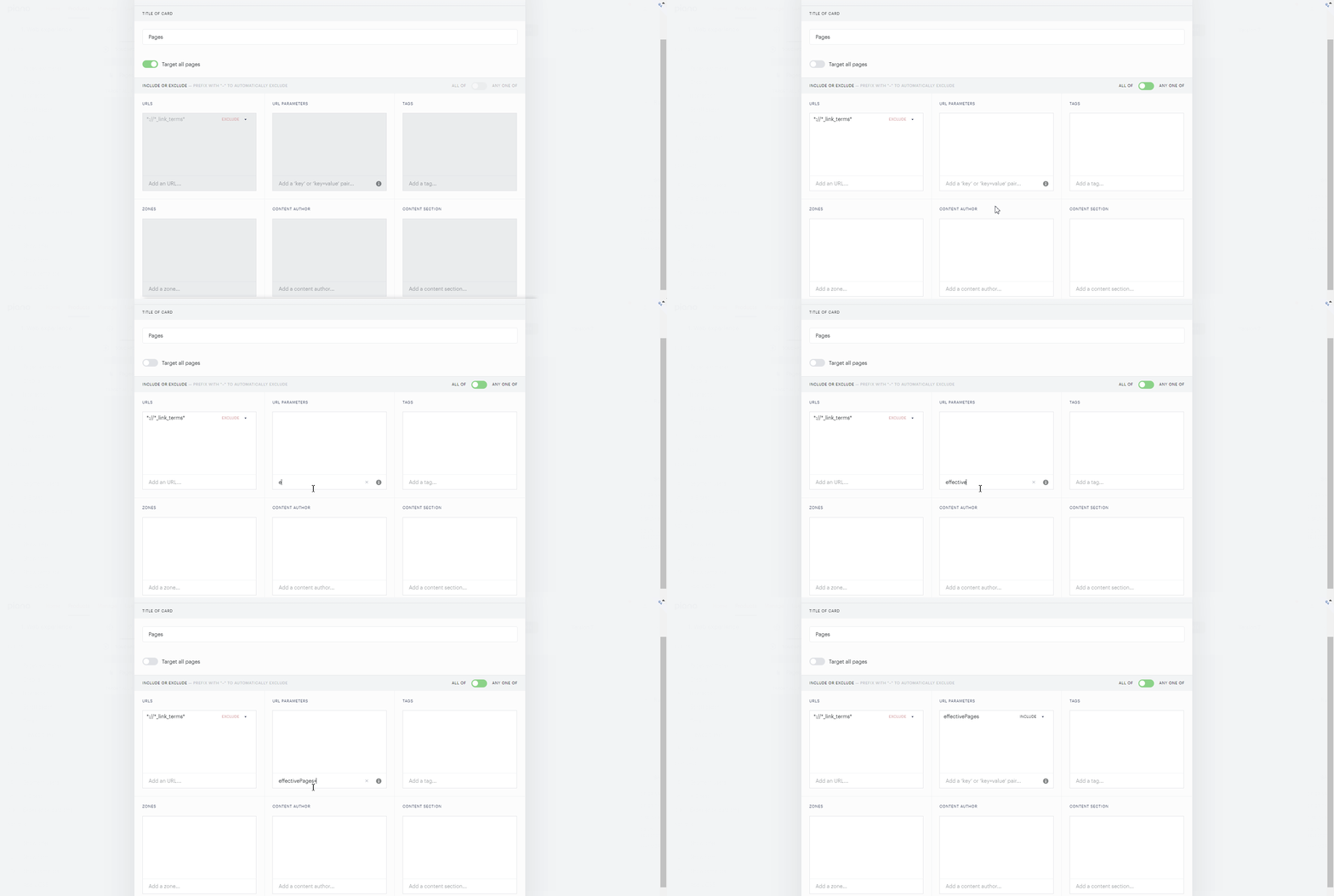
If your URL address contains a URL parameter such as "effectivePages=", then such a URL parameter will be treated by Composer execution as a parameter without "value". Such a parameter like "effectivePages=" will be recognized as "effectivePages", i.e. without the equals "=" sign.
To include or exclude URLs (pages) in experience targeting using URL parameters, please use the following shortcuts in the input field before inserting the URL parameter itself:
-
"
+" to include URLs in the experience targeting if any of them contains any URL parameter that has been submitted in the URL parameter category with "include" operator; -
"
-" to exclude URLs from the experience targeting if any of them contains any URL parameter from the list that has been defined in the URL parameters category;
Multiple URL parameters will operate on OR logic if they use the "Include" operator. This means that a particular URL address will match criteria set via URL parameters if it contains any one of the URL parameters from the configured category. Multiple URL parameters will operate on AND logic if they use the "Exclude" operator. This means that your experience will not fire if a URL address contains any one of the URL parameters from the configured category.
If you submit multiple URL parameters using both "'Include" and "Exclude" operators, to match the criteria, a particular URL address should not contain any URL parameter that uses the "Exclude" operator AND contain any URL parameter that uses "Include" logic.
Tags
By passing Piano information about your tagging conventions, you're able to include or exclude pages based on those tags. Many Piano clients choose to create "premium" or "subscriber-only" tags in order to gate content on a case-by-case basis using those tags. Piano's partners in the news business who use paywalls frequently create a "breaking-news" tag in order to make news of national significance freely accessible while keeping their paywalls intact on the rest of their sites. Though section-specific and topic-specific content can typically be defined with URLs, clients often find it more convenient to use section and topic tags when creating experiences for content verticals.
Set tags by following this documentation. Once you've set tags, you will be able to target based on those tags and have the related data automatically collected by Piano's AI product.
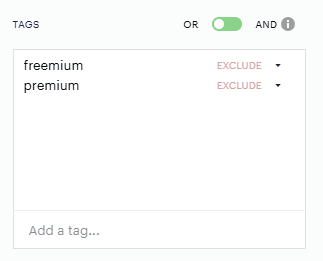
The tags field includes a toggle control that allows you to switch between OR and AND logic for targeting based on the selected "Include" tags. By default, the toggle is set to OR logic.
-
OR Logic (default): When the toggle is set to OR, a page will be included if it contains at least one of the selected "Include" tags.
-
AND Logic: When the toggle is set to AND, a page will only be included if it contains all of the selected "Include" tags.
It's important to note that the toggle functionality only affects the "Include" tags. For example:
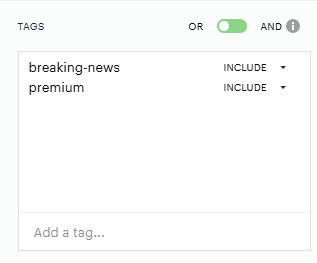
The logic for "Exclude" tags is governed by the AND NOT condition, meaning a page will only be included if none of the selected "Exclude" tags are present.
Zones
For Management + Billing customers who are members of the Alliance for Audited Media (AAM), Zones are used to generate reports about how their print customers are engaging with their online offerings. These reports make it easy for publishers to verify their overall circulation numbers with the AAM, which helps these publishers maintain and increase ad rates (both online and off).
These Zones are specified on a page-by-page basis according to the JavaScript on a given page. Zone names, which are case-sensitive, are freely defined by publishers and can be set by integrating a line of code on the web pages included in a particular Zone. By nature, Zones are mutually exclusive and the same page cannot belong to multiple Zones. However, distinct versions of a page can each include separate Zones. Say a publisher had two Zones, "desktop web" and "mobile web." In such a case, you could set two distinct Zones on the same page by adding Zone-related JavaScript to the HTML and/or CSS specific to the mobile and desktop versions of that page. Though desktop users and mobile users would be viewing the same content, the page code (and the associated Zone information) would be distinct to their device.
Within Composer, the Zone fields are used to target or exclude from experiences pages that you've set as belonging to particular Zones. Say you have three Zones: Zone 1, Zone 2, and Zone 3. In Composer, if Zone 1 was included in an experience and Zone 2 was excluded, Zone 3 would be excluded as well because you've specified to include only Zone 1 pages. Any pages not belonging to any Zone would also be excluded in this instance. On the other hand, if Zone 1 pages were excluded and no Zone was included in the experience, all pages without a Zone specified and all Zones except Zone 1 would be included.
AAM report information is populated based upon the resources (and associated terms) that belong to users who visit Zone pages. When a logged-in user with access to a resource visits a Zone page, that user's information will be captured in the part of the AAM report related to that Zone. However, if the same user were to access that page more than once in a given day, the AAM report would only record that user's information once. See here for more information on Zone reporting.
Content Author
By passing Piano information about your authors, you can include or exclude pages based on the byline. You might use this functionality to gate the content of authors with passionate followings. Or you could present a personalized newsletter offer that only appears on stories written by the newsletter's author.
Set author information by following this documentation. Once you've set authors, you will be able to target content produced by them.
Content Section
By passing Piano information about your website sections, you can include or exclude pages based on those sections. You might use this functionality to present a politics offer only to users visiting politics pages. Or you might choose to exclude those sections of your website commanding the highest ad rates from a paywall experience. Sections are freely definable. They do not necessarily have to match the section names on your website.
Set sections by following this documentation. Once you've set sections, you will be able to target those sections.
Publish Time
Publish time allows you to include or exclude article pages based on publish time. You can configure a minimum and/or maximum content age as well as define whether you would like to include or exclude content if it meets configured age criteria.
Content age is passed to Piano in UTC format via piano.js. Age ranges can be defined by:
-
Days
-
Hours
-
Minutes
Please see this article for more information about setting the Publish date/time.
You have the ability to select different units of measurement for minimum and maximum age. However, if configuring both a minimum and maximum threshold, please ensure the minimum age is chronologically earlier than the maximum age.
Please note that as long as your Experience is live, article pages may be included or excluded dynamically according to publish time logic.