
You can now add a first comment to be published automatically with your Facebook or Instagram post in Socialflow.
Why This Feature Matters
The first comment is a strategic tool for:
-
Adding links or hashtags without cluttering your main caption.
-
Sharing extended context or updates that don’t fit neatly into your main post.
-
Boosting engagement by prompting responses or asking questions right away.
By adding it directly to your post, you no longer need to publish the comment manually – Socialflow does it for you.
How to Enable and Use First Comment
Before using the feature, you must reauthorize your Facebook or Instagram account. Follow these steps:
1. Reauthorize Your Account
Go to: Settings → Application → Social Accounts
Find the appropriate Facebook Page or Instagram account and click the circular arrow icon to trigger a new reauthorization. Follow any pop-up instructions to grant access to the account.
2. Add a First Comment to a Post
Once the social account has been reauthorized, start a new post to add the comment:
-
Create a new Facebook or Instagram post.
-
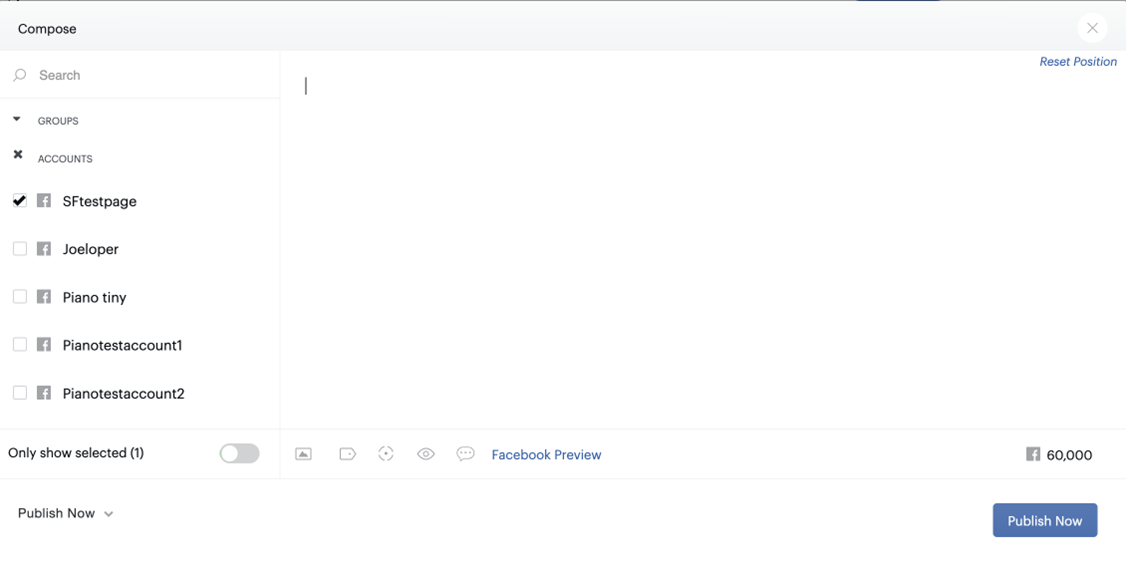
Select the 💬 Comment icon.
-
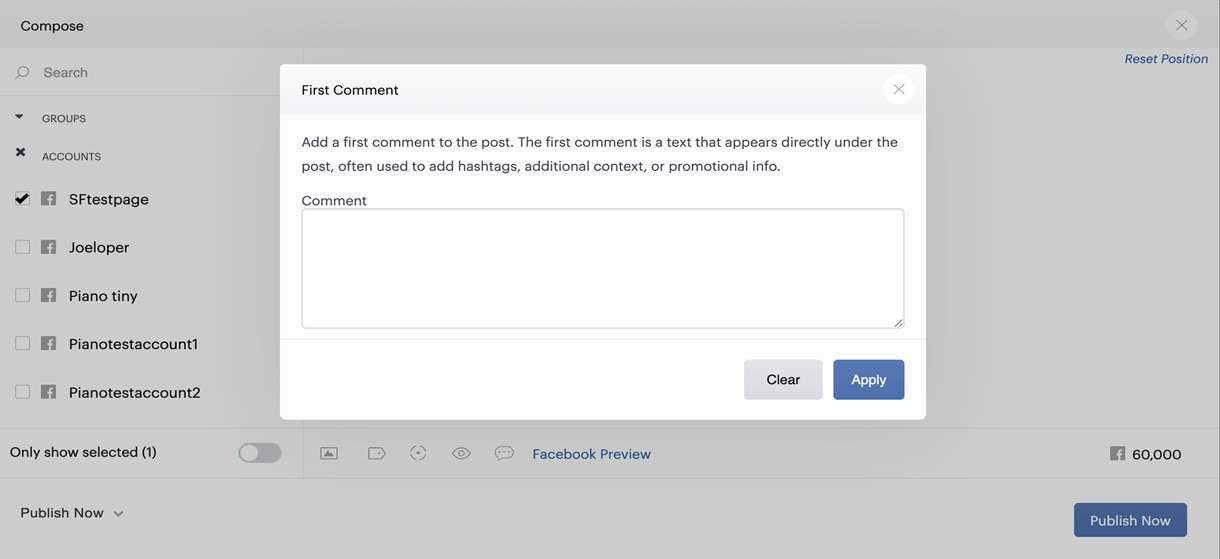
A window will appear. Enter the text or URL you’d like to publish as the first comment.
-
Click Apply to save the comment.
-
Set the post for publishing using Optimize, Schedule or Publish Now.
-
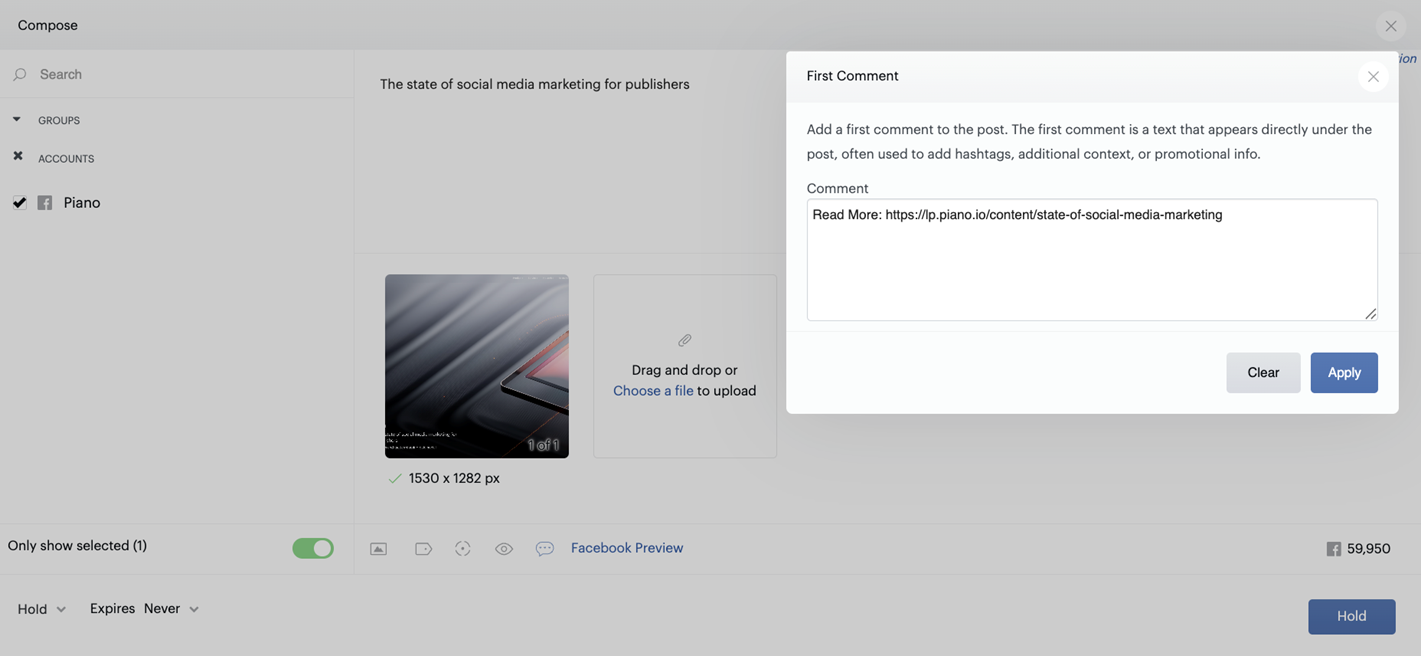
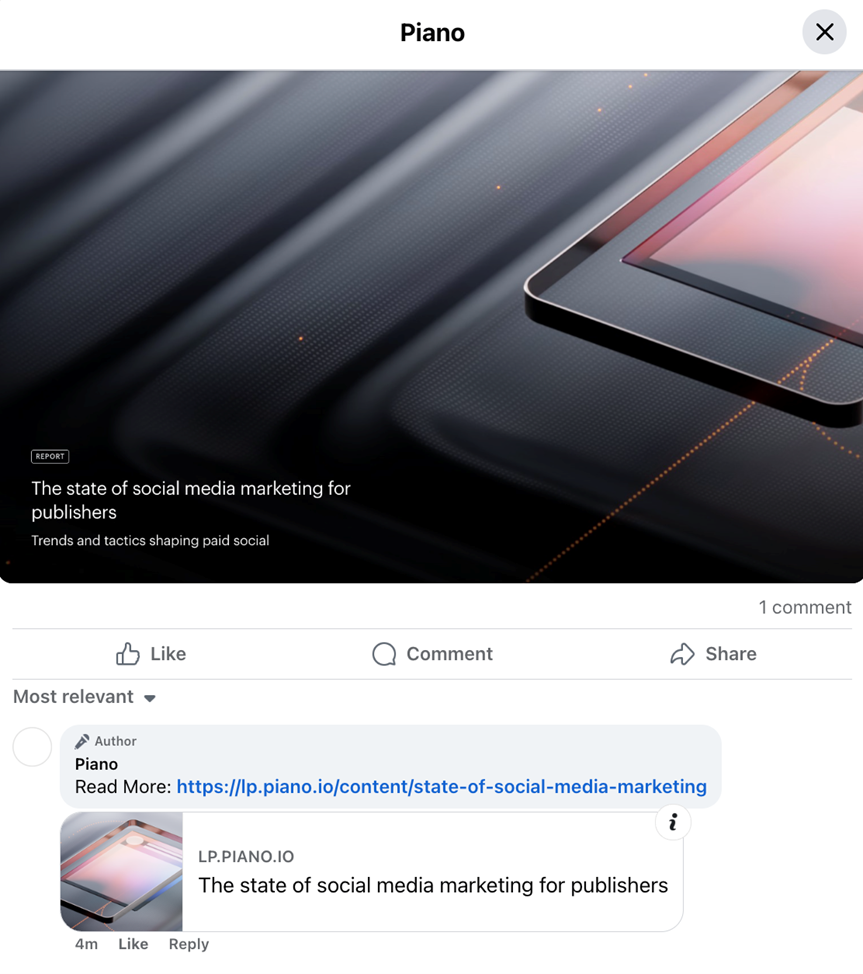
When the post is published, the comment will appear automatically as the first comment under it.
Create Image Posts Including First Comment from RSS Feeds
You can now automatically create posts with images sourced from your RSS feeds in Socialflow, including Instagram.
Why This Feature Matters
With this enhancement, you can:
-
Automatically create image posts from RSS feeds; no manual image uploads required.
-
Improve reach and engagement with visual-first content on Facebook and Instagram.
-
Save time by letting Socialflow detect and apply images for each post.
How It Works
Socialflow will automatically extract images by scraping the linked article page from your RSS feed. It looks for an image defined in the page’s Open Graph metadata, specifically the og:image tag:

If a valid image is found, Socialflow will create an image post using that image.
Even if the article contains multiple images, only one image (the one specified in og:image) will be selected and used.
How to Enable and Use This Feature
Step 1: Add your feed
-
Use the Add Feed shortcut from the Publish Page or go to Settings → Application → Content Sources.
-
Select Feed then enter the RSS feed URL.
-
Choose the Account to Publish to and set the Posting Timeline to define how far back content should be pulled.
-
Click Add and Customize to review and configure required settings before activating the feed.

Step 2: Configure Feed Settings
-
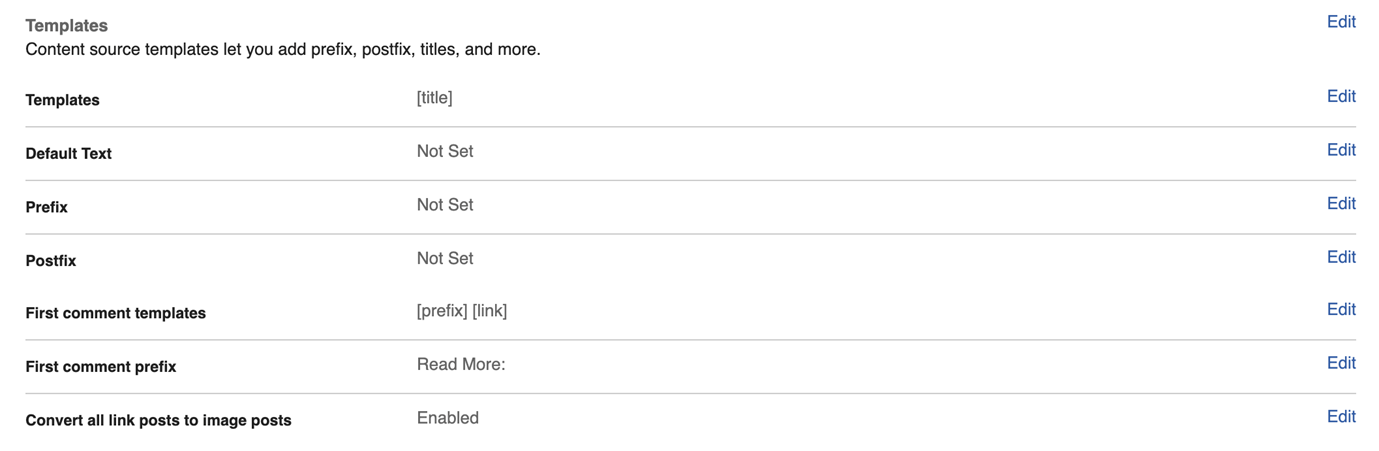
Click Edit next to the Templates section to open the feed configuration panel (You will need to click Edit again on each setting inside this section).
-
Under Templates, select a format that excludes
[link]such as[title]. This enables Socialflow to create image posts from the feed. -
Enable Convert all link posts to image posts. This is required for image post creation.
-
Under First Comment Templates, select
[link] -
(Optional) To include a prefix before the link in the first comment:
-
Set the First Comment Templates to
[prefix][link] -
Then enter your desired First Comment Prefix such as Read More:
-
Once all template settings are configured, don’t forget to activate the feed to begin importing and generating posts.
Step 3: Review and Edit Posts
Once your feed is active, Socialflow will begin importing entries and generating posts based on your template settings. To review and make adjustments:
-
Go to the Publish page and filter the Queue by Sources (newly added feed)
-
Click Options on a post to view or edit the extracted image, including the added first comment.
Note: If you update the setting on an existing feed, Socialflow will apply the changes to new posts from that point forward. We will generate new posts with images and/or first comments based on your updated configuration. Previously created posts will not be updated to include images or first comments.
If you want to reprocess older posts using the new settings, you will need to add the feed again using the same URL and apply the updated templates setting during setup.
Depending on your Limit Duplication settings (configured under your Social Account settings), some of these older posts may not be recreated. To ensure the right behavior, review your duplication settings and adjust as needed.
We’re excited to bring you this new First Comment feature, and we look forward to delivering even more publishing tools soon. If you have questions or feedback, please reach out to your Client Success Manager or support@piano.io.