
What's Included
This release introduces three core capabilities for TikTok:
-
Manual TikTok publishing (video and image posts)
-
RSS feed-based TikTok publishing (video and image posts)
-
Link in Bio for TikTok
Together, these features enable both real-time publishing and automated distribution, while helping you convert engagement into traffic.
Connecting Your TikTok Account
Before publishing, you'll need to connect your TikTok account to Socialflow.
To connect your account:
-
Go to Settings.
-
Select Application.
-
Click Add Social Account.
-
Choose TikTok.
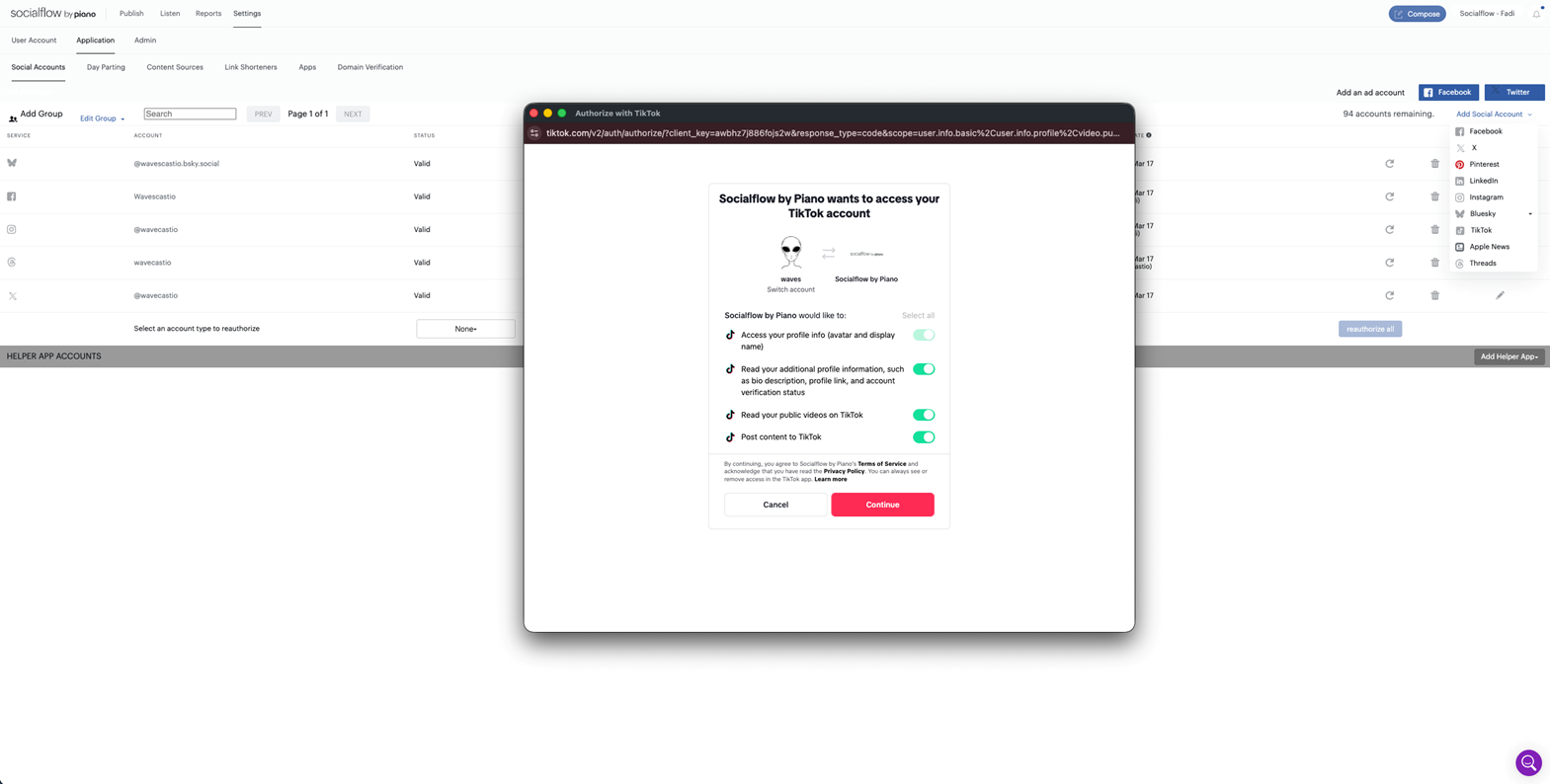
A pop-up window will open to complete the connection:
-
If you are not logged in to TikTok in your browser, you will be prompted to log in.
-
If you are already logged in to TikTok in your browser, you will be asked to authorize access.
In both cases, you will need to grant the Socialflow app permission to access your TikTok account.
All required permission options must be enabled for Socialflow to successfully publish to TikTok.
Once completed, your TikTok account will be available for publishing within Socialflow.
Manual TikTok Publishing
You can now create and publish TikTok posts using the same streamlined workflow you rely on for other platforms, whether you're sharing short-form video or image-based content.
How it works:
-
On the Publish page, select the TikTok account.
-
Click on the Compose button.
-
Upload your media (video or image).
-
Add your message.
-
Configure your privacy settings.
-
Publish immediately, schedule for later, or set to optimize.
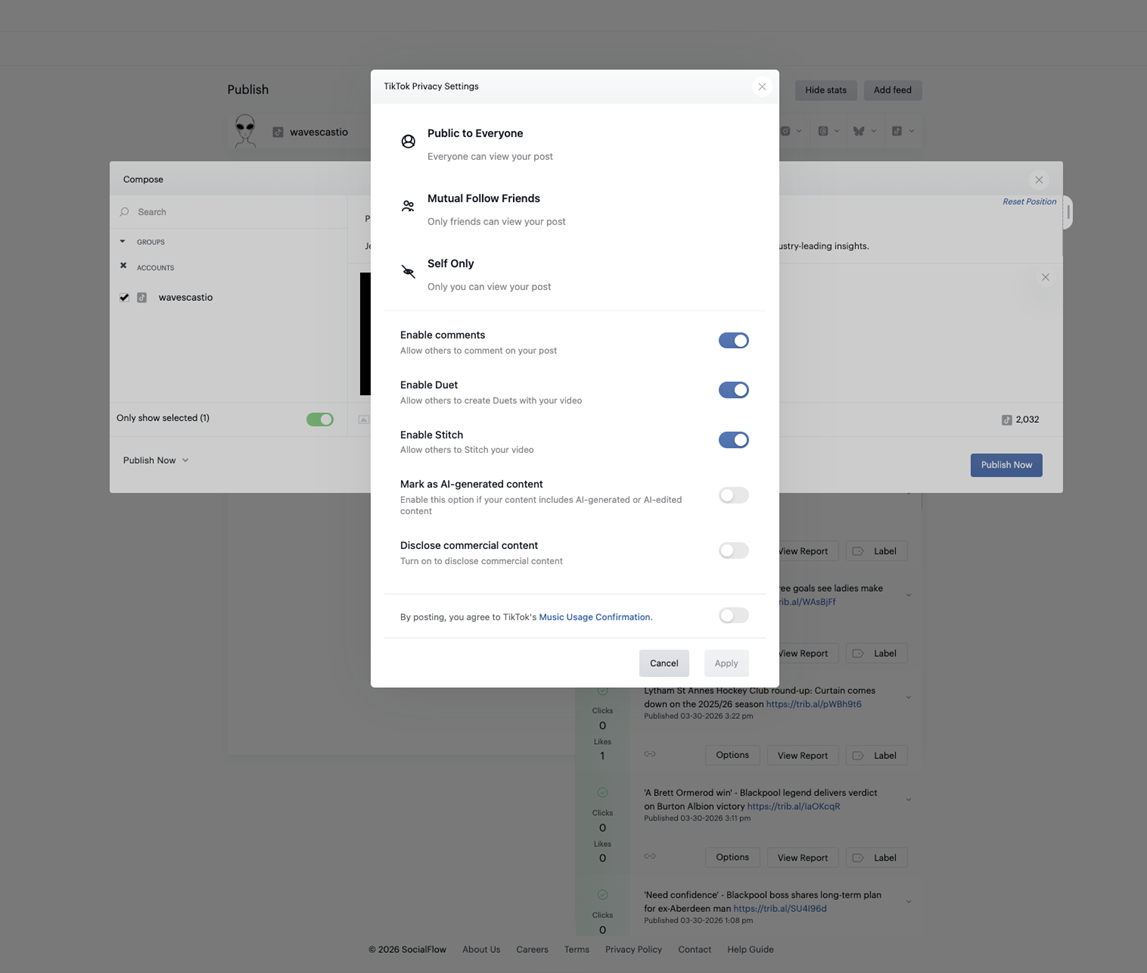
Privacy Settings (Required for Manual Posts)
TikTok requires privacy settings to be configured for each manually created post before publishing. When composing your post, you will need to:
-
Select who can view your post
-
Agree to TikTok's Music Usage Confirmation
Both are required before you can apply settings and publish.
Socialflow automatically applies your TikTok account's default settings for Enable Comments, Enable Duet, and Enable Stitch (set to everyone or friends). You can optionally adjust these settings for each post before publishing.
Available privacy settings may vary depending on the post type. For example, options such as Duet and Stitch are only available for video posts, while Auto add music is only available for image posts.
RSS Feed-Based Publishing
Socialflow now supports automated TikTok publishing through RSS feeds, making it easier to scale your content strategy.
How it works:
-
Navigate to Content Sources.
-
On the Publish page, click on Add feed. Alternatively, go to Settings → Application → Content Sources → Add New Content Source.
-
Paste the feed URL.
-
Assign the feed to a TikTok account and select a posting timeline.
-
Click on Add & Customize.
-
Configure the feed settings then activate it.
Media Requirement
TikTok posts must include media. For RSS publishing, each feed item must include a supported image or video for the post to be generated. If no media is available, the post will not be created.
Privacy Settings
For RSS publishing, the post visibility is set to Public to Everyone by default. Other privacy settings such as Enable Comments, Enable Duet, and Enable Stitch are also enabled by default.
Socialflow automatically applies your TikTok account's default settings for Enable Comments, Enable Duet, and Enable Stitch (set to everyone or friends). You can optionally adjust these settings for each post before publishing.
Comments and content reuse settings cannot be disabled at the TikTok account level. However, you can manage these settings on a post-by-post basis. For more information, see TikTok's help articles on Manage comments, Duet privacy settings, Stitch privacy settings, and Post privacy settings.
Link in Bio for TikTok
TikTok limits outbound linking, but Link in Bio helps you make the most of it.
With Socialflow's Link in Bio, you can create a dynamic landing page that houses multiple destinations behind a single link.
Use it to:
-
Promote recent articles, videos, or galleries
-
Highlight campaigns or partnerships
-
Drive subscriptions and conversions
Once published, simply add your Link in Bio URL to your TikTok profile.
TikTok Limitations
-
It is not possible to publish posts to multiple TikTok accounts or to cross-post to TikTok and other social networks simultaneously.
-
A post must include either images or a video, but not both.
-
TikTok limits the number of posts you can publish to a maximum of 15 posts every 24 hours (applicable to all social media distribution tools).
-
The character limit for TikTok captions is 2,200 for image and video posts.
-
Image posts do not support titles. Captions for both image and video posts are added as a description.
Video Restrictions
|
Requirement |
Details |
|---|---|
|
Supported media formats |
MP4 (recommended), WebM, MOV |
|
Supported codecs |
H.264 (recommended), H.265, VP8, VP9 |
|
Framerate |
Minimum 23 FPS, maximum 60 FPS |
|
Picture size |
Minimum 360px (height and width), maximum 4096px (height and width) |
|
Duration |
Between 3 seconds and 10 minutes |
|
File size |
Maximum 4GB |
Image Restrictions
|
Requirement |
Details |
|---|---|
|
Supported media formats |
WebP, JPEG |
|
Picture size |
Maximum 1080p |
|
File size |
Maximum 20MB per image |
Need Support?
If you'd like help getting started with TikTok:
-
Contact your Account Manager or Customer Success Manager
-
Reach out to our support team via support@piano.io