
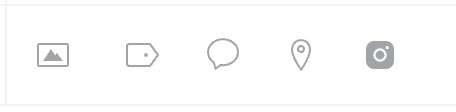
You have the option to manually create a new post for Instagram using the Compose box. At the bottom of the Compose Box, you’ll see these icons:
The first icon on the left, is the image icon.
After you enter some text for the post, you can use the image icon to attach a single photo, a single video, or to create a carousel post attaching multiple images and/or videos.
When you upload a video, you'll see the option to select a thumbnail.
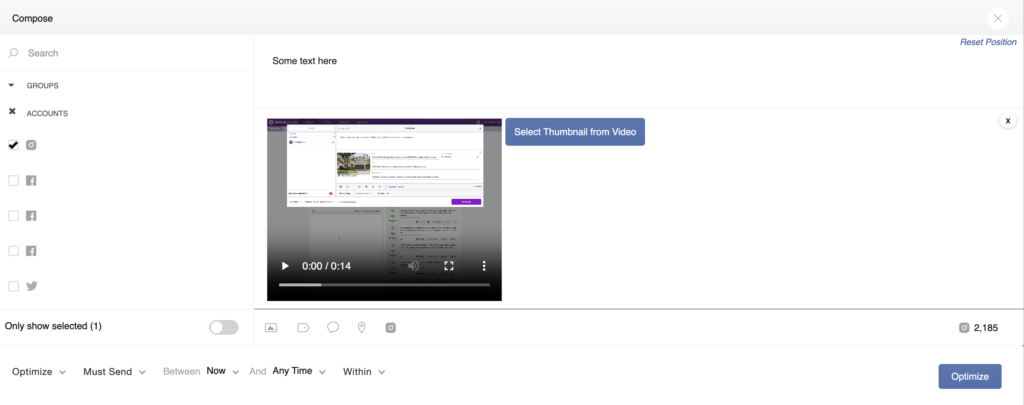
This will allow you to select a static image from the video file:
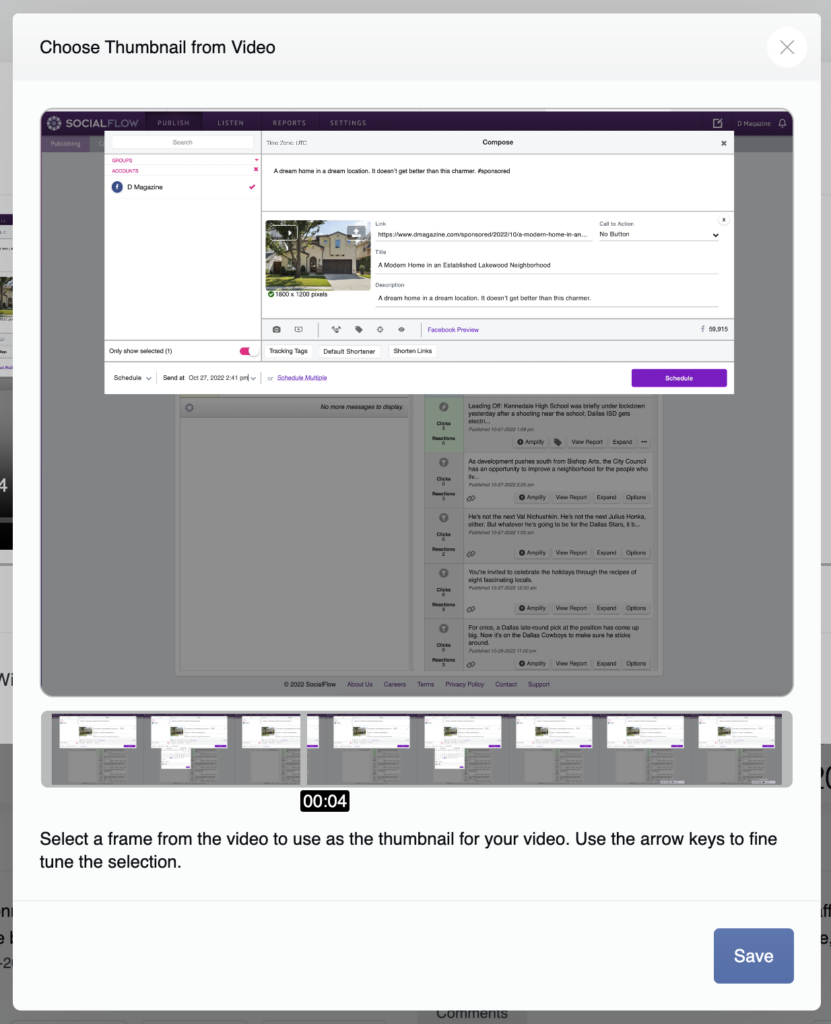
Go here to see the required media specifications.
Next to the Image icon, the second icon from the left, is a Label icon.
This allows you to attach a label to your message for searching and reporting on this content later.
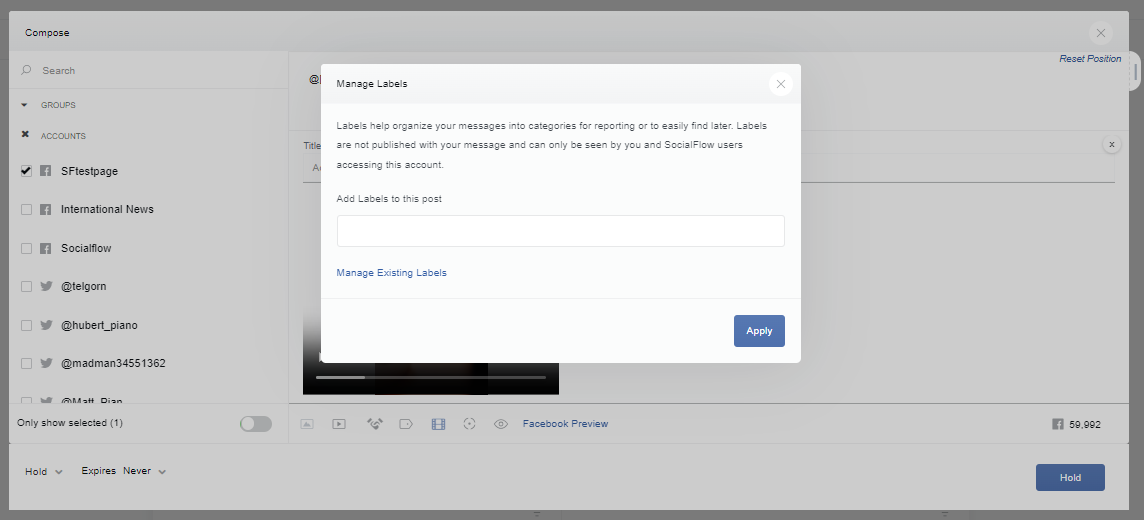
None of your fans will see this label. It’s just a way to categorize your posts into specific buckets or categories.
You can enter a customized label name. Once you’ve used a label, it’s stored in a drop-down for easy use later.
Next to the Labels, or the third icon from the left, is the Captions icon.
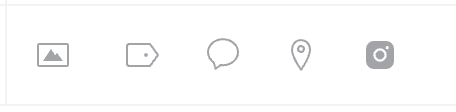
This features allows you to search for any saved captions you may have created on Instagram and re-use them easily.
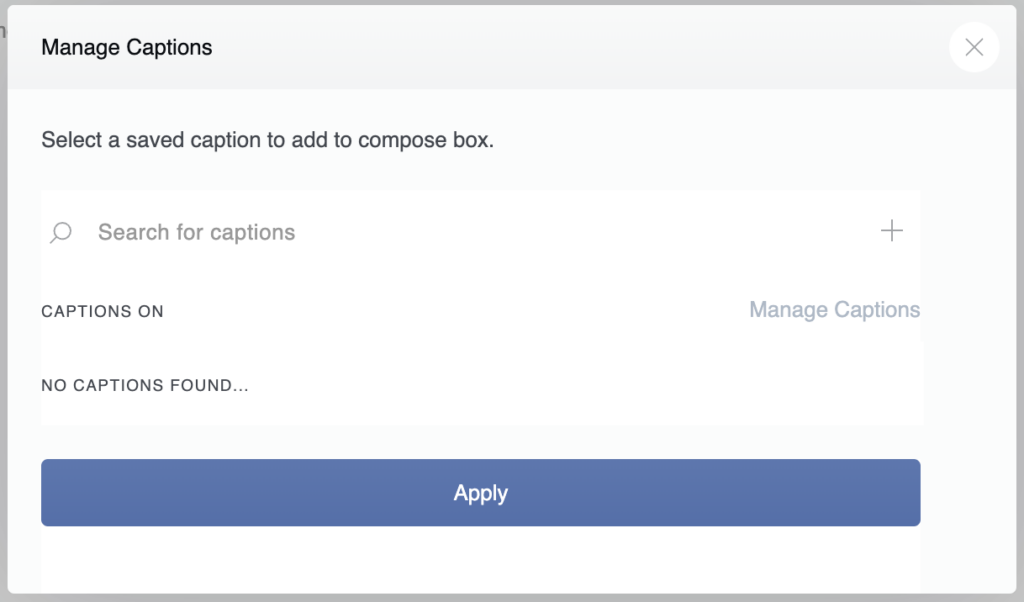
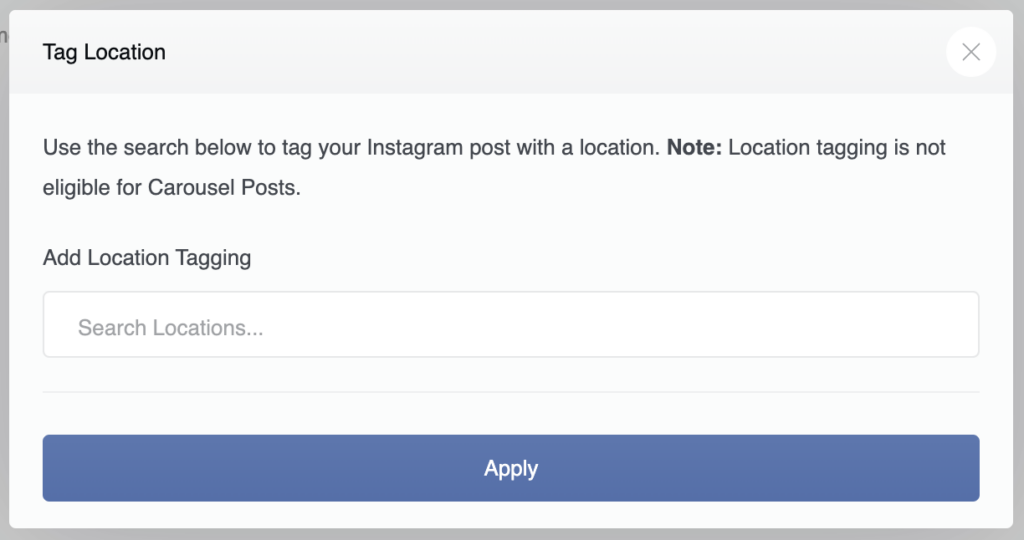
Next to the Captions icon, the 4th icon from the left, is the Location Tagging icon.
This allows you to search for a specific location and tag it in your Instagram post.
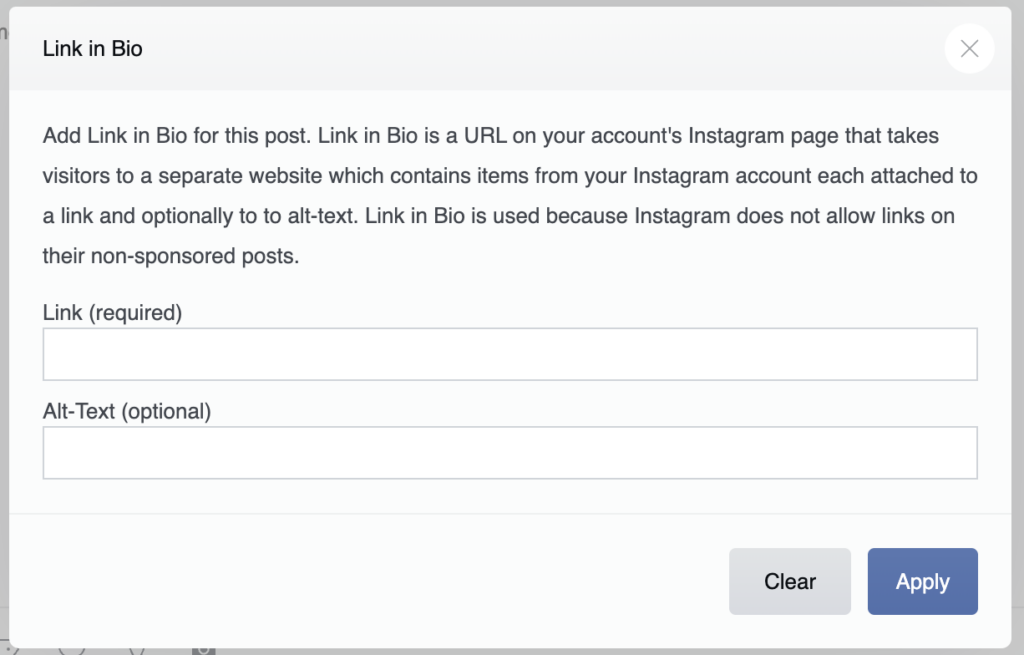
The last icon on the right, the Instagram logo icon, is for Link in Bio publishing.
Once this feature is enabled for your account, you can create posts and add a URL to send that post to both the Instagram timeline and to a custom webpage hosted by Socialflow. This makes it easier for fans to travel to your site from the Instagram platform.
Talk to your Client Success Manager or email Support to find out more about our Link in Bio features.