
Web content processed by the Piano platform can have custom taxonomies applied to it, e.g., for categorization purposes. This allows you to be able to query, filter, report and target on values that make sense for your business and your domain.
Although there are numerous applications for mapping content into custom taxonomies, a common use case is to use this for ad targeting and audience selling. This page is therefore in sections oriented toward this common use case.
Quicklinks (resources/references)
-
User Profiles (describing Long Term User Interests in detail)
What is it?
As a premium Piano customer, we allow you to customize how documents on your site are processed. This allows you to control how documents are grouped and classified, in a way that best fits your domain, your content and your advertiser base. To do this, we allow you to define mappings between concepts that appear in your content and groups that you define and name yourself. These groups are often organized in a hierarchy or tree structure that displays how they relate to each other (in a parent-child or is-a type relationship), hence the use of the word "taxonomy".
For example, if your site has a significant section in the electronics domain, you might want to map such concepts as subwoofer and samsung galaxy to the groups technology/audio and technology/mobile phones, respectively. A custom taxonomy is thus something that allows you to map potentially low-level concepts to higher-level concepts or named groups. Many different concepts can map to the same group, and one concept can map to many different groups.
Why do it?
By incorporating a custom taxonomy that detects low-level concepts and maps these to higher-level concepts that make sense for your domain and your business, the content profiles for pages on your site are tagged with these group names accordingly. Furthermore, these group names will be copied over into the profiles of users that read these pages. This allows you to achieve the following:
-
Piano Insight
-
Statistics can be aggregated and reported on the level of the higher-level groups you have defined. For example, this allows you to answer questions like "how much traffic do my
technology/audiopages have?", or "the users that consume mytechnology/audiocontent, which other types of content have they consumed?" -
Associate each user with an individual User Interest tree, based on what content the user consumes. These interest trees aim to condense all browsing history and user interaction for a user, and present this as a user-friendly tree structure of user interests where each user interest category is scored by importance based on the entire browsing history and user actions of the user. This is further presented in the documentation of User profiles.
-
-
In Piano Search, with a customized content processing setup, you can automatically categorize your documents. This allows your users to easily refine the search results using faceted browsing.
-
In Piano Advertising and Cxense Display, targeting can be done on the level of segments and the higher-level groups you have defined. Often it is easier to sell ads for categories and abstract concepts such as
technology/mobile phonesinstead of lower-level concepts such assamsung galaxy. For example, this allows you to do targeting like "show my ad on pages that belong to the grouptechnology/mobile phones", or "show my ad to users which are interested in grouptechnology/mobile phones".
In Piano Advertising, if you purchase the name of a node in your custom taxonomy as an ordinary keyword, it is recommended that you do this using the Phrase Match Type.
Where and how do the results surface in the Piano products?
The results of applying your custom taxonomy may show up in several of the Piano applications, e.g.:
-
In Piano Insight, the group names you have defined show up in either the attention maps or when selecting filters.
-
In Piano Advertising, the group names you have defined show up via the keyword suggestion tool, and can be purchased as ordinary keywords. If your ad space is configured to have either contextual matching (i.e., using content profiles) or behavioral matching (i.e., using user profiles) then the values from the taxonomy matching are passed in as additional keywords to the ad server.
-
In Piano Search, if configured to do so, custom taxonomies applied to content processing show up in your index.
-
In Piano Audience, the group names you have defined show up as primitives from which you can build advanced user segments.
-
In Piano Display, segments that may or may not include the group names you have defined and that are exported from the Piano Audience become bookable.
What do I need to do?
The process for having your custom taxonomy included into the Piano content processing system is as follows:
-
Get your own unique customer-prefix. This is typically a three-letter mnemonic and functions as a namespace. For example, you might be assigned the customer-prefix "
abc". Then, all profile keys that start with "abc-" will be known to originate from your custom taxonomy. Contact Piano support to have such a prefix assigned to you. -
Decide which sites you'd like to have processed using your custom taxonomy. For example, you might want to have your custom taxonomy applied to the sites
foo.comandbar.comwithin your network of sites. Provide a suitable site group identifier to Piano support. -
Decide which accounts should be granted access to the results of your custom taxonomy tagging. For example, you might want that all users that have access to accounts
12345678or23456789should be permitted to view profile keys that start with "your" customer-prefix "abc". Provide this list of account identifiers to Piano support. -
Create an Excel workbook that defines your custom taxonomy, and how concepts found in your content map into your defined groups. Required formatting and best-practices concerning this Excel workbook are covered below.
-
After having verified that your Excel workbook can be imported OK, provide it to Piano support to have it deployed to production.
What does the Excel workbook have to look like?
When creating a custom taxonomy, you should first consider if the intention is to utilize the User Interest framework. The User Interest framework provides a sophisticated and powerful tool used to maintain a slowly evolving record of the long-term user interests which aims to condense all browsing history and user interaction for a user, and present this as a user-friendly tree structure of user interests where each user interest category is scored by importance based on the entire browsing history and user actions of the user. This is further elaborated here. A User Interest taxonomy and a "regular" taxonomy follow different conventions with respect to group names. We will in the following present the formats for the two different standards.
User Interest Taxonomy
Your workbook contains minimally two worksheets. One worksheet contains the mapping rules. Another configuration worksheet says how the rules in the first worksheet should be interpreted. The name of the worksheets must start with @@, and the configuration worksheet should be named @@global-properties. The naming convention for the sheets containing the mappings differs depending on whether this is a User Interest taxonomy or not. First, we will demonstrate a typical property worksheet for a User Interest taxonomy.
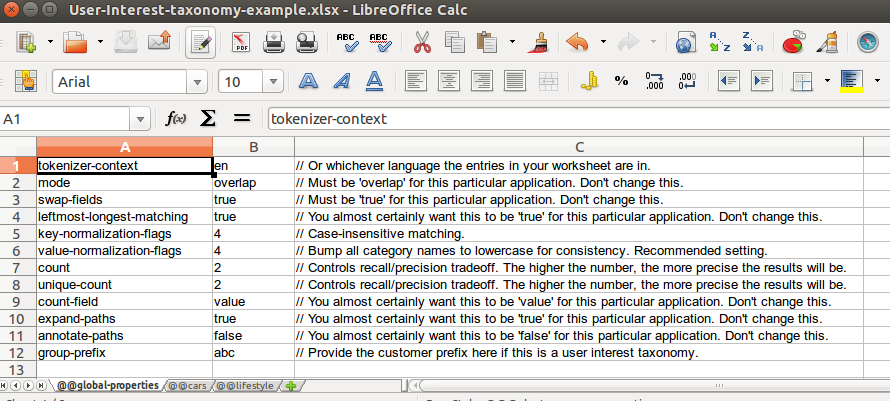
The User Interests feature is enabled by defining the option group-prefix in the property sheet. The value for group-prefix should be your customer-prefix.
Observe the two final options defined in the property sheet. By defining group-prefix we implicitly define the workbook to be a User Interest taxonomy. Further, annotate-paths should only be true for User Interest taxonomies. Its purpose is to inject the sheet name of a worksheet as the top category of a mapping between a concept and an abstract category. This will be clearer if we consider the mappings which are coupled with this configuration:
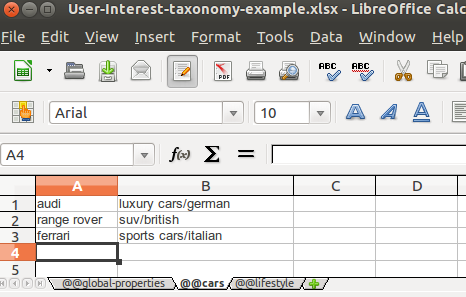
that since expand-paths and annotate-paths are true, the concept audi above will map to the categories cars, cars/luxury cars, cars/luxury cars/german, because all ancestor categories are automatically generated based on the most specific leaf node.
Note the use of key-normalization-flags. The value 4 means that matching will be done case-insensitively (but accents will still matter), e.g., the dictionary entry pilates will match all of pilates, Pilates and PILATES in the content. If you have entries where the casing is important, you can separate those entries out into a separate worksheet that uses a different setting.
Note the use of count and unique-count. Values higher than 1 means that a single occurrence of a dictionary entry in the content is not sufficient for the associated category to be emitted. For example, a value of 2 for both of these means that we require at least 2 hits from the dictionary to be found in the content, and that these have to be unique. Thus, a single mention of the word pilates is not sufficient for a document to be tagged as lifestyle/health, and two occurrences of pilates is not sufficient either. Rather, pilates would have to be mentioned together with another dictionary entry that also indicates the same category, e.g., yoga. This increases precision, e.g., a document where somebody discusses the movie Pilates of the Calibbean without also mentioning yoga would thus not be classified as lifestyle/health.
Words and phrases are by default matched verbatim against the content, no morphological normalization takes place. E.g., the dictionary entry car will not match cars in the content. A recommended best practice is to avoid inclusion of words that are very ambiguous and that are often used in a multitude of contexts.
If annotate-path were set to false, the sheet name would not have been injected as a top level category, and the concept audi would in that case have mapped to the categories luxury cars and luxury cars/german. A User Interest taxonomy will appear in the user profile with a fixed keyword group name, namely <group-prefix>-categories. Hence, for a customer with the customer-prefix "abc", the category mappings will appear with the group name "abc-categories". This convention differs for conventional taxonomies, i.e. taxonomies which are not intended to be used for User Interests. This will be illustrated below.
Conventional Taxonomy
By "conventional" we mean a taxonomy which has not enabled the User Interest functionality, i.e. a taxonomy which has not defined group-prefix in the property sheet.
Your workbook contains a number of worksheets. Each worksheet defines a different keyword group as it will appear in a content profile or user profile. In the following example, we'll assume that your customer-assigned prefix is abc and that we just want a single keyword group named abc-taxonomy to appear in the profiles.
First, create a workbook with two worksheets ("tabs"), one named @@abc-taxonomy and another named @@abc-taxonomy-properties. The first worksheet contains the mapping rules, the second worksheet says how the rules in the first worksheet should be interpreted.
Note how all tabs have names that start with @@ followed by your customer-assigned prefix.
The rules in the first worksheet (i.e., the one named @@abc-taxonomy) might look like shown in the table below. Each row defines a mapping rule. The first column in each row defines a low-level concept as it appears in the content, and the subsequent columns in that row define the set of taxonomy nodes that the low-level concept maps into. You can have as many columns as you want.
In the following example, if we find the phrase sharm el sheikh in a document, that's an indication that we should associate the document with the categories vacation and activities/diving:
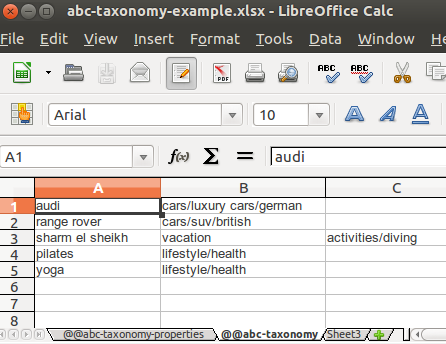
The second worksheet (i.e., the one named @@abc-taxonomy-properties, below) controls how the rules in the first worksheet are to be executed and interpreted. For the purposes of custom taxonomies used for ad matching which are not to be used as a User Interest taxonomy, the following settings are appropriate:
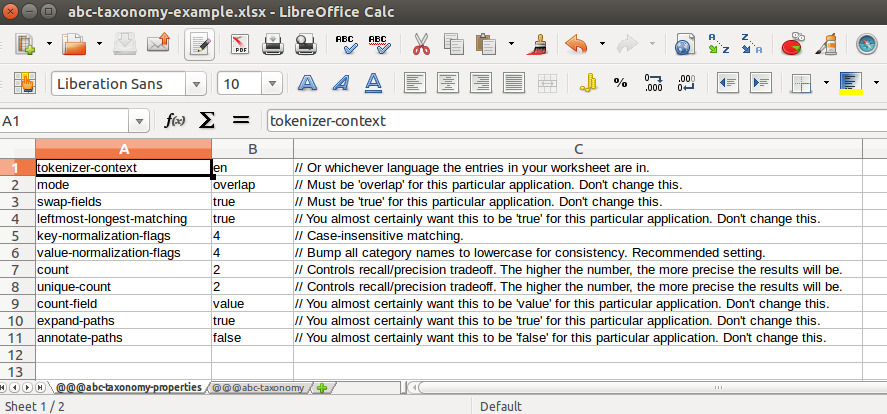
The full technical reference documentation that describes the allowed structure of your Excel workbook can be found here.
If you have multiple property sheets and they all look similar, you can simplify your workbook by using a global property sheet.
How can I verify that my Excel workbook is correct?
Contact Piano support.
What if I add more sites and/or accounts?
If you need to change the set of accounts for which profile keys with "your" prefix should be visible, notify Piano support and we'll have the permissions updated. If you add more sites to an existing account that is already configured for your custom taxonomy, these will automatically be processed by your custom taxonomy the next time a page is fetched.
What if I want to update my Excel workbook?
If you make updates to your Excel workbook and have verified that it imports OK (see above), you can mail the updated workbook to Piano support to have it deployed to production. Pages that are recrawled after deployment will reflect the updated settings.