
Introduction
Piano Insight customers who have also deployed Google Analytics on their pages often report that the numbers of Piano pageviews and unique users are considerably lower than those of Google Analytics. There are several reasons for such a discrepancy, most of which will be covered in this document. The main one is that, because of its own success, Google Analytics has become a spam target. The main motivation behind spam is to improve the ranking of a spammer's website pages in Google Search results. Spammers achieve it by creating false referral links back to their web pages, which again will increase the perceived importance (authority) of such pages.
Below are the reasons why Google Analytics and Piano provide different readings. Note that, while Google Analytics normally ends up giving higher numbers than Piano, depending on the deployment, some of the reasons described here could as well contribute towards higher Piano numbers.
The reasons are:
-
The way the Piano and Google scripts are deployed by the client.
-
Instrumentation errors.
-
The Piano script not configured to operate in "Google mode".
-
Google being a spam target.
Script deployment
For the two analytic scripts to count the same numbers, they need to be:
-
Deployed on the same set of pages.
-
Deployed at the same place on the page.
If the two scripts are not deployed on the same set of pages, then the numbers will be different. The more popular single script pages are, the greater an impact this will have.
If there is some distance between the two scripts on the page, then, over time, the script located higher on the page is likely to be executed more times than the one positioned lower. With larger distance and more content that separates them, the expected impact increases. The reason for this is that more users will have a chance to abort the page somewhere between the two scripts, either by closing the page or clicking on a link that takes the browser to another page before the second script has finished.
Instrumentation error
Start/end time matters when comparing the output of the two systems. Ensure that any difference in time zones is taken into account.
The way one compares numbers is normally by looking at the numbers shown in the respective GUIs. If the site is set up with the same time zone in both systems, then no problem. However, if the time zone is different, then the numbers will also be different. The effect of this is less for longer time intervals. A one-hour time zone difference when considering one hour of data means that one is looking at two completely disjoint data sets. The effect of the same time zone issue when looking at one month of data would be marginal.
Piano Google mode
Google does count auto refresh (non-human-initiated page refreshes); Piano does not, unless explicitly configured to do so.
By setting the useAutoRefreshCheck parameter to false as shown below in line 4, the Piano script will stop rejecting auto refreshes and report these as pageviews the same way as Google Analytics does.
<script>
    var cX = cX || {}; cX.callQueue = cX.callQueue || [];
    cX.callQueue.push(['setSiteId', '<SITE ID>']);
    cX.callQueue.push(['sendPageViewEvent', { useAutoRefreshCheck: false }]);
</script>
Google spam
A significant portion of the pageviews that Google Analytics reports stem from so-called Ghost Spam. These are page visits that never took place and only exist in Google's statistics. In Wikipedia, it is described as ghost spam.
The motivation for this kind of spam is to improve one's ranking in Google's search results. As Piano does not have an internet search engine, there is no similar motivation for spamming Piano. Since these pageviews actually never take place, Piano will not be counting them.
Piano crawler as Google spam
Piano Insight does not count pageviews caused by its own crawler. Google Analytics will do so unless one selects the option excluding pageviews caused by known robots (in GA: Admin → View Settings → Bot filtering). This will not only stop counting page crawling by Piano Insight but also any other robot that Google is aware of (most "bad-spirited" robots will not be stopped by this).
Spam detection code
The figure below shows how we detect ghost and other spam. In step 1, a user visits a page with scripts from both Piano and Google Analytics. The Google Analytics script fires in step 2a and the Piano script in step 2b. In step 3 (the large yellow arrow at the top right), possible ghost spam hits Google Analytics' server. Remember: ghost spam never interacts with any web pages.
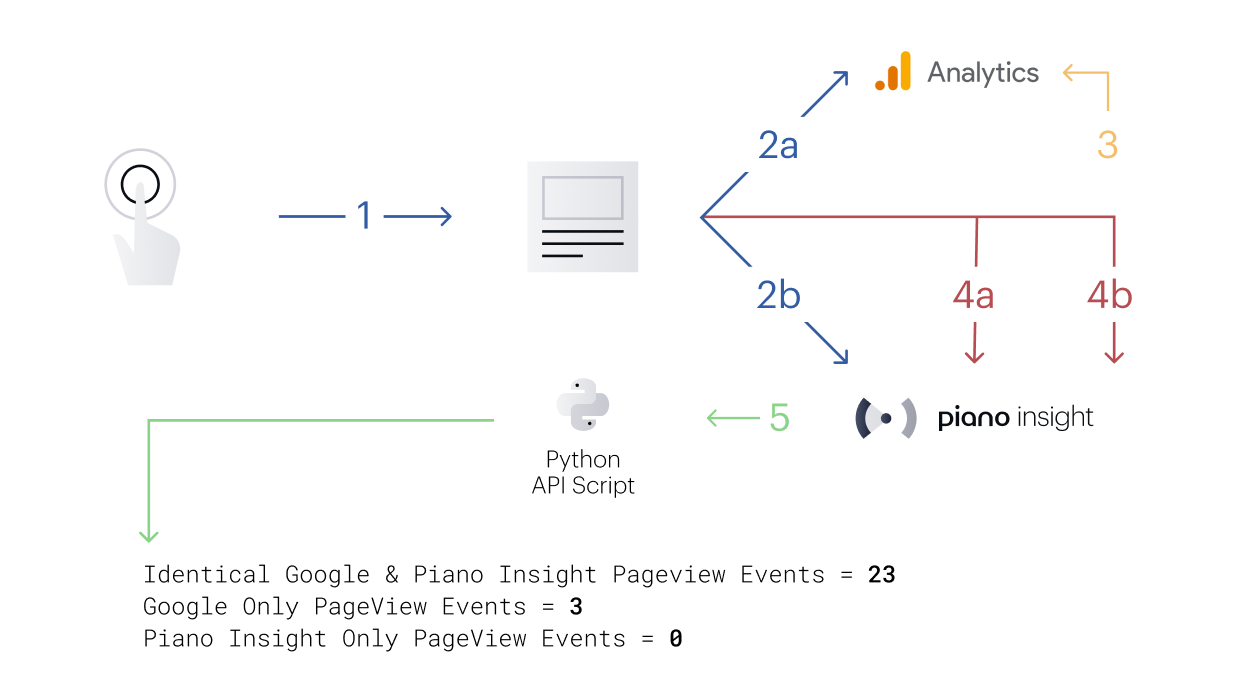
Our strategy is to add Piano's performance events (red arrows 4a and 4b) to the callback function of the Google Analytics pixel requests (step 4a) and piggyback another to the regular Piano pageview event (step 4b). This lets Piano Audience's GUI confirm any pageview reported to Piano Insight or Google Analytics. Comparing those numbers with Google Analytics' GUI will reveal how much ghost spam hits Google Analytics.
The JavaScript below reports the original pageview on step 2a and step 2b and sends performance events on step 4a and step 4b:
<script type="text/javascript">
    var _prefix              = '<YOUR PIANO AUDIENCE CUSTOMER PREFIX>';
    var _siteId              = '<YOUR PIANO AUDIENCE SITE ID>';
    var _persistedQueryId    = '<YOUR PERSISTED QUERY ID>';
    var _googleTrackingID    = '<YOUR GOOGLE TRACKING ID>';

    function pushPageView(isGoogleEvent, source, sitePrefix, siteId, persistedQueryId, userId, articleId, timestamp) {
        var origin     = sitePrefix + '-' + source;
        var eventType  = 'view';
        if (isGoogleEvent) {
            var userIds            = '/type:' + sitePrefix + '/id=' + userId;
            var custParamArticleId = '/group:articleId/item:' + articleId + '/type=string';
            var custParamTimestamp = '/group:timestamp/item:' + timestamp + '/type=string';
            var img                = new Image();
            img.src                = 'http://comcluster.cxense.com/dmp/push.gif?persisted=' + persistedQueryId + '&siteId=' + siteId + '&type=' + eventType + '&origin=' + origin + '&userIds' + userIds + '&customParameters' + custParamArticleId + '&customParameters' + custParamTimestamp;
        } else {
            cX.setEventAttributes({ 'origin': origin, 'persistedQueryId': persistedQueryId});
            cX.callQueue.push(['sendEvent', eventType, {'articleId': articleId, 'timestamp': timestamp}]);
        }
    }

    function getCookie(cookieName) {
        var cookies = document.cookie.split(';');
        for (var i = 0; i < cookies.length; i++) {
            var cookie = cookies[i];
            while (cookie.charAt(0) == ' ') {
                cookie = cookie.substring(1);
            }
        var token = cookieName + "=";
        if (cookie.indexOf(token) == 0)
            return cookie.substring(token.length, cookie.length);
        }
        return "user ID not found";
    }
    var userId = getCookie('cX_P');

    var articleId = 'articleID not set';
    var metaTags  = document.getElementsByTagName('meta');
    for (var i=0, max=metaTags.length; i < max; i++) {
        if (metaTags[i].name === 'cXenseParse:recs:articleid') {
            articleId = metaTags[i].content;
        }
    }

    var timestamp = String((new Date).getTime());

    var cX = cX || {}; cX.callQueue = cX.callQueue || [];
    cX.callQueue.push(['setSiteId', _siteId]);
    cX.callQueue.push(['sendPageViewEvent']);
    cX.callQueue.push(['invoke', function() {
        pushPageView(false, 'cxense', _prefix, _siteId, _persistedQueryId, userId, articleId, timestamp);
    }]);
</script>

<script type="text/javascript">
    (function(d,s,e,t){e=d.createElement(s);e.type='text/java'+s;e.async='async';
    e.src='http'+('https:'===location.protocol?'s://s':'://')+'cdn.cxense.com/cx.js';
    t=d.getElementsByTagName(s)[0];t.parentNode.insertBefore(e,t);})(document,'script');
</script>

<script>
    (function(i,s,o,g,r,a,m){i['GoogleAnalyticsObject']=r;i[r]=i[r]||function(){
    (i[r].q=i[r].q||[]).push(arguments)},i[r].l=1*new Date();a=s.createElement(o),
    m=s.getElementsByTagName(o)[0];a.async=1;a.src=g;m.parentNode.insertBefore(a,m)
    })(window,document,'script','https://www.google-analytics.com/analytics.js','ga');
    ga('create', _googleTrackingID, 'auto');
    ga('send', 'pageview', {
         'hitCallback': function() {
             pushPageView(true, 'google', _prefix, _siteId, _persistedQueryId, userId, articleId, timestamp);
        }
    });
</script>
The code above requires using a persisted query. This tutorial describes what persisted query is, and the screenshot below shows the configuration required in this case.
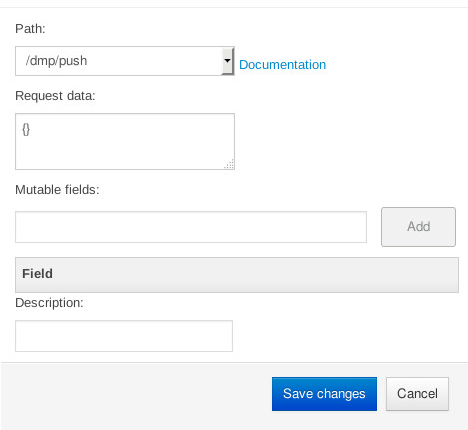
The JavaScript above produces performance events (steps 4a and 4b) visible in Piano Audience's GUI. Each two-line pair represents the same pageview event (identical timestamps in the Timestamp / Custom value column). Each pair contains a Piano event and a Google event, shown in the Origin column.
Piano Audience's GUI confirms the performance events work as intended but is impractical for extracting data. For that, we use the Python script below, which calls the Piano API to sum all performance events and produce a report (step 5 in the overview figure above).
_username = '<YOUR PIANO AUDIENCE USER NAME>'
_secret   = '<YOUR PIANO AUDIENCE API KEY>'
_siteId   = '<YOUR PIANO AUDIENCE SITE ID>'
_prefix   = '<YOUR PIANO AUDIENCE CUSTOMER PREFIX>'
_start    = '<START OF TIME INTERVAL>'  # Example, Jan 24th 2017 at 5:30 PM CET: 2017-01-24T17:30:00.000+0100
_stop     = '<END OF TIME INTERVAL>'

import json, datetime, hmac, hashlib, http.client

def cxApi(path, obj):
    date = datetime.datetime.utcnow().isoformat() + "Z"
    signature = hmac.new(_secret.encode('utf-8'), date.encode('utf-8'), digestmod=hashlib.sha256).hexdigest()
    headers = {"X-cXense-Authentication": "username=%s date=%s hmac-sha256-hex=%s" % (_username, date, signature)}
    connection = http.client.HTTPSConnection("api.cxense.com", 443)
    connection.request("POST", path, json.dumps(obj), headers)
    response = connection.getresponse()
    status = response.status
    responseObj = json.loads(response.read().decode('utf-8'))
    connection.close()
    return status, responseObj

def errorHandling(status, response, message):
    if status != 200:
        raise Exception("%s (http status = %s, error details: '%s')" % (message, status, response['error']))

def getPageViewReportingData(dataType, siteId, start, stop):
    if dataType == 'DMP':
        status, response = cxApi('/dmp/traffic/data', {"siteIds":[siteId], "start":start, "stop":stop, "fields":["time","pageViewEventId","origin","customParameters"], "filters":[{"type":"dmp-event", "group":"type", "item":"view"}]})
    if dataType == 'Traffic':
        status, response = cxApi('/traffic/data', {"siteId":siteId, "start":start, "stop":stop, "fields":["eventId","url"]})
    errorHandling(status, response, 'Unable to obtain %s Data' % dataType)
    return response

def reportFinding(leadText, dataSet, addNewLine=False):
    print(leadText + str(len(dataSet)) + ('\n' if addNewLine else ''))

def getGroupedEventData():
    googleDmpEvents     = {}
    cxenseDmpEvents     = {}
    cxenseTrafficEvents = {}
    for event in getPageViewReportingData('DMP', _siteId, _start, _stop)['events']:
        eventData = {'time': event['time'], 'pageViewEventId': event['pageViewEventId']}
        for customParameter in event['customParameters']:
            if customParameter['group'] == 'articleId':
                eventData['articleId'] = customParameter['item']
            if customParameter['group'] == 'timestamp':
                timestamp = customParameter['item']
        if event['origin'] == _prefix + '-google':
            googleDmpEvents[timestamp] = eventData
        if event['origin'] == _prefix + '-cxense':
            cxenseDmpEvents[timestamp] = eventData
    googleDmpEventTimeStamps = googleDmpEvents.keys()
    cxenseDmpEventTimeStamps = cxenseDmpEvents.keys()

    cxenseDmpTrafficEventIDs = []
    for timestamp in list(set(googleDmpEventTimeStamps) & set(cxenseDmpEventTimeStamps)):
        cxenseDmpTrafficEventIDs.append(cxenseDmpEvents[timestamp]['pageViewEventId'])
    for event in getPageViewReportingData('Traffic', _siteId, _start, _stop)['events']:
        cxenseTrafficEvents[event['eventId']] = {'time': event['time'], 'url': event['url']}
    cxenseTrafficEventIDs = cxenseTrafficEvents.keys()
    return googleDmpEventTimeStamps, cxenseDmpEventTimeStamps, cxenseDmpTrafficEventIDs, cxenseTrafficEventIDs

def main():
    googleDmpEventTimeStamps, cxenseDmpEventTimeStamps, cxenseDmpTrafficEventIDs, cxenseTrafficEventIDs = getGroupedEventData()
    reportFinding('Identical Google & Piano PageView Events = ', set(cxenseDmpTrafficEventIDs) & set(cxenseTrafficEventIDs))
    reportFinding('Google Only PageView Events = ', set(cxenseDmpTrafficEventIDs) - set(cxenseTrafficEventIDs))
    reportFinding('Piano Only PageView Events = ', set(cxenseDmpEventTimeStamps) - set(googleDmpEventTimeStamps), True)

main()
Here we see an example output from running the script above:
Identical Google & Piano PageView Events = 23
Google Only PageView Events = 3
Piano Only PageView Events = 0
If the total of the first two lines matches what Google Analytics' GUI shows (make sure it's the same page and time period), then you have accounted for all the times the Google script has been executed. If Google Analytics' GUI shows a higher number, then the surplus is ghost spam (step 3, the yellow arrow in the overview figure above) where Google Analytics is registering pageviews that are not caused by the Google Analytics script on the page being executed.
Removing spam from Google Analytics
There are several sites on the internet that claim to know how you can fix your Google Analytics spam issue. Here are a few:
The essence of them is this collection of advice:
-
Activate built-in filtering options for known robots.
-
Filter out host names that don’t match your sites (most spammers don’t know your host names).
-
Add filters for spam crawlers as you detect them (normally by using the Campaign Source field).
-
Filter out pageviews with non-valid language codes.
Single-page applications
Due to AJAX and frameworks such as AngularJS, Ember.js, Meteor.js, ExtJS and React that build upon the same principle, single-page applications have become quite common. In the context of analytics tools, the difference between a single-page application and regular web pages is that the latter will take you to a new URL to show you the next content, whereas a single-page application will just have a JavaScript code change to the content of one and the same page/URL. This creates a problem for analytics tools such as Piano Insight, as the pageview counting is triggered by a new URL being accessed. To compensate for this, the JavaScript code has to notify Piano Insight whenever a "new page" is shown. This is done by executing initializePage() for each "new page":
cX.initializePage();
cX.setSiteId('<YOUR PIANO AUDIENCE SITE ID>');
cX.sendPageViewEvent();
A complete AJAX example can be found at AJAX web applications.