Introduction
Follow Reporting→Events to find two reports: Page view events and Performance events.
Piano Audience recognizes two type of events: Page View events (all page views registered over a specified period of time for a selected site or site group) and Performance events (non-page view events such as clicking a button or a download link registered over a specified period of time for a selected site or site group).
Filters
The Page view events and Performance events reports are linked in terms of filters. If you select filters, user ID or/and Period of dates in one of the reports, the same parameters are selected by default in the second one. However, the system allows to clear selected parameters quickly.
Both reports offer the following filtering options:
-
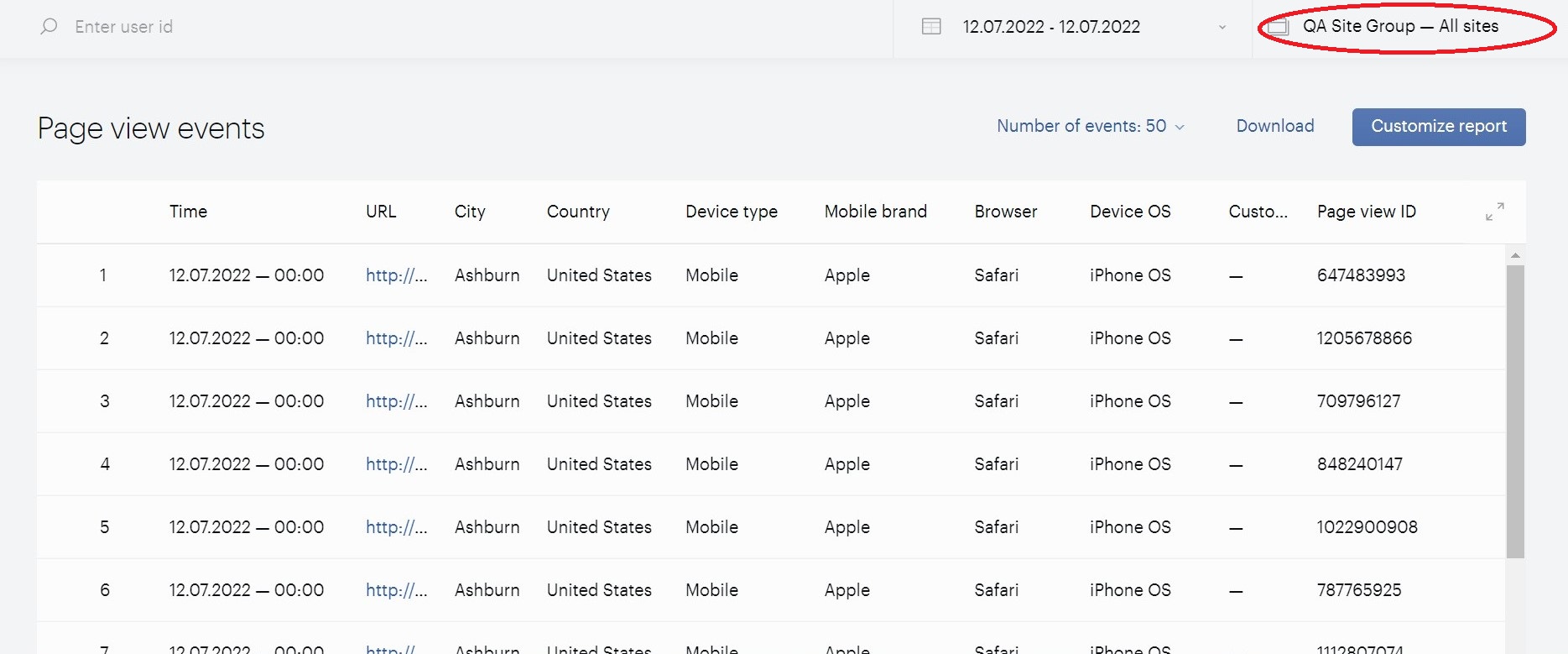
Sites filter - requires selecting a single site (there is no option to select multiple sites) or all sites of the current site group:
-
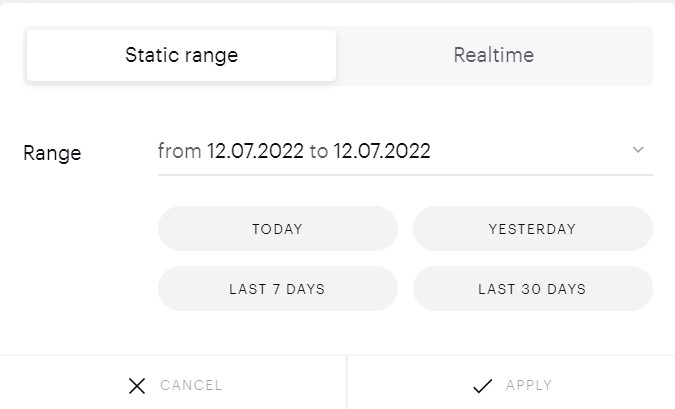
Period filter helps you to define the timeframe for the data shown in your report (either the default or a custom interval):
-
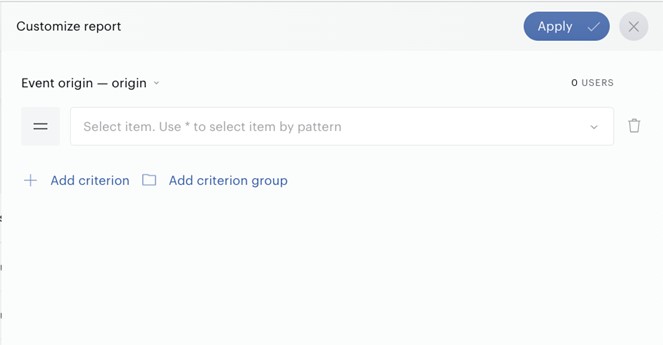
Customize report - a filter panel with a list of criteria including, for example, an Event origin filter. The filter panel can be opened by pressing the Customize report button. You can add a criterion or/and a criterion group and then apply settings to get filtered data. A criterion group can include an additional criterion or/and a criterion group:
-
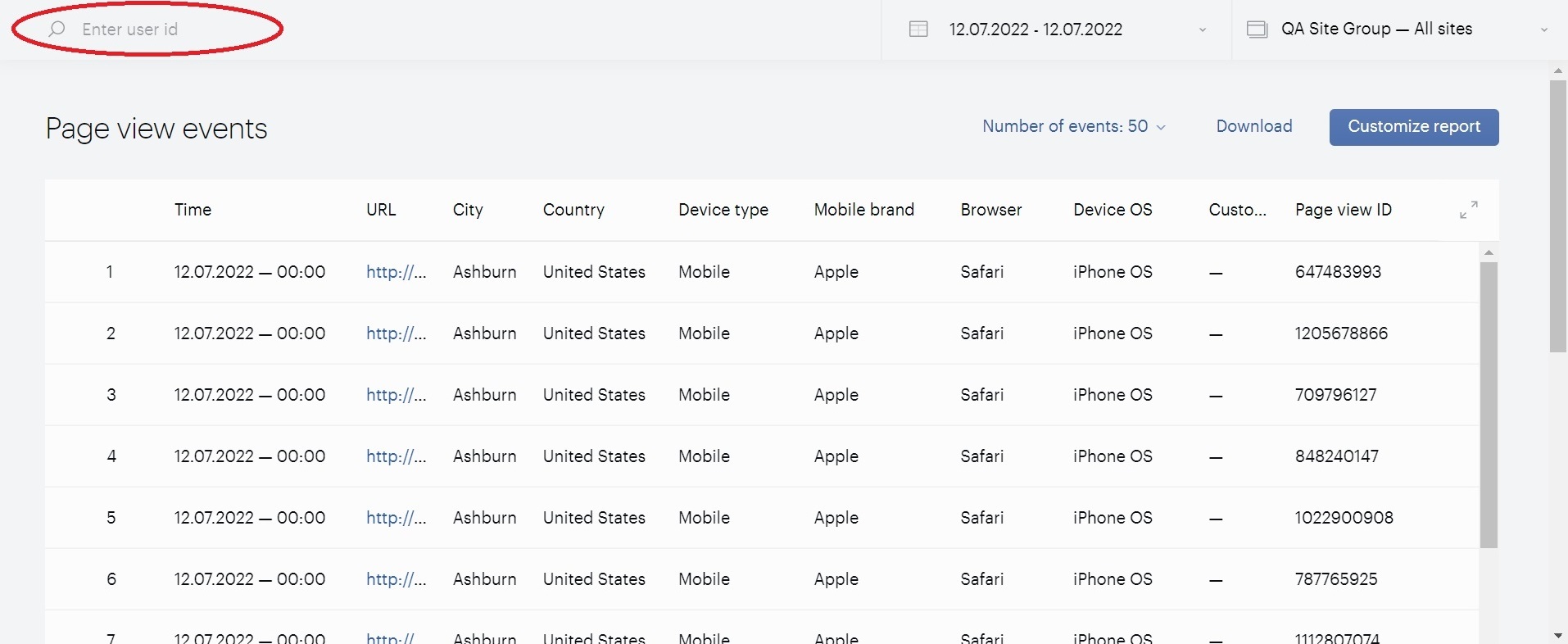
The User ID input field enables finding events for a particular user. You can enter the user ID manually into the search panel at the top of the Page view events or Performance events reports:
-
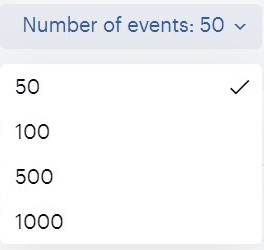
The number of events displayed on the page can be set by selecting the Number of events filter:
Both reports can be exported to an Excel file for further analysis (the Download button is located near the Customize report button).
Both reports can be displayed in the full-screen mode by pressing the Full screen mode button.
Connection between reports
The Page view events and Performance events reports are linked in terms of possibility to see if a Performance event(s) does not have a Page View event. A Page View ID parameter can be used for that purpose.
Page view events
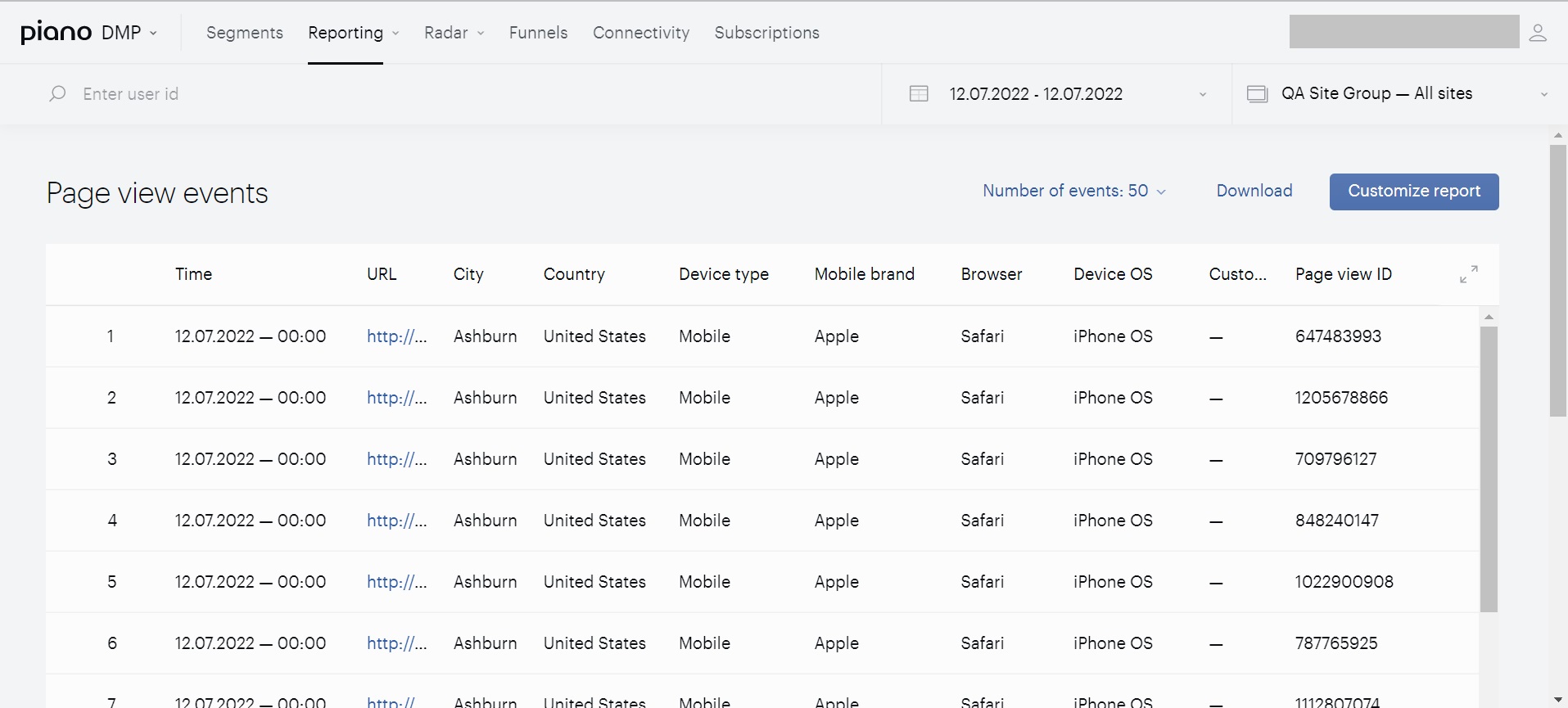
This view includes a table of page view events with the following attributes:
-
Time (date and time of the event)
-
URL of the viewed site
-
City and Country (location parameters)
-
Device type
-
Mobile brand
-
Browser
-
Device OS
-
Custom parameters associated with the page view event
-
Page view ID (identificator of the page view event)
Performance events
Performance events in Piano Audience are used to accurately track non-page view activities like Click a button, Click a download-link, scroll past the middle of the page etc. Performance events have a specific Event Type associated with them. The Performance events report displays these events in a similar manner as the Page view events report mentioned above.
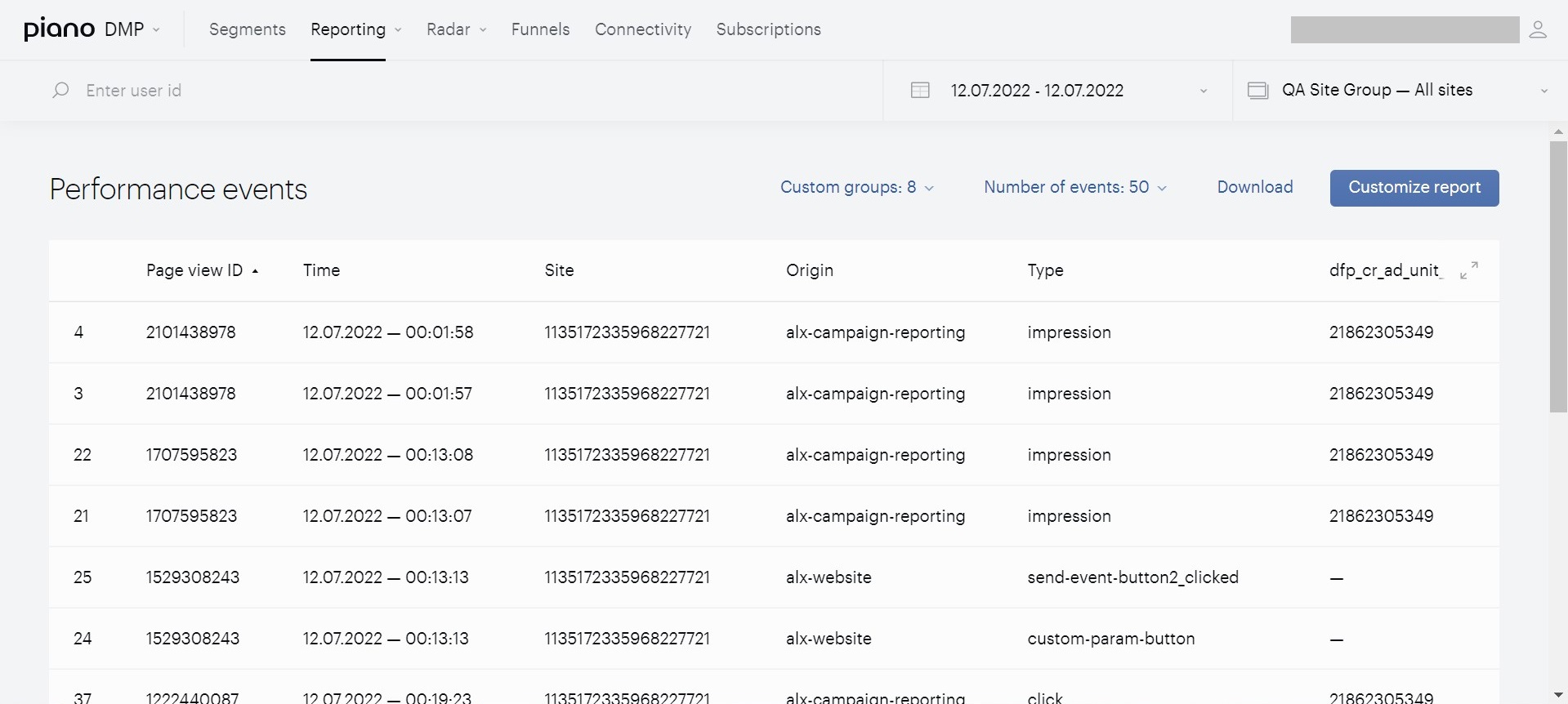
This view includes a table of performance events with the following attributes:
-
Page view ID (page view event availability)
-
Time (date and time of event)
-
Site (site id within the current site group)
-
Origin (place an event comes from)
-
Type (event type)
-
Columns with values of the custom parameters
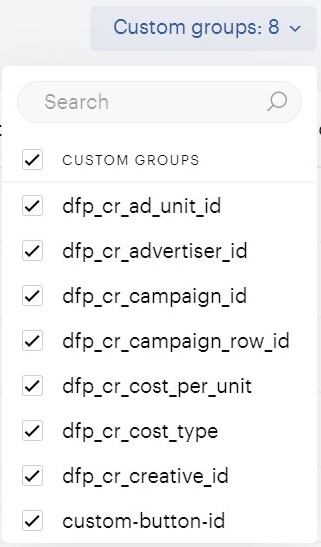
You can select all or some of the custom parameters to display them in the Performance events view as additional columns. The list of available custom groups can differ from the example below.