
Eligibility
Only Show actions are eligible for action exclusivity. This includes:
-
Show offer
-
Show form
-
Show template
-
Show Zuora offer
-
Show Newscycle offer
-
Show newsletter signup
-
Show recommendations
Action exclusivity can be leveraged in site, mobile, and Facebook experiences.
Activation
You can activate an action as exclusive within an action card or within the Action exclusivity manager.
To activate exclusivity within an action card, first ensure your Experience version is saved – you must be working in a saved Experience to activate action exclusivity. At the bottom of the action card, click the Add exclusivity button, which will immediately activate the action as exclusive and add this action to the priority list within the Action exclusivity manager. A ribbon indicating that the action is exclusive as well as its priority will be visible in the canvas.
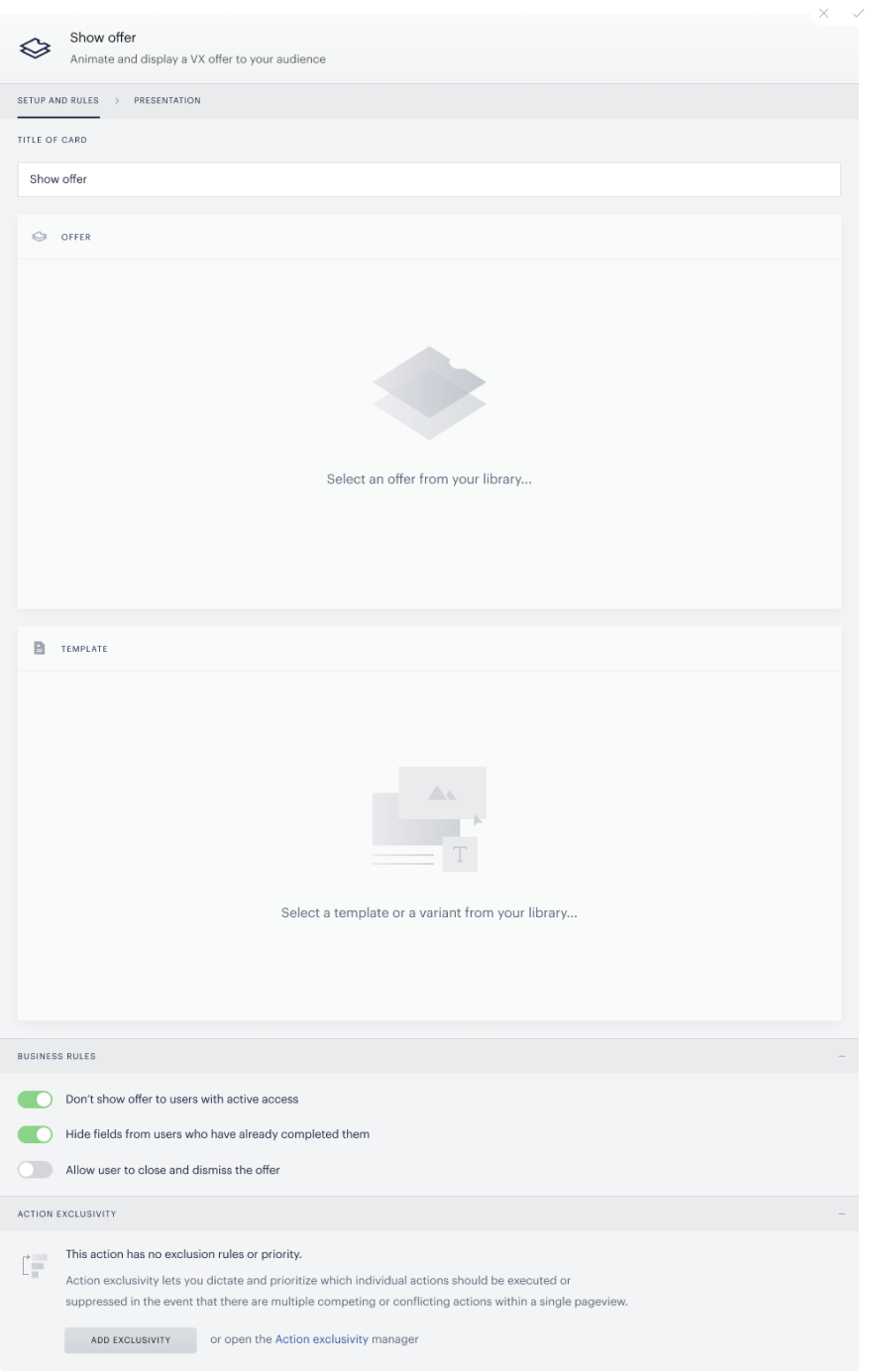
All newly activated exclusive actions are assigned the lowest execution priority and a default exclusion rule: Stop all templates from appearing on the same page. To adjust the priority or exclusion rule, visit the Action exclusivity manager.

To activate exclusivity within the manager, click the plus button and choose the action you would like to activate as exclusive from the Experience drawer. You can search for experiences or actions as well as filter actions by type, template use case or display mode. The numbers next to each experience indicate the number of actions within that experience that are eligible for exclusivity.
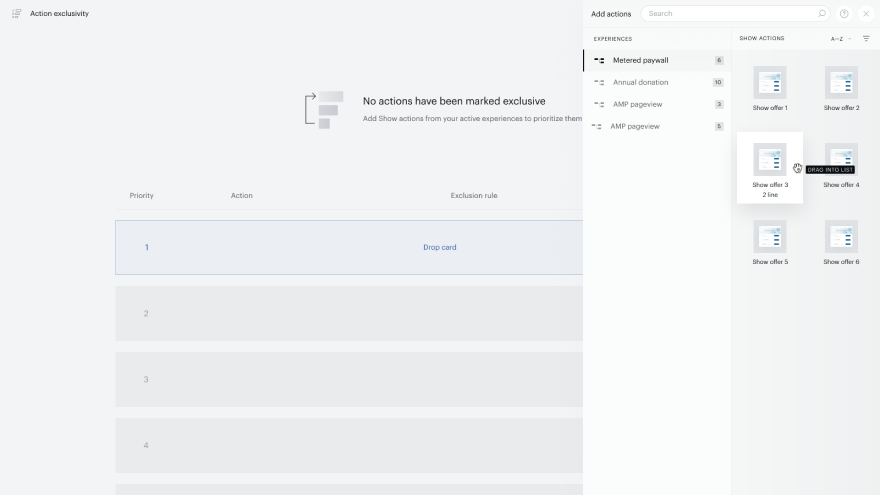
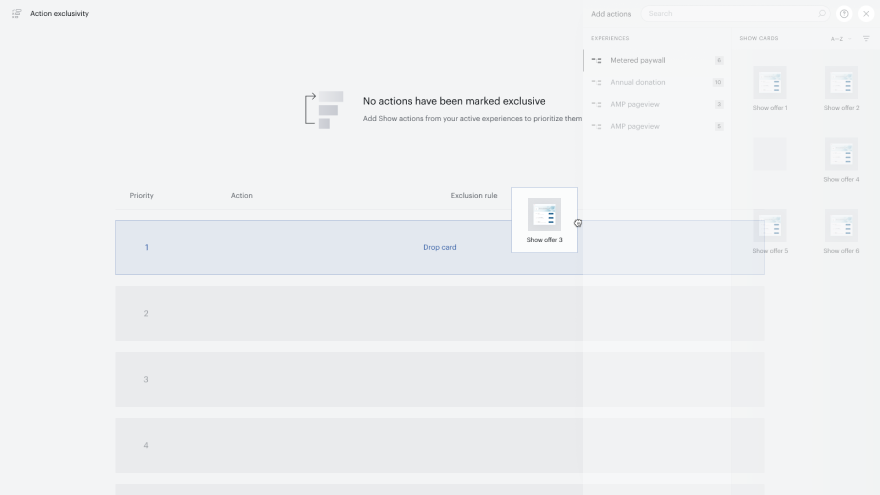
To activate exclusivity for an action, drag and drop the action into the desired position within the priority list on the left. Once added to the list, exclusivity will be activated and the action will assume the execution priority associated with the position as well as a default exclusion rule: Stop all templates from appearing on the same page.
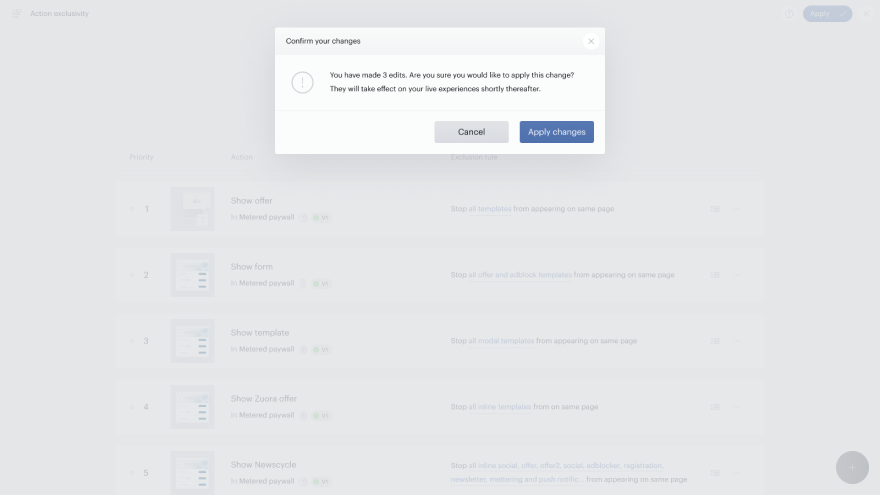
Remember to apply changes by clicking Apply before leaving the Action exclusivity manager for exclusivity to take effect. These changes will take effect on your live experiences shortly thereafter. You can discard changes by clicking the X button in the top right corner.
Deactivation
To deactivate exclusivity for an action, click the ellipses icon and select Remove from list. Removing the action from the list effectively deactivates exclusivity. Remember to apply changes before leaving the Action exclusivity manager for deactivation to take effect.
Prioritization
Exclusive action priority determines which exclusion rule will apply if the criteria are met for more than one exclusive action to execute on the same page. Prioritization is top down – the execution rule corresponding to the highest priority action will take precedence over all lower priority actions.
The priority list within the Action exclusivity manager is an aggregation of all exclusive actions across all experiences. In the case of multiple exclusive actions meeting the criteria to execute, the actions do not have to be adjacent in the list for priority to be applied. For example, if the criteria are met for exclusive actions in the 2nd, 15th and 21st priority positions to execute, only the exclusion rule associated with the 2nd priority action will apply.
Please note, that in order to make the action cards from an A/B test exclusive, you would need to add all the Show template or Show offer actions from the A/B test to the Action exclusivity manager and set them to the highest property in the list. For example, if your Composer experience has 2 branches in the A/B test, you would add them as the top 2 items in the Action exclusivity manager.
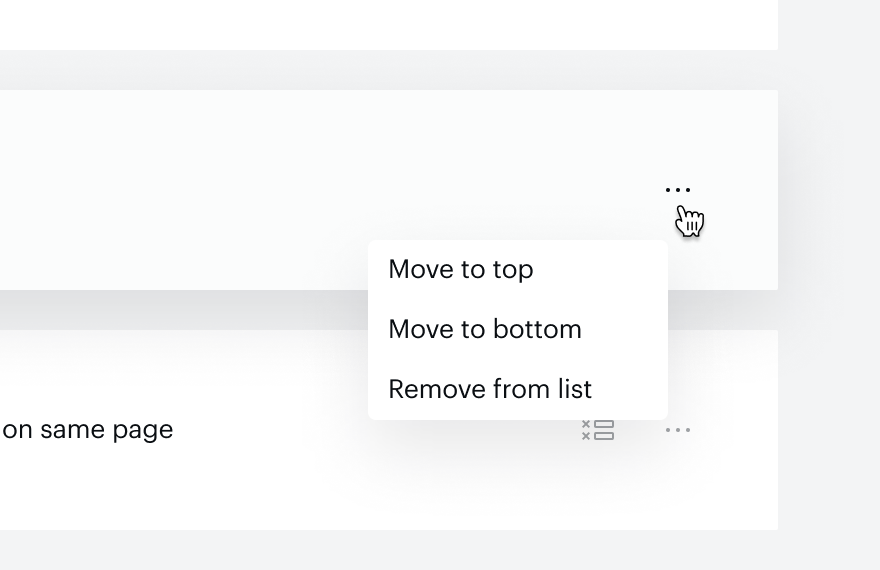
You can change action priority within the Action exclusivity manager by dragging and dropping the action to the desired position in the priority list. You can also move an action to the top or bottom-most priority by clicking the ellipses icon and selecting Move to top or Move to bottom.
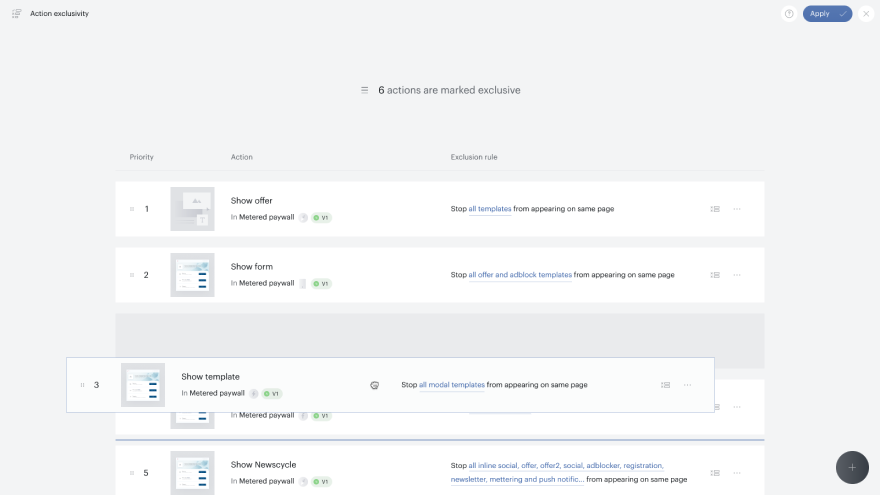
Remember to apply changes before leaving the Action exclusivity manager for changes to priority to take effect.
Exclusion rules
Exclusion rules dictate which actions – exclusive or non-exclusive – will be suppressed on the page if the criteria are met for the associated exclusive action to execute. Exclusion rule filtering criteria consist of template use cases and display modes. This includes:
-
All templates
-
Offer
-
Social
-
Registration
-
Metering
-
Newsletter
-
Adblocker
-
Site licensing
-
Custom form
-
Recommendations
-
All display modes
-
Modal
-
Inline
Only templated actions that meet the filtering criteria defined in the exclusion rule, will be suppressed upon the execution of the associated exclusive action. Templates associated with an action must be tagged with the correct template use case to be suppressed.
All newly activated exclusive actions are assigned a default exclusion rule: Stop all templates from appearing on the same page. This rule suppresses all other templated actions from appearing on the same page. This includes non-exclusive as well as other exclusive actions.
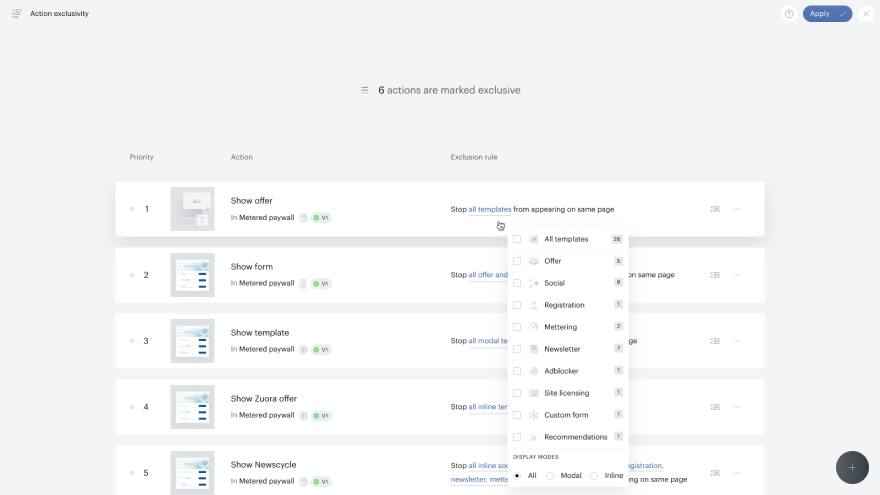
You can define a more granular exclusion rule using the above filtering criteria in the Action exclusivity manager by clicking on all templates within the exclusion rule. Upon selecting the desired combination of template use case(s) and display mode(s), the exclusion rule will automatically adjust to incorporate your choices.
Potentially impacted actions
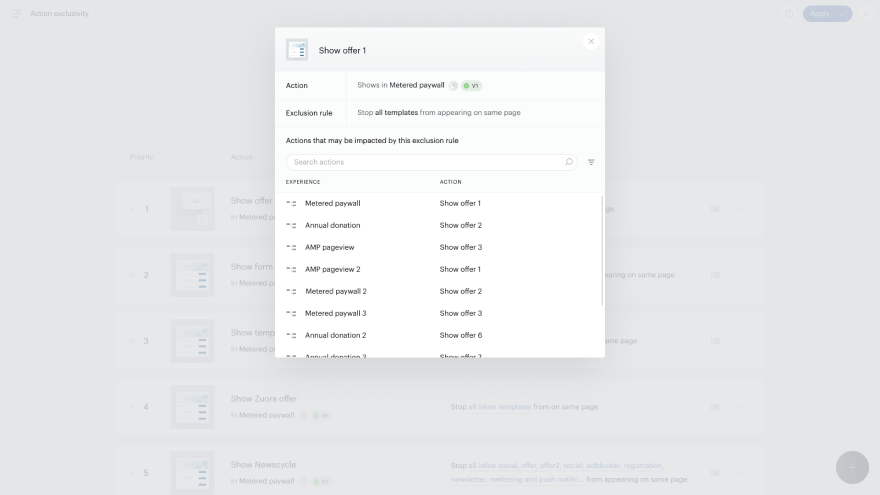
Once a minimum of one action is activated as exclusive, there is the potential for other templated actions to be impacted by exclusivity. All relevant actions across all experiences will gain a ribbon visible in the canvas indicating that the action may be impacted.
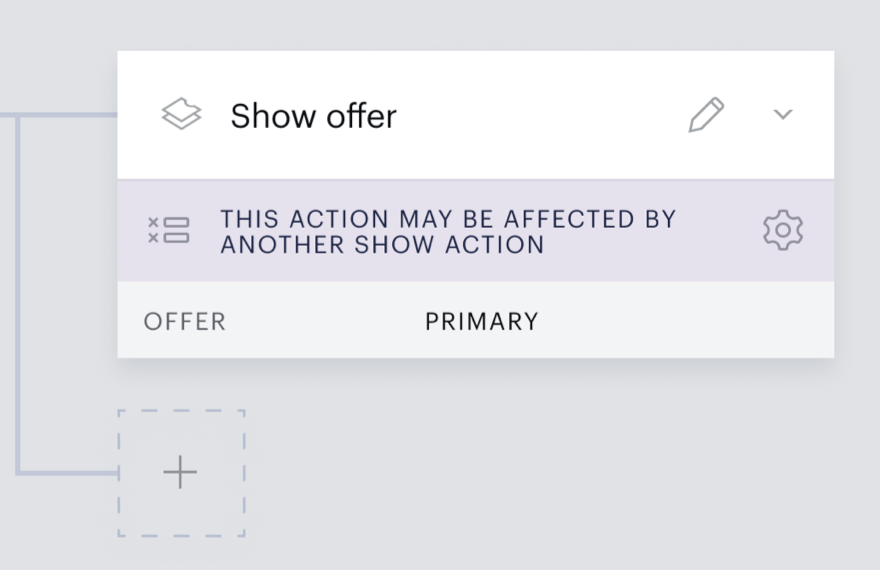
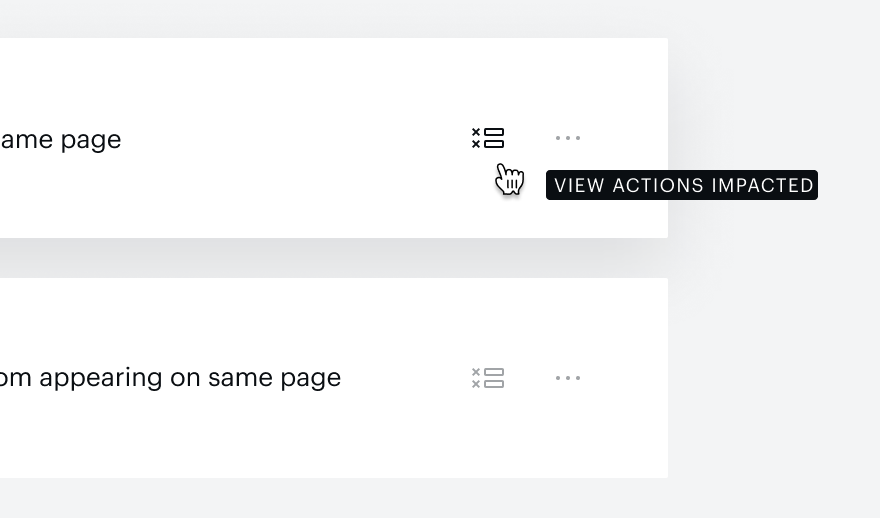
You can see a more holistic view of potentially impacted actions by clicking the icon next to the ellipses in the Action exclusivity manager. Here, you can view, search for and filter all potentially impacted actions across all experiences. The actions in this list are specific to the corresponding exclusive action.
Note: If an action is listed as potentially impacted, this does not definitively indicate an impact.