
When a single Composer experience reaches its maximum size limit but you still need additional targeting branches, you can split the logic across multiple experiences. Experience Labels and Prioritization View let you group those experiences by purpose and define the order in which Composer evaluates them.
When multiple experiences share the same label, Composer uses cross-experience waterfall termination to ensure only one experience from that group executes per user. This prevents duplicate or conflicting actions from firing on the same page.
What Are Experience Labels and Prioritization View?
An Experience Label is an attribute you assign to two or more Composer experiences that serve the same purpose. Assigning the same label to multiple experiences groups them together and activates waterfall termination across that group.
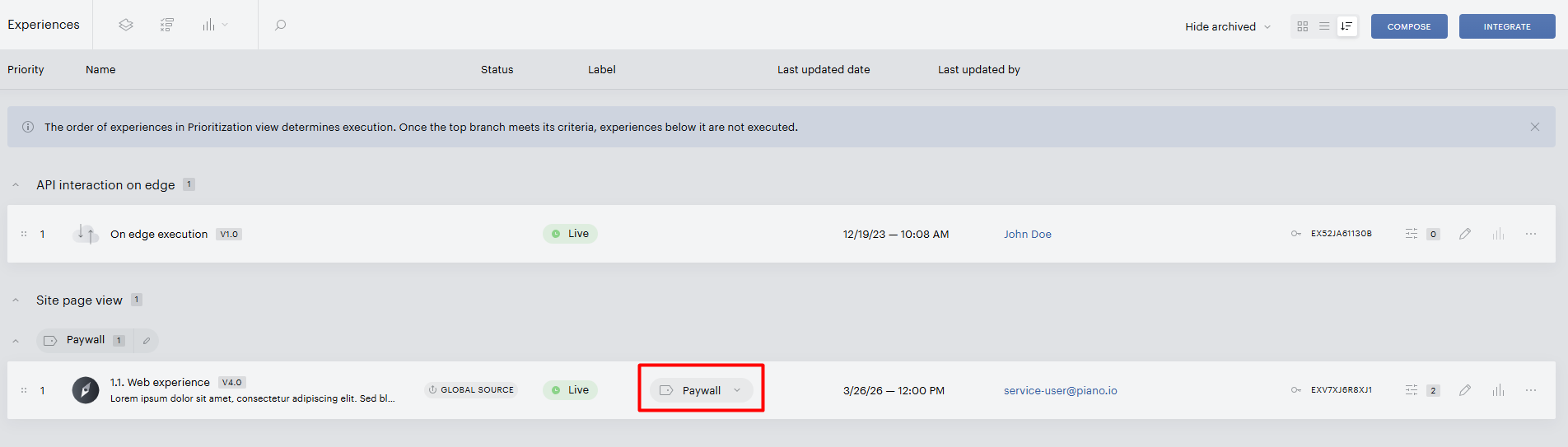
Prioritization View is the Composer interface where you view and manage the execution order of labeled experiences. It is the only place where you can change execution priorities.

Prioritization View may have been previously referred to as Experience Prioritization. Both terms describe the same feature.
What Is Waterfall Termination?
Waterfall termination is the execution logic that applies to experiences sharing the same label. When Composer evaluates a label group, it works through the experiences from highest to lowest priority. As soon as an experience matches the end user's criteria, that experience runs and all remaining experiences in the group are skipped; they are "terminated". If no experience matches, Composer moves through the full list without executing any of them.
Waterfall termination applies within a single label group only. Each group evaluates independently, so a user can match and trigger one experience per group.
Supported Experience Types
|
Experience Type |
Appears in Prioritization View? |
|---|---|
|
API Interaction on Edge / Interaction on Server |
Always (waterfall termination by default) |
|
Site Page View |
When a label is assigned |
|
Mobile Execution |
When a label is assigned |
Composer Evaluation Order
Composer evaluates experiences in the following order:
|
Prioritization |
Experience Type |
How It's Evaluated |
|---|---|---|
|
1st |
Affiliate Experiences* |
Checked first; always have top prioritization |
|
2nd |
Labeled Experiences |
Checked by execution priorities in Prioritization View (top to bottom within each group) |
|
3rd |
Non-labeled Experiences |
Checked by creation date, most recent first |
|
4th |
Action Exclusivity rules |
If an end-user matches multiple experiences, exclusivity rules determine which action template takes precedence |
*An Affiliate Experience is a Site Page View experience in Composer that uses an Affiliate Program (Affiliate Token / JWT) as its targeting criterion. This is a pilot feature and is not enabled by default. Please contact your Piano Account Manager to learn more.
Labeled experiences do not block the evaluation of non-labeled experiences. Each label group and the pool of non-labeled experiences evaluate independently. A user can match one experience per label group and one or more non-labeled experiences on the same page.
Composer Execution Order
After evaluation, Composer determines which actions to execute:
-
Within each label group, only the first matching experience executes (waterfall termination).
-
Non-labeled experiences that match execute independently; they are not suppressed by labeled experiences.
-
When a labeled experience and a non-labeled experience both match and their action templates conflict, Action Exclusivity can be used to specify which template is displayed.
How Does Waterfall Termination at the Cross-Experience Level Work?
When multiple experiences share the same label, Composer evaluates them one at a time, from highest to lowest prioritization (top to bottom in Prioritization View):
-
Composer checks if an action would be fired by the highest-prioritization experience. (Show template, Show offer, Run JS, Non-site action, etc.).
-
If yes, that experience executes its action card, and all lower-prioritization experiences in the group are skipped.
-
If no, Composer moves to the next experience in the sequence and repeats the check.
This continues until either a matching experience is found or all experiences in the group have been evaluated. Only the first matching experience in the prioritization sequence executes.
Experience Status and Waterfall Execution
Waterfall termination doesn't act on every experience in a label; it only evaluates the ones that are active at the moment a request comes in. An experience counts as active when its status is Live, or when it is Scheduled and the request falls inside its scheduled window. Composer checks each experience's status in real time, on a per-request basis, so any change you make takes effect for new requests immediately; there's no need to re-save the label or republish.
When a request is processed, Composer walks the label from highest to lowest priority and runs the first active experience whose targeting the user matches. As soon as one runs, evaluation stops and the remaining experiences are skipped. Any experience that isn't active is passed over entirely, and the waterfall moves on to the next priority, regardless of where that inactive experience sits in the order. So an inactive experience never blocks the ones beneath it.
An Offline experience is never executed. This holds even if it still has an active version, and even if it occupies the top priority slot in the label. The waterfall behaves as though the experience isn't in the group at all and falls through to the next active, matching experience. The execution result is the same as for an Archived experience; both are skipped, but the two differ in what they do to the label. Offline is a reversible pause: the experience keeps its place in the priority order and rejoins the waterfall the moment it goes back live. Archiving removes the experience from the label and the priority list, so bringing it back may mean reassigning its label and priority.
A scheduled experience takes part in the waterfall only while the request falls inside its scheduled window. Before the start date or after the end date, it is treated as inactive and skipped, exactly like an offline experience, and Composer falls back to the next active experience in the order. This is what lets a scheduled campaign sit above an always-on experience and switch over on its own: the campaign runs for matching users while its window is open, and the business-as-usual experience covers everyone the rest of the time with no manual toggling required.
Because status is read per request, every transition takes effect for the requests that follow it:
-
Live to Offline: the experience drops out of evaluation, and the next active, matching experience in the priority order takes over for new requests.
-
Offline to Live: the experience rejoins the waterfall at its existing priority. If it ranks above the experience currently serving and the user matches its targeting, it resumes precedence.
-
Scheduled window starts: the experience becomes active at its set priority, just as if it had come live, and where windows overlap, a higher-priority scheduled experience still takes precedence over a lower-priority one.
-
Scheduled window ends: the experience becomes inactive and is skipped, and the waterfall falls back to the next active experience.
Create and Assign Experience Label
You can create and assign a label from two locations:
-
Experience Manager (Tile view, List view, or Prioritization View)
-
Experience Canvas
The steps are the same in both locations:
-
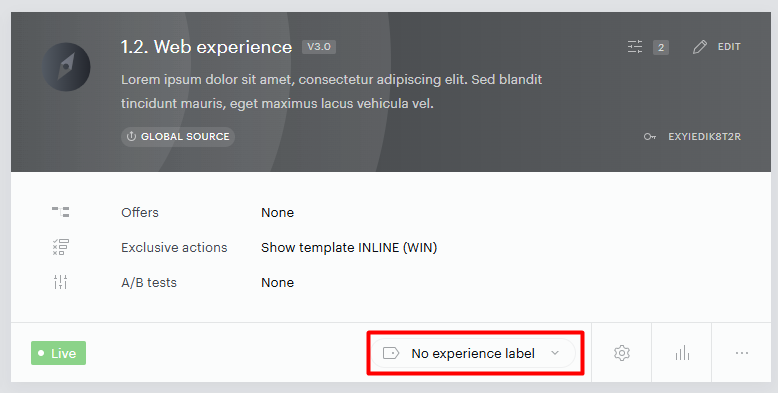
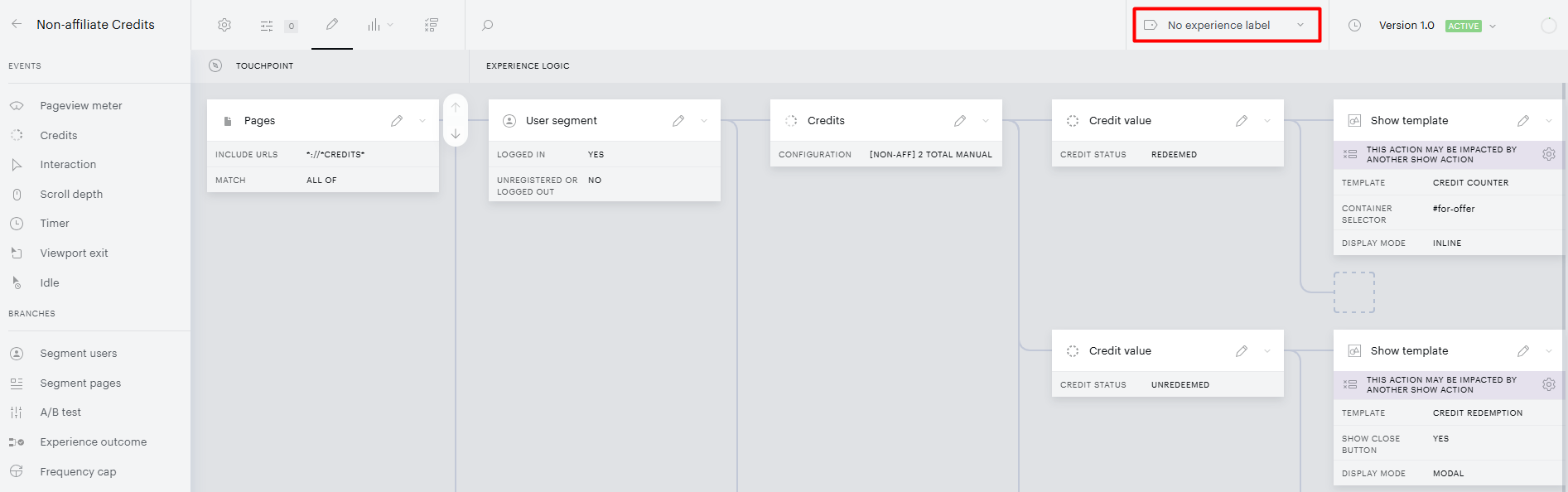
Locate the No experience label button:
On the Experience list in Experience Manager:

On the Experience tile in Experience Manager:
Or in the toolbar above Experience Canvas:
-
Click it to open the label drop-down menu.
-
Type the name of your new label.
-
Click the + button that appears as you start typing.
The label is created and automatically assigned to the experience.
Label Drop-down Menu
You can also open the label drop-down by clicking on an existing label assigned to an experience. From this menu you can:
-
View all existing labels
-
Search for a label
-
Change the experience's label
-
Create a new label
-
Manage existing labels
What Happens After Experience Label Is Assigned?
Once a label is assigned, the experience appears in Prioritization View:
-
First experience in a group: assigned the highest prioritization by default.
-
Each additional experience added to the group: assigned the lowest prioritization by default (appears at the bottom of the group).
You can adjust the execution order in the Prioritization View after assignment, and reorder items easily using drag and drop.
Removing Experience Label
To remove a label from an experience without deleting the label itself:
-
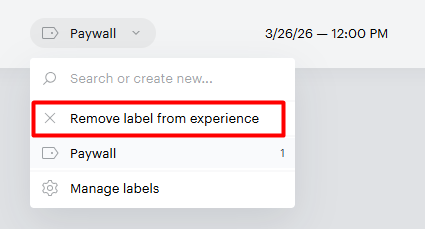
Click the label currently assigned to the experience (in Experience Manager or Experience Canvas).
-
Select Remove label from experience from the drop-down menu.
-
Confirm the removal.
Once removed, the experience is removed from Prioritization View and waterfall termination no longer applies to it.
Managing Labels
The Labels Panel is a side panel that displays all labels created in your application. To open it:
-
Click on any existing label or the No experience label button to open the label drop-down menu.
-
Select Manage labels from the drop-down.
-
The Labels Panel opens on the right side of the screen.
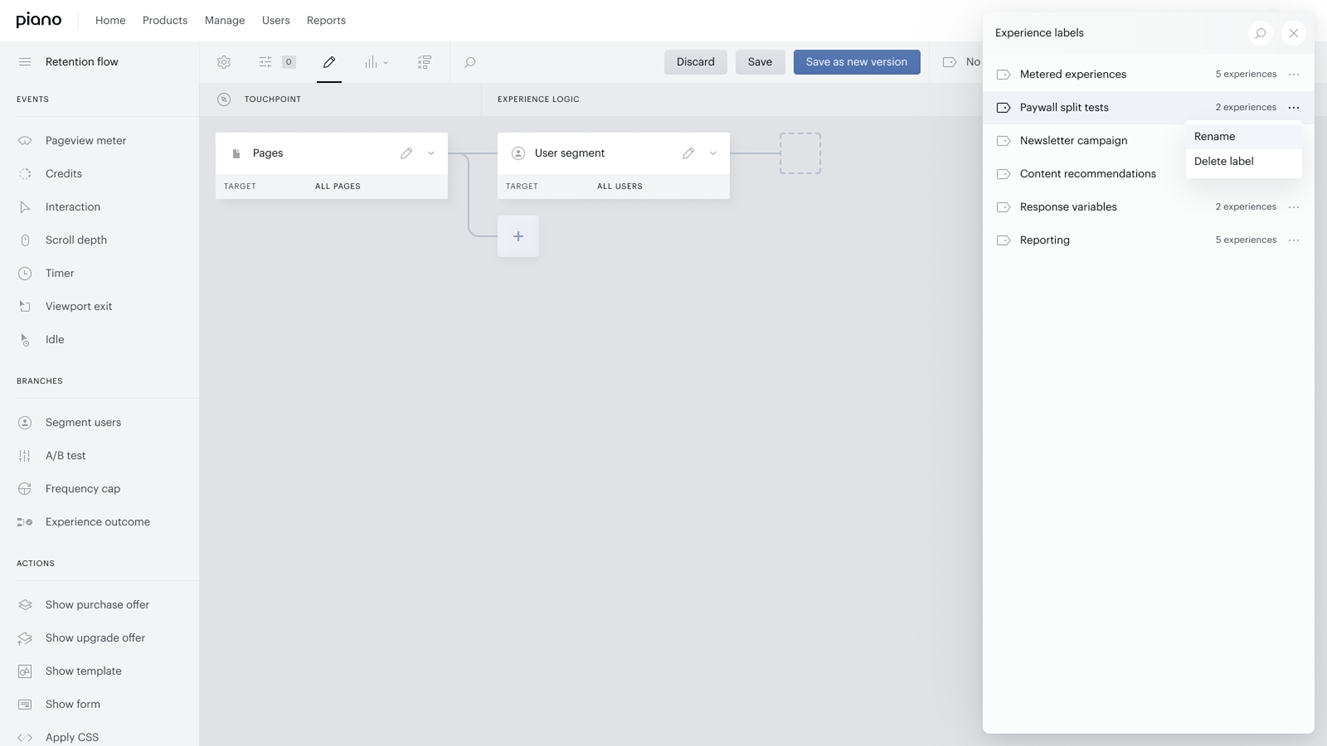
Labels Panel Features
-
List of all labels with experience count
-
Search bar to find a specific label
-
Options to rename or delete a label
To rename or delete a label:
-
Open the Labels Panel.
-
Click the ellipsis (⋯) button to the right of the label.
-
Select Rename or Delete label.
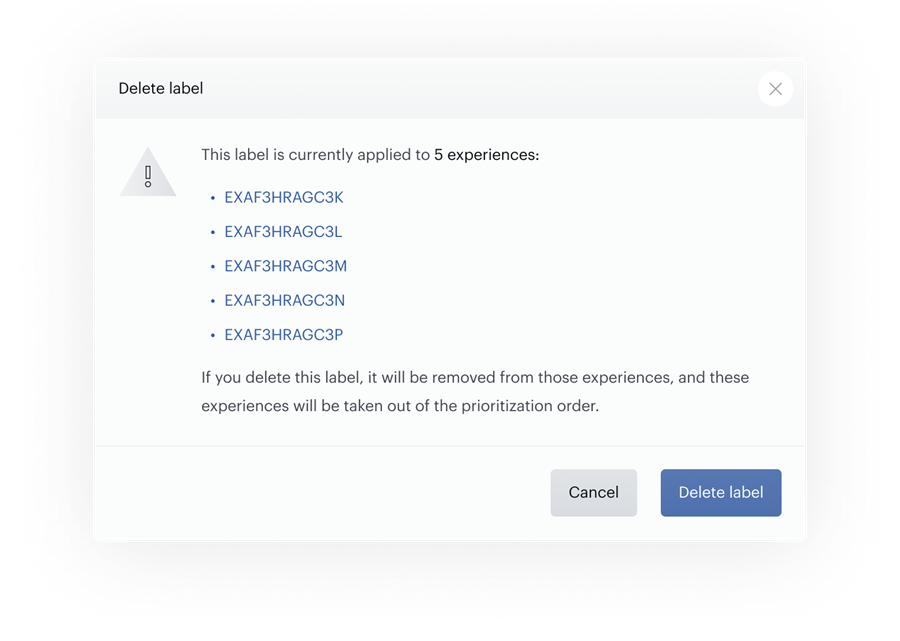
Deleting a label that is assigned to experiences triggers a confirmation modal listing all affected experience IDs. You can proceed with deletion or cancel.
Prioritization View
Prioritization View is a Composer interface that allows you to view and manage the execution order of experiences that use waterfall termination.
The following experience types appear in Priority View:
|
Experience Type |
Appears in Priority View? |
|
API Interaction on Edge / Interaction on Server |
Always |
|
Site Page View |
When a label is assigned |
|
Mobile Execution |
When a label is assigned |
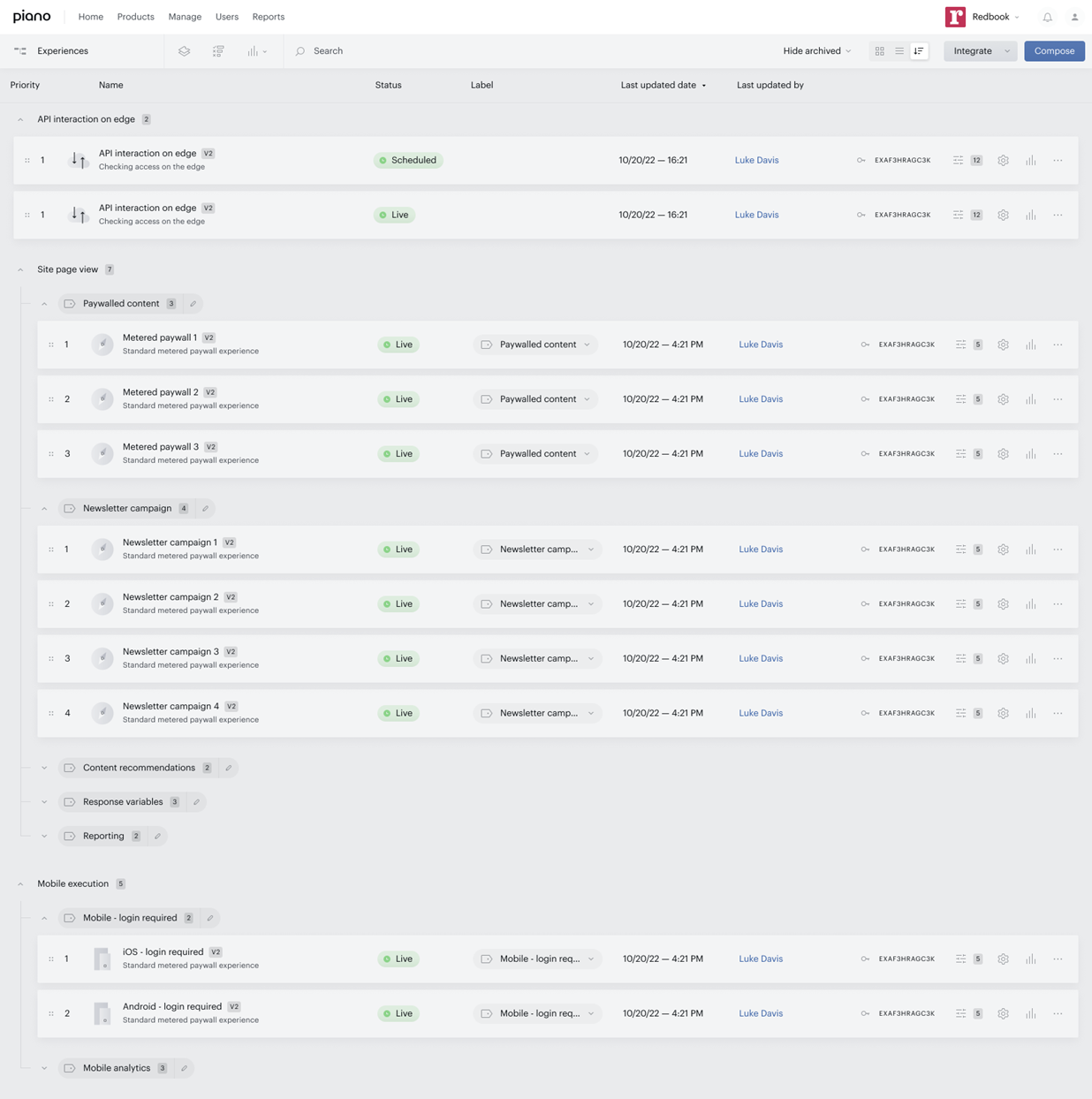
Labels that are not currently assigned to any experience will still appear in Prioritization View.
Prioritization View Components

Prioritization View displays:
-
Labels: if assigned
-
Experience count: shown next to each label
-
Experience groups: experiences grouped by label, ordered by execution prioritization (highest at top)
Label Controls
|
Control |
Location |
Action |
|---|---|---|
|
Expand / Collapse chevron |
Left of label |
Show or hide experiences in the group |
|
Edit button |
Right of label |
Rename the label |
Changing Experience Prioritization
Priorities can be viewed and modified only in Prioritization View. The following subsections describe the available actions.
Reordering Experiences Within Label Group
-
Navigate to the experience row you want to move.
-
Drag and drop it to a higher or lower position within the group.
-
Click Save changes in the toolbar.
Moving an Experience to a Different Label Group
-
Select the experience you want to reassign.
-
Drag and drop it into a different label group.
-
Click Save changes in the toolbar.
You cannot drag a Site Page View experience into a Mobile Execution group, or vice versa.
Changing an Experience's Label in Prioritization View
-
Navigate to the experience row and click on its current label.
-
Select a different label from the drop-down menu, or create a new one.
Saving Changes
You must save your changes before leaving Prioritization View. If you navigate away with unsaved changes and attempt to modify a label elsewhere, Composer displays a reminder to save in Prioritization View first.
Cross-Experience Waterfall Termination Across Multiple Groups
Waterfall termination applies only within a single label group, not across different groups.
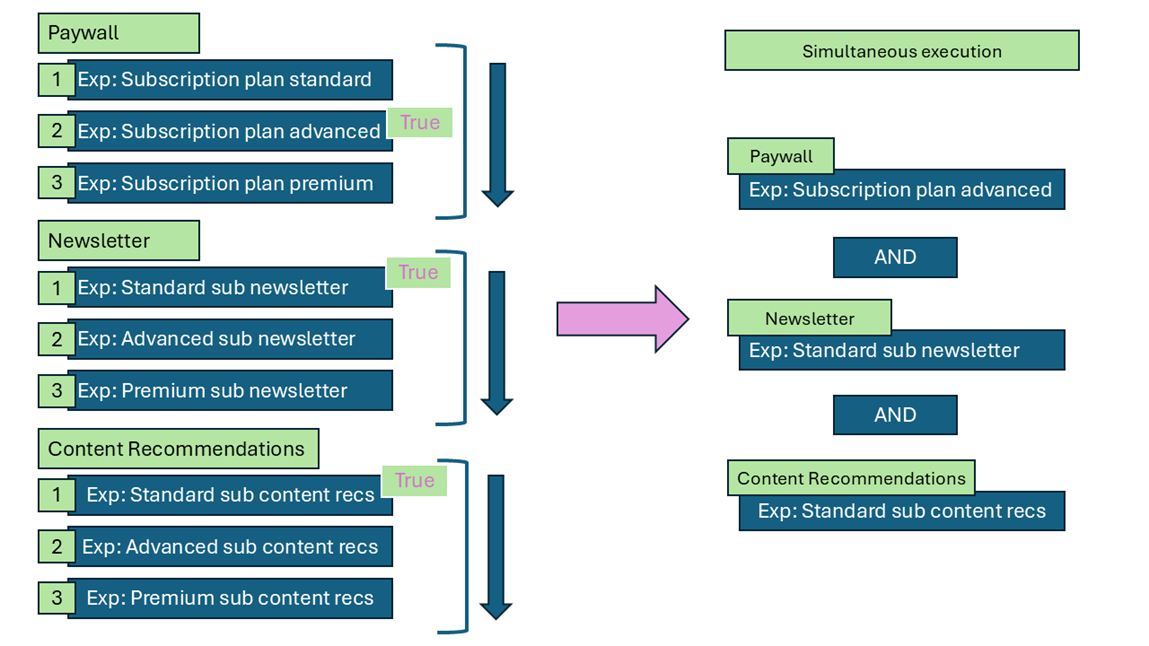
Example: Suppose you have three labels, each assigned to three Site Page View experiences:
|
Group (Label) |
Experiences |
|---|---|
|
Paywall |
Subscription plan standard, Subscription plan advanced, Subscription plan premium |
|
Newsletter |
Standard sub newsletter, Advanced sub newsletter, Premium sub newsletter |
|
Content Recommendations |
Standard sub content recs, Advanced sub content recs, Premium sub content recs |
In this setup:
-
Within each group, waterfall termination applies: only the first matching experience executes.
-
Across groups, there is no waterfall termination; each group evaluates independently.
This means up to one experience per group can execute. If a user qualifies in every group, three experiences will run (one from each).
Affiliate Experiences and Prioritization View
An Affiliate Experience is a Site Page View experience that uses an Affiliate Program (Affiliate Token / JWT) as a targeting criterion.
This is a pilot feature and is not enabled by default. Please contact your Piano Account Manager to learn more.
Affiliate Experiences do not support Experience Labels. They always receive the highest execution prioritization automatically.
Affiliate Program and Label Restrictions
Affiliate Program targeting and Experience Labels are mutually exclusive:
|
Scenario |
Restriction |
Resolution |
|---|---|---|
|
Experience uses Affiliate Program targeting |
Cannot assign an Experience Label |
Turn off Affiliate Program targeting first |
|
Experience has an Experience Label assigned |
Cannot enable Affiliate Program targeting |
Remove the label first |
Archived Experiences in Prioritization View
|
Behavior |
Detail |
|---|---|
|
Execution |
Composer skips the archived experience during execution checks |
|
Visibility |
Archived experiences are hidden in Priority View by default. To show them, deselect the Hide archived checkbox in the toolbar |
|
Drag and drop |
Disabled for the archived experience; you cannot manually reposition it |
|
Auto prioritization shift |
If you reorder other experiences, the archived experience's position may change as a result |
|
Reactivation |
Composer resumes execution checks using the experience's current prioritization position |
Collaborative Editing in Prioritization View
When a user makes changes in Prioritization View, those changes are saved as a draft on the server, not published until the user clicks Save changes.
Key behaviors:
-
Edits from multiple users merge into a single unified draft on the server.
-
Changes are not synchronized in real time; one user will not see another user's edits until their view refreshes.
When Prioritization View refreshes:
Prioritization View refreshes when a user takes any of the following actions:
-
Clicks the browser Reload button
-
Makes any edit in Prioritization View (e.g., drag-and-drop, label change)
-
Clicks Save changes
Collaborative Editing Examples
Example 1: User A assigns the "Paywall" label to a new experience from Experience Canvas. User B is reordering priorities within the "Paywall" group in Prioritization View. User B will not see the newly added experience until their Prioritization View refreshes.
Example 2: User A changes the prioritization of Experience A in the "Paywall" group. User B changes the prioritization of Experience B in the same group. As soon as User B makes their first edit, Prioritization View reloads and displays both users' changes merged into a single draft.
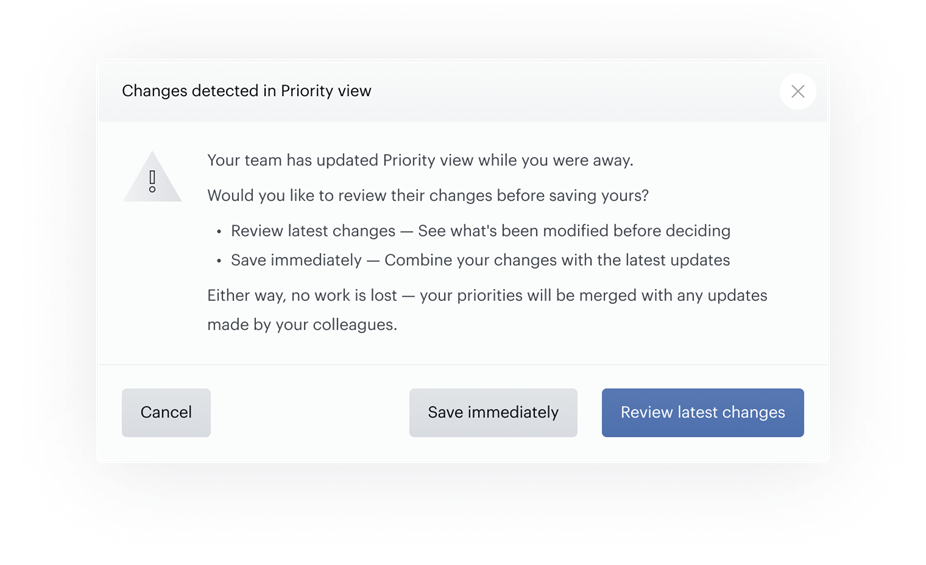
Example 3: User A begins editing but leaves without saving. User B continues making changes. When User A returns and clicks "Save changes," a notification informs them of changes made by User B. User A can then save immediately or reload to review the latest changes first.
How Prioritization View and Action Exclusivity Work Together
Prioritization View and Action Exclusivity are separate mechanisms that solve different problems. Understanding how they interact prevents unexpected outcomes.
|
Aspect |
Waterfall Termination |
Action Exclusivity |
|---|---|---|
|
Level of control |
Experience |
Action (template) |
|
What is stopped |
Entire experience |
Specific templates |
|
Non-templated actions |
Terminated with the experience |
Always executed |
|
Purpose |
Select one experience from a group |
Resolve template conflicts on a page |
|
Configuration |
Labels + Prioritization View |
Exclusion rules on actions |
Execution rules:
-
Prioritization View does not give labeled experiences precedence over non-labeled ones.
-
Waterfall termination applies only within labeled groups. It does not suppress non-labeled experiences.
-
Action Exclusivity resolves conflicts. When both a labeled and a non-labeled experience execute, Composer checks their action templates against the Exclusivity Rules. The action with higher prioritization in Action Exclusivity takes precedence.
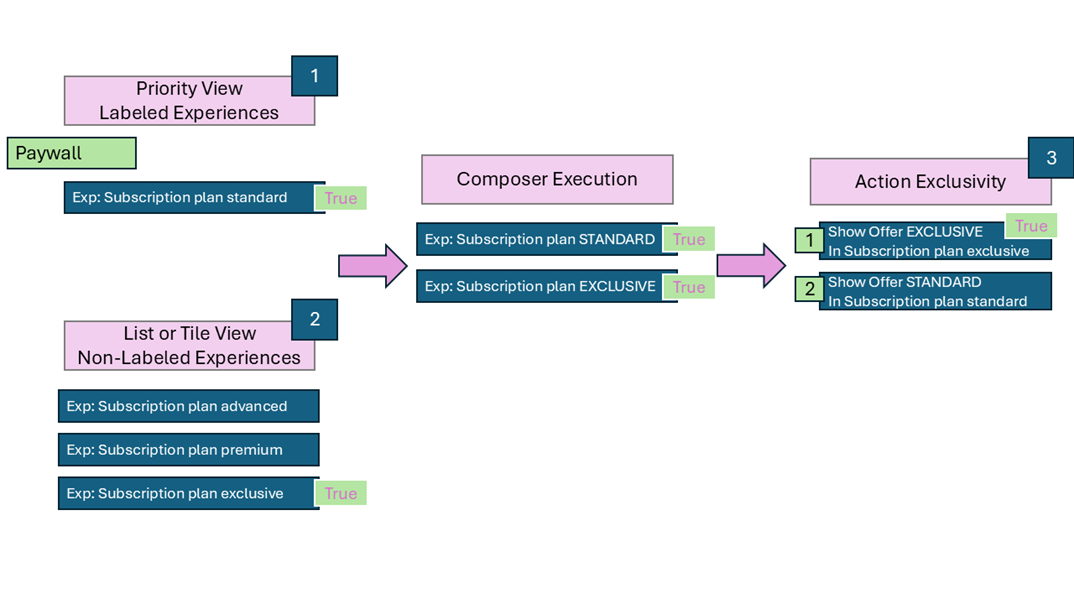
Example: labeled vs. non-labeled experience
|
Experience |
Label |
Action |
Action Exclusivity Prioritization |
|---|---|---|---|
|
Subscription plan standard |
Paywall (labeled) |
Show Standard Offer |
2nd |
|
Subscription plan exclusive |
None (non-labeled) |
Show Exclusive Offer |
1st |
Both experiences execute because waterfall termination only applies within the "Paywall" label group; it does not block the non-labeled experience. Composer then checks Action Exclusivity. The Exclusive Offer has higher Action Exclusivity prioritization, so it is displayed. The Standard Offer is blocked.
How Prioritization View Can Override Action Exclusivity
Waterfall termination in Prioritization View executes before Action Exclusivity. If your prioritization order in Prioritization View contradicts your Action Exclusivity setup, Prioritization View takes precedence.
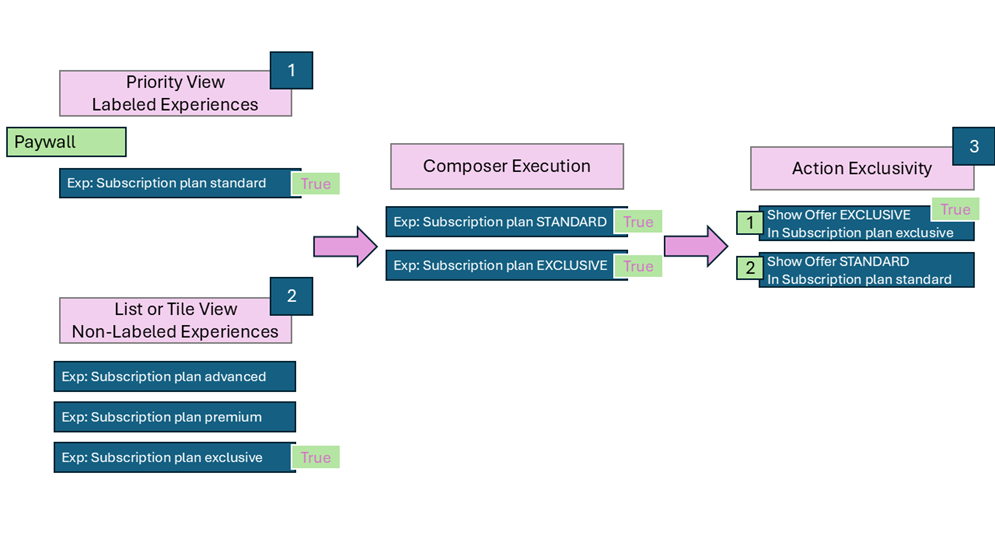
Example 1: An end user matches two Experiences: Subscription Plan Standard, ranked first under the "Paywall" label, and Subscription Plan Exclusive, ranked second among non-labeled experiences, but ranked first in the Action Exclusivity rule.
The algorithm works as follows:
-
Prioritization View is evaluated first. Subscription Plan Standard matches.
-
Non-labeled experiences are checked next. Subscription Plan Exclusive matches.
-
Composer moves to Action Exclusivity. Subscription Plan Exclusive takes priority, as it is ranked first in the Action Exclusivity rule.
As a result, the end user sees the Exclusive Offer. Although the Standard Offer is part of a labeled experience, the Exclusive Offer from the non-labeled experience has higher priority under Action Exclusivity.
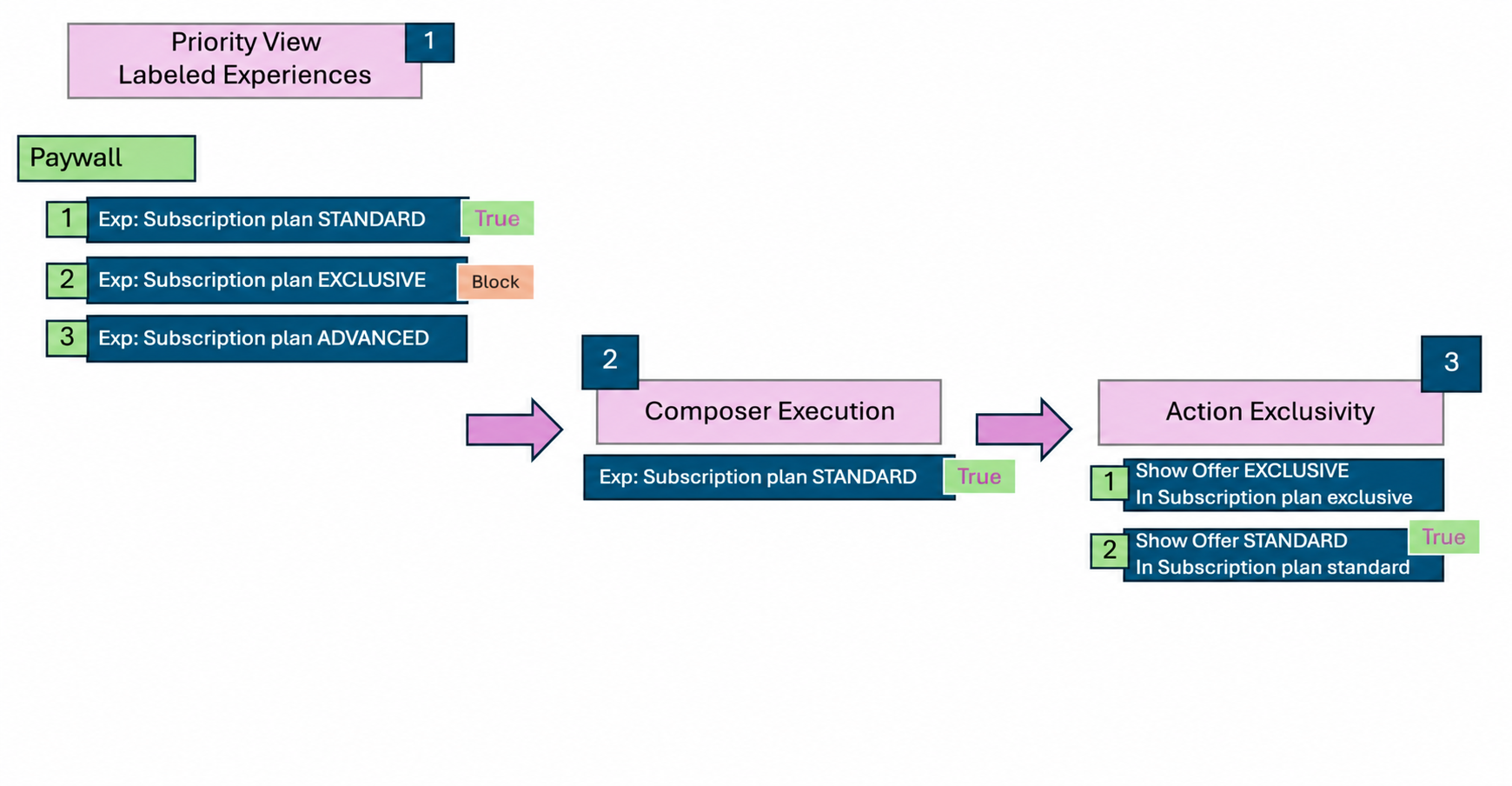
Example 2: The Exclusive Offer has the highest Action Exclusivity prioritization (1st) and would normally block all other actions. However, in the "Paywall" label group, Subscription Plan Standard is ranked 1st and Subscription Plan Exclusive is ranked 2nd.
When an end-user matches both experiences:
-
Prioritization View is evaluated first. Subscription Plan Standard matches; waterfall termination suppresses all lower-prioritization experiences, including Subscription Plan Exclusive.
-
Composer moves to Action Exclusivity. Because Subscription Plan Exclusive was suppressed, its Exclusivity Rule is never evaluated. The end-user sees the Standard Offer, even though the Exclusive Offer has higher Action Exclusivity prioritization.
Key takeaway: Always ensure your Prioritization View order aligns with your Action Exclusivity setup to avoid unintended conflicts.