
Overview
Special Composer experiences can be created within iOS or Android apps. In order to create these experiences, you'll first want to integrate Piano with your mobile app by checking out our iOS SDK and/or Android SDK. You may also need to have your Piano representative enable the Mobile App Experience option within your application. Once you've done that, you'll be able to select Mobile execution from Products → Composer→ Compose:
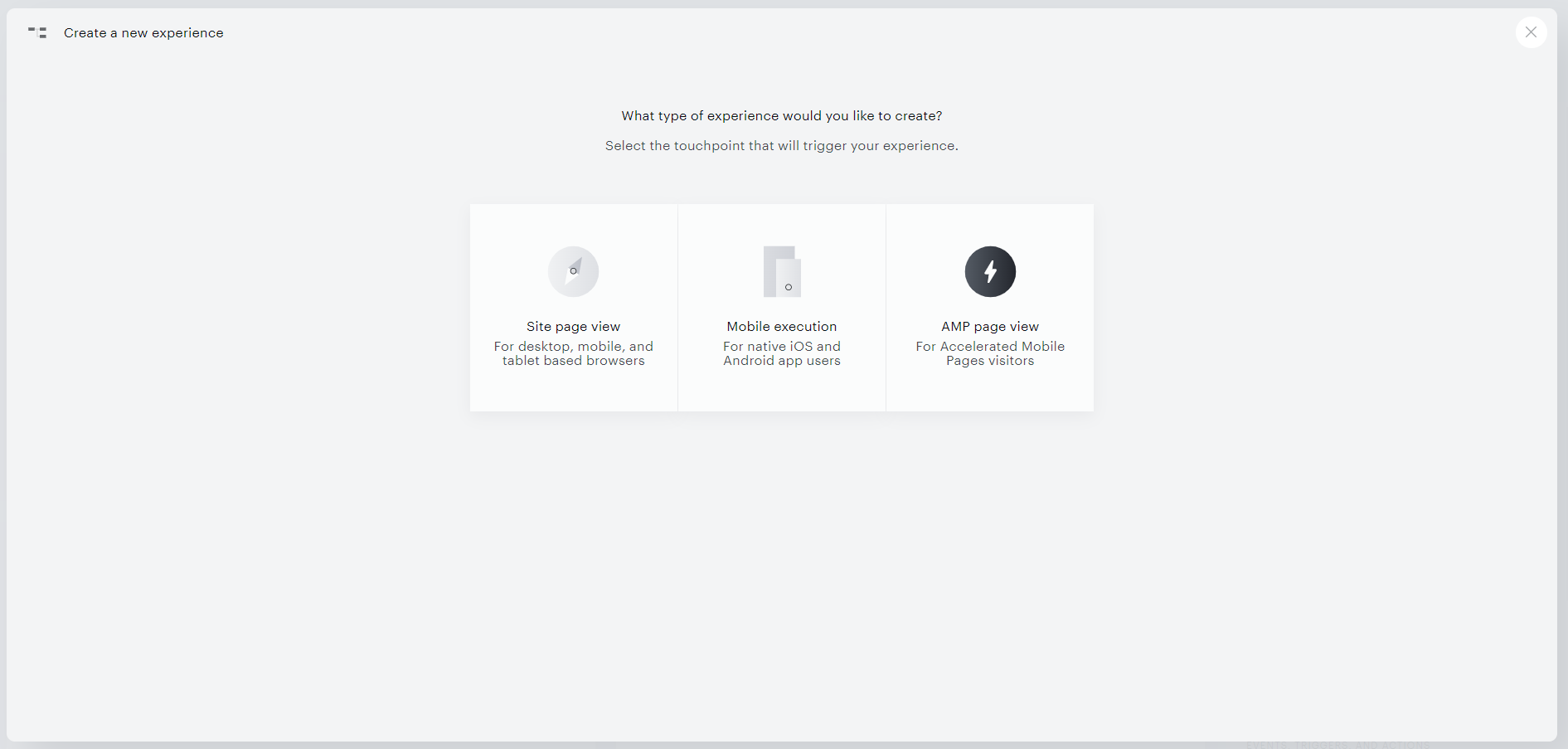
Mobile Execution Setup
When creating a new Mobile execution experience, you'll notice that the sidebar on the left includes fewer options:
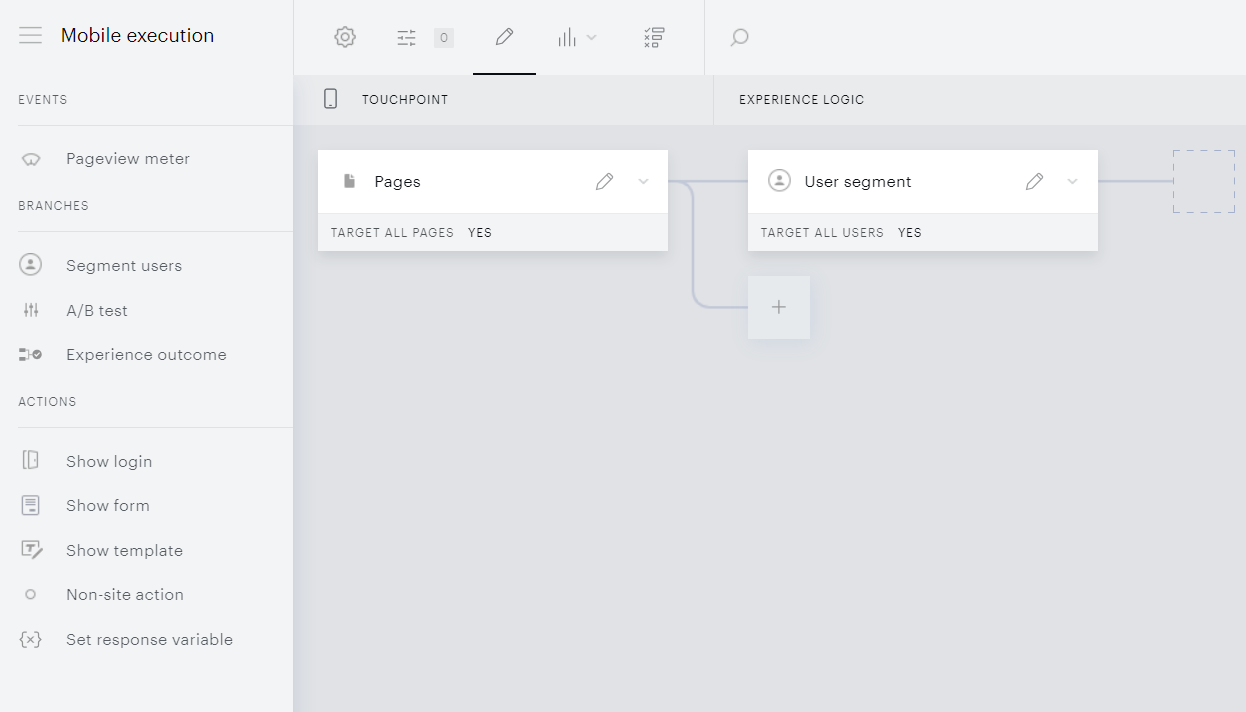
Available Cards and Actions
The only Event card available for apps is Pageview Meter and the Action cards that carry over for all applications are the Non-site Action, Set response variable, and Show template.
Through the usage of a Set response variable action card, the App's UX can be dynamically adjusted based on the variable values transmitted from Piano Composer to the App. This flexibility allows for tailored responses to varying conditions, enhancing the overall adaptability and responsiveness of the application.
Show Template
iOS
For iOS, PianoTemplate uses the ShowTemplateEventParams from the PianoComposer component to display templates. Implement the PianoComposerDelegate.showTemplate function to get these parameters.
Modal template view:
func showTemplate(composer: PianoComposer, event: XpEvent, params: ShowTemplateEventParams?) {
    guard let p = params else {
        return
    }

    PianoShowTemplateController(params: p).show()
}
Inline template view:
class MyDelegate: PianoComposerDelegate, PianoShowTemplateDelegate {

    var webView: WKWebView

    func findViewBySelector(selector: String) -> UIView? {
        guard selector == "my_selector_name" else {
            return nil
        }
        return webView
    }

    func showTemplate(composer: PianoComposer, event: XpEvent, params: ShowTemplateEventParams?) {
        guard let p = params else {
            return
        }

        let controller = PianoShowTemplateController(params: p)
        controller.delegate = self
        controller.show()
    }

    ...
}
More information is available in our technical documentation for iOS here.
Android
For Android, the Show Template is available as an AAR via Maven Central. To add dependencies, open your project’s build.gradle and update the dependencies block as follows:
dependencies {
    // ... other project dependencies
    implementation 'io.piano.android:composer-show-template:$VERSION'
}
And then add this code into your show template listener:
// Use one of these for showing modal or inline templates
ShowTemplateController.show(activity, showTemplateEvent, customJavascriptInterface);
ShowTemplateController.show(activity, showTemplateEvent, customJavascriptInterface, inlineWebViewProvider);
More information about how to implement Piano templates on Android is available here.
For Piano ID clients, the card Show form will be available as well and clients utilizing the Composer 1x features, will see the Show recommendations card, which allows you to display Content recommendations as a modal or inline.
Show Form
iOS
To display forms on iOS, you need to implement the PianoComposerDelegate.showForm method.
Import PianoTemplate.ID and PianoOAuth components:
import PianoTemplate_ID
import PianoOAuth
And implement method:
func showForm(composer: PianoComposer, event: XpEvent, params: ShowFormEventParams?) {
    guard let p = params else {
        return
    }

    let form = PianoID.shared.form(params: params)
    form.show()
}
To display an inline form on iOS, you need to override the delegate and the PianoTemplateInlineDelegate.findViewBySelector method and set the delegate:
func showForm(composer: PianoComposer, event: XpEvent, params: ShowFormEventParams?) {
    ...
    form.controller.delegate = self
    ...
}
More information for iOS is available under the following link.
Android
To display forms on Android, the Piano Composer Show Custom form is available as an AAR via Maven Central. To add dependencies, open your project's build.gradle/build.gradle.kts and update the dependencies block as follows:
dependencies {
    implementation("io.piano.android:show-custom-form:$VERSION")
}
And then add this code into your show custom form listener:
ShowFormController(event, currentAccessToken) {
    // access token is invalid and we should show login to user here
    signIn()
}.also {
    it.show(activity)
}
More information is available here.
Show Recommendations
iOS
To display recommendations on iOS, you need to implement the PianoComposerDelegate.showRecommendations method.
Import PianoC1X components:
import PianoC1X
Implement method:
func showRecommendations(composer: PianoComposer, event: XpEvent, params: ShowRecommendationsEventParams?) {
    guard let p = params else {
        return
    }

    PianoC1X.recommendations(params: params).show()
}
To display inline recommendations on iOS you need to implement PianoTemplateInlineDelegate and set it for the recommendation controller:
func showRecommendations(composer: PianoComposer, event: XpEvent, params: ShowRecommendationsEventParams?) {
    ...
    let controller = PianoC1X.recommendations(params: params)
    controller.delegate = self
    ...
}
More advanced documentation for iOS can be found under the following link.
Android
To display Content recommendations on Android, please follow the documentation here.
Once the C1X integration artifact for Composer is added, you can add code into your show recommendations listener to display them via a built-in controller:
ShowRecommendationsController(event).show(activity)
User Segmentation
In general, those cards, along with the A/B Test and the Segment Users cards, work the same as when creating a normal Site Experience. However, there are a few user segmentation options that are different:

As you can see, device targeting no longer includes "desktop" as an option because apps typically aren't used on desktop devices. Likewise, there is a new option to target app users based on their mobile operating system.
You are able to take advantage of the Composer 1x segmentation engine, though.
Show Login
The one major addition you'll find in Mobile App Experience is a "Show Login" card.

This card generates a "login required" event that a publisher can use to trigger Piano's login screen and grant access to users. In our mobile SDKs, we provide instructions on how to integrate the Show Login card with your app. A common use for this card is asking app users to register after a set number of in-app views. For example, here's an experience that would trigger a login screen after three in-app pageviews:
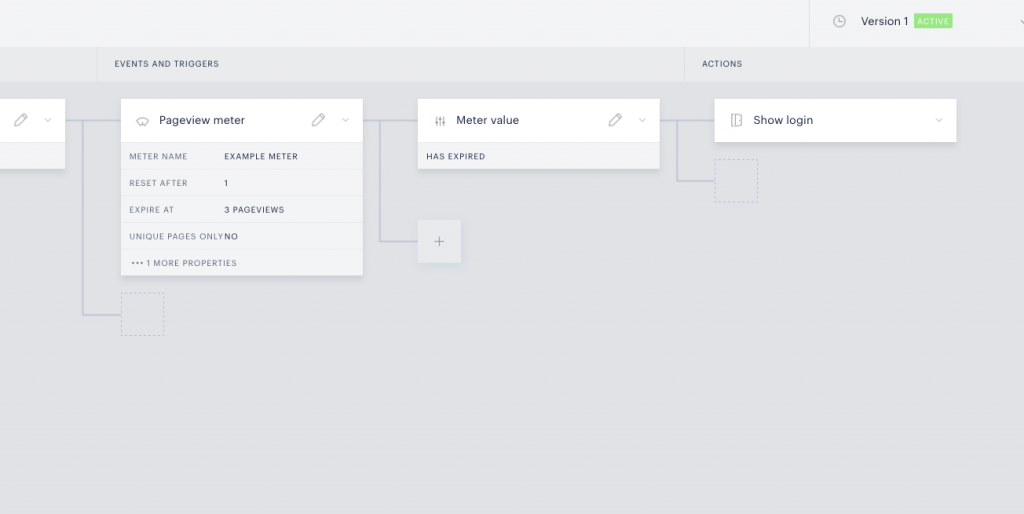
Note: The Show login card is not eligible for Action exclusivity.
Template Sizing and Webviews
You are able to control the template sizes using webviews and their layouts.
Limitations and Subscription Workarounds
Mobile App experiences are more limited than site experiences because of the constraints built-in to the app operating platforms. For example, payment within apps must be handled through the iOS or Android stores. Given that those app stores take a sizable cut of all purchases made through the application, Piano clients will often ask their users to navigate to their website outside of the application to subscribe, and then use Show Login to grant those subscribers access within their apps. Linking to your subscribe page directly from the application occasionally works to circumvent this, but these app stores will sometimes block such URLs to restrict this workaround.