
Please, take note that Google surfaces such as Google Search or Google Discover do not have the preferential treatment of webpages that use AMP technology. Webpages that do not have the AMP technology can be of higher priority on Google search.
Configuring AMP Experiences
Create new experiences
To create a new AMP page view experience, you will follow steps similar to other experience types. First, navigate to Products → Composer → Compose:
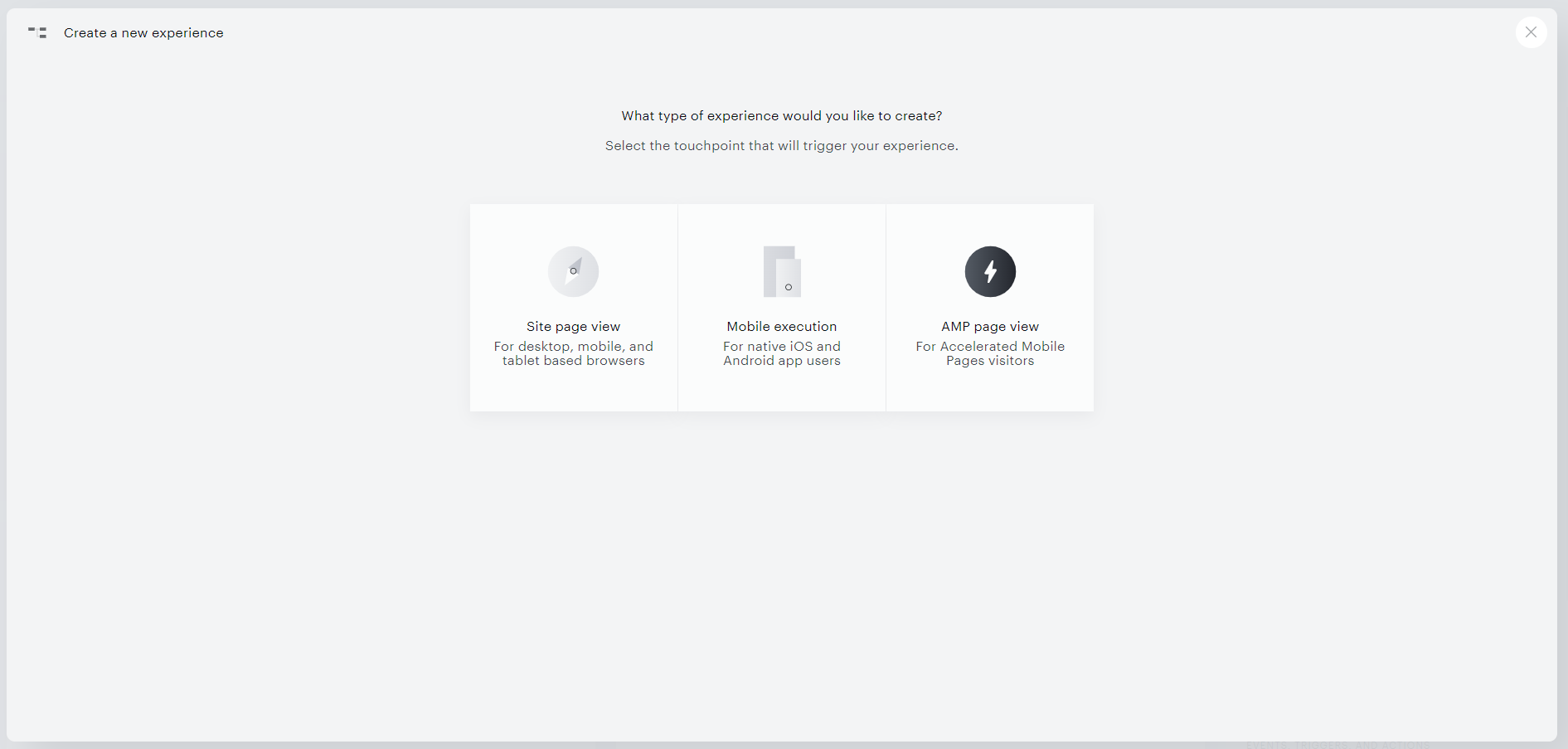
Select the AMP page view option, and give your experience a name and description before clicking Create.
Within this modal, you can also click the appropriate link to find Piano's default AMP templates. These templates, or variants that you've modified, must be present on all pages that you would like this AMP experience to be active for.
You can run multiple AMP experiences on your site. You only need to make sure that the AMP experiences you create are logically correct and that you have Piano's AMP templates on every page that you would like to run these on.
AMP Composer canvas
AMP by definition does not permit JavaScript to run, so the Composer canvas for AMP experiences have been pared down to include only the functionality permitted by AMP. The cards supported for AMP pages are defined below.
Effective Pages
The Effective pages card exactly resembles the Effective pages card in our general site experiences, but the method for passing tags, zones, etc. to Piano is slightly different. Each section of the Effective pages card is detailed below.
URLs
This section requires no backend configuration on your part – you simply need to call out the URL that you would like to run the experience on. Note that even though AMP pages are hosted on Google's domain, you do not need to include Google's domain in the URL to target it. For example, if you have an article on example.com, its AMP URL would be https://www.google.com/amp/s/example.com. However, you would target this page simply by targeting *://example.com.
Tags, Zones, Content author, and Content section
To pass these variables to Piano, you cannot use the general JS methods that are used for general site experiences. Instead, you will need to pass those variables to us through the authorization endpoint that you include in your markup. To do so, call out the variable you would like to pass, and separate values with commas. For example, to include the tags tag1 and tag2 and the zone zone1, your authorization endpoint would resemble the following:
"authorization": "https://sandbox.tinypass.com/xbuilder/experience/executeAmp?protocol_version=1&aid=&reader_id=READER_ID&url=SOURCE_URL&referer=DOCUMENT_REFERRER&_=RANDOM&tags=tag1,tag2&zone=zone1&content_author=StephenKing&content_section=Dark+Tower&content_created=2019-02-06T05%3A00%3A00"
Branches
Only two branches cards are available in AMP experiences: Initial segment and A/B test.
Initial segment
In AMP, you can segment your users based on any of the following properties:
-
Login status: Choose between targeting logged in users and unregistered or logged out users
-
Has no access to/Has access to: Target users based on their access to your Management + Billing resources.
-
On first visit: Target users who are visiting your site for the first time.
-
Device: Target users based on the device they are on (mobile or tablet).
-
Type: Target users based on the OS they are using.
-
Browser: Target users based on their browser.
-
Geographic location: Input a geographic location(s) to target users from that area.
-
Referred from: Choose between various referral sources or add your own to target users coming from those sites.
-
Host IP/domain: Target users who fall within a specific IP range.
-
Custom variables: Target users who have custom variables associated with their account.*
-
Custom fields: Target users who have custom fields values associated with their account (for Identity Management clients only).
*Note: The process of adding custom variables to a page is similar to the process of adding tags or zones via the authorization endpoint. You will need to URL encode the special characters in accordance with the UTF-8 character set. For example, to pass in the custom variable {"permission":"closed"}, your authorization endpoint would resemble the below:
"authorization": "https://sandbox.tinypass.com/xbuilder/experience/executeAmp?protocol_version=1&aid=<YOUR_AID>&reader_id=READER_ID&url=SOURCE_URL&referer=DOCUMENT_REFERRER&_=RANDOM&custom_variables=%7B%22permission%22%3A%22closed%22%7D"
A/B test
The A/B test card has the same functionality as a general site experience A/B test.
Events
The only event type supported in AMP is the Pageview meter. This contains all the functionality of the pageview meter for general site experiences.
The Piano default markup does not support nested pageview meters out-of-the-box. It calls out a currently active pageview meter and references it. For AMP-Access this can be done using {{cm.viewsLeft}} and for AMP-Subscriptions the format would be {{data.cm.viewsLeft}}. It is possible to reference multiple meters separately, by instead changing that to {{m.METER_NAME.viewsLeft}} for AMP-Access and to {{data.m.METER_NAME.viewsLeft}} for AMP-Subscriptions. The variables you can call here are:
-
viewsLeft: The number of page views the user has remaining until the meter expires. -
maxViews: The number of page views to make the meter expire. -
views: The number of page views the user has logged against the meter.
Here is an example code how to show the pageview's left count for AMP-Subscriptions:
<template type="amp-mustache" subscriptions-dialog subscriptions-display="data.p.showPageviewCount">
      <div>
        You have {{data.cm.viewsLeft}} articles left this month.
      </div>
    </template>
Actions
There are two action cards in AMP experiences: Set AMP variable and Access.
Set AMP variable
This card is multi-faceted and is used to present templates and set AMP variables on your users. This card will set amp-access variables for your users, which determine which elements of the AMP markup the user sees. To read more about AMP variables, please visit their site here.
By default, Piano's AMP markup includes templates for the following
-
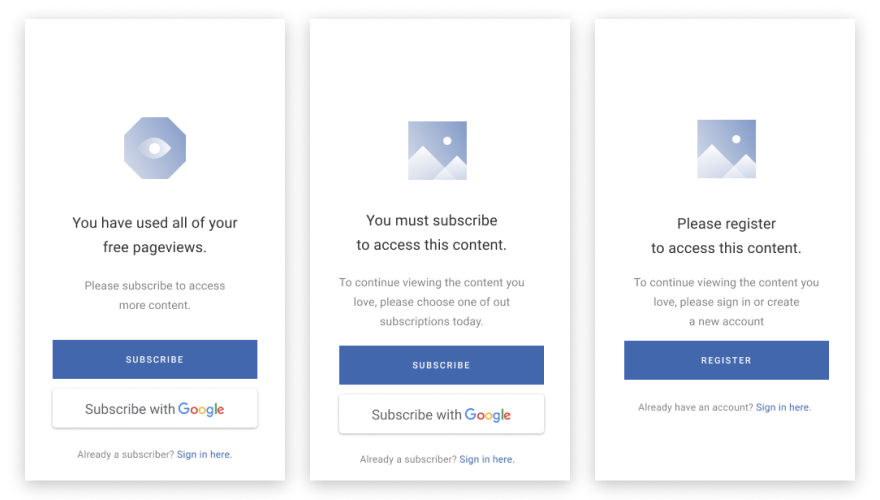
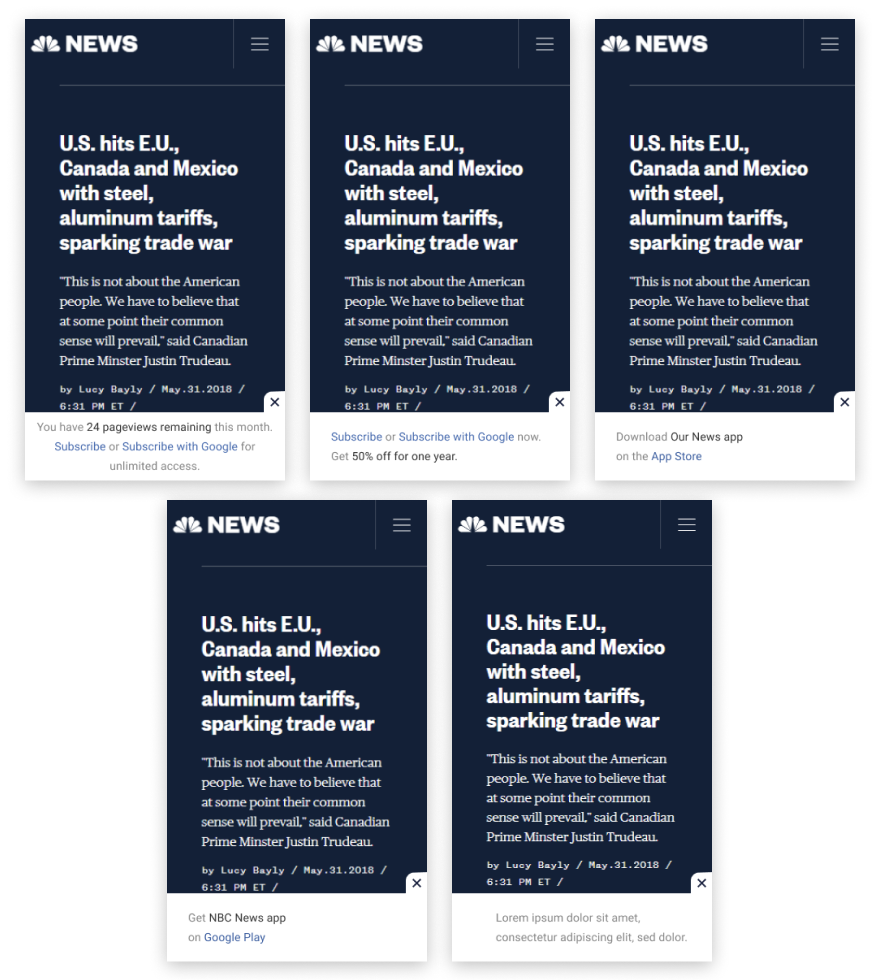
showPageviewCount: Presents the user a growl that indicates their current number of remaining pageviews -
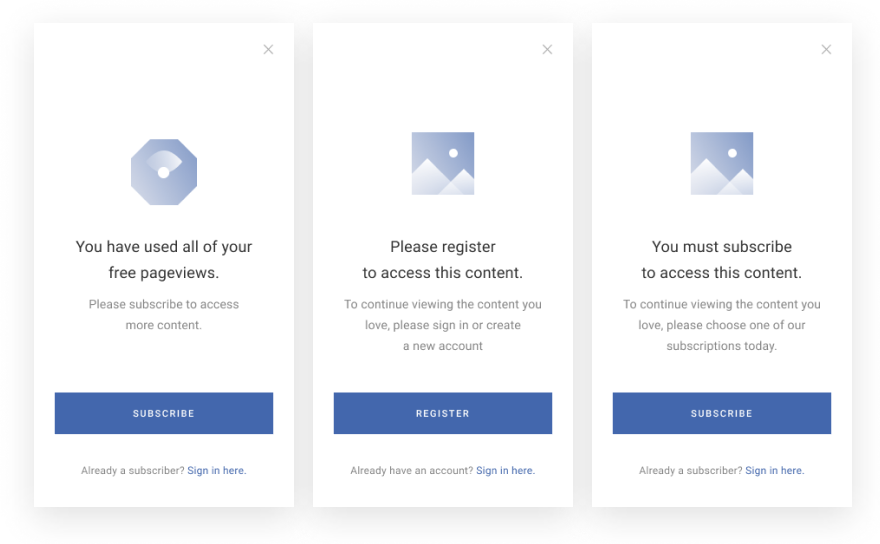
showPageviewExpired: Presents the user with a full-screen template once they have used all of their free pageviews. -
showRegWall: Prompts the user to sign in or register to continue viewing content. -
showPayWall: Prompts the user to subscribe to continue viewing content. -
showBanner: Presents a growl with text of your choosing to the user. -
showSubscribe: Presents a growl asking the user to subscribe. -
showiOSDownload: Presents a growl asking the user to download your App Store app. -
showAndroidDownload: Presents a growl asking the user to download your Google Play app.
In addition to setting these variables, you can set your own amp-access variables on users. You can choose the type of variable you would like to set: boolean, integer, or string. These fields have no effect unless there is a section in your AMP markup that calls out these variables to show or hide content.
Access
The access card is used in conjunction with the Set AMP variable card for AMP subscriptions. AMP subscription is an extension of AMP-access and has similar features. To read more about AMP subscriptions, please visit their site here. Note that the access card will not execute any function if it is used in an AMP access configured experience.
There are two available states that can be configured in the access card: Restricted and Granted. These states give you full control of when to show AMP variables to users.
-
Restricted: The access card is set to "Restricted" or a false state by default. Users will not see the set AMP variable display in this state. Below is an example where the markup template sets the showPaywall execution in a granted state. In a restricted state, users will not see the showPaywall variable display.
HTML<div subscriptions-dialog subscriptions-display="data.p.showPayWall AND granted"id="piano-modal-pay-wall-dialog" class="piano-modal piano-modal_dialog"> .... </div> -
Granted: The granted state sets a true logic to the AMP variable and displays the template to users. Setting the access card to "Granted" will require a reason. There are two "Reason" options to select from:
-
Subscriber: This means your user's segment is fully subscribed. You may use this reason when you are targeting existing subscribers in the user segmentation card.
-
Metering: This means your user's segment is being metered. Typically, you may use this reason when you pageview meter users who do not have access to resources. An example of this can be seen below.
-
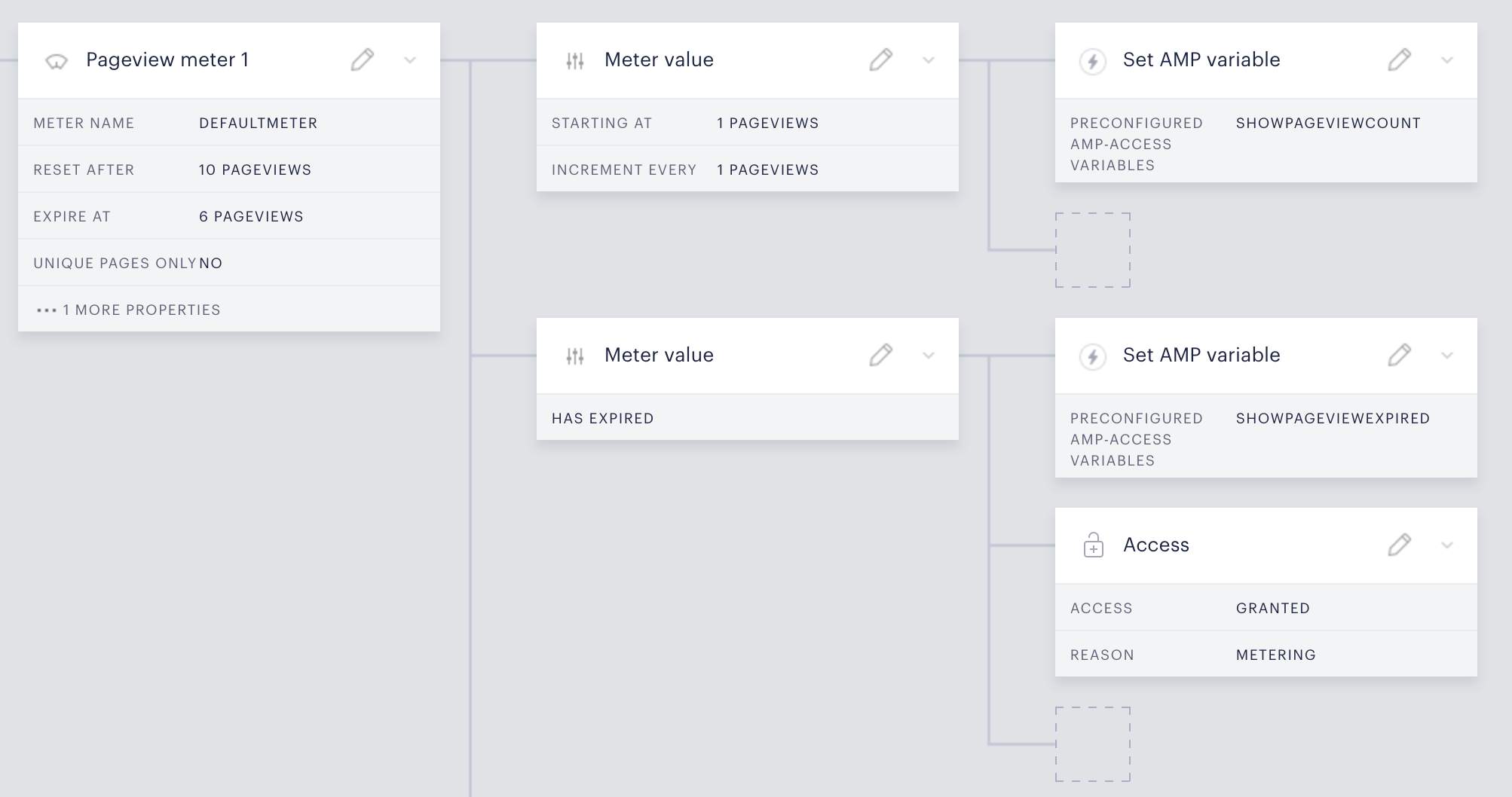
Note that grant reasons can be used as variables in the markups and an example of this can be seen below:
<div class="piano-modal__title">
    Hello,
    <div subscriptions-actions subscriptions-display="grantReason = 'SUBSCRIBER'">
        subscriber!
    </div>
    <div subscriptions-actions subscriptions-display="grantReason = 'METERING'">
        pageview meter user!
    </div>
</div>
Implementing AMP
To enable the integration between your AMP pages and Composer, you will need to ensure that you have included the appropriate code on the AMP page.
AMP-access component initialization
AMP-access is not recommended due to issues with iOS Google News. Please see the below section to implement AMP-subscription instead. You will first need to include the initialization JSON object in the HEAD of each page, which should resemble the following for sandbox:
<script id="amp-access" type="application/json">
        {
            "authorization": "https://sandbox.tinypass.com/xbuilder/experience/executeAmp?protocol_version=1&aid=<YOUR_AID>&reader_id=READER_ID&url=SOURCE_URL&referer=DOCUMENT_REFERRER&_=RANDOM",
            "noPingback": "true",
            "login": {
                "sign-in": "https://publisher.com/amp-login.html?reader_id=READER_ID&url=SOURCE_URL&_=RANDOM&return=RETURN_URL",
                "sign-out": "https://publisher.com/amp-logout.html?reader_id=READER_ID&_=RANDOM",
                "subscribe": "https://publisher.com/amp-subscribe.html?reader_id=READER_ID&url=SOURCE_URL&_=RANDOM"
            },
            "authorizationFallbackResponse": {
                "error": true
            }
        }
    </script>
It will resemble the following for production:
<script id="amp-access" type="application/json">
        {
            "authorization": "https://experience.tinypass.com/xbuilder/experience/executeAmp?protocol_version=1&aid=<YOUR_AID>&reader_id=READER_ID&url=SOURCE_URL&referer=DOCUMENT_REFERRER&_=RANDOM",
            "noPingback": "true",
            "login": {
                "sign-in": "https://publisher.com/amp-login.html?reader_id=READER_ID&url=SOURCE_URL&_=RANDOM&return=RETURN_URL",
                "sign-out": "https://publisher.com/amp-logout.html?reader_id=READER_ID&_=RANDOM",
                "subscribe": "https://publisher.com/amp-subscribe.html?reader_id=READER_ID&url=SOURCE_URL&_=RANDOM"
            },
            "authorizationFallbackResponse": {
                "error": true
            }
        }
    </script>
The above example is for a US Production application, in case your application is located on the AP, AU or EU dashboard, you will need to replace https://experience.tinypass.com with one of the below:
AU dashboard - https://experience-au.piano.io
AP dashboard - https://experience-ap.piano.io
EU dashboard - https://experience-eu.piano.io
Note that you will need to populate your own sign-in, sign-out, and subscribe URLs here that you would like to direct users to for these events. These pages must be non-AMP URLs hosted on your domain, with Piano JavaScript running on the page. It is essential that each of these links contains the reader_id=READER_ID, as this is how we link the user's AMP identifier with their ID in Piano.
Additionally, on each page, you will need to initialize AMP with the script described here.
AMP-subscriptions component initialization
AMP-subscriptions are our recommended implementation approach. AMP-subscriptions will also need you to include the initialization JSON object in the HEAD of each page, which should resemble the following for sandbox:
<script id="amp-subscriptions" type="application/json">
        {
            "services": [
                {
                    "authorizationUrl": "https://sandbox.tinypass.com/xbuilder/experience/executeAmpSubscriptions?protocol_version=1&aid=<YOUR_AID>&reader_id=READER_ID&url=SOURCE_URL&referer=DOCUMENT_REFERRER&_=RANDOM",
                    "noPingback": "true",
                    "actions":{
                        "login": "https://publisher.com/amp-login.html?reader_id=READER_ID&url=SOURCE_URL&_=RANDOM",
                        "subscribe": "https://publisher.com/amp-subscribe.html?reader_id=READER_ID&url=SOURCE_URL&_=RANDOM",
                        "logout": "https://publisher.com/amp-logout.html?reader_id=READER_ID&_=RANDOM"
                    },
                    "baseScore": 100
                },
                {
                    "serviceId": "subscribe.google.com"
                }
            ],
            "fallbackEntitlement": {
                "source": "fallback",
                "granted": true,
                "grantReason": "METERING",
                "data": {
                    "error": true
                }
            }
        }
    </script>
It will resemble the following for production:
<script id="amp-subscriptions" type="application/json">
        {
            "services": [
                {
                    "authorizationUrl": "https://experience.tinypass.com/xbuilder/experience/executeAmpSubscriptions?protocol_version=1&aid=<YOUR_AID>&reader_id=READER_ID&url=SOURCE_URL&referer=DOCUMENT_REFERRER&_=RANDOM",
                    "noPingback": "true",
                    "actions":{
                        "login": "https://publisher.com/amp-login.html?reader_id=READER_ID&url=SOURCE_URL&_=RANDOM",
                        "subscribe": "https://publisher.com/amp-subscribe.html?reader_id=READER_ID&url=SOURCE_URL&_=RANDOM",
                        "logout": "https://publisher.com/amp-logout.html?reader_id=READER_ID&_=RANDOM"
                    },
                    "baseScore": 100
                },
                {
                    "serviceId": "subscribe.google.com"
                }
            ],
            "fallbackEntitlement": {
                "source": "fallback",
                "granted": true,
                "grantReason": "METERING",
                "data": {
                    "error": true
                }
            }
        }
    </script>
The above example is for a US Production application, in case your application is located on the AP, AU, or EU dashboard, you will need to replace https://experience.tinypass.com with one of the below:
AU dashboard - https://experience-au.tinypass.com
AP dashboard - https://experience-ap.tinypass.com
EU dashboard - https://experience-eu.tinypass.com
Below is the pseudocode of the minimal required script for AMP subscriptions:
<script type="application/json" id="amp-subscriptions">
            {"services":
                [
                    {
                    "authorizationUrl":"https://experience.tinypass.com/xbuilder/experience/executeAmpSubscriptions?protocol_version=1&aid=[CLIENT AID]&reader_id=READER_ID&url=SOURCE_URL&tags=premium&referer=DOCUMENT_REFERRER&_=RANDOM",
                    "noPingback":"true",
                    "actions":
                        {
                        "login":"...",
                        "subscribe":"..."
                        }
                }
                ]
        }</script>
Without those placeholder values in login or subscribe in the actions object, AMP will throw an error.
Please note that AMP subscriptions require Structured data markup definition (documentation available under this link), especially 2 fields: productID and isAccessibleForFree. The value for the field isAccessibleForFree should equal false if you want the paywall to appear on the specific page.
Below is an example of the markup using JSON-LD:
<script type="application/ld+json">
                {
                    "@context": "http://schema.org",
                    "@type": "NewsArticle",
                    "isAccessibleForFree": false,
                    "publisher": {
                        "@type": "Organization",
                        "name": "My Magazine"
                    },
                    "isPartOf": {
                        "@type": ["CreativeWork", "Product"],
                        "name" : "My Magazine",
                        "productID": "my_magazine.com:basic"
                    },
                    "mainEntityOfPage": {
                        "@type": "WebPage",
                        "@id": "https://publisher.com/current-page.html"
                    }
                }
            </script>
Login implementation
Your external login page must be at the URL you indicate in the initialization component, described above. The necessary code included on this page depends on your user provider.
Piano Identity Management clients
If you are using Piano as your user provider, your login page should be an empty HTML page with the Piano integration script included. It will resemble the following for production:
tp = window["tp"] || [];
tp.push(["setAid", "<AID>"]);
tp.push(["setEndpoint", "https://buy.tinypass.com/api/v3"]);
tp.push(["setUsePianoIdUserProvider", true]);
tp.push(["init", function() {
	tp.amp.showLogin();
}]);
It will resemble the following for sandbox:
tp = window["tp"] || [];
tp.push(["setAid", "<AID>"]);
tp.push(["setEndpoint", "https://sandbox.tinypass.com/api/v3"]);
tp.push(["setUsePianoIdUserProvider", true]);
tp.push(["init", function() {
	tp.amp.showLogin();
}]);
The tp.amp.showLogin() function accepts an optional config parameter. This parameter can be any of the options available for the tp.pianoId.show() function.
Non-Piano Identity Management clients (Identity Linking, UserRef, Composer-only)
If you are not using Piano Identity Management, you will need to call the tp.amp.login function on a page running Piano JavaScript. This function and its parameters will resemble the following:
tp.amp.login({
	userToken: USER_TOKEN,
	userState: USER_STATE,
	userProvider: tp.user.getProvider().getName(), //Composer-only clients should not pass this parameter at all.
	loginSuccess: function() {
		window.close();
	},
	loginFail: function() {
		window.close();
	}
});
If you implement AMP-access integration, don't forget to specify the "return=RETURN_URL" parameter in "sign-in" URL. Also, you should handle loginSuccess and loginFail in different ways, for example:
loginSuccess: function() {
    var return_url =  tp.util.getQueryParamByName('return')
    window.location.href = return_url + "#success=true"
},
loginFail: function() {
    var return_url =  tp.util.getQueryParamByName('return')
    window.location.href = return_url + "#success=false"
}
Note that there are some parameters that you will need to adjust depending on your implementation (Identity Linking, userRef, or Composer-only).
-
userToken: This should be the JWT if you are using Identity Linking,"userRef"if you are using userRef, or a unique user identifier if you are Composer-only. -
userState: This should be a JSON object that contains key-value pairs that you intend to use as custom variables in the user segment card. E.g.{"userType": "premium", "loggedIn": true} -
userProvider: For Identity Linking and userRef clients, this should be copied verbatim from the above snippet. Composer-only clients should not pass the parameter at all. -
loginSuccess: This is the callback you would like to execute upon a successful login attempt. Typically, the callback will simply be a command to close the window. -
loginFail: This is the callback you would like to execute upon a failed login attempt.
Additionally, there is an optional readerId parameter that you can populate, which will be used for any callbacks. If you choose not to pass this parameter, we will use the reader_id parameter from the URL.
Subscribe implementation
If you link out from your AMP page to a subscribe page hosting Piano JS, you will need to link that user's AMP identity with their Piano identity. In other words, in the callbacks for loginSuccess, you should include the tp.amp.login() method.
tp.push(["addHandler", "loginSuccess", function(){
    tp.amp.login();
}])
Note: The tp.amp.login() function will need the parameters outlined above for non-ID clients.
An optional but recommended step is to automatically close the subscribe window after checkout is complete using the checkoutComplete handler, as follows:
tp.push(["addHandler", "checkoutComplete", function(conversion){
   window.close();
}]);
Logout implementation
On logout pages, you will need to unlink the AMP user from their account. To do so, simply call the function tp.amp.logout() on any page running Piano JavaScript.
Please note, that the default Identity Management function tp.pianoId.logout() and AMP function tp.amp.logout() basically work the same. They both log out the user by removing the user token.
In addition, tp.amp.logout() also unlinks the user using the reader_id. Calling tp.amp.logout() is the front-end command to call this AMP API endpoint.
When the user logs in on AMP, Piano stores the reader_id on the backend and associates the reader_id to the actual user's token from your user management system, e.g. Piano Identity Management, Identity Linking, UserRef, etc. If there is a reader_id present and you call tp.amp.logout(), the user, regardless of the user management system, will not only be unlinked from their account but also logged out of Piano by removing the user's JWT token.
Therefore, you should make sure that you are only calling this function when a user has come from an AMP page to your login/logout page and expect the user to be completely logged out.
Please refer to Google's AMP documentation for capabilities and limitations.
AMP Access Markups
Piano provides AMP markups that work out-of-the-box with our AMP experiences. Naturally, we recommend that you lightly edit the markup to match your branding, but we advise that you do not edit the amp-access variables included in the HTML because we specifically reference those in the Set AMP variable card. You can also add to the markups to support other templates that you might want to show to your users. Please reference Google's AMP documentation for syntax and uses.
CSS markup
<style amp-custom>
    .piano-modal {
        box-sizing: border-box;
        padding: 0 24px 41px 24px;

        font-family: Roboto, sans-serif;
        font-style: normal;
        font-weight: normal;

        position: fixed;
        top: 0;
        left: 0;
        bottom: 0;
        right: 0;

        display: flex;
        flex-direction: column;

        width: 100%;

        background: #FFFFFF;
    }

    .piano-modal__top {
        flex-grow: 1;
        flex-shrink: 0;

        display: flex;
        flex-direction: column;
    }

    .piano-modal__content {
        flex-grow: 1;
        display: flex;
        flex-direction: column;
    }

    .piano-modal__header {
        display: flex;
        flex-grow: 1;
        flex-shrink: 0;
        align-items: center;
        justify-content: center;
    }

    .piano-modal__body {
        margin-bottom: 12px;
    }

    .piano-modal__footer {
    }

    .piano-modal__image {
        display: flex;
        justify-content: center;
        box-sizing: border-box;
    }

    .piano-modal__icon-1 {
        background-image: url("data:image/svg+xml,%3Csvg width='72' height='72' viewBox='0 0 72 72' fill='none' xmlns='http://www.w3.org/2000/svg'%3E%3Cg clip-path='url%28%23clip0%29'%3E%3Cpath d='M0 0H72V72H0V0Z' fill='url%28%23paint0_linear%29'/%3E%3Cpath d='M54 0L108 54H0L54 0Z' transform='translate%28-36 30%29' fill='url%28%23paint1_linear%29'/%3E%3Cpath d='M54 0L108 54H0L54 0Z' transform='translate%286 42%29' fill='url%28%23paint2_linear%29'/%3E%3Ccircle cx='5' cy='5' r='5' transform='translate%2843 19%29' fill='white'/%3E%3C/g%3E%3Cdefs%3E%3ClinearGradient id='paint0_linear' x2='1' gradientUnits='userSpaceOnUse' gradientTransform='matrix%2872 -72 46.0328 84.3935 -23.0164 29.8033%29'%3E%3Cstop stop-color='%23D7DDEB'/%3E%3Cstop offset='1' stop-color='%237E9ACB'/%3E%3C/linearGradient%3E%3ClinearGradient id='paint1_linear' x2='1' gradientUnits='userSpaceOnUse' gradientTransform='translate%28108%29 scale%28108 54%29 rotate%2890%29'%3E%3Cstop stop-color='white'/%3E%3Cstop offset='1' stop-color='white' stop-opacity='0'/%3E%3C/linearGradient%3E%3ClinearGradient id='paint2_linear' x2='1' gradientUnits='userSpaceOnUse' gradientTransform='translate%28108%29 scale%28108 54%29 rotate%2890%29'%3E%3Cstop stop-color='white'/%3E%3Cstop offset='1' stop-color='white' stop-opacity='0'/%3E%3C/linearGradient%3E%3CclipPath id='clip0'%3E%3Crect width='72' height='72' fill='white'/%3E%3C/clipPath%3E%3C/defs%3E%3C/svg%3E");
        width: 72px;
        height: 72px;
    }

    .piano-modal__icon-2 {
        background-image: url("data:image/svg+xml,%3Csvg width='76' height='76' viewBox='0 0 76 76' fill='none' xmlns='http://www.w3.org/2000/svg'%3E%3Cpath d='M22 0H54L76 22V54L54 76H22L0 54V22L22 0Z' fill='url%28%23paint0_linear%29' /%3E%3Cpath d='M42 13C42 13 32.598 26 21 26C9.40202 26 0 13 0 13C0 13 9.40202 0 21 0C32.598 0 42 13 42 13Z' transform='translate%2817 25%29' fill='url%28%23paint1_linear%29' /%3E%3Cellipse cx='6.53184' cy='6.52312' rx='6.53184' ry='6.52312' transform='translate%2830.9536 44.9717%29 rotate%28-89.5611%29' fill='white' /%3E%3Cdefs%3E%3ClinearGradient id='paint0_linear' x2='1' gradientUnits='userSpaceOnUse' gradientTransform='matrix%2876 -76 48.5902 89.082 -24.2951 31.459%29'%3E%3Cstop stop-color='%23D7DDEB' /%3E%3Cstop offset='1' stop-color='%237E9ACB' /%3E%3C/linearGradient%3E%3ClinearGradient id='paint1_linear' x2='1' gradientUnits='userSpaceOnUse' gradientTransform='matrix%28-42 42 -42 -188.346 63 86.173%29'%3E%3Cstop stop-color='white' /%3E%3Cstop offset='1' stop-color='white' stop-opacity='0' /%3E%3C/linearGradient%3E%3C/defs%3E%3C/svg%3E");
        width: 76px;
        height: 76px;
    }

    .piano-modal__title {
        line-height: 24px;
        font-size: 16px;
        text-align: center;
        letter-spacing: 0.01em;

        color: #323232;
    }

    .piano-modal__description {
        margin-top: 9px;

        line-height: 24px;
        font-size: 14px;
        text-align: center;
        letter-spacing: 0.01em;

        color: rgba(50, 50, 50, 0.6);
    }

    .piano-modal__signin {
        height: 42px;
        line-height: 42px;

        font-size: 12px;
        text-align: center;
        letter-spacing: 0.02em;

        color: #767676;
    }

    .piano-modal__close {
        height: 40px;

        position: absolute;
        bottom: 0;
        left: 0;
        right: 0;

        display: flex;
        align-items: center;
        justify-content: center;

        cursor: pointer;

        line-height: 26px;
        font-size: 12px;

        border-top: 1px solid rgba(50, 50, 50, 0.08);
        background: #FFFFFF;

        letter-spacing: 0.1em;
        text-transform: uppercase;
        color: #767676;
    }

    .piano-button {
        font-weight: 500;
        line-height: 24px;
        font-size: 11px;
        text-align: center;
        letter-spacing: 0.14em;
        text-transform: uppercase;

        color: #FFFFFF;
        border-radius: 2px;
        background: #3B67B2;

        padding: 12px 0;
    }

    .piano-link {
        color: #3B67B2;
        text-decoration: none;
        padding: 0;
        border: none;
        cursor: pointer;
        background: #FFFFFF;
        display: inline;
        padding: 8px;
    }

    .piano-gray {
        color: #767676;
    }

    .piano-footer-sticky {
        width: 100%;

        font-family: Roboto, sans-serif;
        font-style: normal;
        font-weight: normal;

        line-height: 24px;
        font-size: 14px;
        text-align: center;
        letter-spacing: 0.01em;

        display: flex;

        position: fixed;
        bottom: 0;
        background: #FFFFFF;
    }

    .piano-footer-sticky__body {
        text-align: left;
        margin: 18px 0 18px 16px;
        flex-grow: 1;
        flex-shrink: 1;
    }

    .piano-footer-sticky__arrow {
        display: flex;
        align-items: center;
        justify-content: center;

        width: 53px;
        border-left: 1px solid rgba(50, 50, 50, 0.08);

        background: url("data:image/svg+xml,%3Csvg width='5' height='10' viewBox='0 0 5 10' fill='none' xmlns='http://www.w3.org/2000/svg'%3E%3Cpath opacity='0.4' fill-rule='evenodd' clip-rule='evenodd' d='M5 5L0.5 10L0 9.5L4.05005 5L0 0.5L0.499878 0L5 5Z' fill='%23323232'/%3E%3C/svg%3E") no-repeat center center;
    }

    .piano-footer-sticky__close {
        display: flex;
        align-items: center;
        justify-content: center;
        flex-shrink: 0;

        width: 53px;
        border-left: 1px solid rgba(50, 50, 50, 0.08);

        background: url("data:image/svg+xml,%3Csvg width='12' height='13' viewBox='0 0 12 13' fill='none' xmlns='http://www.w3.org/2000/svg'%3E%3Cpath opacity='0.4' fill-rule='evenodd' clip-rule='evenodd' d='M11.9998 11.1768L11.1742 12.0013L6.3986 7.22567L1.6242 12.0013L0.799805 11.1768L5.57541 6.40126L0.799805 1.62567L1.62541 0.800049L6.40101 5.57567L11.1754 0.801257L11.9998 1.62567L7.22301 6.40126L11.9998 11.1768Z' fill='%23323232'/%3E%3C/svg%3E%0A") no-repeat center center;

        cursor: pointer;
    }

    .piano-footer-sticky__lines {
        width: 24px;
        display: flex;
        align-items: center;
        flex-shrink: 0;
        padding-left: 7px;
        box-sizing: border-box;

        background: url("data:image/svg+xml, %3Csvg width='4' height='36' viewBox='0 0 4 36' fill='none' xmlns='http://www.w3.org/2000/svg'%3E%3Crect width='36' height='1' transform='translate%280 36%29 rotate%28-90%29' fill='%23323232' fill-opacity='0.16'/%3E%3Crect width='36' height='1' transform='translate%283 36%29 rotate%28-90%29' fill='%23323232' fill-opacity='0.16'/%3E%3C/svg%3E ") no-repeat 7px 24px;
    }

    @media screen and (orientation: landscape) {
        .piano-modal__top {
            flex-direction: row;
            align-items: center;
        }

        .piano-modal__content {
            flex-direction: row;
            align-items: flex-start;
        }

        .piano-modal__image {
            margin-right: 20px;
        }

        .piano-modal__title {
            text-align: left;
        }

        .piano-modal__header {
            margin-top: 5px;
        }

        .piano-modal__description {
            text-align: left;
        }
    }
</style>
HTML markup
<div amp-access="p.showPageviewExpired" amp-access-hide id="piano-modal-pageview-expired" class="piano-modal">
    <div class="piano-modal__top">
        <div class="piano-modal__content">
            <div class="piano-modal__header">
                <div class="piano-modal__image">
                    <i class="piano-modal__icon-2"></i>
                </div>
            </div>
            <div class="piano-modal__body">
                <div class="piano-modal__title">
                    You have used all of your free pageviews.
                </div>
                <div class="piano-modal__description">
                    Please subscribe to access more content.
                </div>
            </div>
        </div>
    </div>
    <div class="piano-modal__footer">
        <div class="piano-button piano-modal__button" on="tap:amp-access.login-subscribe" role="button" tabindex="0">
            subscribe
        </div>
        <div class="piano-modal__signin">
            Already a subscriber?
            <div on="tap:amp-access.login-sign-in" role="button" tabindex="0" class="piano-link">Sign in here.</div>
        </div>
    </div>
    <div on="tap:piano-modal-pageview-expired.hide" role="button" tabindex="0" class="piano-modal__close">
        Dismiss
    </div>
</div>
<div amp-access="p.showRegWall AND NOT loggedIn" amp-access-hide id="piano-modal-reg-wall" class="piano-modal">
    <div class="piano-modal__top">
        <div class="piano-modal__content">
            <div class="piano-modal__header">
                <div class="piano-modal__image">
                    <i class="piano-modal__icon-1"></i>
                </div>
            </div>
            <div class="piano-modal__body">
                <div class="piano-modal__title">
                    Please register to access this content.
                </div>
                <div class="piano-modal__description">
                    To continue viewing the content you love, please sign in or create a new account
                </div>
            </div>
        </div>
    </div>

    <div class="piano-modal__footer">
        <div class="piano-button piano-modal__button" on="tap:amp-access.login-subscribe" role="button" tabindex="0">
            subscribe
        </div>
        <div class="piano-modal__signin">
            Already a subscriber?
            <div on="tap:amp-access.login-sign-in" role="button" tabindex="0" class="piano-link">Sign in here.</div>
        </div>
    </div>
    <div on="tap:piano-modal-reg-wall.hide" role="button" tabindex="0" class="piano-modal__close">
        Dismiss
    </div>
</div>
<div amp-access="p.showPayWall" amp-access-hide id="piano-modal-pay-wall" class="piano-modal">
    <div class="piano-modal__top">
        <div class="piano-modal__content">
            <div class="piano-modal__header">
                <div class="piano-modal__image">
                    <i class="piano-modal__icon-1"></i>
                </div>
            </div>
            <div class="piano-modal__body">
                <div class="piano-modal__title">
                    You must subscribe to access this content.
                </div>
                <div class="piano-modal__description">
                    To continue viewing the content you love, please choose one of our subscriptions today.
                </div>
            </div>
        </div>
    </div>
    <div class="piano-modal__footer">
        <div class="piano-button piano-modal__button" on="tap:amp-access.login-subscribe" role="button" tabindex="0">
            subscribe
        </div>
        <div class="piano-modal__signin">
            Already a subscriber?
            <div on="tap:amp-access.login-sign-in" role="button" tabindex="0" class="piano-link">Sign in here.</div>
        </div>
    </div>
</div>
<div amp-access="p.showPageviewCount" amp-access-hide id="piano-modal-pageview-count" class="piano-footer-sticky">
    <div class="piano-footer-sticky__body">
        <template amp-access-template type="amp-mustache">
            <span class="piano-gray">You have</span> {{cm.viewsLeft}} pageviews
            <span class="piano-gray">remaining this month.</span>
            <span class="piano-link" on="tap:amp-access.login-subscribe" role="button" tabindex="0">Subscribe</span>
            <span class="piano-gray">for unlimited access.</span>
        </template>
    </div>
    <div on="tap:piano-modal-pageview-count.hide" role="button" tabindex="0" class="piano-footer-sticky__close"></div>
</div>
<div amp-access="p.showSubscribe" amp-access-hide id="piano-modal-subscribe" class="piano-footer-sticky">
    <div class="piano-footer-sticky__body" on="tap:amp-access.login-subscribe" role="button" tabindex="0">
        <span class="piano-link">Subscribe now.</span> Get 50% off for one year.
    </div>
    <div on="tap:piano-modal-subscribe.hide" role="button" tabindex="0" class="piano-footer-sticky__close"></div>
</div>
<div amp-access="p.showiOSDownload" amp-access-hide id="piano-modal-ios-download" class="piano-footer-sticky">
    <div class="piano-footer-sticky__body">
        Download Our News app on
        <a href="https://itunes.apple.com/us/app/the-economist-classic-us/id444518531">App Store</a>
    </div>
    <div on="tap:piano-modal-ios-download.hide" role="button" tabindex="0" class="piano-footer-sticky__close"></div>
</div>
<div amp-access="p.showAndroidDownload" amp-access-hide id="piano-modal-android-download" class="piano-footer-sticky">
    <div class="piano-footer-sticky__body">
        Download Our News app on <a href="https://play.google.com/store/apps/details?id=uk.co.economist">Google Play</a>
    </div>
    <div on="tap:piano-modal-android-download.hide" role="button" tabindex="0" class="piano-footer-sticky__close"></div>
</div>
<div amp-access="p.showBanner" amp-access-hide id="piano-modal-banner" class="piano-footer-sticky">
    <div class="piano-footer-sticky__body">
        <span class="piano-gray">Lorem ipsum dolor sit amet, consectetur adipiscing elit, sed dolor.</span>
    </div>
    <div on="tap:piano-modal-banner.hide" role="button" tabindex="0" class="piano-footer-sticky__close"></div>
</div>
Visuals
Below are the visuals for each of the above variables:
Full-screen visuals
Banner visuals
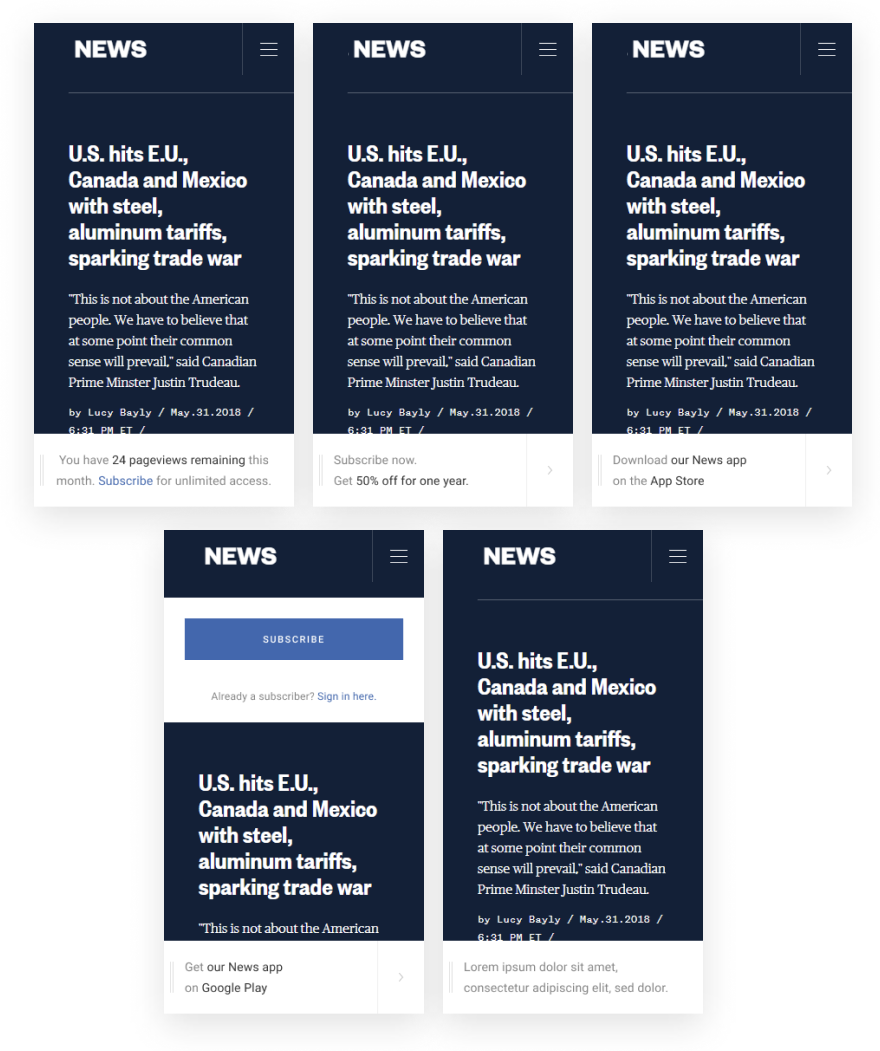
Top left: showPageviewCount; Top middle: showSubscribe; Top right: showiOSDownload;
Bottom left: showAndroidDownload; Bottom right: showBanner
AMP Subscriptions Markups
AMP-subscriptions support AMP markups that work out of the box similar to the AMP-access markups. Naturally, we recommend that you lightly edit the markup to match your branding, but we advise that you do not edit the amp-access variables included in the HTML because we specifically reference those in the Set AMP variable card. Note that AMP-subscriptions support Subscribe with Google and is available in the markups. Because of the standardization of markup, multi-provider support, and improved viewer support, we recommend that you use AMP-subscriptions rather than AMP-access.
CSS markup
<style amp-custom>
    .piano-modal {
        box-sizing: border-box;
        padding: 0 24px 30px 24px;

        font-family: Roboto, sans-serif;
        font-style: normal;
        font-weight: normal;

        display: flex;
        flex-direction: column;

        width: 100%;
        height: 100vh;

        background: #FFFFFF;
    }

    .piano-modal_dialog {
        height: 90vh;
    }

    .piano-modal__top {
        flex-grow: 1;
        flex-shrink: 0;

        display: flex;
        flex-direction: column;
    }

    .piano-modal__content {
        flex-grow: 1;
        display: flex;
        flex-direction: column;
    }

    .piano-modal__header {
        display: flex;
        flex-grow: 1;
        flex-shrink: 0;
        align-items: center;
        justify-content: center;
    }

    .piano-modal__body {
        margin-bottom: 18px;
    }

    .piano-modal__footer {
        display: flex;
        flex-direction: column;
        align-items: center;
    }

    .piano-modal__image {
        margin: 30px;
        display: flex;
        justify-content: center;
        box-sizing: border-box;
    }

    .piano-modal__icon-1 {
        background-image: url("data:image/svg+xml,%3Csvg width='72' height='72' viewBox='0 0 72 72' fill='none' xmlns='http://www.w3.org/2000/svg'%3E%3Cg clip-path='url%28%23clip0%29'%3E%3Cpath d='M0 0H72V72H0V0Z' fill='url%28%23paint0_linear%29'/%3E%3Cpath d='M54 0L108 54H0L54 0Z' transform='translate%28-36 30%29' fill='url%28%23paint1_linear%29'/%3E%3Cpath d='M54 0L108 54H0L54 0Z' transform='translate%286 42%29' fill='url%28%23paint2_linear%29'/%3E%3Ccircle cx='5' cy='5' r='5' transform='translate%2843 19%29' fill='white'/%3E%3C/g%3E%3Cdefs%3E%3ClinearGradient id='paint0_linear' x2='1' gradientUnits='userSpaceOnUse' gradientTransform='matrix%2872 -72 46.0328 84.3935 -23.0164 29.8033%29'%3E%3Cstop stop-color='%23D7DDEB'/%3E%3Cstop offset='1' stop-color='%237E9ACB'/%3E%3C/linearGradient%3E%3ClinearGradient id='paint1_linear' x2='1' gradientUnits='userSpaceOnUse' gradientTransform='translate%28108%29 scale%28108 54%29 rotate%2890%29'%3E%3Cstop stop-color='white'/%3E%3Cstop offset='1' stop-color='white' stop-opacity='0'/%3E%3C/linearGradient%3E%3ClinearGradient id='paint2_linear' x2='1' gradientUnits='userSpaceOnUse' gradientTransform='translate%28108%29 scale%28108 54%29 rotate%2890%29'/%3E%3CclipPath id='clip0'%3E%3Crect width='72' height='72' fill='white'/%3E%3C/clipPath%3E%3C/defs%3E%3C/svg%3E");
        width: 72px;
        height: 72px;
    }

    .piano-modal__icon-2 {
        background-image: url("data:image/svg+xml,%3Csvg width='76' height='76' viewBox='0 0 76 76' fill='none' xmlns='http://www.w3.org/2000/svg'%3E%3Cpath d='M22 0H54L76 22V54L54 76H22L0 54V22L22 0Z' fill='url%28%23paint0_linear%29' /%3E%3Cpath d='M42 13C42 13 32.598 26 21 26C9.40202 26 0 13 0 13C0 13 9.40202 0 21 0C32.598 0 42 13 42 13Z' transform='translate%2817 25%29' fill='url%28%23paint1_linear%29' /%3E%3Cellipse cx='6.53184' cy='6.52312' rx='6.53184' ry='6.52312' transform='translate%2830.9536 44.9717%29 rotate%28-89.5611%29' fill='white' /%3E%3Cdefs%3E%3ClinearGradient id='paint0_linear' x2='1' gradientUnits='userSpaceOnUse' gradientTransform='matrix%2876 -76 48.5902 89.082 -24.2951 31.459%29'%3E%3Cstop stop-color='%23D7DDEB' /%3E%3Cstop offset='1' stop-color='%237E9ACB' /%3E%3C/linearGradient%3E%3ClinearGradient id='paint1_linear' x2='1' gradientUnits='userSpaceOnUse' gradientTransform='matrix%28-42 42 -42 -188.346 63 86.173%29'%3E%3Cstop stop-color='white' /%3E%3Cstop offset='1' stop-color='white' stop-opacity='0' /%3E%3C/linearGradient%3E%3C/defs%3E%3C/svg%3E");
        width: 76px;
        height: 76px;
    }

    .piano-modal__title {
        line-height: 24px;
        font-size: 16px;
        text-align: center;
        letter-spacing: 0.01em;

        color: #323232;
    }

    .piano-modal__description {
        margin-top: 9px;

        line-height: 24px;
        font-size: 14px;
        text-align: center;
        letter-spacing: 0.01em;

        color: rgba(50, 50, 50, 0.6);
    }

    .piano-modal__signin {
        height: 42px;
        line-height: 42px;

        font-size: 12px;
        text-align: center;
        letter-spacing: 0.02em;

        color: #767676;
    }

    .piano-modal__button {
        width: 240px;
        min-width: 150px;

        margin-bottom: 12px;
    }

    .piano-modal__button_last {
        margin-bottom: 0;
    }

    .piano-button {
        font-weight: 500;
        line-height: 24px;
        font-size: 11px;
        text-align: center;
        letter-spacing: 0.14em;
        text-transform: uppercase;

        color: #FFFFFF;
        background: #3B67B2;

        padding: 12px 0;
    }

    .piano-link {
        color: #3B67B2;
        text-decoration: none;
        padding: 0;
        border: none;
        cursor: pointer;
        background: #FFFFFF;
        display: inline;
    }

    .piano-gray {
        color: #767676;
    }

    .piano-footer-sticky {
        width: 100%;

        font-family: Roboto, sans-serif;
        font-style: normal;
        font-weight: normal;

        line-height: 24px;
        font-size: 14px;
        text-align: center;
        letter-spacing: 0.01em;

        display: flex;

        background: #FFFFFF;
    }

    .piano-footer-sticky__body {
        text-align: left;
        margin: 18px 24px;
        flex-grow: 1;
        flex-shrink: 1;
    }

    @media screen and (orientation: landscape) {
        .piano-modal__top {
            flex-direction: row;
            align-items: center;
        }

        .piano-modal__content {
            flex-direction: row;
            align-items: flex-start;
        }

        .piano-modal__image {
            margin-right: 20px;
        }

        .piano-modal__title {
            text-align: left;
        }

        .piano-modal__header {
            margin-top: 5px;
        }

        .piano-modal__description {
            text-align: left;
        }
    }

    @media screen and (orientation: portrait) and (max-height: 480px) {
        .piano-modal__header {
            display: none;
        }

        .piano-modal__body {
            margin-top: 20px;
        }
    }
</style>
HTML markup
<section subscriptions-section="content">
    <!-- your content -->
</section>
<section subscriptions-section="content-not-granted">
    <div subscriptions-actions subscriptions-display="data.p.showPayWall" id="piano-modal-pay-wall" class="piano-modal">
        <div class="piano-modal__top">
            <div class="piano-modal__content">
                <div class="piano-modal__header">
                    <div class="piano-modal__image">
                        <i class="piano-modal__icon-1"></i>
                    </div>
                </div>
                <div class="piano-modal__body">
                    <div class="piano-modal__title">
                        You must subscribe to access this content.
                    </div>
                    <div class="piano-modal__description">
                        To continue viewing the content you love, please choose one of our subscriptions today.
                    </div>
                </div>
            </div>
        </div>
        <div class="piano-modal__footer" align="center">
            <div class="piano-button piano-modal__button" subscriptions-display="true" subscriptions-action="subscribe" subscriptions-service="local" role="button"
                 tabindex="0">
                subscribe
            </div>
            <div subscriptions-display="true" subscriptions-action="subscribe"
                 subscriptions-service="subscribe.google.com" subscriptions-decorate role="button" tabindex="0">
                Subscribe
            </div>
            <div class="piano-modal__signin">
                Already a subscriber?
                <div subscriptions-display="true" subscriptions-action="login" subscriptions-service="local" role="button" tabindex="0"
                     class="piano-link">Sign in here.
                </div>
            </div>
        </div>
    </div>
    <div subscriptions-actions subscriptions-display="data.p.showRegWall" id="piano-modal-reg-wall" class="piano-modal">
        <div class="piano-modal__top">
            <div class="piano-modal__content">
                <div class="piano-modal__header">
                    <div class="piano-modal__image">
                        <i class="piano-modal__icon-1"></i>
                    </div>
                </div>
                <div class="piano-modal__body">
                    <div class="piano-modal__title">
                        Please register to access this content.
                    </div>
                    <div class="piano-modal__description">
                        To continue viewing the content you love, please sign in or create a new account
                    </div>
                </div>
            </div>
        </div>

        <div class="piano-modal__footer">
            <div class="piano-button piano-modal__button piano-modal__button_last" subscriptions-display="true" subscriptions-action="subscribe" subscriptions-service="local" role="button"
                 tabindex="0">
                register
            </div>
            <div class="piano-modal__signin">
                Already a subscriber?
                <div subscriptions-display="true" subscriptions-action="login" subscriptions-service="local" role="button" tabindex="0"
                     class="piano-link">Sign in here.
                </div>
            </div>
        </div>
    </div>
    <div subscriptions-actions subscriptions-display="data.p.showPageviewExpired" id="piano-modal-pageview-expired"
         class="piano-modal">
        <div class="piano-modal__top">
            <div class="piano-modal__content">
                <div class="piano-modal__header">
                    <div class="piano-modal__image">
                        <i class="piano-modal__icon-2"></i>
                    </div>
                </div>
                <div class="piano-modal__body">
                    <div class="piano-modal__title">
                        You have used all of your free pageviews.
                    </div>
                    <div class="piano-modal__description">
                        Please subscribe to access more content.
                    </div>
                </div>
            </div>
        </div>
        <div class="piano-modal__footer" align="center">
            <div class="piano-button piano-modal__button" subscriptions-display="true" subscriptions-action="subscribe" subscriptions-service="local" role="button"
                 tabindex="0">
                subscribe
            </div>
            <div subscriptions-display="true" subscriptions-action="subscribe"
                 subscriptions-service="subscribe.google.com" subscriptions-decorate role="button" tabindex="0">
                Subscribe
            </div>
            <div class="piano-modal__signin">
                Already a subscriber?
                <div subscriptions-display="true" subscriptions-action="login" subscriptions-service="local" role="button" tabindex="0"
                     class="piano-link">Sign in here.
                </div>
            </div>
        </div>
    </div>
    <div subscriptions-actions subscriptions-display="NOT data.p.showPayWall AND NOT data.p.showRegWall AND NOT data.p.showPageviewExpired" class="piano-modal">
        <div class="piano-modal__top">
            <div class="piano-modal__content">
                <div style="height: 250px; width: 100%; display:flex; justify-content: center;align-items: center;">
                    <div class="piano-modal__icon-2"></div>
                </div>

                <div class="piano-modal__body">
                    <div class="piano-modal__title">
                        <div><b>Access denied!</b></div>
                    </div>
                </div>
            </div>
        </div>
    </div>
</section>
Visuals
Fullscreen visuals
Banner visuals
Top left: showPageviewCount; Top middle: showSubscribe; Top right: showiOSDownload;
Bottom left: showAndroidDownload; Bottom right: showBanner