
Introduction
The Double Opt-In (DOI) feature in Identity Management ensures email verification and is available in these distinct flows:
-
Regular Double Opt-In: Users must confirm their email address before proceeding to the checkout. After the initial registration, users will encounter a confirmation screen that prevents them from continuing the checkout process until they have clicked a link or entered a code sent to their email. This guarantees all email addresses are validated before any purchase is completed.
-
Deferred Double Opt-In: To reduce friction during checkout, this flow allows users to complete their purchase without immediate email verification. Users will need to validate their email address at a later time. However, after the current login session expires, email verification will be required to access the account. The session expiration period can be configured in the Edit Business settings, with the default set to 14 days, though it can also be set to unlimited or other time ranges.
Please note, that in the Identity Management registration flow outside of checkout (e.g., through a "Register" or "Login" button), whether using Regular or Deferred DOI, users can access content available to registered users even if they do not immediately confirm their email.
For the Deferred DOI flow, users can dismiss the DOI screen only until their login token expires. Once the token expires, the DOI screen becomes non-dismissible, requiring the user to confirm their email.
In the Regular DOI flow, users can close the DOI screen on each login. However, if they do not confirm their email within the configured verification link expiration time period, their account will be disabled.
Regular Double Opt-In
The Regular Double Opt-in feature allows you to require users to verify their email addresses before being able to proceed to checkout. After the initial registration, users will see a template that prevents them from proceeding to checkout until after they have clicked a link or entered a code sent to their email. In the event of a subscribe flow, users will be prompted to continue the checkout process following the validation.
During the Identity Management registration flow outside of checkout, the DOI screen can be dismissed, enabling users to log in and complete registration even without immediate email confirmation. However, users must complete email verification before proceeding to checkout.
Configuration and Customization
Edit business
To enable double opt-in for your application, log in to your Piano dashboard and click on Edit Business. At the bottom of the "Business" tab, you will see a toggle labeled Enable double opt-in. Upon checking that box, you will see two additional fields appear that allow you to configure the double opt-in settings:

Verification link expiration time: This is the amount of time that a verification link is valid after it is sent to a user. You can input any integer number of days, weeks, or months.
In addition, users who haven't completed the Double opt-in verification process (or haven't set a password if the publisher created their account as in the flow described here) are automatically disabled and removed from the dashboard after the link expiration time set in the Edit Business settings has passed. This behavior does not apply if deferred Double opt-in is enabled.
Confirmation URL: This is the root URL of the link that is sent to users to verify their email addresses. You can choose for this to be your home page, My Account, or a dedicated landing page. This page must be running Piano JavaScript. A unique verification code will be appended to this URL when the email is sent to each user that allows Piano to identify the verification status of the user.
Important information
At this time, double opt-in is an application-wide configuration – if enabled, it will affect all new registrations, regardless of location, term selection, or other user properties.
Existing users are treated as confirmed, and enabling double opt-in does not require them to re-verify their email addresses. Users who sign in with their social accounts via Identity Management social sign-on are also considered confirmed, and all users can update their email addresses at any time through the My Account section.
For applications linked via Global Mode, a user's email only needs to be confirmed once. When a user confirms their email in one application, in any of the ways listed above, Piano marks it as confirmed in every other linked application that has double opt-in enabled and where the user already has an account. This usually takes a few seconds. Each of those applications receives a piano_id_user_email_confirmed webhook.
Linked applications the user hasn't used yet are updated the first time they sign in there. If a user receives a double opt-in email but doesn't confirm it, they'll keep receiving confirmation emails from other Global Mode applications they sign in to until their email is confirmed.
However, there are some edge cases to note:
-
If a user's email is imported during onboarding or via a bulk user import into Global Mode Application (AID) B, it will be marked as "confirmed", but if the same email already exists in Application (AID) A as "unconfirmed", it will remain unconfirmed in Application A.
-
It is also possible to have multiple Global Mode applications with different DOI states, and if DOI is later enabled on Application B, all users in that application will be automatically treated as "confirmed".
-
Enabling Global Mode itself does not automatically mark a user record as confirmed across all applications, even if the user is already confirmed in at least one of them.
A new access token is set after the user confirms their email, with the property confirmed updated to true. You can retrieve this information, for example using tp.pianoId.getUser();.
We automatically disable users who didn't complete the regular double opt-in verification after the verification link expiration time that is set in your Edit Business settings:

Upon the disabling of the user, the webhook event user_disabled is triggered - more information about this is available under the following link
Due to our system's architecture, it is expected behaviour that only logged-in users can verify their email via the link sent to their inbox (on the same device they initially registered). If they switch devices, they would need to log in before the verification of their email address will succeed. We usually recommend using DOI with the Digital Code option only, in case you anticipate users using multiple devices during this flow.
How a user's email gets confirmed
When double opt-in is enabled, a user's email becomes confirmed as soon as they prove they own the mailbox. That happens when they:
-
click the confirmation link or enter the digital code
-
sign in with a social account through Identity Management social sign-on, or link a social account to their existing account
-
sign in with a passwordless link or code sent to their email
-
reset their password with the link sent to their email
This applies on a user's first sign-in to an application too, including a Global Mode application they're visiting for the first time.
Disabling Regular Double Opt-In
Once the regular Double Opt-In feature is turned off, all unconfirmed and pre-confirmed users are automatically converted to confirmed users. In case only deferred Double Opt-In is disabled, the behavior is described here.
JavaScript Integration
The following script is optional and can be used to customize how often the confirmation screen is displayed for unconfirmed users:
tp.push(['init', function() {
  tp.doubleOptIn.check();
}]);
This optional code allows you to trigger the Identity Management email confirmation template.
Alternatively, you can display the confirmation prompt programmatically at a specific point in your own logic using tp.pianoId.showEmailConfirmationRequired(). This is useful when you need to show the confirmation prompt at a specific moment in your own logic — for example, after detecting that a logged-in user has not yet confirmed their email.
The function accepts the following parameters:
|
Parameter |
Type |
Description |
|---|---|---|
|
|
|
How the template is rendered. Accepted values: |
|
|
|
Required when |
|
|
|
Whether to show a close button. Default: |
Display as a modal:
tp.pianoId.showEmailConfirmationRequired({
  displayMode: "modal"
});
Display inline within a page element:
tp.pianoId.showEmailConfirmationRequired({
  showCloseButton: false,
  displayMode: "inline",
  containerSelector: "#piano-content-container"
});
Checking confirmation status via JavaScript
To check programmatically whether a logged-in user has confirmed their email, use tp.pianoId.getUser(). The response includes a confirmed property:
tp.push(["init", function() {
  if (tp.user.isUserValid()) {
    var user = tp.pianoId.getUser();
    if (!user.confirmed) {
      tp.pianoId.showEmailConfirmationRequired({
        displayMode: "modal"
      });
    }
  }
}]);
You can also use the tp.user.isUserConfirmed() shorthand for the same check:
tp.push(["init", function() {
  if (tp.user.isUserValid() && !tp.user.isUserConfirmed()) {
    tp.pianoId.showEmailConfirmationRequired({
      displayMode: "modal"
    });
  }
}]);
Regular Double Opt-In Flow
Below you can find a simple description of the regular double opt-in flow.
Step 1: An anonymous user visits your landing page or any other URL where they are shown an offer presented by Piano.
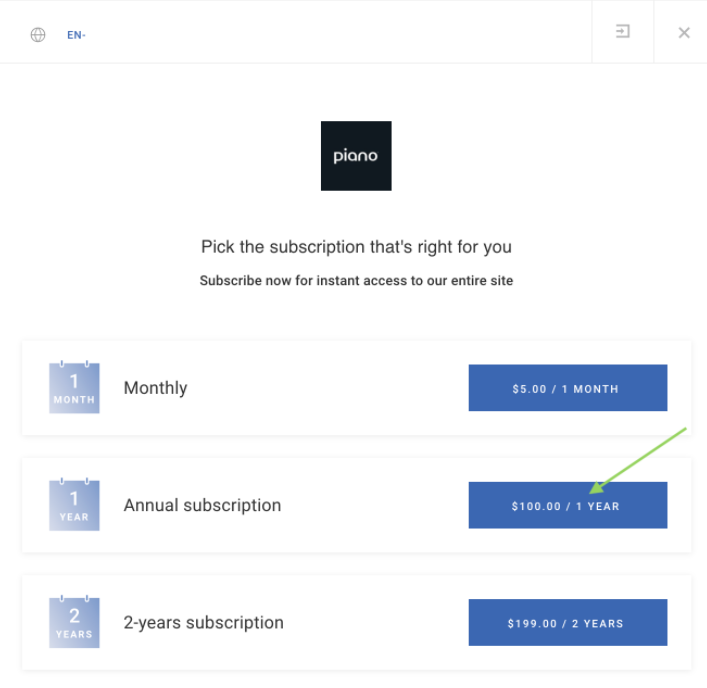
Step 2: After picking a term from the offer, the user will be shown a registration screen:
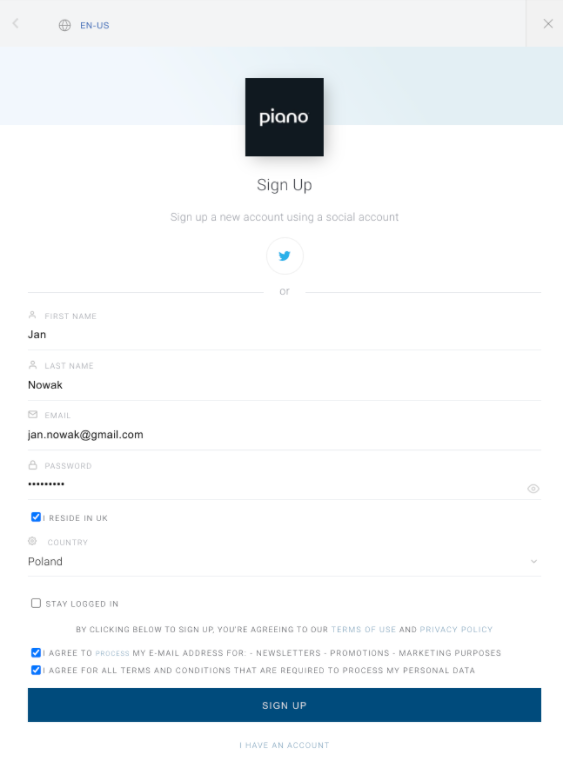
Step 3: Once the registration has been completed, the user will see a screen prompting them to go to their email provider's inbox and verify their email address:
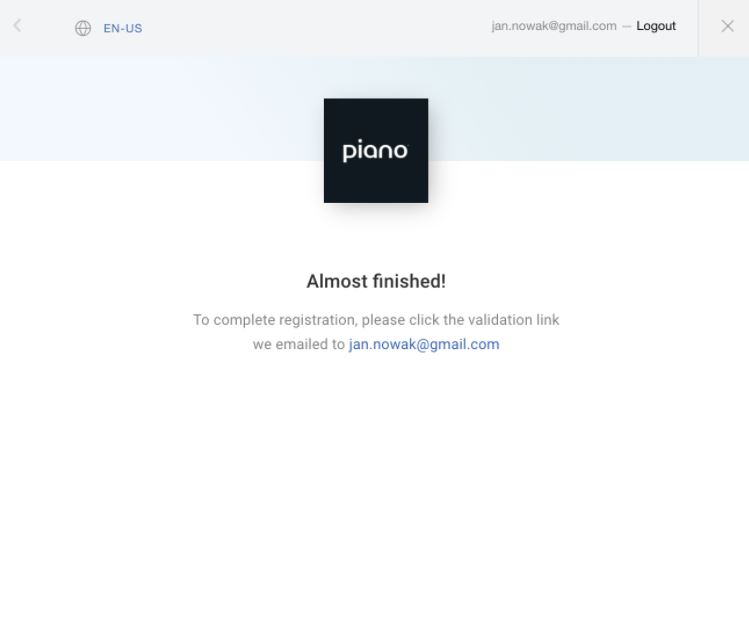
Step 4: The user now goes to their inbox and clicks on the verification link in the email received:
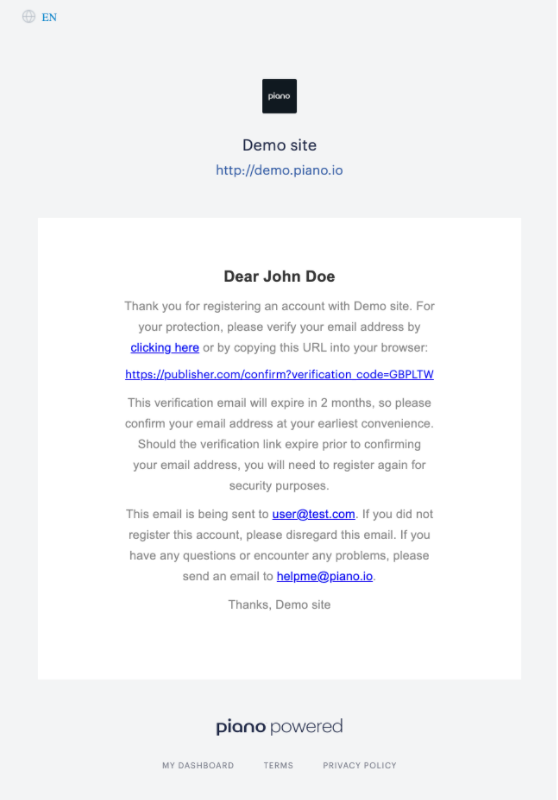
Step 5: After clicking the email the user will be redirected to the client's website based on the Confirmation URL configured in the double opt-in settings under Edit Business, and see a screen that the email confirmation was successful:
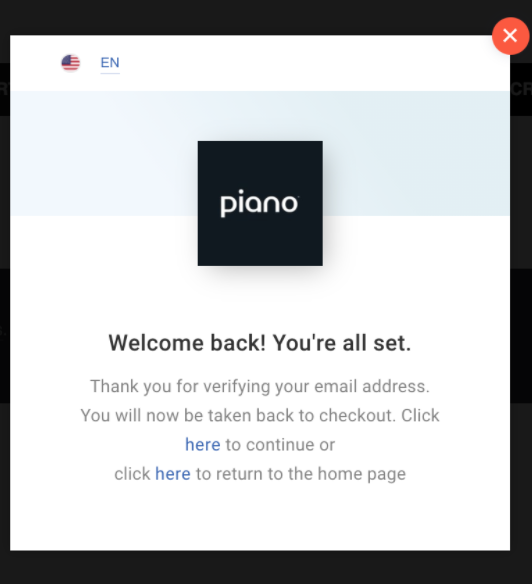
Step 6: The user can now select to continue to checkout by clicking on the respective here link in the above screen, which will open the checkout:
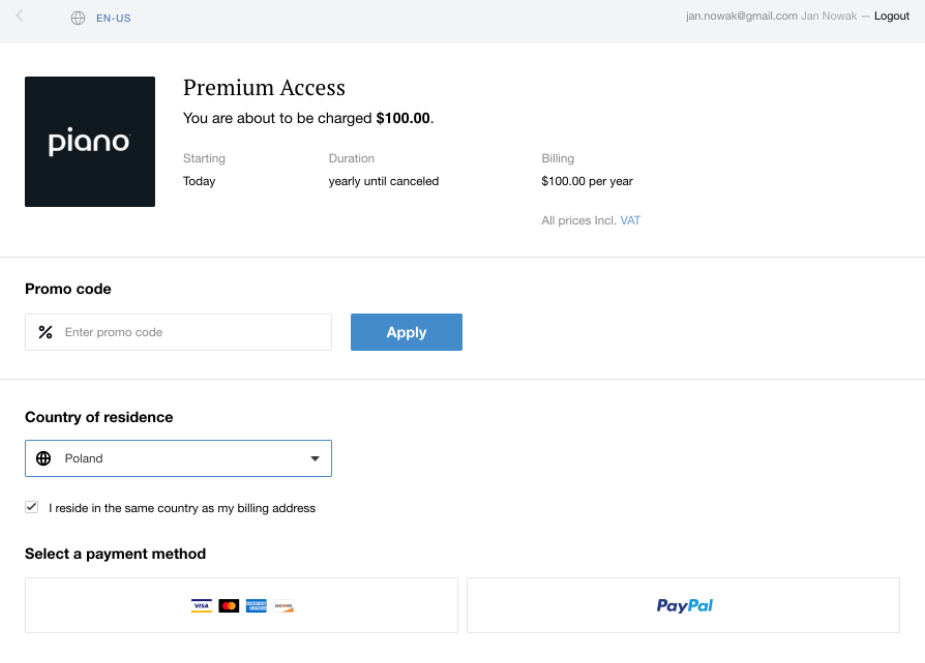
Alternatively, the user can also abandon checkout and click on the second option here in step 5 to return back to the website's homepage.
In order to redirect users after the Double Opt-In confirmation back to the previous URL that they were visiting, please:
-
Use the variable
previous_user_urlinstead ofemail_confirmation_urlwithin the email notification "Email Confirmation" -
Add your website's URL to the Redirect URIs within the Identity Management settings as described here
Flow for users created by publishers
The below outlines the Double Opt-in (DOI) flow for users who are created by the publisher from the Piano dashboard or API.
-
User Registration:
-
The publisher registers the user in the Publisher Dashboard or via the Piano API.
-
Upon registration, the user is created with a backend status of
WAIT_CONFIRMATION, and thus considered unconfirmed.
-
-
Email Notification:
-
No verification code email is sent to the user since they are created by the publisher.
-
Instead, the user receives a "Piano ID user created by publisher" email.
-
-
Password Reset:
-
The user confirms their account by setting their password with the link in the email. Like any password reset by email link, this confirms their email for double opt-in, and in Global Mode for the other linked applications as well.
-
This password reset serves as the confirmation for the Double Opt-in process.
-
-
Deactivation Process:
-
If the user doesn't set a password within the timeframe between the user creation and the verification link expiration defined in the DOI Settings, the deactivation process removes them from the system.
-
This ensures that inactive or unconfirmed accounts are periodically cleaned from the system, maintaining data integrity and security.
-
Deferred Double Opt-In
The Deferred Double Opt-in feature simplifies the email verification process by allowing users to access content and complete purchases without immediate email confirmation. This is designed to reduce barriers, enhance user experience, and increase conversion rates. This approach gives publishers flexibility in balancing user convenience with security and compliance.
Unlike the Regular Double opt-in flow, where users must verify their email before proceeding to checkout, the deferred flow delays this requirement. Users can complete their purchase and access content immediately and verify their email at a later stage.
The DOI screen is only displayed during the login process. As a result, logged-in users will encounter the DOI screen only if they manually log out or are automatically logged out after their login token has expired. Upon their next login, they will see the DOI screen, and if their token has expired, the screen cannot be dismissed.
In Global Mode, once a user's email is confirmed in any linked application, their Pre-confirmed status in the other linked applications with double opt-in enabled changes to Confirmed. They won't be asked to confirm again there.
Key Benefits
-
Improved User Experience: Users no longer need to interrupt their checkout process to verify their email. This seamless approach helps maintain engagement and reduces drop-offs during registration or payment steps.
-
Flexibility for Publishers: Publishers can configure how strictly email confirmation is enforced by adjusting token expiration times and adjust the confirmation prompts.
-
Compliance and Reporting: The deferred Double opt-in flow ensures that user verification remains a priority. Publishers can monitor user statuses via the Piano dashboard.
Configuration and Customization
Enablement
In the Edit Business section, you can enable the Deferred Double Opt-In flow and specify the desired token expiration time (ranging from a minimum of 1 day to unlimited). After its expiration, users will be logged out and required to verify their email address before they can log in and access their subscription.
Before enabling Deferred Double Opt-In, it is essential to first activate the regular Double Opt-In feature.
Token Expiration
The token expiration time determines how long pre-confirmed users can remain logged in without verifying their email. Publishers can configure this to suit their needs, ranging from short durations (e.g., 14 days) to indefinite periods.
Additionally, when Deferred Double Opt-In is active, the expiration of the token does not result in the user being disabled.
JavaScript Integration
The following script is optional and can be used to customize how often the confirmation screen is displayed for pre-confirmed or unconfirmed users:
tp.push(['init', function() { tp.doubleOptIn.check() }]);
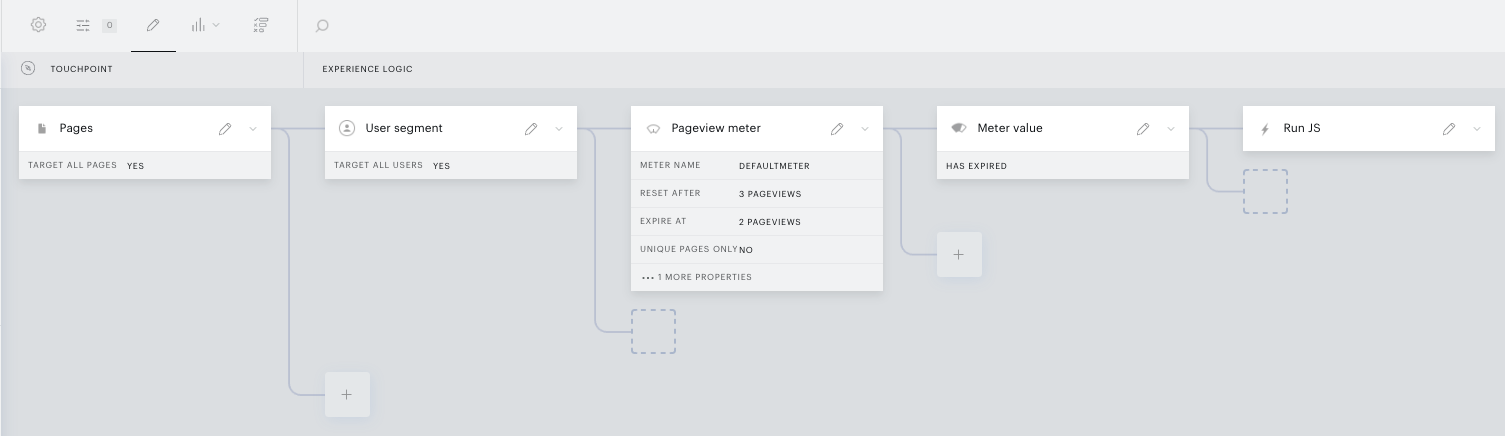
This optional code allows you to trigger the Identity Management email confirmation template beyond the standard scenario - when the token expiration period has elapsed, the token has expired, and the user is prompted to confirm their email upon signing in or accessing content.
For instance, you can configure an Experience with a pageview meter and include the above code in the Run JS card to prompt the confirmation after a specific number of pageviews:
Disabling Deferred Double Opt-In
Disabling the Deferred Double Opt-In feature occurs immediately without an additional confirmation screen.
-
Pre-confirmed users remain pre-confirmed even after the deferred Double Opt-In feature is turned off. They still have the option to confirm their email addresses and become fully confirmed users.
-
Pre-confirmed users can complete purchases and access their subscription content even if their authentication tokens expire. In this case, they can simply close the modal window requesting email confirmation and continue using their subscription.
-
If the Deferred Double Opt-In feature is re-enabled, token expiration rules will be enforced again.
Deferred Double Opt-In Flow
The deferred Double Opt-in flow introduces the concept of "Pre-confirmed" users, offering a seamless and user-friendly journey while maintaining options for future verification.
-
Registration and Checkout:
-
The user registers with their email address.
-
The system assigns them a "Pre-confirmed" status.
-
Users proceed with checkout and gain immediate access to their subscription or content.
-
-
Email Verification Prompt:
-
A confirmation email containing a unique link or digital code is sent.
-
Users can complete the verification process at their convenience without disrupting their session.
-
Users who complete the email verification process will be assigned a "Confirmed" status.
-
-
Token Expiration:
-
A token is issued with a configurable expiration time (default: 14 days).
-
After the token expires, users cannot log in or access content without confirming their email address.
-
-
Post-Expiration Behavior:
-
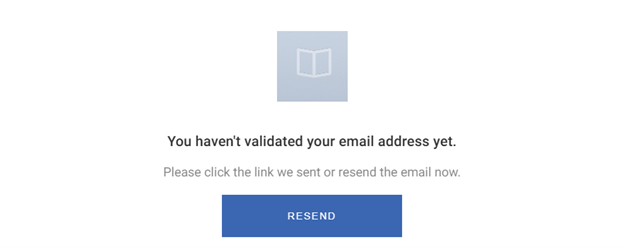
Users see an email confirmation screen during the next login attempt.
-
Email confirmation is required to regain access, ensuring only verified users remain active.
-
Users who complete the email verification process will be assigned a "Confirmed" status.
-
When a user registers during checkout and logs in, they receive an authentication token. The token contains an expiration time, which is stored within the token itself and saved in the browser cookie. If the user remains logged in, they continue using the stored token. However, if they log out and attempt to log in again, they receive a new token with a new expiration time that is recalculated from their original registration time.
Example Scenario:
-
Deferred Double Opt-In is enabled, and the token expiration time is set to 10 days.
-
User A registers and logs in, receiving a token with a 10-day expiration period. The user is notified via email that their token is valid for 10 days. They successfully make a purchase.
-
The Deferred Double Opt-In setting is updated, and the token expiration time is now set to 5 days.
-
Since User A remains logged in, they continue accessing their subscription content using the original token with the 10-day expiration. They can continue to use the content until 10 days after registration, as long as they do not log out.
-
On day 2 of registration, User A logs out. When they log back in, they receive a new token with the updated 5-day expiration time. Even if they remain logged in after this, they will now be required to confirm their email 5 days after registration to continue accessing their subscription.
Email Template
When a user goes through the registration process, they will be sent an email after inputting their email address and password. The copy and content of this email is defined in the Email confirmation email template. By default, this email includes the email_confirmation_url that you configured in Edit Business, but there are multiple other variables that you can leverage when defining the email template. Naturally, we encourage you to include the confirmation URL somewhere in the email, or else users will not be able to verify.
As mentioned above, the URL sent to the user will include an appended confirmation code that is unique to that user.
Template Changes
Identity Management Templates
There are three new templates within Manage → Templates in the Identity Management section that you can modify to manage the user experience when going through the registration flow:
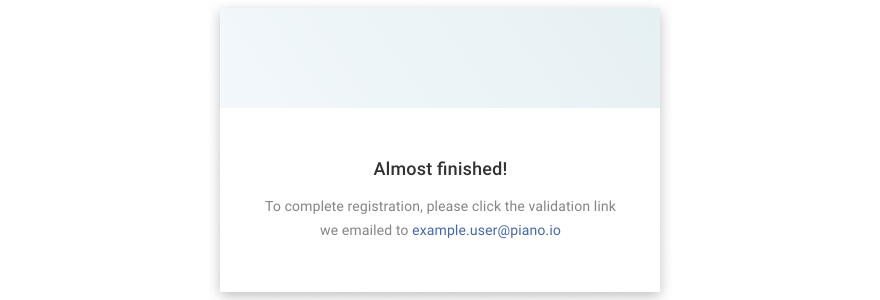
Piano ID email is not confirmed
This template is displayed immediately following the user's registration. The default copy indicates that an email has been sent to the user with a validation link.
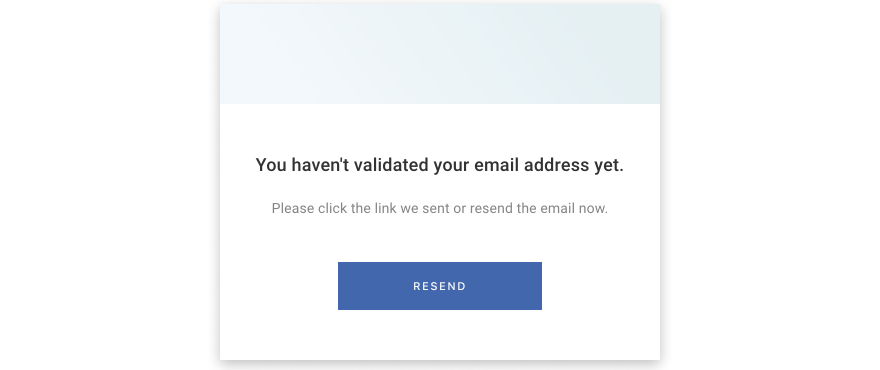
Piano ID email confirmation required
This template is displayed at any time the user attempts to access content or subscribe without having verified their email address. This template includes the ability to resend the verification link and will be displayed after the user logs in and prior to checkout.
Piano ID email confirmation view
This template is displayed when the user clicks the verification link sent to their email address. There are several different states included as part of this template by default, such as copy that appears if the verification link has expired or if the user has already verified their email address. Note that if the user was in the process of converting on a payment term when they were asked to verify their email address, this template will also contain a link that allows the user to proceed with the payment flow. Piano stores the state of the user, so they will be taken directly to the payment component following the verification.
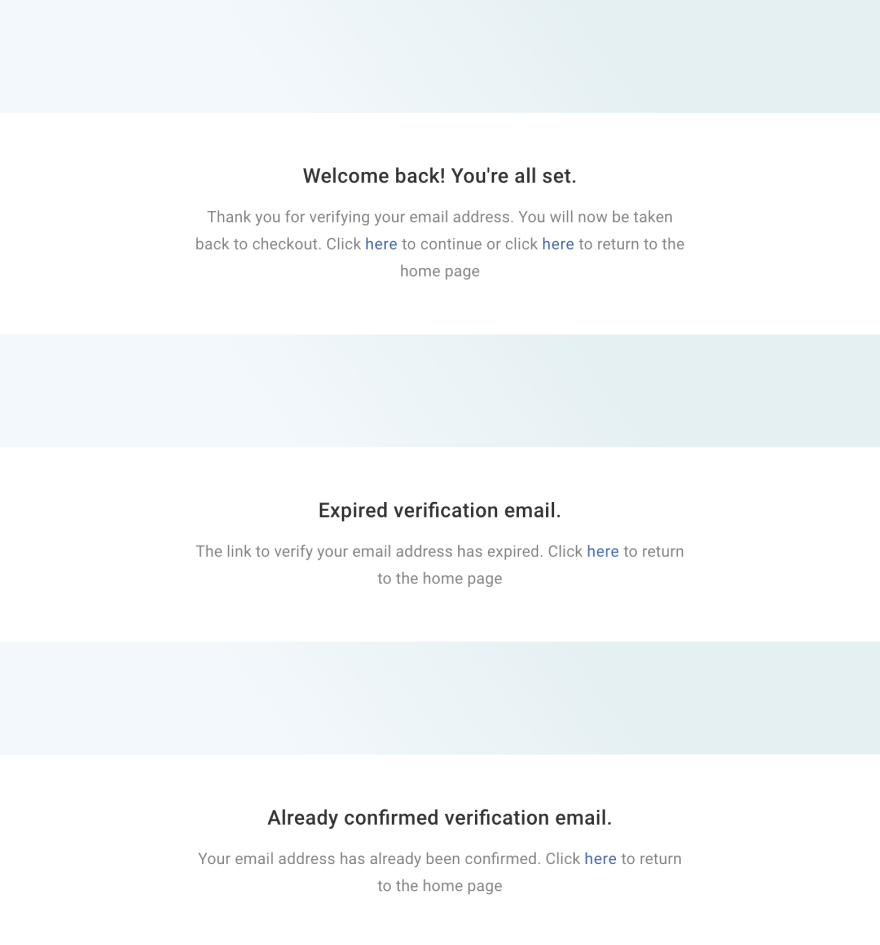
Top: Presented when a user verifies their email address during checkout; Middle: Presented if the verification link has expired; Bottom: Presented if the user has previously confirmed their email.
System Templates
Checkout template
You will also need to make one small adjustment to the Checkout template within system templates. Doing so will ensure that unconfirmed users see appropriate wording if they attempt to check out. Please ensure that the following lines of code are included in the template:
<div view="user-non-confirmed">
    <div account-header-component></div>
    <div email-confirmation-required >
    </div>
</div>
Double Opt-In User Statuses
When Double Opt-In is enabled in your application, you can view each user's verification status directly in the dashboard's "Mine Users" interface and for individual user accounts.
-
Unconfirmed (regular Double Opt-in flow):
-
Users in this status are unable to complete purchases.
-
They must confirm their email immediately to gain access.
-
Unconfirmed users are automatically deleted after the verification link expires.
-
-
Pre-Confirmed (deferred Double Opt-in flow):
-
Users in this status can complete purchases and access content without immediate email confirmation.
-
They remain in the system even if the verification link expires.
-
They are logged out automatically after the token expires and must confirm their email on the next login.
-
-
Confirmed:
-
Users who have completed the email verification process.
-
They face no restrictions and are not affected by token expiration.
-
Double Opt-In Reporting
You can filter users based on their Double Opt-in status under Users → Mine Users.
For clients using Subscription Insights, additional Double Opt-In data is available for analysis.
Note: If the verification link has expired for a user who went through the regular DOI flow, they will be removed from your list of users and will no longer appear under Unconfirmed. This does not apply to users in the Deferred DOI flow, they will remain in a Pre-confirmed status until successfully verified.
Limitations
DDOI Token Expiration for Pre-Confirmed Users
This change is being rolled out gradually. Clients can contact the Piano Client Success team for more details.
API endpoints now enforce Deferred Double Opt-In (DDOI) token expiration for pre-confirmed users. The VX-compatible mobile SDK refresh endpoint (/identity/vxauth/token) checks whether a pre-confirmed user's account has exceeded the configured DDOI retention period and returns a standard OAuth invalid_grant error instead of issuing a new token.
The publisher refresh endpoint (/publisher/token/refresh) also stops reissuing tokens for users who have exceeded the DDOI retention period. Instead of an OAuth error, it returns an HTTP 403 response with Piano ID's errorCodeList format indicating that email confirmation is required.
In both cases, the refresh token is preserved. Once the user confirms their email address, the existing session can resume automatically. Mobile applications should handle these errors by directing users to the login or email confirmation flow.
2FA Prompt During Checkout with Deferred DOI
When Two-Factor Authentication (2FA) is enabled, users can complete registration without entering a verification code, but must complete 2FA upon each further login. If deferred Double Opt-In is also enabled, users will be prompted for 2FA when logging in during checkout, though not during registration. As a result, the 2FA prompt will always appear when a user logs in during checkout, even when Deferred DOI is enabled.