
In this article, we will walk you through the steps to track information from Piano in Google Analytics when a form is displayed and when it is completed.
1. Tracking Form Display
To track when a form is displayed to users, you can implement the following code in your Composer Integration script:
tp.push(["addHandler", "experienceExecute", (e) => {
      var events = e.result.events;

      Object.keys(events).forEach(key => {
        if(events[key].eventType == "showForm") {
          var experienceId = events[key].eventExecutionContext.experienceId;
          var experienceCardId = events[key].eventModuleParams.moduleId;

          gtag('event', 'showForm', {
            'Experience ID': experienceId,
            'Card ID': experienceCardId
          });
        }
      });
    }]);
The script looks for showForm events in all executed experiences, and using the gtag() function, it logs the Experience ID and Module/Card ID to your Google Analytics.
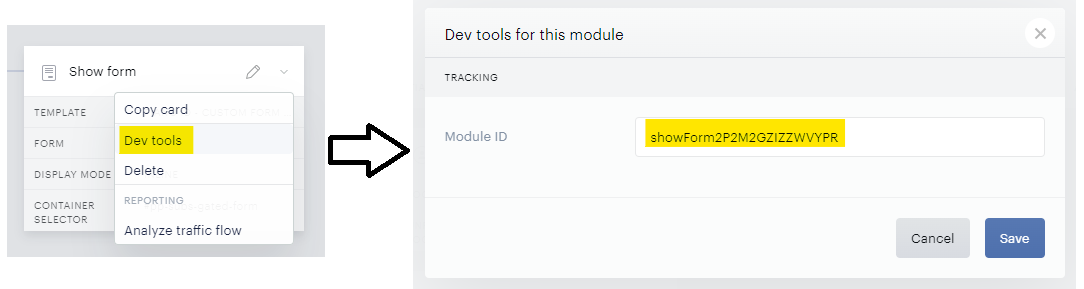
2. Tracking Form Completion
To log "profileUpdate" events when a form is successfully completed, you can replace tp.pianoId.init() with the following code in the Composer Integration script:
tp.pianoId.init({
        profileUpdate: function(a) {
          gtag('event', 'profileUpdate', {
            'User ID': a.user.sub,
            'Path': this.location.pathname
          });
        }
      });
This script logs the User ID and the URL path where the form was updated, indicating a successful form completion.
3. Tracking Form Actions
To log form actions such as "Send" or "Skip," you need to make some adjustments to your Piano ID custom form template.
In your Piano ID custom form template, change the following lines:
<button actionSubmit class="btn prime">
To:
<button actionSubmit onClick="sendPostMessage('sendForm')" class="btn prime">
And:
<a actionSkip class="link">
To:
<a actionSkip onClick="sendPostMessage('skipForm')" class="link">
Then, add the following custom script at the end of the template:
<custom-script>
  function getQueryVariable(variable) {
      var query = window.location.search.substring(1);
      var vars = query.split('&');
      for (var i = 0; i < vars.length; i++) {
          var pair = vars[i].split('=');
          if (decodeURIComponent(pair[0]) == variable) {
              return decodeURIComponent(pair[1]);
          }
      }
      console.log('Query variable %s not found', variable);
  }

  function sendPostMessage(a) {
      var message = {
          eventId: "customForm",
          formName: getQueryVariable('form_name'),
          action: a
      };
      window.parent.postMessage(message, "*");
  }
</custom-script>
And to the Composer Integration script, add:
    window.addEventListener('message', function(event) {
      try {
        if(event.data.eventId == "customForm") {
          gtag('event', 'customForm', {
            'User ID': tp.pianoId.getUser().sub,
            'Form Name': event.data.formName,
            'Form Action': event.data.action
          });
        }
      } catch {}
    });
The custom script and the added event listener will log the User ID, Form Name, and Form Action (Send or Skip) to your Google Analytics.
Viewing the Tracked Events
By default, custom events are not displayed in the Engagement events in GA. However, you can view the tracked events in Google Analytics by following these steps:
-
In Reports, go to the Events report.
-
In Admin, go to Events in the Property column.
-
In Explore, create a free-form exploration with the Event name dimension.
Additionally, you can create custom dimensions or metrics for each event parameter to see the event parameter values in custom reports, audiences, explorations, and segments, as well as secondary dimensions in standard reports. More details are available here.