
You can set up IP monitoring in Data Management, by adding a condition to the rule of the Monitored traffic (connection_monitor) property.
Monitoring keeps the traffic in your global statistics and labels it, so you can isolate internal visits (your offices, an agency, a test environment, etc.) in your reports instead of losing them. If you want that traffic removed from your statistics altogether, create an exclusion instead, in Data Management > Configuration > Exclusions.
Create rule
-
Go to Data Management > Data Model > Properties.
-
Open the Monitored traffic (
connection_monitor) property, then open its Property rule tab. -
Leave the existing conditions in place, and click Add a condition.
-
In the "if" section, select IP address and the operator is one of, then enter your addresses (available patterns).
-
In the "Then" section, set Monitored traffic with a string value, for example "Amsterdam office". That label is what you will see in your reports, so give each location or team its own condition and its own label.
-
Click Save Rules.
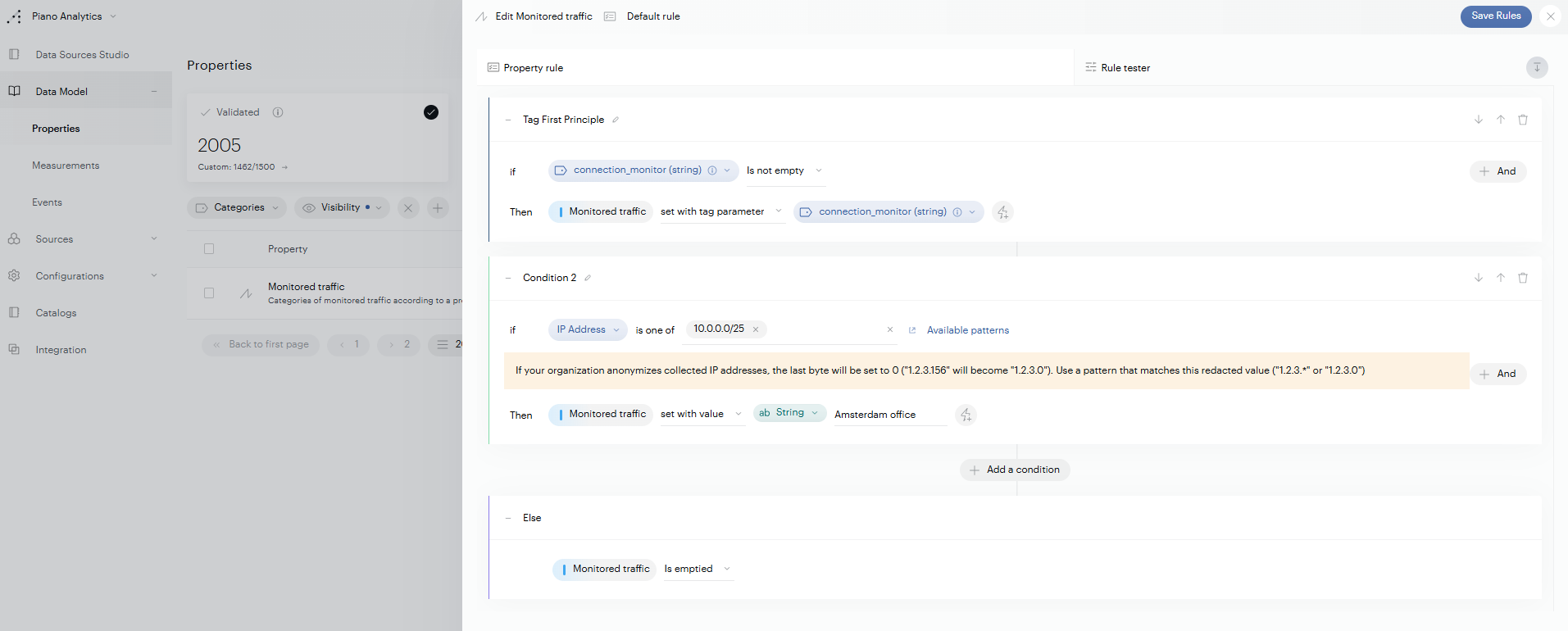
Tip: before saving, open the Rule tester tab and enter a sample IP address to check that it comes back with the label you expect.
Note: Data Management rules are not retroactive. They apply to data processed after deployment, with a delay of up to 20 minutes.
Analyze monitored traffic
Monitored traffic is counted in your global statistics. To isolate it, use the Monitored traffic property in Data Query: add it as a dimension to compare each label, or filter on it to keep only monitored visits or leave them out of a report.