
The recommended method for tracking and syncing external subscriptions to Piano is now Subscription Linking (Linked Terms), described in more detail here.
Below is a legacy method that can still be used, but Subscription Linking is recommended because this implementation consolidates the sending of conversion data for functional reasons related to targeting, for the training of machine learning models, and for reporting.
How to track third-party conversions
Regular conversions (a purchase event or a conversion on another term) are tracked automatically for publishers using Management + Billing. But publishers using Composer with a third-party commerce system will need to inform our API about conversion events in order for us to provide accurate reporting on the performance of your offers. These third-party conversions will then appear in your Composer conversion report just like they do for conversions captured through Management + Billing.
There aren't any limitations in place at the moment for a maximum micro-conversion or conversion amount that can be logged.
/publisher/conversion/log (recommended)
We recommend that you use this API endpoint to log those third-party conversions on your backend: /publisher/conversion/log.
Note that, while only the first four parameters are required by the end point, there are additional parameters noted below that are necessary if you are using Subscription Insights and Piano's Dynamic Paywall feature (part of the Ad Revenue Insights product).
Available parameters for /publisher/conversion/log:
|
Parameter |
Description |
Required |
|---|---|---|
|
api_token |
Your API token. Found in the Dashboard of your Piano account. Because the API token should never be public, this API method should be executed on the server side. |
Required |
|
tracking_id |
We use a tracking ID to connect a conversion in a third-party application to a prior event within our system. Learn how to generate it by following these steps. |
Required |
|
term_id |
The term ID you're using in your third-party application. We log these conversions using the ID convention already in use. |
Required |
|
term_name |
The term name you're using in your third-party application. As with term_id, we log these conversions using your current naming convention. |
Required |
|
browser_id |
The unique browser ID |
Optional (required for Subscription Insights & Dynamic Paywall) |
|
amount |
The price paid by a consumer. |
Optional (required for Subscription Insights & Dynamic Paywall) |
|
currency |
Conversion currency by ISO 4217 standard (example: USD) |
Optional (required for Subscription Insights & Dynamic Paywall) |
|
custom_params |
Custom parameters (any key-value pairs) you want to save (this value should be a valid JSON object). For conversion events that should be streamed to Subscription Insights, please use the values |
Optional (required for Subscription Insights & Dynamic Paywall) |
|
conversion_category |
The category of the third-party conversion (accepted values: |
Optional (required for Subscription Insights & Dynamic Paywall) |
|
step_number |
Checkout step number allows you to label every step in the checkout process chronologically. |
Optional |
* Relevant only to Subscription Insights clients. In case of questions, please contact your Piano Account Manager
Below are some further details about the accepted values for the conversion_category parameter:
-
payment- purchase of a fixed time payment term -
subscription- purchase of a subscription payment term -
gift_received- receipt of a gift term -
gift_purchased- purchase of a gift term -
registration- conversion on a registration term -
adblock_disabled- disabling of an adblocker -
newsletter- sign-up to your newsletter
Here's an example of a /publisher/conversion/log request:
Request: {
    tracking_id: "{jcx}H4sIAAAAAA...",
    term_id: "JKLE673UD",
    term_name: "Standard offer",
    step_number: "5", // optional
    amount: 9.99, // optional
    currency: "USD", // optional
    custom_params: { "customParam": "value" } // optional
    conversion_category: "subscription"
}
If the request is successful, we respond with a 200 OK status.
If there is any issue with the request, we respond with a specific error code, for example, in case of an expired TTL.
/conversion/log (alternate)
Piano provides an additional /conversion/log endpoint for clients who cannot log third-party conversions on the server side. This endpoint can be called by simply altering the HTML of a third-party checkout system.
However, unless a publisher is incapable of generating a server-side request, we do not recommend using this method to log conversions because the /conversion/log endpoint (in contrast to the publisher/conversion/log endpoint) is anonymous, meaning that an API token parameter isn't required to call it. This anonymity makes it possible to falsify conversion information and generate incorrect reports.
In addition to manually calling this endpoint, you can communicate with the endpoint by using one of the associated JavaScript functions. This is the function for use on websites running Piano's JavaScript (or within Composer's Run JS card):
tp.log.logConversion(trackingId, termId, termName, stepNumber, amount, currency, customParams, conversion_category)
This function is for use within a Piano template:
piano.logConversion (termId, termName, stepNumber, amount, currency, customParams, conversion_category)
Logging anonymous conversions is prohibited on Piano accounts by default. If you need to use this anonymous conversion endpoint or the associated JavaScript functions, you'll need to ask your Piano account representative to enable it for your application.
How to track third-party exposures: /exposure/log
For publishers using Composer with third-party systems, tracking exposure events (e.g., when a user is shown a third-party template or offer) is essential to accurately measure the performance of your offers. The API endpoint allowing such tracking is /exposure/log. Similar to /conversion/log, this is an anonymous endpoint, so it should be used with caution and must first be enabled by your Piano Account representative.
This function tp.log.logExposure(aid, trackingId, browserId, userToken, customParams, externalOfferId, externalTemplateId, externalTermIds) can be used on sites running Piano JavaScript to log exposures.
Example:
tp.log.logExposure(
"AID",
"{kpdx}AAAAlHZwd-3whQoKclB...",
"m3x3tv6..",
"eyJhbGciOiJIUzI1NiJ9.eyJ", //optional
"["key1":"value1",
   "key2":"value2"]", //optional
"externalOfferId", //optional
"externalTemplateId", //optional
"externalTermIds"); //optional
For exposure events that should be streamed to Subscription Insights, please use the values custom_params.key="sendToCI" with value pair custom_params.value=true.
How to log interactions
When a user clicks an external link inside a Piano template.
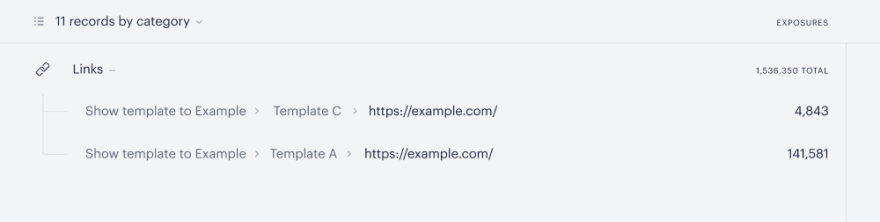
External links (any link outside of Piano's system, whether it be to your website or elsewhere) are tracked automatically. For Composer clients using Management + Billing, this means you'll automatically see a conversion report for every external link clicked during the checkout process. For clients using third-party registration or checkout applications, this feature allows Piano to calculate click-through rates when you direct users to outside checkout or subscription pages. When a user clicks on an external link, we will store the base URL and show it under the "Link clicks" section of a Composer Conversion report.
Here's an example of how this would look in your reports:
When you fire a custom event within our templates during checkout or registration.
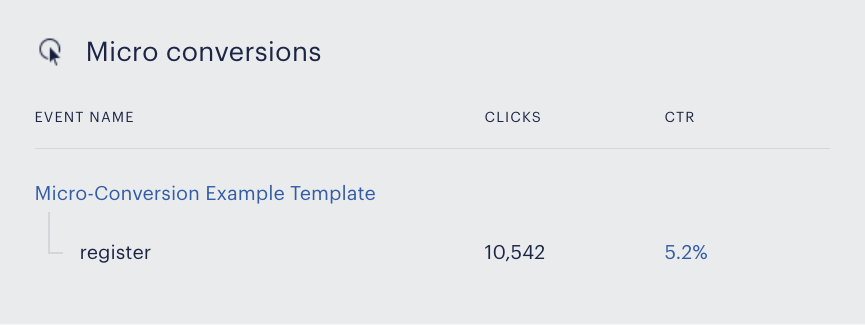
Publishers can trigger custom events that will automatically be captured as clicks. To do so, simply use the "external-event" directive within a Piano template. Like so:
<span external-event="register">Click here to register!</span>
Every time a Piano template with a custom event fires, a click will be logged. Piano stores the custom event name as defined by the publisher. So, for the example above, "register" would show up as a click with "register" as the name.
Here's an example of how this would look in your reports:
When you initiate an interaction using Piano's JavaScript API.
If you want to manually log interactions, you can do so by using special JavaScript functions that communicate with our API. This is the function for use on websites running Piano's JavaScript (or within Composer's Run JS card):
tp.log.logMicroConversion(trackingId, eventGroupId, customParams);
-
trackingId: The ID used to track the specific interaction. -
eventGroupId: A string value that will display in the Conversion report as the name of the event. -
customParams: Optional parameter for capturing additional information about the event.
For micro-conversion events that should be streamed to Subscription Insights, please use the values custom_params.key="sendToCI" with value pair custom_params.value=true. Relevant only to Subscription Insights clients. In case of questions, please contact your Piano Account Manager.
Example usage in a RunJS card:
tp.log.logMicroConversion(context.trackingId, 'buttonClick', { buttonId: '<buttonId>' });
And this function is for use within a Piano template:
piano.logMicroConversion(eventGroupId, customParams)
Working with the trackingId parameter is explained here. The eventGroupId is a string value that will display in the Conversion report as the name of the event. CustomParams is an optional parameter for capturing additional information about an event.
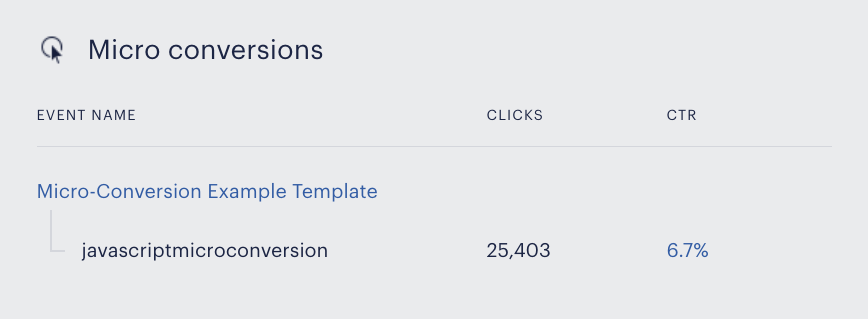
Here's an example of how piano.logMicroConversion is used within a Piano template:
<div custom-script>
piano.logMicroConversion('javascriptMicroConversion', {});
</div>
This example includes the custom-script tag, which should be used anytime you want to add custom JavaScript into a Piano template. Simply using a <script> tag risks interfering with Piano's normal system processes. In the example above, "javascriptMicroConversion" is the eventGroupId and would appear under Clicks on the Conversion report as the interaction name.
Here's an example of how this would look in your reports:
Where to view your conversions
Conversions and interactions can be viewed from the Composer Conversion report. To access this report, go to Products → Composer and click the reports icon in the bottom right corner of a live experience. Then hit the "Conversion" toggle at the top of the page to see your conversions and interactions for the experience in question.
Please keep in mind that there is about an hour lag between triggering an interaction and it appearing within the Composer Conversion report.
Conversion tracking API endpoints and associated JavaScript functions
Piano allows you to use JavaScript functions to call select API endpoints. For most endpoints, there are two separate functions, one for use within Piano's templates and one for use on websites running Piano's JavaScript on their pages.
Functions that can be used within Piano's templates will include the piano object (ex: piano.logConversion(...)). If you're using an iframe within a Piano template to dynamically communicate with a third-party application, you'd use this function.
Functions that can be used on websites running Piano's JavaScript will include the tp.log object (ex: tp.log.logConversion(...)). If you are directing users to a dedicated checkout page outside of the scope of Piano's templates, you'd use this function.
The tp.log functions require you to provide the Tracking ID parameter, while the piano functions do not. Further information on these endpoints can be found below.
1. Endpoint: /publisher/conversion/log
|
Description |
This is the recommended method for tracking full third-party conversions. The associated parameters for this endpoint are discussed above. The associated report is displayed in the Composer conversion report. |
|
JavaScript functions |
There are no associated JavaScript functions for this endpoint because one required parameter is your API token, which should only be sent from the server. |
2. Endpoint: /conversion/log
|
Description |
This is an alternative method for tracking third-party conversions. We do not recommend it because this uses an anonymous API and conversions can therefore be triggered erroneously. Use of this endpoint must be enabled by your Piano account representative. |
|
Associated JavaScript function (used within Piano templates) |
piano.logConversion (termId, termName, stepNumber, amount, currency, customParams, conversion_category) Example values for parameters: |
|
Associated JavaScript function (used on sites running Piano JS) |
tp.log.logConversion(trackingId, termId, termName, stepNumber, amount, currency, customParams, conversion_category) Example values for parameters: |
3. Endpoint: /conversion/logMicroConversion
|
Description |
This endpoint logs interactions. These are displayed in the Composer Conversion report. |
|
Associated JavaScript function (used within Piano templates) |
piano.logMicroConversion(eventGroupId, customParams) Example values for parameters: |
|
Associated JavaScript function (used on sites running Piano JS) |
tp.log.logMicroConversion(trackingId, eventGroupId, customParams) Example values for parameters: |
4. Endpoint: /conversion/logFunnelStep
|
Description |
All conversion events are associated with checkout steps. The very first step (called "impression") is logged automatically when an offer template is shown to a user. This endpoint can be used to manually log additional checkout steps so you can track how your consumers move through the sales funnel. This data is captured but not yet displayed in Composer conversion reports. |
|
Associated JavaScript function (used within Piano templates) |
piano.logFunnelStep(stepNumber, stepName, customParams) Example values for parameters: |
|
Associated JavaScript function (used on sites running Piano JS) |
tp.log.logFunnelStep(trackingId, stepNumber, stepName, customParams) Example values for parameters: |
5. Endpoint: /exposure/log
|
Description |
Similar to conversion/log, this method is anonymous, so it should be used with caution. The use of this endpoint must be enabled by your Piano account representative. |
|
Associated JavaScript function (used on sites running Piano JS) |
tp.log.logExposure(aid, trackingId, browserId, userToken, customParams, externalOfferId, externalTemplateId, externalTermIds) Example values for parameters: |