Cloudflare Turnstile is a CAPTCHA alternative designed to verify users without requiring them to solve puzzles. It uses invisible browser challenges and machine learning signals to assess legitimacy, eliminating the need for user interaction in most cases. Turnstile is privacy-focused, avoiding cookies and third-party tracking, making it a strong fit for GDPR and CCPA compliance.
Benefits
Cloudflare Turnstile provides several key advantages over traditional CAPTCHA systems:
-
Privacy-friendly: No tracking or cookies.
-
User-friendly: Mostly invisible, no puzzle-solving required.
-
Lightweight & fast: Minimal impact on performance.
-
Independent: Not tied to Google.
-
Accessible: Better support for users with disabilities.
-
Free: Available at no cost, even for production use.
Feature Comparison
|
Feature |
Cloudflare Turnstile |
Google reCAPTCHA |
|
Privacy |
No tracking or cookies |
Tracks users, uses cookies |
|
User Experience |
Mostly invisible, no puzzles |
Often requires solving visual/audio puzzles |
|
Performance |
Lightweight, fast loading |
Heavier, can slow down pages |
|
Accessibility |
More accessible, no visual challenges |
Visual/audio challenges can be difficult |
|
Vendor Lock-in |
Independent of Google |
Tied to Google ecosystem |
|
Cost |
Free |
Free (but with data trade-offs) |
Configuration in Piano
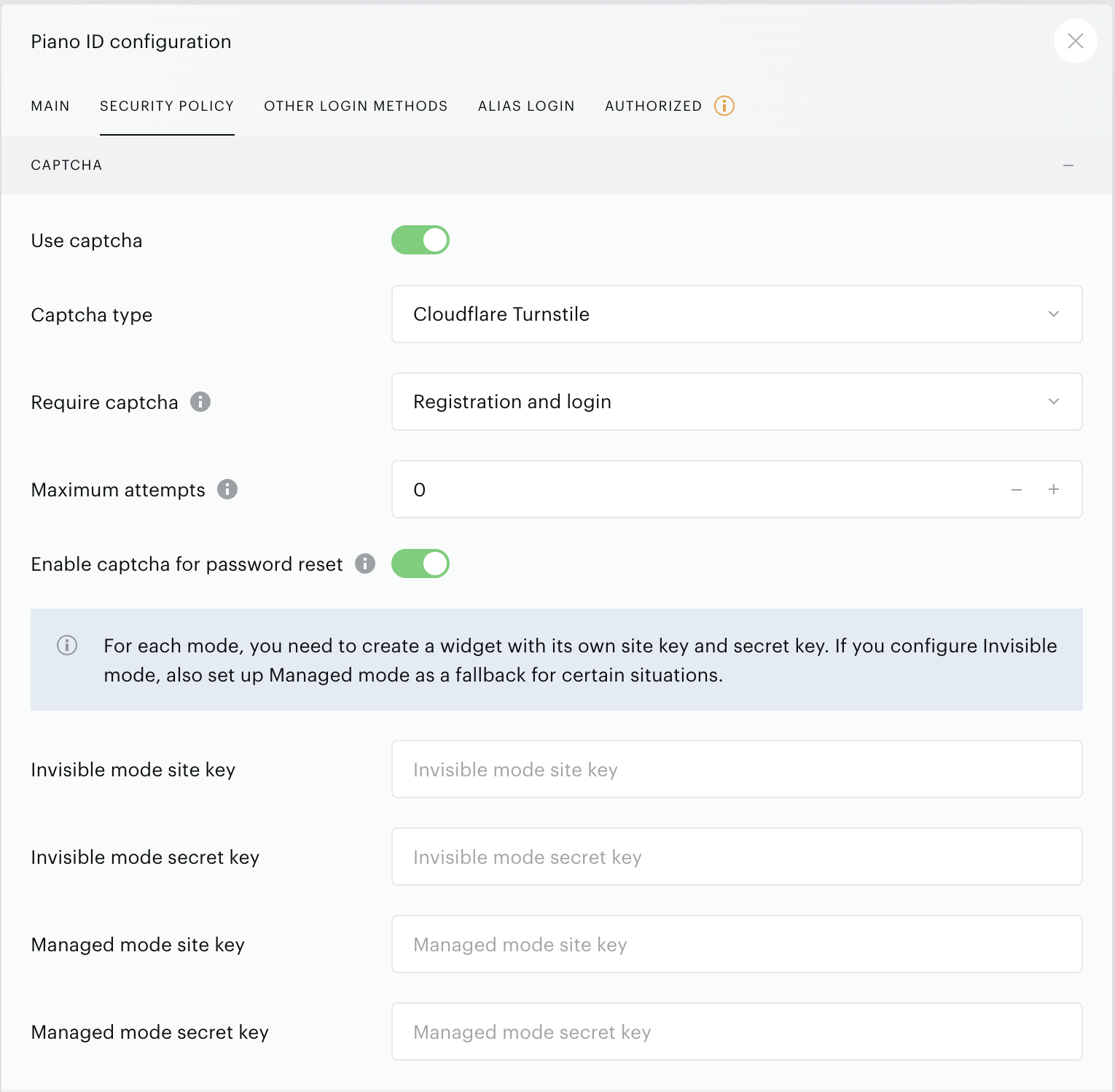
You can configure Turnstile in the Security Policy settings of your Identity Management configuration by enabling the Use captcha toggle and selecting Cloudflare Turnstile as the Captcha type.
Available Configuration Options
-
Captcha type: Choose between:
-
Cloudflare Turnstile
-
Google reCAPTCHA (legacy)
-
-
Require captcha: Select which authentication events should be protected with a captcha.
-
Registration and login
-
Registration only
-
Login only
-
-
Maximum Attempts: Define the number of failed attempts before the challenge is triggered.
-
Enable captcha for password reset: Apply the same protection to password reset flows.
-
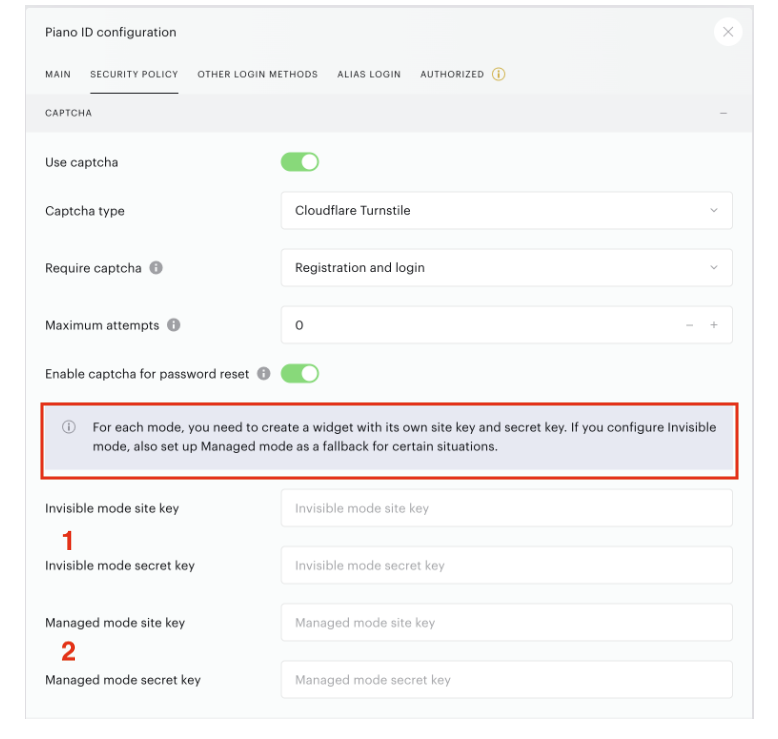
Keys: Piano supports two modes of Turnstile: Invisible mode and Managed mode, each offering configurable triggering conditions. Both modes can be enabled to activate the captcha on specific user actions, such as login, registration, or both.
You can configure Turnstile to trigger on the login page after a defined number of unsuccessful attempts (if the threshold is set to 0, the captcha will always appear). Similarly, it can be set to activate on the registration page, specifically within the initial account creation window. Both Invisible and Managed mode keys must be configured. Using either mode alone is not currently supported.
-
Invisible Mode: Automatically runs in the background without showing any visible challenge to users. Users typically won't see or interact with a challenge unless Turnstile determines additional verification is necessary.
-
Invisible mode site key: The site key for the widget, as provided in your Cloudflare dashboard.
-
Invisible mode secret key: The secret key for the widget, as provided in your Cloudflare dashboard.
-
-
Managed Mode: Cloudflare dynamically decides how to present and validate the captcha based on its internal bot detection. Good for fallback scenarios or when you want Cloudflare to handle more of the logic behind the scenes.
-
Managed mode site key: The site key for the widget, as provided in your Cloudflare dashboard.
-
Managed mode secret key: The secret key for the widget, as provided in your Cloudflare dashboard.
-
-
Note: Create separate widgets for each mode in Cloudflare to generate the respective keys.
Both modes require Site Key and Secret Key. These are obtained from your Cloudflare dashboard and must be entered in your Identity Management app configuration.
In the following section, we'll walk you through the steps to create these widgets and retrieve the required keys.
Configuration in Cloudflare
This section provides a step-by-step guide to configuring Cloudflare Turnstile in your Cloudflare dashboard. Follow these instructions to create widgets, manage hostnames, and retrieve the necessary keys for integration.
-
Create a Cloudflare Account
Sign up here for a free account or use your existing credentials. -
Add Turnstile Widgets
-
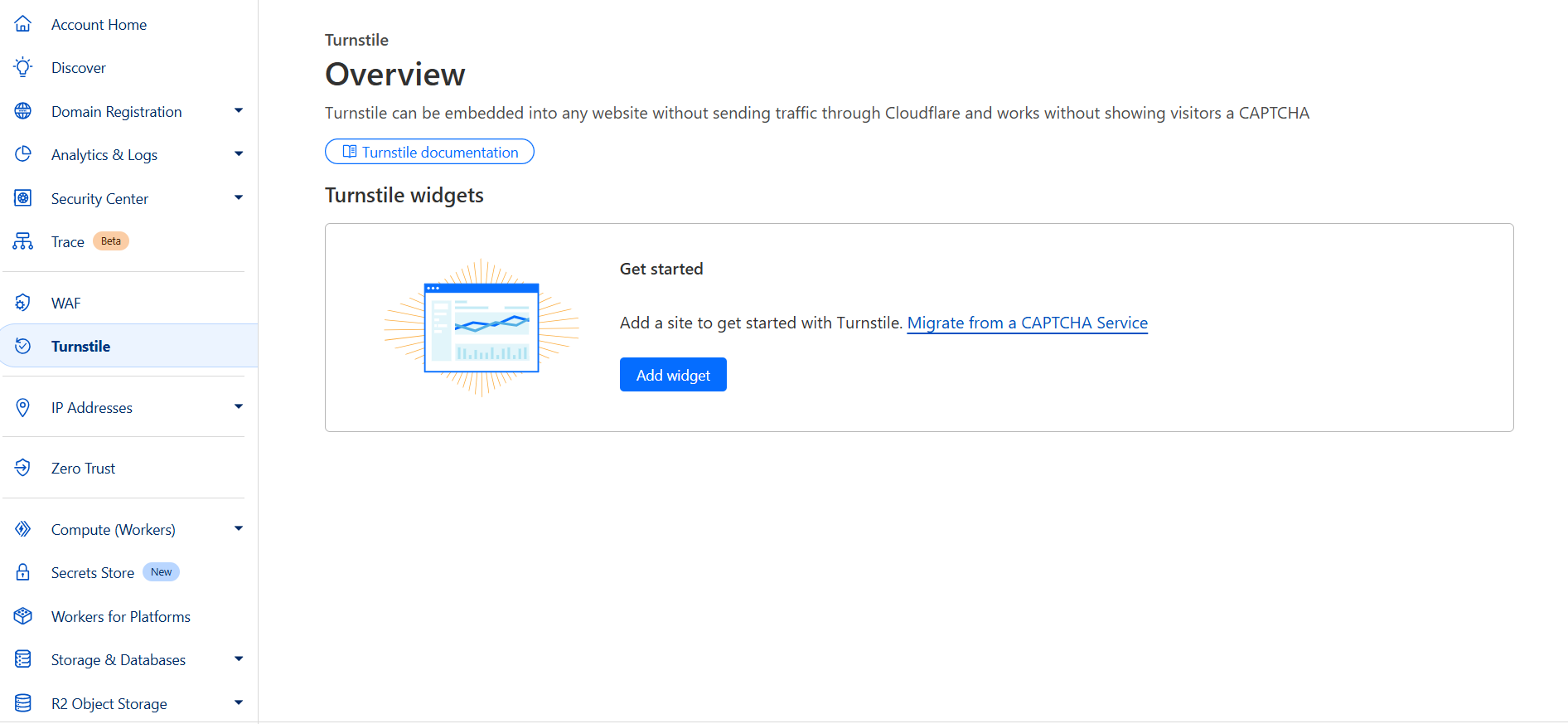
In the Cloudflare dashboard, navigate to the Turnstile section on the left-hand side menu and click on the Add widget button:
-
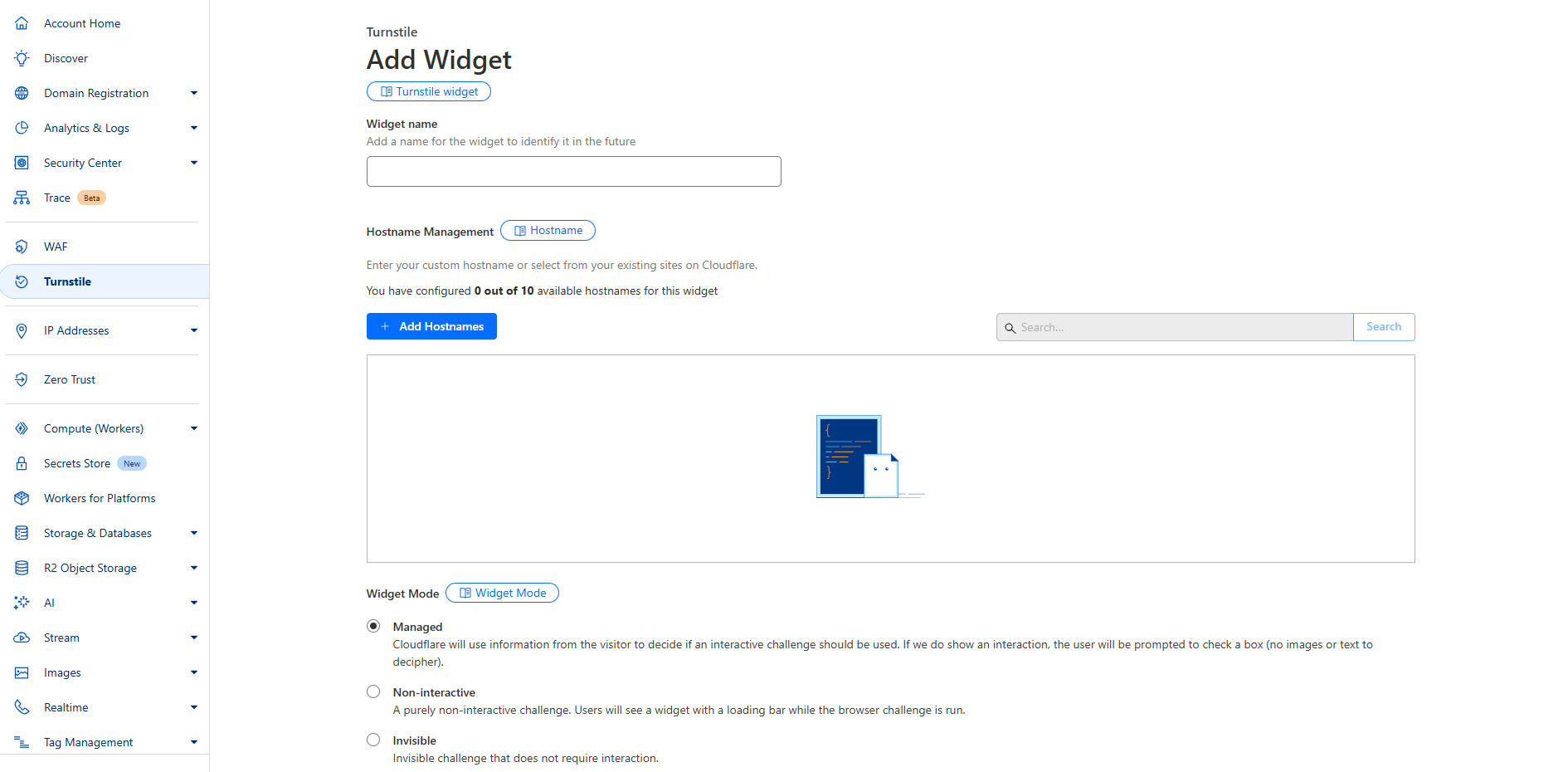
A new page will open where you can enter a widget name and choose between Invisible and Managed widgets by selecting the desired option in the Widget Mode settings.
Do not select "Non-interactive" mode, as it’s not supported in Piano.
-
Next, add all necessary hostnames for each widget by clicking the Add Hostnames button. To ensure Turnstile functions properly, be sure to include the following Piano hostnames for both widget modes in Cloudflare:
-
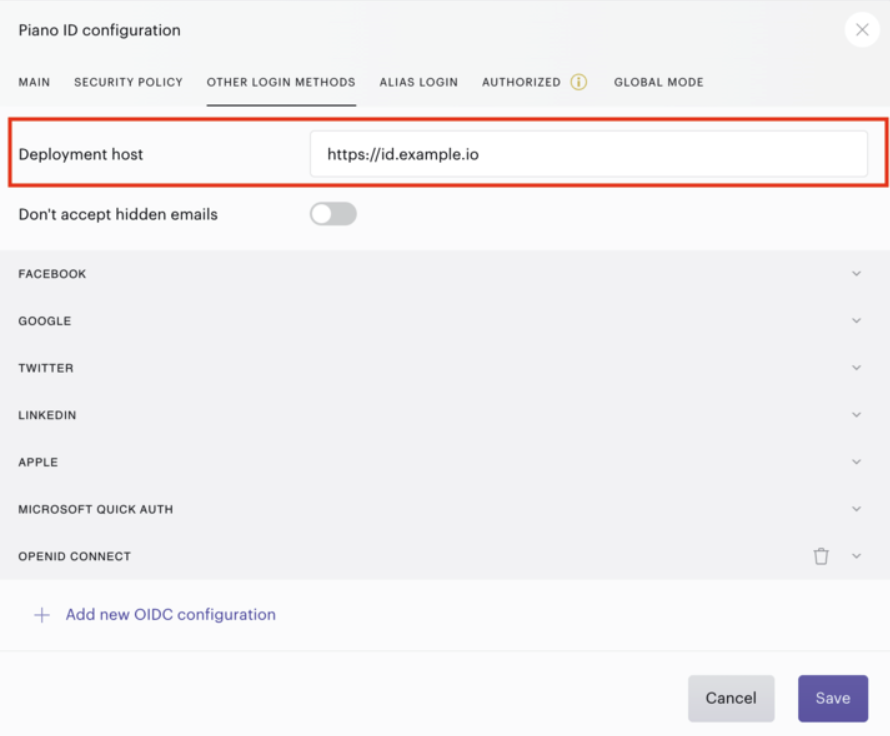
If you use domain whitelabeling, you must also add any custom domains. You can find these in the Identity Management configuration for each app, under the Other Login Methods tab, in the Deployment host input field.
So, for example, in case the Deployment host configured in your application is https://id.example.io:
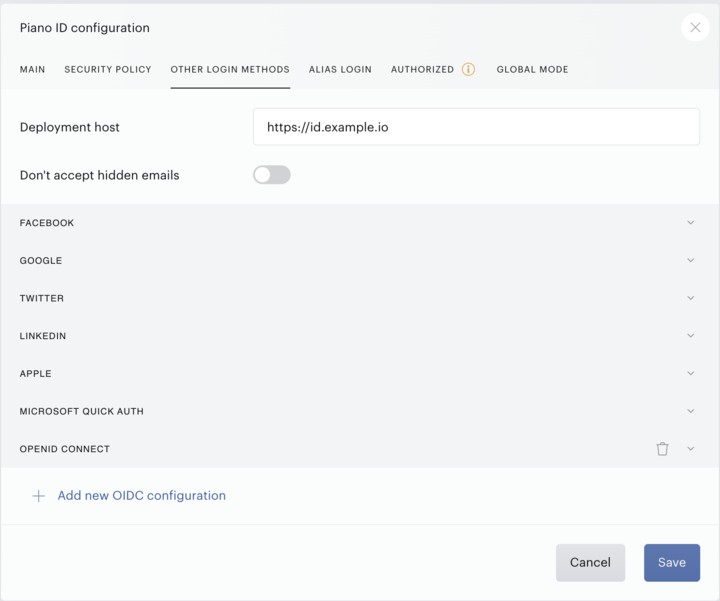
You would need to add this custom domain (in our example id.example.io) to the list of hostnames in the Cloudflare dashboard too: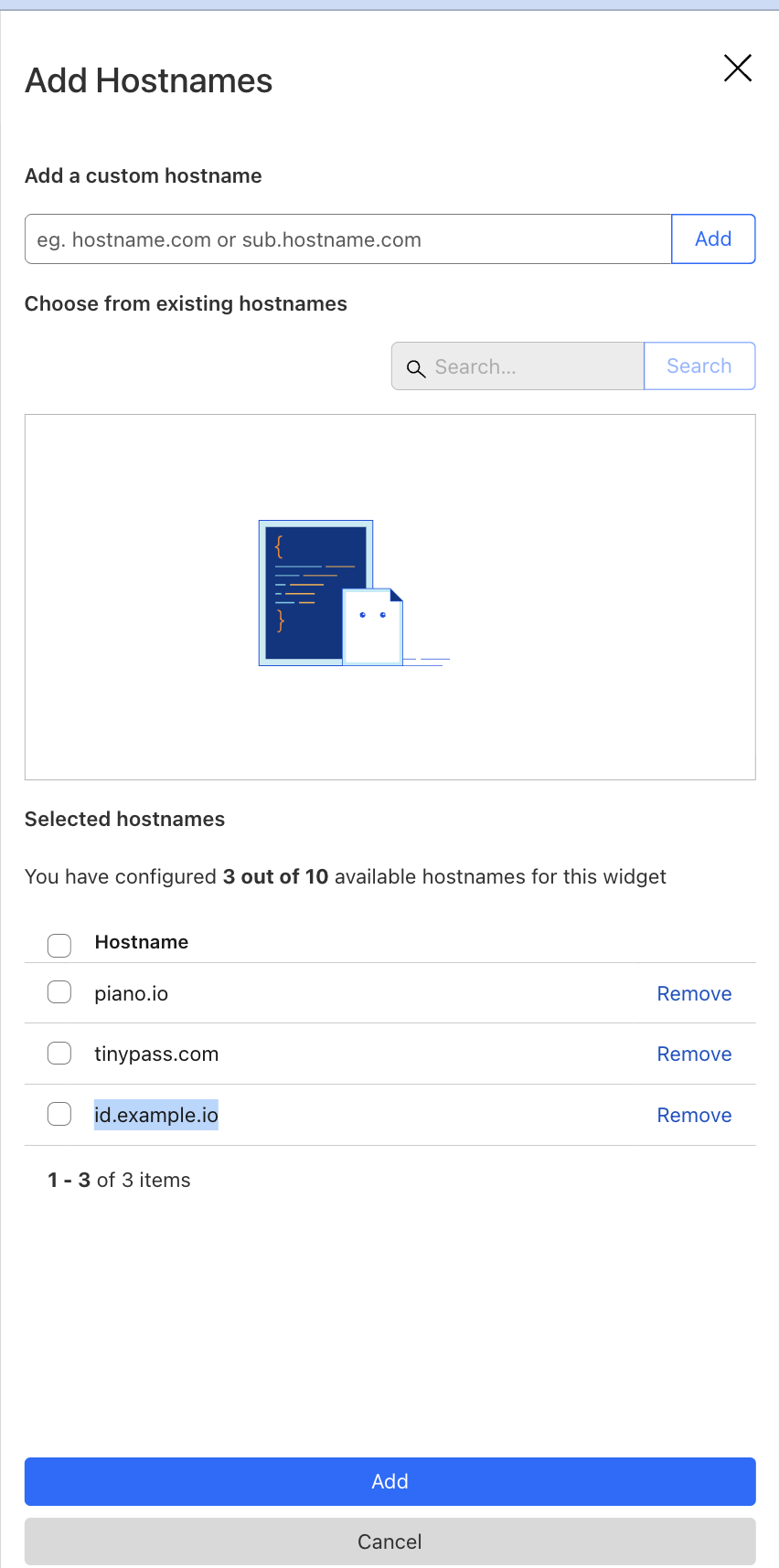
Note: Free Cloudflare accounts come with limitations on the number of widgets and hostnames you can use. Each account can have up to 10 widgets, and each widget can include up to 10 hostnames. If you require more than these limits allow, you will need to upgrade to the Cloudflare Enterprise version.
-
-
Copy Site and Secret Keys
Each widget generates a unique Site Key and Secret Key, which are necessary for the configuration of the captcha in Identity Management. These keys are either displayed immediately after creating the widget (ready to copy and paste) or can be accessed later from the main Turnstile Overview menu by clicking the ellipsis (...) next to the widget, selecting Edit and scrolling down to the section containing the Site and Secret keys.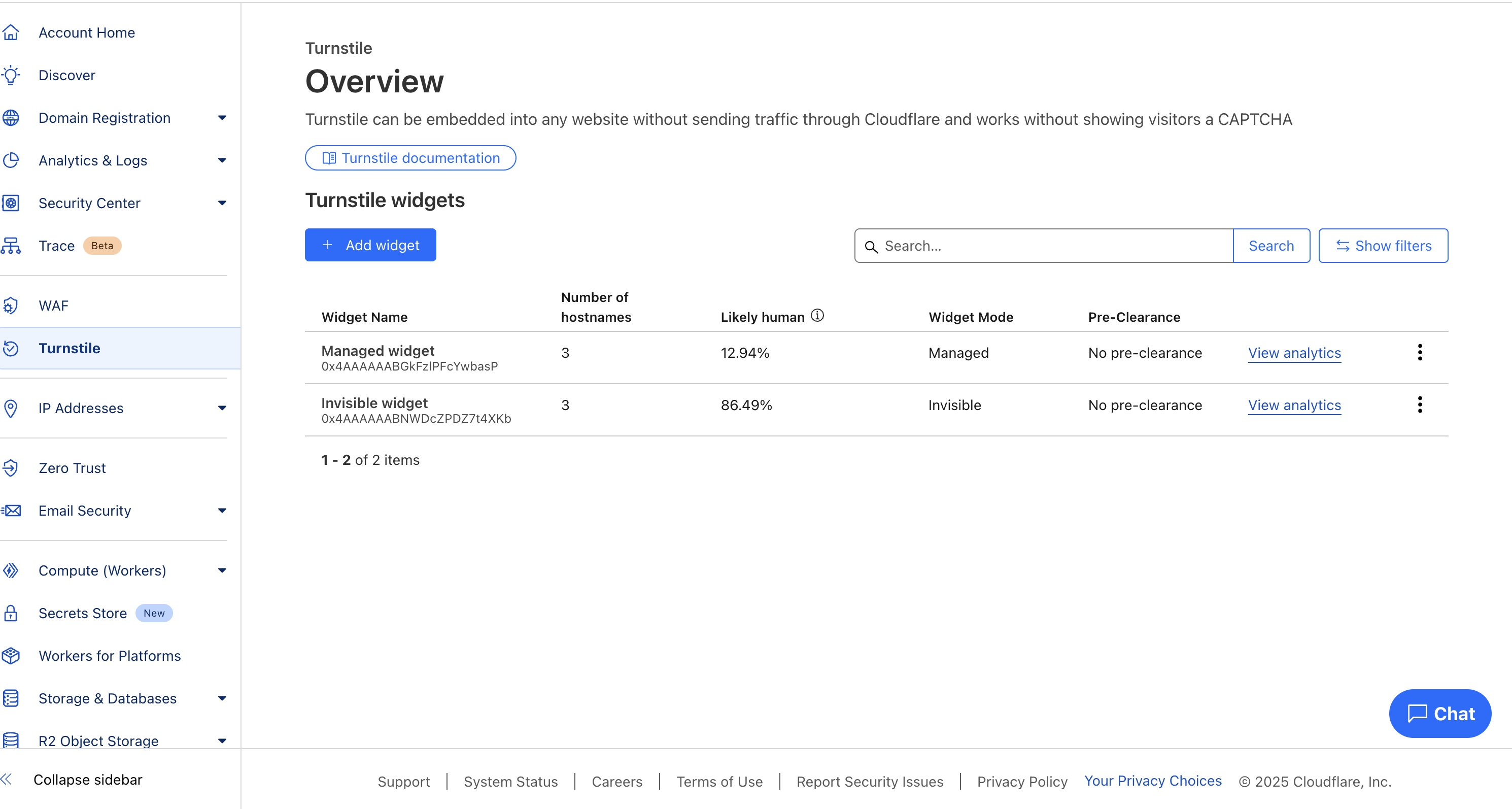
-
Add Keys to Identity Management
In each app configuration, add the keys as described in this section.
End User Experience
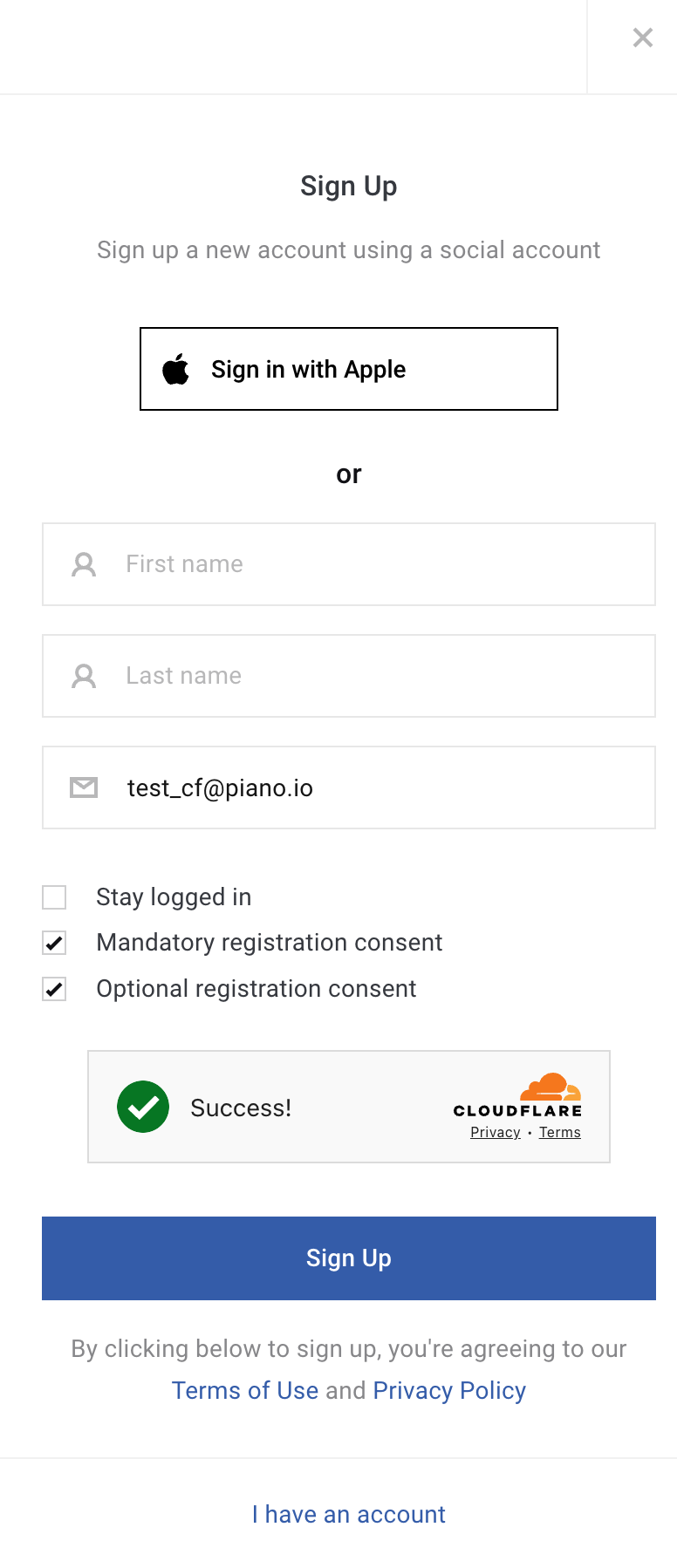
By default, Invisible Mode is used. Users typically won’t see a challenge unless verification is explicitly triggered.
However, Turnstile may switch to Managed Mode and show a visible widget in two scenarios:
-
Maximum Attempts Exceeded: If the configured attempt threshold in the Identity Management settings is reached.
-
High Volume of Failed Requests: If more than 700 unsuccessful login attempts occur within 5 minutes for the same AID.
In such cases, Turnstile will present the user with a challenge to ensure security.
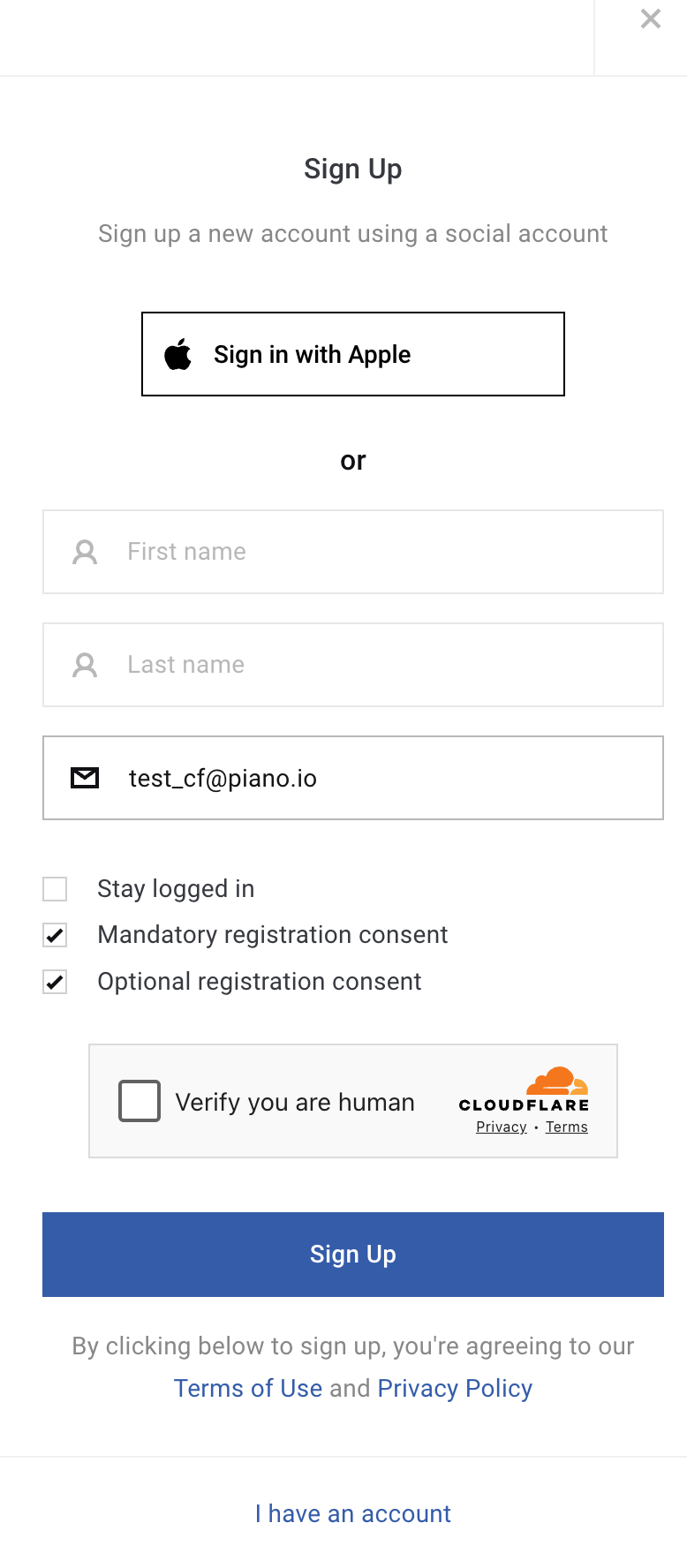
Once verified, they will see a success message and proceed as normal.
Known Limitations
1. Free Plan Constraints
-
10 widgets max per account
-
10 hostnames max per widget
-
1 million monthly siteverify requests
-
Exceeding these limits requires an Enterprise upgrade.
2. Feature Piano Subscriptions Caching
After switching CAPTCHA providers in Piano, some users may experience display issues due to browser caching. Clearing local cache may be necessary even though server-side caching is cleared.
3. Alerting
Usage alerts (e.g., nearing quota) are not available but are under consideration.
Not Currently in Scope: Turnstile is not yet supported for checkout fraud prevention features, which still rely on Google reCAPTCHA.
Cloudflare Turnstile - Analytics
Cloudflare Dashboard Analytics
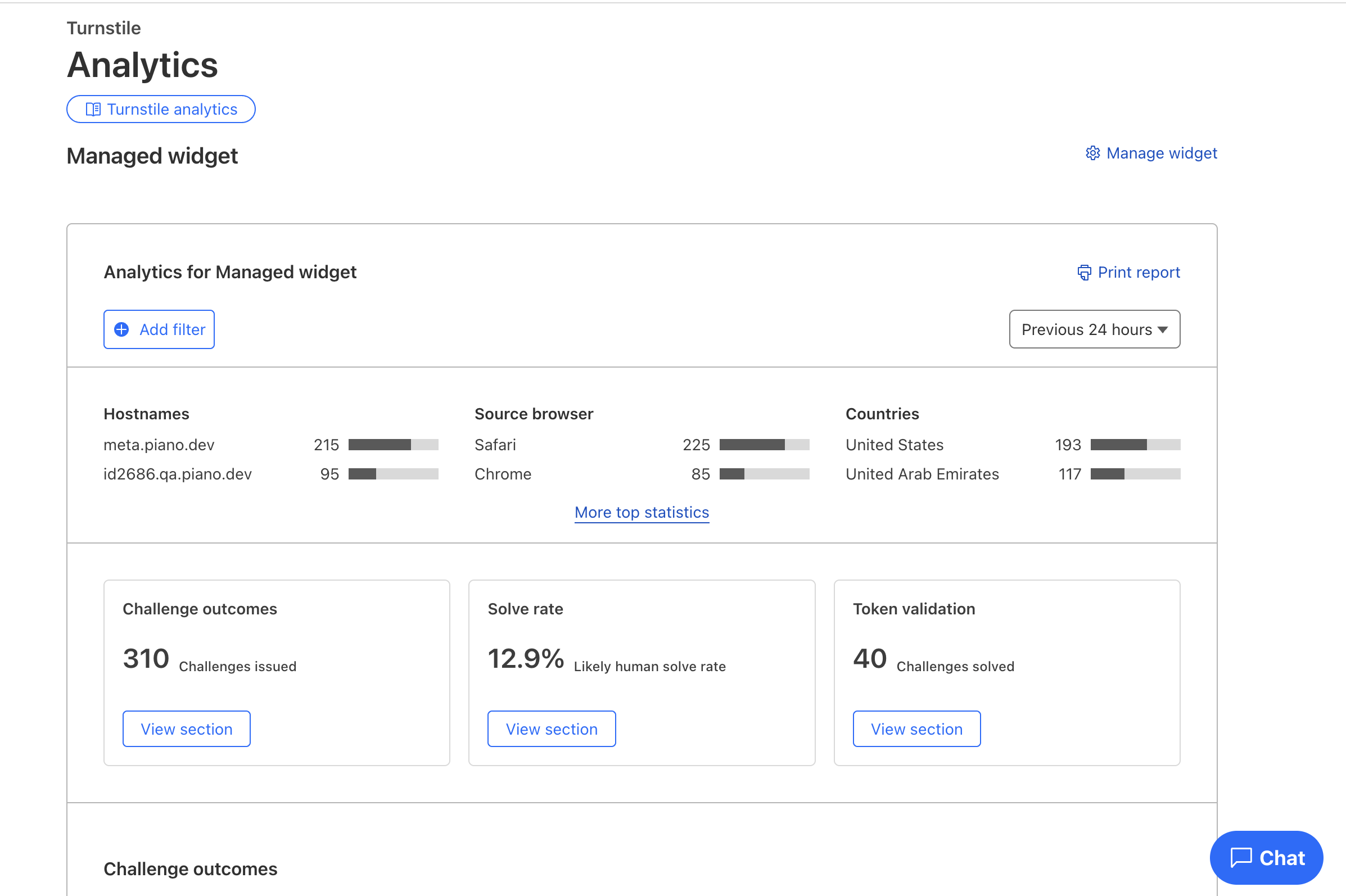
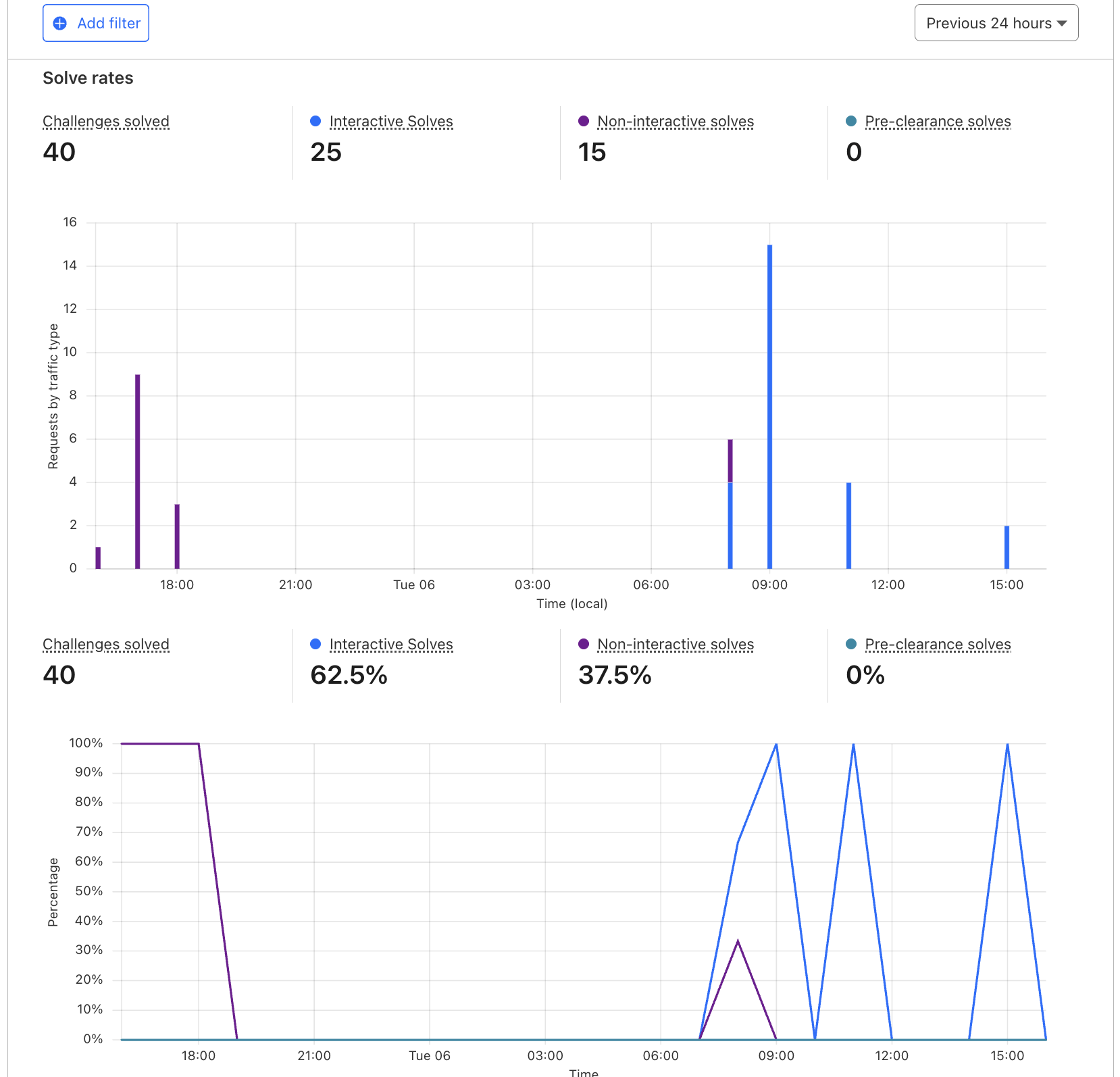
In the Cloudflare dashboard, you can access analytics from the past 7 days that provide insight into Turnstile activity. These include details such as the source browser information, the number of challenges solved versus unsolved, the volume of siteverify requests, and traffic classification, indicating whether the traffic is likely human or likely bot.
Note: Free accounts are limited to 1 million siteverify requests per month. If exceeded, Cloudflare may suggest upgrading to an Enterprise plan. There is no service disruption for end users when limits are reached.
Example visualizations include graphs like this:
Or this:
Piano Analytics
Cloudflare and siteverify usage can also be monitored in Piano Analytics via Cloudflare-related measurement data, as described in the Subscription Insights data model documentation.
Frequently Asked Questions
Q: Is it possible to automatically upload hostnames for organizations with a large number of domains, or provide guidance on which hostnames should be configured? Some organizations may assume they use many hostnames, while in practice only a few are actively required.
A: Hostname management should be handled by the organization’s DevOps or infrastructure team in accordance with their security and deployment practices. If needed, a list of white-labeled or deployment domains can be provided, but these should correspond to the hosts defined in the Identity Management configuration:
Q: If an organization has many applications, can it still use the free Cloudflare plan, or is an Enterprise plan required?
A: Eligibility for the free Cloudflare plan depends on the number of hostnames, not the number of applications. Hostnames are defined in the Identity Management configuration for each application, and multiple applications may share the same hostname.
The actual limit is 50 hostnames, as two widgets (managed mode and invisible mode) must be configured for each hostname.