
Global Mode Overview
Glossary
-
Host organization: a record in the database under which child applications are linked. A host organization is NOT an application, it is a digital container—just a record in the database. Also called a head entity or parent application.
-
Merchant ID: an ID of a publisher. Under one merch_id there can be many applications. Applications under one merch_id are visible and selectable in a drop-down menu in the dashboard.
-
Child applications: applications grouped under one host organization. Also called child entities.
-
Global mode (GM): allows users to access multiple applications under a merch_id with one set of login credentials. For example, a user registers in one application/website and then can log in to another application/website.
-
Cross-app access (CAA): allows targeting users in Composer by their access in other applications of a publisher.
-
JWT token: the access token that is passed to individual users so they can access the resource. This mechanism allows Piano’s servers to communicate with publishers’. It also enables the server to “remember” the user.
-
JWT shared secret: digital signature that verifies the JWT token. An organization-level JWT shared secret is required to tie user authentication across multiple apps.
Enabling Global Mode
Global Mode is enabled on the backend, but applications are associated on the frontend. Your Piano representative will work with you to determine your Global Mode configuration and implement it with the development team.
Important considerations about this feature:
-
Enabling Global mode is a one-way process. It is not possible to disable Global mode later on. If you decide afterward that some applications should not use Global Mode, the typical approach is to create new applications without Global Mode rather than try to remove a subset from an existing organization.
-
Custom fields can be unique for each application or you can use Global custom fields
-
To manage a user, you must know which application they registered in. You cannot search a user across all applications. A user appears in an application only after their first login on that application's website.
-
Deleting a user in one application does not delete the user in any other application linked through Global Mode.
Cross-Application Access
Cross-Application Access (CAA) allows applications under the same Merchant ID to share access context, so a logged-in user's entitlements can be evaluated across applications. A common use case: a user buys access on one site, and is recognized for that access on another site within the same merchant (subject to your Composer configuration and resource rules).
CAA also supports segmentation and resource sharing in Composer, which lets you control what a globally logged-in user can access across applications.
How Cross-Application Access relates to Global Mode
Cross-Application Access and Global Mode are related but separate features:
-
Global Mode unifies identity. It gives users a shared master identity and single sign-on across applications that use Identity Management.
-
Cross-Application Access evaluates entitlements. It lets Piano recognize a user's access across applications that share the same Merchant ID.
More about segmenting users by cross-application access can be found here.
Prerequisites
Required:
-
All applications need to have the same merchant ID
-
The user’s UID must be consistent across all apps, which is why enabling Global Mode is a logical prerequisite when using Identity Management.
Exception:
-
Identity Linking does not require Global Mode (client manages their own user database), but the client must ensure that the same UID is used across all apps.
Cross-Application Access depends on a logged-in user. If a visitor is not logged in, Piano cannot evaluate their entitlements across applications, and the paywall may display based on how it is configured for anonymous users.
Enabling Cross-Application Access is a one-way change and cannot be disabled later.
Single Sign On (SSO)
Global Mode SSO lets your end users (readers, subscribers, and customers) log in across all of your sites grouped under a Global Mode organization using the same credentials, without creating a separate account on each site.
Need SSO for your own staff instead? Global Mode SSO is for your end users (readers and subscribers). If your employees need to sign in to the Piano platform with your corporate credentials, see Enterprise SSO.
Piano's Single Sign-On (SSO) solution allows users to authenticate once and remain signed in across other child sites within the same Global Mode organization. After a user signs in on one site, they can navigate to other participating sites without having to enter their credentials again.
This experience is known as automatic authentication. When enabled, users who arrive on another site in the same Global Mode organization are automatically signed in using their existing session. Because browser privacy policies vary, automatic authentication is not supported in all browsers and environments. Piano provides configurable defaults designed to deliver the best possible user experience while maintaining compatibility across platforms.
SSO works within a browser session. As long as a user remains in the same browser and session, they can move between participating sites without signing in again. If the user switches browsers, uses a different device, or opens a private/incognito window, a new session is created and authentication must occur again. Users can have multiple active sessions simultaneously, so returning to a previously authenticated browser session will not require another login.
Implementation
SSO is enabled at the application level by Piano Support. Applications within the same Global Mode organization can have different SSO settings, so enabling SSO for one application does not automatically enable it for all applications in the organization.
Important: Enabling SSO immediately replaces the active login and registration forms with the GM SSO templates. If these templates have not been customized beforehand, users will see the default, unstyled templates in production as soon as SSO is enabled. Customize and review the templates as decribed below before requesting SSO activation from your Piano Support administrator.
Because enabling SSO replaces the active login and registration forms with these templates right away, prepare them first:
-
In the Piano Dashboard, navigate to Manage → Templates → Identity Management
-
Locate the SSO templates: Piano ID SSO confirm before, Piano ID SSO confirm page and Piano ID layout GM SSO. They are available for every Global Mode application, even before SSO is enabled.
-
Customize the templates to match your branding and design requirements.
-
Preview the templates to confirm their appearance and behavior.
-
Once the templates are ready, ask your Piano Support admin to enable SSO for the application.
After SSO is enabled, the login and registration forms will inform users that signing in will also authenticate them across other applications in the site group. This messaging helps reduce confusion when users encounter automatic authentication on related sites.
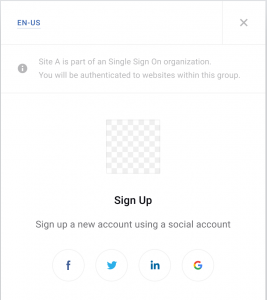
If you wish to alter or remove this callout, it can be edited in the Identity Management Layout GM SSO template in the Template Manager.
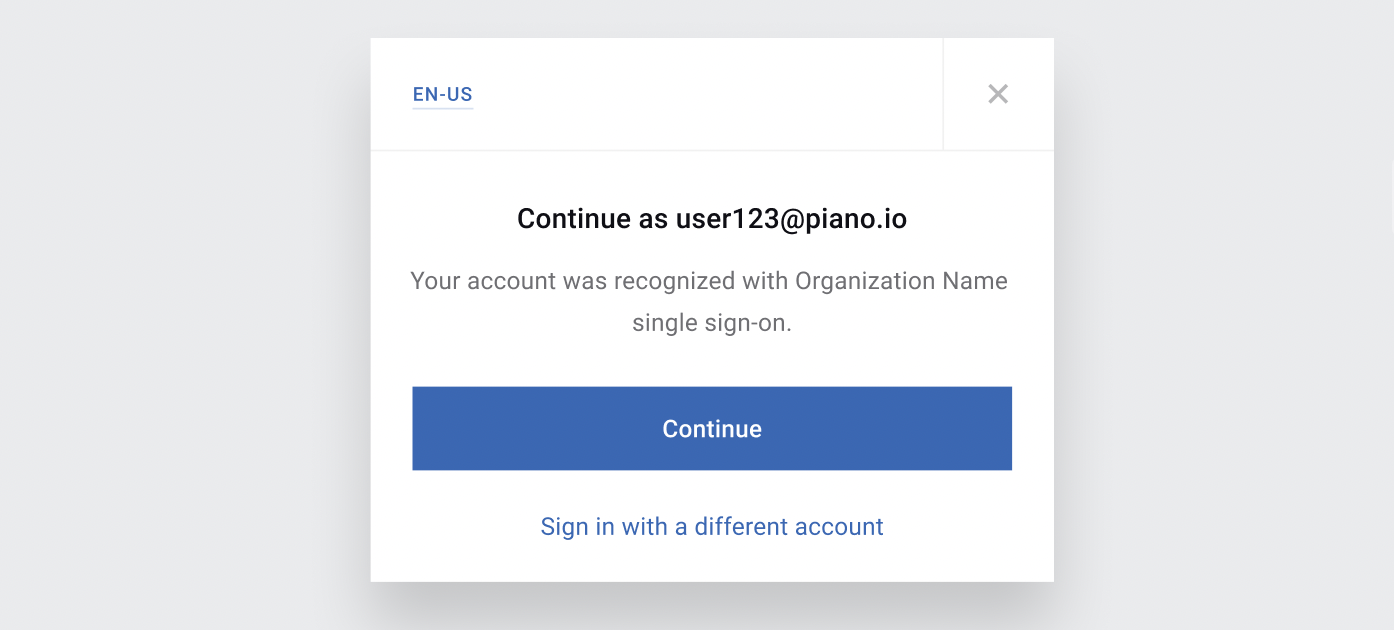
You can optionally configure a sign-in confirmation dialog to appear either before or after authentication.
When configured to appear before sign-in, the dialog informs users that they can sign in through SSO and allows them to confirm that they want to continue.
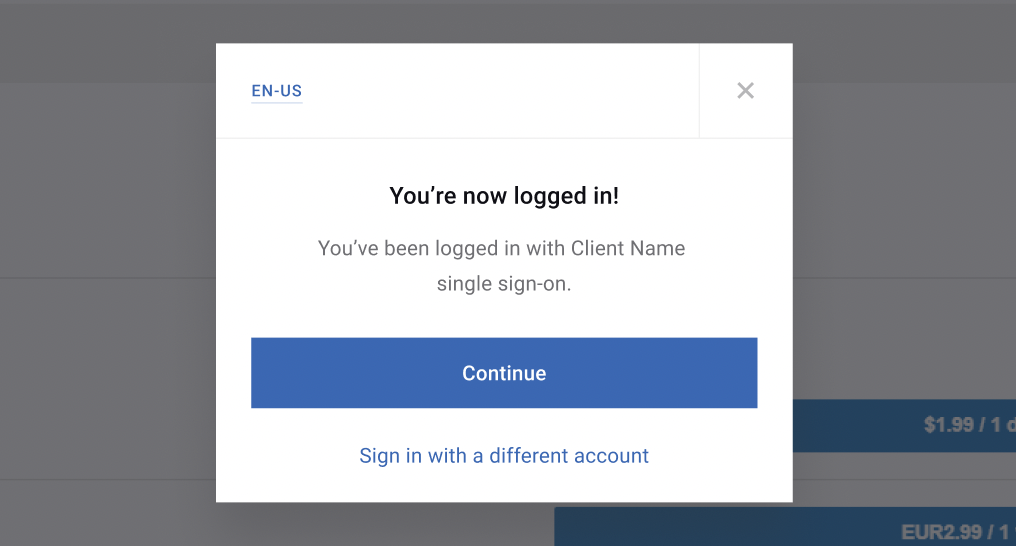
When configured to appear after sign-in, the dialog confirms that authentication was successful. This can be particularly useful when automatic authentication is enabled, as it helps users understand why they were signed in automatically when visiting another site in the organization.
Automatic authentication does not work in the browser Safari or the operating system iOS. This is due to browser-wide restrictions on setting cookies in iframes. Users are still able to sign in as usual by entering their credentials, or by using SSO via redirect, which is explained below.
Display Mode Configuration
By default, Global Mode uses redirect mode for Safari and Chrome to ensure SSO works reliably regardless of third-party cookie restrictions. Other browsers fall back to modal mode. Letting Piano manage this automatically ensures the best experience for end users across all browsers and environments.
If you need to override the display mode for a specific use case, you can still pass the displayMode parameter — but note that doing so will override the Global Mode defaults:
var config = {
  displayMode: 'redirect', // or 'popup' or 'modal'
  confirmation: 'before' // or 'after' or 'none' by default used 'after'
}

//call examples
tp.pianoId.init(config);
tp.pianoId.show(config);
tp.user.showLogin(config);
The confirmation parameter controls when the SSO sign-in prompt appears:
-
before— shown before the user authenticates (works only withredirectandpopupmodes) -
after— shown after the user authenticates
Any config passed to tp.pianoId.init() applies as the default. Config passed to tp.pianoId.show() overrides the default only at that specific call site.
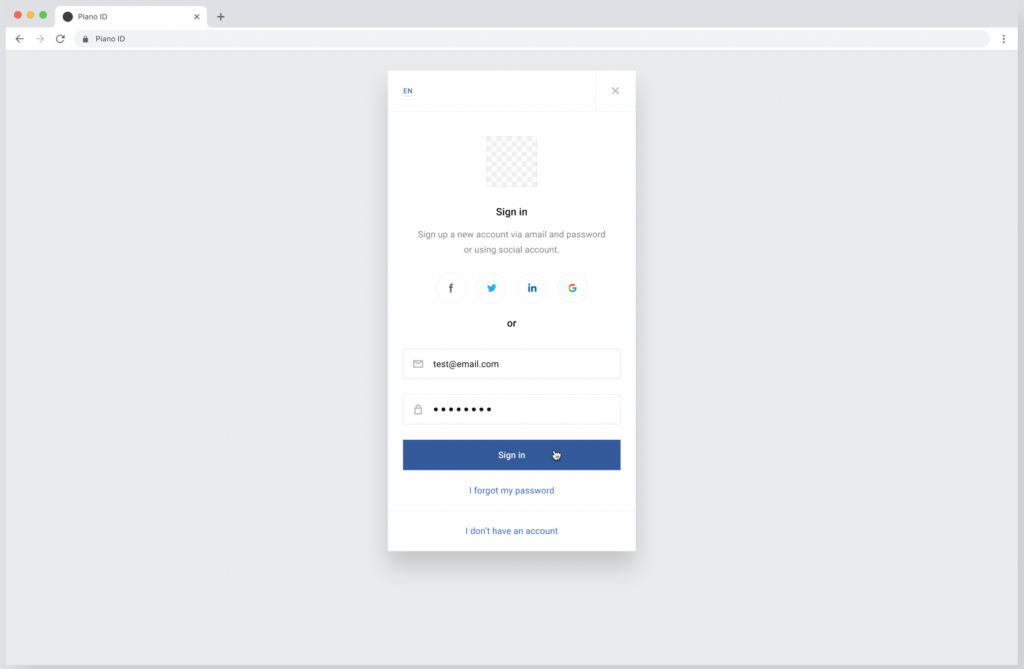
The user will be redirected to a proprietary Piano domain and will register, sign in, or be authenticated through SSO. This domain cannot be changed by the client, but the appearance can be altered like any Piano template.
End User Experience
When a user registers, we create an account for them only in the application of the website they've registered on. The user will appear in any other application linked via Global mode only after a successful login into this application's website. They will be able to log into different applications with their existing user credentials without registering for new user accounts. If they attempt to register with the same email address in a different Global Mode application, they will receive a prompt that they have an existing account.
There are two primary modes for this prompt, based on the configuration that's explained in the section here, and thus the SSO behaviour for end users may look as follows:
-
Without Redirect: In this mode, the Identity Management login modal or overlay appears within the client site's page without redirecting the user to a new tab. This mode ensures that the user remains on the client site throughout the authentication process, but this type of configuration may be blocked by browsers that no longer support 3rd party cookies.
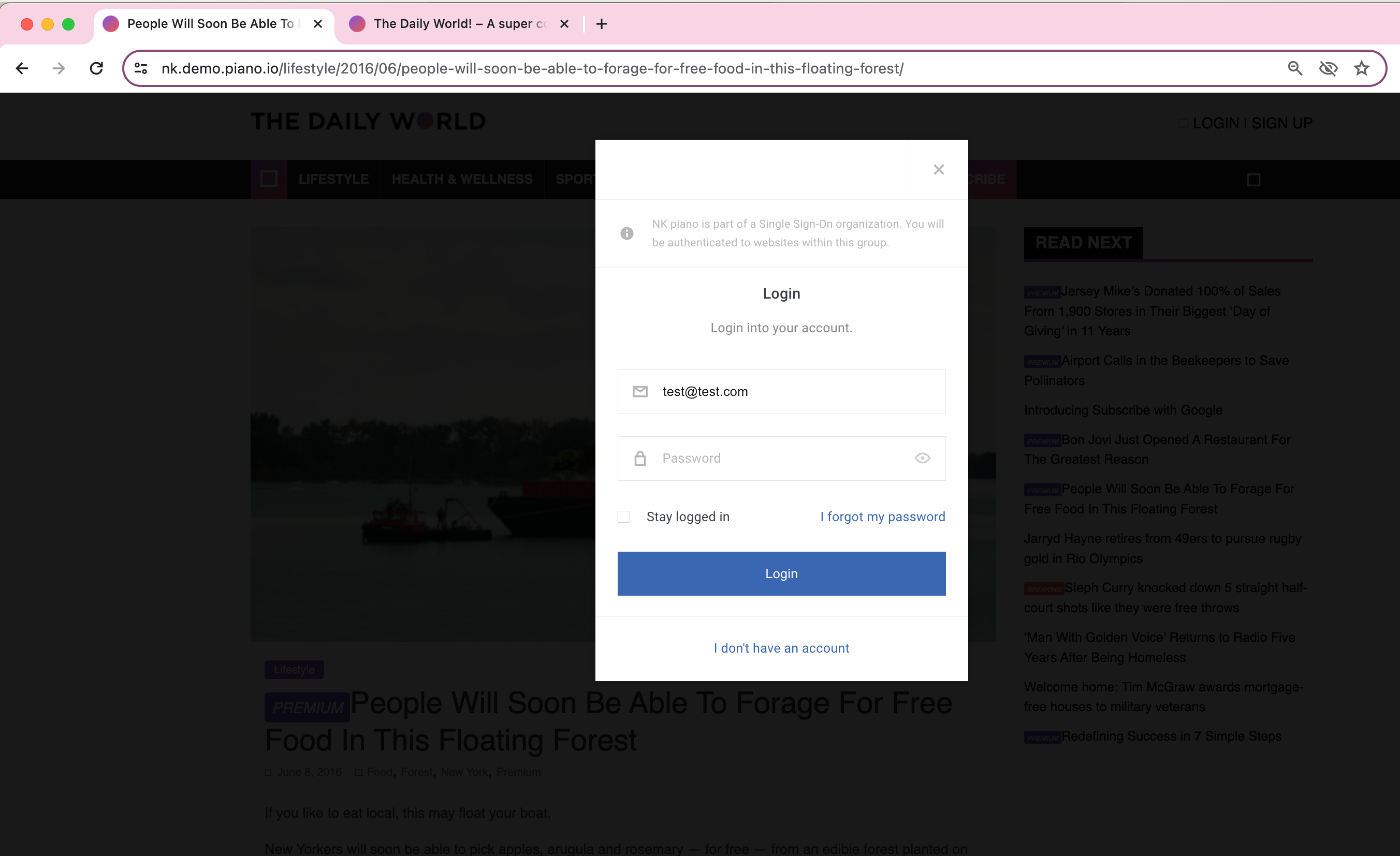
-
Redirect Flow: In the Redirect Flow mode, the Identity Management modal covers the entire page and is opened in a separate browser tab. Additionally, if the client's domain is not whitelabeled, the Identity Management domain becomes visible in the URL during the authentication process, as shown below.
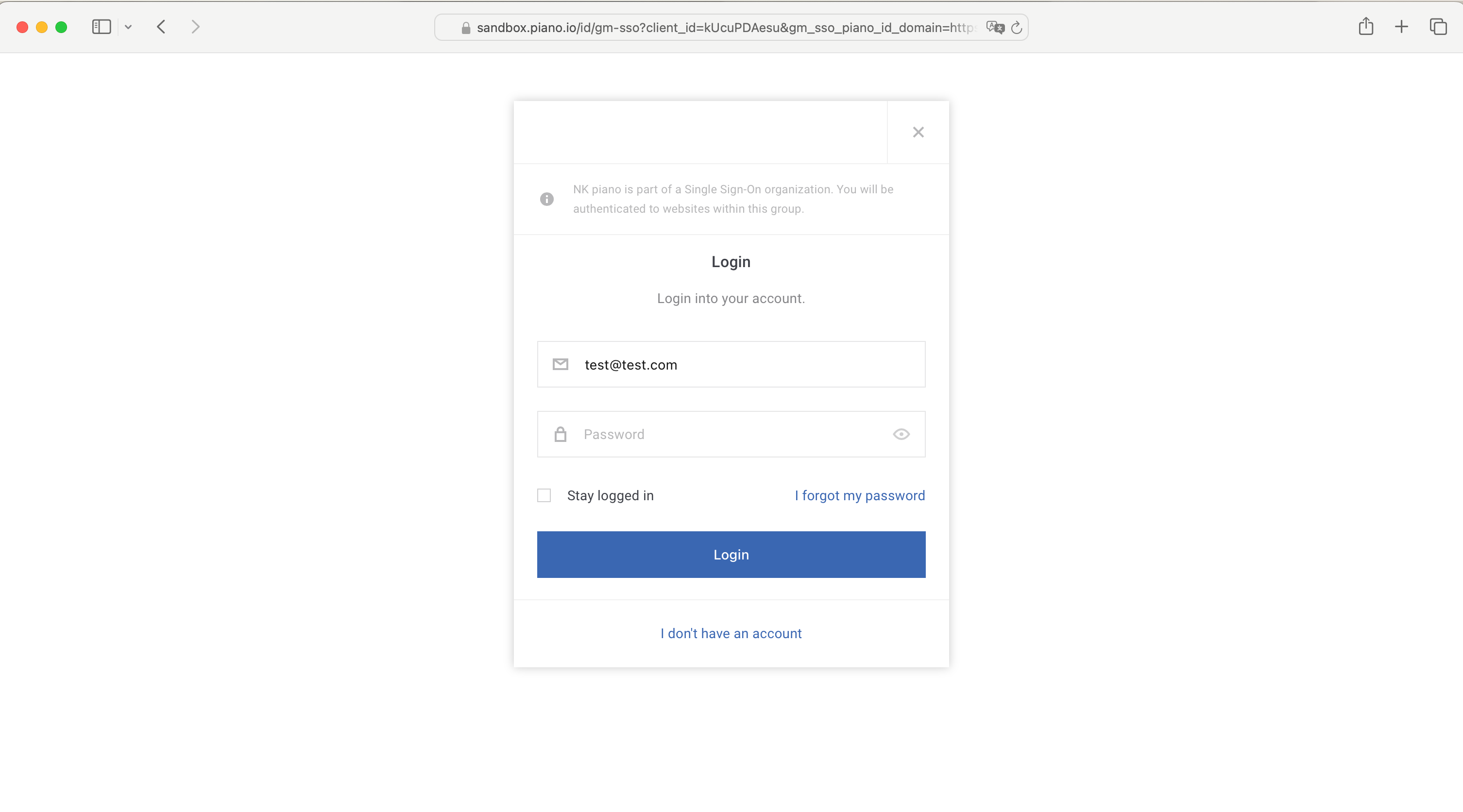
Whitelabeled Identity Management Domain
If your organization has whitelabeled the Identity Management authentication domain (e.g., auth.yourdomain.com instead of id.piano.io), you need to ensure the following settings are correctly configured for Global Mode to work seamlessly.
1. Update the Deployment Host
Navigate to Edit Business → User Provider → Identity Management → Other Login Methods and update the Deployment Host to your whitelabeled subdomain (e.g., auth.yourdomain.com). This ensures Identity Management authentication requests are routed to your custom domain.
2. Update the Identity Management URL in your Integration Script
In your Piano initialization script (found under Products → Composer → Integrate → Edit Source, or on your site directly), add or update the following line:
tp.push(['setPianoIdUrl', 'https://auth.yourdomain.com/']);
The
https://prefix is required.
3. Update Authorized JavaScript Origins
To ensure secure cross-origin authentication requests, add your whitelabeled subdomain to the authorized origins list:
-
Go to Edit Business → User Provider → Identity Management → Authorized tab
-
Under Authorized JavaScript Origins, add
https://auth.yourdomain.com
This prevents Identity Management from blocking authentication requests originating from your whitelabeled domain. If the "Authorize the list" toggle is enabled and your domain is not listed, all Identity Management JS requests from your site will return an "Origin not allowed" error.
For full details on setting up whitelabeled domains, including DNS configuration and social login redirect URIs, refer to the Domain Whitelabeling for Identity Management guide.
How Global Mode Works
Global Mode works by associating applications in Piano’s backend framework. These child applications are added to a parent application, or host organization. The host organization has one unified JWT shared secret that enables end-users to log into all applications within an organization with one set of credentials.
Associating Child Applications
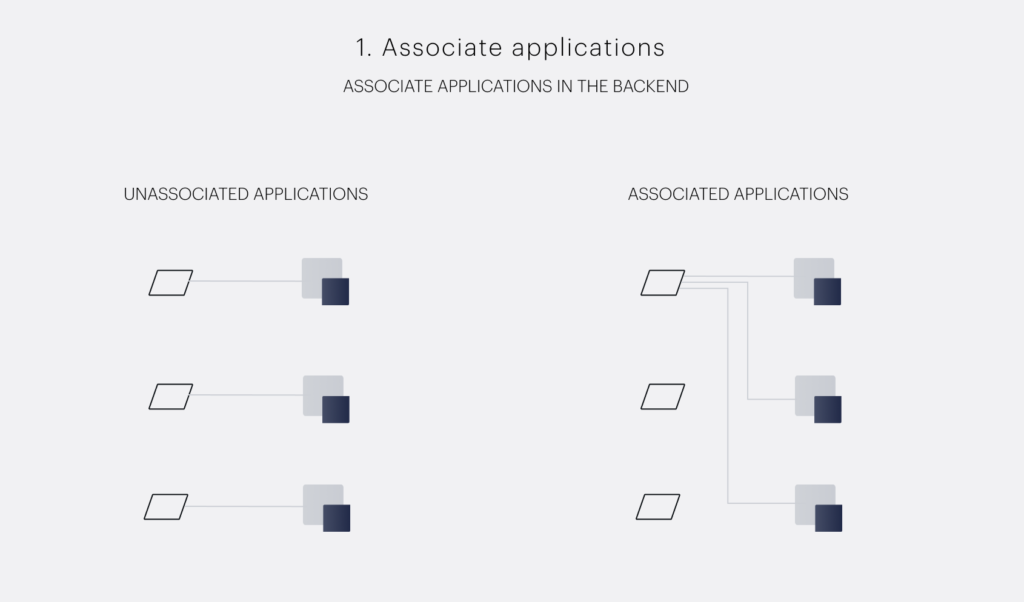
Global Mode depends on applications (also known as “child applications” or “child entities”) being associated within the database. These applications are automatically assigned a unique Application ID (AID). Their AID never changes, but they are also associated under a new identifier that associates them through one string.
Creating a Host Organization
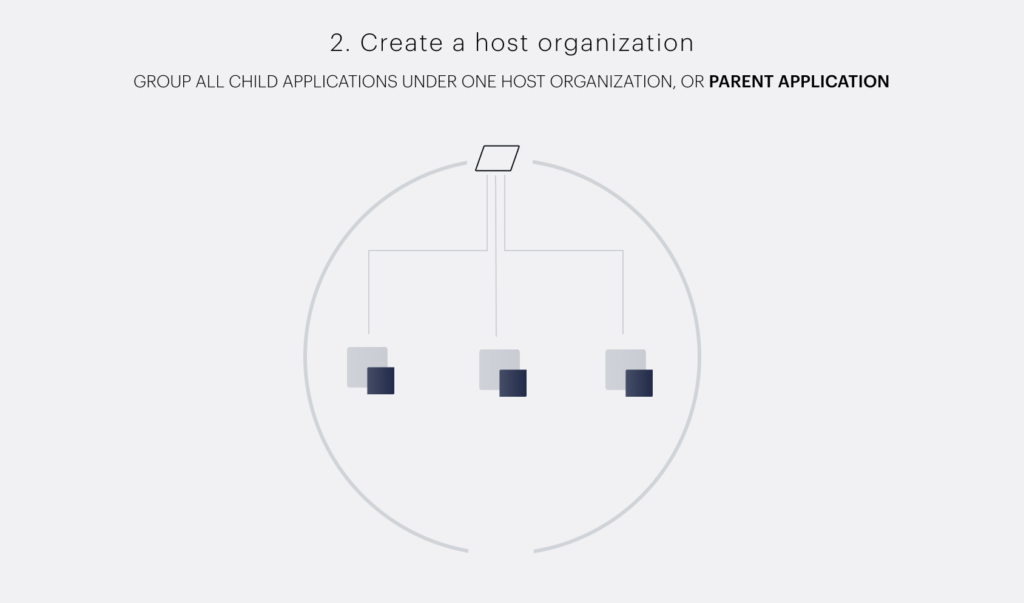
After all child applications are associated in the backend, they must be put into a host organization with one shared authentication system. This host organization, also called a parent application, is a digital container. None of the associated applications can become the parent application.
Assigning a JWT Shared Secret
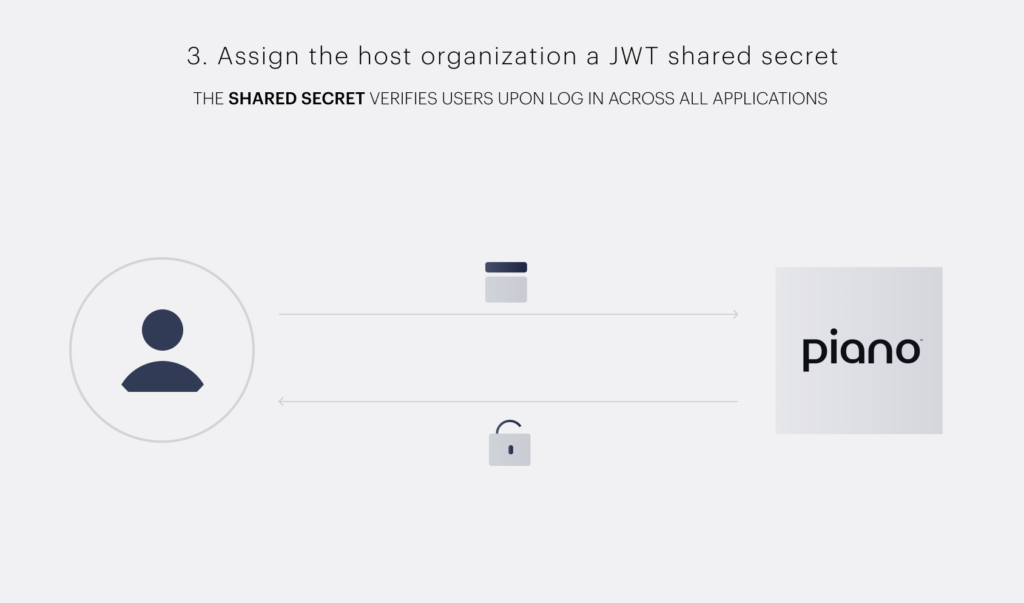
Now the child applications are associated and stored under one organization. This organization needs to authenticate and authorize end-users as one application. JWT tokens communicate between identity providers (like Piano) and service providers (publishers such as yourself, or third-party integrations like NewsCycle) to verify end-users’ credentials. When the user logs in to Identity Management, they are given an access token called a JWT token. To validate these tokens, the organization must have one shared secret. If an application doesn’t have the same shared secret as the other host organizations, it will not communicate with other servers.
FAQ
Do users within Global Mode have the same UID?
Yes, every user has one unique UID within the database.
Should the option to override the JWT shared secret in Identity Management be turned on to enable Global Mode?
This toggle should be turned off so all child applications can have the same organization shared secret.
Why can’t I set an existing application as a parent application?
A parent application isn’t an application on the frontend, like a website with content that users can access. A parent application is an organizational entry in the database that stores the child applications.
Can I mine users across all of my sites in Global Mode?
Global Mode unites users under all of a publisher's applications. But in user mining, results from just one application are displayed. The user will appear in an application's search results after their first login.
Does Double Opt-In work in Global Mode?
Double Opt-In works properly with Global Mode and affects only the application where you turn it on, so there should be no problems if it's not enabled for all applications linked together.
What happens if a user email is updated on one site in Global Mode?
If you change a user's email, for example via the Piano dashboard, the email address is also changed in all other linked Global Mode applications.
Can I use Global Templates and Experiences without Global Mode?
Yes, the features Global Mode and Global Templates or Experiences are not connected, so it's possible to utilize them without Global Mode being set up.
Can Global Mode be used with Identity Linking?
Although Global Mode may technically function with Identity Linking in a limited capacity (for example, Global SSO or Global Aliases are not supported), it has not been officially validated and is therefore not supported.
Does my user's subscription follow them across applications in Global Mode?
No. Global Mode unifies identity (email, UID, first and last name), but subscriptions and access grants are stored per application. To recognize a user's access across applications, use Cross-Application Access.