
Two-factor authentication (2FA) adds an extra layer of security to the login process for end users. It protects user accounts from unauthorized access and prevents attacks. This feature requires users to enter a digital code, sent via email, in addition to their email address and password. This documentation provides detailed information on how to set up and configure 2FA for end user login on your application.
Functionality
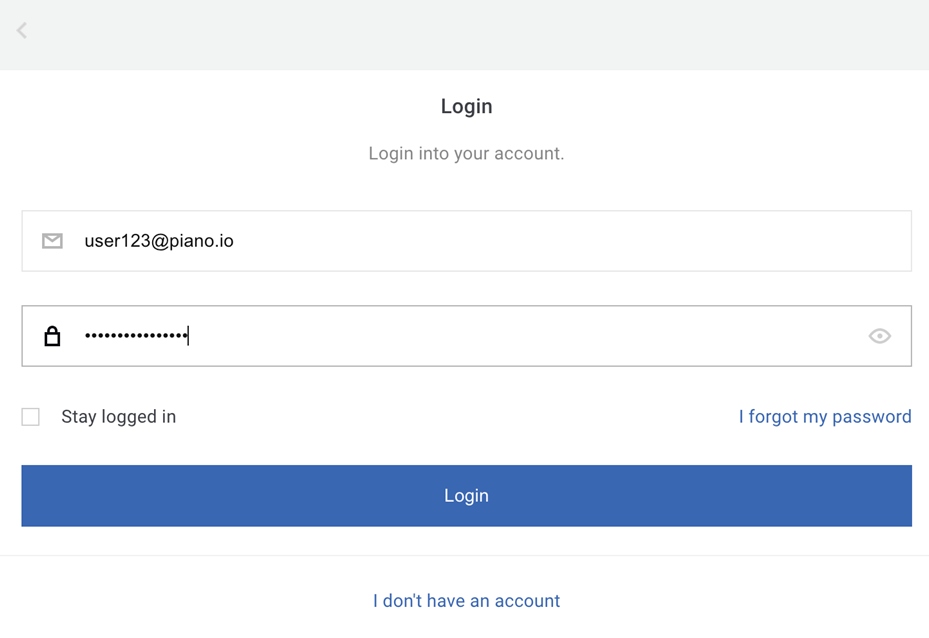
The 2FA login process involves the following steps:
-
End user enters their email address and password.
-
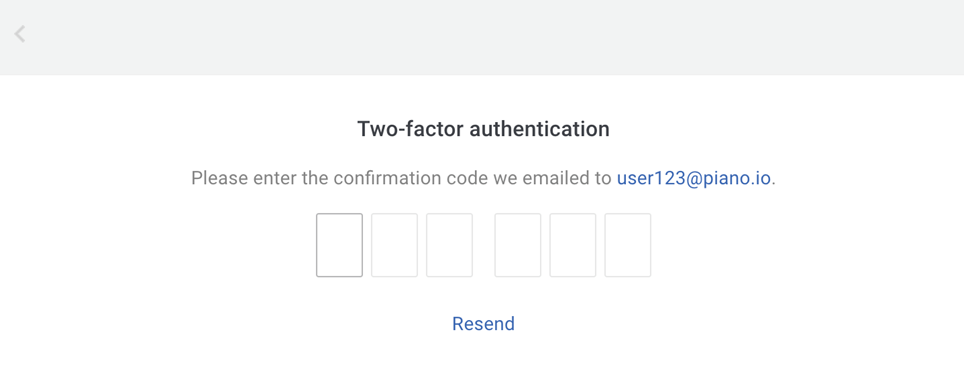
A unique digital code is sent to the user's email address.
-
End user enters the code to complete the login process.
Please note that 2FA is not supported for login via Single Sign-On (SSO) and social accounts.
Configuration
Activate Feature
To activate the 2FA feature, follow these steps:
-
Access the Identity Management settings in your account under Edit Business → User Provider → Identity Management.
-
Enable the "Two-factor authentication" toggle.
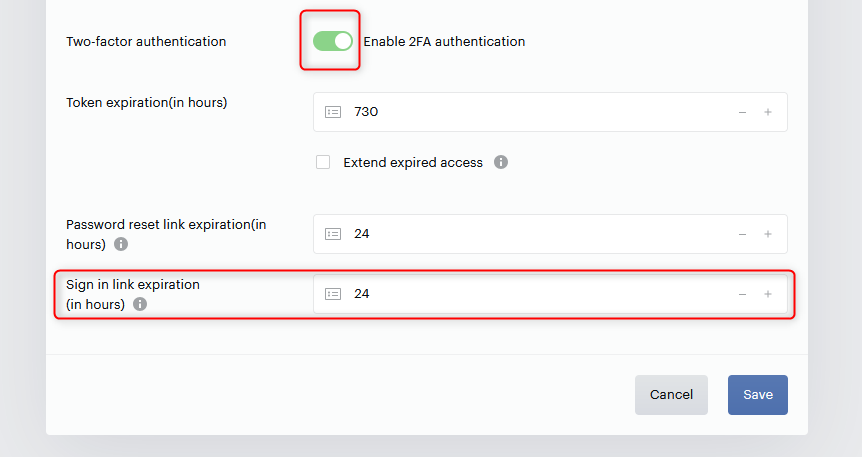
You can set the expiration time for the digital code in the "Sign-in link expiration" section of the Identity Management settings. This allows you to determine how long the code remains valid.
Two-factor authentication will be enabled for all end users, and it cannot be disabled by end users themselves, only by a Team Member of your application with admin permissions.
Identity Management Template
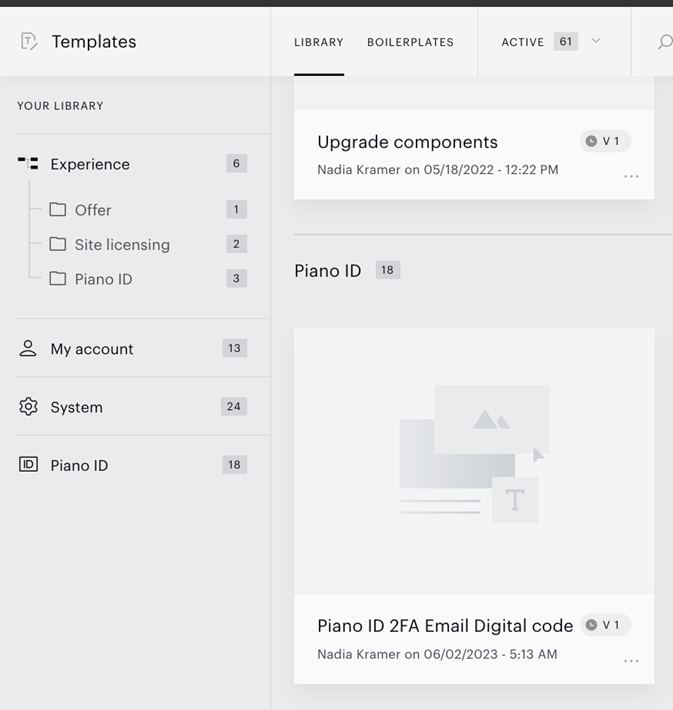
The template "Identity Management 2FA Email Digital code" can be found and edited under Manage → Templates. By customizing the template, you can ensure that the login process is user-friendly and provides clear instructions for entering the digital code.
Email Template
The email template "2FA Digital Code" can be found and edited under Manage → Email Manager within the Automatic emails section. Activating this template is essential for sending the 2FA code to end users.
