
Important Notice: Facebook Experiences have been deprecated.
Facebook setup
The integration between Piano and Facebook IA requires several parameters to be set within Facebook to allow your experiences to run seamlessly. Setup must be conducted on individual articles as well as for your account as a whole.
Article setup
Before you can create a new experience in Composer that can run on Facebook IAs, you will need to configure articles within Facebook with the following parameters:
-
Content tiering: Content tiering can be one of three values –
metered,locked, orfree– that signify to Facebook what level of access is required to view an article. You can set the content tier on an article-by-article basis, or you can also configure a default setting that will apply if no content tier can be found on an article. -
Subscription tracker: Subscription trackers are optional for the Piano integration, but can be useful if you would like to have additional insight on pageviews and paywalls as your users hit them.
Please refer to Facebook's documentation for further information on how to configure IAs.
Account setup
Following the initial setup, you will need to take the following steps to allow Piano intervention within your Facebook environment.
-
Include Login and Paywall URLs for your resources so Piano can initiate the paywall and checkout.
-
Configure offer management for internal Paywall on Android devices.
Including Login and Paywall URLs
Navigate to Publishing tools within your Facebook page:


Locate the inputs for Login URL and Paywall URL:
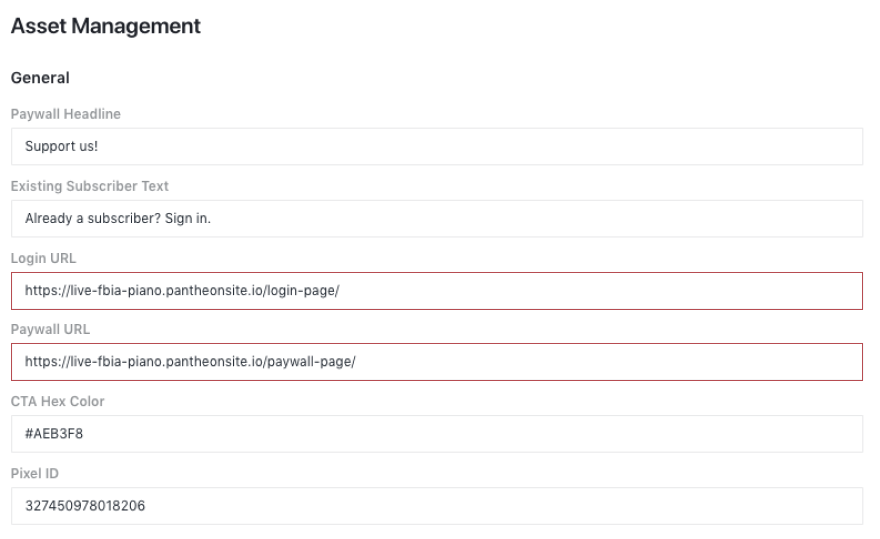
Login URL: This is the URL that will show up to users that already have an account and who want to login to the publisher’s account. Please note, that Facebook does not support a flow for showing articles to registered users, only a flow for subscribed (metered/locked) and non-subscribed (free) users. This link should have the Composer integration script embedded. For example, it can be your homepage or a dedicated URL for Facebook.
Paywall URL: This Paywall or Subscription URL is where the native paywall will redirect readers to on your website when they decide to purchase a particular subscription offer. This URL must be a secure HTTPS URL and needs to have the Composer integration script embedded.
More information about this configuration section is available here.
Offer management
Each subscription product you provide to readers should map to a Facebook offer. You can create, edit, and manage offers within Offer Management, located in the Subscriptions menu. This section is required for presenting a paywall on Android devices.

To create an offer, click the “Add offer” button in the resulting screen, which will present a modal asking you to populate the following fields:
-
Title*: The header text for your offer
-
Subscribe Offer URL*: The target URL where the native paywall will redirect to when users decide to purchase a particular offer. This should be the same URL you entered for your Login/Paywall URL. Note: This must be an
httpsURL. -
Teaser (Price): The initial price for the offer. Roughly equivalent to a trial price.
-
Renew Price: The renewal price for the offer.
-
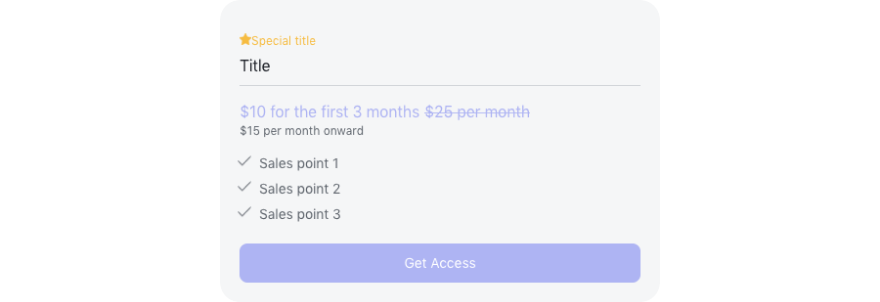
Special Title: A starred title that is displayed above the Title.
-
Sales Points: Provide up to five points about what the offer includes.
* indicates a required field
Once all fields are configured, your Facebook offer will look similar to the below:
Piano setup
Inputting Facebook credentials
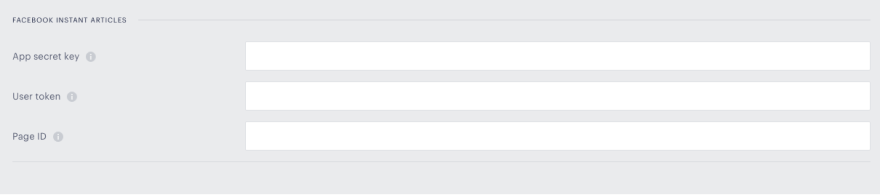
To enable the integration in Piano, you must input your Facebook credentials within Edit business. Locate the section labeled Facebook instant articles and input your App secret key, User token, and Page ID.
-
App secret key: Your Facebook secret key. More information about how to retrieve this value is available here.
-
User token: An alphanumeric ID of the long-lived user access token that allows Piano to continuously synchronize with Facebook IA subscriptions. Requesting the token requires the permission
pages_manage_metadatafor Graph API v10.0. More information about this token is available here. -
Page ID: This is the Facebook page ID that allows Piano to continuously synchronize with Facebook IA subscriptions. More information about how to retrieve this value is available here.
In case of any further questions about these values, please reach out to your Facebook representative.
Integration script
To ensure that Piano is tracking IA experience events from Facebook, you will need to add a line to your Composer integration script. To access this script, go to the Composer landing page and click Integrate, then click Edit source and add the following:
tp.push(["setFbPixelId", "YOUR_PIXEL_ID"]);
To find your Pixel ID, navigate to the Asset Management screen within Facebook and find the appropriate field. Simply copy that value and replace the YOUR_PIXEL_ID in the above code snippet.
Creating an IA experience
To create a new Facebook IA experience, click on Compose within the Composer landing page and select Facebook experience from the modal.
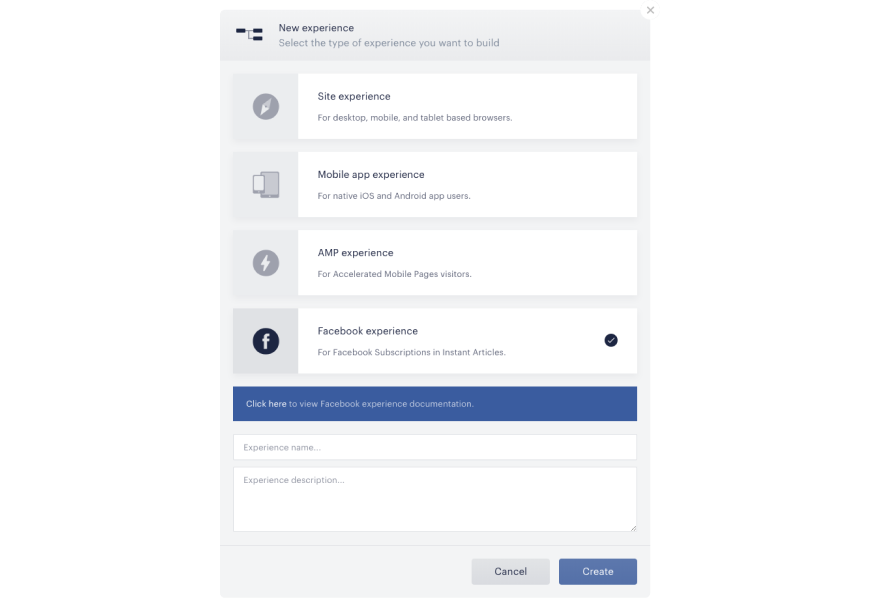
Provide your experience with a name and description and click Create.
Facebook IA Composer canvas
The Composer canvas has been pared down to include only functionalities that are permitted by Facebook. The cards supported for Facebook IA experience are defined below:
Effective Pages
The Effective pages card exactly resembles the Effective pages card in our general site experiences.
Branches
There are two branches cards available in Facebook IA: Initial Segment and A/B Test
Initial Segment
You can segment your users based on any of the following properties:
-
Composer 1x segmentation engine: You are able to target users based on the available Composer 1x segments.
-
Login status: Choose between targeting logged in users and unregistered or logged out users
-
Has no access to/Has access to: Target users based on their access to your VX resources
-
Promotion redeemed: If you're a VX customer, you are able to run sophisticated promotions by generating unique promo codes (which can be included in digital offers, sent in email blasts, or printed out on marketing materials). These promo codes typically provide limited-time discounts on terms or unlock specific terms for free. By using this field in Composer, you can easily retarget visitors who responded to your marketing efforts
-
Campaign viewed: Campaign codes are unique identifiers you can amend to any link in order to track users who clicked links to visit pages associated with marketing campaigns. As with promotions, you can use this field to retarget those users.
-
On first visit: Target users who are visiting your site for the first time
-
Devices: Target users based on the device they are on (mobile or tablet)
-
Type: Target users based on the OS they are using
-
Browser: Target users based on their browser.
-
Geographic location: Input a geographic location(s) to target users from that area.
-
Referred from: Choose between various referral sources or add your own to target users coming from those sites
-
Host IP/domain: Target users who fall within a specific IP range.
-
Custom variables: Target users who have custom variables associated with their account.
Please note, that for FBIA Experiences in Composer, referrals from Google, Twitter or any other social media won't work as the Experiences will only be running on FB instant articles directly.
A/B test
The A/B test card has the same functionality as its equivalent in general site experiences.
Actions
There are three action cards available for I.A experience: Show offer, Show template, and Show login
-
Show offer: This card has the same functionality as its equivalent in general site experiences.
-
Show template: This card has the same functionality as its equivalent in general site experiences.
-
Show login: This card has the same functionality as its equivalent in native app mobile experiences.
Facebook IA Resource
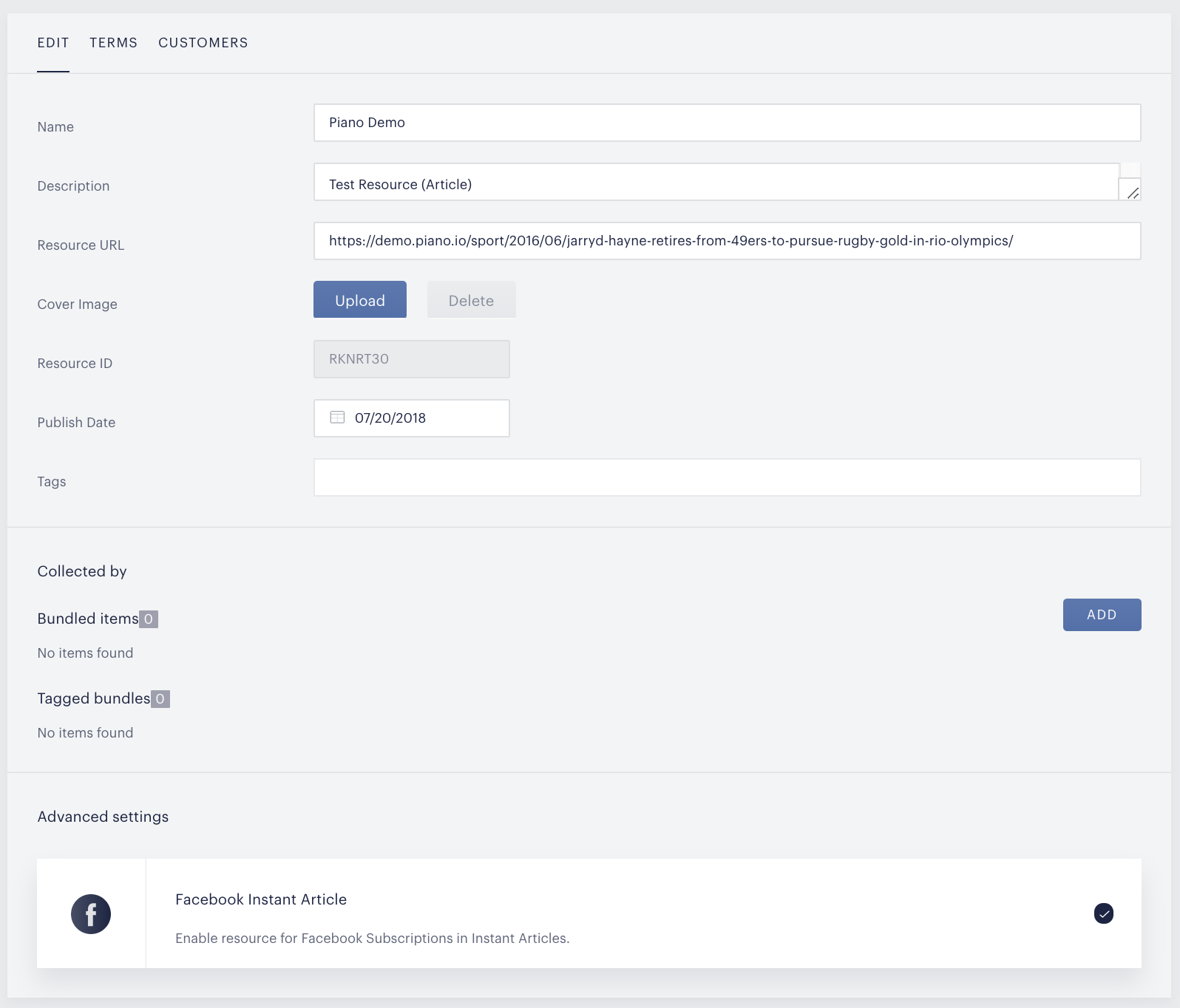
Before setting the experience live, you must enable the resource used in the segmentation card for Facebook IA. Piano uses the resource ID to verify access for existing users and any users that have been granted access to view contents in the Facebook app.
To enable the resource, click on Manage and select Resources. You will be directed to the Resource page and select the resource(s) used in the segmentation card to edit. You can now enable the resource for IA by going to the Advanced settings section, select the option, and click Save.
User experience
Once the above configuration steps are completed, the user flow in a Facebook app would be as follows:
-
The user opens an article in the FB app
-
A paywall is shown, the user clicks on the "Get started" button or login link
-
Piano's checkout template is opened in the app
-
The user authorizes their access via login or completes the checkout
-
We automatically redirect the user back to the article, where they are asked for confirmation to link their digital subscription with the FB one. If the user allows doing that we link the Piano account and the FB one with the subscription. Otherwise, the step is skipped and the user will be asked for linking again at some later point.
There might be some differences in behavior between iOS and Android devices, but they are not really crucial. For example, on iOS there is no step #2 - the user is automatically redirected to our checkout page if they don't have any active access.
Frequently Asked Questions
Q: How can I test if the paywall is set up correctly?
-
A: Verify that all the use cases or flows from Facebook to Piano and back are working correctly.
Q: What are the different flows we should test?
-
A: Below are the most common flows that we recommend testing:
New Subscription - Verify that the paywall is showing up for locked articles or after metered maximum gets hit, confirm it redirects you to Piano and that you are able to buy a new subscription and come back to Facebook to link your new account with FB.
Login - Make sure that after you see the IA Paywall, you can log in with an existing account to Piano and that it redirects you back to Facebook to link your accounts.
Cancel Subscription - Cancel a subscription in Piano and come back to Facebook to confirm that the paywall is showing up.
Renew Subscription - Confirm that after a subscription is renewed in Piano, the same is reflected in Facebook and you are not seeing a paywall anymore.
Q: The paywall is showing up in Android but not in IoS. What could be wrong?
-
A: The paywall is shown inside IA only for Android, due to some privacy restrictions, this is not available for iOS. Nonetheless, users should see a paywall for iOS after being redirected from Facebook to the configured Piano paywall.
Q: The paywall is in DEV mode in Facebook and I cannot see any of my articles as Instant Articles, they all open as web. Why is that?
-
A: While the paywall is in DEV mode, all articles are shown as web instead of FIA (Facebook Instant Articles) to avoid showing the paywall to users when it shouldn’t be visible. Only admins of the FB Page will be able to see the articles as FIA.