
You need to have Global Mode enabled on all your applications to utilize this feature.
Global custom fields enable the sharing of the same custom field value across multiple hosts within the same global mode. When an application is part of a global mode, custom fields can be made global, making them available in other applications within the same global mode.
Global custom fields can be used in forms and will appear in "My Account" in all applications where the field is made global. It is important to note that only publisher users with Global Admin permissions can make custom fields global and edit global custom fields.
The value of a global custom field is accessible on all child applications within the same global mode. Publishers can set custom field definitions to be global across the global mode.
Manage Global Custom Fields
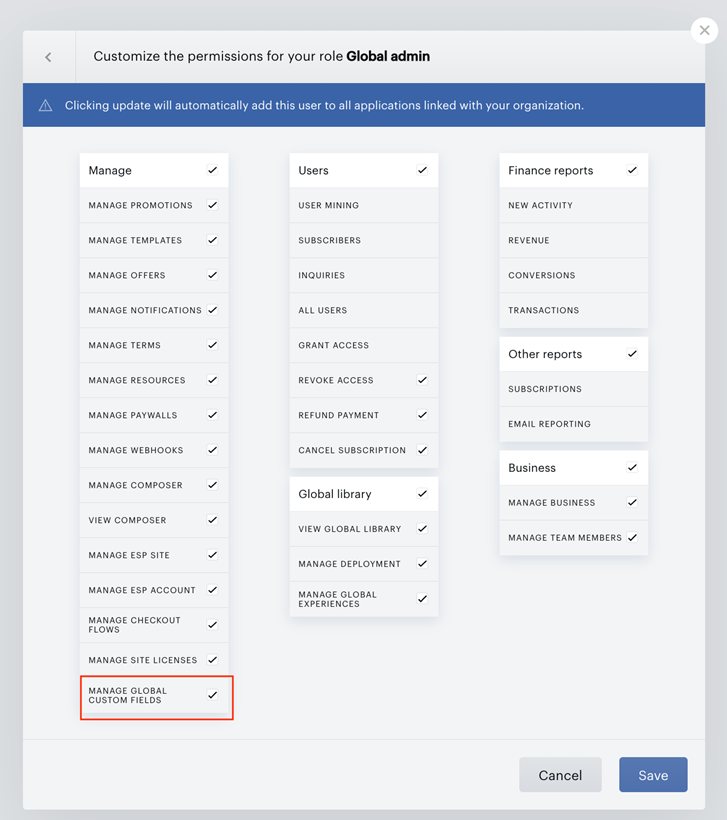
Global Permission
To make existing custom fields global and to edit global custom fields, users need to have Global Admin permission in Team Manager.
Create Global Custom Fields
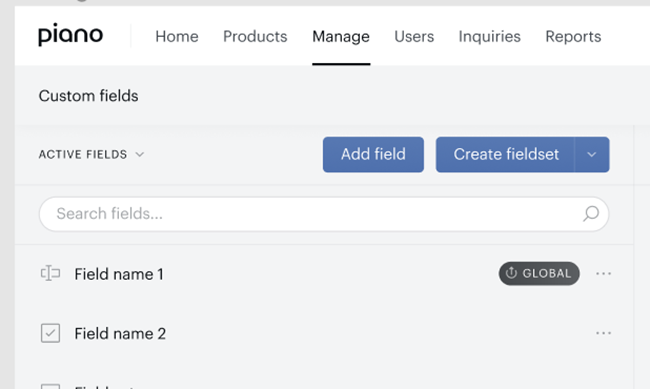
The configuration screen for global custom fields can be found under Manage → Custom Fields.
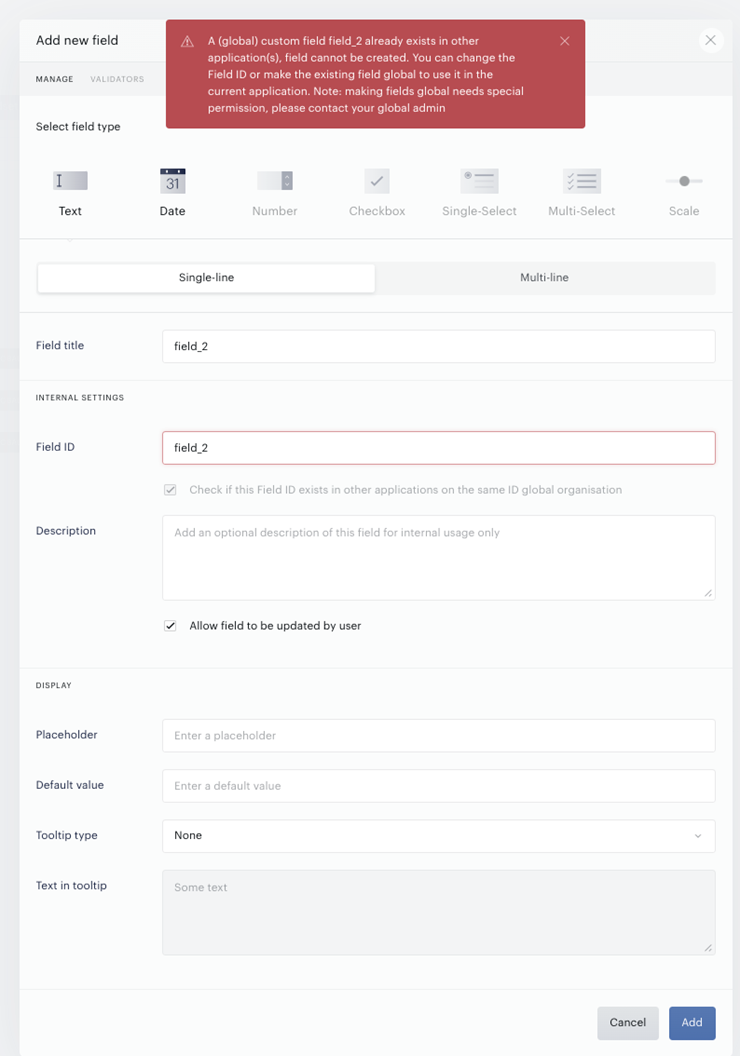
To create a custom field, click the "Add Field" button on the left side of the screen. Note that when an application is part of a global mode, the field ID will be checked for uniqueness on a global level. If the field name already exists in another application, the field name must be changed, or the existing field can be made global to use it in all applications of the same global mode.
Deselecting this checkbox will prevent the field from becoming global. This action cannot be undone. Therefore, we do not recommend disabling the global check if global custom fields are to be used.
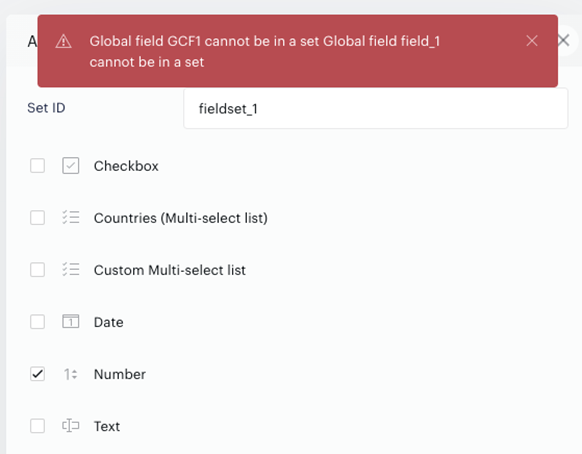
Please note that global custom fields cannot be used in fieldsets.
Edit (Global) Custom Fields
Existing fields can be edited by clicking the three dots next to the field. While the field type and field ID cannot be changed once created, the field title, description, and validators can be edited at any time. Existing fields can also be made global if the application is used in a global mode. Please remember that editing a global custom field will affect all other applications where the field is used.
Make Existing Custom Field Global
Existing custom fields can be made global.
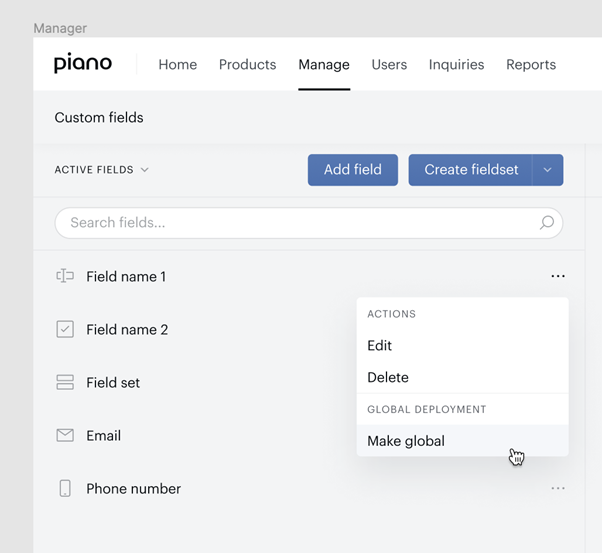
By clicking "Make global", users will be informed about the impact of making the field global and guided to the next step, where they can select the applications in which the field should be visible and usable as a global custom field.
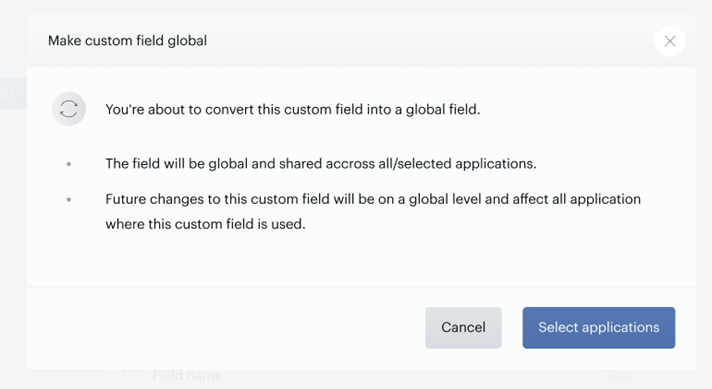
After selecting at least one other application, the field will be in global mode.
Edit Applications for Global Custom Fields
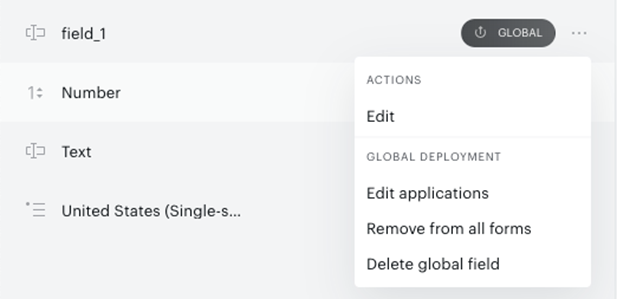
Users can add or remove other applications from the same global mode from the global custom field by going to the edit menu and selecting "Edit Applications".
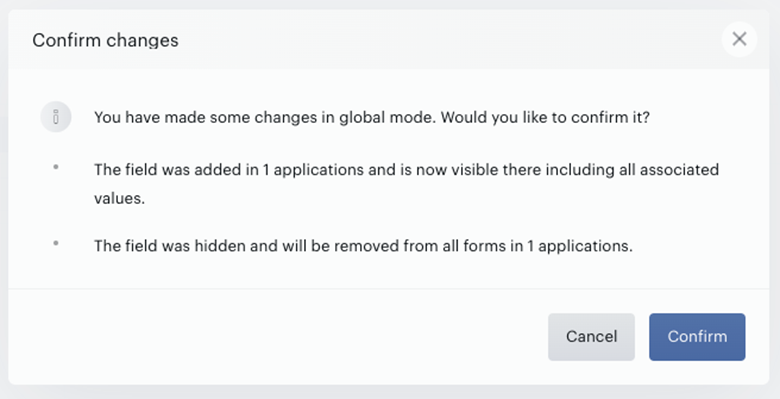
Tooltips provide information about what will be changed by selecting or deselecting applications. It is also possible to order the applications by name or selected state and download a list of all applications. After making all changes, users will be informed about the modifications before the final confirmation.
Display / Hide Global Custom Fields
In applications that are not selected, global custom fields will be in a hidden section. The hidden mode is similar to "archived" used for regular custom fields.
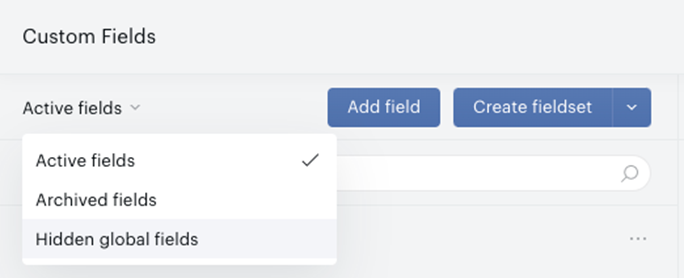
If a field is hidden by deselecting the application, it will automatically be removed from all forms in that application and appear in the "hidden" section. Users can edit the list of applications in the hidden section and make them visible/active by selecting the application again under "Edit Applications".
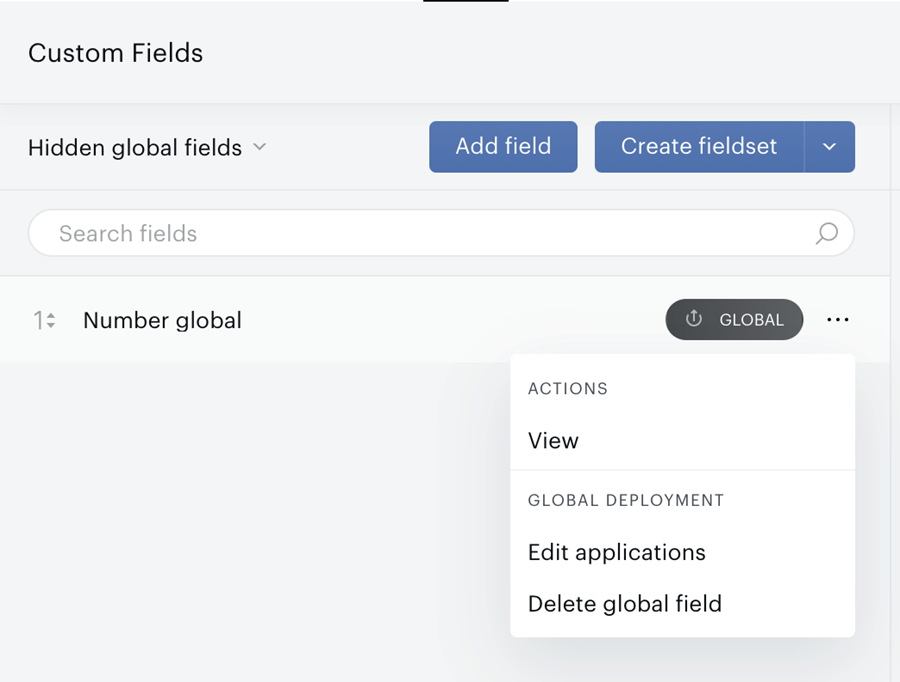
Note that the field and all its values will be visible again, but it needs to be re-added to the forms manually, similar to unarchived fields.
Users without Global Admin access can view global custom fields in two modes: "Active Fields" and "Hidden Fields." However, they are not able to edit global custom fields due to their global impact. They can only remove these fields from forms in the current application.
In "Active Fields" mode, users can view the global custom fields that are currently active and visible in their applications.
In "Hidden Fields" mode, users can see the global custom fields that are hidden and no longer visible in their applications.
Delete Global Custom Fields
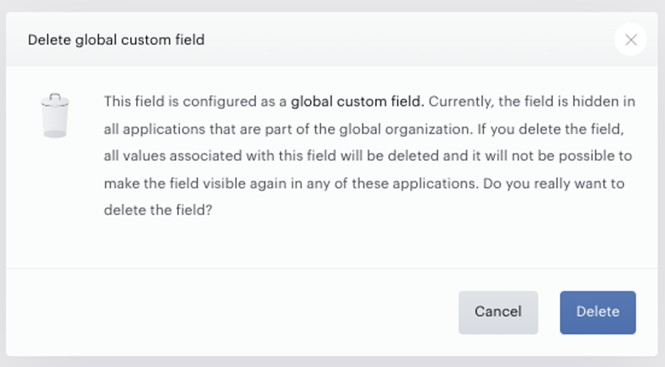
Global custom fields cannot be deleted as long as they are used in other applications. The field can only be deleted when it is no longer used in any application/form and has been hidden in all applications.
Remove from Forms
Global custom fields can be removed from forms either in the current application or across all applications where the field is used. Only users with Global Admin permission can remove the field from all applications, while non-global users can only remove the field from the forms in the current application.
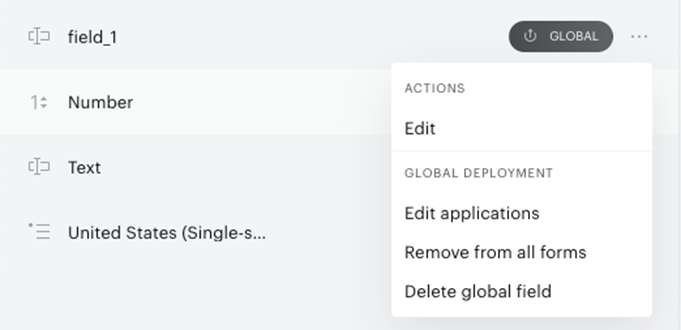
Before removing a global custom field from a form, users will be presented with an overview of all forms and applications where the field is currently used.
This overview can also be downloaded as a CSV file for reference.
Making a Global Custom Field Non-Global
Publisher users cannot make a global custom field non-global. If you need to make a global custom field non-global, please reach out to our support team. Making a global custom field non-global is necessary when removing an application from the global mode without losing the data associated with the global custom fields.
Please note that the removal of an application from the global mode cannot be performed by the publishers themselves and requires assistance from our support team.