
Summary
Identity Management has a one-way integration with Audience to pass custom field data from the ID into Piano Audience. Custom fields, along with their associated known user, may be passed into Audience, where they will be associated with the corresponding user profile. This allows for user segments to be created with zero-party data that can be exported for ad-targeting, reporting, and targeting in Composer or another conversion engine.
Enablement
Enablement criteria
-
Composer, ID, and Audience products.
-
C1X scripts are enabled on the client site.
-
Audience segmentation with custom fields data is enabled by a Piano admin.
Steps to set up:
-
Select fields for transfer in the Custom fields manager.
Any existing field in the ID Custom fields manager may be transferred to Piano Audience. For data privacy considerations in custom fields, see the section on PII in Audience. To make a field available, navigate to the Custom fields manager and select an existing field from the field list. If you would like to make a new field available in Audience, create the field using the ADD FIELD button and then select it from the list.
In the field's modal, select the box labeled "Enable Audience segmentation with custom fields data" in the PIANO AUDIENCE section.

This will transfer all current data associated with this field and any future data that is entered by end users after the transfer is enabled.
There is a soft limit of 20 fields that can be sent from ID to Audience. Once this limit is reached, a message will appear in the UI to inform you.
Note that for the field to be available in Audience, the Custom Field ID cannot have a length greater than 23 characters. On top of that, Piano performs normalisation of the field's name in case it matches one of the following criteria:
-
replace _ with -
-
replace all non-word characters with -
-
replace all double (or more) dashes with a single dash -
-
remove all spaces
-
remove trailing and leading dashes if any
-
-
For more information on data transfer, see the section on Custom fields.
-
Access fields in Audience.
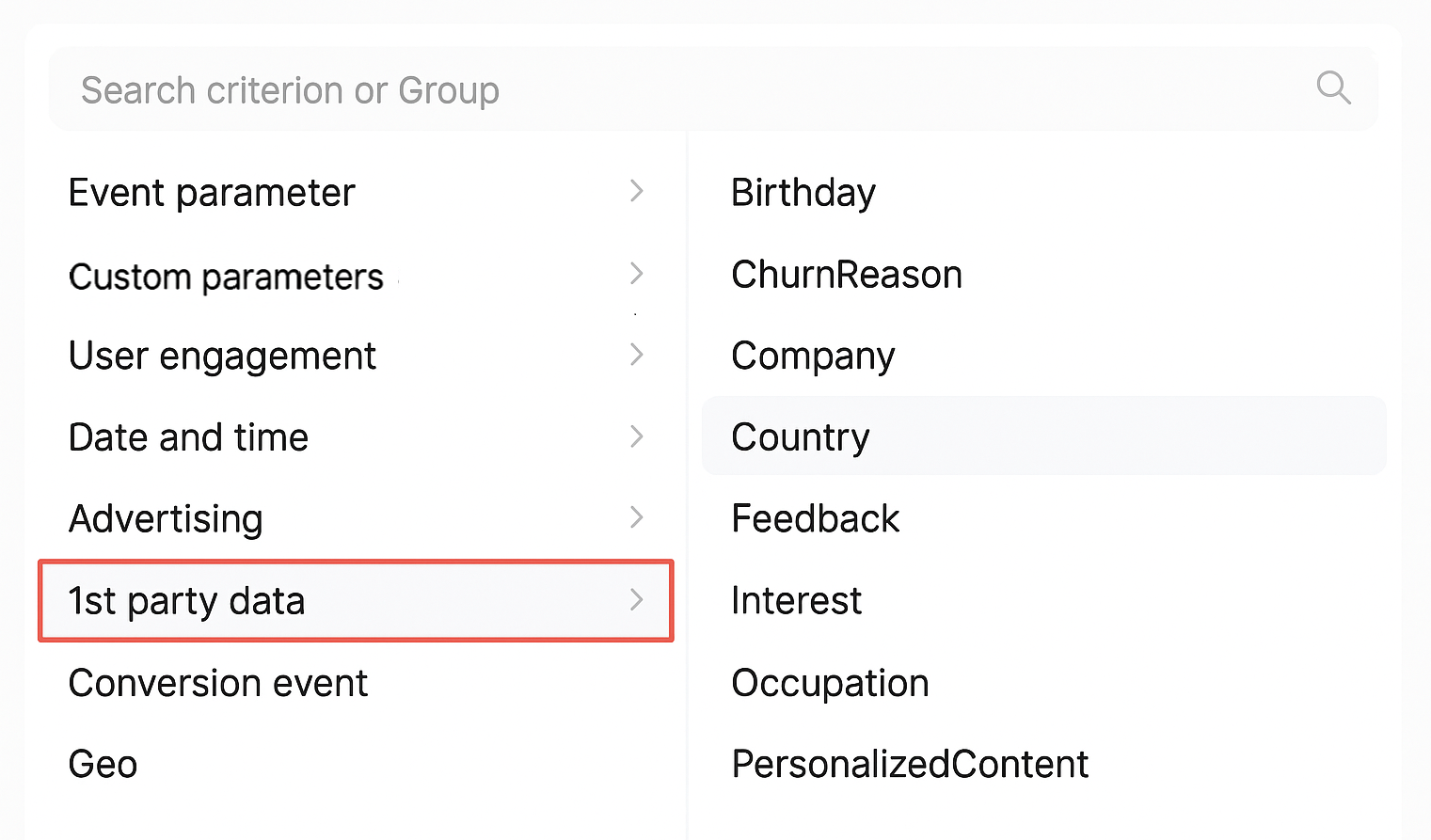
When the ID/Audience integration is enabled, a new criterion will appear in the list of 1st party data fields used to build segments. In the Traffic or Lookalike segment builders, ID Profile data will appear as an option. The fields passed from ID will appear as properties associated with this criterion after a few seconds; however, note that it may take up to a day for all historical data to be synced to Piano Audience. This data can be used to create a segment with ID fields.
Using Custom Fields data in Audience
Segmentation
All successfully transferred ID fields appear under the 1st Party Data category in Audience. These fields can be combined with any other available data in Audience to build segments.
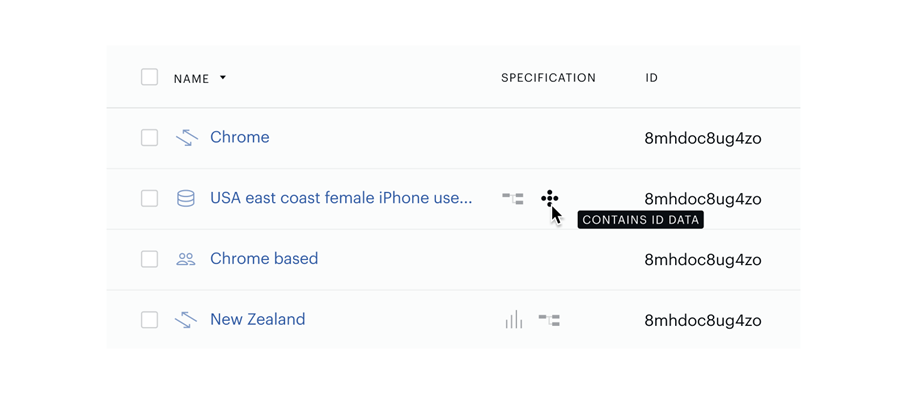
When a segment is successfully created with ID data, it will appear with a marker that confirms ID data is used.
For a segment to be available and usable in Composer, it needs to be assigned to a segment group.
If your segment is not already part of a group, assign it to a segment group. In many interfaces (like the Segment Builder), you can either create a new segment group or move the segment to an existing group.
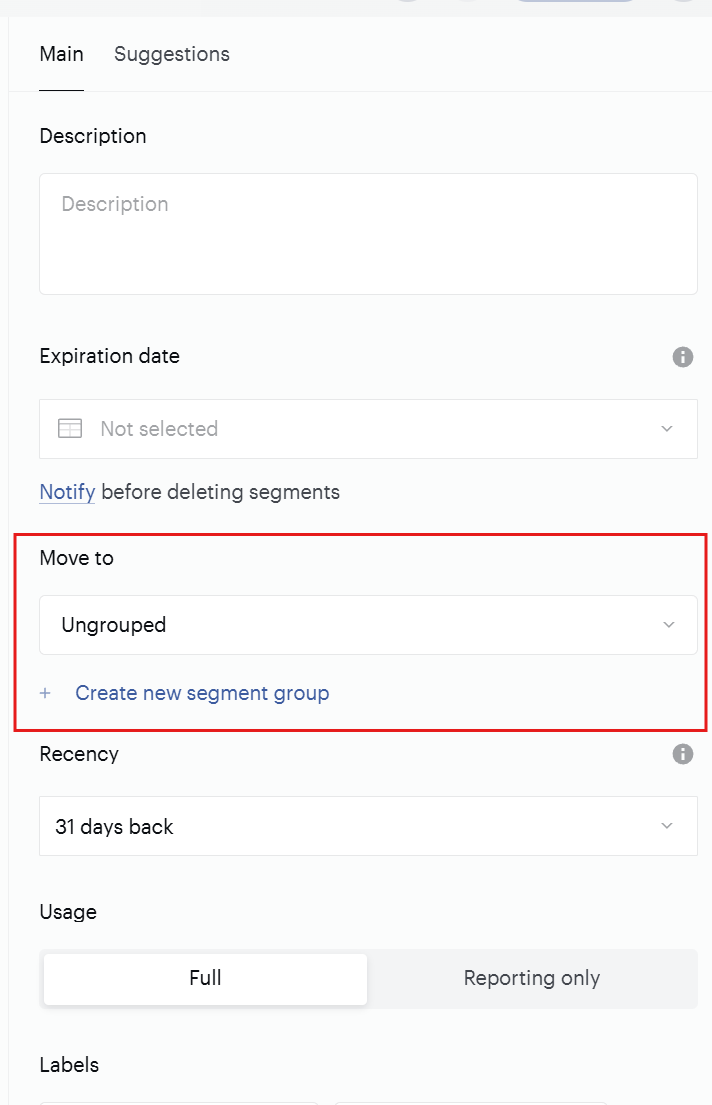
Once the segment is in a segment group and meets the usage criteria, add it into the Composer connection using the available "Integrations" or "Add into connection" function. This will make the segment available in Composer, usually within a couple of minutes.
Default segmentation
As mentioned, default custom fields will automatically be segmented with sociodemographic modeling and will appear in the segment list. Default fields must have more than 100 participants to be automatically enabled for Sociodemographic Modeling. This modeling is based on the original users who provided responses, using lookalike modeling. Using the default custom fields' data, these segments will predict sociodemographic values that cover 80% of the anonymous audience. Default custom fields will also automatically create Insight workspaces.
Data privacy
Personally Identifiable Information (PII)
Piano Audience does not allow for the import of Personally Identifiable Information or PII. Identity Management is often used to collect PII, in the form of emails, addresses, and phone numbers. It is up to the user's discretion to choose fields transferred to Audience, and to decline passing data defined as PII.
Consents
While zero-party data is given by consenting end users, not all end users have consented to have this data used for targeting, reporting, or other downstream actions. To ensure that all operations are aligned with the end user's consent preferences, Audience will automatically apply user consents to any data before it is manipulated. When creating a user segment, Piano Audience will automatically remove data from the segment that doesn't meet the consent criteria. For instance, if a user has not consented to have their data used for ad-targeting, this user's data will not be included in any segments exported for advertising purposes, even if the user matches the other conditions of the segment.
Transferring Custom Fields from Identity Management
Custom fields data transfer
Data from ID to Audience will begin as soon as a field is marked for transfer. Depending on the amount of existing responses associated with the field, it may take up to a day for all data to be transferred to Audience. After the initial transfer, all new responses will be sent to Piano Audience as soon as they are saved in ID. There is a soft limit of 20 fields sent from ID.
Default custom fields
Identity Management has a standard set of sociodemographic custom fields with automatic segmentation in Piano Audience. These fields can be found in the Custom fields manager under the Default fields menu.
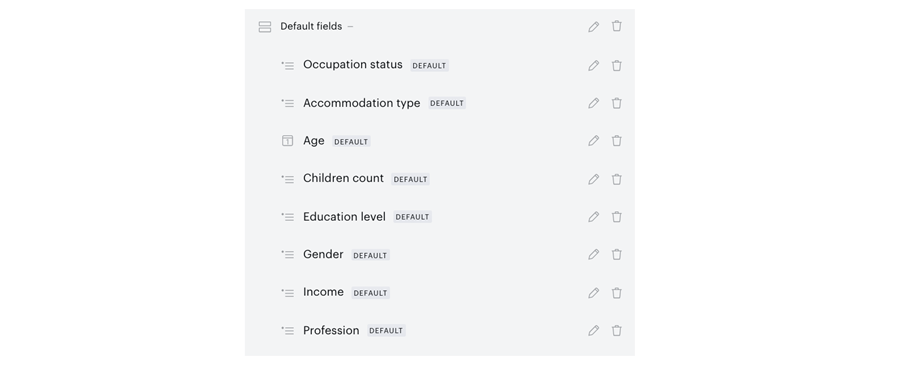
These fields must be manually transferred to Audience, like any other custom field. Once the transfer is enabled, these fields will be automatically segmented in Piano Audience, and the segments created with these fields will appear in the segment list.
Imported custom fields
There are several scenarios where custom fields data may originate outside of Identity Management, but can be imported into ID. Custom fields data can be imported into Identity Management using the /publisher/user/update endpoint, the /publisher/form endpoint, and user migrations. All of the data in these scenarios can be used without issue in the ID/Audience integration.
Important: Data collected in Identity Management is considered zero-party data because it is collected from Identity Management users and stored natively. However, data imported into Identity Management is not necessarily considered zero-party, depending on how it was collected. For example, data passed into ID using the /publisher/form endpoint because it was collected using a custom template would still be considered zero-party. But third-party data purchased using a service and imported into Piano using the /publisher/user/update endpoint would not be considered zero-party.
Identity Linking with Identity Management
Clients using Identity Linking with Identity Management may use the ID/Audience integration. They must ensure that their custom fields are synchronized between ID and the third-party user provider. Information about transferring custom fields via JWT for Identity Linking can be found here.