
Overview
Composer canvas offers an easy way to activate propensity model scoring through monitoring experiences using non-site action cards.
Monitoring experiences are only needed when an AID is not using a propensity model in any other live experience, but still needs scores generated for review in ACI or a third-party system.
Propensity models (Likelihood to Subscribe, Likelihood to Return, Content Likely to Convert) are trained automatically once data thresholds are met. Scores are produced when the model is actively referenced in a live Composer experience. If the client is already targeting users with that propensity model in an experience, there is no need to create an additional monitoring experience for the same model.
When Monitoring Experiences Are Required
Piano's scoring engine computes propensity scores when the corresponding model segments are referenced in at least one live experience. Create a monitoring experience only when the AID will not use the model in any other experience, but still needs scores available in ACI or the client's third-party systems. Without either an active targeting experience or a monitoring experience:
-
The model may remain trained, but scores will not be generated for that AID
-
Users may continue to show
no_score -
Scores will not be available for analysis in ACI or third-party systems
In short, use a monitoring experience as a scoring activator only when the model is not already being used for live targeting elsewhere. If the client is actively targeting users with the propensity model in an experience, that existing experience is sufficient to produce scores.
Prerequisites
-
Composer 1X is implemented on the site
-
The model has been trained and is visible under C1x segmentation in the User Segmentation card
-
If segments do not appear, notify the Piano Support team
How to Set Up a Monitoring Experience
-
Create a new experience: Go to Composer and create a Site pageview experience. Name it:
Monitoring Experience to Train [Model Name]
Name according to the segment you want to track or monitor, for example, "Monitoring Experience to Train Likelihood to Subscribe"
-
Set page targeting: Set the experience to target all pages.
-
Open the User Segmentation card: Select the segment you want to monitor from the C1x segmentation section. For example: Likelihood to Subscribe.
If you do not see the segment you want to build the monitoring experience for, please notify the Piano Support team.
-
Add a Non-site Action card: After selecting the segment(s), add a non-site action card at the end of the experience.
-
Save and activate: Save, activate, and set the experience Online.
Example
Below is an example of a completed monitoring Composer experience set up with non-site actions:
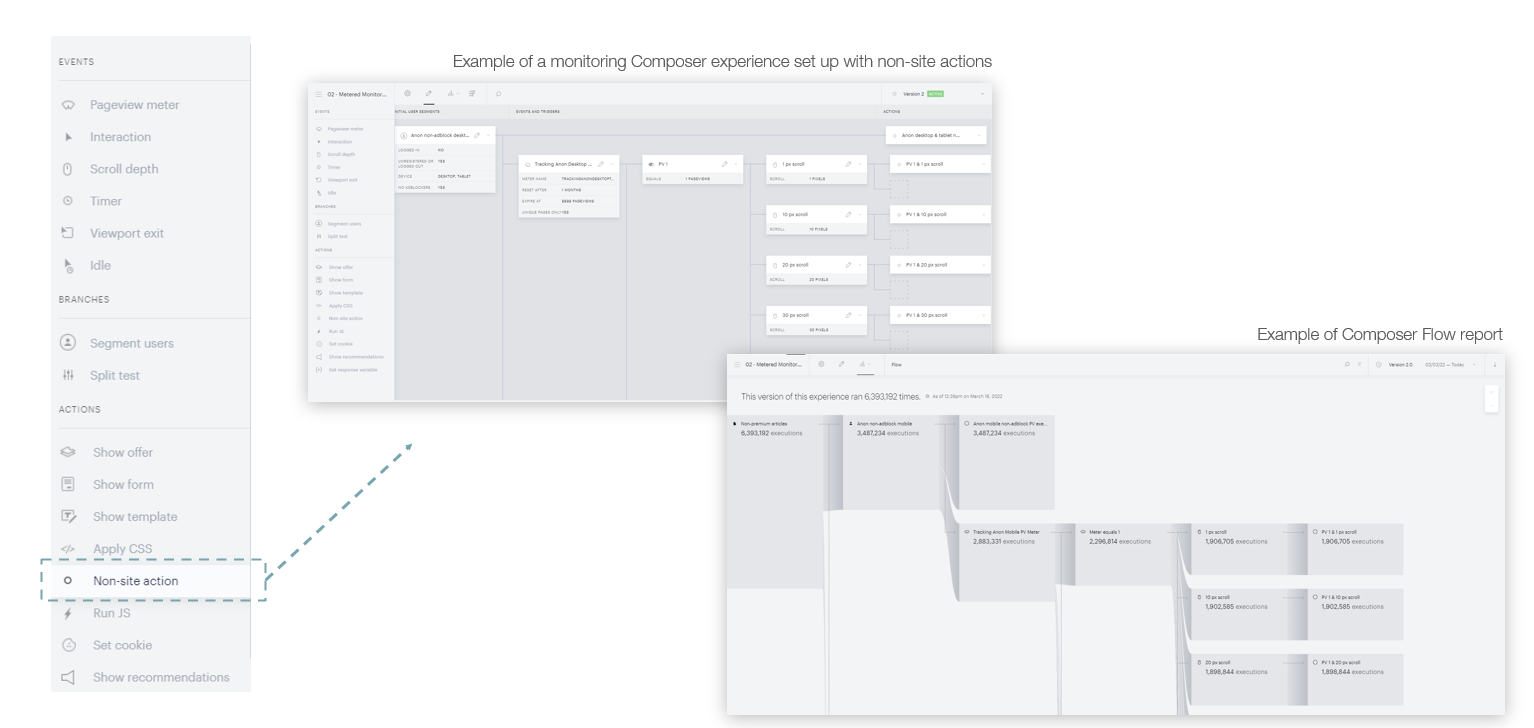
Additional Use Cases for Monitoring Experiences
Beyond propensity model activation, monitoring experiences are useful for:
-
Premium paywall content consumption tracking: monitor how users interact with gated content
-
Scroll depth measurement: track scroll depth on article pages or Subscription Landing Pages (in px or %)
-
C1x segment activation: ensure any C1x segment begins scoring
Important Notes
|
Consideration |
Detail |
|---|---|
|
No user impact |
Monitoring experiences trigger no visible action on the site; they are invisible to end users. |
|
Meter conflicts |
When running on a pageview meter, ensure the meter names are unique and different from your main experiences to avoid metering conflicts. |
|
Flow Report data |
Results in the Flow Report show the number of pageview-level executions, not the number of unique-user executions. |
|
All score ranges |
Select all score ranges (0–9 through 90–100) to ensure complete scoring coverage. |
|
Propagation time |
After going online, allow 24–48 hours for scores to propagate before verifying. |
Verifying Scoring Is Active
-
Check the Composer 1x segment report in Piano Dashboard for non-zero distribution across score buckets.
Troubleshooting
|
Issue |
Resolution |
|---|---|
|
Segments don't appear in User Segmentation card |
The model hasn't been trained: verify data thresholds are met and contact your Piano team. |
|
Scores remain |
Wait 24 to 48 hours for scoring to propagate, then re-check. Ensure all score ranges are selected. |
|
Dynamic Paywall clients |
The monitoring experience must be live before the 30-day ARI data collection period begins. |