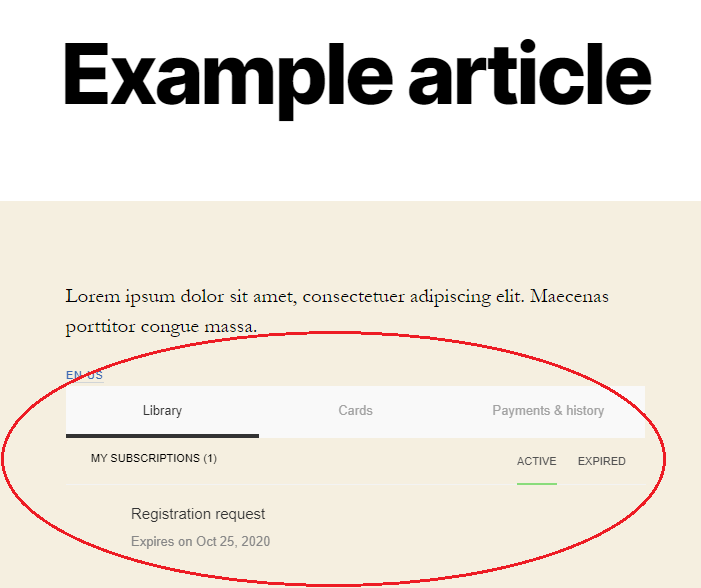
Overview
The plugin provides:
-
AdBlock detector.
-
Integration with Composer: Experience execution based on parameter configuration in WordPress (author, create data, tags, ...).
-
Integration with UserRef: Generation and sending of user-tokens from WordPress user data.
-
Integration with Identity Management: Automatic configuration of all parameters for interaction between Wordpress, Identity Management and experiences. Use action call to add the authorization button.
-
Integration with AMP plugin: AMP experiences execute in WordPress and authorization on AMP-pages may use UserRef or Identity Management.
-
Shortcodes for embedding Piano templates in your content:
-
[piano_inline id="..."]for embedding inline templates. -
[piano_my_account]for embedding the My Account template.
-
Implementation
Find the Piano plugin in WordPress.
-
Open your Wordpress site’s dashboard.
-
Navigate to Plugins →Add New.
-
Search "Piano".
-
Click to download the Piano plugin.
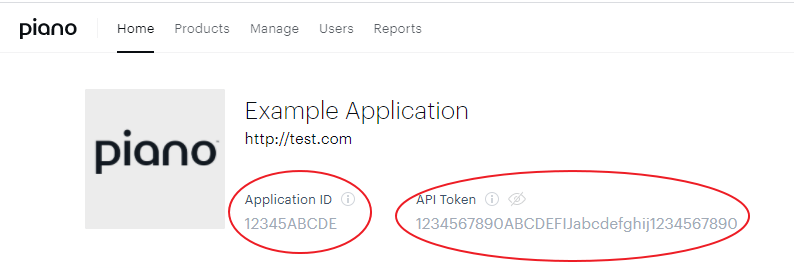
Copy your application ID and API token.
Navigate to your Piano publisher account and copy AID and API token
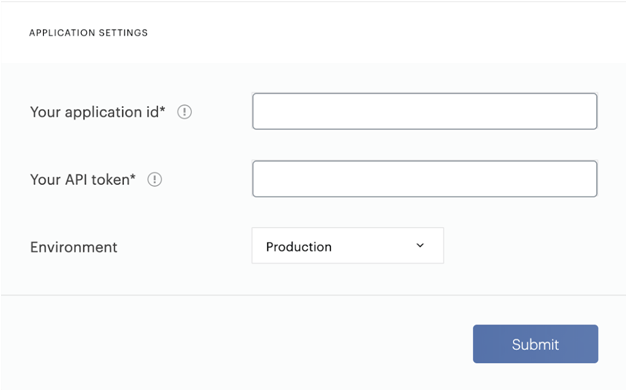
Go to the Piano tab in WordPress.
In the application settings, enter the application ID and the API token from the Piano Sandbox / Dashboard application
Composer 1X
In case you're using Composer 1x segmentation for Composer, you would need to insert your Site ID into the respective Cxense section input field in the Piano plugin settings:
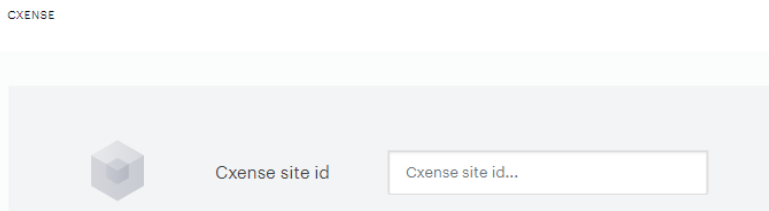
Your account manager will provide you with your "Site ID".
Please make sure, you are using the newest version 1.0.2 of the Piano WordPress plugin.
Select functions
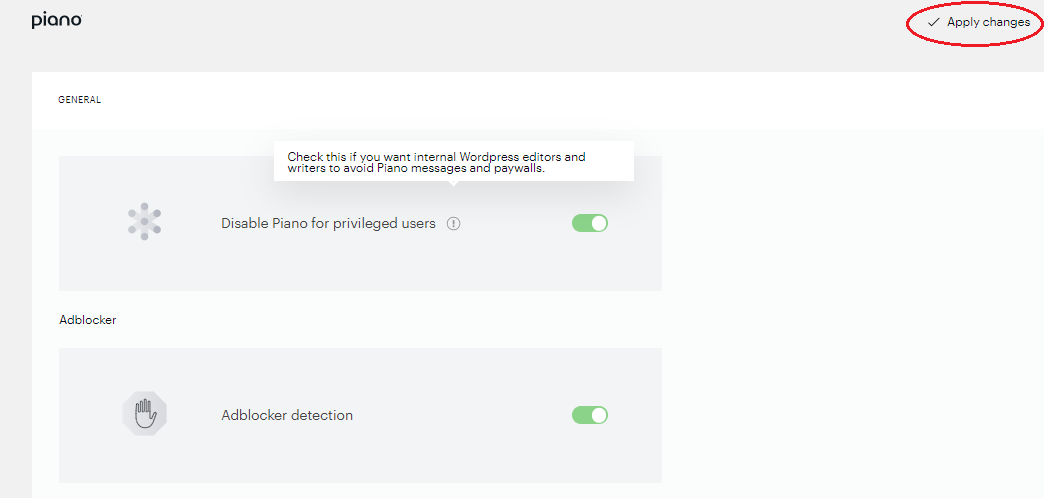
You've connected Piano and your Wordpress-enabled site. Choose whether to enable adblock tracking or disable Piano for privileged users and click Apply changes.
Execute experiences
Test that your Piano experiences are showing up correctly in your Wordpress content.
Add shortcodes (optional).
Enable shortcodes for My Account & Inline Templates
-
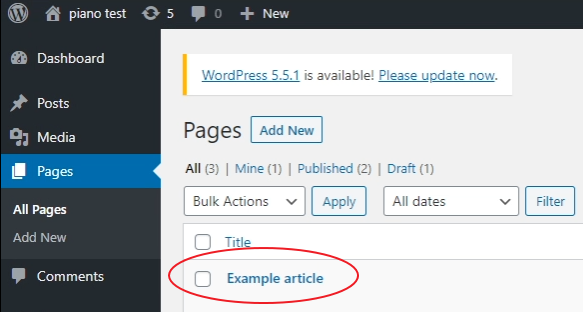
In WordPress, go to Pages and select the page to add the inline My Account widget or a template.
-
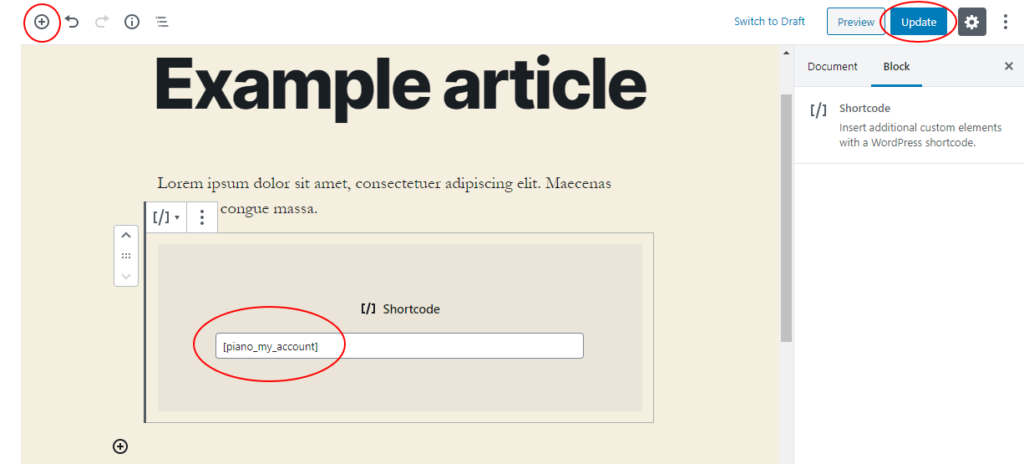
Create a new Shortcode block on the page and use:
-
[piano_my_account]for the "My Account" widget -
[piano_inline id="..."]where the ellipsis is the name of an inline container selector.
-
-
Click Update in the upper right.
-
View the experience on your WordPress site.