
Configuration in the Google Play billing platform
Before taking steps to set up the integration in Piano, you must first have the Google fundamentals. The first entity you will need to configure in Google is an SKU. SKUs function similarly to Piano's Resources or Resource bundles, in that the SKU contains one or many productIDs that act as access tokens when a user goes to read your content.
The productID will resemble foo-times.com:basic. As you'll see in the above-linked documentation, the SKU has a set of fields that you must define – you will need to input many of these values in the Piano configuration, so it might be beneficial to copy them down somewhere. You can learn more here.
Keep in mind that your Google service account needs to be linked to the Google Play account and the service account needs to have financial permissions. More information about managing permissions is available here. In addition, you will need to create an Android app as part of the implementation. It doesn't need to be an active app, but the Subscribe with Google functionality leverages the Play platform.
You may need appropriate permissions to access the Google documentation linked in this article.
Once you've created the SKU, you will need to link it with a Google Product. Similar to Piano's terms, a Product provides billing details that outline the transaction that must occur for the user to get access to the SKU.
Note: One required parameter for the Google Product is a Product ID. This is referring to the SKU ID rather than the productID within the SKU.
In addition to the above, you would also need to set up Account Linking in Google.

You can get started by clicking Set up account linking and on the next screen choose the option Auth code flow:
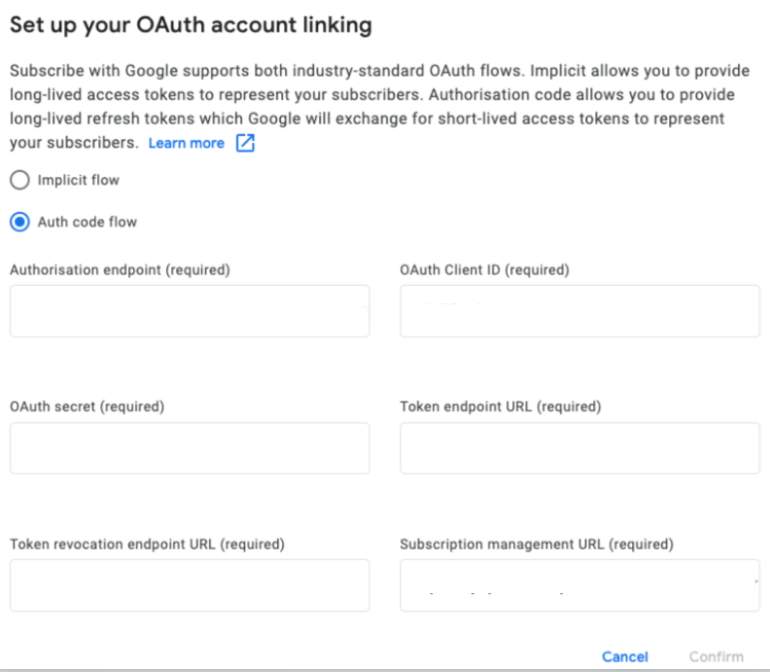
You now need to fill in the following values:
Authorization Endpoint - If you're using Piano ID, enter the following URL and replace the <AID> value with your Piano Application ID:
https://id.tinypass.com/id/api/v1/identity/vxauth/authorize?aid=<AID>
For custom configurations, please check that the Authorization Endpoint URL used matches the one set as your Piano ID deployment host.
If you're using Auth Sync, you would need to enter the respective URL from your own user management system.
For a list of all Piano ID base URLs based on your dashboard's locale, please visit this link.
OAuth Client ID - Your Piano Application ID (AID)
OAuth secret - This is the value of the OAuth client secret found in your Piano ID or Auth Sync configuration found under Edit Business → User provider.
Token endpoint URL - Enter the following URL if you're using Piano ID on the US dashboard:
https://id.piano.io/id/api/v1/identity/vxauth/token
For other environments, please enter:
AP dashboard: https://id-ap.piano.io/id/api/v1/identity/vxauth/token
AU dashboard: https://id-au.piano.io/id/api/v1/identity/vxauth/token
EU dashboard: https://id-eu.piano.io/id/api/v1/identity/vxauth/token
If you're using Auth Sync, you would need to enter the respective URL from your own user management system.
Token revocation endpoint URL - This endpoint is currently not used by the Piano SwG integration. For Piano ID, you can enter, for example, the logout endpoint as shown below for the US dashboard:
https://api.piano.io/id/api/v1/publisher/logout?aid={aid}&token={user_token}&api_token={api_token}
For other environments, please enter:
AP dashboard: https://api-ap.piano.io/id/api/v1/publisher/logout?aid={aid}&token={user_token}&api_token={api_token}
AU dashboard: https://api-au.piano.io/id/api/v1/publisher/logout?aid={aid}&token={user_token}&api_token={api_token}
EU dashboard: https://api-eu.piano.io/id/api/v1/publisher/logout?aid={aid}&token={user_token}&api_token={api_token}
If you're using Auth Sync, you would need to enter the respective URL from your own user management system.
Entitlement verification URL - If you're using Piano ID, based on your Piano application's environment, you would need to enter one of the following options and replace the value for <AID> with your Piano Application ID.
https://api.piano.io/api/v3/swg/sync?aid=<AID>
https://api-au.piano.io/api/v3/swg/sync?aid=<AID> (Australia)
https://api-ap.piano.io/api/v3/swg/sync?aid=<AID> (Asia-Pacific)
https://api-eu.piano.io/api/v3/swg/sync?aid=<AID> (Europe)
If you're using Auth Sync, you would need to enter one of the following values based on your Piano application's environment:
https://api.piano.io/api/v3/swg/sync/external?aid=<AID>
https://api-au.piano.io/api/v3/swg/sync/external?aid=<AID> (Australia)
https://api-ap.piano.io/api/v3/swg/sync/external?aid=<AID> (Asia-Pacific)
https://api-eu.piano.io/api/v3/swg/sync/external?aid<AID>= (Europe)
Subscription management URL - Enter the URL where your My Account section is located.
Once all the above values are added, you can click the Confirm button in order to complete the Account Linking configuration.
Configuration in Piano
Once you've taken the preceding steps, you will need to call out some of these Google entities within Piano. There are several components that you will need to configure in order to ensure the integration works appropriately:
External API configuration
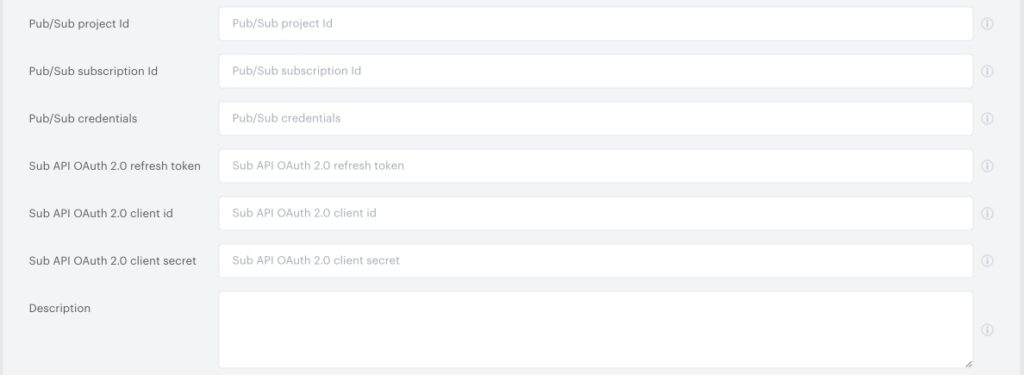
Piano must be able to communicate with Google on your behalf for any Subscribe with Google events. Therefore, we require information about your Google Play account so we can appropriately call Google's API endpoints without restrictions. To set this up, navigate to Manage → External API configuration. Click the New button in the top right of your screen, which should bring up the following modal.
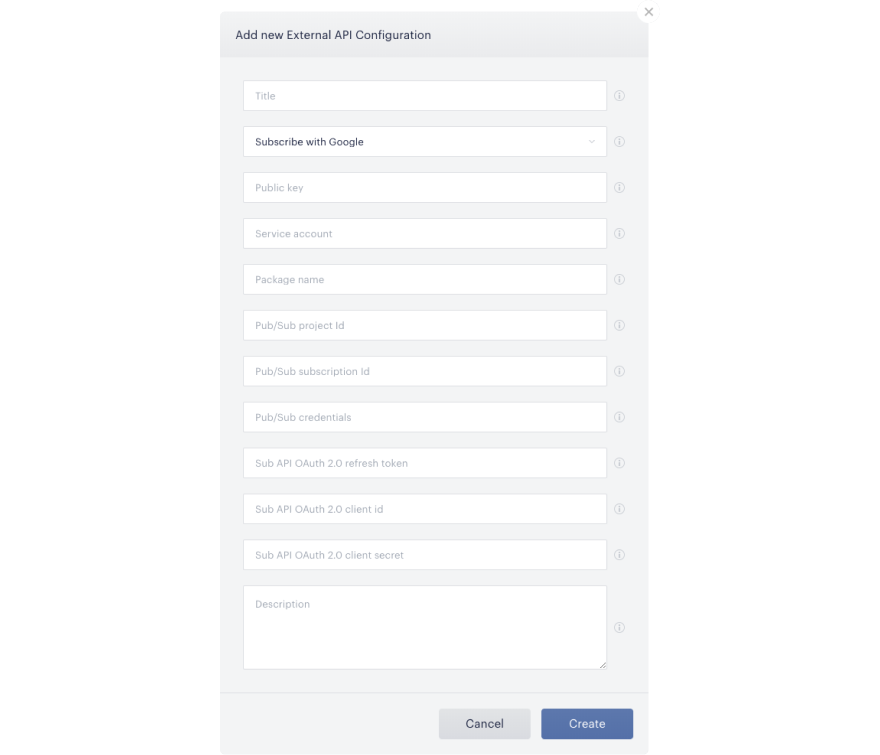
Give this configuration a title that you would like for internal reference, and ensure that you select Subscribe with Google as the API provider. Then, you will need to input the following fields:
Public key: This is your license key in Google Play. Google has instructions on how to locate this key here.
Service account: This is a JSON object that is associated with the project for your account. You may have to create a new service account if you have not already done so. You can find more information here.
Package name: This is the Android app ID associated with the Google Play account you are trying to link. In the Play Console, navigate to "All Applications". Each Android App ID is shown beneath the app name and will probably look something like com.foo.app.
Pub/Sub project ID: This is the ID associated with the Pub/Sub project you are trying to link. Go to your Google Cloud dashboard and look at the Project Info card for the Project ID. This is NOT the Project number.
Pub/Sub subscription ID: This is the ID associated with the Pub/Sub subscription you are trying to link. You can find this value here. (Note: Also values with upper-case Latin letters are supported)
Pub/Sub credentials: To get valid pub/sub credentials:
1. In your project, open the service account menu.
2. Click Keys in the service account menu.
3. Click Add key.
4. Create a new key.
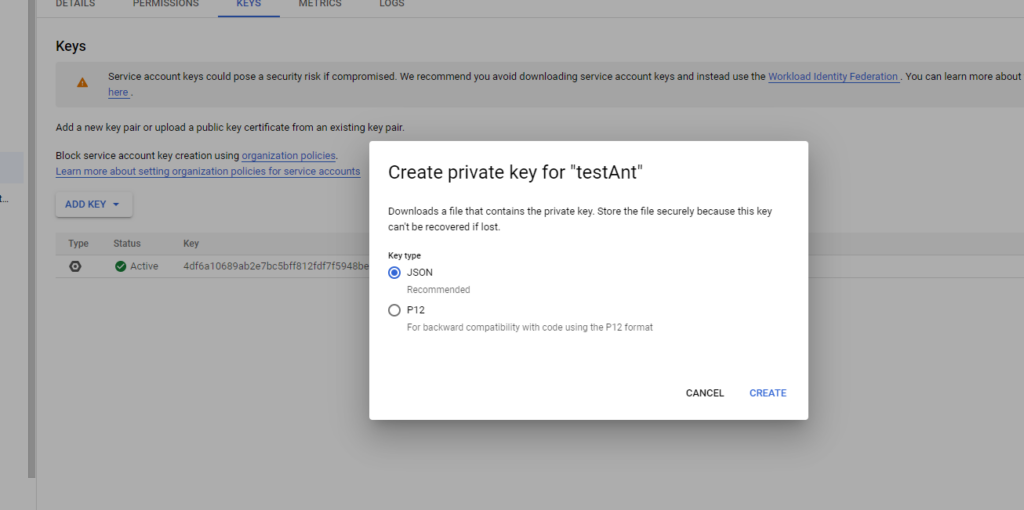
5. Select JSON.
6. Copy this JSON code and paste it to the Pub/sub credentials field.
Sub API OAuth 2.0 refresh token: This is the refresh token that Google uses to regenerate a user's access token when calling their OAuth 2.0 API. See here.
Sub API OAuth 2.0 client ID: This is the ID of your publication used for API calls to OAuth 2.0. See here.
Sub API OAuth 2.0 client secret: This is the client secret of your publication used for API calls to OAuth 2.0. See here.
Description: An optional field that can be used for any identification purposes you have.
The first set of fields is related to the generic configuration and is mandatory for Subscribe with Google integration.
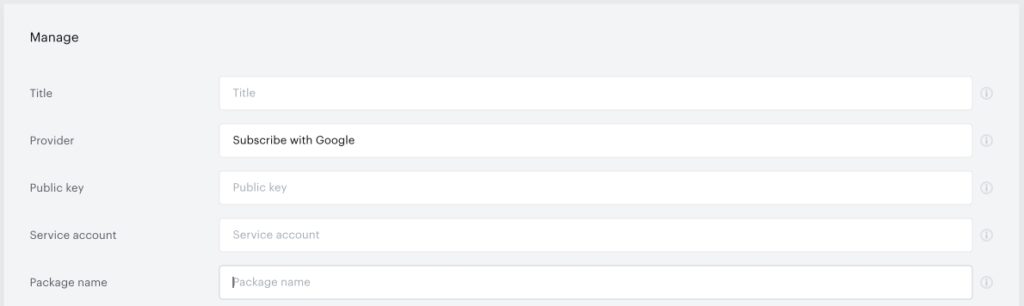
Second set of fields is only required if you are using Pub/Sub transport in addition to your Subscribe with Google config.
Generic configuration only synchronizes initial purchase data, and subscription status is only monitored by the verification job. Pub/Sub integration is a transport that delivers notifications from Google to Piano that contain more information about what's happening with the subscription. Currently, Piano works with the following types of notifications:
|
Notification |
Description |
Piano VX action |
|
|
A subscription was recovered from account hold |
Check if the existing subscription is expired on the Piano side. If yes:
|
|
|
An active subscription was renewed |
Check if the existing subscription is expired on Piano side. If yes:
|
|
|
A subscription was either voluntarily or involuntarily cancelled. For voluntary cancellation, sent when the user cancels |
|
|
|
A new subscription was purchased |
|
|
|
A subscription has entered account hold (if enabled) |
|
|
|
A subscription has entered grace period (if enabled) |
No action |
|
|
User has reactivated their subscription from Play > Account > Subscriptions (requires opt-in for subscription restoration) |
Check if the existing subscription is expired on Piano side. If yes:
If no:
|
|
|
A subscription price change has successfully been confirmed by the user |
No action |
|
|
A subscription's recurrence time has been extended |
Check if the existing subscription is expired on the Piano side. If yes:
|
|
|
A subscription has been paused |
|
|
|
A subscription pause schedule has been changed |
No action |
|
|
A subscription has been revoked from the user before the expiration time |
|
|
|
A subscription has expired |
|
Resource configuration
The next step is to configure your Piano resources and link them with corresponding productIDs in Google. To do so, simply create a new resource or manage an existing one. You will see a field labeled External ID, which you should populate with the productID you would like to pair with that resource.
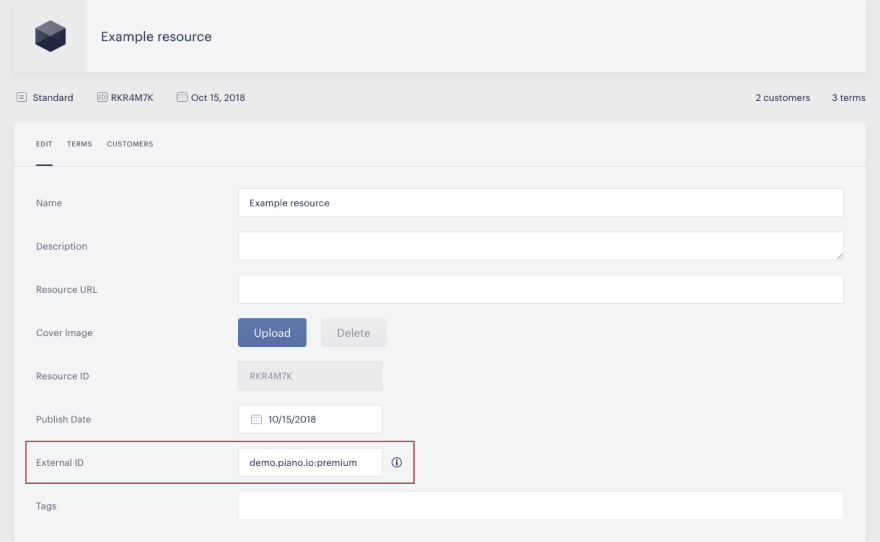
Note: If you do not see the field outlined above, it means that Subscribe with Google has not been enabled for your application. Please contact your Piano representative to enable it.
The purpose of providing this information is that it allows Piano to inject the data markup required by Google directly onto your page without you having to write the code.
External service term configuration
Once you have created your resource and linked it with a productID, you will need to create an external service term through Piano using the API configuration you set up previously. This allows Piano to recognize a subscription that occurs through Google and grant the appropriate access on your site.
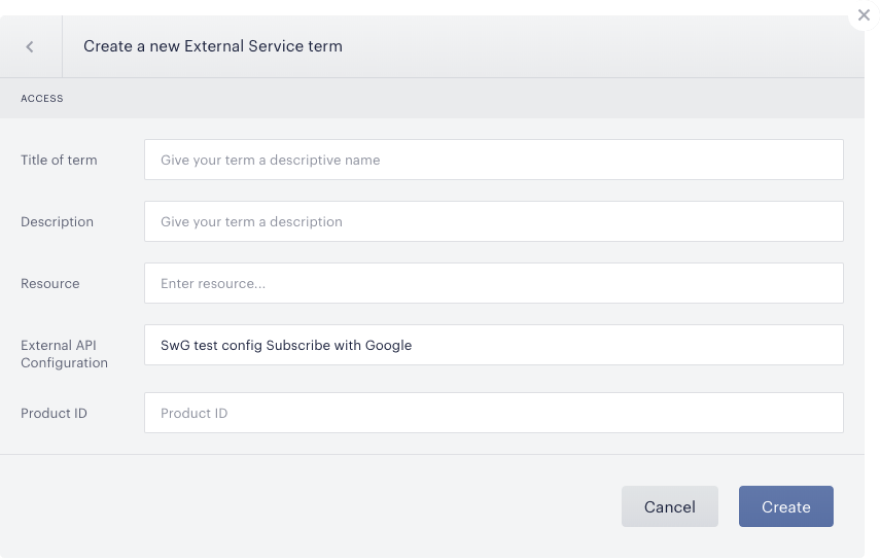
Select the resource that you configured above, and enter the Product ID of the SKU. Again, note that this is different than the productID that the SKU contains.
Payment term configuration
Once you have completed the above steps, the final step is to link that external service term with a payment term of your choice. Please note, however, that it should not have any conversions yet.
In the Term details screen for any payment term, navigate to the External API tab. Choose the provider configuration that you created above.
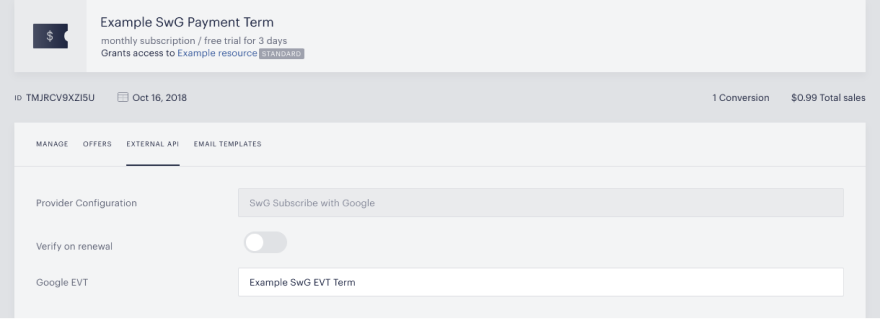
Note: The payment details you configure for this term must exactly match the billing plan of the corresponding product in Google. If the details do not match, you will be shown an error.
The configured billing plan in Google must be a recurring payment plan. One-time payments are not supported in Piano and will show the following error in the browser console: "Your request is invalid for this subscription purchase."
We do not search for external verification terms with linked payment terms while checking access or subscribing a user. This allows Google Play entitlements to be accepted on the Subscribe with Google flow.
Offer templates
In order for the Subscribe with Google option to be displayed on your offers, you will need to ensure that the following code is included in your templates:
<button
    class="{{externalCheckoutConfig.class}}"
    title="{{externalCheckoutConfig.title}}"
    ng-if="isExternalCheckoutAvailable(term)"
    ng-click="startExternalCheckout(term)"
    id="external-checkout-button"
    type="button">
    <span ng-if="externalCheckoutConfig.class === 'swg-button'">
        <t>Subscribe with</t>
        <svg class="swg-icon" aria-label="Google" width="52" height="17" viewbox="0 0 272 92"><path fill="#EA4335" d="M115.75 47.18c0 12.77-9.99 22.18-22.25 22.18s-22.25-9.41-22.25-22.18C71.25 34.32 81.24 25 93.5 25s22.25 9.32 22.25 22.18zm-9.74 0c0-7.98-5.79-13.44-12.51-13.44S80.99 39.2 80.99 47.18c0 7.9 5.79 13.44 12.51 13.44s12.51-5.55 12.51-13.44z"/><path fill="#FBBC05" d="M163.75 47.18c0 12.77-9.99 22.18-22.25 22.18s-22.25-9.41-22.25-22.18c0-12.85 9.99-22.18 22.25-22.18s22.25 9.32 22.25 22.18zm-9.74 0c0-7.98-5.79-13.44-12.51-13.44s-12.51 5.46-12.51 13.44c0 7.9 5.79 13.44 12.51 13.44s12.51-5.55 12.51-13.44z"/><path fill="#4285F4" d="M209.75 26.34v39.82c0 16.38-9.66 23.07-21.08 23.07-10.75 0-17.22-7.19-19.66-13.07l8.48-3.53c1.51 3.61 5.21 7.87 11.17 7.87 7.31 0 11.84-4.51 11.84-13v-3.19h-.34c-2.18 2.69-6.38 5.04-11.68 5.04-11.09 0-21.25-9.66-21.25-22.09 0-12.52 10.16-22.26 21.25-22.26 5.29 0 9.49 2.35 11.68 4.96h.34v-3.61h9.25zm-8.56 20.92c0-7.81-5.21-13.52-11.84-13.52-6.72 0-12.35 5.71-12.35 13.52 0 7.73 5.63 13.36 12.35 13.36 6.63 0 11.84-5.63 11.84-13.36z"/><path fill="#34A853" d="M225 3v65h-9.5V3h9.5z"/><path fill="#EA4335" d="M262.02 54.48l7.56 5.04c-2.44 3.61-8.32 9.83-18.48 9.83-12.6 0-22.01-9.74-22.01-22.18 0-13.19 9.49-22.18 20.92-22.18 11.51 0 17.14 9.16 18.98 14.11l1.01 2.52-29.65 12.28c2.27 4.45 5.8 6.72 10.75 6.72 4.96 0 8.4-2.44 10.92-6.14zm-23.27-7.98l19.82-8.23c-1.09-2.77-4.37-4.7-8.23-4.7-4.95 0-11.84 4.37-11.59 12.93z"/><path fill="#4285F4" d="M35.29 41.41V32H67c.31 1.64.47 3.58.47 5.68 0 7.06-1.93 15.79-8.15 22.01-6.05 6.3-13.78 9.66-24.02 9.66C16.32 69.35.36 53.89.36 34.91.36 15.93 16.32.47 35.3.47c10.5 0 17.98 4.12 23.6 9.49l-6.64 6.64c-4.03-3.78-9.49-6.72-16.97-6.72-13.86 0-24.7 11.17-24.7 25.03 0 13.86 10.84 25.03 24.7 25.03 8.99 0 14.11-3.61 17.39-6.89 2.66-2.66 4.41-6.46 5.1-11.65l-22.49.01z"/></svg>
    </span>
    <span ng-if="externalCheckoutConfig.class !== 'swg-button'">{{externalCheckoutConfig.title}}</span>
</button>
This will need to be included in the same <td> tag as the Purchase button.
It's not possible to hardcode a Term ID into the function startExternalCheckout(term), for example, like this startExternalCheckout('TM1234567890'), since it will trigger an error and checkout won't work.
Subscribe with Google works for both modal and inline offers.
Note that the payment term linked to the Subscribe with Google external term needs to be included in the Offer you're showing via Composer.
Composer experience
Create a new or update an existing Composer experience to show the offer containing the Subscribe with Google payment term, target the relevant pages, and add the resource you've created in this step to the "Has no access to" field in the User segment card.
Composer integration script
You will also need to modify the Composer integration script to handle external checkout through Google. Please make sure the following two functions are added.
    /* external checkout related events */
    tp.push(["addHandler", "externalCheckoutComplete", onExternalCheckoutComplete]);
    /* Callback executed if external checkout has been completed successfully */
    function onExternalCheckoutComplete(event) {
        /* Default behavior is to refresh the page on successful checkout */
        location.reload();
    }
Social login with Google
Within your Piano ID configuration, you will need to ensure that you have input the appropriate Google App ID and App Secret. This is what allows us to create a Piano account for a Google subscriber and ensure that they can log in in the future to access your content. For more information, please read here.
Subscribe with Google for Auth Sync
Auth Sync should create UIDs using the external UID connector strategy.
More information about the provisional token verification for implicit login in Subscribe with Google for Auth Sync is available here.
Set up Subscribe with Google for Auth Sync as per these instructions.
User experience
Once you have executed the steps above, your users will be able to see the option to Subscribe with Google on any offer that your payment term is included in. With this configuration, they will see the opportunity to subscribe either directly to your site or through Google on each of these terms.

Choosing Subscribe with Google will allow the user to check out using a stored card in their Google account (if applicable) or input a new card to charge it to. The subscription will be managed through Google, so if they want to update their subscription in any way, they will need to navigate to their Google Play dashboard.
Subscribing with Google will also create an account with Piano ID using Google OAuth. If the user already has an account registered under their Google email address, Piano will automatically link that account. Then, your users can sign in through Google when they navigate to your site.
Find more information in the flow charts below.
Flow charts
Google sign-in
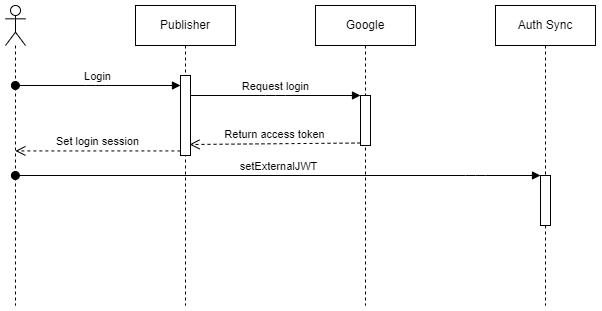
Account linking
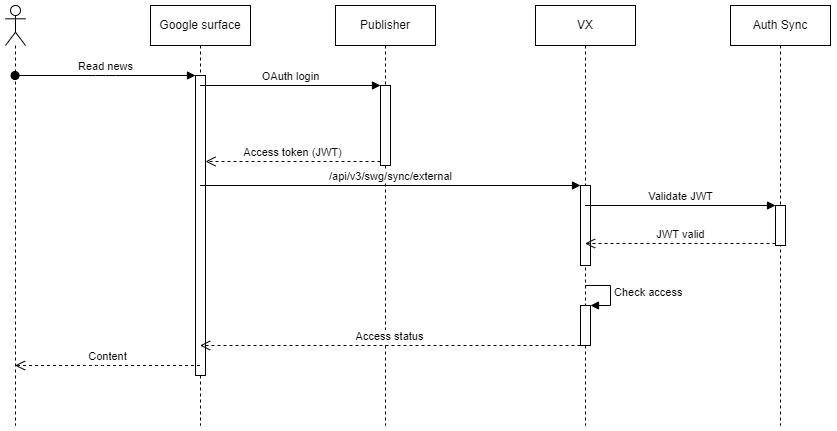
Purchase
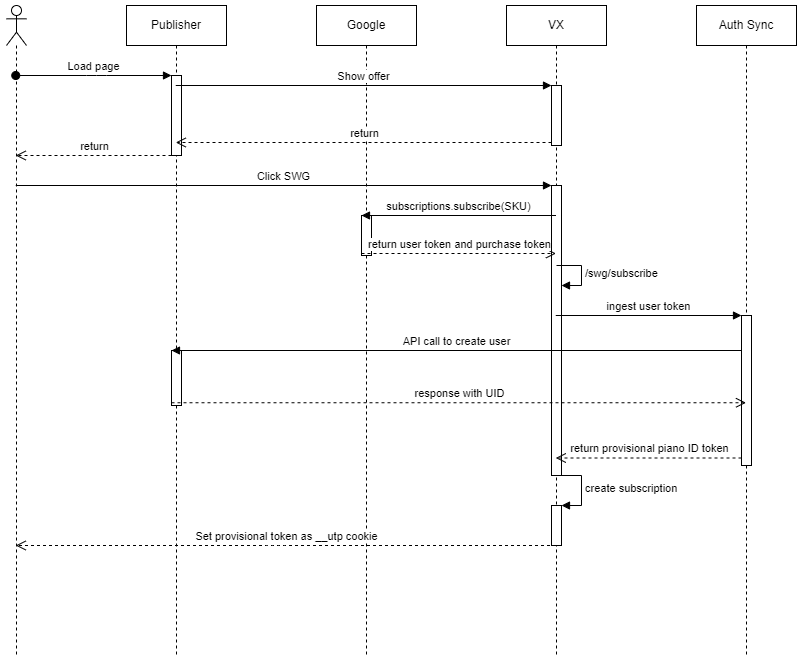
Deferred account creation
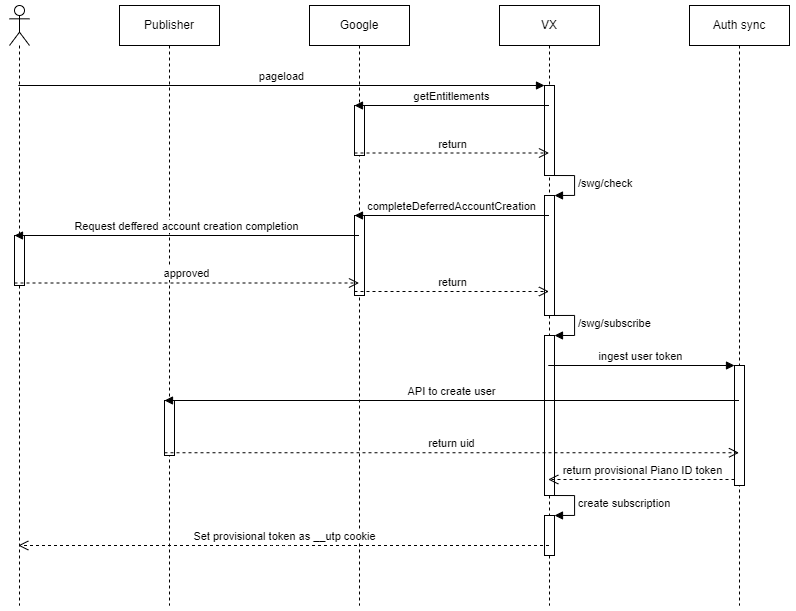
What happens if the user is already logged in?
-
We don’t need a provisional token, but still need to make an API call to the publisher.
Account linking on the web
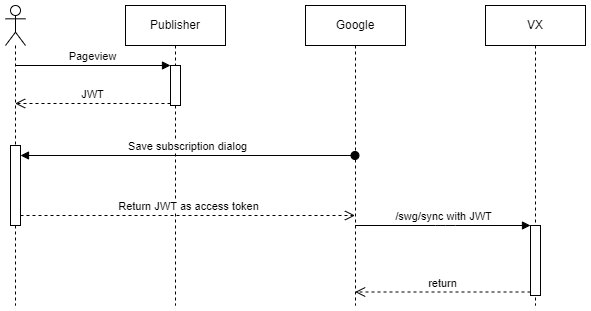
Important information
Piano takes a lot of the code off your hands by including the required swg.js library in the library we run on your site. We also automatically inject the data markup required by Google onto the appropriate pages by parsing the Has no access to area of the User Segment card and determining which productIDs are relevant for the page.
Please do not call any /experience/execute endpoints during the SwG purchase flow.
Because the subscription is managed through Google, Piano does not report on any revenue accrued through these subscriptions – only the users' access state. You will need to navigate to your Google Play dashboard to view any transactional information that results from users subscribing with Google.
Because subscription status updates Piano gets from Google can sometimes be delayed for setups that don't use Pub/Sub (Google EVT, not SwG configurations), Piano adds 8 hours of additional access for every Google EVT subscription to avoid access absence between actual status change (renewal) in Google and synchronization on the Piano side. This sometimes may result in the access expiration date slipping to the next day.
Please note that SwG is not available on the Sandbox.
Piano currently does not provide an integration for Google RRM:E (Reader Revenue Manager: Enterprise), including its buyflow that uses Google Pay and product IDs.