
Asking users to disable their ad blockers in order to continue to view content tends to be the most effective strategy, but we've also seen success with asking visitors to register, signup for a newsletter, or subscribe in exchange for ad blocking privileges. The step-by-step guide below describes how to use Piano to request that users turn off their ad blockers or perform other actions. Steps include:
1. Enable Ad Blocking Detection
The first step is always to enable ad blocker detection by following these instructions.
2. Create Instructions For Disabling Ad Blockers
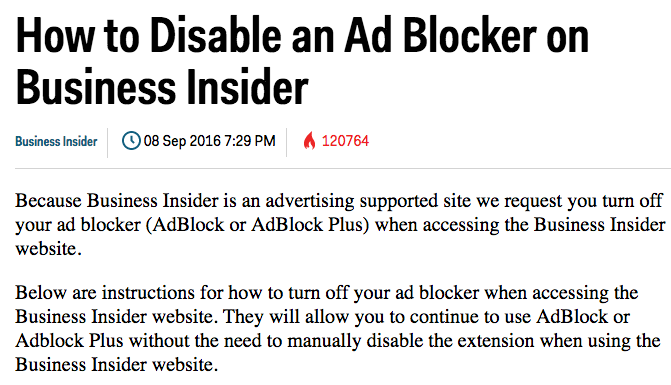
Next create a dedicated page with instructions for users on how to whitelist your site and disable their ad blockers. Examples of such pages can be seen on sites such as Wired, and Business Insider.
3. Create an Ad Blocking Offer Template
Go to Manage → Templates to create a new ad blocking offer template. Our offer template guide will be your best resource during that process. As you construct your template, keep in mind that Piano automatically detects when users disable their ad blockers after viewing Piano templates. That means, if you are simply asking that users whitelist your site, you do not need to configure any resources or terms or offers within Management + Billing. That's also typically true if you're asking users to sign up for a newsletter in return for ad blocking privileges (see here for instructions on creating a newsletter signup within a template).
If you are asking ad blocking users to register or subscribe (or convert on any other term), you'll need to set up resources, terms, and offers within Management + Billing before configuring the rest of your ad block experience. If you aren't asking users to convert on a term in exchange for ad blocking privileges, you can skip down to step seven. Otherwise continue to step four. In any case, remember to include a link to your page with whitelisting instructions within your offer template. Currently, our instruction videos of how to disable ad blocking are only available in English.
Note that if you want to test multiple messages or offers to see which one converts best (which we recommend), you'll want to create multiple offer templates.
4. Set Up a Resource For Ad Blocking Users
Go to Manage → Resources to create a new standard resource and choose a name (e.g. "Access for ad blockers"). As you pick a name, keep in mind that resource names can be exposed to end users in a number of ways.
5. Create a Term For Ad Blocking Users
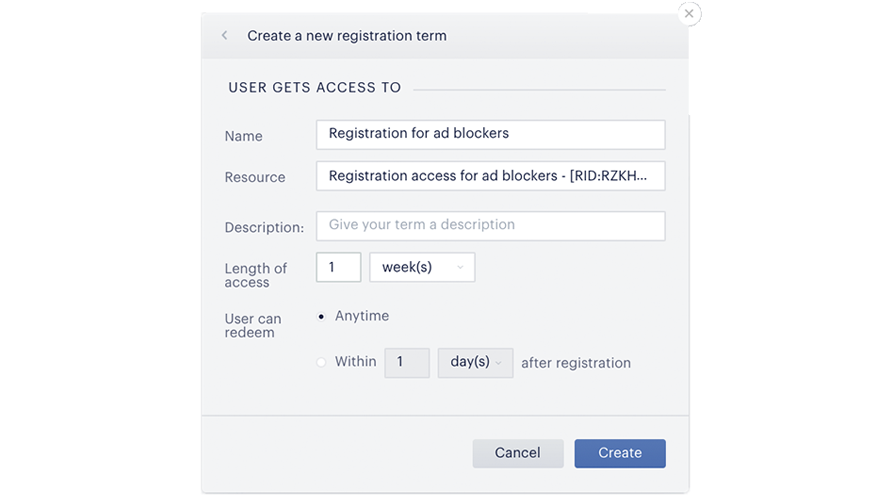
Click the Terms section on your resource page or click Manage → Terms. If you're asking users to register, you'll want to create a new Registration term. You'll then give your term a name, link it to the resource you just created, and set length of access to what you deem fair. Registration terms are typically used to provide trial access and to retarget users with a paid long-term access offer.
If you're instead asking ad blocking users to pay, you'll want to select a Payment term, name it, link it to the resource you just created, decide how much to charge, and configure the other payment term settings as you see fit.
6. Create an Offer for Ad Blocking
Go to Manage → Offers. Create a new offer and name it. Add your new ad blocking registration term to the offer.
7. Create an Ad Blocker Experience In Composer
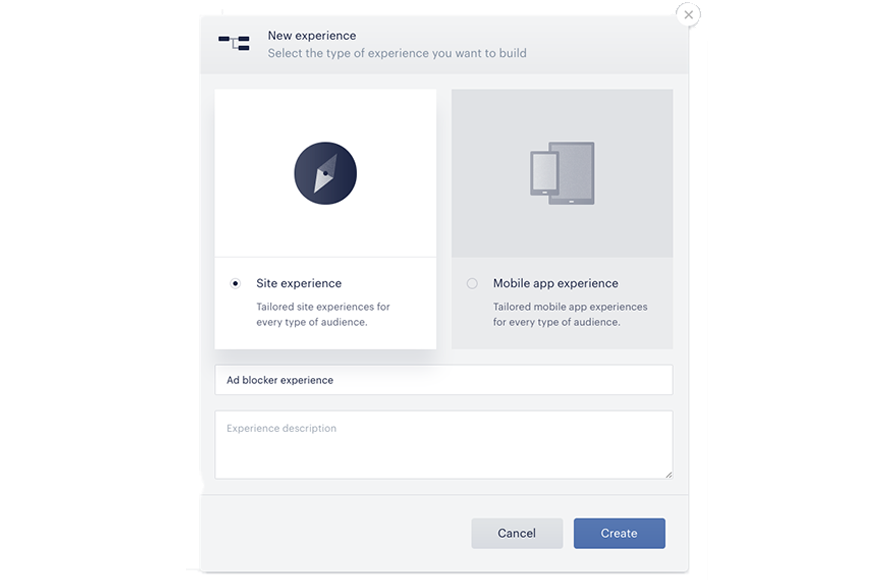
Go to Manage → Composer. Hit the "Compose" button in the upper-right corner. Select "Site Experience" and give your experience a name (e.g. "Ad blocker experience"). This name is for your reference only.
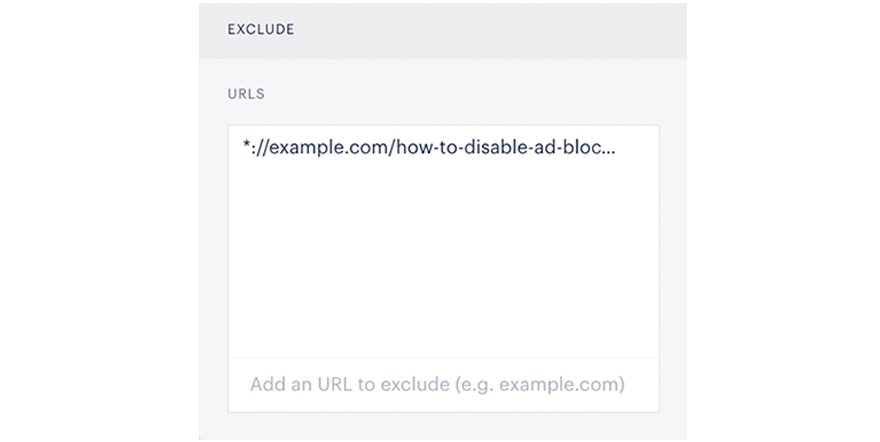
From inside Composer, then click on the Effective Pages card and toggle "Target all pages" off. Under URLs to exclude, you will want to at least exclude the URL of the page with instructions for disabling ad blockers, otherwise ad blocking users won't be able to read it (many clients choose to also exclude URLs for their home pages and section fronts). You might also want to exclude the URL of your main Subscribe page, so users with ad blockers enabled will still be able to subscribe.
Next, on the user segmentation card, hit the pencil icon. Click "Custom Segment" at the top, then check the box labeled "Adblockers" and "Adblockers Enabled."

8. A/B Test (Optional)
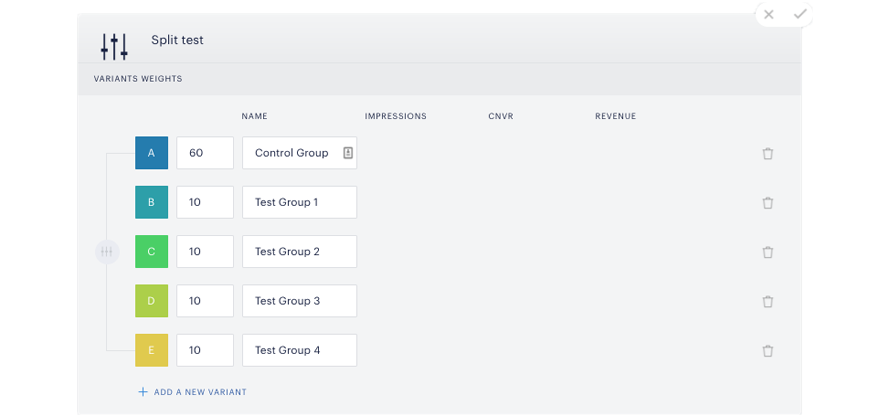
If you're A/B testing multiple offer templates, after deleting the "Non-site Action" card, drag "A/B Test" card to the empty box under "Events and Triggers." Many publishers choose to limit A/B testing to a small percentage of their audience before rolling out the most effective offer site-wide. For this example, here's an A/B test each of four templates on 10 percent of the selected audience, which means 60 percent of ad blockers will see no message during optimization. See here for more information on A/B testing.
9. Add Your Ad Blocking Template or Offer to the Experience
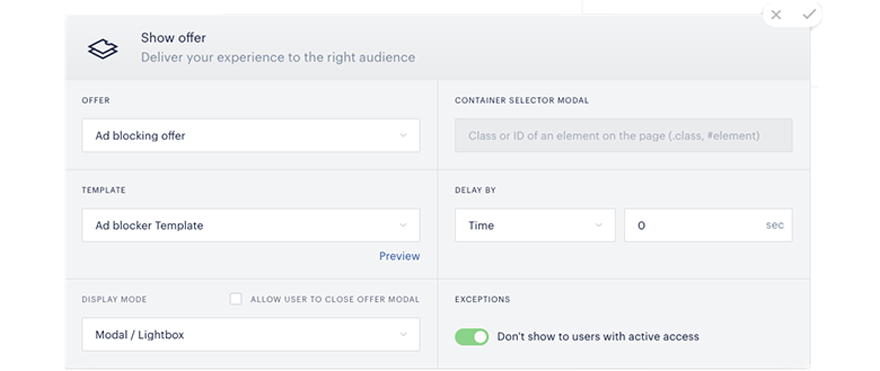
If you're not asking ad blockers to convert on a payment or registration term, you'll use the "Show Template" card to display the offer template you constructed. If you are asking users to convert on a payment or registration term, you'll use the "Show Offer" card to combine the offer you created with your template. See here for more information on Show Offer and Show Template cards.
One of the most important factors on the performance of anti-ad blocking efforts is how your content is protected. With a hard lock approach, ad blocking users are unable to continue to view any content unless they comply with a request to disable their ad blockers, subscribe, or register. With a soft-lock approach, ad blocking users can continue to view content after dismissing the request. Some Piano clients chose a hybrid approach where they message ad blockers with a soft-lock message on the first pageview and a hard-lock message on all subsequent pageviews.
An analysis of various anti-ad blocking experiences run by the Piano clients shows that using a hard lock greatly increases average conversion rates. On average, a soft-lock approach converts 3 percent of ad blocking users, a hybrid approach converts 16 percent, and a hard lock approach converts 28 percent.
When you're configuring your Show Offer or Show Template card, if you set the display mode to "Modal," you'll be to decide between a hard lock or a soft lock by checking or leaving unchecked the "allow user to close offer modal" box. If you display your offer or template inline, the overlay is always a hard lock. However, we find that modal messaging significantly outperforms inline messaging for ad block experiences.
Once you've configured your card, if you're not A/B testing, simply delete the "Non-site Action" box and then drag "Show Offer" or "Show Template" card over to the empty box at the end of the experience. If you are A/B testing, drag the "Non-site action" card to the segment of your audience that's not being targeted (60 percent of the audience in our example above). Then drag "Show Offer" or "Show Template" cards over to the other A/B test branches and select the appropriate offers and templates.
10. Testing
We always recommend that you test an experience in your Sandbox account before making it live on your production account. You can test to see whether your experience is working properly by opening a Incognito window in Chrome, enabling an ad blocker, and visiting your site. If you're targeting all ad blockers, the offer should fire.
If you're A/B testing, you may have to visit your site more than once (and clear your cookies between visits) to see the live experience since not all visitors are being targeted. Piano's A/B tests are "sticky," which means a user will be placed into a specific A/B test group upon that user's initial visit. By setting cookie values, Piano will then continue to register that user's impressions as part of their specific A/B test group during all subsequent visits to your site (unless cookies are cleared).
After you see the offer, try disabling your ad blocker or converting on the term and then return to your site. You shouldn't see the offer message this time around. If you have any questions during the setup process, our support staff is always happy to help. Simply reach out to us at support@piano.io or contact your Piano representative.