
The Consent Management module allows you to use the products offered by Piano in compliance with privacy legislation. Designed to comply with GDPR and ePrivacy by default, this module is also flexible enough to adapt to different legislation around the world.
The Consent Management module allows you to:
-
Manage the placement of cookies (and other tracers)
-
Manage the purposes of different Piano products
-
Easily translate the choices made by your users on your cookie banner into signals understood by Piano products.
Consent Management: Modes and Purposes
Piano divides the trackers used by its products into three categories:
-
Mandatory - disabling these items will cause the system to break
-
Essential - disabling these items will allow the system to operate, but with major restrictions
-
Optional - disabling these items does not affect the functionality of the system in a major way
Each Piano product can be associated with a consent mode, which allows you to place the tracker's category associated with the mode:
-
opt-in - all trackers will be placed
-
essential - only essential and mandatory trackers will be placed
-
opt-out - only mandatory trackers will be placed
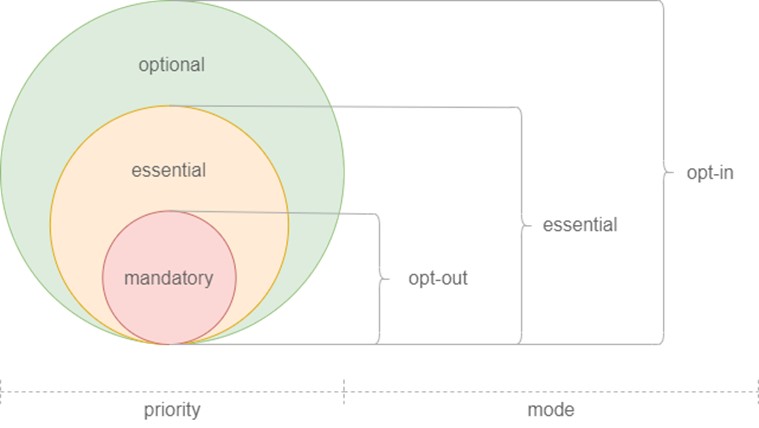
All products are distributed by their purposes (more details in Privacy Policy):
|
Purpose |
Products |
|
Audience measurement (AM) |
Piano Analytics (PA) |
|
Content personalization and Performance (CP) |
Composer |
|
Advertising (AD) |
Audience, Social Flow |
|
Personal Relationship (PR) |
ID, VX, ESP |
|
Data Layer (DL) |
DL |
Clients can alter the initial setup - they can re-assign products to different purposes, and also create their own purposes.
It is mandatory to use Consent Management when Piano Analytics is used in conjunction with any other product.
Please note that the "Data Layer" purpose and the assigned DL product are reserved by Piano. Only the DL product can be assigned to the DL purpose.
Enabling Consent Management on your Website
In order to use Consent Management, you need to initialize the requireConsent variable. By default it’s false, but it also supports the following values:
-
true or 'v1' - enables Consent Management V1 (deprecated solution - see the section here)
-
'v2' - enables Consent Management V2 (recommended solution - see below)
Code examples:
// V2
<script>
    window.pdl = window.pdl || {};
    window.pdl.requireConsent = 'v2';
</script>

// V1
<script>
    window.pdl = window.pdl || {};
    window.pdl.requireConsent = true;
</script>
Once the Consent Management is activated, the client can start using the dedicated methods to translate users' decisions into signals. For example:
<script>
	window.pdl = window.pdl || {};
    window.pdl.requireConsent = 'v2';
</script>
...
tp.push(["init", function() {
	if (!tp.consent.getByPurpose()) { // consents are not given yet
		window.showConsentBanner(
			(selectedPurpose, selectedMode) => {
				tp.consent.setByPurpose(selectedPurpose, selectedMode)
			} // the Consent banner should be implemented by the publisher
		)
	} else { // consents are received already
		tp.experience.init();
	}
}]);
Note, that if the __utp cookie is already set and the consent management framework is then initialized with the code:
window.pdl = window.pdl || {};
window.pdl.requireConsent = 'v2';
It is expected behavior that the __utp cookie gets deleted. This is the default action and the removal of all cookies occurs until the consent is explicitly set.
When v2 is used, you can use the following functions, to get or set a user’s consent status.
Getting user consent status:
-
tp.consent.getByPurpose()- if consents are set, returns the full map of {purpose:mode:products}. Otherwise returns null.
Setting user consent:
-
tp.consent.setAllPurposes(mode)- sets the defined mode to all products for all purposes. -
tp.consent.setByPurpose(purpose, mode, product?)- applies the specified mode to all products in the purpose. If a product parameter is specified, it also assigns the purpose with a specified mode. Examples:-
tp.consent.setByPurpose('PR', 'essential')- ID, VX and ESP products are set to 'essential’ mode -
tp.consent.setByPurpose('AD', 'opt-out', 'Composer')- Composer product is assigned to AD purpose in addition to DMP (Audience) and Social Flow products. All 3 products are switched to 'opt-out' mode. Also, you can pass an array of products, e.g.tp.consent.setByPurpose('AD', 'opt-out', ['ID', 'VX']). Similarly, all products will be added to the specified purpose with the specified mode. -
Note: after the first call of the 'setByPurpose' method if a product's purpose is not defined yet, it’s initialized with 'opt-in' mode.
-
The chosen consent(s) will be stored in the __pprv cookie.
Note: V2 methods are not available in V1.
PDL Configuration Priority
When implementing consent management using the tp.push command, it’s important to configure your setup correctly to ensure proper Piano cookie functionality.
Implementation Checklist
-
Initialize
pdlobject first: Define the configuration object before the Piano SDK script begins loading -
Piano Analytics dependency - The
pdlobject is required when using Piano Analytics
Critical Implementation Rule
Always add the pdl object in your implementation BEFORE initializing the Piano SDK. This object must be configured prior to any Piano SDK code execution on the webpage.
Potential Issues Without Proper Setup
Failing to set the pdl object correctly may result in:
-
Authorization functionality failures
-
Unintended cookie deletion
-
Consent management malfunctions
Altering the Default Purposes
Clients can specify their own purposes if the ones provided by Piano don't match their cookie banner. For example:
    window.pdl = window.pdl || {};
    window.pdl.requireConsent = 'v2';
    window.pdl.consent = {};
    window.pdl.consent.defaultPurposes = {
        DMP: 'Custom purpose 1',
        COMPOSER: 'Custom_purpose_2'
    }
In this example since Composer is moved to a different purpose the CP purpose doesn’t contain any product and doesn’t exist anymore.
Based on the above code, here is how the purposes and products would look like after if it's applied:
|
Purpose |
Products |
|
Audience measurement (AM) |
Piano Analytics (PA) |
|
Custom purpose 2 |
Composer |
|
Custom purpose 1 |
DMP (Audience) |
|
Advertising (AD) |
Social Flow |
|
Personal Relationship (PR) |
ID, VX, ESP |
|
Data Layer (DL) |
DL |
Narrowing the Scope of Products to Work with
Clients can specify only those products that they would like to work with:
    window.pdl = window.pdl || {};
    window.pdl.requireConsent = 'v2';
    window.pdl.consent = {};
    window.pdl.consent.products = ['DMP', 'PA'];
In this case, only 3 products will be presented in the tp.consent.getByPurpose() outcome - DMP (Audience), PA and DL (DL is the default one and is added even if it’s not specified). The same goes for other methods - they will work with those 3 only.
A use case that can be met by this is, for example, if a client hasn’t integrated with all Piano products yet, the client may specify only those products which they are currently working with, e.g., PA only. Later, the customer may add other products to the scope, and they will be initialized with the opt-in mode by default.
Adding a New Product to the Consent Management
For example, you would like to add ID (Piano ID) as a new product to the consent management configuration. If you wish to change the opt-in consent mode set by default for ID, you need to define the new property within your pdl object.
Please set the following property within the pdl object: pdl.strictConsent
tp = window.tp || [];
window.pdl = window.pdl || {};
window.pdl.requireConsent = "v2";
window.pdl.strictConsent = true; // defines the strictConsent feature
window.pdl.consent = window.pdl.consent || [];
window.pdl.consent.products = ['COMPOSER', 'VX', 'ID']; // ID product was added
Once the system identifies ID as a new product inside the pdl config object, the system will apply either of the following scenarios, depending on your consent management version:
-
If the system is set to Consent Management v1 (deprecated solution), then the following consent mode should be applied by default → not acquired. Both of the following is true when that consent mode has been set:
-
ID as a product is not set into Cookies
-
Not a single consent will be returned for the ID product
-
tp.consent.get(deprecated method) will not return the consent mode for ID; Please note, that such configuration is applicable for clients that userequireConsent=true, orrequireConsent='v1'
-
-
If the system is set to Consent Management v2, then the consent mode for ID depends on the purpose that has been set for your new product:
-
When you assign an existing purpose to your new product, that product will be defined with the same consent mode. For example if:
-
ID is assigned with the personal relationship (PR) purpose;
-
Products with such purpose are being set with the following consent mode = essential. Therefore, ID will be set in the same essential consent mode by default. No further action is required;
-
-
When you assign the new product to a purpose for which the Consent mode has not been set, the Consent mode will be set as not acquired automatically;
-
Note that in this case, the consent mode value for the new product will not be stored inside the
_pprvcookie value; -
To set the Consent mode for the new product, we recommend showing a Privacy banner. This action helps ensure that the new product is used with the appropriate Consent mode;
-
The function
tp.consent.getByPurpose()will return not acquired as the consent value for a particular purpose;
-
-
If a consent mode is not assigned to a purpose, the function tp.consent.getByPurpose() will return not acquired. Ensure that the Privacy banner collects user consent to define the consent mode for each purpose.
Important: If the consent mode configuration for products is not properly set, all Piano cookies for these products will be removed automatically.
Custom Mode
Piano also provides the ability to create a custom mode, which can allow the restriction even of mandatory cookies. To configure the custom mode, the modifier object must be present on every page load, for example:
tp = window.tp || [];

window.pdl = window.pdl || {};
window.pdl.requireConsent = "v2";

window.pdl.consent_modifiers = {
  "COMPOSER": {
      "source": "essential", // accepted values: "opt-in", "essential", "opt-out"
      "patches": [
        {
          "action": "include", // tac cookie will be stored
          "item": {
            "key": "tac",
            "type": "cookie",
          }
        },
        {
          "action": "exclude", // tae cookie will be not stored
          "item": {
            "key": "tae",
            "type": "cookie",
          }
        }
      ]
    },
    "PA": {
      "source": "essential", // accepted values: "opt-in", "essential", "opt-out"
      "patches": [
        {
          "action": "obfuscate", // pa_vid cookie will always contain `NO_ID` value
          "item": {
            "key": "pa_vid",
            "type": "cookie"
          },
          "with": "NO_ID"
        },
        {
          "action": "exclude", // browser property won't be collected
          "item": {
            "key": "browser",
            "type": "property",
          }
        }
      ]
    },
    "DMP": {
      "mode": "opt-in"
    }
};
Here are further examples that show different source values in use.
opt-out as source:
tp = window.tp || [];

window.pdl = window.pdl || {};
window.pdl.requireConsent = "v2";

window.pdl.consent_modifiers = {
  PA: {
    source: "opt-out",
    patches: [
      { action: "include", item: { key: "page_full_name", type: "property" } },
      { action: "include", item: { key: "click.action", type: "event" } },
    ],
  },
};
essential as source:
tp = window.tp || [];

window.pdl = window.pdl || {};
window.pdl.requireConsent = "v2";

window.pdl.consent_modifiers = {
  PA: {
    source: "essential",
    patches: [
      { action: "exclude", item: { key: "event_collection_platform", type: "property" } },
    ],
  },
};
Then, at the point of consent, the "custom" mode can be provided to confirm the selection, e.g.:
tp.push(["init", function() {
  tp.consent.setByPurpose('CP', 'custom'); // Composer is set to custom mode
}])
Note that if you want to exclude cookies from the DL purpose, the DL purpose must be set first.
The following actions can be used on any cookie or storage item:
-
include
-
exclude
-
obfuscate. Don't forget to specify the
withkey and the desired value of the cookie. Keep in mind that products working with the cookie might not be able to parse its value after obfuscation. Possible effects of that are described in the "User opt-out effect" column.
Supported item types: cookie, localStorage, sessionStorage
Note1: You cannot apply custom mode to a purpose using the setByPurpose function if not all products in the purpose have modifiers. For example, if you call tp.consent.setByPurpose('PR', 'custom') with the code above, you will get the following error:
VX, and ESP don't have modifiers in the pdl. Custom mode can't be applied
It means that since the PR purpose has 3 products (ID, VX, ESP), all of them must have modifiers specified in order to apply custom mode.
The same validation is applied to the setAllPurposes function.
Note2: The DL product manages Cross-Product Cookies (see this link for more information). We don’t recommend altering them in any way using custom mode, because it might negatively affect basic features and cross-product consistency.
The cookies listed here can not be handled by the Consents management feature - the only exception being the _ls_ttl cookie, which can be managed via the VX product.
Segmentation based on Consent
If a user did not consent to some behavior that could be driven by Composer (for example, no consent on Experience personalization), the Composer experiences can be customized to exclude users without consent from that Experience (for example, excluding these users from the Experiences that ask users to subscribe to the newsletters). To achieve this, Piano Composer has built-in custom variables that can be used in the User Segment card to filter these users out or include them in an Experience. These custom variables are identified by product as follows:
-
Piano Analytics -
__cm_pa -
DMP (Audience) -
__cm_dmp -
Composer -
__cm_composer -
ID -
__cm_id -
VX -
__cm_vx -
ESP -
__cm_esp
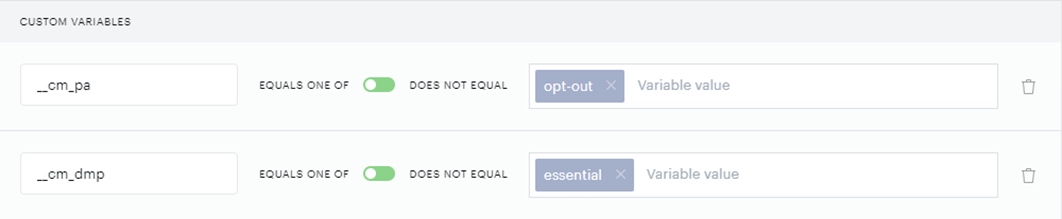
Here are the available values of the variables:
-
opt-in,opt-out,essential,custom- values, based on product modes -
not-acquired- this value means that consent for the product is not given yet
Products which are not specified in the pdl.consent.products list (see the “Narrowing the scope” section) are considered opt-in products.
Working with DataLayer (DL) cookies
-
DL cookies (
_pprv,_pctx,_pcidand_pcus) can be managed viapdl.cookies:HTML<script> window.pdl = window.pdl || {}; window.pdl.requireConsent = 'v2'; window.pdl.cookies = { _pprv: { domain: 'my.custom.domain', path: '/my/custom/path', } }; </script>In this case:
-
new browser -
_pprvcookie is set on the custom domain and path instead of the default ones -
browser with existing
_pprv- the cookie is migrated to the custom domain and path, and the value is saved. The original cookie is left as is, however, all following updates will be applied to the cookie on the custom domain and path
The full set of parameters that can be altered: domain, path, expires, secure, samesite
Example:
    _pprv: {
        domain: 'my.custom.domain',
        path: '/my/custom/path',
        expires: 10,                  // 10 days
        secure: true,                 // boolean - true/false
        samesite: 'none'              // possible values are: none, lax, strict, see https://owasp.org/www-community/SameSite#:~:text=SameSite%20prevents%20the%20browser%20from,none%20%2C%20lax%20%2C%20or%20strict%20.
    }
Notes:
-
"samesite: none" can be set with "secure: true" only
-
"expires: null" stands for session cookie
-
-
You can also set common settings for all DL cookie via
pdl.cookieDefault:HTML<script> window.pdl = window.pdl || {}; window.pdl.requireConsent = 'v2'; window.pdl.cookieDefault = { domain: 'my.custom.domain', path: '/my/custom/path', expires: 100, secure: false, samesite: 'strict' }; </script>The specified settings will be applied for all 4 DL cookies.
The Data Layer
The Data Layer is a technical and functional component designed to facilitate the sharing of common information across Piano client SDKs (e.g., PA, Composer, and DMP (Audience)). It ensures consistent management and synchronization of data and consent preferences across different Piano products.
-
The Data Layer enables the synchronization of consent modes between Piano products, i.e. products for which the consent mode is set already and new products that have been added into the mix recently.
-
First, the Data Layer is used to get the consent value (opt-in, opt-out, essential) that is set for a specific product purpose (PR or AD, or CP, or AM). Note that the same product purpose can be assigned to multiple Piano products.
-
Once the product purpose is assigned to a new Piano product, the Data Layer automatically sets the same consent mode as other products from that purpose have.
Note: This synchronization is applicable only with the V2 consent management configuration.
-
-
The Data Layer can be used to build the On-Site experience on top of the API interaction experience in Composer, i.e. bridge together the server-side and client-side Composer executions. The Data Layer would be a single piece of truth if you wish to make the On-site experience execute upon getting a response from the Server-side interaction experience (API interaction on the server). To put it simply, the Data Layer helps to link the following types of Composer experiences:
-
API interaction on server experience.
-
On-site experience.
-
-
To establish this connection:
-
Ensure the On-Site Composer execution uses the same
browserIdandpageViewIdparameters as the Server-Side request. -
Add the
browserIdandpageViewIdparameters to the pdl object. It is no secret that the Data Layer fetches data and relies on the pdl object as this setting has been an important part of integration. -
Use the following code snippet to add
pageViewIdandbrowserIdparameters to the pdl object:window.pdl = window.pdl || {}; window.pdl.requireConsent = 'v2'; window.pdl.browserId = "..."; // from /execution/run/server response.linkage.browserId window.pdl.pageViewId = "..."; // from /execution/run/server response.linkage.pageviewId -
Replace the ellipsis punctuation (...) in both
-
window.pdl.browserIdandwindow.pdl.pageViewIdwith the actual values from the server-side request. -
If you have defined the
pageViewIdandbrowserIdvalues yourself, make sure to use the same values inside the pdl object. -
If your server-side request contains automatically generated
pageViewIdandbrowseIdvalues, then put these values instead.
-
-
Presets (Deprecated)
Piano provides the following set of presets indicative of the consent mode for each product:
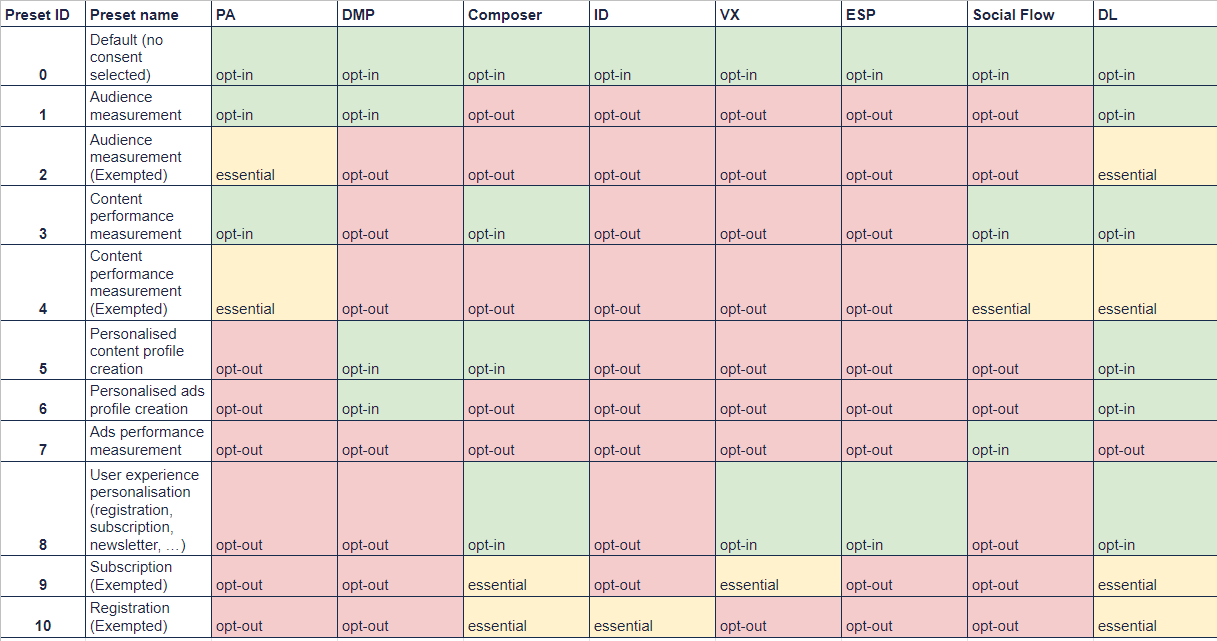
To store the consent by preset, the following JavaScript can be used:
tp = window.tp || [];
tp.push(["init", function () {
  tp.consent.setByPreset([1, 2]);
}]);
When merging presets - the widest consent mode will be used. The function tp.consent.setByPreset needs to be called only at the point of the user’s consent. The chosen presets will be stored in the __pprv cookie.
Product Mode (Deprecated)
If the provided presets are not enough to configure the consent modes, the consents can be provided by the product individually:
tp = window.tp || [];
tp.push(["init", function () {
  tp.consent.set("COMPOSER", {mode: 'opt-out'});
}]);
This operation needs to be performed only at the point of the user’s consent. The chosen presets will be stored in the __pprv cookie.