
With this connection, exported segments can be saved in a local CSV file.
Configuring Piano Audience
Create a configuration
With your site group selected, from the Piano Audience home page, go to the Connectivity tab → the Configurations tab →the CSV export and click the Configure button.
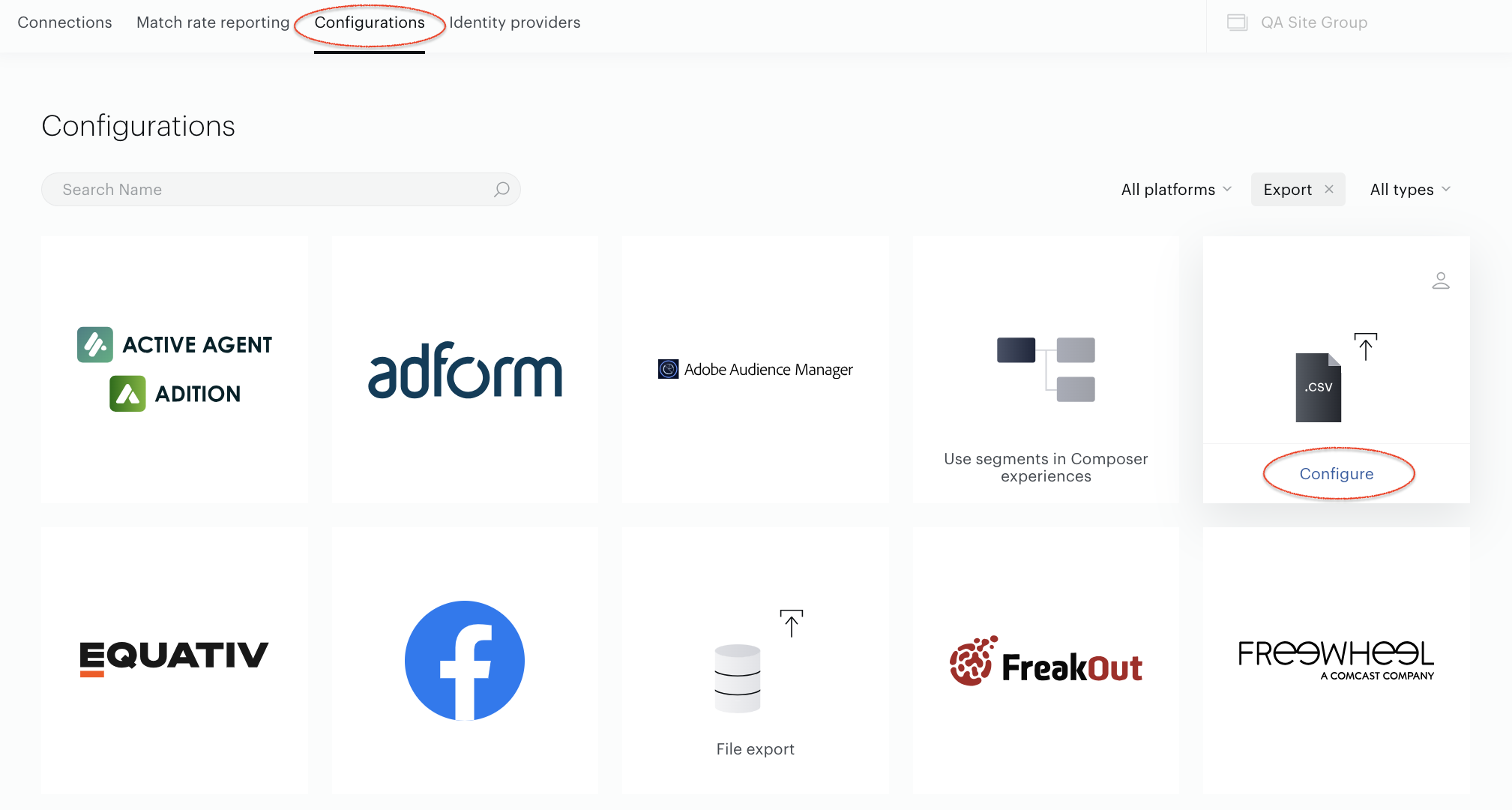
Configure segments
Use Segment type parameter to define what kind of segments you want to export: User segments or Contextual segments.
Use the Select segments selector where:
-
All full usage segments means that all Full usage (active) segments will be selected.
-
All segments includes both types of usage segments: Full and Reporting only segments.
-
Specific segments allows you to select several specific segments. Specific segment options allow you to choose how exactly Piano Audience should select segments for export:
-
Separate segments allow you to search and select segments one by one manually.
-
By labels allows you to select one or more labels (key-value pairs). Audience will find segments by the selected labels.
-
By segment groups allows you to select one or more segment groups, and Audience will find segments within these specific segment groups. It is more suitable for those clients who prefer to organise their segments specifically.
-
Use sliders to choose the segment parameters to be in the file:
-
Segment ID and Segment name as main segment parameters
-
Description
-
Usage (Reporting only or Full)
-
Segment group (relevant for segments with groups)
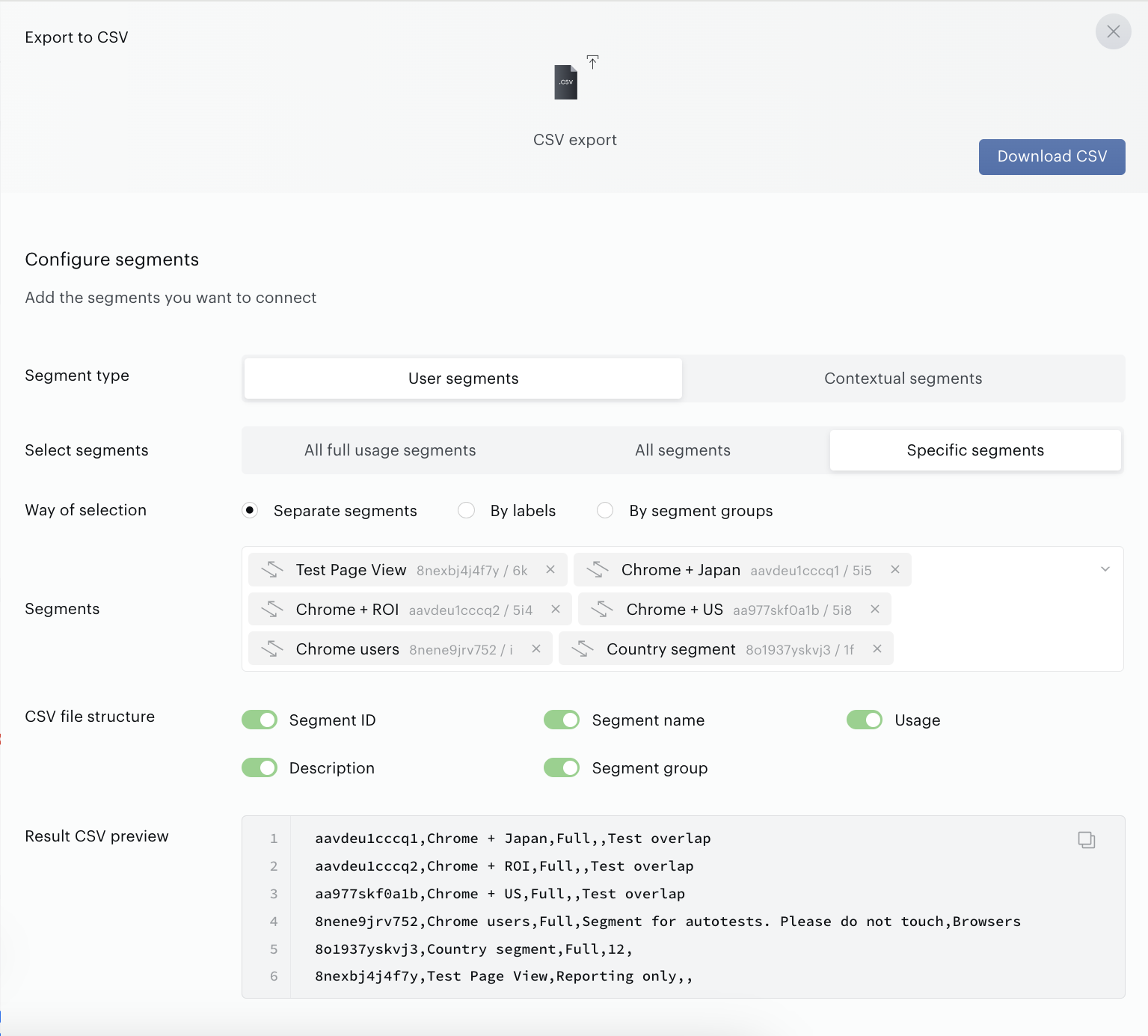
Click Download CSV to download a file or use a special icon to copy data to the clipboard.
Preview the resulting CSV
This section allows you to see the structure of the file and data that will be available for downloading.