
File import connection in the Audience→Connectivity allows importing segment data from different sources, for example, S3, and SFTP.
The result of the File import connection is the set of External segments with the relevant audiences. The External segment audiences can be updated by a schedule: for example, once a day. These External segments can be used in the same way as any other External segments in Piano Audience.
Prerequisites
The prerequisites should be followed first before you start creating and configuring a File import connection.
-
Piano does not provide storage for imported files.
-
Make sure the used storage contains the files to import.
-
Make sure the necessary access rights to the storage are provided: read permissions are obligatory. Piano Audience can verify only the read permissions at the stage of connection creation. If the files after import should be deleted or renamed, for example, be sure that all obligatory permissions, except read, have been provided, otherwise, Piano Audience won’t be able to complete the import process correctly.
Create a File import connection
When all the prerequisites are done, you can create a File import connection in Audience:
-
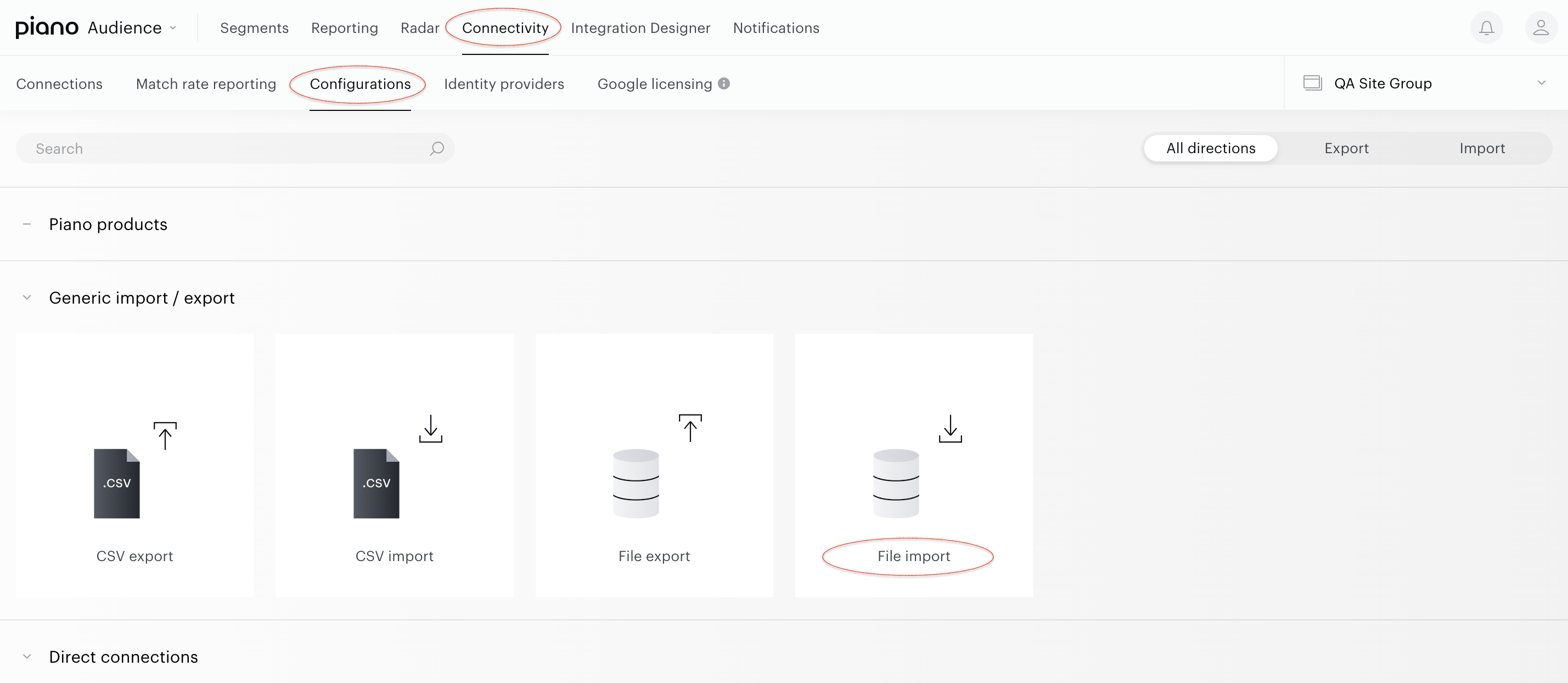
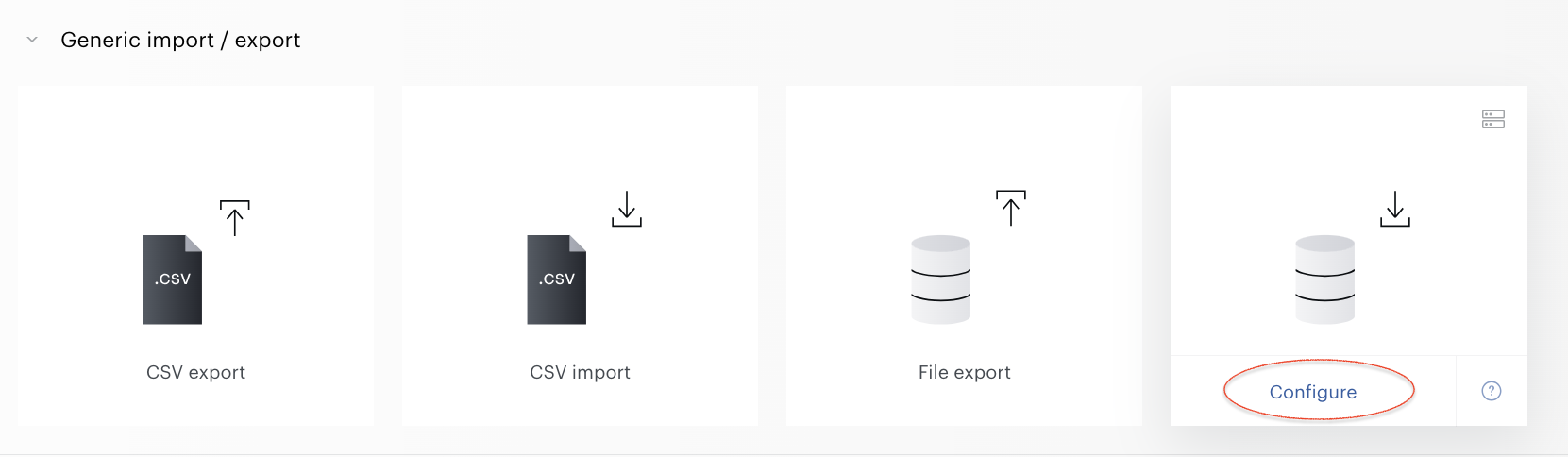
From Piano Audience' home page, go to the Connectivity→Configurations→File import icon and click the Configure button.
-
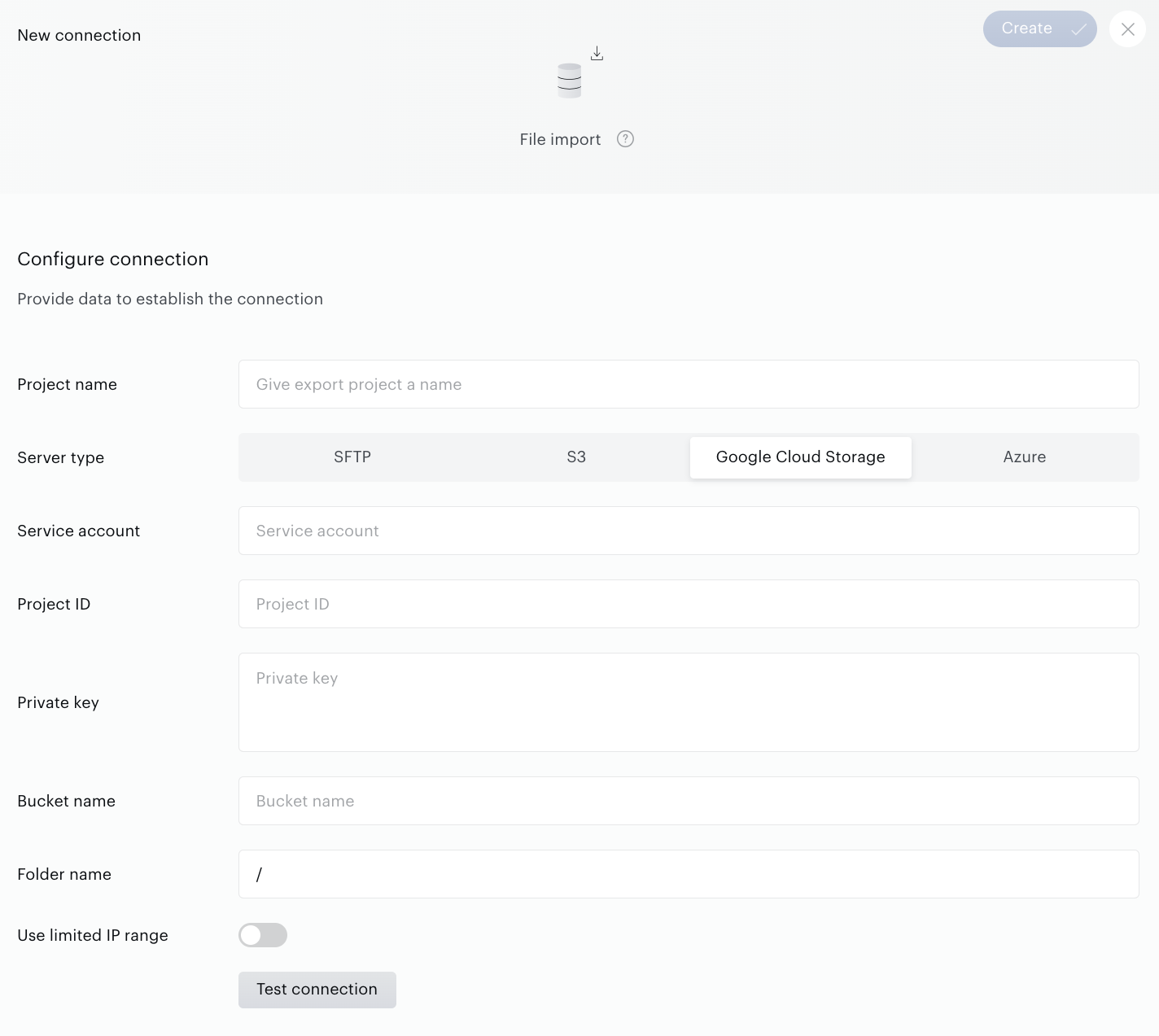
In the Сonnection form fill all obligatory parameters to be able to connect to the storage.
Click the Test connection button. A request to the specified account on the partner’s side will be sent. Wait for the positive result of the Test connection. If everything works correctly, you'll get a corresponding notification.
-
The Create button in the upper right corner will be activated. Click it.
Create will turn to the Save button. You can use it any time during further configuration.
-
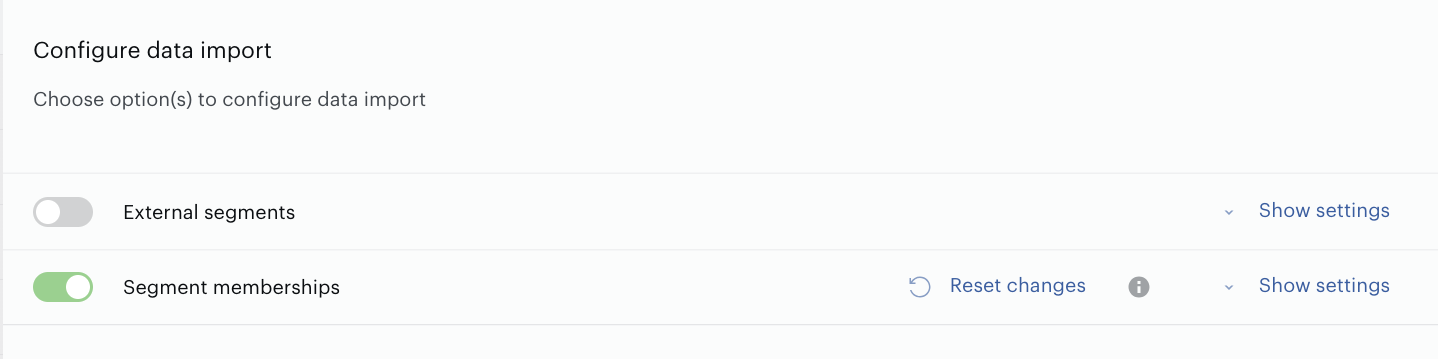
Configure data import, starting with a selection of the Import type - the operation (one or both of them): External segments and/or Segment audiences.
-
Select between a single import or choose continuous import frequency in the Import frequency section.
-
Activate and save the connection.
Piano Audience, according to the connection configuration, imports data from the storage and creates/updates External segments and segment memberships:
-
Piano Audience creates/updates segments in case there are segments available for import.
-
Piano Audience creates segment memberships in case there are memberships available for import.
Piano Audience allows you to see the file import results in different parts of the Audience dashboard:
-
History tab of the File import connection.
-
Segment builder. Use filters in the Segment list to be able to find created/updated segments with specific Specifications.
-
Match rate reporting.
In addition to that, you can activate the corresponding event in the Subscriptions application of Piano Audience and get notification emails with the list of newly created External segments.
Configure the connection
In the New Connection menu, you want to set:
-
Project name: It will be shown in Piano Audience only to simplify managing numerous integrations.
-
Server type: SFTP or S3 (if you're using Amazon Simple Storage Service), or Google Cloud Storage.
-
SFTP requires: Public SFTP key, Server name (or server IP address), Folder name, Port of server, Username, and Password (if one exists).
-
S3 requires: Access key, Secret key, Region, Bucket name, and Prefix.
-
Google Cloud Storage requires: Service account, Project ID, Private key, Bucket name, and Folder name.
-
Azure requires: Storage account name, SAS token, Endpoint suffix, Container, Prefix.
-
-
Use limited IP range: Use specific IP addresses, listed in the Composer 1x Crawler documentation, for routing files through a Piano Managed proxy server to storage vendors Amazon S3 and GCS. If not enabled, any IPs will be used.
To use S3 storage, all fields for SFTP and GCS storage must be empty, and vice versa. If you need to use multiple storage types simultaneously, you must create a separate connection for each server type, as a single connection cannot support multiple storage types at once.
Configure data import
One of the main parts of the file import configuration is the configuration and activation of the Import type operation. You can only import segments’ data and as a result, create/update External segments or you can only update segment audiences in case all your External segments have already been created. Or you can configure and activate both operations. If so, the Piano Audience every time (according to the schedule) will try to create/update segments and after that will update their audiences.
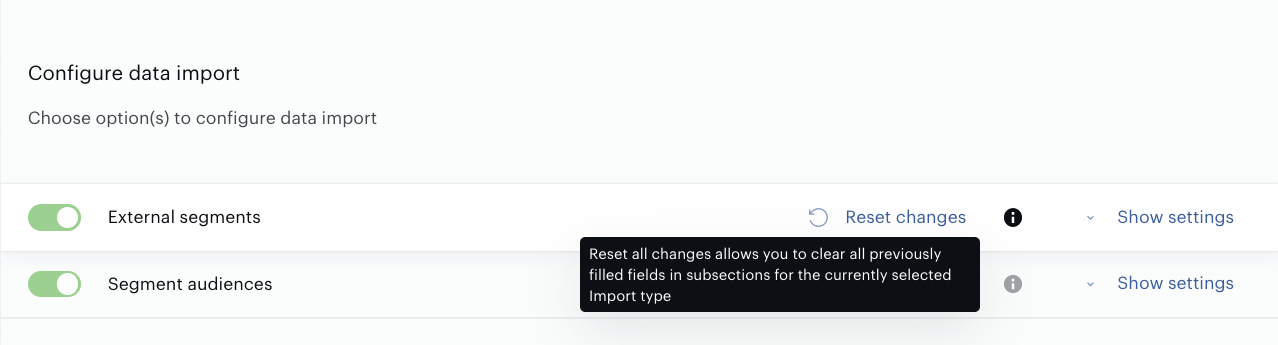
The Import type selector of the Configure data import section allows you to choose what should be configured first.
-
The Import type status activates or deactivates the import operation. Be aware that to be able to create/save the connection at least one Import type operation should be configured and activated. Otherwise, the connection creation doesn’t make sense.
-
Use the Reset button to clear all the previously filled fields for the corresponding option.
To create external segments with their audiences, it is recommended to configure data import for both the External segments and Segment audiences options:
-
If the External segments configuration is filled, the system creates/updates external segments with no audiences. File import connection uses the API endpoint segment/create to create External segments.
-
If the Segment audiences configuration is filled, the system updates segment audiences for the existing external segments, using the API endpoint segment/data/update.
All existing restrictions of the API endpoints are supported.
All the configuration settings from the current Configure data import section, starting with the Import type selection and up to the Import frequency section refer either to files which data will be used to create/update the External segments, or to update the External segment audiences.
You need to configure the following sections for each Import type option:
-
The Import folder structure section is used to define the specific folder(s) where files can be located.
-
The Import file structure section is used to define the specific file(s) where data will be extracted from.
-
The Data mapping section is used to define the data mapping between the extracted files and new external segments/segment audiences that will be created in the Piano Audience.
-
The File post processing section is used to configure what should be done with the imported files after data import.
The files used for data import must be encoded in UTF-8 to ensure proper processing. Using a different encoding may result in errors or incorrect data interpretation.
Import folder structure configuration
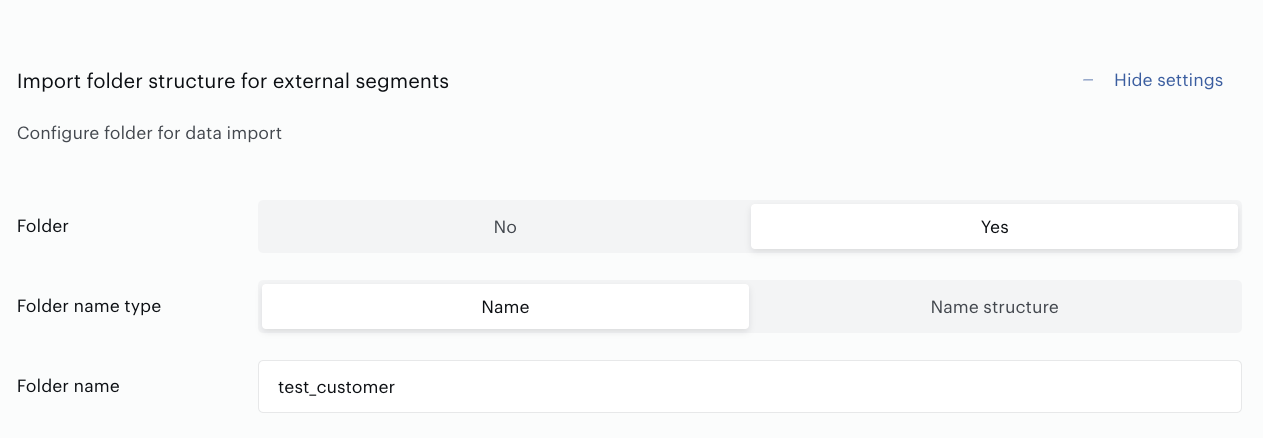
First of all, specify if the file(s) is in the folder or not. If so, specify the Folder name type:
-
Use the Name option in case the folder has a static name. If this option is selected, put the folder name in the Folder name field.
-
Use the Name structure option if the folder name depends on the date, customer name, or other specific parameters and is usually created automatically by the source platform. If this option is selected, configure the folder name structure, using static, configurable parts and different delimiters.
The folder name structure configuration works the same way for all import types. Read details in the Name configuration paragraph of the current article. Don’t forget that we verify basic name restrictions in terms of the symbols, letters, name size, etc. Read details in the Name restrictions paragraph of the current article.
Import file structure configuration
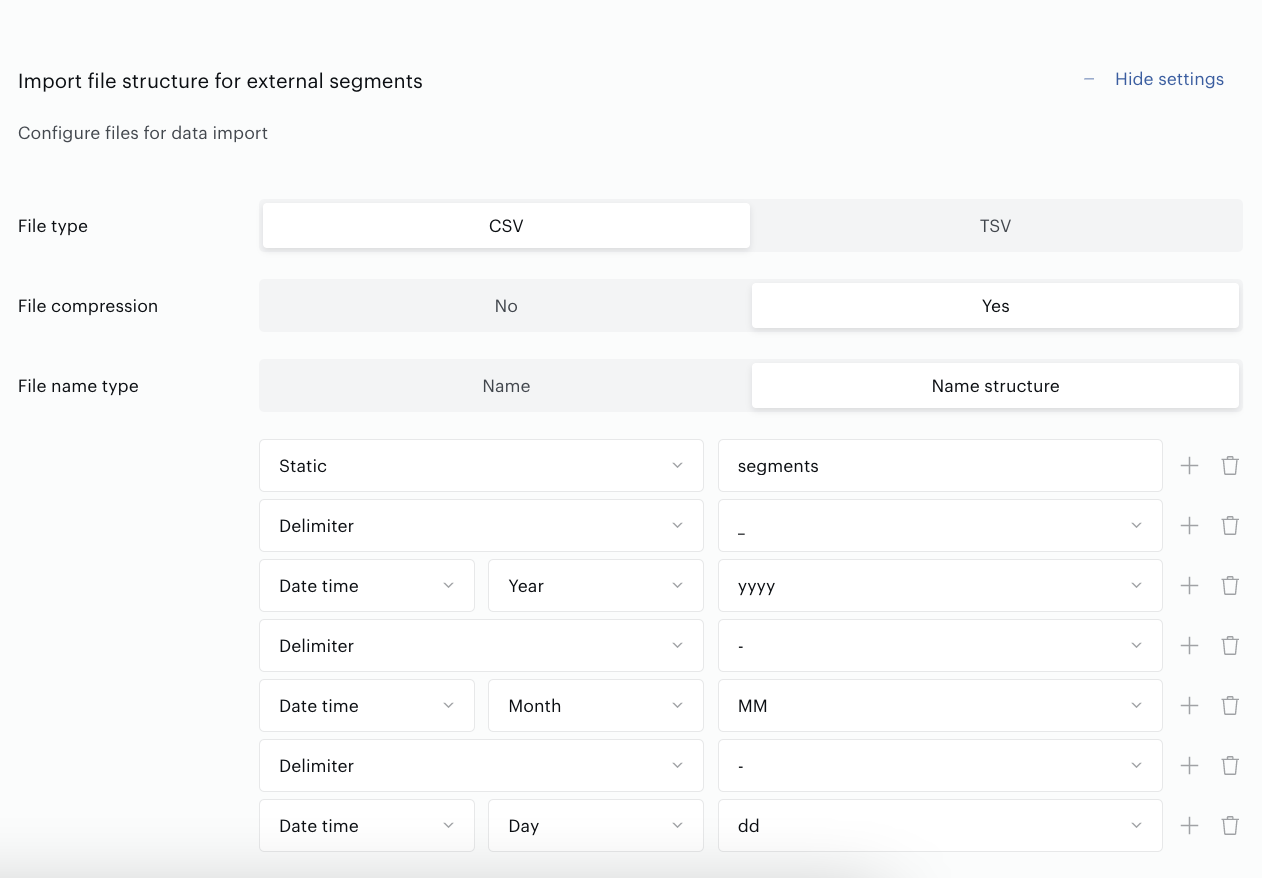
First of all, specify the following:
-
File type. Piano Audience supports only CSV and TSV types.
-
File compression that should let Piano Audience know if the files are in an archive or not.
In addition to that you have to specify the File name type:
-
Use the Name option in case the file has a static name. If this option is selected, put the file name in the File name field.
-
Use the Name structure option if the file name depends on the date, customer name, or other specific parameters and usually created automatically by the source platform. If this option is selected, configure the file name structure, using static, configurable parts and different delimiters.
The file name structure configuration works the same way for all import types. Read details in the Name configuration paragraph of the current article. Don’t forget that we verify basic name restrictions in terms of the symbols, letters, name size, etc. Read details in the Name restrictions paragraph of the current article.
Name configuration
In general, files can be exported to specific folders with static or changeable names that depend on, for example, the date of export, customers’ names, etc.
The file names can be created in a similar way - they can be static, such as “My external segments.csv”, or can be configured on daily basis and depend on the same parameters like date, customers’ names or customers’ IDs, etc.
For the second case when the name is configured automatically based on the specific template the File import connection allows you to configure name structures, using different parts as puzzles:
-
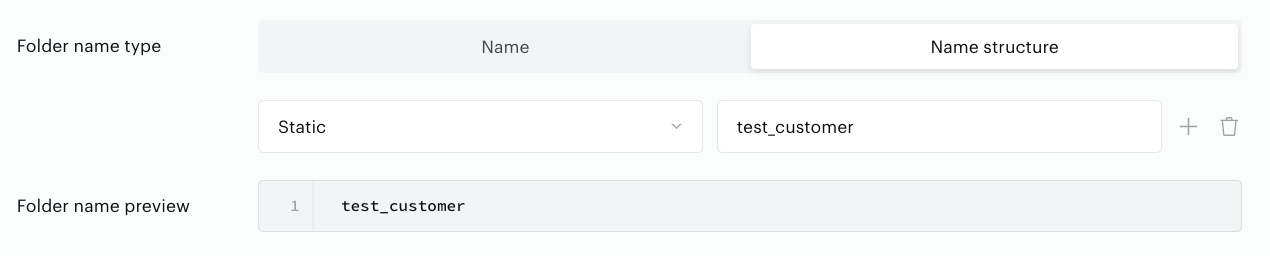
Static parts. Usually, it is a short string consisting of letters and numbers, any text and known as prefixes or suffixes.
-
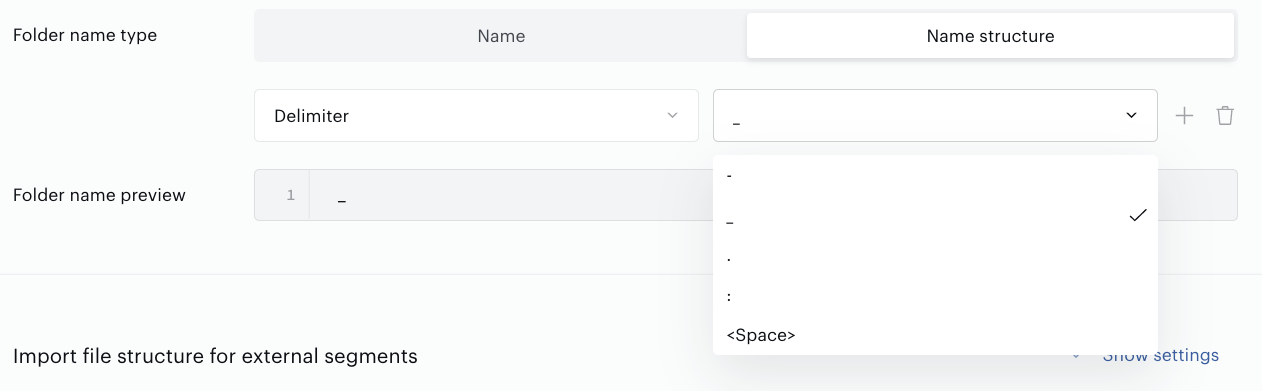
Delimiters that can be used between different name parts, such as hyphen, underline, spaces, and other legal symbols that can be used in file names.
-
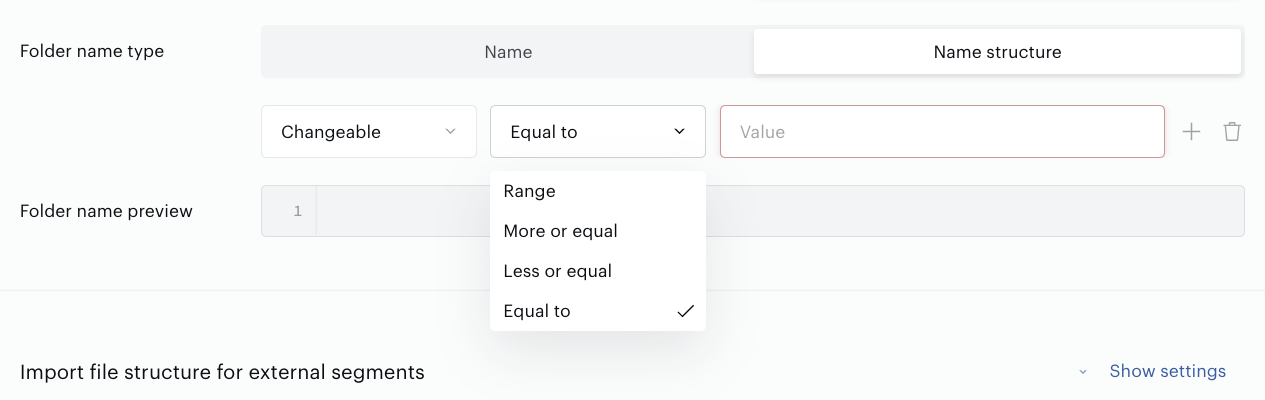
Changeable parts that can vary and depend on, for example, client ID, client name, etc. This part can have different sizes or can have a fixed length, for example, 5 symbols.
-
Date time option allows configuring names that depend on a date or/and time.

Name preview allows seeing the configured folder/file name structure to be able to understand if you have configured it correctly.
Be aware that Piano Audience verifies the file/folder names in terms of the illegal symbols, the possible maximum name size, etc.
Name restrictions
The name size limit is 250 symbols.
Illegal file name characters are:
-
# pound
-
% percent
-
& ampersand
-
{ left curly bracket
-
} right curly bracket
-
\ backslash
-
< left angle bracket
-
> right angle bracket
-
* asterisk
-
? question mark
-
/ forward slash
-
$ dollar sign
-
! exclamation point
-
' single quotes
-
" double quotes
-
@ at sign
-
+ plus sign
-
` backtick
-
| pipe
-
= equal sign
The delimiters that can be used in folder/file name structure:
-
_
-
- (minus)
-
:
-
<space>
-
.
Data mapping configuration
The Data mapping is used to define from which file columns the Piano Audience should take the corresponding parameter values for External segments and/or their audiences.
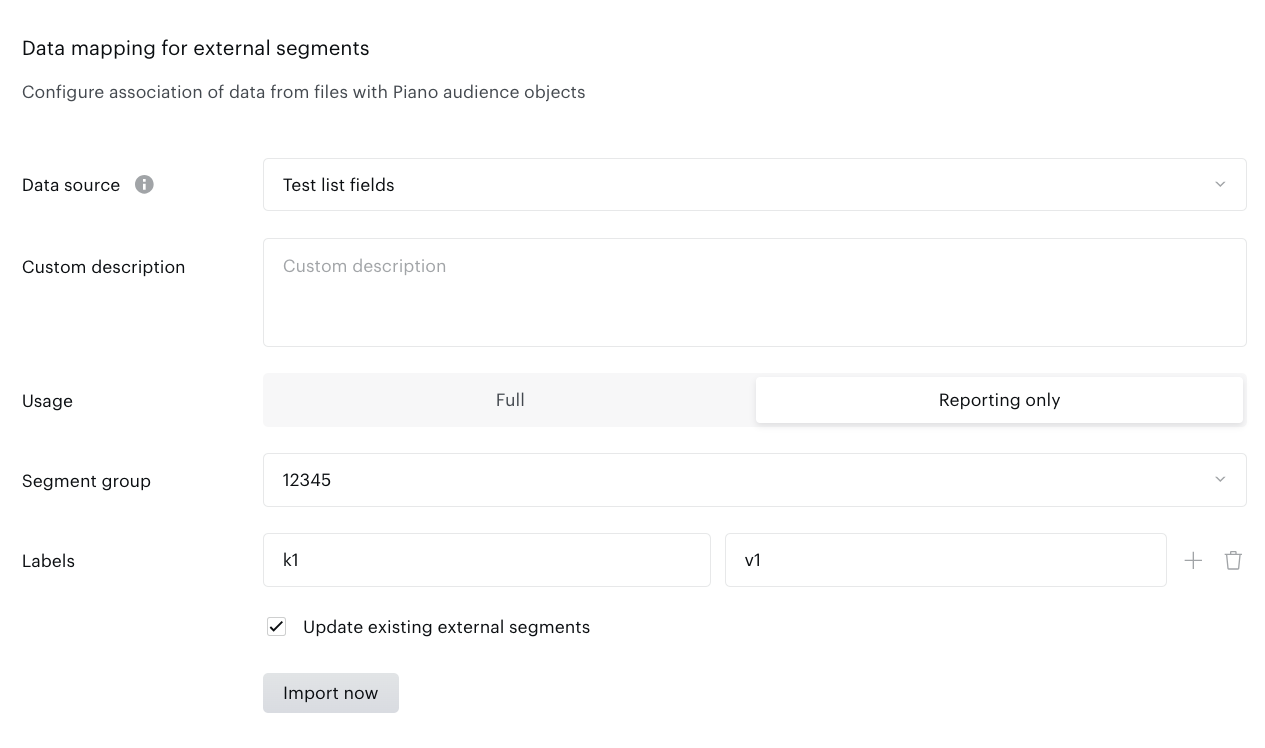
For External segments import type operation you have to configure the following parameters:
-
Data source. This parameter defines mapping configuration. Select one of the items available in the selector. The selector may be empty if no suitable Data Source has been created. In that case, go to Audience→Accounts Management→Data Sources and create a Data Source.
-
Description. Select one of the possible options: A column in the file that includes the segment description OR use the Custom description option. If the Custom description option is selected it is possible to fill the description and the same value will be used for all created External segments. You can “skip” this parameter - just do not fill in the Description field. Not obligatory.
-
Usage. By default, Piano Audience creates External segments with the Reporting only usage. Feel free to select Full usage instead. The same usage will be used for all created/updated External segments.
-
Segment group. If you want to create all your External segments in the same Segment group, just select one of the available ones in the selector. This selector includes the Segment groups of the current site group of the customer. If the specific Segment group is not selected, all new External segments will be created as Ungrouped. Not obligatory.
-
Labels. There is a non-obligatory option that allows you to add the same set of labels (key-value pairs) for all created External segments.
Update existing external segments non-obligatory parameter allows you to update earlier created External segments at the same time when new External segments are created. Piano Audience using the mapping between segment IDs and Source segment IDs, finds earlier created segments and updates them using new data from the file(s), such as Segment names. It can be useful in cases when the segment names were updated somehow in the Source platform and you don’t want to update them manually in the Audience interface.
Usually files with segments’ data and segment audiences differ from each other in terms of the file structure: number of columns, their order, etc.
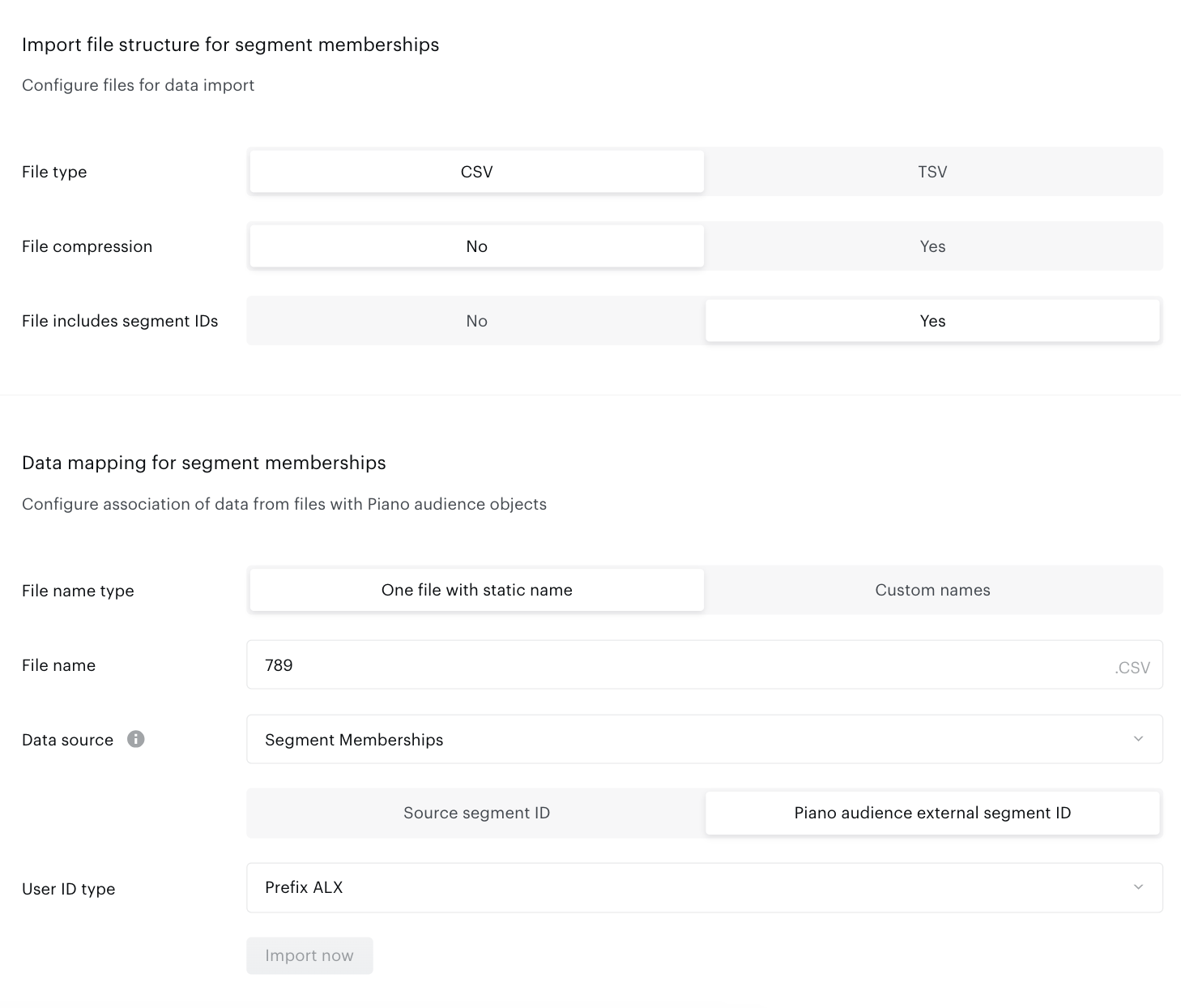
For the Segment audiences import type operation you have to configure the following parameters:
-
File includes segment IDs. Select Yes if the file includes segment IDs mapped with every user IDs. If your file includes user IDs only, it is possible to update the segment audience anyway. Select No option here and read details below.
-
Select File name type and specify File name.
-
Data source. Parameter defines mapping configuration. Select one of the available items. Obligatory.
-
User ID type. It is obligatory to specify the type of user identifier. Type can be cx or a customer prefix.
File structure preview allows you to see if you have configured the data mapping correctly.
If your file doesn't include segment IDs, it is possible to update one of the earlier created external segments:
-
Select No option in terms of File includes segment IDsparameter. You file should include at least one column with user IDs.
-
Select external segment from the Segment ID selector.
-
Select one of the available Data source parameter. Obligatory.
-
Select the customer prefix in the User ID type selector. Obligatory.
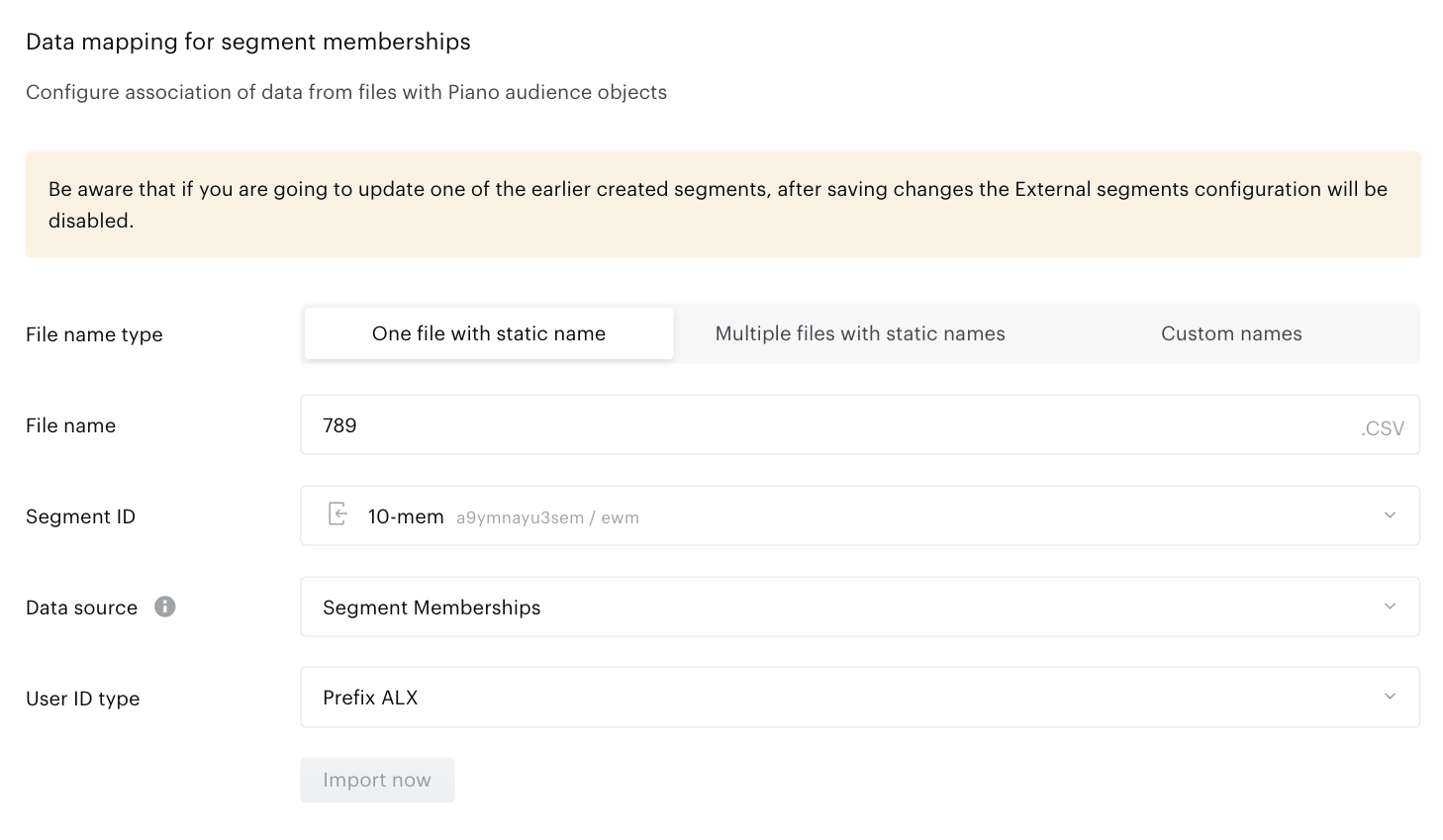
If you want to update audiences of different external segments, feel free to create more than one File import connections. Select different segments and files (source of user IDs data) in every configurations.
Each file import overwrites the existing segment audience with the data from the new file. If you need to retain existing users in a segment while adding new ones, append the new user IDs to the same file rather than replacing it with a file containing only the new users. Import the updated file to ensure all intended users — both existing and new — remain in the segment.
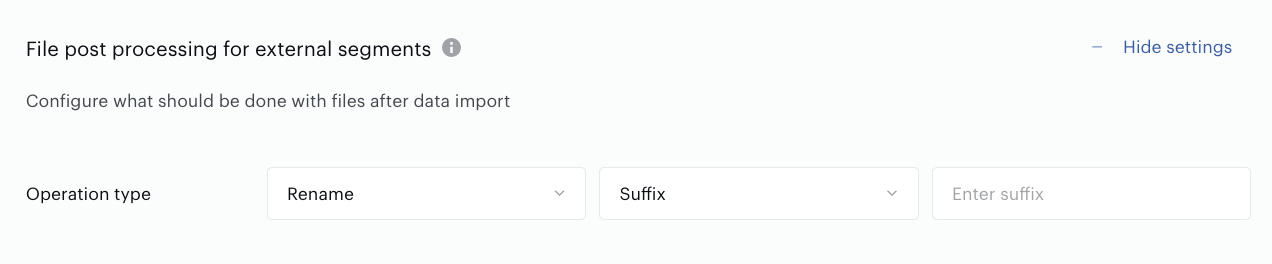
File post processing configuration
You can select one of the possible options and decide what should be done with files after import:
-
Do nothing (default option).
-
Delete. Make sure that all permissions for this operation are provided.
-
Rename. If this option is selected, you can fill the prefix or suffix that will be added to the file name(s). If you don’t fill the prefix/suffix value, Piano Audience will use the standard one: “ok”.
-
Move to the folder. Non manageable option (you can’t fill the folder name), Piano Audience creates the folder with the predefined name: “processed” in the same directory.
Import frequency
Customer can select one of the possible options to configure the Import frequency:
-
Once - the file(s) will be imported once at a particular time.
-
Daily (default) - the file(s) will be imported daily at fixed times after the particular Start import after time.
-
Weekly - the file(s) will be imported once a week on the selected week day at fixed times.
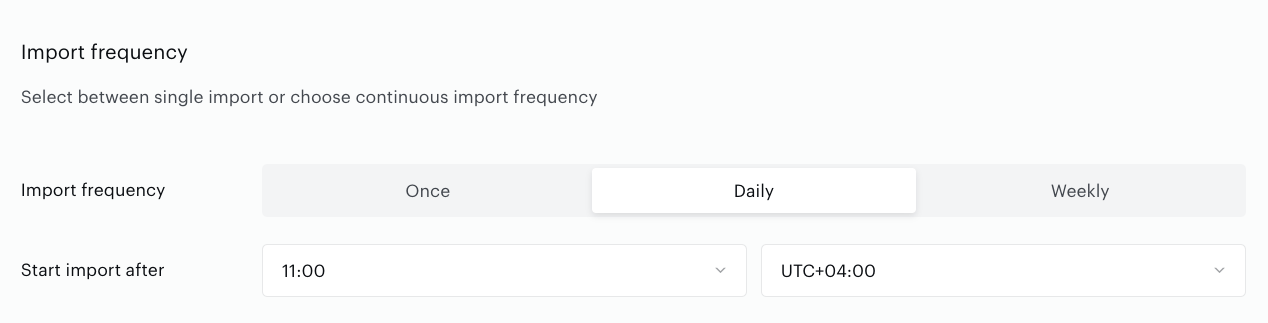
It is highly recommended to set the start time of the importing process (“Start import after” parameter) not earlier than the data export to file storage ends.
You can click Import now in the Data mapping connection section for an almost immediate data import without waiting for the next scheduled data import.
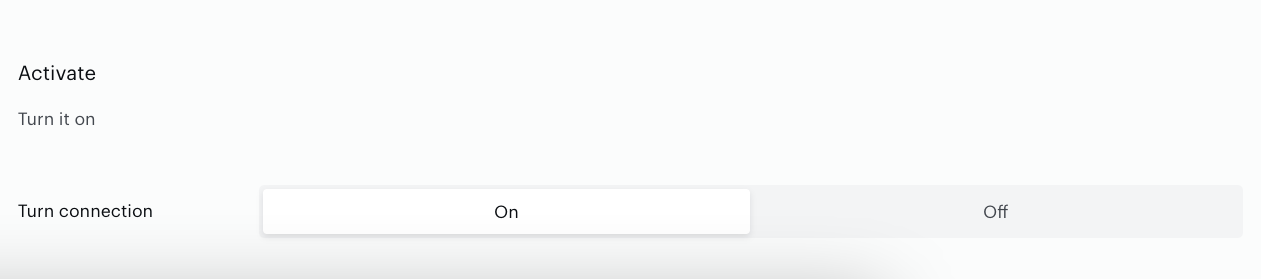
The other option is configuring scheduled data transfers in the Activate section below. There you can either set up a scheduled data transfer by turning the connection on, or hold the created configuration without activation yet and set the connection to off.
When ready, click Create or Save (if editing) in the top right corner of the page.
Activate
File import results
Piano Audience allows users to see the result list of created External segments and number of audiences per each updated External segment.
History and Errors tabs of the File import connection form
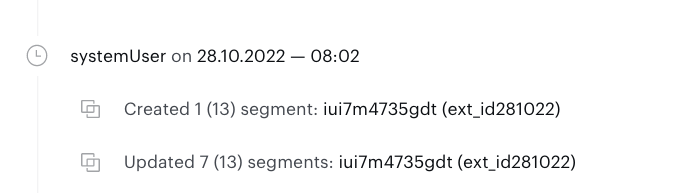
The list of created External segments is available in the connection form in the History tab.
You can find the following information about the recently created/updated external segments:
-
Date and time of the operation.
-
List of created/updated external segments, including segment IDs, mapped Source segments IDs.
-
The total number of created segments and skipped segments in format:
Created N(M) segments, where N - the number of created segments, M - the total number of segments that should have been created.
The Errors tab provides information about the segment import errors happening during the file import process.
Match rate reporting
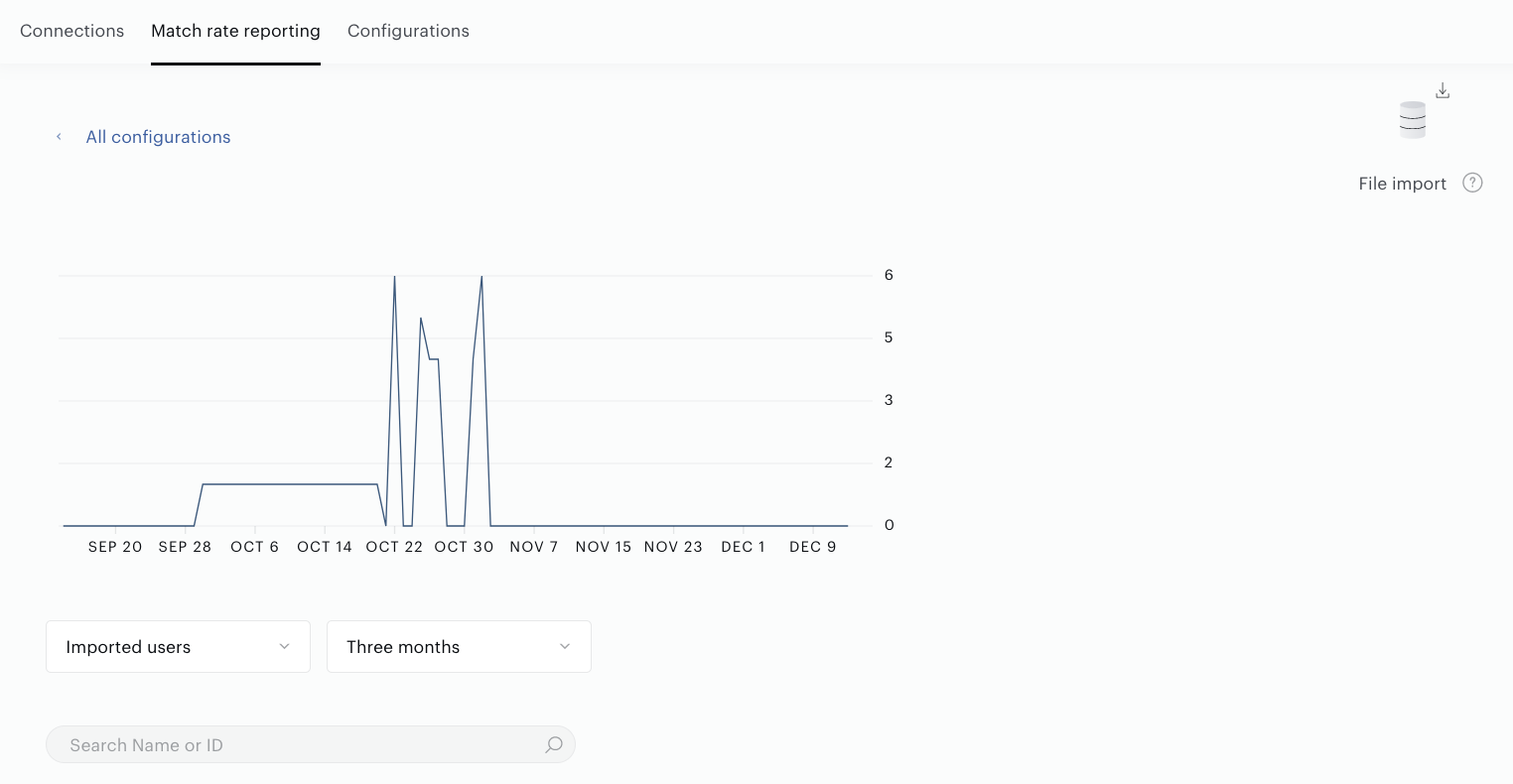
The existing Match rate reporting feature in the Audience→Connectivity Hub allows to show the list of updated External segments and the differences of the audiences before and after import.
Subscription events
You can subscribe to the Export/import errors event or Created external segments event related to the File import connection in different parts of Piano Audience:
The Subscribe link in the History and Errors tab leads to the Notifications settings.

Transition to using Data Sources
If you already had connections created before the introduction of the Data Source feature, you can keep them as they are, and they will continue to work. In addition to the fields defining the mapping, you will simply see a Data Source selector. If you decide to switch to using Data Sources, select one of the existing data sources and save the changes - the extra fields will be hidden, and the connection will continue to work.
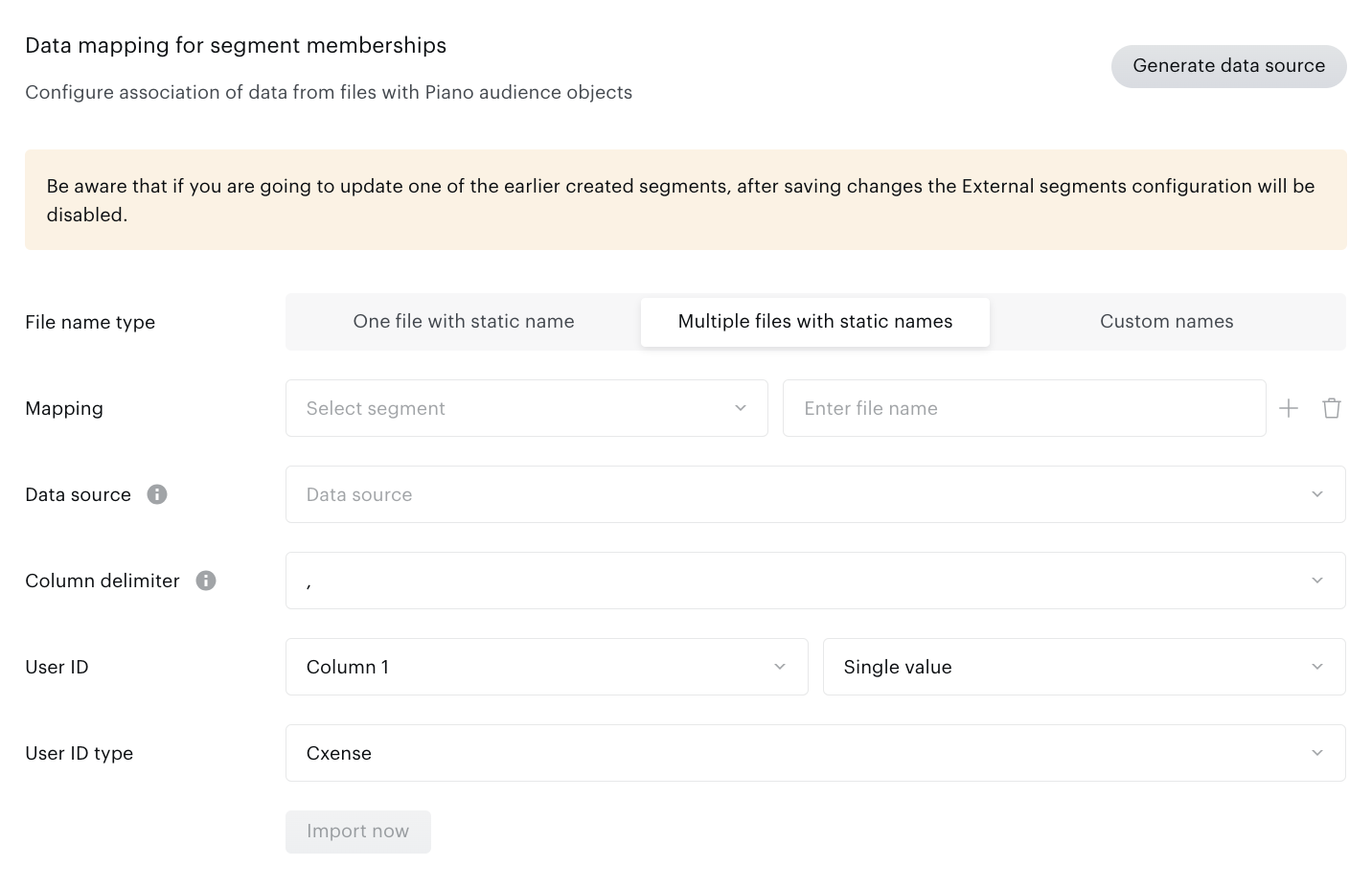
For ease of transition to using Data Sources, the customer admin has the option to automatically create a Data Source based on your existing connection. Simply click the button, then select the automatically created Data Source, and save the changes.