
The Campaign Overview report is one of the main reports in the Campaign Reporting functionality, it includes information about the campaign, campaign row impressions-clicks etc. To open it, select Campaigns in the Radar dropdown, find your campaign and select its Overview tab.
General
Every Campaign Overview report consists of the following parts:
-
Selected campaign information:
-
The name and ID of the selected campaign.
-
Advertiser's name.
Here you can find the All campaigns link to the list of all campaigns.
-
-
Campaign row selector: a drop-down list of all campaign rows of the selected campaign. You can choose one of the available rows, and the Campaign Overview report will be recreated. Campaign rows in this selector are ordered alphabetically.
-
“Summary”.
-
“Impressions-Clicks” graph.
-
Creatives section.
-
Placements section.
Learn how to download campaign reports here.
Summary section
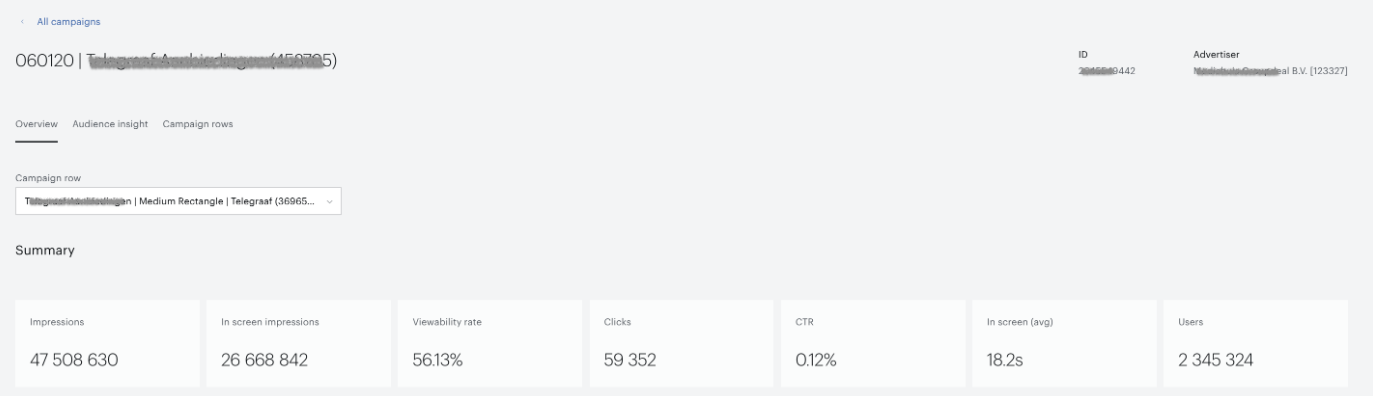
This section consists of the main metrics available for the selected campaign/campaign row and depends on the ad server's data:
-
Impressions.
-
In screen impressions.
-
Clicks.
-
CTR.
-
Others.
For now, there are several main sources for these metrics: ad server (information can be received from the ad server by using API) and log files. Some data can be received through the wrappers.
It's common behavior when on a date some information can be only in log files, for example, or only in the ad server. After some days the information can be available in both sources. In this case, we prefer to show data received from the ad server instead of log files.
.
Impressions-clicks graph
This graph is based on the Daily stats of the selected campaign/campaign row:
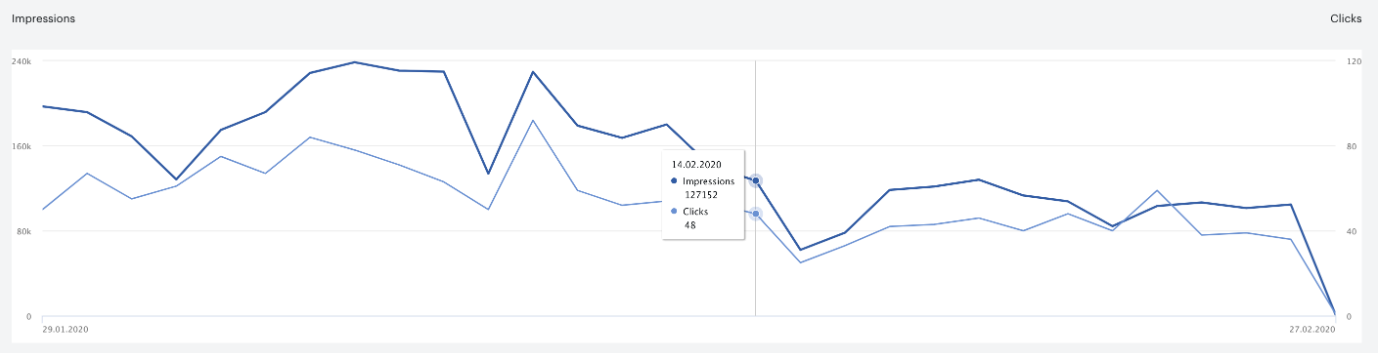
If you want to see impressions/clicks metrics on a specific date, just move your mouse above the lines on the graph.
Creatives section
This section is a list of creatives of the selected campaign/campaign row. There are two options of creatives that can be displayed: video and banners.
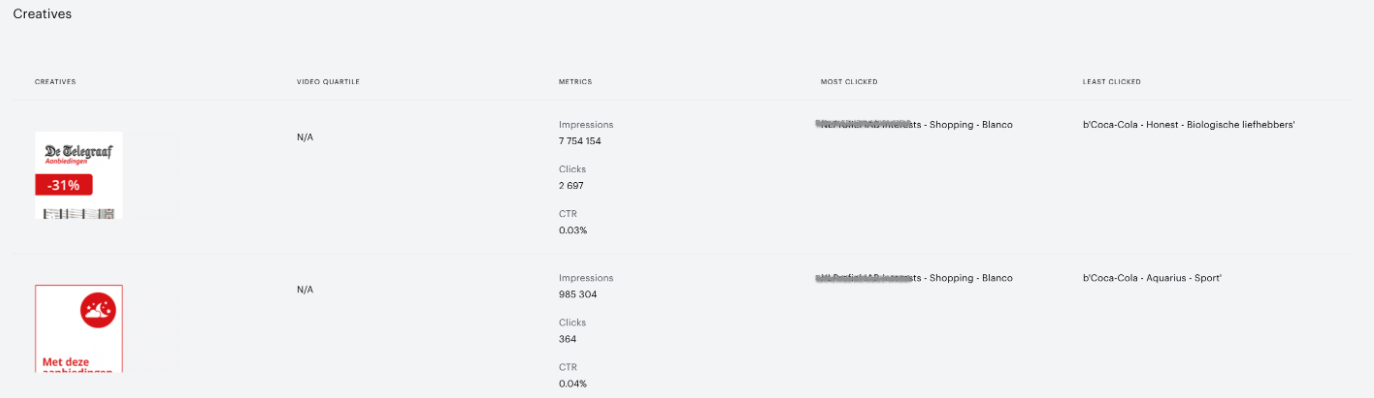
For each type of creative, there will be available its own set of metrics such as Impressions, Clicks, CTR, and Quartiles for video creatives.

Also Most clicked and Least clicked columns are available in this section. Here for each creative you can see the names of the segments in which the audience was the most or least active.
Placements section
The last section of the Campaign Overview report consists of graph and table views of the placement's stats:
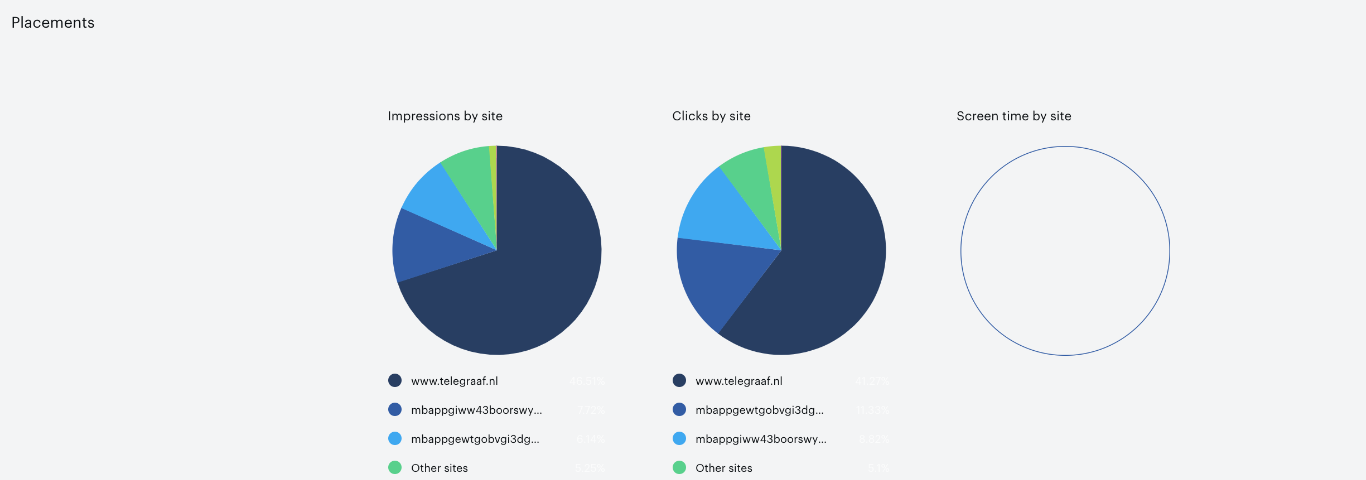
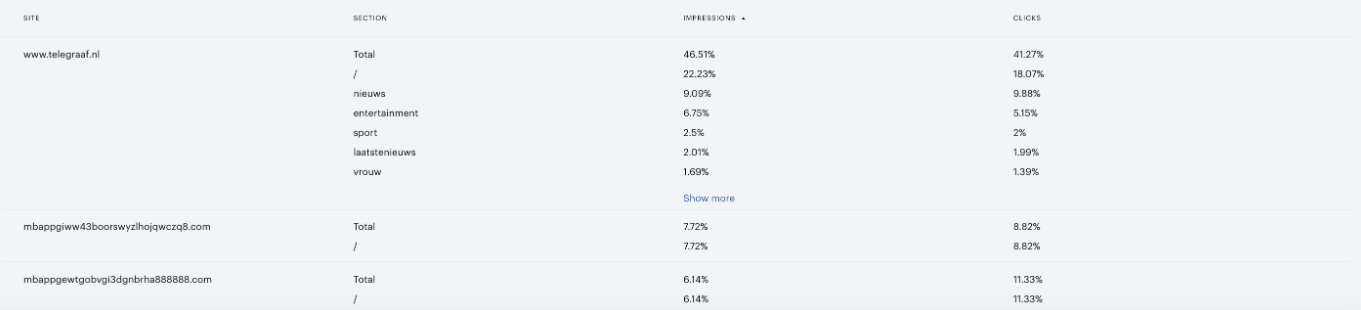
This section shows which pages of the site are the most/least popular in terms of visitors' activities.
To improve the visual part of this section go to Accounts management and select the Placements tab.