Navigating in Piano Audience' UI
Open the Campaigns menu (Radar→Campaigns), select a campaign and check its Overview or Audience insight tab. Find the link at the top right.

The Customize reports settings are common for all campaign rows within the selected marketing campaign and consist of two tabs:
-
“All settings” that affect the UI and downloaded versions of the reports (both PDF and XLS)
-
“Print settings” that affect only downloaded PDF versions of the reports.
All settings
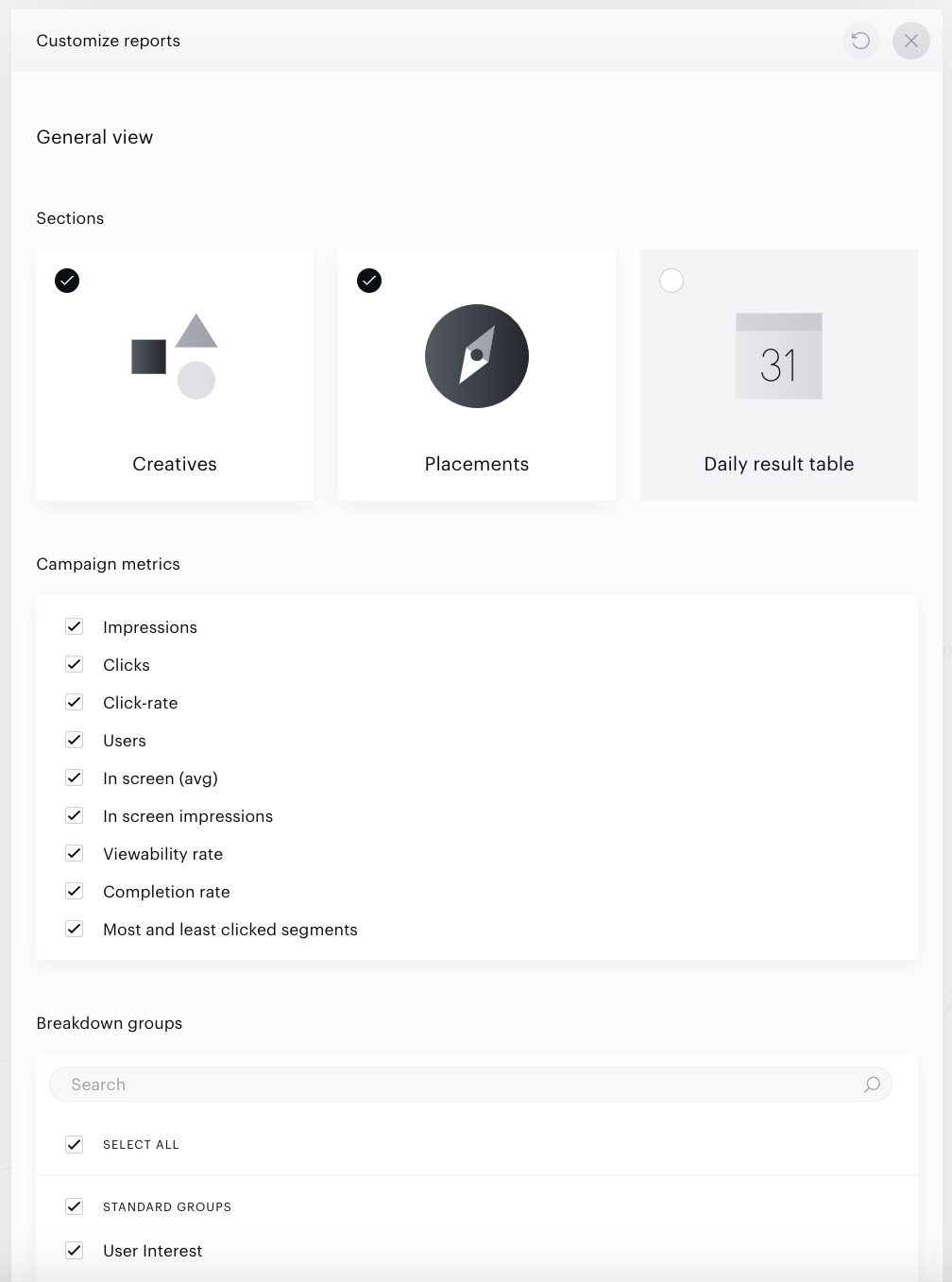
Sections
If the customer deselects a report section, it will be hidden in the Overview report:
-
Creatives, Placements are available by default;
-
Daily result table is hidden by default. It is a table with click/impression statistics for each day of the campaign period. Impression-Clicks graphs are based on the same data this table represents.
If the customer deselects a report section, it will be hidden in the Campaign Overview report (Creatives and Placements are selected by default). Daily result table is a table with click/impression statistics per each day of the campaign period. The same information is represented in impression-clicks graphs. The Daily result table section is hidden by default. Settings in this section affect PDF and XLS reports as well as the UI.
Campaign metrics
If the customer deselects some of the Campaign metrics, such metrics :
1) Will be hidden from all the tabs: Overview, Audience insight, Campaign rows.
2) Will not be available in PDF or XLS reports or in the UI.
Segment groups
If the customer deselects some segment groups from the Breakdown groups menu, such groups won’t be available in the Audience insights report: in PDF, XSL reports or in the UI.
Print settings
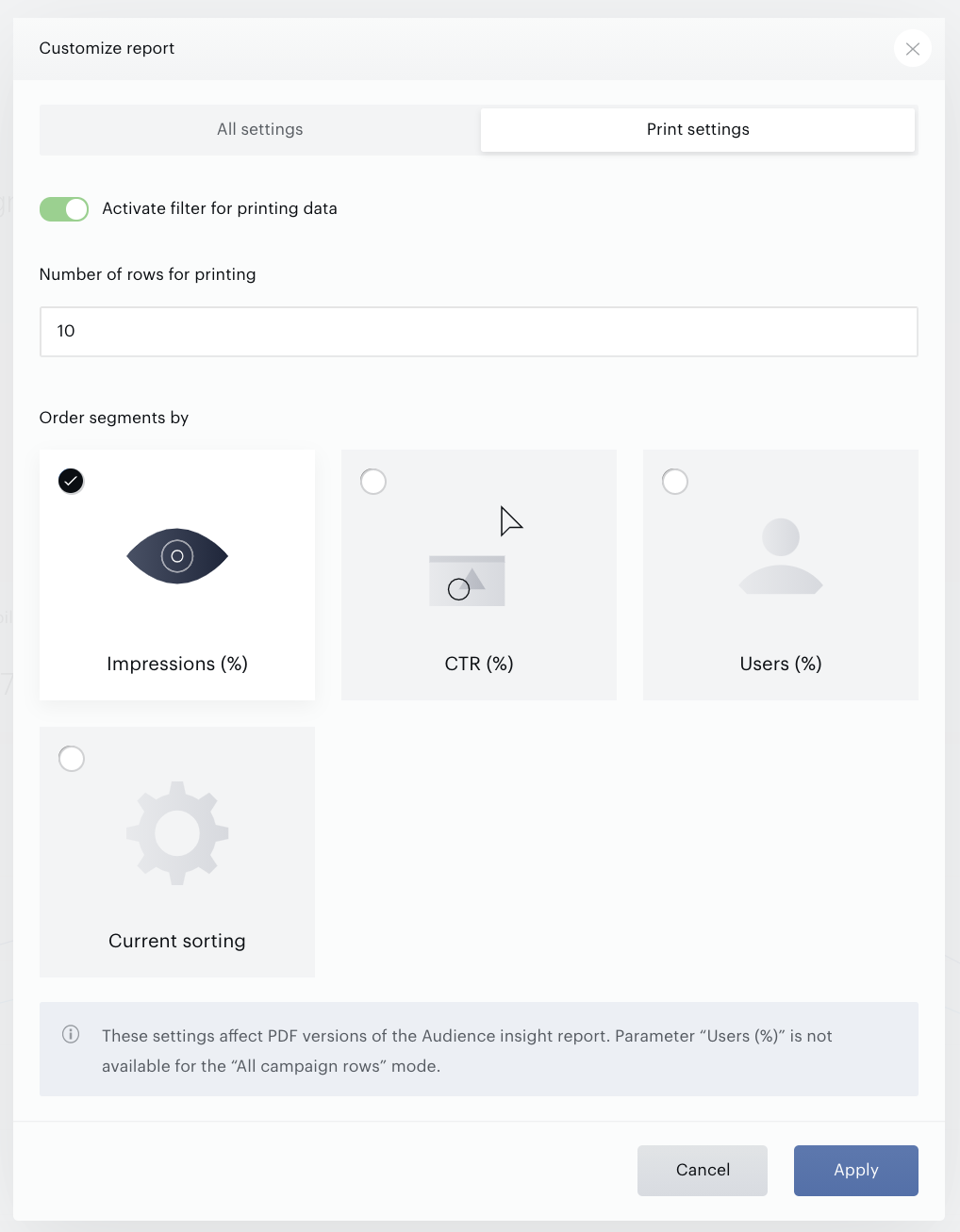
To enable managing printable versions of the PDF reports, go to the Print settings part of the Customize reports form. Settings defined in this form affect only printable versions, not UI.
When does it make sense to use print settings? If you are a customer with a lot of segment groups and most of them include a lot of segments, most likely this functionality is for you. Use it if you want to have only meaningful figures in the printable version of the Audience insight report.
By default, all print settings are unavailable (disabled) and PDF reports include all data. Even if it's a huge segment group with about 400 segments, all segments within that segment group will be available in the PDF report. If the customer wants to manage printable PDF, the report settings should be activated. Select Activate filter for printing data.
The following settings will work right after their activation:
-
"Number of rows for printing". This parameter allows reducing the number of segments within all available segment groups. Segment groups can include any number of segments. But Piano Audience will only show as many rows as you specify here.
-
“Order segments by” allows an option of sorting segments within segment groups. Developed for the use case “As a customer, I want to print only the top 5 segments in each segment group sorted by Impressions,%”
The “Users (%)” parameter is not available for the All campaign rows mode. If the customer has selected “Order segments by Users, %” and now decides to download a PDF report for all rows, the sort order option will be selected as “Impressions,%” automatically as a default option.
Click Apply to save changes.