
Find the options you can use in managing your campaigns.
Overview
The Campaigns List screen is the list you see when you navigate to Audience → Radar → Campaigns.
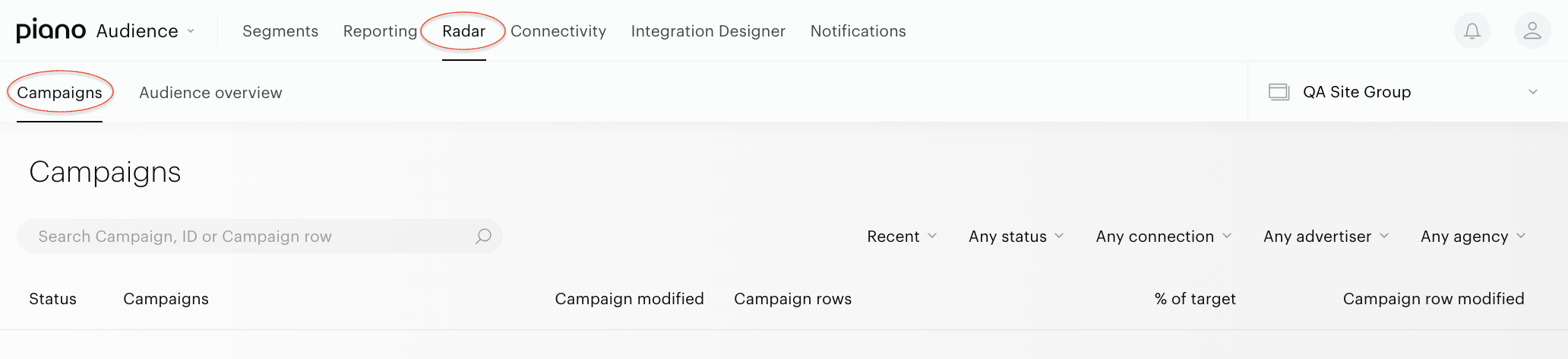
This page contains a list of campaigns downloaded from Ad Server. For each campaign, you can see its list of campaign rows, status, advertiser's name, and other details. Customers using filters and searches can select a specific campaign. Campaigns can be sorted.
Preconditions
To access the reporting interface, a logged-in user must be assigned to at least one site group and should be assigned to a customer.
The correct site group should be selected to see the related reports for the site group segments.
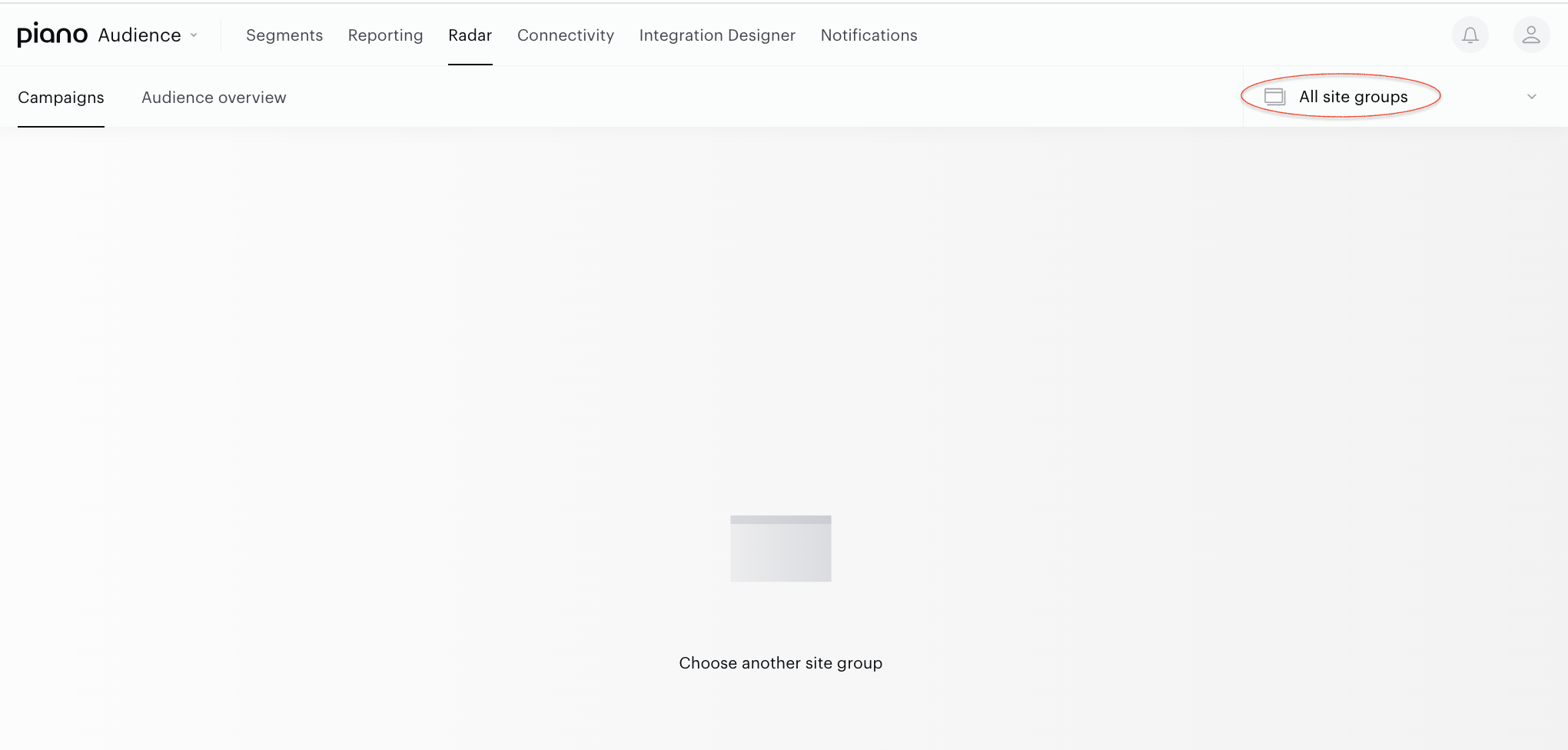
To select a site group, go to the drop-down list on the top right. Upon the selection of the correct site group, the report will open.
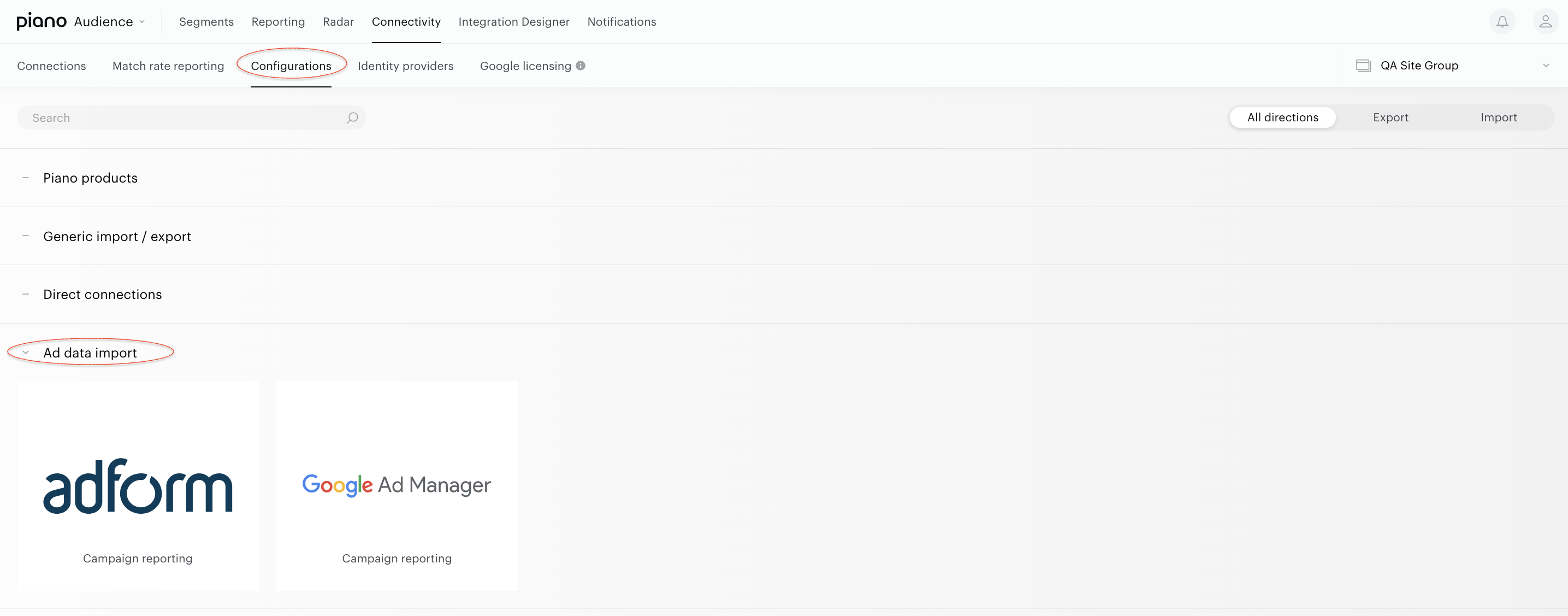
With the site group set up, go to Connectivity→Configurations and set up at least one Ad data import connection: Google Ad Manager Campaign reporting or Adform Campaign reporting.
Details
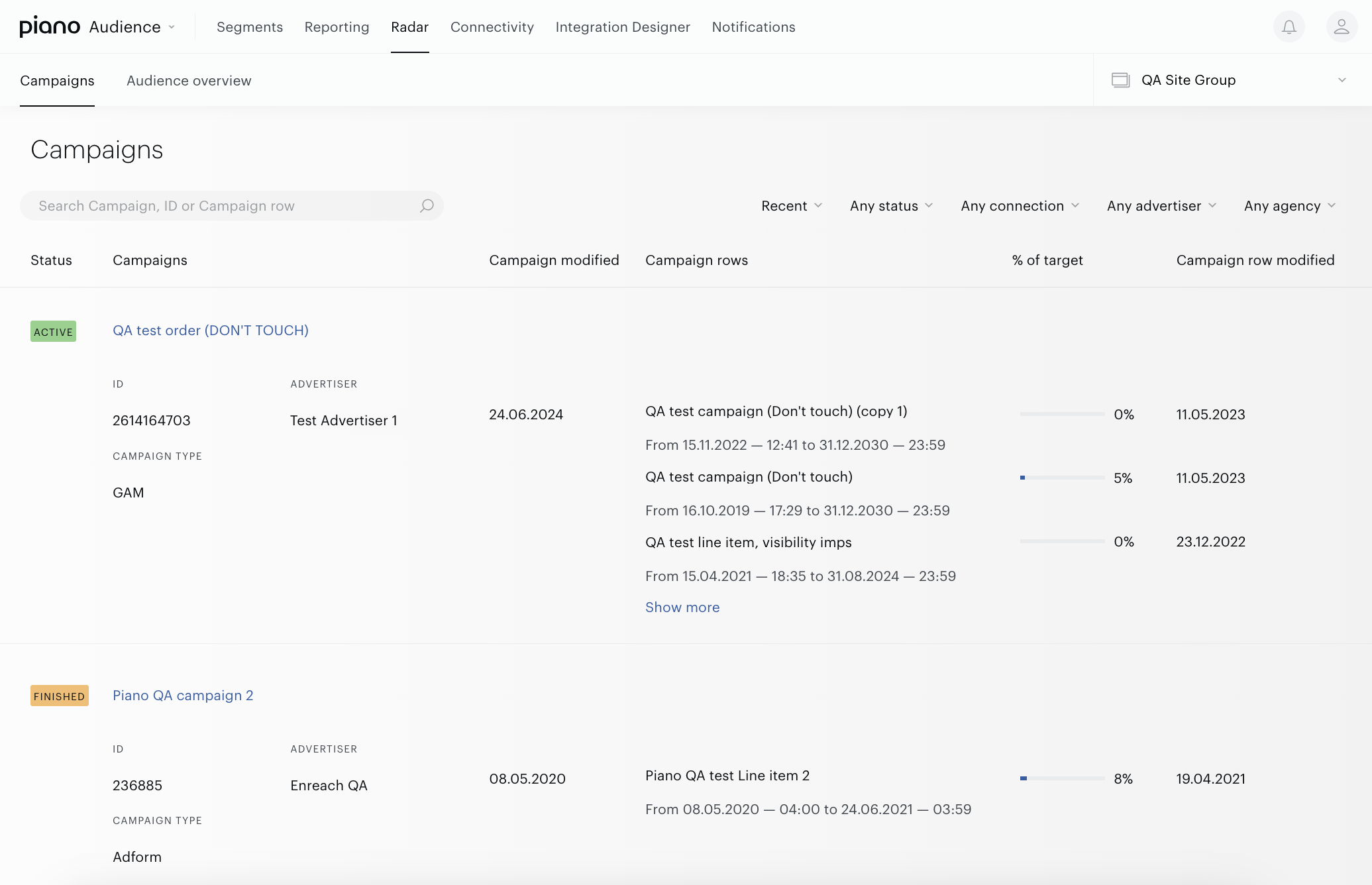
On the list, there are the following details for each campaign:
-
The full campaign's name, and a link. You can click it to see campaign details and switch between Overview, Audience insight, and Campaign rows tabs.
-
The ID of the campaign.
-
The campaign's status. There are three statuses of the campaigns: Planned, Active, and Finished. These statuses are based on campaign rows' statuses that are received from the ad server.
-
The campaign's type - ad Server type - the source of the campaigns' data.
-
The name of the advertiser.
-
The name of the agency (optionally).
-
List of campaign rows with start and end dates and “of target” metric.
-
Date of campaign row modification.
Of target
The calculation “Of Target” depends on the Goal was set up in the ad server, for example, in the Google Ad Manager and e.g. for Impressions could be calculated as:
“Of target”, % = (Total Impressions*100)/Goal of Impressions.
Filters

There are some filters that are available on this page:
-
Any status.
There are only three statuses available for the campaign: Active, Planned, and Finished.-
Planned status of the campaign is defined by the following statuses of the rows: PLANNED, SUBMITTED, ACCEPTED, DELETED.
-
Active status of the campaign is defined by the following statuses of the rows: ACTIVE, HOLD.
-
Finished status of the campaign is defined by the following statuses of the rows: CANCELED, FINISHED, ARCHIVED.
-
-
Any type. You can select the Ad server type - the source for your data. For now, there are DFP and adForm values in the drop-down list.
-
Any advertiser.
-
Any agency.
Search
You can find campaigns by the name of the campaign, the ID of the campaign, and the name of the campaign row. Use the special search bar at the top of the page. Just start to fill in the search value.

Sorting
The drop-down list with sort options includes the following items:
-
Recent (available by default).
-
Oldest.
-
Alphabetical.
-
Started earliest.
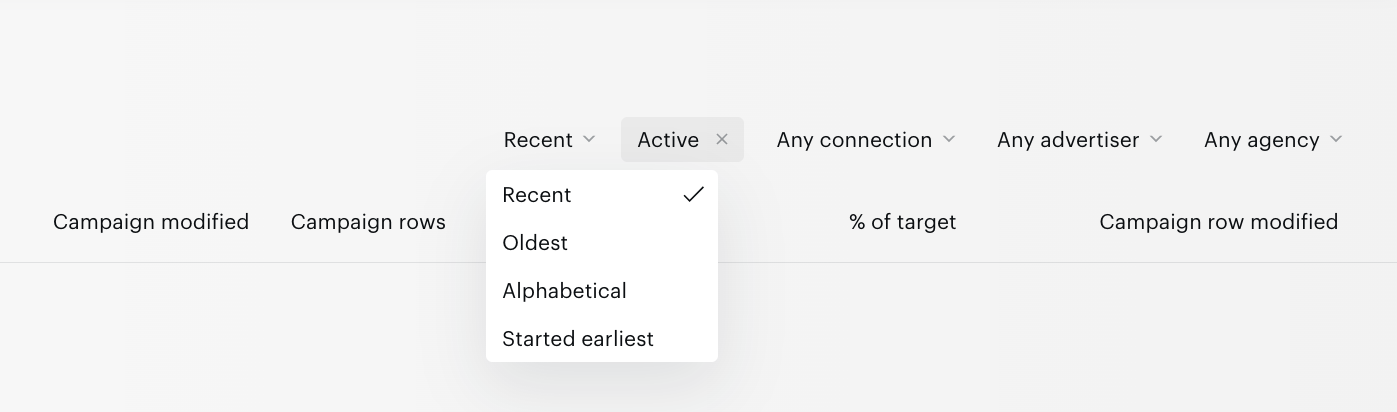
If you select the “Alphabetical” option, you will receive the list sorted by the name of campaigns.
If you select one of the “Recent”, “Oldest” or “Started earliest” options, you will receive the list sorted by the dates of campaign rows.