
Audience Overview is a simple tool for quick and convenient analysis of your segments and audience as a whole. Selected on the Radar tab, the report of Audiece Overview shows the percentage of the total audience for each segment inside of each group.
This report represents the same data as Overlap Report.
Example
For example, the audience of a segment called “Young people of any gender younger than 18 years old” can distribute insight into the Age and Gender groups as:
100% of the segment audience will be in the “< 18” segment of the "Age" group and 41% and 59% of the "Female" and "Male" segments of the "Gender" group. In theory, the "Female" and "Male" segments would give 100% of the group; however, some users may be undefined.
Opening Audience Overview Report
Choose a site group and select Audience Overview in the Radar dropdown.

Selecting groups for analysis
By default OOB groups such as Age, Gender, and the full audience, are selected. If you want to select other groups, click the X group selected text to open the Edit segment groups menu. If no group is selected, the link reads Segment groups.
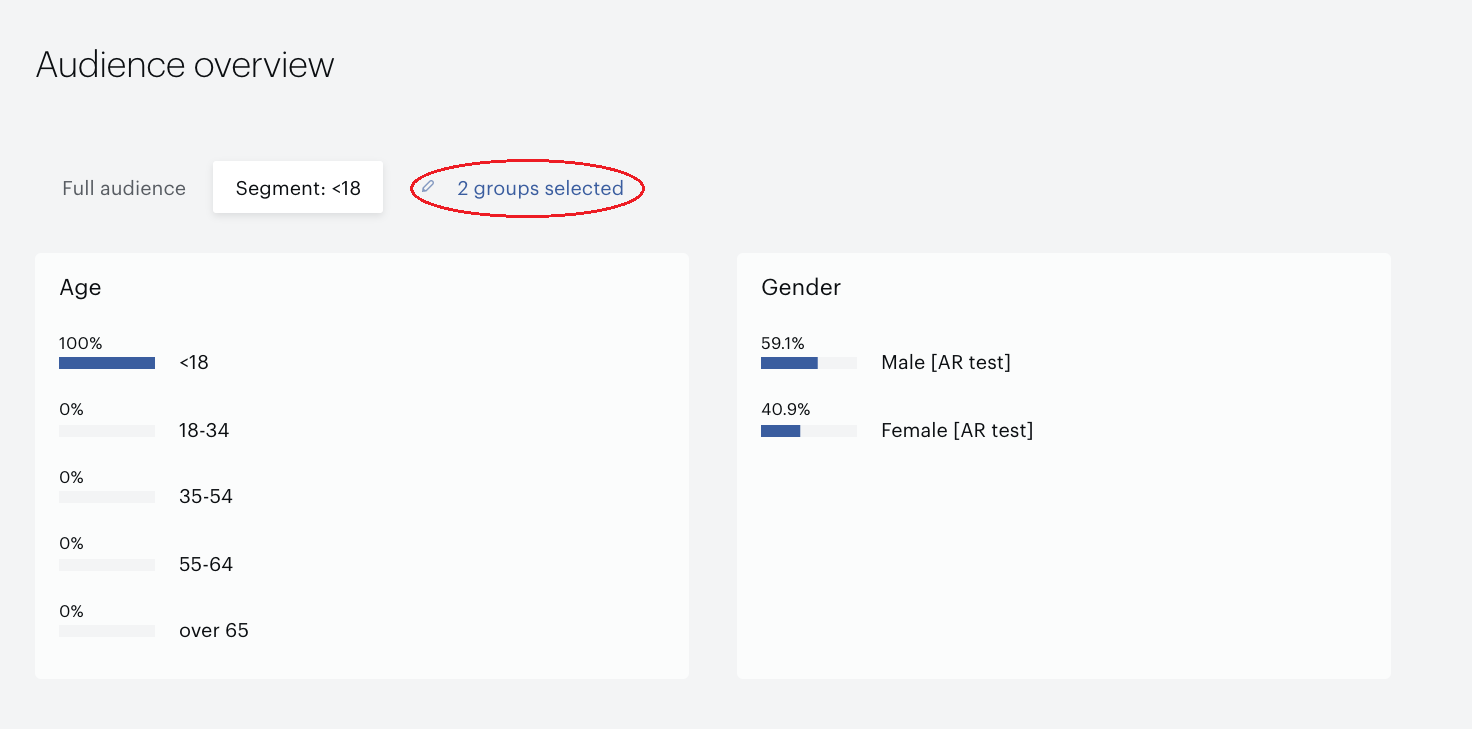
Select the segment groups you need or click All segments to use all available segments for overview reporting. Click Save to commit your changes and return to the main report menu.
In the main report menu, click Full audience to see the distribution of all your audience among the segments in your segments group. Use the Segment button to select one segment and see the distribution of its audience among the segments of the selected segment groups.
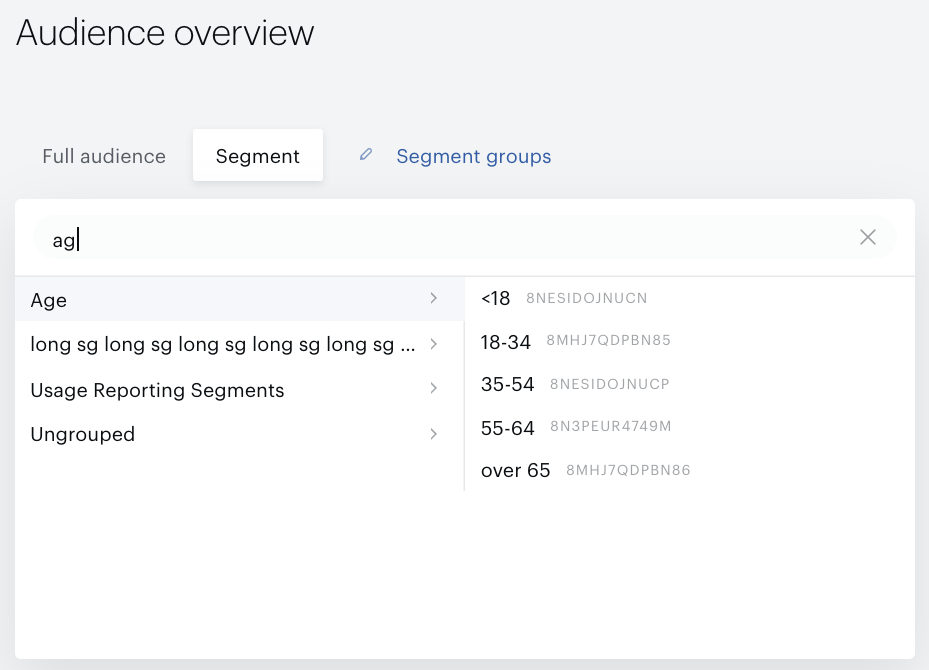
Type the segment name or ID for an easier and quicker search.