
Overview tab

Overview tab allows you to work with the only campaign row and doesn’t support the aggregate function.
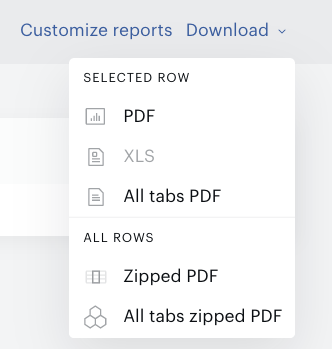
The XLS version of the report includes information from the Placements section of the report and is available only if this section is not empty. Use the Download→XLS menu item.
The PDF version of the report includes information from all sections of the report. There are several types of PDF files that can be downloaded:
-
Use Download→PDF to download a PDF report including data from the Overview tab for a row.
-
Use Download→All tabs PDF to download a PDF report including data from all tabs: Overview, Audience insight, and Campaign rows in one file.
-
Use Download→Zipped PDF to download an archive with PDF files, each of them including data from the Overview tab
-
Use Download→All tabs zipped PDF to download an archive with PDF files, each of them including data from all tabs Overview, Audience insight, and Campaign rows in one.
Audience insight tab

The Audience insight tab allows you to work with one or more campaign rows and supports the Aggregate function. Therefore, one selected row and multiple rows have different Download menus, see examples below.
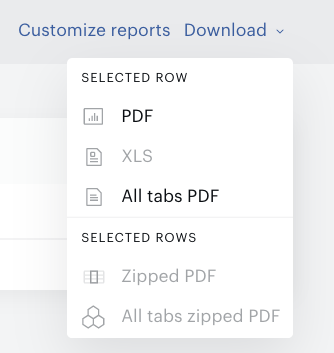
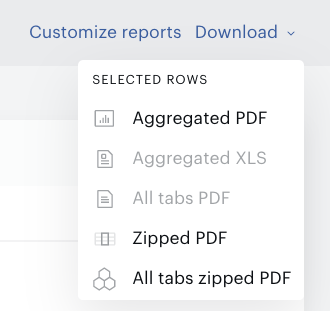
The XLS version of the report includes information about the selected campaign, campaign row(s), main metrics from the Summary and Distribution sections. Use the Download→XLS or Download→Aggregated XLS menu item. If the Distribution section of the Audience insight tab doesn’t include data, XLS/Aggregated XLS menu items are not available.
The PDF version of the report includes information from all sections of the report considering Customize reports settings. There are several types of PDF files that can be downloaded:
-
Use Download→PDF to download a PDF report including data from the Audience insight tab for the row you selected.
-
Use Download→Aggregated PDF to download a PDF report including aggregated data from the Audience insight tab for several selected rows.
-
Use Download→All tabs PDF to download the PDF report including data from all tabs: Overview, Audience insight, and Campaign rows in one file. This menu item doesn’t available if more than one row is selected. Just select one specific campaign row.
-
Use Download→Zipped PDF to download an archive with PDF files, each of them including data from the Audience insight tab. Since the Audience insight tab supports a multi-select function, you should choose more than one row first of all.
-
Use Download→All tabs zipped PDF to download an archive with PDF files, each of them including data from all tabs Overview, Audience insight, and Campaign rows in one. Since the Audience insight tab supports a multi-select function, you should choose more than one row first of all.
Campaign rows tab

This tab supports downloading of one type of PDF report: All tabs PDF. Use Download→All tabs PDF to download a PDF report including data from all tabs: Overview, Audience insight, and Campaign rows in one file. A specific campaign row can be selected right on this tab. But be aware that the row selecting doesn’t affect data on this tab.
Downloading process
Downloading will start right after you choose the menu item.
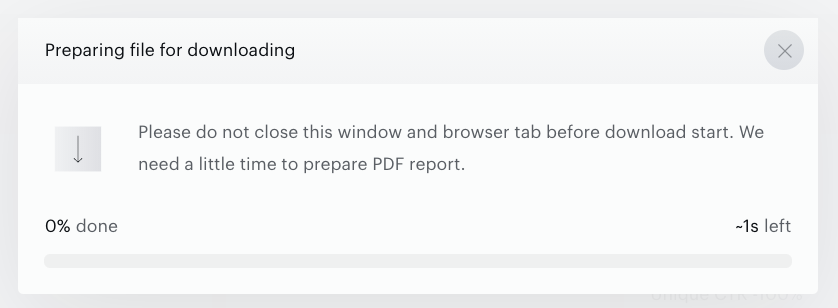
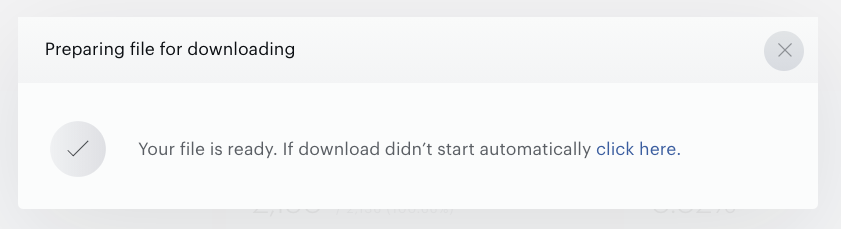
When the file is ready, wait for auto download or click the link in the window.
There are some restrictions on simultaneous PDF downloading:
-
Customers can download only one PDF file from one account.
-
If the campaign consists of 450-500 campaign rows, only 10 customers can download PDF files.