
Each experience represents a data file in the background with its own size in kilobytes. When the experience file becomes too large, it may lead to errors in saving the experience or a malfunction.
The experience size limit is 250 kb. When the size becomes larger than 200kb, an early warning will be displayed at every change of the experience. You can still save the experience, but we recommend paying attention to the message. Once the size exceeds 250kb you will not be able to save the experience with its last changes.
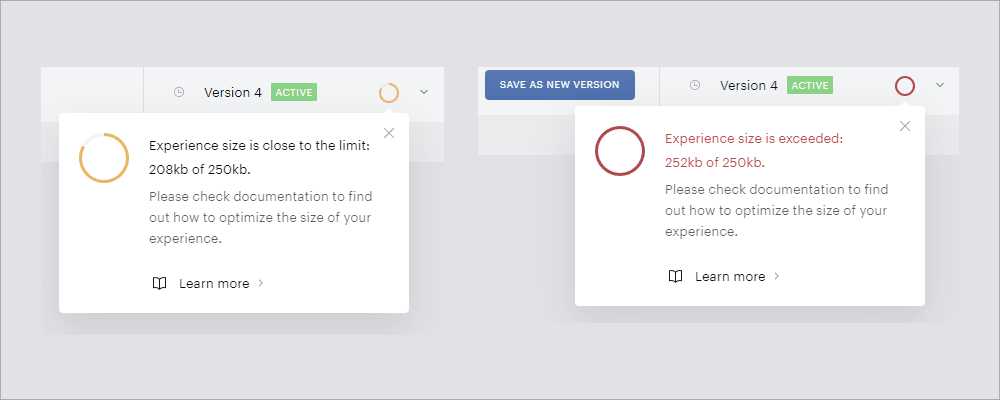
Experience size warning messages
The early warning appears when you have configured around 260-270 cards in the experience, and the final message appears around 310-320 cards, depending on each card's complexity.
The main influencers on the experience size are the number of cards and the complexity of the card settings. There are a couple of ways to decrease the experience size. You can find them in the examples below. These are simple examples outlining the approaches which were used in real situations. The examples might appear minor, but in complex setups with many experience branches, you can apply them repeatedly, which can bring significant savings.
When you start to reorganize experiences, it’s very practical to use "Copy card", "Copy card and children" and paste, which helps you move whole blocks of cards.
Possible approaches for reducing the Composer experience size
-
Check if your last live experience version or branch targets a reasonable number of visitors.
Once you are near the experience limit, first check if all your experience branches are targeting enough visitors and generating results. We have seen targeting setups which resulted in zero or very low exposure or conversion numbers. You might have "legacy experience branches", very narrow targeting or an error in the segment definition. In many cases, it does not make sense to keep these branches in the experience.
The fastest way to find them is the Flow report with a setting of a reasonable time period. Once you see zeroes or small numbers, think about if you really need these branches.
-
Merge user segment card settings
It’s often possible to merge a couple of cards. The principle here is to configure the experience rather vertically, than horizontally into very wide tree structures.
Instead of having access check and device segmentation in different user segment cards:
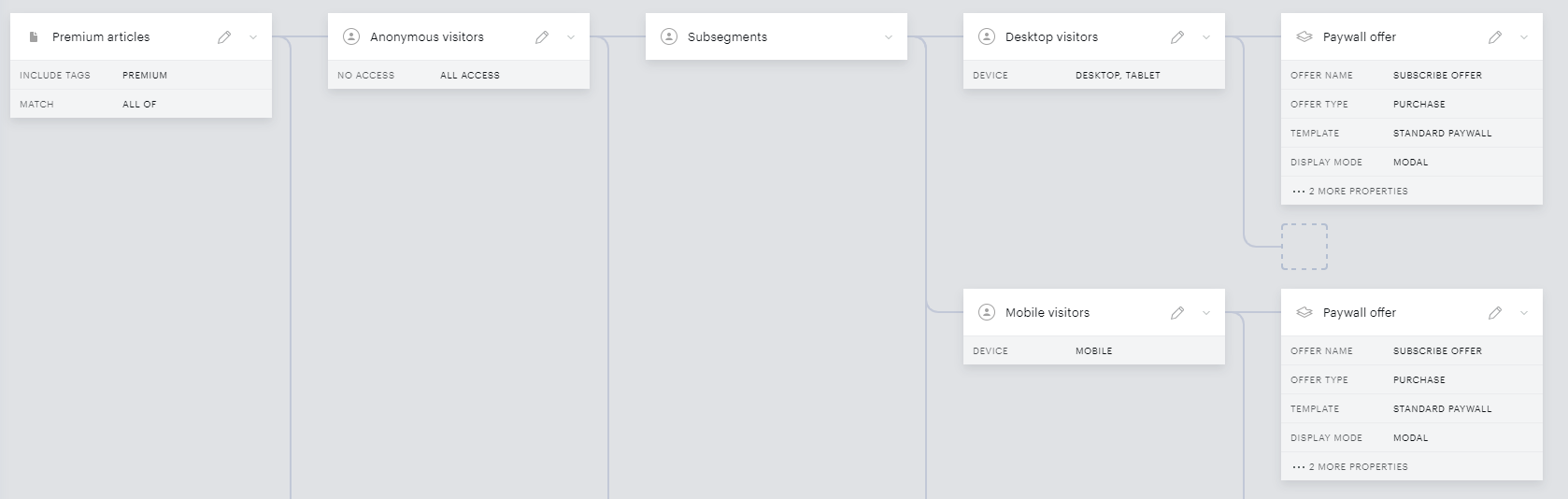
You can merge them into the user segment cards and save a few cards:
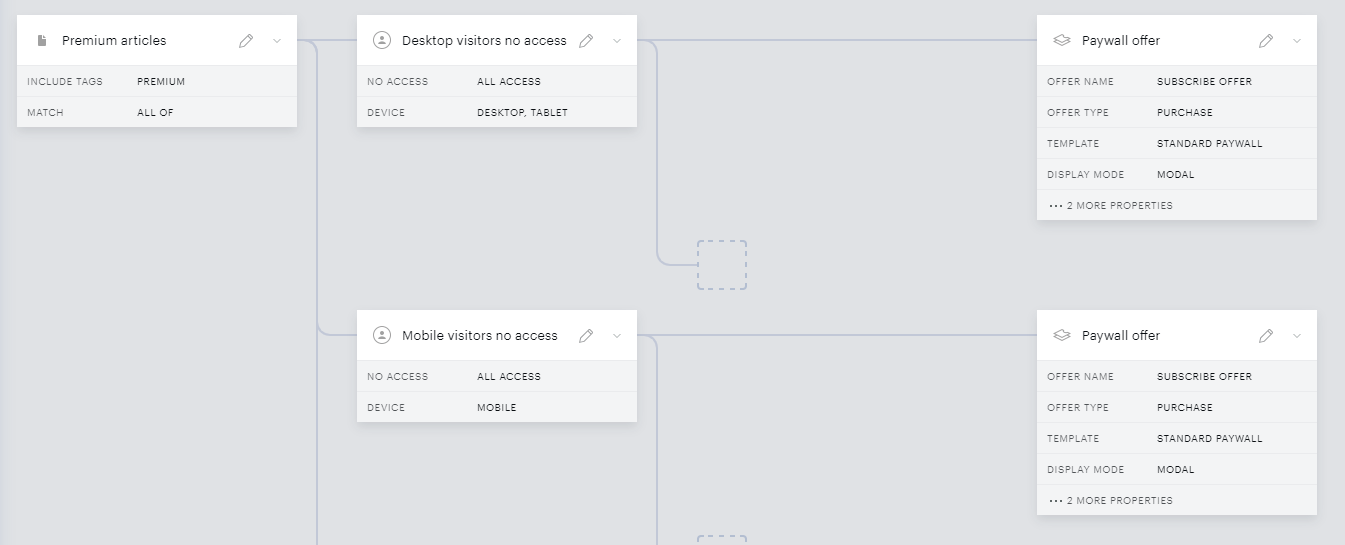
This approach is valid for any criteria in the user segmentation. The thinking here is, that if you show the same action card to different user segments and don't need separate reporting within Piano Composer, you can merge the user segments. Other examples are merging multiple networks of IP addresses or ranges for editorial teams or custom variables in non-Management + Billing environments.
-
Do not repeat actions if you do not need to, configure them only once
In many scenarios, there is a need to perform the exact same action at each of the segments. A typical example is to set the same custom cookie to all targeted segments. One of the frequent approaches we see is to repeat the set cookie card multiple times. Often it is not necessary, you can do it only once instead. Such as in the example below.
Instead of repeating the Set cookie below each Show Offer:
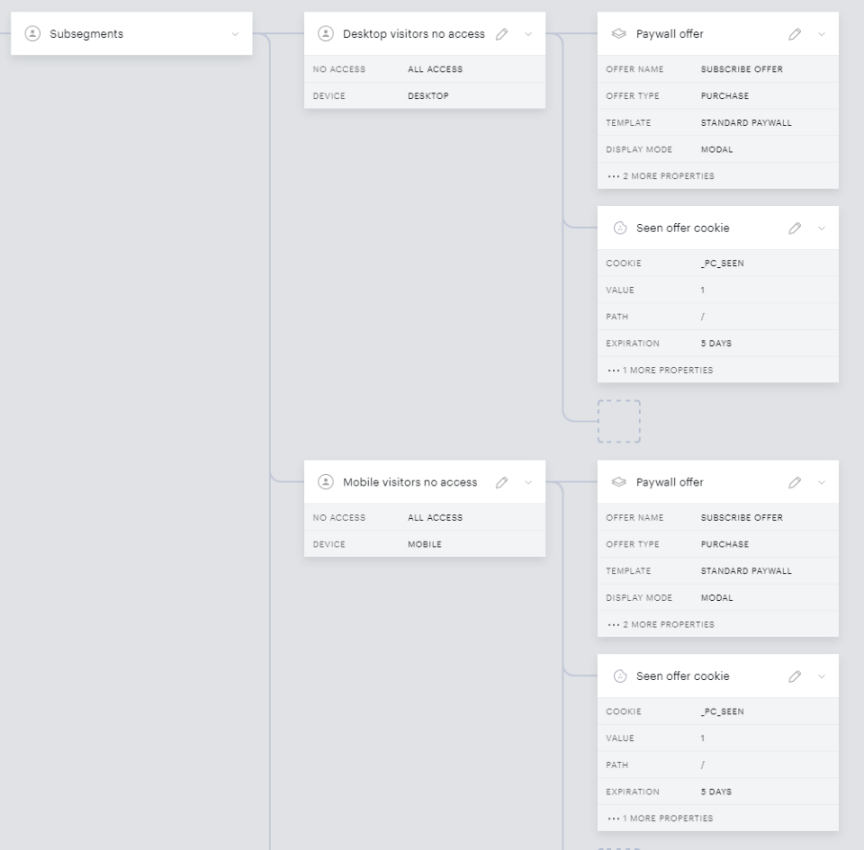
You can apply it to all actions with a single card:
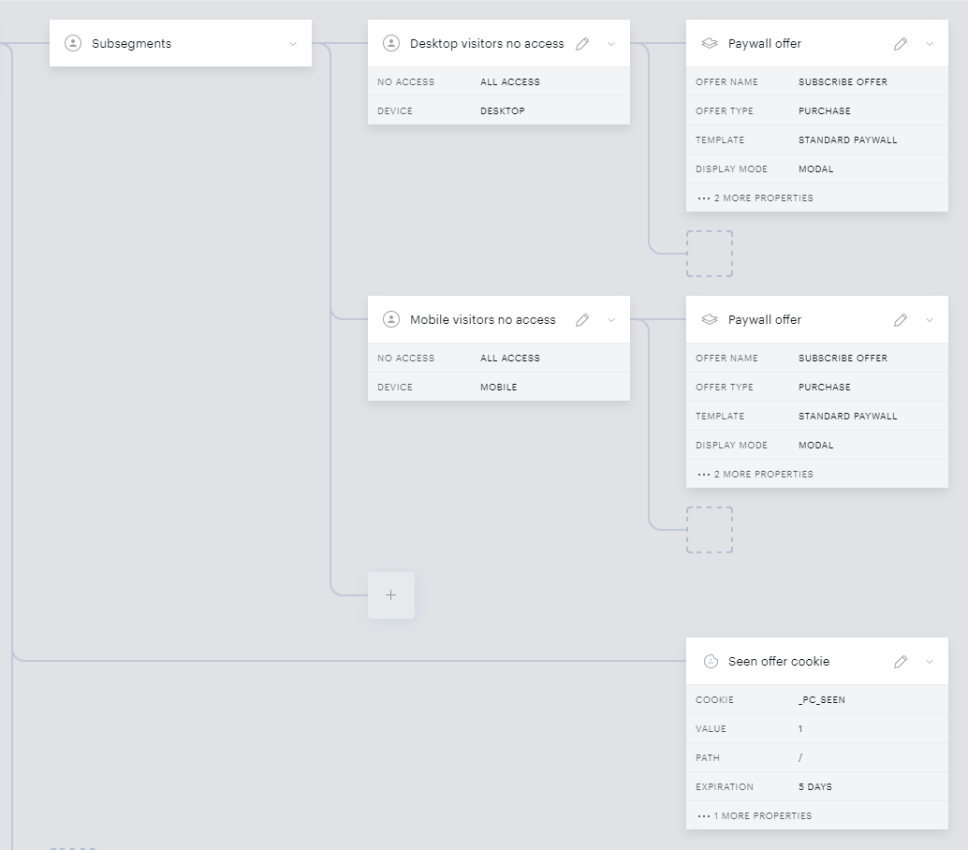
This applies to any action card where you perform the same action for multiple branches, for example RunJS, show a Newsletter signup or Apply CSS.
-
In metering when you set up actions on specific pageviews or in a pageview sequence, you can define multiple pageviews within a single card.
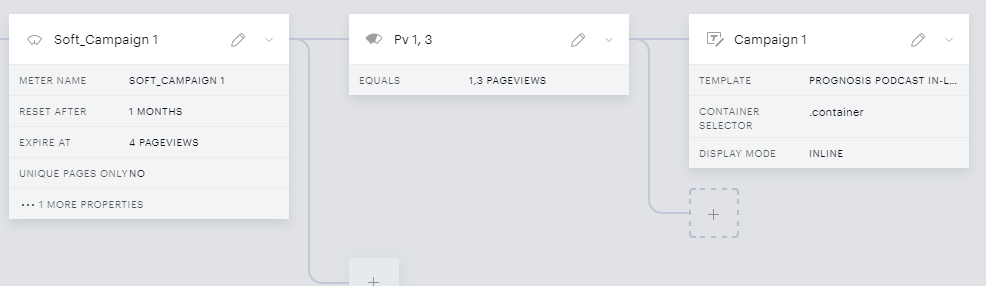
The meter card where you set on which pageview an action should perform [Expired | Equals | Increments] allows you to save space and size of the experiences in multiple ways.
When you wish to show a template on pageviews 1 and 3, instead of using two branches:
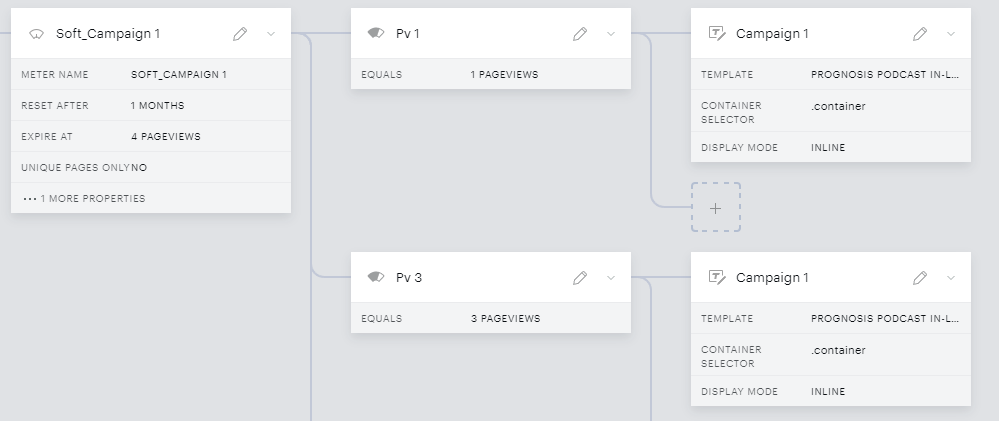
You can use only one meter card and one action card:
Or if you wish to show a sequence on pageviews 2,4,6, you can use the "Increment" part in the meter setup.
So instead of separate branches:
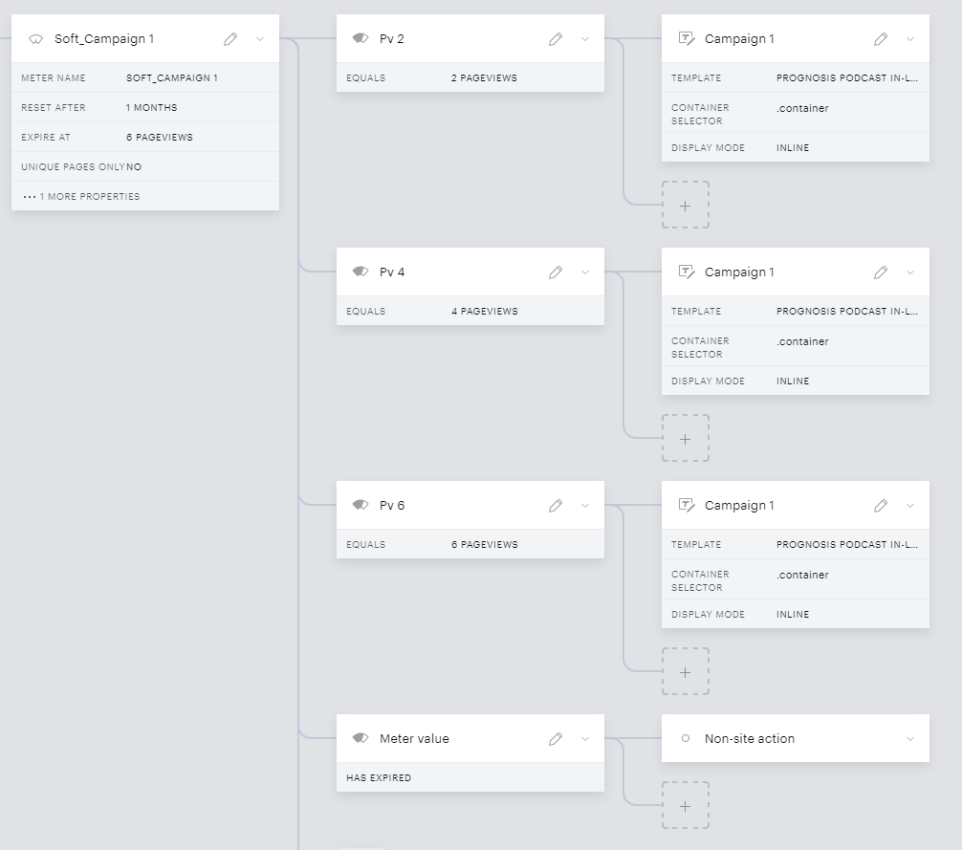
You can use two branches. In this case you "close" the sequence with the meter expiration:
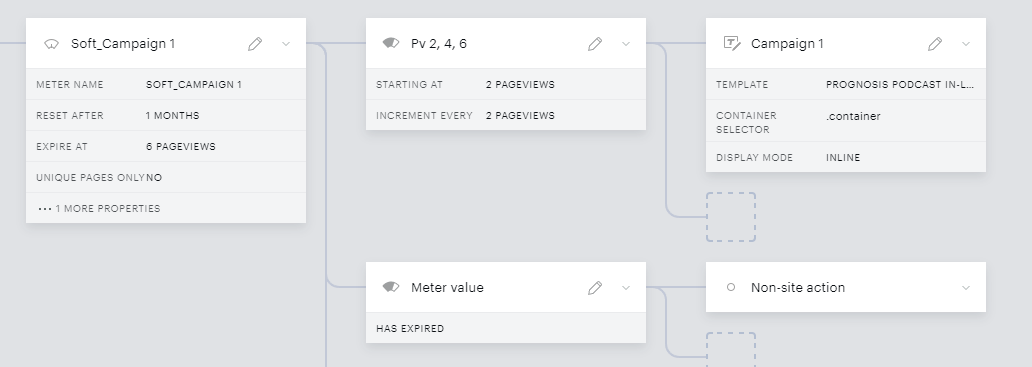
There are a few other situations where the Meter card allows you to be creative with metering. The same applies to sessions and visit days. You can find more in the Pageview Meter Settings part of the documentation.
-
When all of the above did not help, you might need to split one experience into multiple, to make a "horizontal cut".
Because Piano Composer checks each experience at each pageview, in the case of a too large experience it might make sense to split it into two or more smaller experiences. With this approach, you can save a lot of space in the experience.
The example below outlines such a split or a "horizontal cut". Imagine having a very complex targeting behind Segment 1 and Segment 2, in the screenshot represented by Meter 1 and Meter 2. You are approaching the size limit.
This experience is approaching the size limit. It has Segment 1 and Segment 2 in separate branches:
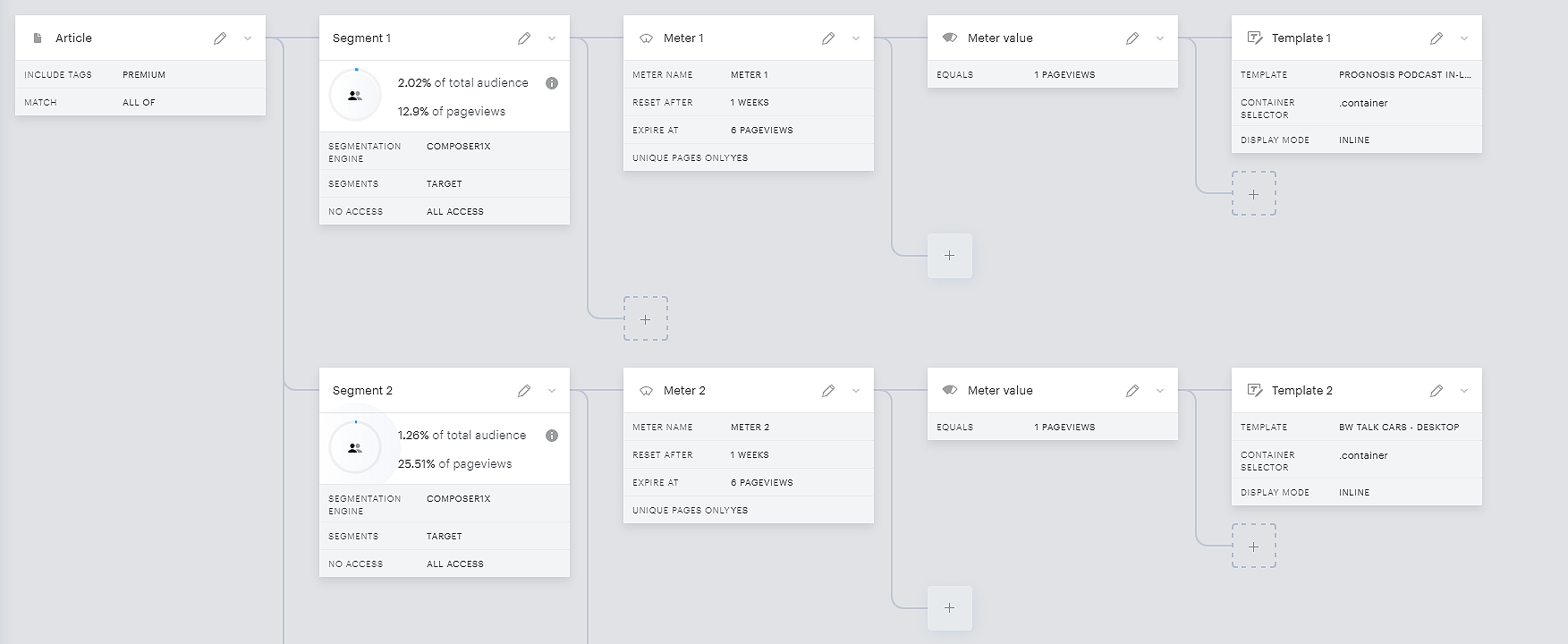
You can save almost 50% by splitting the branches into two separate experiences.
The first one with Segment 1:

... and the second one with Segment 2:
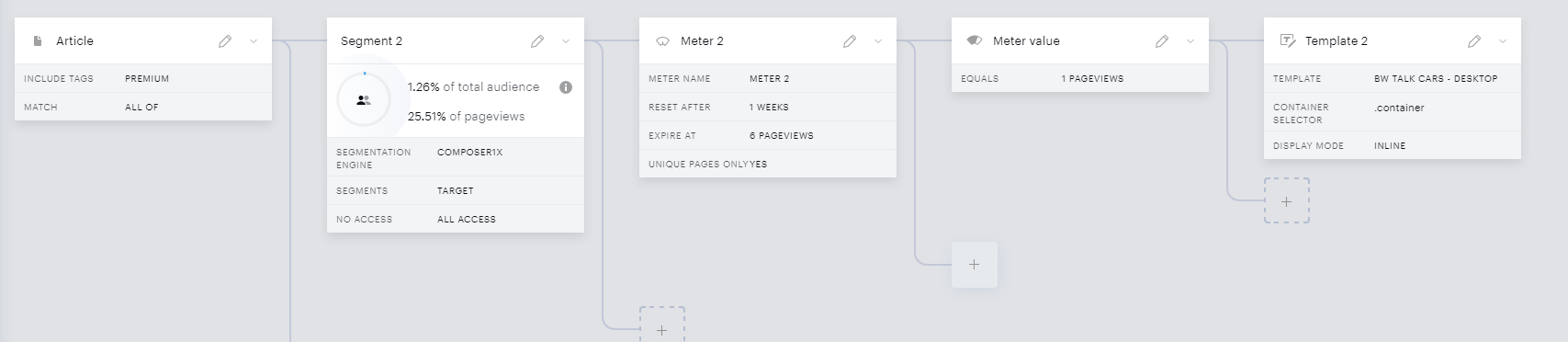
Keep in mind, that you need to keep the Pages card the same, so they are targeting the exact same parts of your site, for example articles. By this, you can create any number of smaller experiences. It's practical to use the "Duplicate experience" feature which allows you to create a copy of the experience with a single click.