
Use the Show offer card to define when a user in your experience is shown an offer. The card combines (1) an offer (with terms or upgrade options), (2) a template that controls design, language, and functionality, and, if applicable, (3) a checkout flow that tailors the checkout or upgrade process.
There are three offer types you can show with this card. The settings are similar in some ways and different in others:
-
Purchase offer
-
Upgrade/downgrade offer (upgrade-option-based)
-
Legacy upgrade/downgrade offer (checkout-flow-based)
Purchase offer
-
In the Title of card field, enter the card name.
-
Select offer type: Purchase offer.
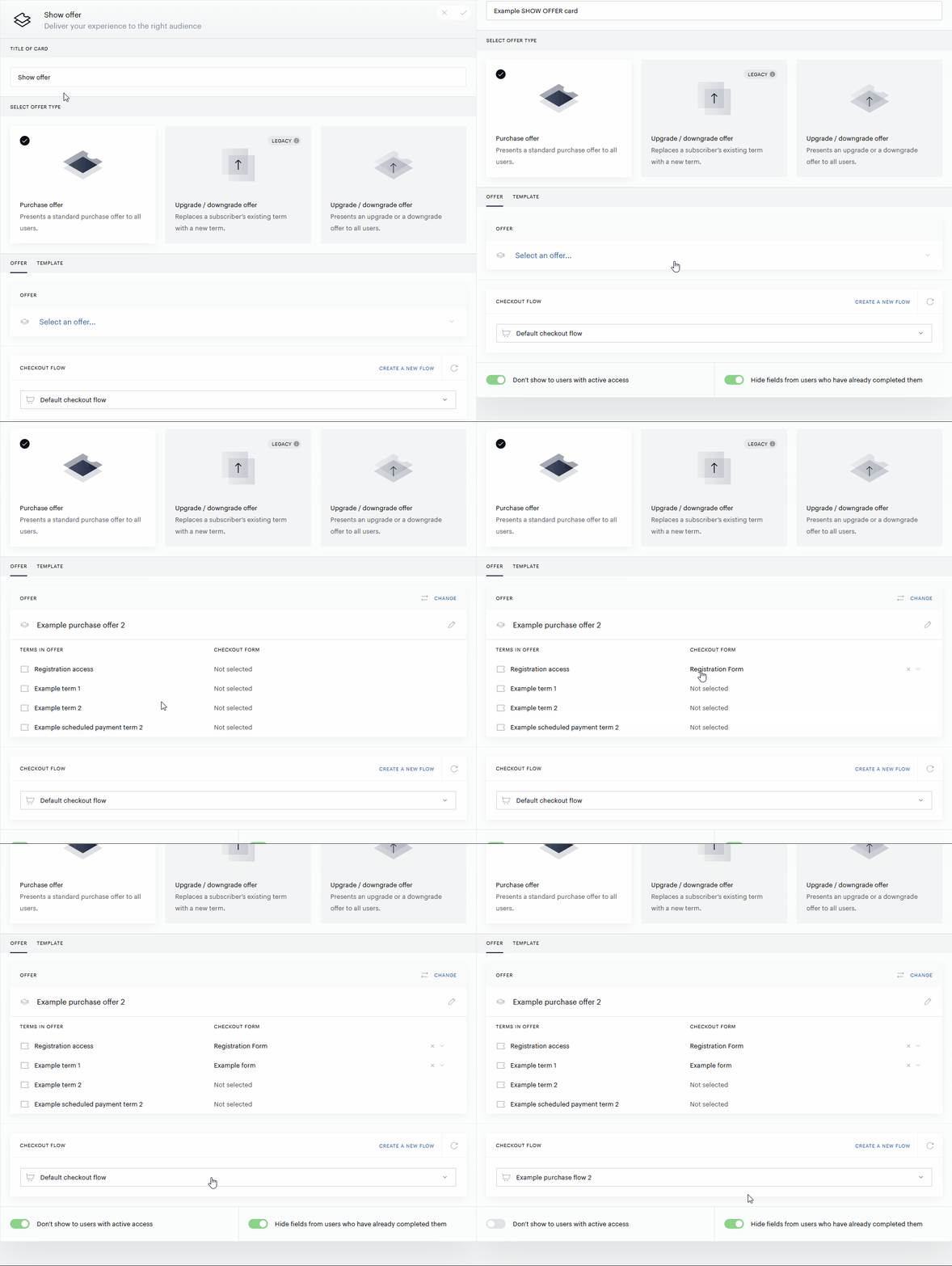
Offer tab
-
In the Offer field, select a purchase offer to show to the user. The terms of this offer will be listed. You can reopen the dropdown by clicking Change or edit a selected offer by clicking the pencil icon.
3.1. For Identity Management-powered applications: For each term on the list, you can select a Checkout form to be shown to the user before the checkout proceeds. The forms are configured via custom fields.
3.2. If the offer consists of exactly one payment or registration term, a Direct checkout toggle is displayed. When ON (default), the Show offer action will bring the user directly to the term checkout (for a payment term) or the Identity Management registration form (for a registration term), without showing an offer modal.
-
Select the Checkout flow specifying the payment providers, passwordless login, and single-step checkout settings. You can leave Default checkout flow or select one you have configured in the Checkout flows menu. One checkout flow can be reused in multiple Show offer cards.
-
Set the Don't show to users with active access toggle. When ON, users who currently have access to at least one resource connected to this offer will not see it. You can also exclude users with active access by selecting to ignore users with particular resources in the User Segmentation card. Switch to the Template tab.
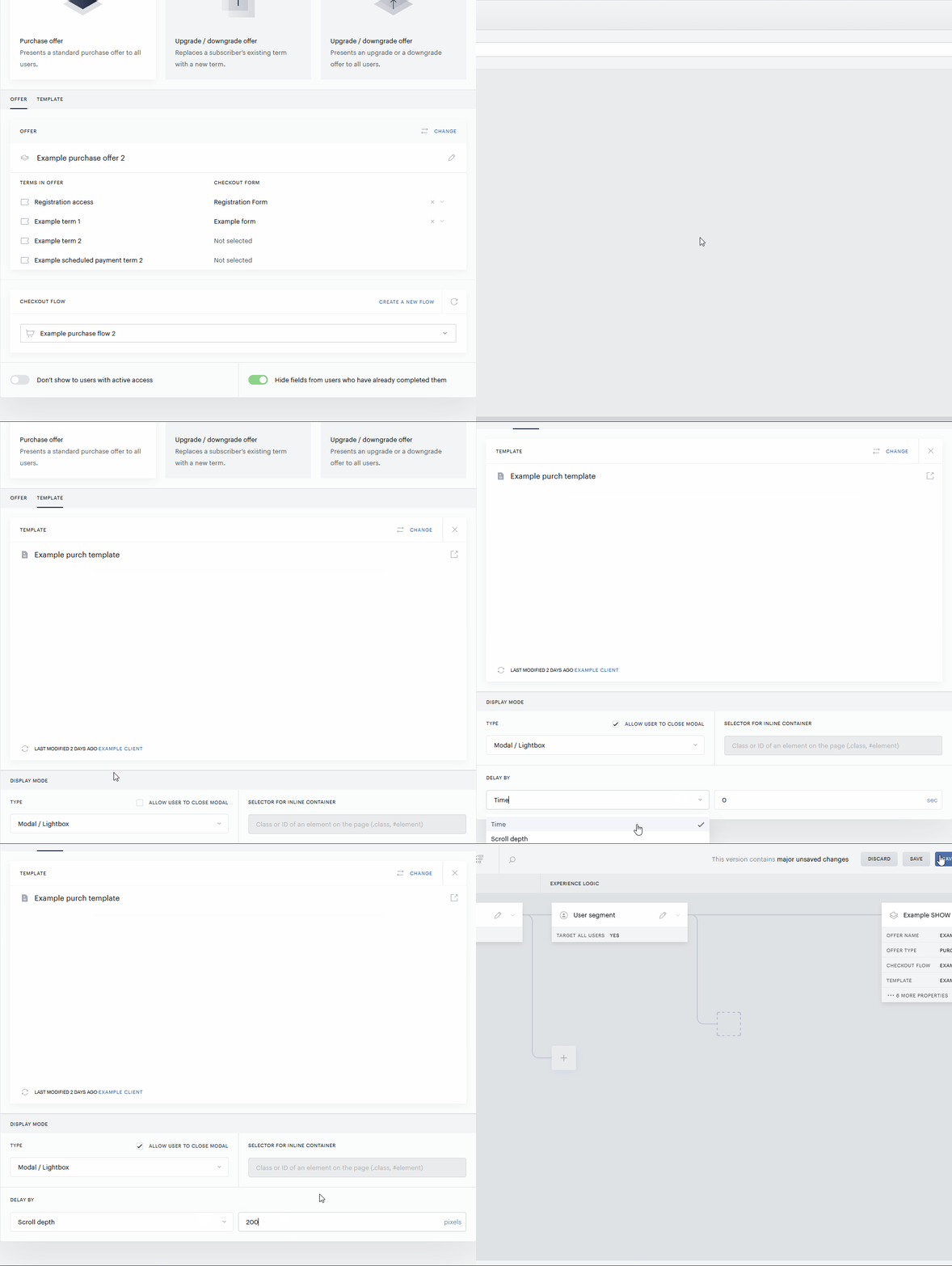
Template tab
-
Click Select a template or a variant from your library and select a Purchase offer template.
-
Scroll down and define the Display mode parameters.
7.1. Type: choose between Inline on page (embedded within the page) and Modal/lightbox (an overlay that obscures content on the page).
7.1.1. Allow user to close modal: available for the Modal/Lightbox option. If deselected, the user must complete checkout for one of the terms before continuing to consume content on this page or any other pages where this experience is running. Clients often use A/B testing to determine whether a dismissible or non-dismissible offer is more effective for a given offer.
7.1.2. Selector for inline container: If you present your offer Inline on page, specify the CSS selector of the container you created for the offer. For example, to use <div id="content-container"></div>, enter #content-container in the Selector for inline container field. To use a class like <div class="housead"></div>, enter .housead. The field supports all selectors recognized by jQuery.
7.2. Delay by: Delay the offer by a set number of seconds or trigger it when the user reaches a specific scroll depth. For inline offers, scroll depth determines when the offer appears, not where; the offer always renders inside the specified container. You can view conversions and micro-conversions for this template in the Composer Conversions report. The current limit for the list of available templates displayed is 2000.
-
When ready, click Save in the top right corner. The card with its settings listed will appear on the canvas.
The Template tab may also display settings for Lightweight templates:
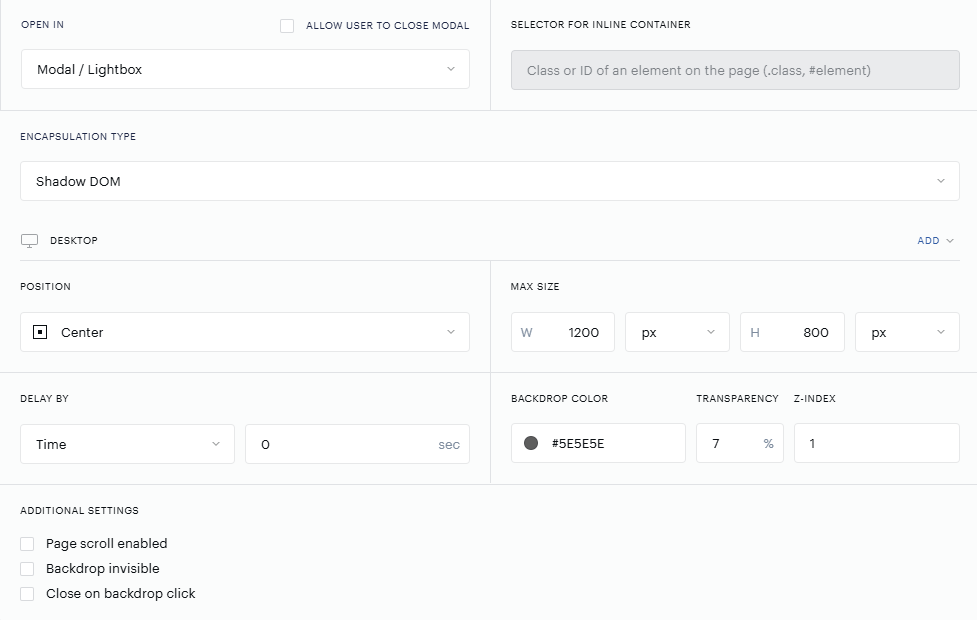
These settings only appear if the Lightweight templates feature is enabled on your application. Once enabled, the settings are visible for all templates, but they only take effect when a Lightweight template is selected. If you select a classic template, the lightweight settings remain visible but are greyed out, since classic templates use their own predefined styling and do not support these options.
To use the lightweight template settings, first select a Lightweight template from the template list. The settings will become editable, and any changes you make apply to the selected template only.
For more details about adding a Lightweight template or offer follow this link.
Upgrade/downgrade offer (upgrade-option-based)
-
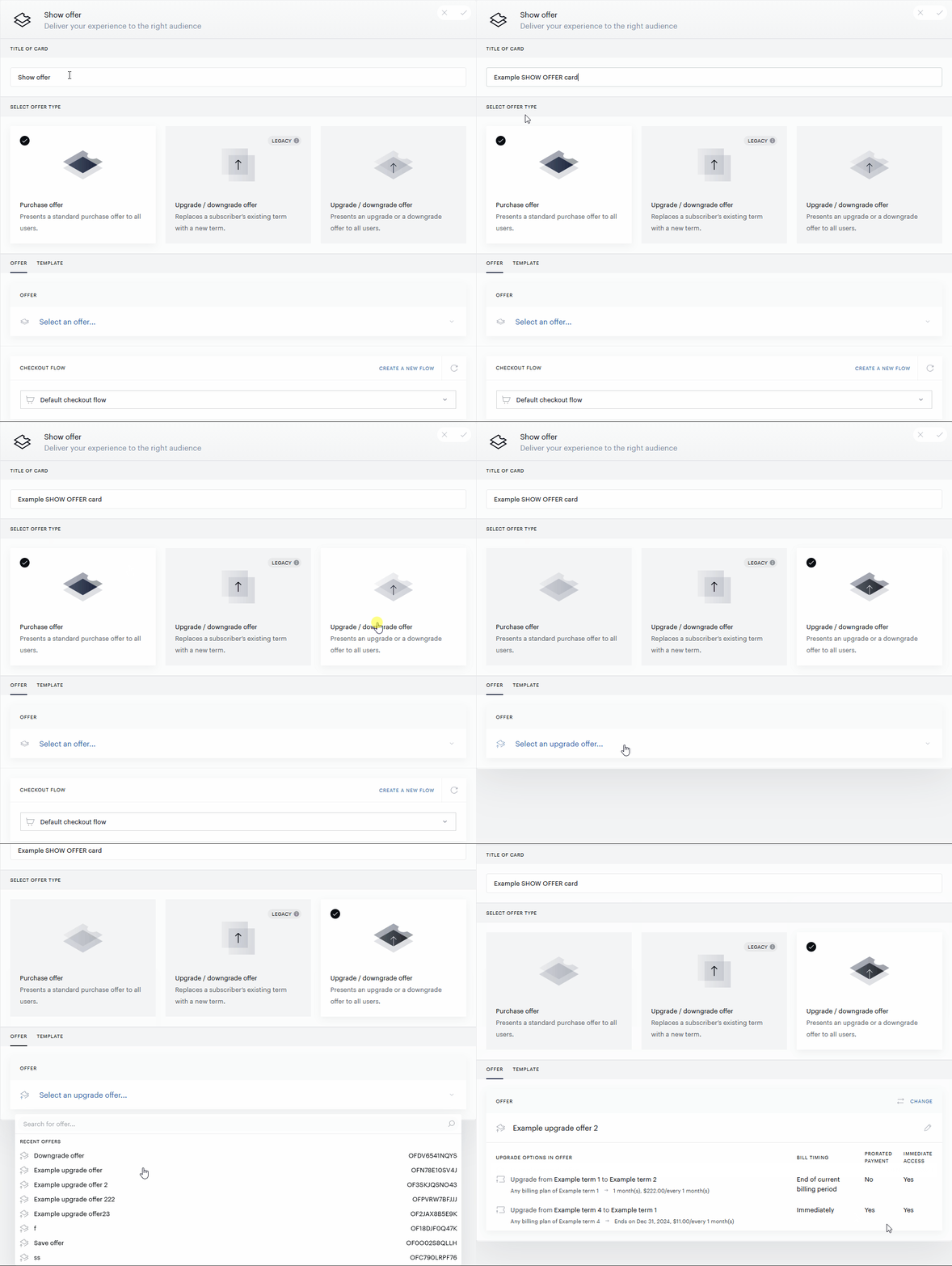
In the Title of card field, enter the card name.
-
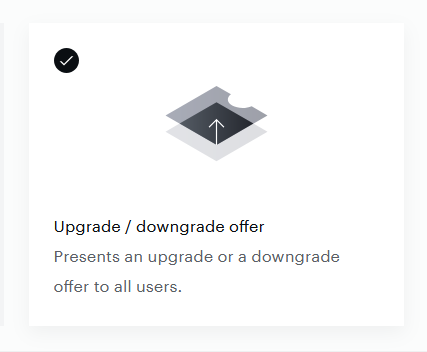
Select offer type: Upgrade/downgrade offer (without "Legacy").
Offer tab
-
In the Offer section, select an upgrade offer. The upgrade options of this offer and their settings will be listed. You can reopen the dropdown by clicking Change or edit a chosen offer by clicking the pencil icon.
Template tab
-
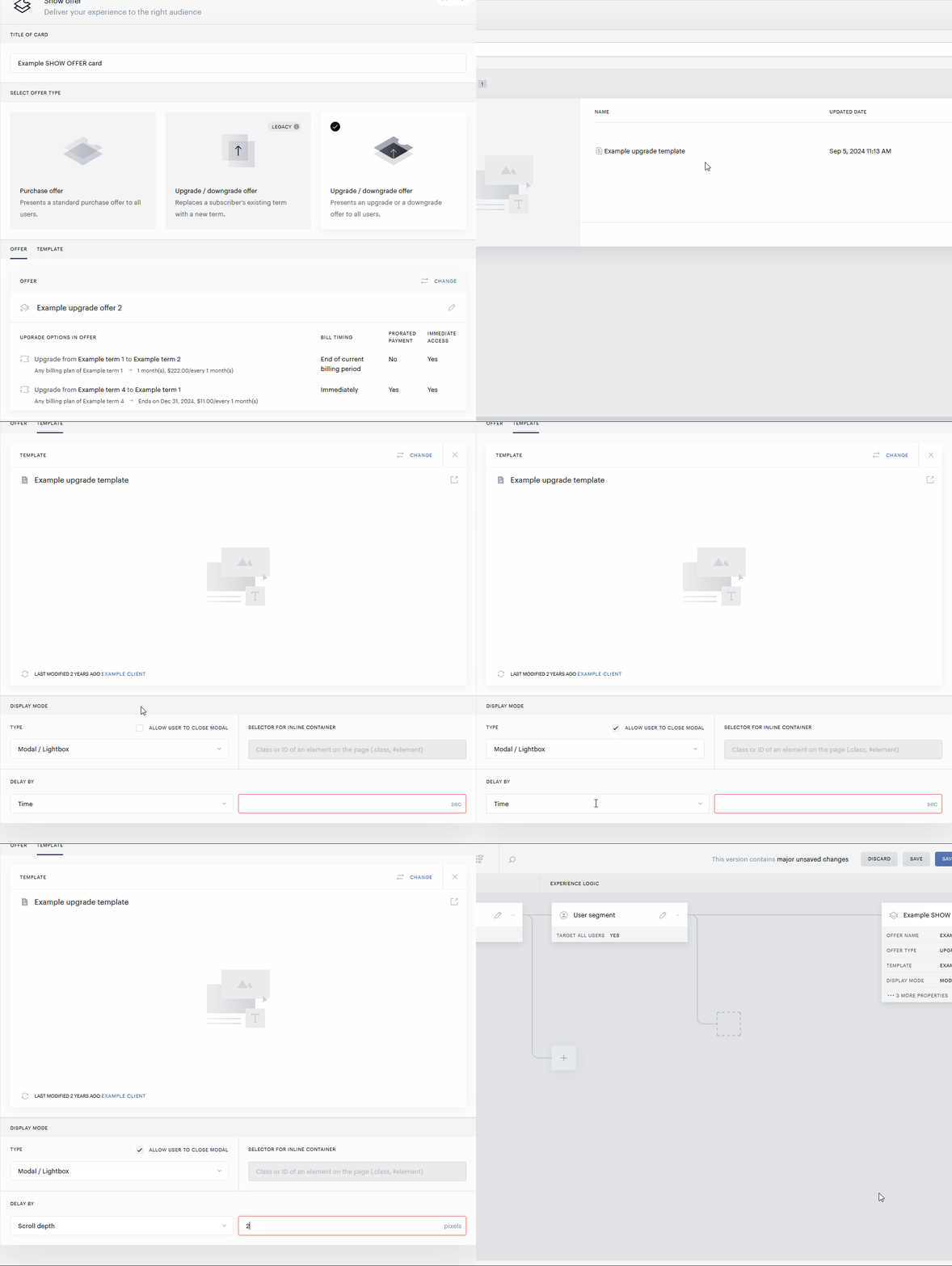
Click Select a template or a variant from your library and select an upgrade offer template.
-
Define the Display mode parameters as described for the purchase offer above.
-
When ready, click Save in the top right corner. The card with its settings listed will appear on the canvas.
For adding a Lightweight template or offer, follow this link.
Legacy upgrade/downgrade offer (checkout-flow-based)
-
In the Title of card field, enter the card name.
-
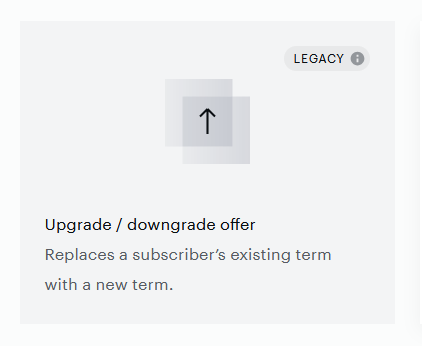
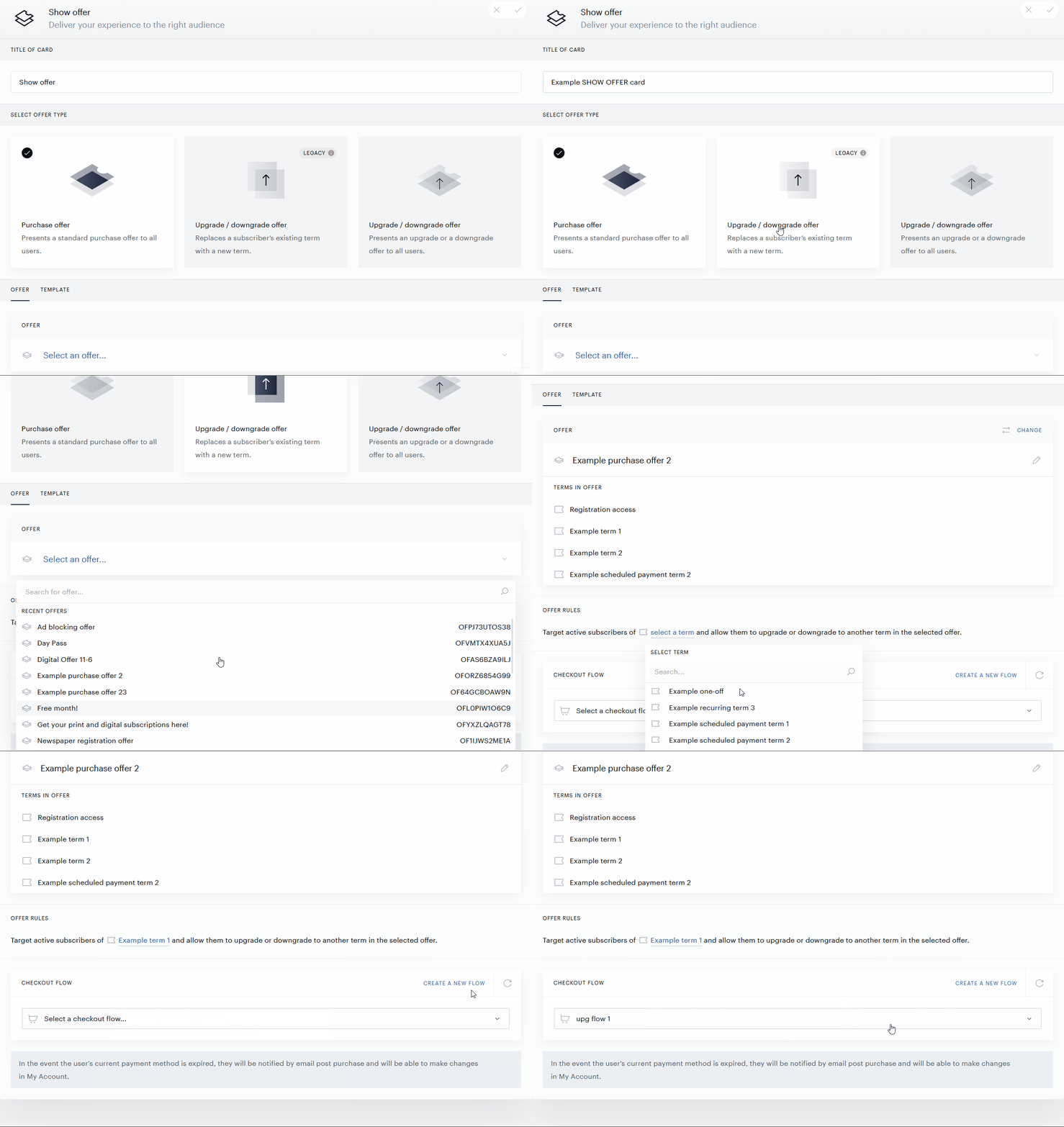
Select offer type: Legacy upgrade/downgrade offer.
Offer tab
-
In the Offer field, select a purchase offer that contains a set of target terms (
term_to) for your upgrade. The terms of this offer will be listed. Make sure all the terms in the offer comply with the upgrade limitations. You can reopen the dropdown by clicking Change or edit a chosen offer by clicking the pencil icon.
3.1. If the offer consists of exactly one payment term, a Direct checkout toggle is displayed. When ON (default), the Show offer action will bring the user directly to the term checkout without showing an offer modal.
-
Offer rules: Select a term to be the source term (
term_from) of the upgrade (consider the upgrade limitations). The Show offer action will work for all active subscribers of this term who are going through this experience.
-
Create or select an upgrade/downgrade checkout flow specifying your upgrade settings. One checkout flow can be reused in multiple Show offer cards. Switch to the Template tab.
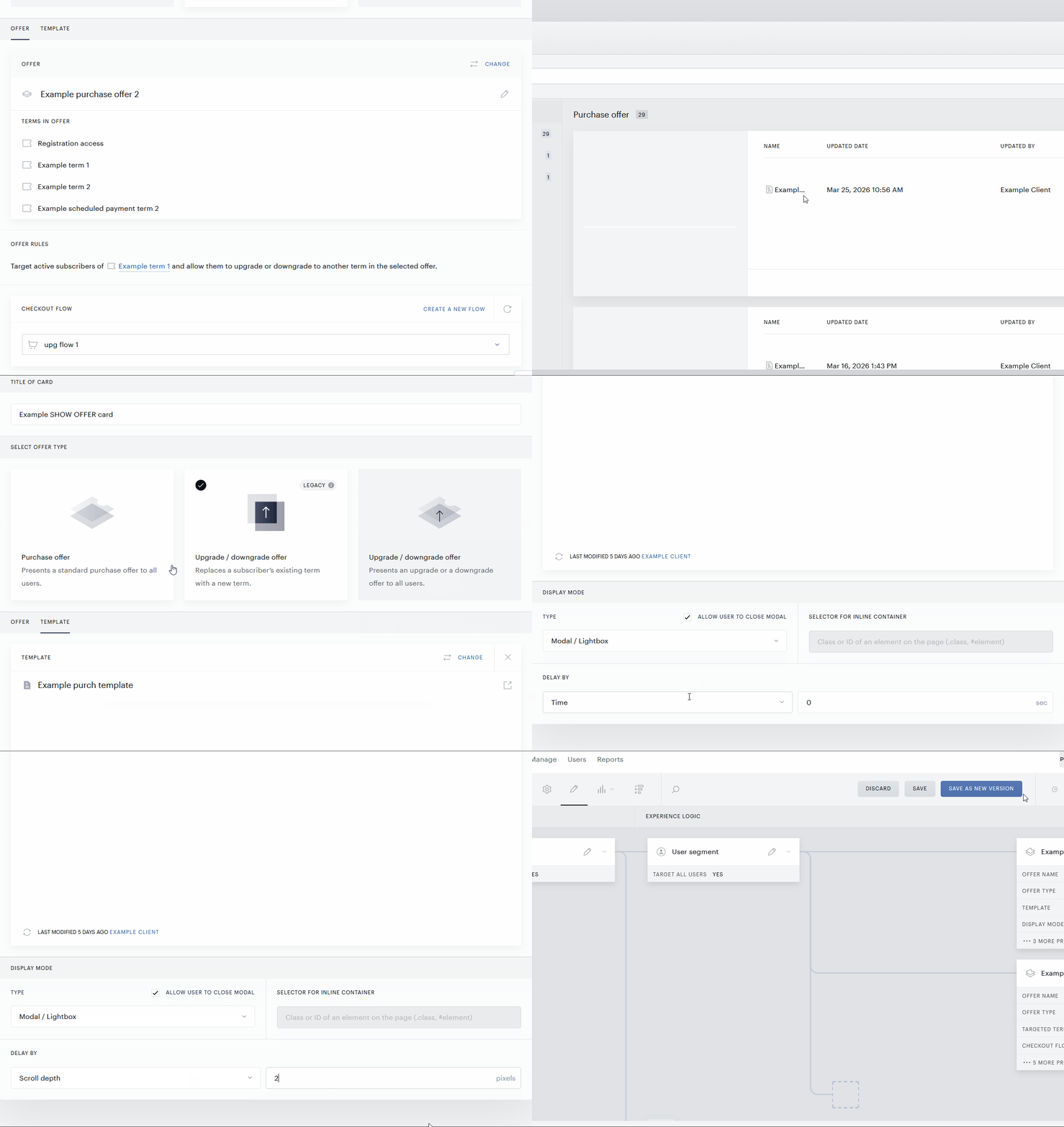
Template tab
-
Click Select a template or a variant from your library and select a purchase offer template.
-
Define the Display mode parameters as described for the purchase offer above.
-
When ready, click Save in the top right corner. The card with its settings listed will appear on the canvas.
For adding a Lightweight template or offer, follow this link.